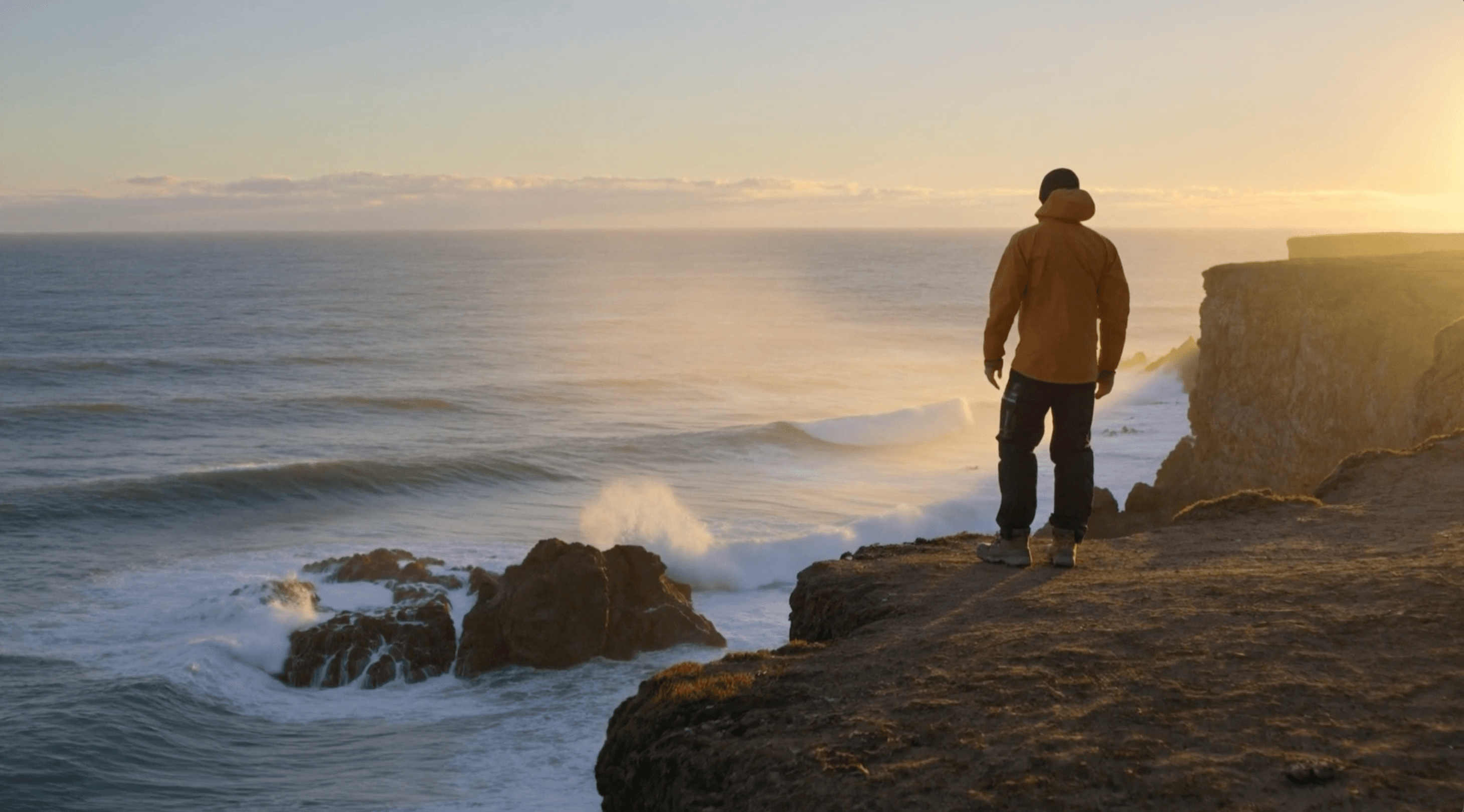
Direct a scene from a written brief
Describe the subject, a visible action, the camera path and a final hold. Text to video lets you explore a scene without preparing an image first. Keep the action focused so the shot has time to develop.
Kling · Video 3.0 Omni
Shape a short scene from a written brief or a chosen opening image. Use kling-o3 on Astorie to direct an action, plan its final frame and add native sound, then take the configuration into the canvas to generate and review your shot.
Create a shot from text or image anchors, direct its motion and add native sound.
Describe the subject, a visible action, the camera path and a final hold. Text to video lets you explore a scene without preparing an image first. Keep the action focused so the shot has time to develop.
Use Image to video when a chosen still should establish the opening. First and last frame adds an ending image for a more directed transition. Describe the movement between those anchors and review how details change through the take.
Enable Generate audio to request ambience, sound effects or speech alongside the moving image. Tie each sound to an event in the scene. Review the exported audio and any speech timing before using the take in a finished edit.
Create your first kling-o3 shot in three steps.
Use Open in canvas to start a project with the configured model. Sign in if prompted, then check that the video node uses kling-o3 and choose Text to video, Image to video or First and last frame. Supply the images required by the selected mode.
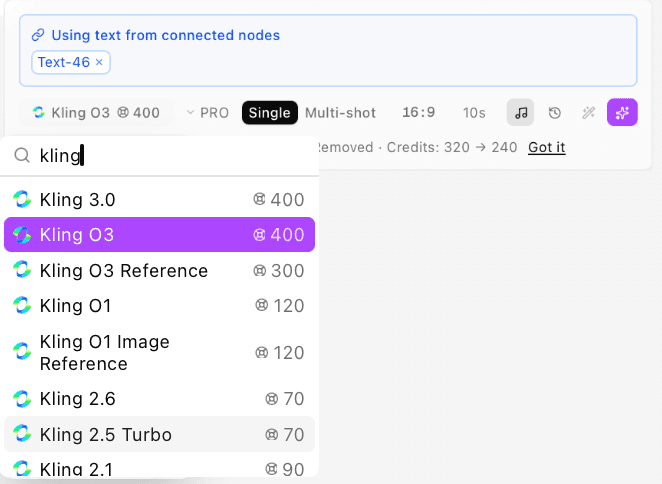
Enter a prompt in the video node or connect a text node. For a two-frame shot, add your images under First & Last Frames and check their Start and End order. Choose the available quality, shot mode and duration, then review the credit estimate and any automatic parameter adjustments.
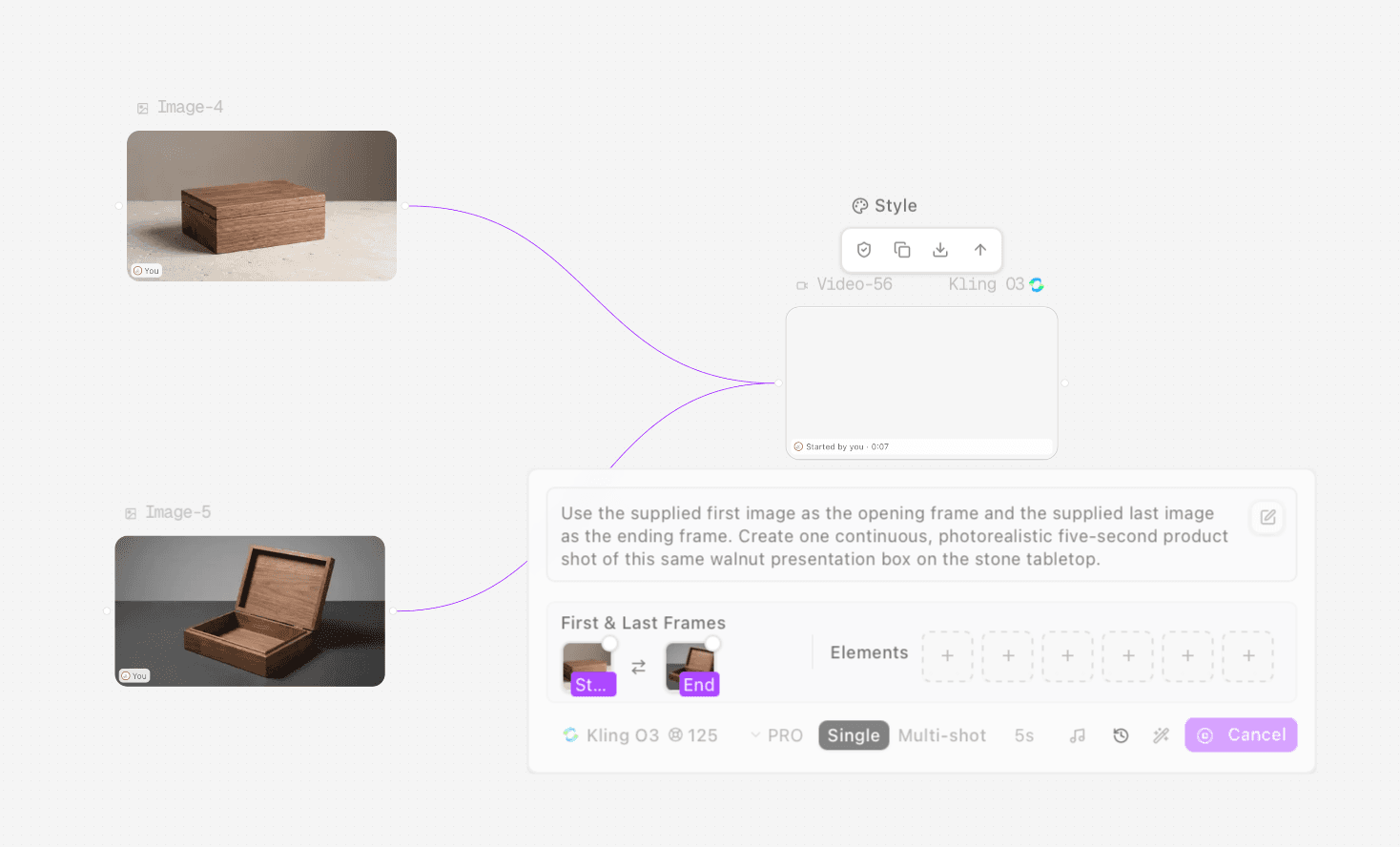
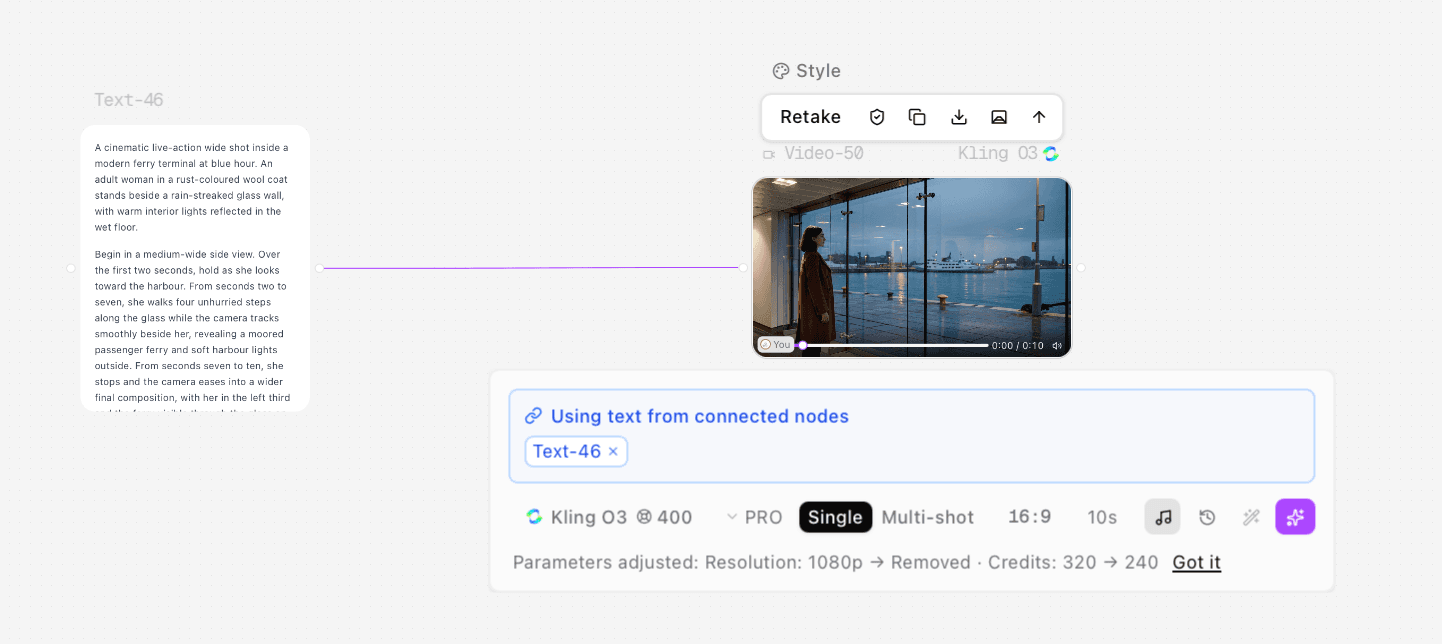
Generate from the video node, then play the complete take. Check the movement, reference details and any sound. Revise the brief or settings where needed, then download an approved take for your edit.
Explore location reveals, practical product motion and scenes with a focused soundscape.
Test how a slow reveal establishes a place before the story begins. Keep a foreground object, a clear camera route and a final composition so the take can guide location, lighting and blocking decisions.
Develop an ad concept around one readable mechanism rather than a long list of claims. Show the object at rest, one deliberate action and a closing hold. Review hands, hinges and product geometry before taking the concept further.
Build an atmosphere study around a visible event and its acoustic response. Use native audio for the soundscape, then assess the rhythm and balance before deciding what belongs in the final mix.
Separate the base model controls on Astorie from the wider Video 3.0 Omni family.
| Model and scope | Kuaishou Kling VIDEO 3.0 Omni. This page covers the base Astorie model ID kling-o3; reference generation and video editing use separate model IDs.Source ↗ · 2026-11-15 |
|---|---|
| Input modes on Astorie | Text to video, Image to video, and First and last frame. Supply an opening image for image-led generation and an ending image for the matching two-frame mode.Source ↗ · 2026-11-15 |
| Aspect ratios and duration | The current base O3 Generator offers 16:9, 9:16 and 1:1, with durations from 3 to 15 seconds in one-second steps.Source ↗ · 2026-11-15 |
| Resolution and quality | The page Generator lists 720p, 1080p and 4k resolution requests and quality tiers. The canvas may adjust unsupported parameters. If a resolution request is removed, check the final canvas settings and the pixel dimensions of the delivered file.Source ↗ · 2026-11-15 |
| Native audio | The provider documents native audiovisual generation; Astorie offers a Generate audio switch for base O3. Review speech, effects and timing in the exported take.Source ↗ · 2026-11-15 |
| Wider Omni family | The provider also documents image and element references, video inputs and storyboarding. On Astorie, O3 Reference, O3 Video Edit and O3 Video Reference are separate variants; do not assume these workflows are part of the base model.Source ↗ · 2026-11-15 |
| Output verification | Selected resolution and quality labels describe the requested configuration. Check the delivered file for actual pixel dimensions, clip duration, continuity and sound before production use.Source ↗ · 2026-11-15 |
| Storyboard scope | The provider documents multi-shot storyboarding. In the Astorie canvas, Single and Multi-shot are separate shot-mode controls. Choose Single for a continuous take and check the available storyboard options before planning multiple shots.Source ↗ · 2026-11-15 |
Start with a written brief for exploration, or supply images when the composition already exists.
| Dimension | Text to video | Image-led video |
|---|---|---|
| Starting material and directionSource ↗ · 2026-11-15 | Start with a written scene. Define the subject, action, camera path and ending; the model invents the opening composition. | Supply an opening still, or start and end images. Describe what should move between the visual anchors; review detail drift and the closing frame. |
| What to reviewSource ↗ · 2026-11-15 | Check whether the generated scene, action and timing communicate the intended beat. | Check how the take follows the supplied composition, where details drift and whether the ending reaches the intended visual anchor. |
Use each take to answer a specific staging, motion or sound question.
Start creating with the most advanced AI models. No credit card required for the free plan.
Try everything in Pro for 3 days
Consider another model when the next brief calls for a different generation workflow.
Build a script, shot list and edit around the takes you approve.
Find the right input, plan the output and understand how generation works.
kling-o3 is the base Kling VIDEO 3.0 Omni model on Astorie. Use it for text-to-video, image-to-video and first-and-last-frame generation. O3 Reference and the O3 video editing variants are separate model choices.
Yes. Choose Image to video for an opening image, or First and last frame for paired image anchors. Describe the intended action between them. The generated motion and intermediate details still need review.
No. Open in canvas creates a project and video node with your selected configuration. Generation and credit use happen in the canvas when you start a run. If you are signed out, sign in or register first; the configuration is retained.
Yes. Enable Generate audio and describe the speech, ambience or effects the scene needs. Review the delivered sound and any dialogue timing before approving the clip.
Choose the appropriate O3 Video Edit or O3 Video Reference variant for an existing-footage workflow. The base model modes described here use text and image inputs. The wider Omni family capability list does not mean every task is available under kling-o3.
Check the estimate for your chosen model and settings, then review the price shown in the canvas before generating. Duration, output settings and your plan can affect the cost. The plans section links to current Astorie pricing.
Choose your starting input, describe the action and take kling-o3 into the Astorie canvas.