

10 CapCut Alternatives Compared for 2026
The best CapCut alternatives depend on the kind of editing you do. DaVinci Resolve is the strongest free option for serious desktop work, while Clipchamp is the easiest browser replacement for basic cuts and 1080p exports. Descript suits spoken video, VEED works well for browser-based teams, Premiere and Final Cut Pro provide professional timelines, Filmora offers a gentler desktop upgrade, InShot stays mobile, and Shotcut is free and open source.
Key takeaways
DaVinci Resolve is the strongest free CapCut alternative for professional desktop editing.
Clipchamp is the easiest browser-based option for basic edits and free 1080p exports.
Descript is best for spoken video, while VEED is stronger for browser collaboration, captions, and translation.
Astorie generates original AI source footage but does not replace a timeline editor.
Choose an alternative based on the material, device, collaboration needs, and export requirements of a normal project.
CapCut Alternatives at a Glance
CapCut still combines mobile speed, effects, captions, templates, and a familiar timeline unusually well. The best alternative is the one that fixes a repeated problem: deeper finishing, easier collaboration, transcript editing, a different device, or a better way to create source footage.
| Need | Best pick | Why |
|---|---|---|
| Professional free desktop editing | DaVinci Resolve | Deep editing, color, effects, audio, and delivery in one application |
| Simple browser editing | Clipchamp | A familiar timeline and free watermark-free exports up to 1080p |
| AI-generated source footage | Astorie | Connected prompts, references, model branches, and outputs |
| Talking-head and podcast video | Descript | Transcript-led editing makes spoken revisions fast |
| Browser collaboration and captions | VEED | Recording, subtitles, translation, review, and cloud access |
| Professional paid editing | Adobe Premiere | Mature timeline, ecosystem, plugins, and collaborative workflows |
How We Compared These CapCut Alternatives
We used the same six criteria for every product: timeline or editing depth; caption and audio tools; device and browser access; collaboration; export limits; and total cost for a normal project.
We checked current official product and pricing pages on August 21, 2026. For the two leading alternatives, we also completed the same 16:9 editing task in DaVinci Resolve and Clipchamp using the same two source clips, title, transition, audio adjustment, and 1080p export check. The Astorie section includes a generation run from our own workspace; the remaining products were reviewed from their current public interfaces and documentation.
| Criterion | Question |
|---|---|
| Editing depth | Can it handle the pacing, layers, color, and finishing the project needs? |
| Speech tools | How well does it manage captions, transcripts, voice, and cleanup? |
| Access | Does it work on the browser, desktop, or phone used in production? |
| Collaboration | Can teammates review, share assets, and avoid project-file handoffs? |
| Export | What resolution, watermark, format, and usage limits apply? |
| Cost | What does one finished project cost after seats, storage, and AI usage? |
Why People Look for CapCut Alternatives
- Long-form work needs stronger media management, color, audio, effects, or delivery controls.
- Interviews and tutorials are faster to edit from a transcript than by scrubbing a timeline.
- A team needs browser review, shared assets, subtitles, translation, or approvals.
- The difficult part is generating source footage rather than trimming footage that already exists.
- A creator wants a predictable free editor without paying for a large library of effects.
1. DaVinci Resolve: Best Free Professional Alternative
Best for: editors who need serious color work, audio post-production, effects, or long-form project control on desktop.
DaVinci Resolve combines editing, color correction, Fusion effects, Fairlight audio, and delivery in one application. The free version supports common workflows up to 60 fps and Ultra HD, making it a credible long-term editor rather than a temporary free substitute.
Trade-off: The depth brings a real learning curve and heavier desktop requirements. It is inefficient for someone who only wants to finish a quick vertical clip on a phone.
Pricing: DaVinci Resolve is free. Resolve Studio is sold as a one-time license; check the official store for the current local price.
The short test edit took about 40 minutes. Resolve's page-based layout—Cut, Edit, Fusion, Color, Fairlight, and Deliver—kept each stage focused, and imported clips arrived with video and audio on separate tracks, which made audio moves and replacements easier than in CapCut. The cost was setup time: each page has its own logic, and the Color page can feel excessive for a simple social clip. We also had to look up why a Cross Dissolve would not apply when dragged onto one cut; the in-app guidance did not make the cause obvious. The free version imposed no meaningful limitation in this test, and the final 1080p file exported without a watermark.
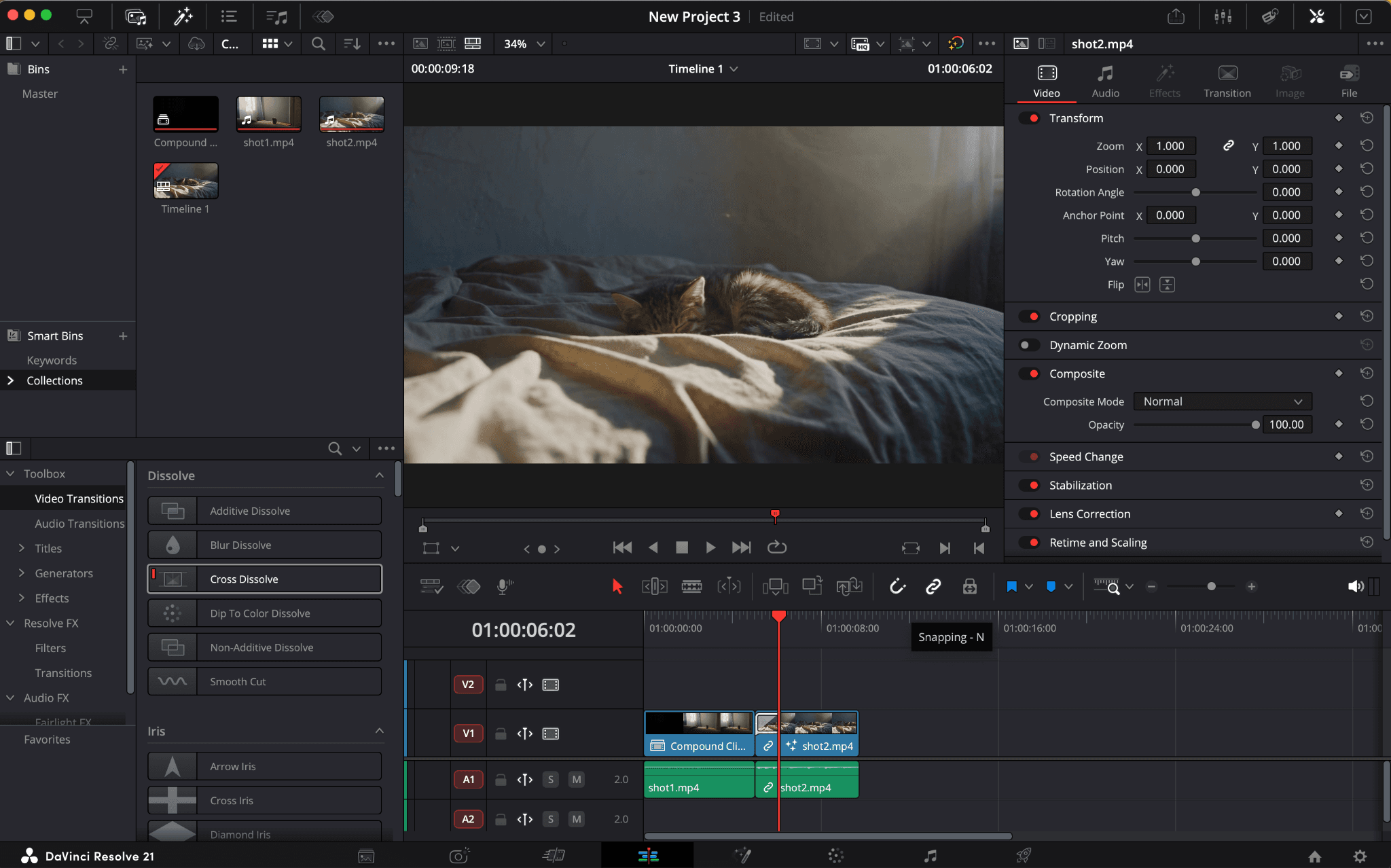
The DaVinci Resolve test used separate video and audio tracks on the Edit page before a 1080p export.
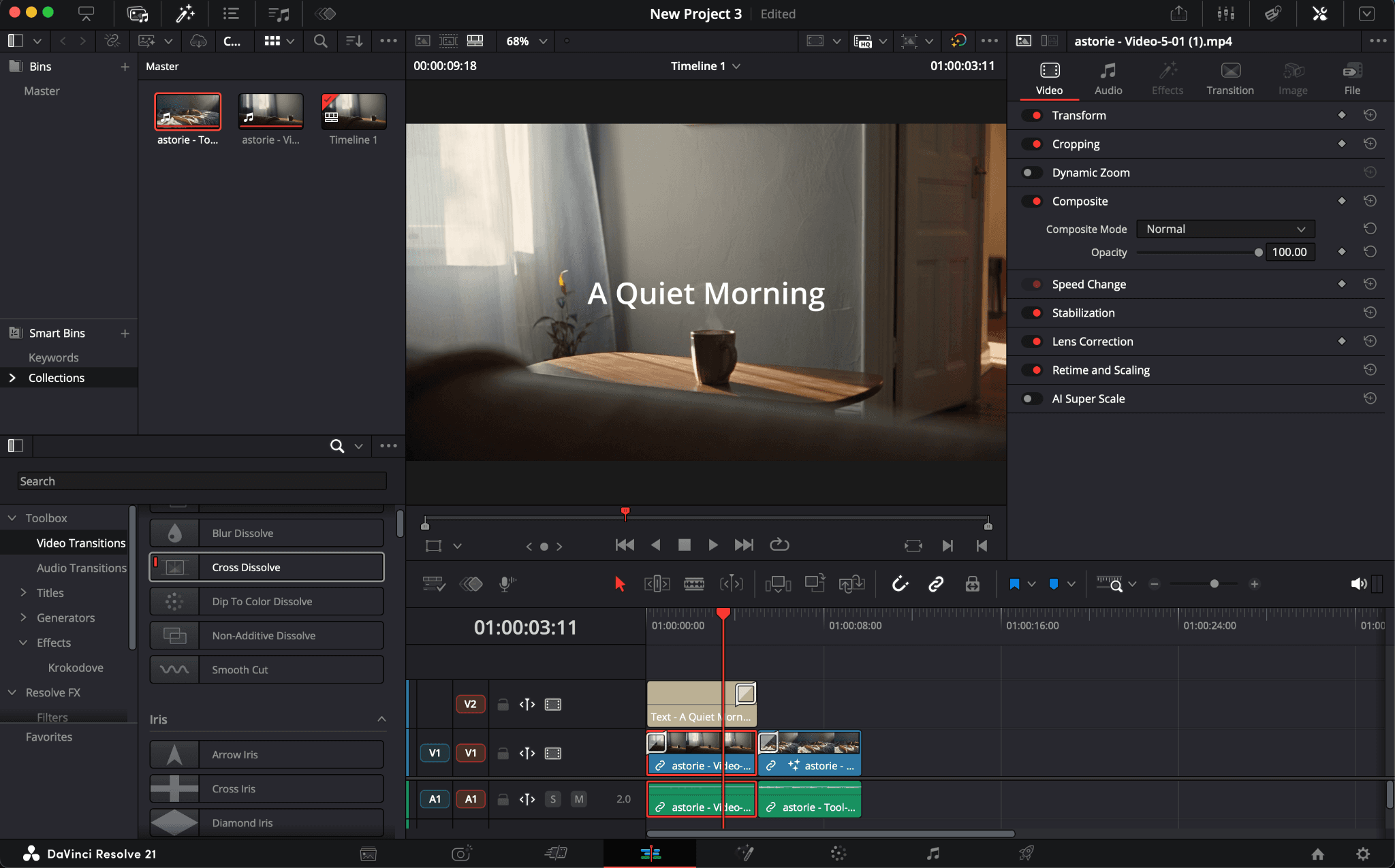
Test details: the Edit-page viewer and the separate video and audio tracks used before the 1080p export.
2. Clipchamp: Best Simple Browser Alternative
Best for: beginners who want to trim, resize, record, caption, and export conventional video in a browser.
Clipchamp is the closest straightforward replacement when CapCut is mainly a simple timeline. The free personal version supports watermark-free exports up to 1080p and includes core editing, recording, titles, subtitles, voiceovers, and silence removal.
Trade-off: Its effects and template culture are smaller than CapCut's, and it is not designed for demanding color, sound, or effects work.
Pricing: The personal free tier supports 1080p exports. Some premium features are included with eligible Microsoft 365 subscriptions; business pricing is separate.
The same short edit took about 15 minutes. Clipchamp's clean start screen and step-by-step route from import to titles and transitions made it the quickest of the two alternatives to learn. Its built-in stock video, music, graphics, and other assets were also easy to add, with much of the library available on the free tier.
The main constraint appeared in audio: the sound did not become a separate timeline track for direct repositioning; volume changes lived in the right-hand properties panel. The result exported at 1080p without a watermark, while 4K remained unavailable on the free plan. Compared with CapCut, Clipchamp felt simpler and less crowded, but it also offered fewer effects and fewer social-first shortcuts.
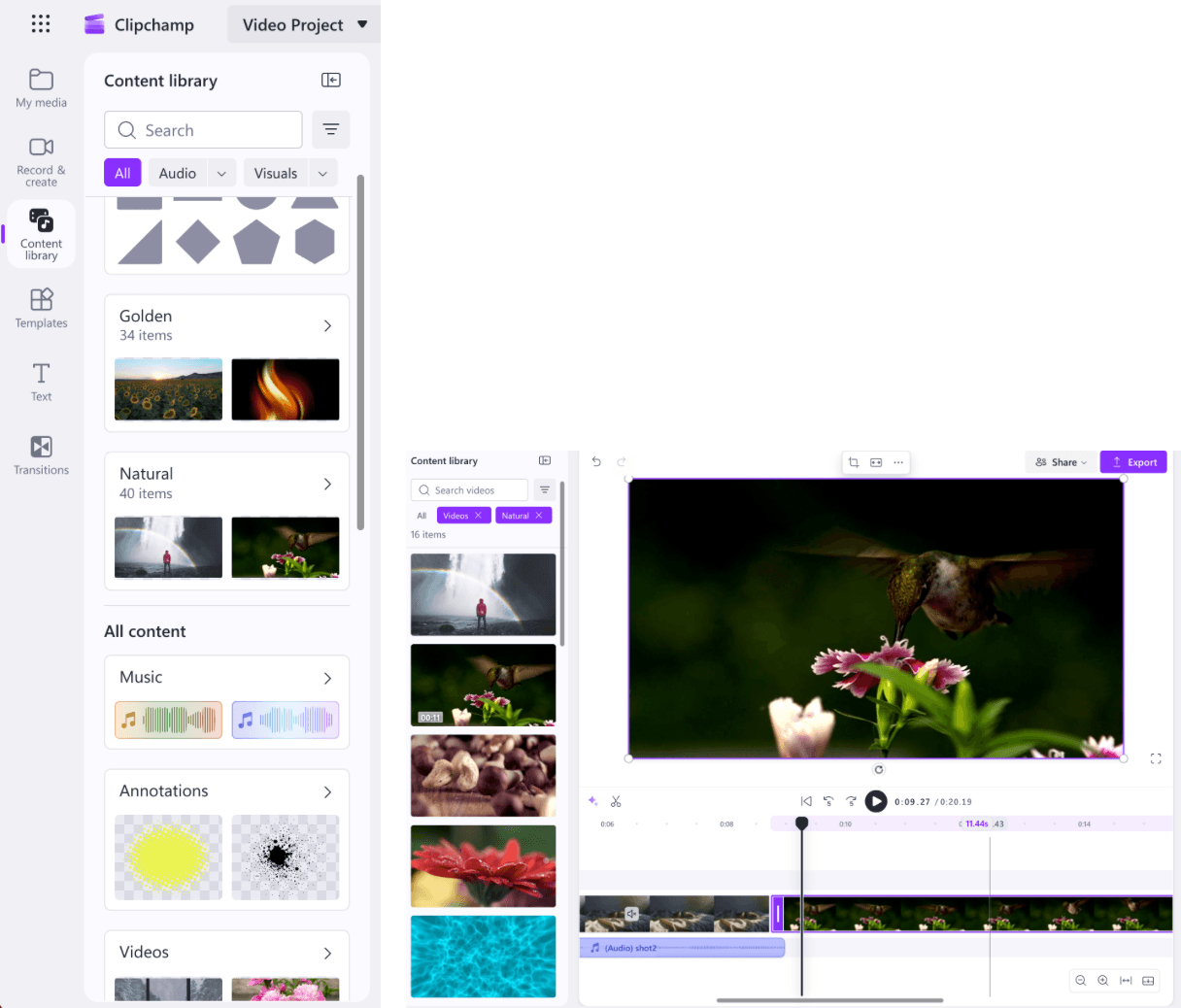
Test details: the stock library used to find media, and the browser editor with preview, timeline, and export control in one view.
3. Astorie: Best for Generating AI Source Footage
Best for: creators who need to generate footage before editing it.
Astorie is not a timeline editor. In our test, the same image and prompt produced comparable Seedance 2.5 and 2.0 clips. The 2.5 result looked more natural; 2.0 rendered faster.
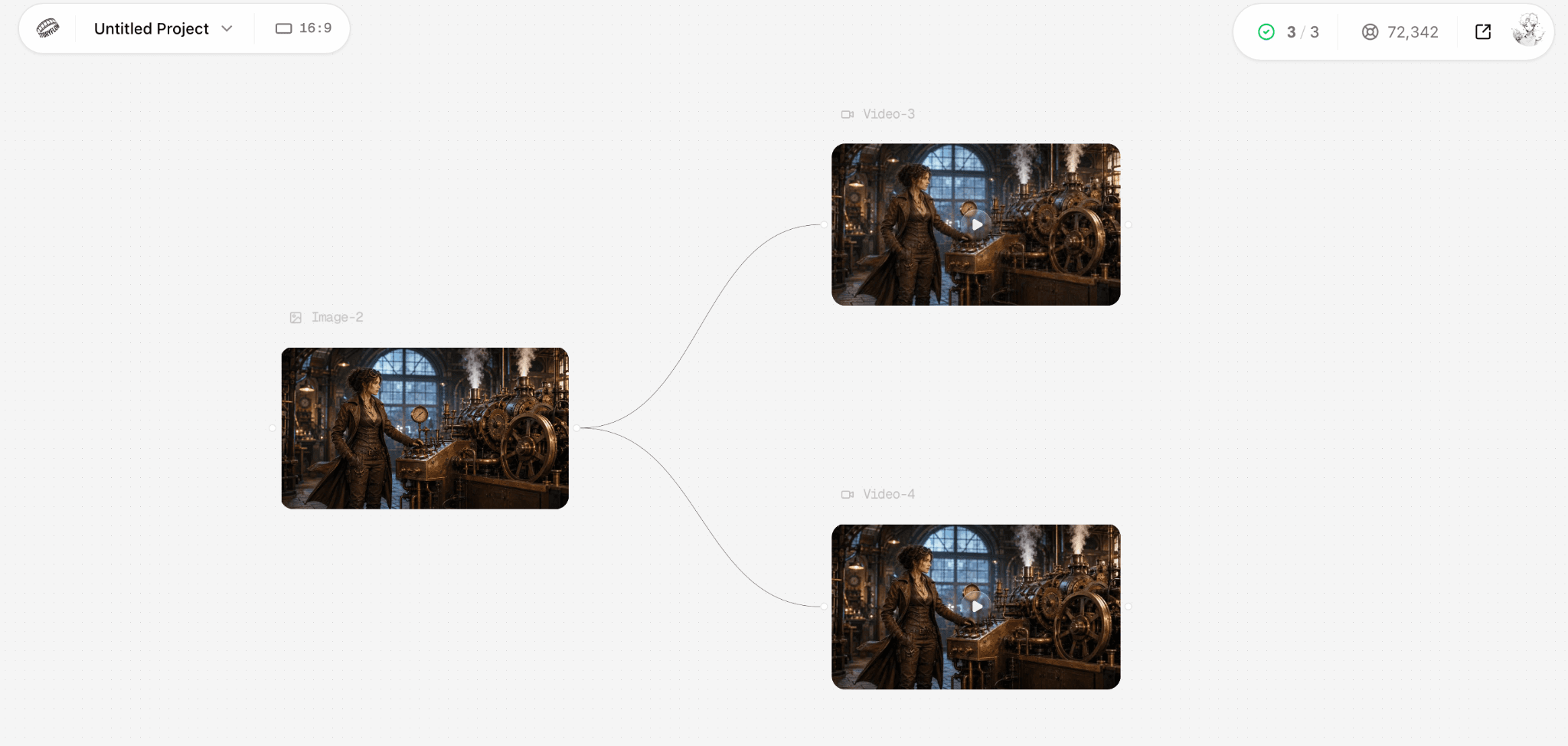
One source image feeds two comparable Seedance video generations in Astorie.
Trade-off: You still need an editor for trimming, captions, audio, effects, and publishing.
Pricing: A free plan is available; paid generations consume credits.
4. Descript: Best for Spoken Video
Best for: interviews, podcasts, screen recordings, courses, and talking-head content.
Descript turns recorded speech into editable text. Removing a sentence from the transcript cuts the corresponding media, which is faster than a conventional timeline for tightening explanations, removing filler, and repurposing long conversations.
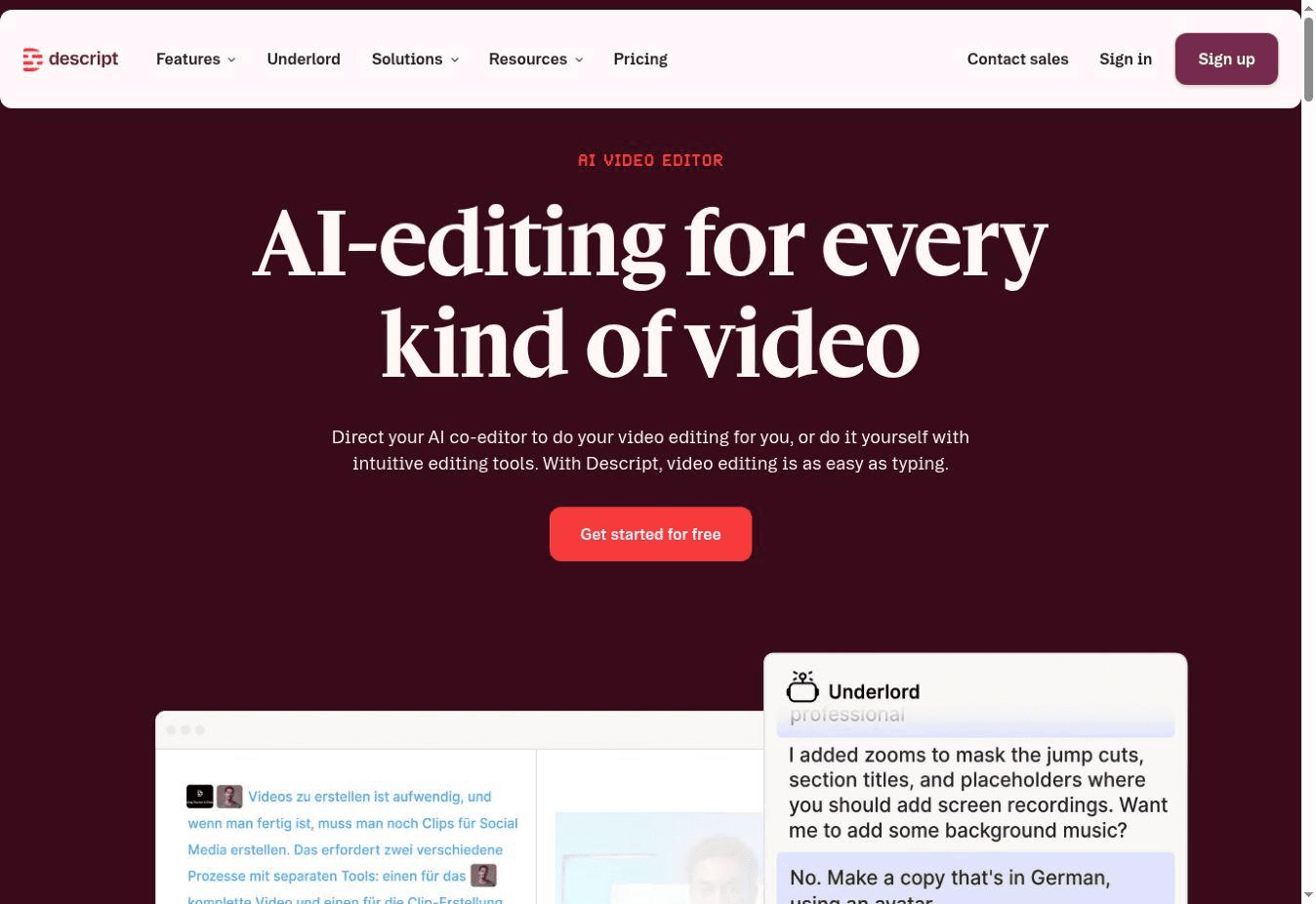
Descript's official page centers the product on text-based video editing and an AI co-editor.
Trade-off: Action-led edits, music-driven pacing, and layered motion design still feel more natural in a traditional timeline.
Pricing: A free plan is available; paid plans started at $16 per month when checked.
5. VEED: Best for Browser Teams, Captions, and Translation
Best for: teams that record, edit, caption, translate, review, and repurpose video in the browser.
VEED brings editing, recording, subtitles, transcription, translation, dubbing, brand tools, and AI creation into one online workspace. It makes the most sense when cloud access and language versions are part of the normal process rather than occasional extras.
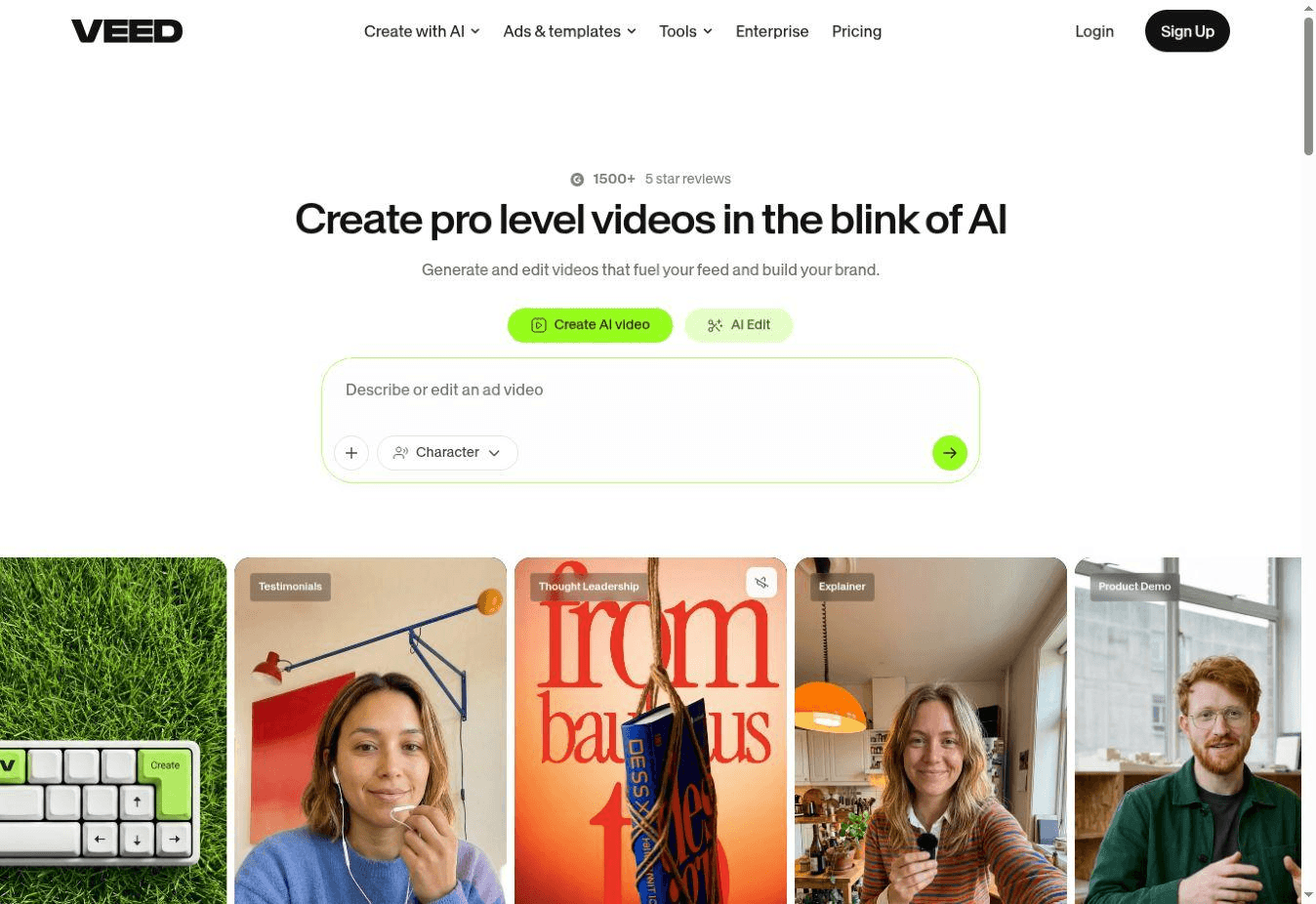
VEED's official page combines AI creation with browser-based editing for branded video.
Trade-off: Large projects depend on upload speed and browser performance, and CapCut remains faster for many solo, effects-heavy social edits.
Pricing: VEED offers free and paid plans. Pricing varies by tier, region, billing cycle, and team size.
More CapCut Alternatives
6. Adobe Premiere: Best for Professional Ecosystems
Premiere makes sense for editors already working with After Effects, Audition, Frame.io, plugins, or an established post-production team. Its layered timelines, multicam tools, and professional formats suit long-form client work, but the learning curve and subscription are hard to justify for simple mobile shorts.
Pricing: Subscription-based; prices vary by country, plan, and bundle.
7. Wondershare Filmora: Best Gentle Desktop Upgrade
Filmora bridges the gap between beginner social editors and professional post-production software. Its timeline, titles, masking, tracking, and audio tools are approachable for someone outgrowing CapCut, though heavier finishing and collaboration work may eventually call for Resolve or Premiere.
Pricing: Free trials and paid licenses are available; terms vary by platform and region.
8. Final Cut Pro: Best for Mac Performance
For Mac users, Final Cut Pro offers a responsive professional editor built around Apple's hardware. Its magnetic timeline becomes fast with practice, although it can feel unfamiliar at first. The clearest drawback is that the application is tied to Apple devices.
Pricing: Sold through Apple; check the App Store for current local pricing.
9. InShot: Best Mobile Alternative
InShot is a practical choice for phone-first creators making vertical edits, collages, captions, and quick social exports. It is easier to pick up than a full desktop editor, but it is not built for long-form post-production, team review, or complex compositing.
Pricing: Free and paid versions are available; app-store prices vary by platform and region.
10. Shotcut: Best Open-Source Alternative
Shotcut gives budget-conscious desktop editors a capable timeline, broad format support, audio tools, filters, and flexible exports without a subscription. The interface is less polished than CapCut or Filmora, and there are fewer guided shortcuts, but conventional cutting remains entirely accessible.
Pricing: Free and open source.
CapCut Alternatives Compared
| Tool | Best for | Free or paid entry | Main trade-off |
|---|---|---|---|
| DaVinci Resolve | Professional desktop post | Free; paid Studio license | Steep learning curve |
| Clipchamp | Simple browser editing | Free 1080p personal exports | Smaller effects ecosystem |
| Astorie | AI source-footage generation | Free and credit-based plans | Not a timeline editor |
| Descript | Spoken video | Free; paid from $16/mo | Less natural for action-led edits |
| VEED | Browser teams and captions | Free and paid plans | Depends on browser and uploads |
| Adobe Premiere | Professional paid editing | Subscription | Cost and learning curve |
| Filmora | Approachable desktop editing | Trial and paid licenses | Less depth for high-end teams |
| Final Cut Pro | Mac performance | Paid Apple app | Apple-only |
| InShot | Mobile editing | Free and paid app | Limited desktop and team workflow |
| Shotcut | Open-source desktop editing | Free | Less polished and guided |
Price check: product capabilities and pricing were checked on official pages on August 21, 2026. Regional prices, promotions, app-store terms, team seats, and AI allowances can change. The amount shown in the product or at checkout should take precedence.
How to Choose the Right CapCut Alternative
1. Decide whether you need editing or generation
If you already have footage, begin with Resolve, Clipchamp, Descript, VEED, Premiere, Filmora, Final Cut Pro, InShot, or Shotcut. If the hard part is creating the footage, use a generation workspace first and send the selected clips to an editor afterward.
2. Match the editor to the material
Speech-led footage favors Descript; professional finishing favors Resolve, Premiere, or Final Cut; browser teamwork favors VEED; basic browser cuts favor Clipchamp; phone-first work favors InShot. The source material is a better guide than the longest feature list.
3. Test one normal project
Use the device, source files, export resolution, caption language, and review process you actually rely on. A polished demo does not reveal upload delays, missing formats, watermark rules, or the time required to fix a typical edit.
4. Price the finished output
Include subscriptions, seats, storage, stock, AI credits, export limits, and the time spent waiting or correcting results. For generation, check the live quote at the exact model, duration, and resolution. For editing, check the free tier's watermark and export rules.
Is CapCut Still Worth Using in 2026?
Yes. CapCut is still a practical choice for creators who turn phone footage into polished short-form video quickly. Its timeline, captions, templates, effects, audio tools, and cross-device workflow remove many small steps.
Switch when the same limitation appears in every project. Resolve, Premiere, and Final Cut provide deeper finishing; Descript changes how spoken video is edited; VEED improves cloud collaboration; Clipchamp simplifies browser work; Filmora offers a gentler desktop path; InShot stays mobile; Shotcut stays free and open; Astorie addresses source-footage generation before editing begins.
The Bottom Line
Choose the editor that matches the material and device you use every week. DaVinci Resolve and Clipchamp are the clearest starting points for most people; the remaining tools are better when their specialist workflow solves a specific, repeated problem.
Frequently asked questions
- What is the best free CapCut alternative?
DaVinci Resolve is the strongest free choice for professional desktop work. Clipchamp is easier for basic browser edits and free 1080p personal exports.
- Which alternative is easiest to learn?
Clipchamp is the easiest browser replacement, InShot is the simplest mobile option, and Filmora is a manageable step up on desktop.
- What is best for captions and talking-head video?
Descript is strongest when the spoken words drive the edit. VEED is a better fit when captions, translation, review, and browser collaboration need to stay together.
- Can an AI generation tool replace CapCut?
Not by itself. A generation workspace can create source shots, but a timeline editor is still needed for sequencing, captions, sound, effects, and final delivery.
- What is the best professional alternative?
DaVinci Resolve is the best free professional option. Premiere fits Adobe-centered teams, while Final Cut Pro is compelling for Mac-only workflows.
Related reading
Runway Gen4 vs Veo vs Kling: Practical Video Production Comparison
Practical comparison for AI video production choices across Runway Gen4, Google Veo, and Kling.
7 Best Photoroom Alternatives in 2026 (Tested for Ecommerce Photography)
Do you need a Photoroom alternative that goes beyond simple background cutouts and batch image processing? Try these 7 tools and pick the one that best matches your AI product photography use cases.
6 Ideogram Alternatives for Killer AI Image Generation
Here are 6 tried and tested Ideogram alternatives that work best for prompt accuracy, text, image realism, character consistency and are intelligent enough to render real-world scenarios and logic.
Ready to try it on the canvas?
Open Astorie and fan your prompt across every frontier model in one workflow.