

10 Captions AI Alternatives for 2026
The best Captions AI alternative depends on which part of the job you want to replace. Descript is the strongest choice for editing spoken video through its transcript; VEED is easier to use in a browser; and Submagic is more focused on animated captions for short-form video. OpusClip helps when the real task is cutting long recordings into shorts, while HeyGen suits teams that need an AI presenter rather than another subtitle editor.
Key takeaways
Descript is the strongest overall Captions AI alternative for transcript-led spoken-video editing.
VEED provides a familiar browser workflow for generating, correcting, styling, and translating subtitles.
Submagic is more focused on animated captions for Reels, TikTok, and Shorts.
OpusClip and Riverside are better when the workflow begins with long recordings or remote interviews.
HeyGen and Astorie create source material but do not replace a conventional subtitle editor.
Captions AI Alternatives at a Glance
Captions AI combines subtitles, recording, AI editing, eye-contact correction, and generative features in one product. Most alternatives replace one or two of those jobs particularly well, not the entire bundle.
| Tool | Best fit | Main limitation | Starting price |
|---|---|---|---|
| Descript | Transcript-led video and podcast editing | More setup than a simple caption app | $16/mo annually; free plan |
| VEED | Browser editing, subtitles, and translation | Free exports and AI tools are limited | Free plan; paid tiers vary |
| Submagic | Animated captions for short social videos | Less suitable for long-form projects | $12/mo annually |
| Kapwing | Shared subtitle and repurposing workflows | Free exports carry a watermark | $16/mo annually; free plan |
| OpusClip | Turning longer recordings into short clips | Not a full manual video editor | $15/mo; free plan |
| Riverside | Recording interviews and repurposing them | Recording comes before caption editing | Free plan; paid plans vary |
| CapCut | Mobile-first social edits and captions | Feature access varies by plan and region | Free tier; paid plans vary |
| HeyGen | AI presenters and translated avatar videos | Not a conventional footage editor | $29/mo; free plan |
| Astorie | Generating source footage before editing | Does not replace a subtitle editor | Free tier; generation credits |
| Zubtitle | Simple talking-head subtitles and layouts | Narrower editing and motion controls | Usage-based calculator |
How We Compared These Captions AI Alternatives
We compared each product against the work people actually do with Captions AI: transcribing speech, correcting subtitle text, styling captions, editing spoken footage, exporting a usable video, and understanding where the free plan stops.
The two leading alternatives use the same 20-to-30-second vertical talking-head clip, the same caption correction, and the same export check. Product capabilities and public pricing were checked against official documentation on August 22, 2026. The other tools are included for their documented strengths rather than a claim that every product performs the same job.
Why People Look for Captions AI Alternatives
Captions AI works well when one person needs recording, polished subtitles, and quick AI-assisted edits in the same place. It becomes less compelling when a creator only needs one of those features, or when the workflow extends beyond a single talking-head clip.
- You need more control over transcript corrections, subtitle timing, and readable line breaks.
- Your team wants to edit in a browser or share projects without relying on one person's device.
- Most of your material begins as a podcast, interview, webinar, or longer recording.
- Watermarks, export limits, credit allowances, or premium caption styles change the real monthly cost.
- You need AI-generated source footage or an avatar, not another tool for captioning existing video.
The right replacement depends on the missing step, not on who promises the most AI features.
1. Descript: Best Overall Captions AI Alternative
Best for: creators editing interviews, podcasts, tutorials, and talking-head videos by working directly from the transcript.
Descript turns imported speech into editable text. Removing a sentence from the transcript can remove the corresponding section of video, while the Captions panel adds a subtitle layer that can be styled and corrected inside the project. That combination makes it more useful than a caption-only app when the recording itself also needs shaping.
For the hands-on check, we imported the same 15-second vertical clip used in VEED, corrected the deliberately unusual name “Marlowe,” applied a readable caption style, and opened the export controls.
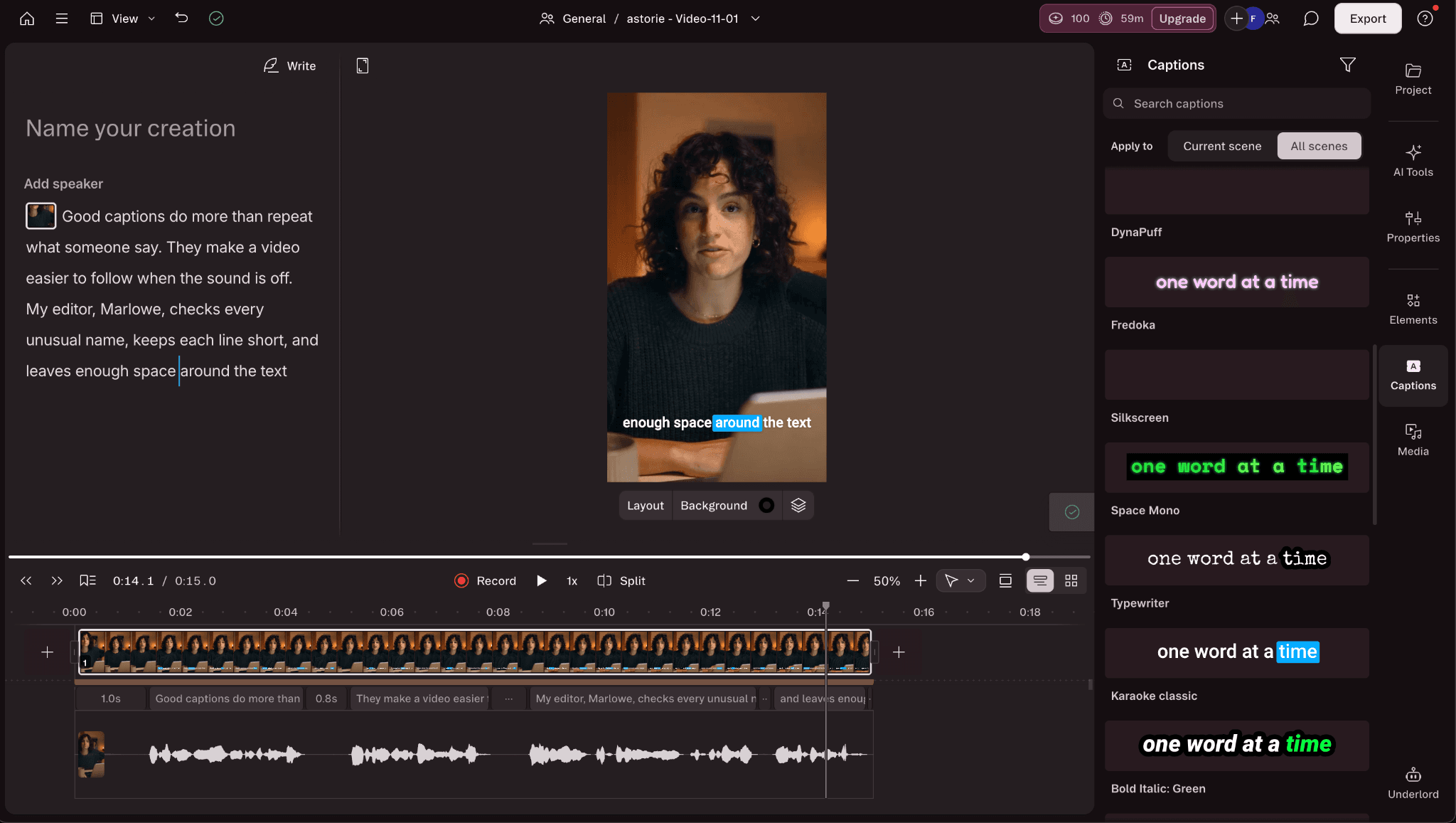
Descript kept the full transcript beside the 9:16 preview and caption-style controls.
The test took about 15 minutes. Descript transcribed “Marlowe” as the more common “Marlo,” but the correction method was less obvious than expected. Deleting the word from the transcript removed the matching audio; the safe route was to select it, right-click, and choose Correct. That transcript-as-editing behavior is powerful, though a first-time user can easily mistake a correction for a cut.
The layout was the strongest part of the experience. The full transcript stayed visible on the left, the vertical preview remained in the center, and caption styles were easy to compare on the right. The default subtitle size felt small for social video, but it was adjustable. Optional AI features also stayed inside a separate AI Tools panel instead of interrupting the basic edit. On the free account, stock-library access was restricted and the finished 720p export carried a watermark.
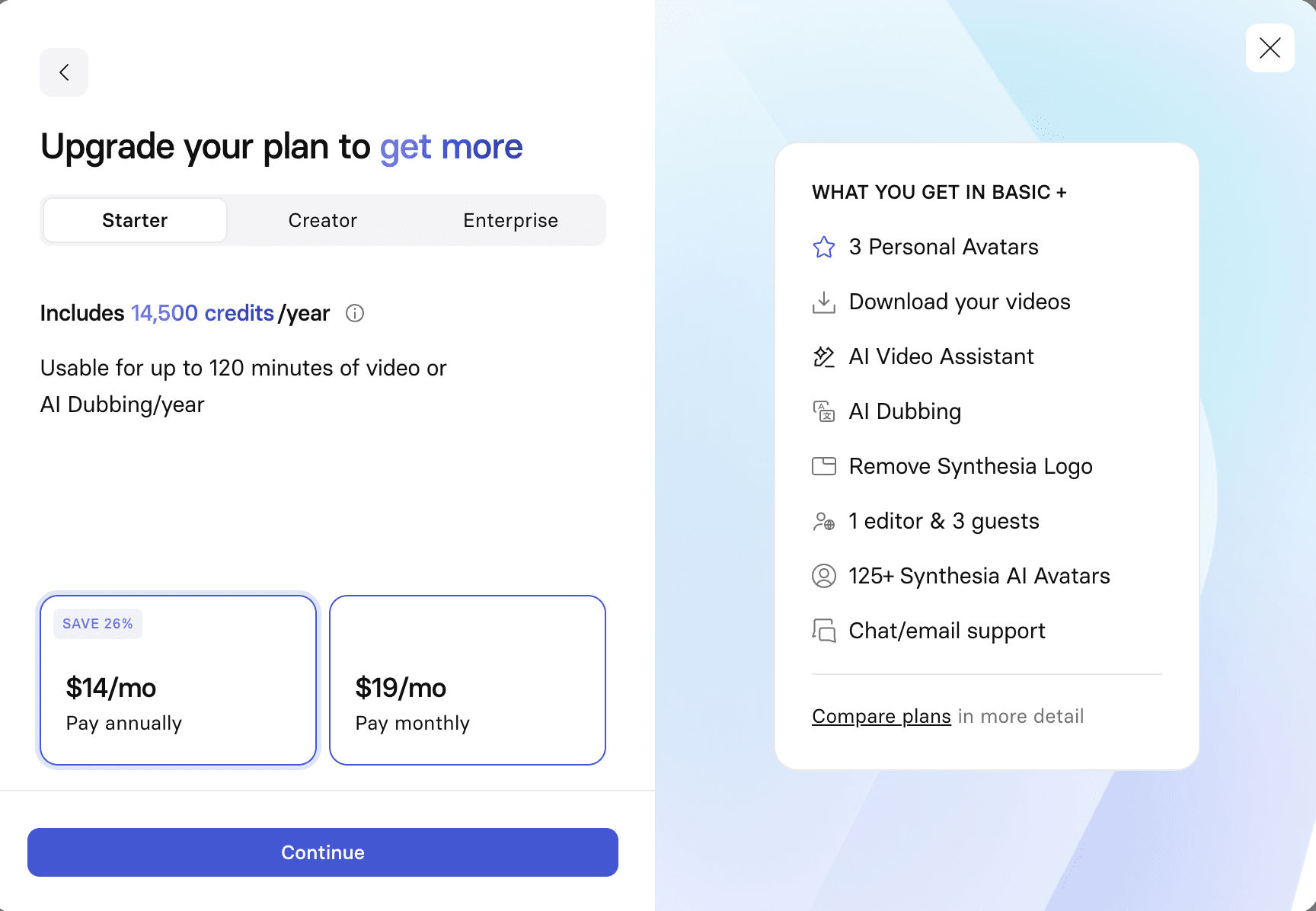
Descript's free account capped this export at 720p; the finished file also carried a watermark.
Trade-off: Its transcript-first workspace is more involved than opening a phone app and applying a ready-made caption template.
Pricing: A free plan includes limited monthly media minutes. Hobbyist was listed at $16 per person per month billed annually, or $24 billed monthly; it includes watermark-free 1080p export.
2. VEED: Best Browser-Based Alternative for Subtitles
Best for: people who want to upload a video, generate subtitles, make corrections, and finish the edit in a browser.
VEED keeps the familiar upload-edit-export workflow and puts subtitle generation directly inside its web editor. Caption text can be corrected line by line, styled on the video, and translated when the relevant feature is available on the account. It also offers transcript-led editing, which makes it more flexible than a one-purpose subtitle generator.
We repeated the test in VEED with the identical 15-second 9:16 clip, the same “Marlowe” correction, a comparable white caption style, and the same export check.
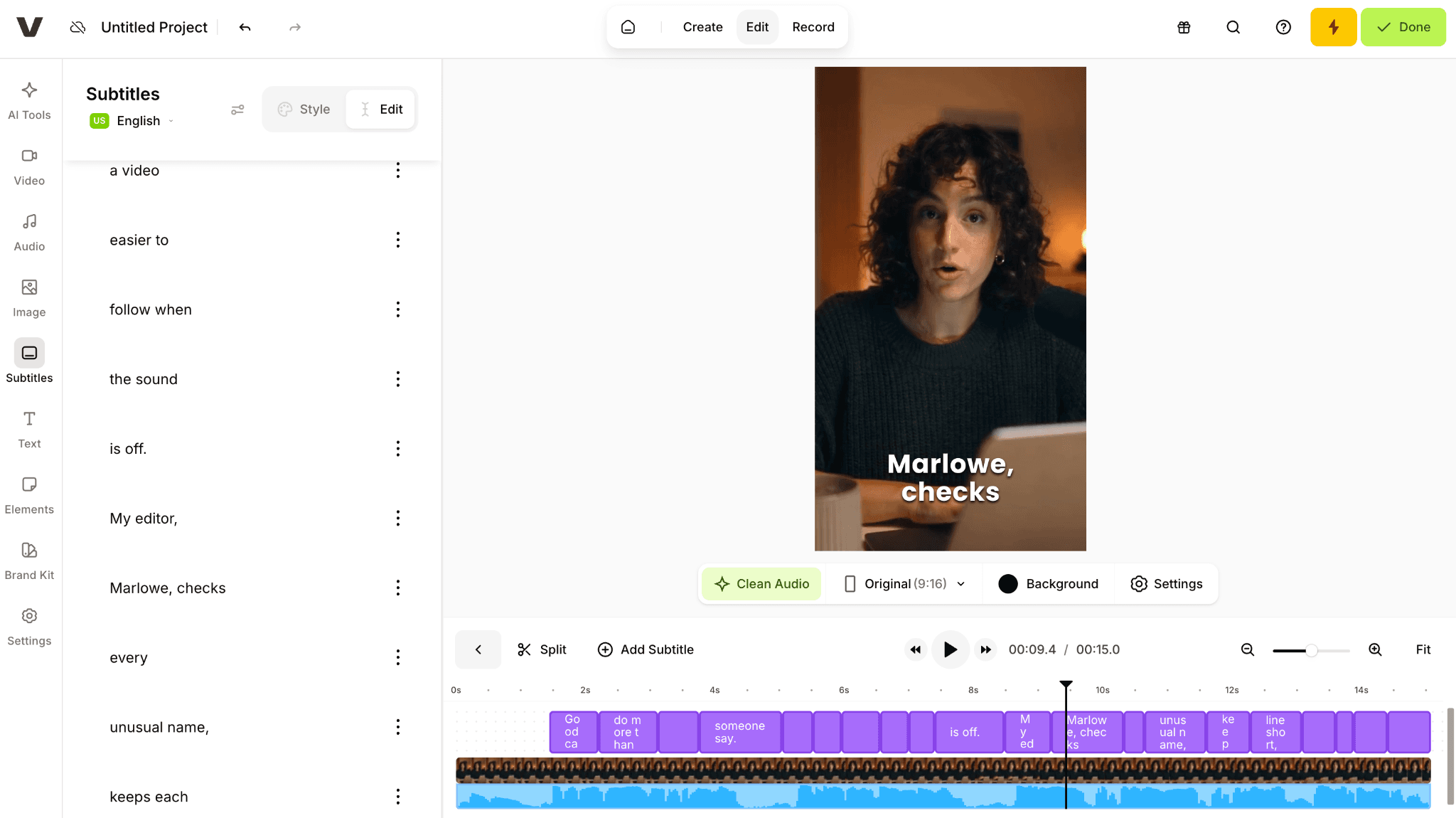
VEED split the subtitles into editable blocks beside the 9:16 preview and timeline.
VEED also took about 15 minutes and heard “Marlowe” as “Marlo.” Correcting the name was more direct than in Descript: the subtitle text could be selected and edited immediately in the left panel. The trade-off was navigation. Because the subtitles were divided into short blocks, finding one word took longer than scanning Descript's continuous transcript.
The interface felt more conventional, with most tools arranged in tabs on the left. AI features were grouped under AI Tools and clearly marked when a paid plan was required. Compared with Captions AI, VEED felt less like an AI-led production assistant and more like a familiar browser editor. On the free account, AI access and export were restricted; the available MP4 was 720p and included a watermark.
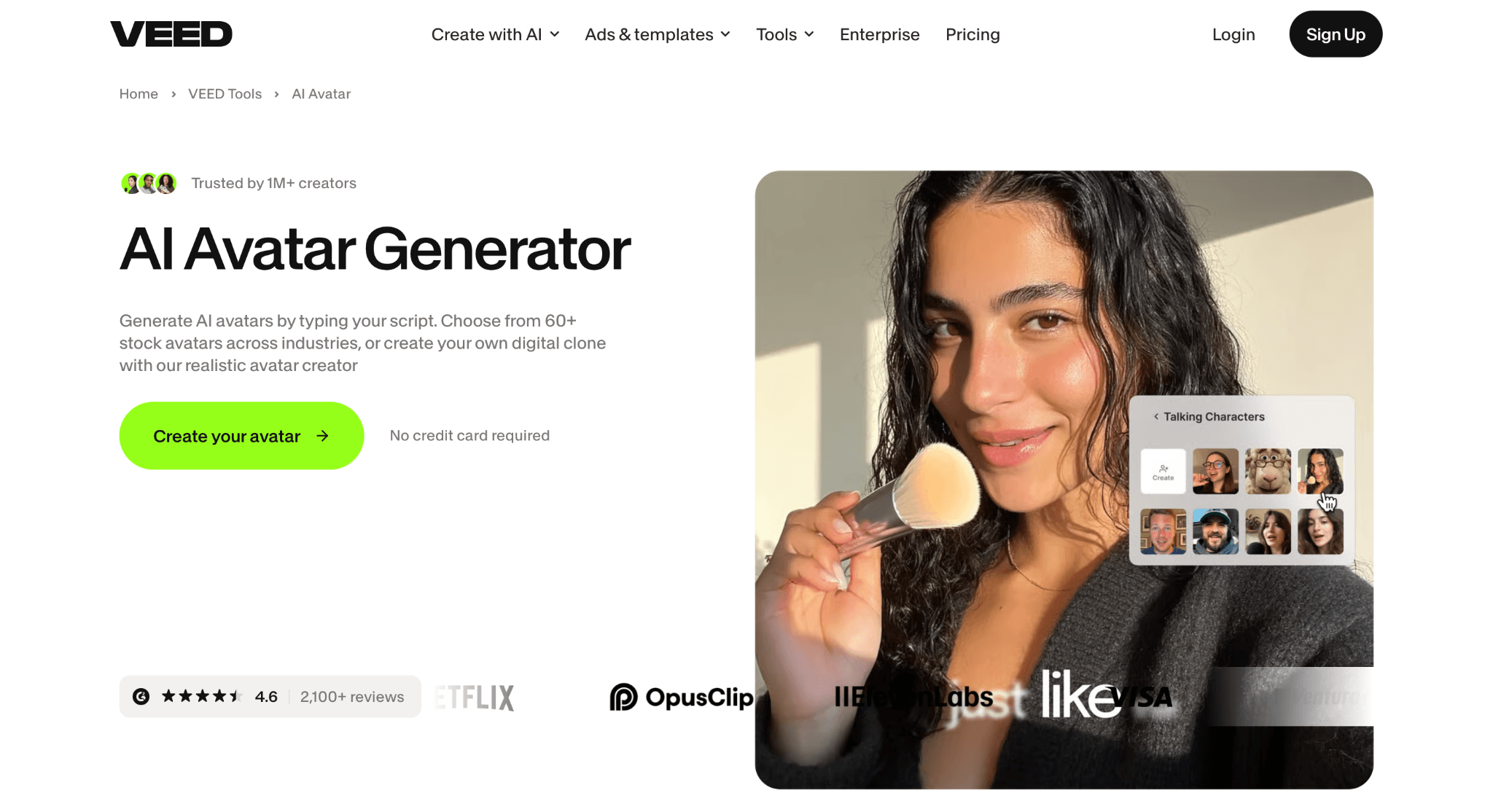
VEED offered a free 720p MP4; removing the watermark and exporting at Full HD required an upgrade.
Trade-off: Free-plan export, subtitle downloads, translation, and AI allowances can differ from the paid experience.
Pricing: A free plan is available. Paid pricing, export limits, and subtitle features depend on the plan and billing region.
More Captions AI Alternatives
3. Submagic: Animated Captions for Short-Form Video
If most of your work ends up on Reels, TikTok, or Shorts, Submagic gets to the point quickly. Its captions lean into highlighted words, emojis, animated timing, and the faster pacing typical of social video. That makes it a better fit for a polished 30-second clip than for a long interview or a restrained corporate explainer.
Compared with Captions AI, Submagic is the stronger switch for punchy social captions, but the weaker choice for presenter-led videos that depend on eye-contact correction or AI delivery tools.
Starter was listed at $12 per member per month on annual billing for 15 videos; Pro increases the allowance to 40 videos for $23 on the same billing schedule.
4. Kapwing: A Shared Workspace for Caption Editing
Kapwing makes sense when captioning is a shared job. One person can prepare the transcript while another checks the wording, adjusts the layout, or resizes the same video for a different channel. Because the editor runs in a browser, the handoff is simpler than passing project files around.
Choose it over Captions AI when several people need to review and repurpose the same project; for a solo creator making presenter-led clips, Captions AI is quicker and more focused.
The free plan is fine for a trial, but its exports are watermarked and limited to 720p. Pro was listed at $16 per member per month billed annually, or $24 billed monthly.
5. OpusClip: Turn Long Recordings into Short Clips
A podcaster with an hour-long recording has a different problem from someone adding subtitles to a finished clip. OpusClip looks for usable moments, reframes them, and adds captions, so it can save time before the actual editing even begins.
It is less appealing when you need close control over every cut and subtitle. It is worth replacing Captions AI when one long recording must become many shorts, but Captions AI remains the better fit for a single on-camera presenter who needs delivery and appearance fixes.
There is a free monthly credit allowance, although exported clips carry a watermark. The Starter plan was listed at $15 per month.
6. Riverside: Start with a Better Recording
For interviews and remote conversations, the harder part is often getting a clean recording in the first place. Riverside keeps recording, transcription, captions, and short-clip creation together, which means less back-and-forth after the interview ends.
If the video already exists and only needs subtitles, VEED or Submagic will usually be quicker. Riverside is worth the move from Captions AI when recording quality and remote guests come first; it is less useful when the footage already exists and only needs a quick presenter edit.
A free plan is available; paid recording allowances and plan names vary with the billing arrangement.
7. CapCut: Familiar Mobile-First Video Editing
CapCut is useful when captions are just one part of a broader social edit. You can trim footage, add music and transitions, and prepare a platform-friendly layout without moving between apps.
Its free tier is easy to try, although access to particular AI tools, templates, and exports changes across regions, devices, and subscription levels. Move from Captions AI to CapCut for hands-on social editing, effects, and timeline control; stay with Captions AI when you want a guided talking-head workflow with fewer manual decisions.
8. HeyGen: Presenter-Led Video Without Another Shoot
HeyGen solves a different production problem: creating a presenter-led video or adapting spoken content for another language without bringing the speaker back on camera. That can be valuable for explainers, training, or localized marketing.
If all you need is a tidy subtitle layer on existing footage, however, it is more product than the job requires. HeyGen is the better replacement when reusable avatars and localization are central to the brief, but it is excessive for ordinary filmed footage that only needs Captions AI's quicker presenter cleanup.
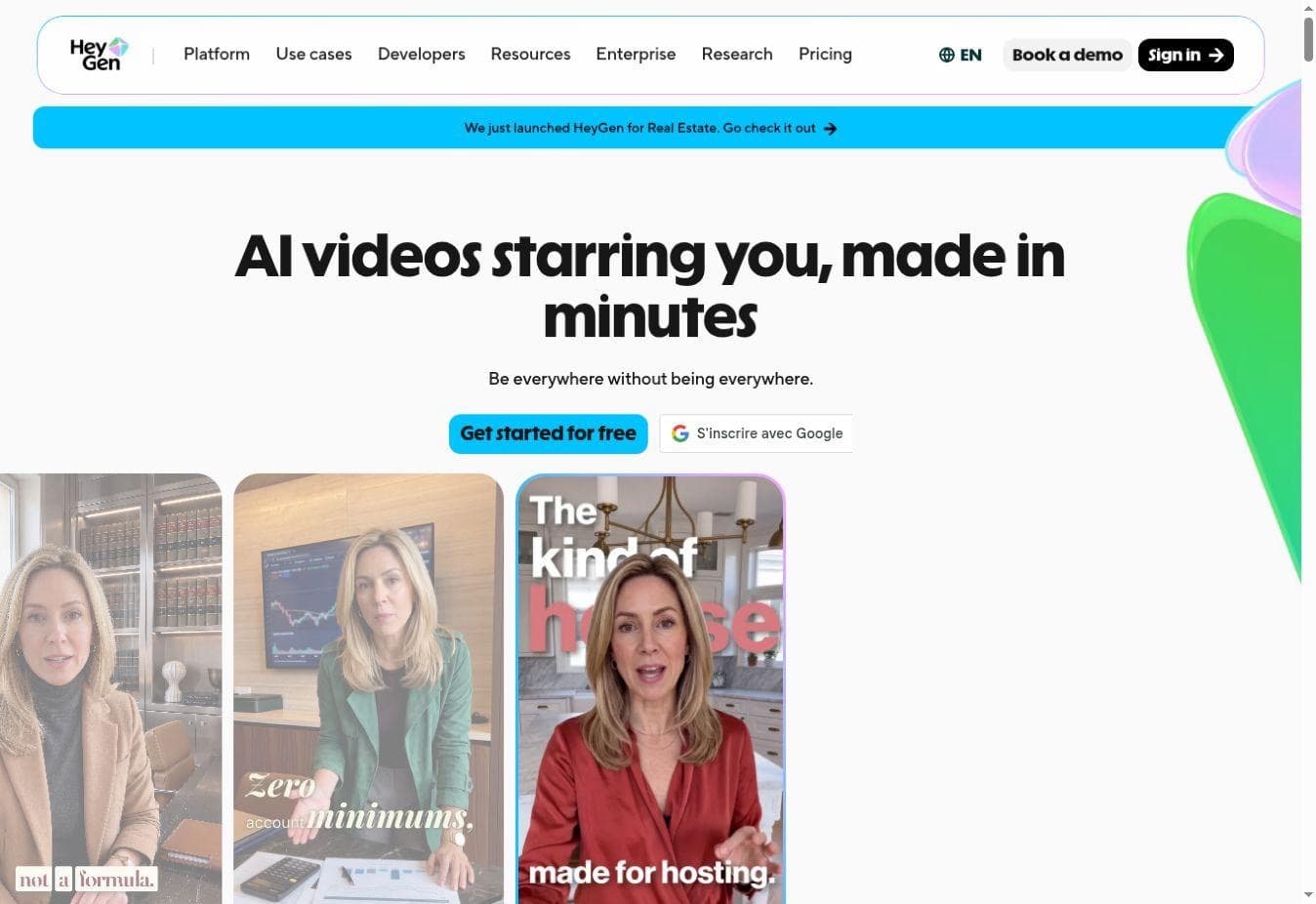
HeyGen's official homepage highlights presenter-led video rather than conventional subtitle editing.
The free plan was listed with three short videos per month; Creator was $29 per month when checked.
9. Astorie: Create the Footage Before You Caption It
Sometimes there is nothing to caption yet. Astorie covers that earlier step by keeping a source image, motion prompt, video model, and generated clip on the same canvas. In our existing test, a still image became a short video that could then move into a separate editor for subtitles.
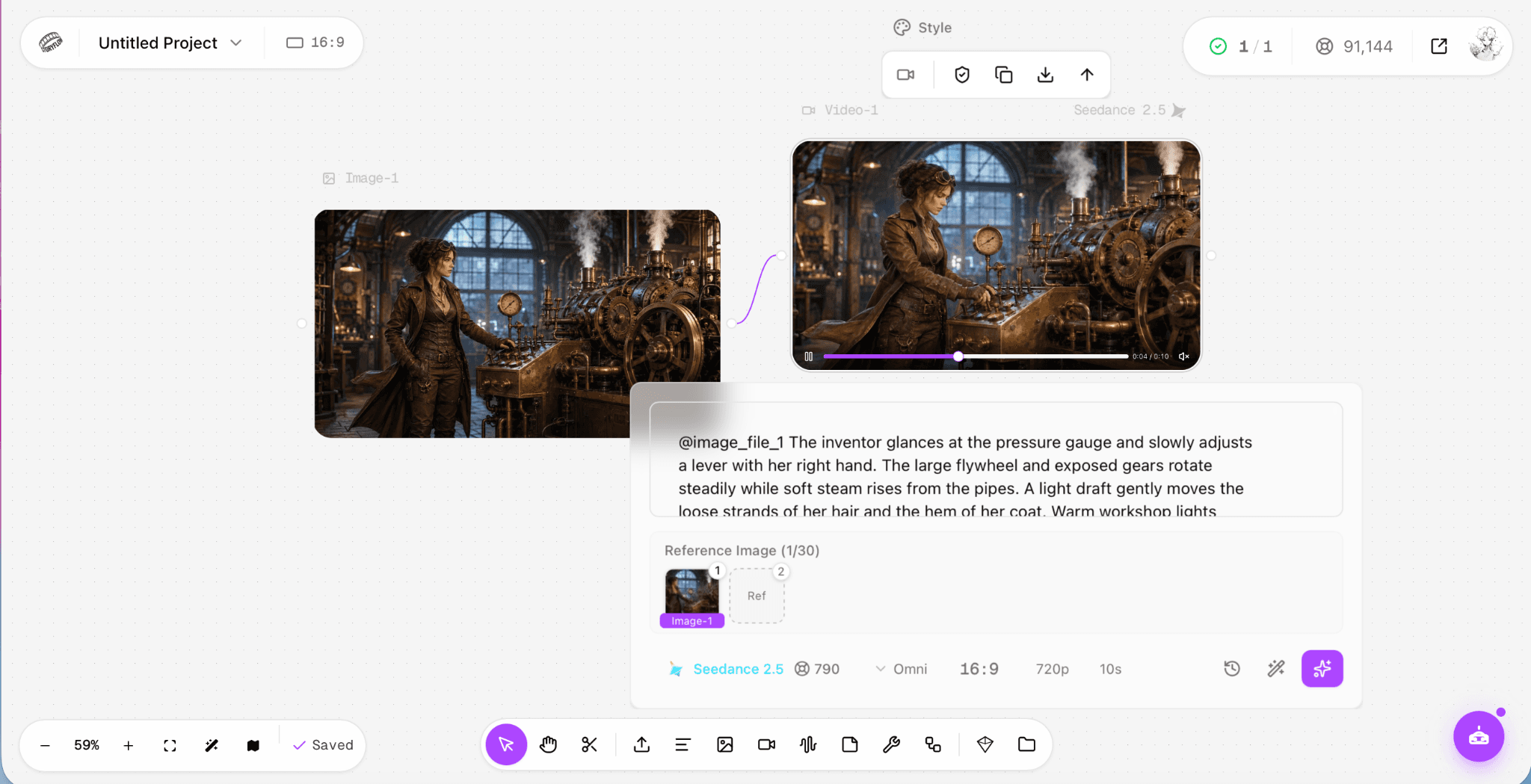
Our Astorie test produced the source video; captions still need to be added in a separate editor.
It does not replace a subtitle editor or transcript workflow. A free tier is available, and video generation uses credits that vary with the chosen model and settings.
10. Zubtitle: Straightforward Talking-Head Subtitles
Zubtitle sticks to the basic assignment: readable captions, a simple branded layout, and a social-ready video. That narrow scope can be an advantage for a small business that has no use for a larger creator suite.
Just do not expect the transcript editing, remote recording, or motion controls offered elsewhere. Its official pricing page uses a custom calculator rather than one universal monthly price.
Zubtitle is worth switching to for simple caption, resize, and branding jobs; it falls short of Captions AI when the brief also needs presenter correction, generation, or deeper editing.
Captions AI Alternatives Compared
| If you need... | Start with | Why it fits |
|---|---|---|
| Editable transcripts and a real video editor | Descript | Speech, text edits, captions, and export stay together. |
| Browser subtitles and translation | VEED | Upload, subtitle editing, styling, and sharing are browser-based. |
| Animated captions for short social clips | Submagic | Caption presets are built for short-form video. |
| Several clips from one longer recording | OpusClip | Clip selection and reframing come before captioning. |
| Remote interviews plus finished clips | Riverside | Recording and repurposing share the same workflow. |
| An AI presenter rather than filmed footage | HeyGen | Avatar-led production replaces the recording step. |
How to Choose the Right Captions AI Alternative
1. Separate captioning from editing
If the video is already cut, prioritize subtitle accuracy, readable timing, and export. If the recording still needs work, transcript-led editing matters more than animated presets.
2. Test one clip from start to finish
Use the same short video in two tools. Correct one name, apply a readable style, and open the export window. That exposes more than a feature checklist or a polished demo reel.
3. Check the finished-output cost
Compare watermarks, subtitle-minute limits, translation allowances, output resolution, and whether SRT or VTT downloads are included. A free account is only useful if it produces the file you actually need.
Is Captions AI Still Worth Using?
Yes, especially for solo creators who regularly record themselves and want subtitles, AI editing, and presentation fixes in one place.
Switching makes more sense when you need stronger transcript control, browser collaboration, long-form repurposing, or a simpler tool that charges only for the part of the workflow you use.
The Bottom Line
Start with Descript if the recording needs a proper edit, VEED if you want the fastest browser-based subtitle workflow, and Submagic if your output is mostly short social clips.
For podcasts, avatars, or newly generated footage, use a specialist only when that particular job is the reason you are moving away from Captions AI.
Frequently asked questions
- What is the best Captions AI alternative overall?
Descript is the most rounded option for spoken video because transcription, text-based editing, caption styling, and export live in the same project.
- What is the best free alternative to Captions AI?
Descript, VEED, Kapwing, CapCut, OpusClip, and Riverside all offer a free way to begin. The useful choice depends on watermarks, media-minute limits, and whether your required export is included.
- Which alternative is best for animated captions?
Submagic is the most directly focused on animated social captions. VEED and CapCut also offer subtitle styling, but specific presets and features can depend on the account.
- Can I edit subtitles directly in the browser?
Yes. VEED and Kapwing both let you upload footage, generate subtitles, correct the text, and style captions in a browser-based editor.
- Which tool is best for turning podcasts into short videos?
OpusClip is built around finding and reframing short segments from longer recordings. Descript and Riverside are better fits when you also need to edit or record the original conversation.
- Can one tool replace every Captions AI feature?
Usually not. Subtitle editing, remote recording, digital presenters, and original AI video generation solve different problems. Choose the tool that matches the step you repeat most often.
Related reading
Runway Gen4 vs Veo vs Kling: Practical Video Production Comparison
Practical comparison for AI video production choices across Runway Gen4, Google Veo, and Kling.
7 Best Photoroom Alternatives in 2026 (Tested for Ecommerce Photography)
Do you need a Photoroom alternative that goes beyond simple background cutouts and batch image processing? Try these 7 tools and pick the one that best matches your AI product photography use cases.
6 Ideogram Alternatives for Killer AI Image Generation
Here are 6 tried and tested Ideogram alternatives that work best for prompt accuracy, text, image realism, character consistency and are intelligent enough to render real-world scenarios and logic.
Ready to try it on the canvas?
Open Astorie and fan your prompt across every frontier model in one workflow.