

How to Use Seedance 2.5: A Hands-On Image-to-Video Guide
To use Seedance 2.5, choose your input, set the frame and duration, and describe what should move. Start with a short test. Watch the whole clip for motion, identity drift, object changes, and camera behavior before spending more on a longer or higher-resolution render.
Key takeaways
Choose text-to-video, image-to-video, or reference-led video according to the material that should control the shot.
Start with a short 480p test before increasing the duration or resolution.
Describe one main action, supporting motion, one camera behavior, and the details that must remain consistent.
Watch the complete generated clip for motion, identity drift, object changes, and camera behavior.
Revise one variable at a time so you can identify what improved or weakened the result.
How to Use Seedance 2.5: The Short Version
I ran the test in Astorie because its canvas kept the source image, model, prompt, settings, and result together. The steps apply to Seedance 2.5; Astorie is the interface shown in the screenshots.
- Pick the input method: a text prompt, a first-frame image, or a focused reference pack.
- Start with a short, lower-resolution test so prompt errors are inexpensive to find.
- Describe one main action, supporting motion, camera behavior, and continuity constraints.
- Generate the clip and watch the full sequence, not just a strong single frame.
- Revise one variable at a time, then increase duration or resolution only when the motion works.
Seedance 2.5 Basics: What the Model Supports
ByteDance describes Seedance 2.5 as a model for longer stories, multimodal references, and more precise editing. Its release notes list single generations of up to 30 seconds, with as many as 30 images, 10 video clips, and 10 audio clips as references. Timestamp-level direction and targeted editing are also part of the published feature set. The controls you can select still depend on the platform and account.
| Workflow | Use it when | Prompt focus |
|---|---|---|
| Text-to-video | The scene can be created from a written brief | Subject, action, setting, camera, mood |
| Image-to-video | A still image already defines the subject and composition | Motion, timing, camera, elements that must stay consistent |
| Reference-led video | Identity, style, movement, or audio must follow supplied assets | State what each reference should control |
Best Seedance 2.5 Settings for a First Test
| Decision | Practical starting point | Reason |
|---|---|---|
| Duration | 4 seconds for a new prompt; 10 seconds for a staged action | Short tests expose direction errors before they become expensive |
| Resolution | 480p for motion tests; 720p when the take is likely to be kept | Higher resolution does not fix a weak motion plan |
| Aspect ratio | Match the source and final delivery | Avoids unnecessary crop changes |
| Camera | One named move or a locked camera | Competing camera instructions often weaken the shot |
| References | Use the smallest set with clear jobs | Conflicting assets can make the brief harder to follow |
How to Use Seedance 2.5 for Image-to-Video
Step 1: Upload a Clear Source Image
Choose a frame with a readable subject, stable anatomy, and visible room for motion. The test image showed a steampunk inventor beside an exposed engine, so it could reveal whether the model handled a person, mechanical parts, steam, fabric, hair, and a camera move in the same shot.
Step 2: Select Seedance 2.5 and Connect the Source
In Astorie, the image node was connected to a Seedance 2.5 video node. Keeping the source visible beside the output made it easier to compare framing, face shape, clothing, and machine geometry after the render.
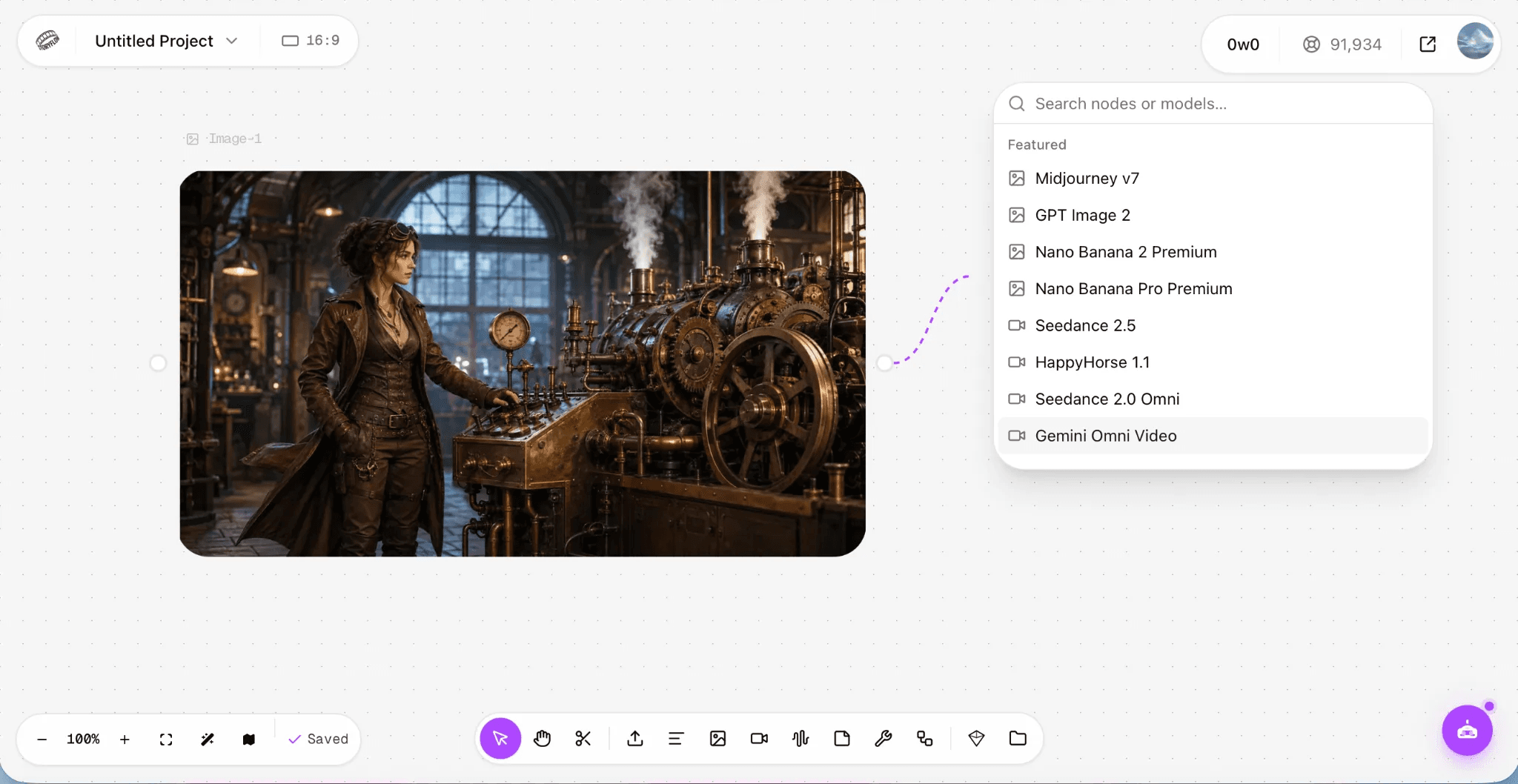
The source image and the Seedance 2.5 model selector used for the test.
Step 3: Set the Format Before Finalizing the Prompt
For this test I used Omni mode, 16:9, 720p, and 10 seconds. Omni and First-Last Frame were visible in the node; Edit and Extend were disabled. These were the controls available in that session, not a promise that every interface or account will show the same menu.
Step 4: Write a Motion-First Seedance 2.5 Prompt
The source image already contains the person, machinery, workshop, and style. The prompt therefore concentrates on what should move, how those movements relate to one another, what the camera does, and what must remain unchanged.
Prompt used in the test:
The inventor glances at the pressure gauge and slowly adjusts a lever with her right hand. The large flywheel and exposed gears rotate steadily while soft steam rises from the pipes. A light draft gently moves the loose strands of her hair and the hem of her coat. Warm workshop lights flicker subtly in the background. Slow cinematic push-in. Keep her face, hands, clothing, machinery, and the original steampunk style consistent. Smooth, realistic, controlled motion.
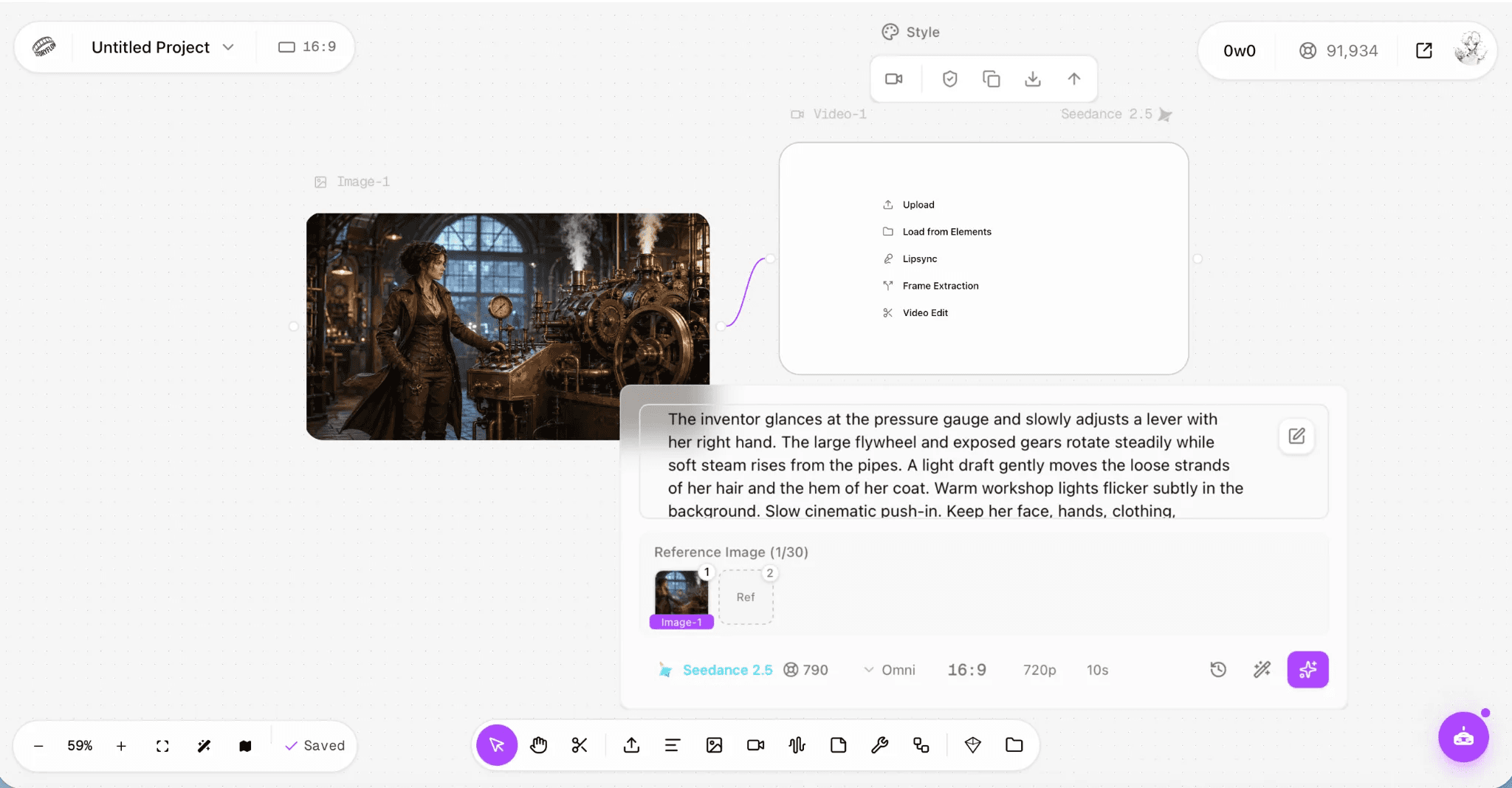
The generation setup: Seedance 2.5, Omni, 16:9, 720p, and 10 seconds.
Seedance 2.5 Test Results: Prompt vs. Output
The 10-second 720p clip finished in about four minutes in this run. I compared the prompt with the clip scene by scene. The table records what this generation did; it is not a general verdict on every Seedance 2.5 result.
| Prompt request | Observed in this test | Assessment |
|---|---|---|
| Inventor checks the gauge and adjusts the lever | Her gaze lowered and she operated the control | Successful |
| Flywheel and exposed gears rotate | The main mechanical parts moved visibly | Successful |
| Steam, loose hair, and coat hem move | Steam changed through the shot; hair and coat gained subtle motion | Successful |
| Slow cinematic push-in | The camera moved forward smoothly | Successful |
| Preserve face, hands, clothing, and machinery | Face, clothing, and main machine stayed recognizable; fingers softened at the lever | Mostly successful |
| Warm lights flicker subtly | The background-light change was difficult to see | Weak or missed |
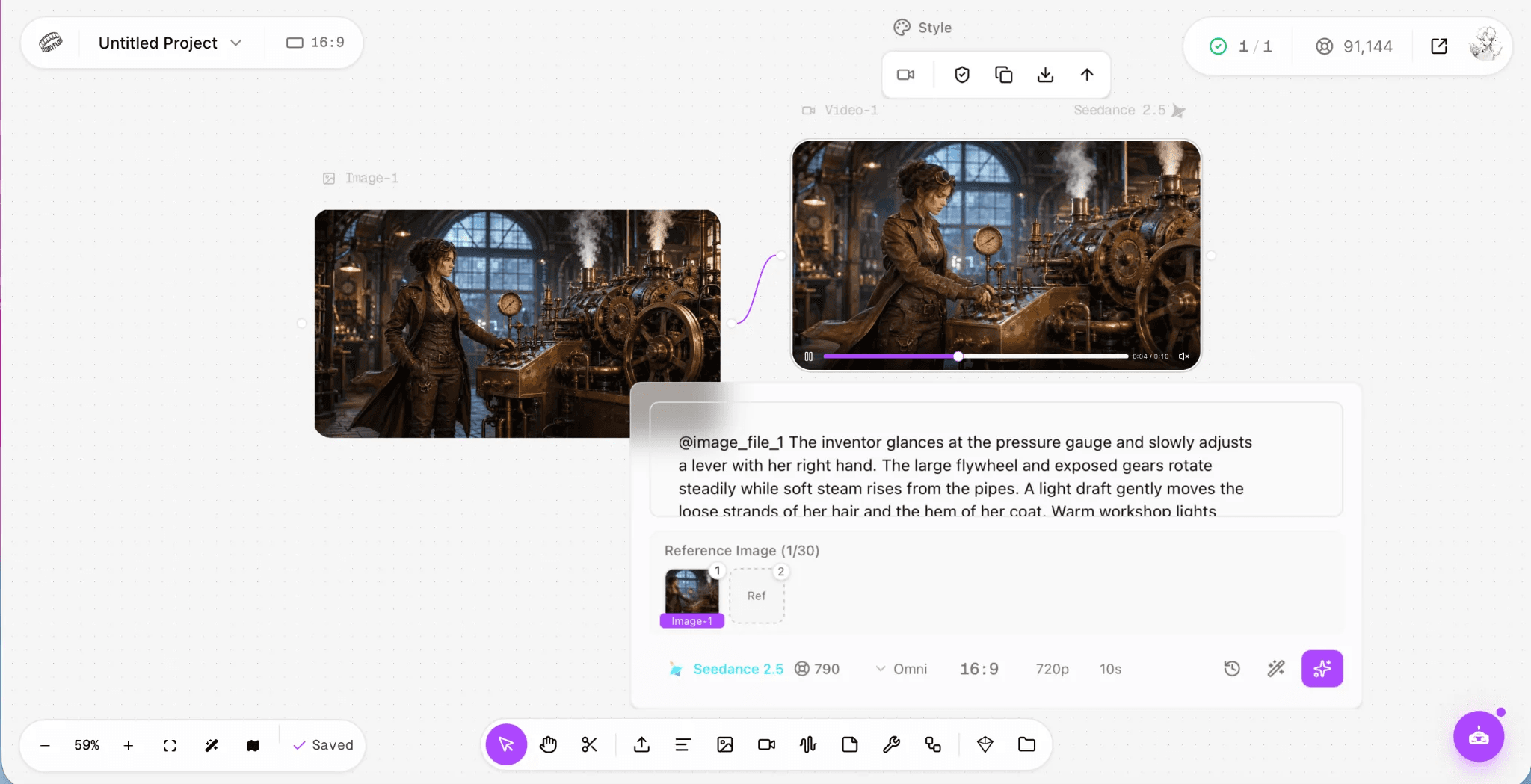
The generated clip at roughly four seconds, with the source and Seedance 2.5 settings visible.
How to Improve a Seedance 2.5 Prompt
I did not run a second generation for this shot, so the version below is the prompt I would test next. It gives the action a clearer order and makes the machine response easier to judge.
A single continuous ten-second shot. 0–2s: The inventor looks from the pressure gauge to the lever and places her right hand firmly on it. 2–6s: She slowly pulls the lever down; the flywheel begins rotating clockwise, the connected gears turn, and the gauge needle rises. 6–10s: The machine runs steadily while steam releases in short bursts and her hair and coat respond to the airflow. Preserve her face, hands, clothing, machine geometry, lighting, and the original steampunk style. No cuts, no new objects, and no distorted hands.
- Use one primary action and make secondary movement support it.
- Name one camera instruction: locked camera, push-in, track, orbit, or pull-back.
- For longer clips, split the prompt into timed beats instead of one flat paragraph.
- State continuity constraints for faces, hands, products, clothing, text, and object shape.
- Change one variable per rerender so you can tell what improved the result.
What Is the Best Way to Use Seedance 2.5?
For a first pass, keep the brief simple: one main action, one camera choice, and a short render. In this test, Seedance 2.5 handled the inventor, engine, steam, and push-in well enough to continue. Before paying for another 10-second 720p render, I would fix the hand contact and make the background-light change more explicit.
Frequently asked questions
- Can Seedance 2.5 animate one image?
Yes. Use the image as the first frame or reference, then describe motion, camera behavior, timing, and the details that must stay consistent.
- What is the best first duration for Seedance 2.5?
Four seconds is a sensible validation pass for a new image or prompt. Move to ten or thirty seconds only when the action needs that time and the short test is stable.
- How detailed should a Seedance 2.5 prompt be?
Give the model enough detail to stage the action and timing, but do not describe every object again. Extra words help when they add direction, sequence, or continuity. Repeating what is already visible in the image usually does not.
- Why does Seedance 2.5 look different across platforms?
Platforms can expose different modes, reference limits, resolutions, durations, safety checks, and pricing. Treat the live controls in your chosen interface as the final specification.
Related reading
Seedance 2 Handbook: Variants, Best Workflows, and How to Use It on Astorie
Hands-on guide to Seedance 2 — variants, strengths, and the production workflows it fits on Astorie's canvas.
GPT Image 2 Guide: Workflows, Strengths, and Where It Fits on Astorie
How GPT Image 2 fits product, text, and reference image workflows on Astorie's multi-model canvas.
Nano Banana 2 Workflows for Multi-Image Reference and Character Consistency
Multi-image reference and character consistency workflows on Astorie using Nano Banana 2.
Ready to try it on the canvas?
Open Astorie and fan your prompt across every frontier model in one workflow.