

How to Make Educational Videos That Explain One Idea Clearly

To make an educational video, define one learning outcome, write a narration that teaches it, match each sentence to evidence or a purposeful visual, add accurate captions, and finish with a check for understanding. A 60-second Li Bai poetry video demonstrates the method with AI-generated historical visuals and a 56.6-second Mandarin voiceover.

How Do You Make Educational Videos?
Choose one thing the viewer should understand or do after watching. Build the narration around that outcome, then select visuals that make each idea concrete. Record or generate clear audio, synchronize captions to the final voice track, check every factual statement, and finish with a question or action that lets the viewer use what they learned.
The hands-on example teaches the emotional and historical context behind Li Bai’s farewell poem for Meng Haoran. It uses AI visuals as interpretation, not documentary proof. That distinction is essential: the river, clothing and tower create a plausible learning scene, while the poem and contextual explanation carry the factual lesson.
Step 1: Define One Learning Outcome
A useful outcome is specific enough to test. For this short, the viewer should be able to explain why the distant boat and the empty river make the poem feel like a prolonged farewell. “Learn about Li Bai” is too broad for 60 seconds; “connect the final image to the poem’s emotion” is achievable.
Weak objective | Stronger objective | Possible check |
Understand the poem | Explain how distance and waiting shape the final couplet | What disappears first—the boat or Li Bai’s attention? |
Know Tang poetry | Identify the two friends and the farewell setting | Who leaves, and who remains? |
Enjoy history | Separate historical context from visual reconstruction | Which parts are sourced facts and which are illustrative? |
Step 2: Write the Teaching Script Before the Visual Prompt
Open with the question or misconception, explain only the context required to answer it, quote or paraphrase the key line, and close by returning to the opening idea. Read the script aloud. A 60-second target usually needs fewer words than a written paragraph suggests because names, pauses, and the poem require space.
The supplied narration ends with: “除了黄鹤楼,没有人知道那天李白在长江边,到底站了多久。” This final sentence is interpretation, not a historical record of an exact waiting time. The corrected subtitle now matches the audio and the poem does not repeat after the final line.
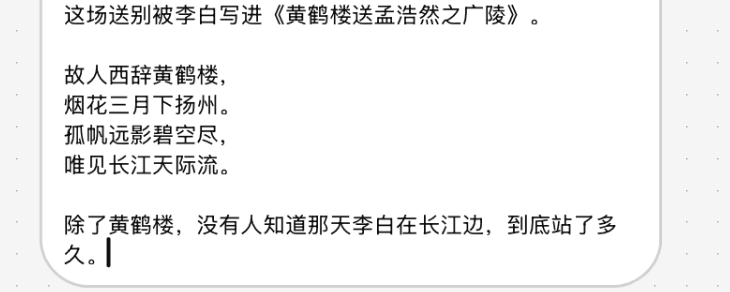
Figure 1. Final subtitle review showing the corrected closing sentence. Caption accuracy was checked against the narration before export.
Step 3: Plan Visuals That Explain, Not Decorate
Assign a visual job to every sentence: establish place, identify people, show departure, show increasing distance, or hold on the empty river. Avoid adding a new visual fact just because the narration pauses. A still frame can support reflection better than unnecessary motion.
Historical AI imagery should be labeled as reconstruction or illustration when published in an educational context. Do not present generated clothing, architecture, weather, or geography as a verified depiction of one exact day.
Step 4: Generate or Record the Voiceover
In Astorie, add an audio or speech node, paste the final script, choose the voice and language settings, then generate and listen to the full exported audio. The interface screenshots document the selected options; they do not prove that those settings are best for every language or audience.
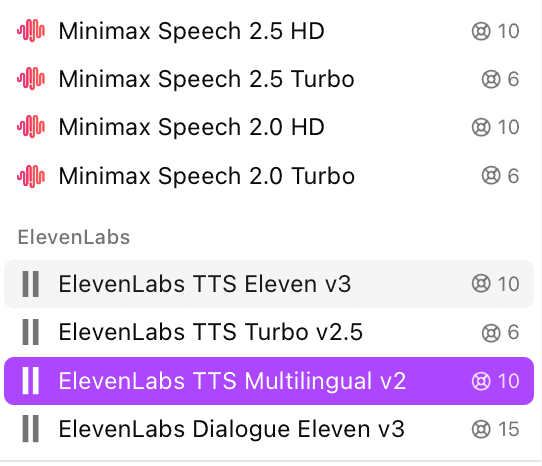
Figure 2. Astorie audio model menu used to select a speech-generation option for the narration.
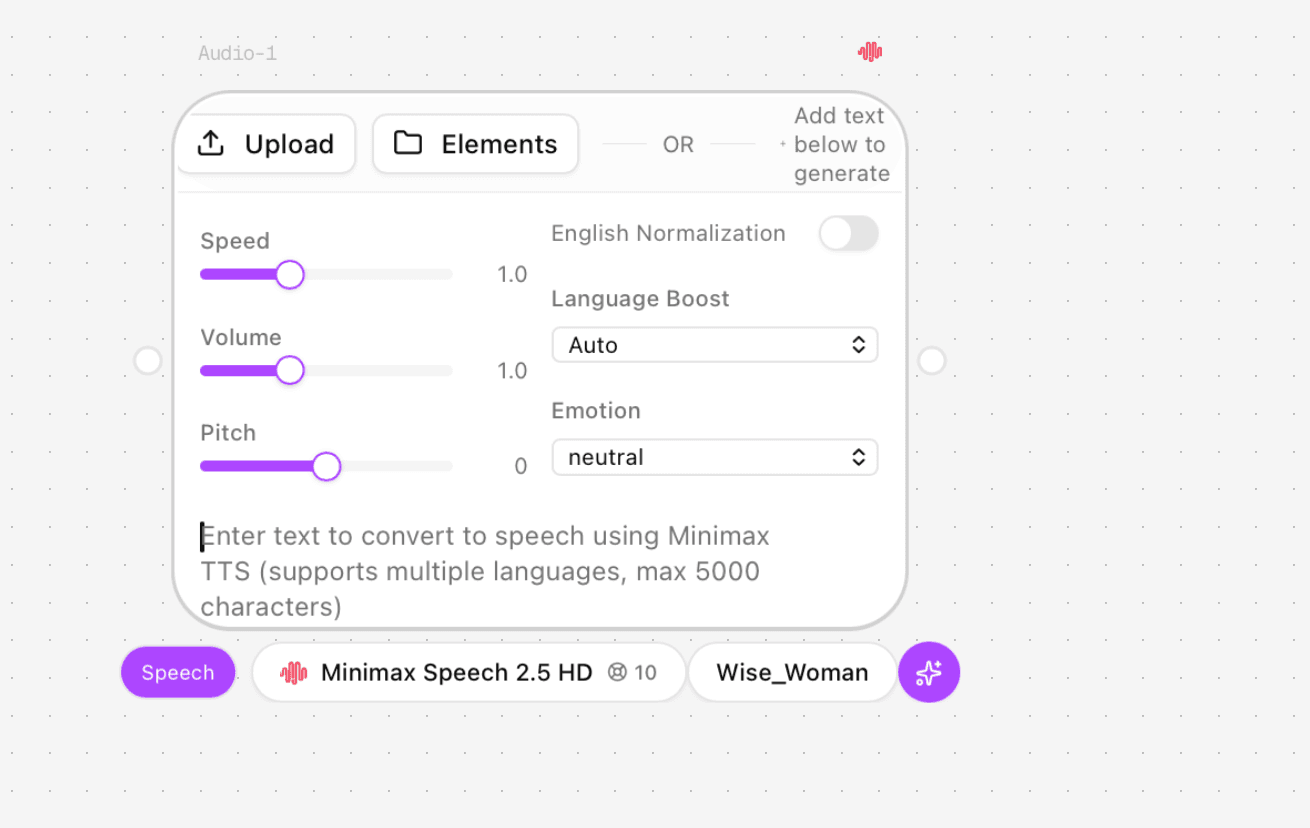
Figure 3. MiniMax Speech 2.5 HD settings used for the supplied narration, including speed, volume, pitch and language options.
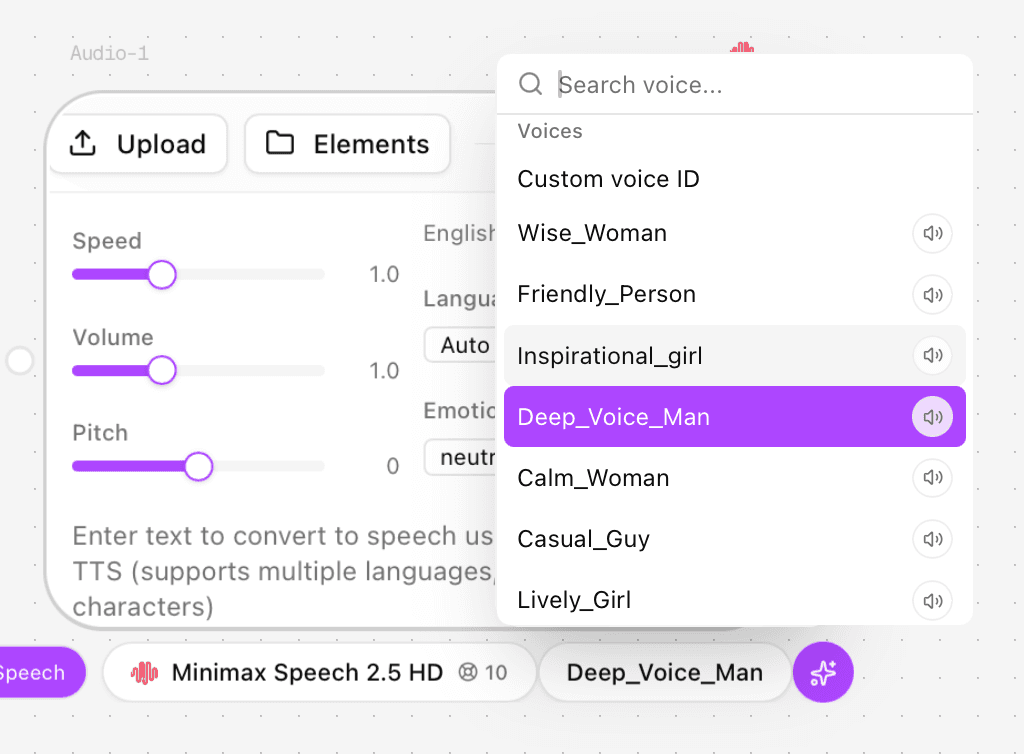
Figure 4. Deep_Voice_Man voice selected for the project. The displayed interface quote is not evidence of final account debit.
Setting | Value used in the supplied project |
Speech model | MiniMax Speech 2.5 HD |
Voice | Deep_Voice_Man |
Speed | 0.9 |
Volume | 1.0 |
Pitch | 0 |
Language boost | Chinese/Auto |
English normalization | Off |
Style | Neutral |
Displayed estimate | 10 credits; final debit not documented |
The exported MP3 was verified as 56.556 seconds, mono, 32 kHz. The audio file was used in the final timeline; this article does not make a general quality ranking from one voice and one script.
Step 5: Generate the Visual Sequence
Create or open an Astorie project and add the still-image and video nodes required by the storyboard.
Connect the approved image for each teaching beat to a video-generation node when motion is useful.
Select the exact model and settings. The horizontal test used Seedance 2.5 Omni, 16:9, 1080p and five-second clips.
Prompt one action per shot and keep the same character, costume, boat, lighting and geography.
Preview and download every accepted output. Reject any clip that adds a false visual cue, such as changing the passenger boat into a sailboat.
SUGGESTED EDUCATIONAL VISUAL PROMPT — NOT TESTED AS WRITTEN Historical reconstruction for an educational video: Li Bai stands on an open riverbank in Tang-dynasty clothing while one small covered passenger boat moves farther away. Keep the poet still so the increasing distance is easy to understand. Slow camera push, gentle water and sleeve movement, consistent morning light. No extra people, no extra boats, no sailboat, no text, no modern objects. This is an illustrative reconstruction, not documentary footage. This prompt is a recommended template. The existing output should not be presented as proof that this exact wording was tested. |
Step 6: Edit to the Narration and Add Captions
Place the final voice track first, then align visuals to its ideas. In the supplied edit, narration and captions begin about one second after the opening visual, which gives the viewer time to orient. Use short caption lines, retain the exact poem and names, and compare the last caption with the last audible sentence before export.
Step 7: Add a Check for Understanding
A video becomes more educational when the viewer must retrieve or apply the idea. Add one brief prompt below the video or in the final card: “Why does the empty river matter more than a close-up of the departing friend?” The answer should connect distance, waiting, and the poem’s point of view. This question was not included in the supplied video; it is a recommended publishing addition.
Step 8: Verify Facts, Accessibility and the Export
Review | What to verify |
Learning | The outcome is answered and the closing question can be completed from the video |
Facts | Names, poem title, quotation and context are checked; reconstruction is not presented as footage |
Audio | The exported track is present, intelligible and synchronized |
Captions | Every line matches the final recording; the ending does not repeat |
Visuals | No continuity error introduces a misleading object or event |
Technical | Final file opens and reports 1920×1080, 24 fps, 60.0 seconds, H.264/AAC |
Download and Package the Lesson
Download the accepted clips and audio from their completed nodes, then export the final MP4 from the editor. Package the video with a transcript, source list, caption file if available, and the retrieval question. For an article upload, place the video near the explanation it demonstrates rather than at the very end without context.
Troubleshooting Educational Video Problems
Problem | Fix |
The video is beautiful but teaches little | Rewrite around one learning outcome and remove decorative scenes |
Narration is rushed | Shorten the script or add runtime; do not simply increase voice speed |
Captions repeat or disagree with audio | Regenerate from the final transcript and inspect the last ten seconds |
Historical visuals look authoritative | Label them as AI-generated reconstruction or illustration |
A generated object changes | Reject the shot or replace it with a still so the lesson is not distorted |
A node fails to generate | Check connection, saved state and status, then retry; failed-action billing is not documented in the supplied evidence |
FAQ
How long should an educational video be?
Long enough to achieve the learning outcome and no longer. This example uses 60 seconds for one interpretive idea. A procedural lesson may need several short chapters and practice pauses.
Can AI visuals be used for history lessons?
Yes, as clearly labeled reconstructions or illustrations. Verify the factual narration independently and avoid treating generated details as primary evidence.
Should I generate the visuals or the voiceover first?
Write the learning outcome and script first. Generate or record the voiceover early, then build the visual sequence to its timing. This reduces unused footage and helps captions stay accurate.
Do captions replace a transcript?
No. Captions support viewing, while a separate transcript is easier to search, quote, review and adapt. When possible, provide both.
Hands-on Test Record
This record separates what the supplied project proves from details that were not documented. Missing timing, billing, or rerun data is not inferred.
Record field | Documented value |
Executor / date / host | Clara / October 6, 2026 / Astorie plus an external timeline editor |
Speech route shown | MiniMax Speech 2.5 HD with Deep_Voice_Man |
Input role | Mandarin narration script for one 60-second poetry explanation; the complete script was not reproduced in the evidence set, while the corrected final line was confirmed |
Visible settings | Speed 0.9, volume 1.0, pitch 0, Chinese/Auto language boost, English normalization off, neutral style |
Runs / reruns | One exported narration MP3 was supplied. The complete attempt and rerun history was not documented. |
Timing basis | Generation wait time was not logged. The exported narration duration is 56.556 seconds. |
Credits | The interface displayed an estimated 10 credits. Final debit and failed-run charging were not documented. |
Audio review | The final narration and captions were reviewed during editing; the closing subtitle was corrected. No comparative voice-quality score was assigned. |
Visual inputs | The final edit reused the documented Seedance 2.5 historical stills and clips; one continuity-failing sailboat transformation was excluded. |
Final output | Li_Bai_Farewell_60s_final.mp4: 60.0 seconds, 1920×1080, 24 fps, H.264 video and mono AAC audio |
Ready to try it on the canvas?
Open Astorie and fan your prompt across every frontier model in one workflow.