
Prompt only
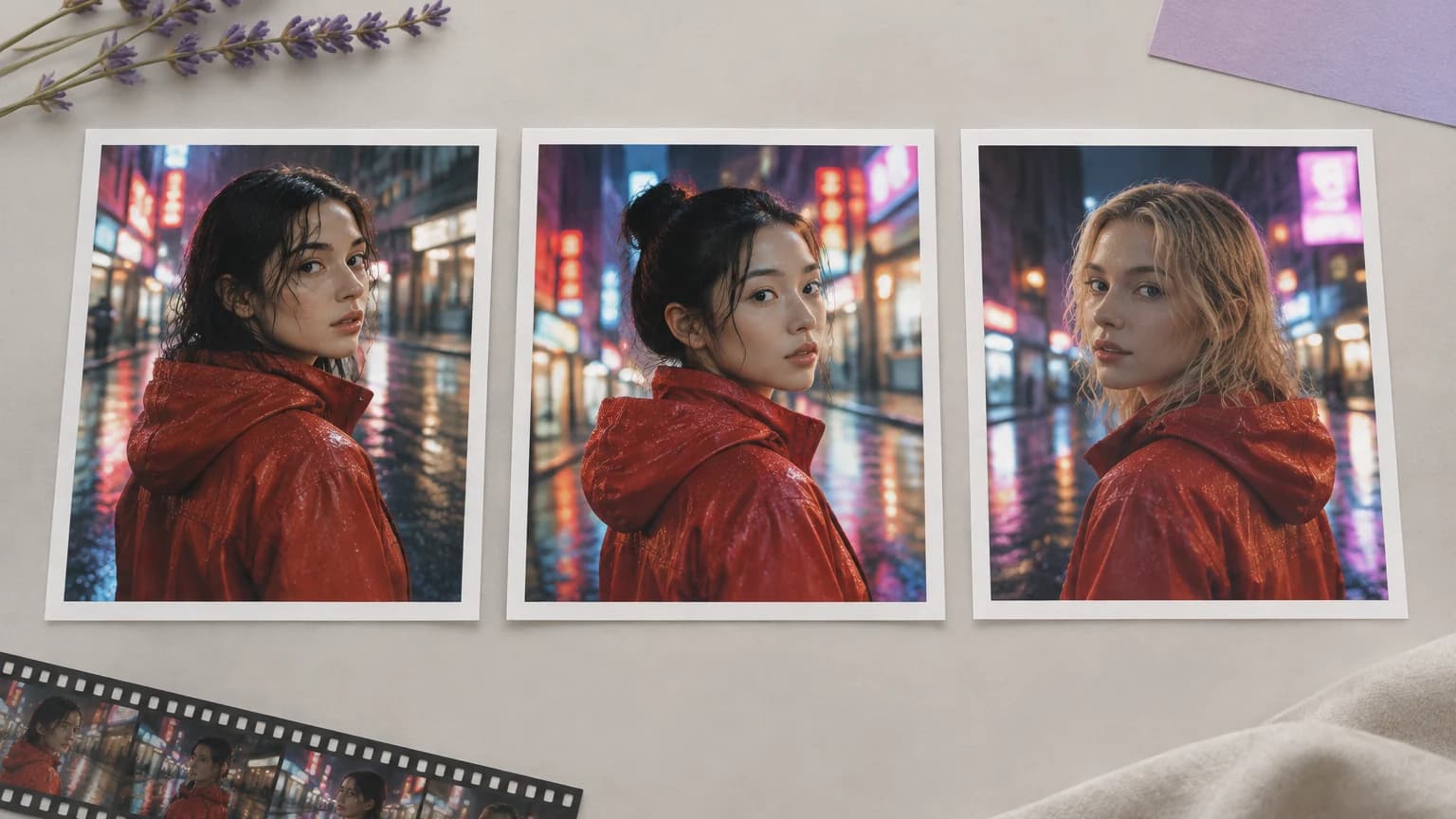
- Each run invents the subject again, so a face or an outfit shifts from clip to clip
- Product details are guessed from the words instead of taken from the real item
- Every new shot starts over from an empty prompt box
Astorie
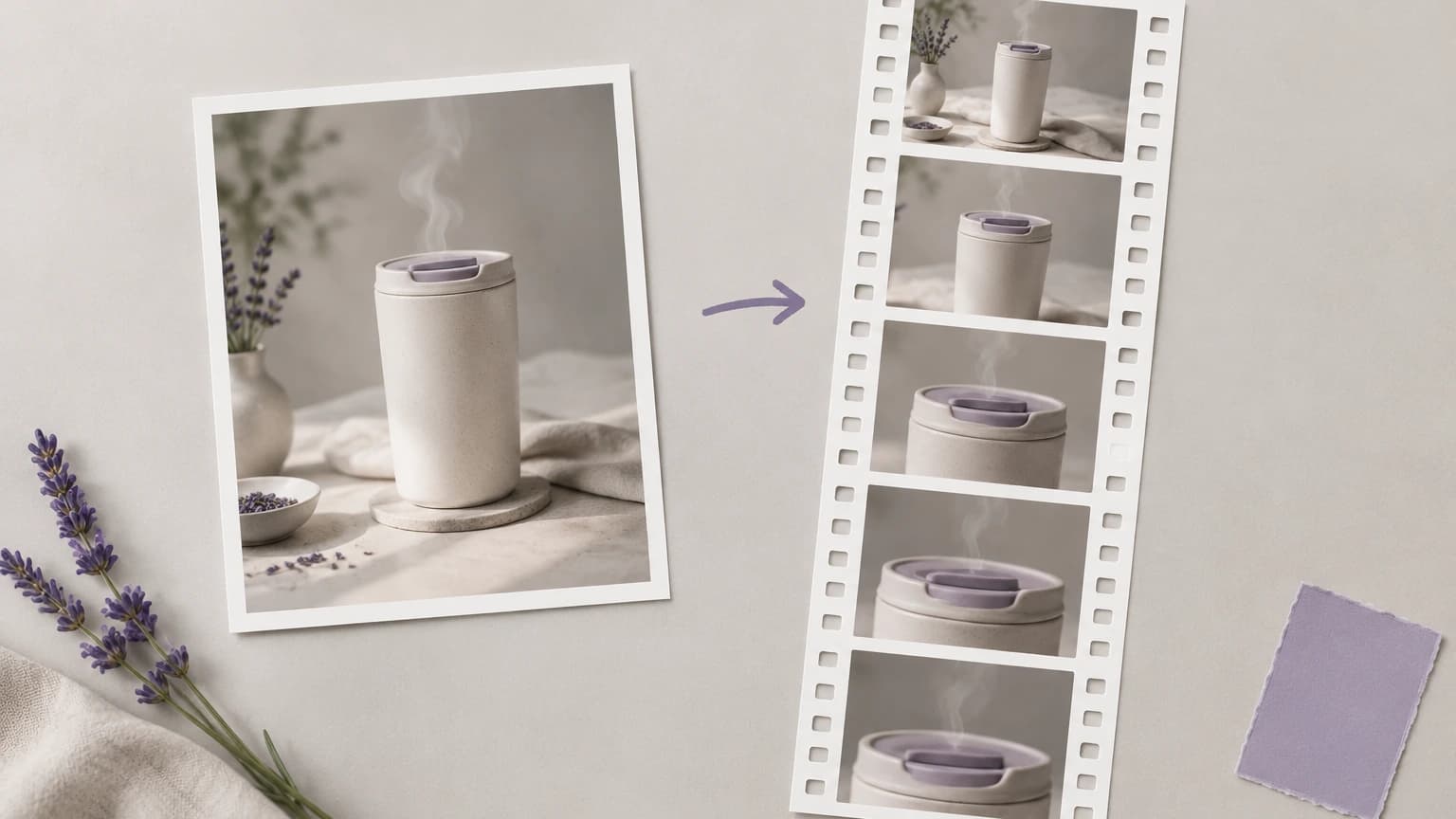
The AI reference to video generator turns one character, product or location photo into a 5-second 720p clip. Your picture becomes the opening frame, and the model adds the camera move and the action. Pick one of six moves or describe the shot, then press Animate it.
Prompt-only video starts from a blank page on every run, so the face, the product or the room drifts between clips. A reference image gives the model a picture to hold on to.
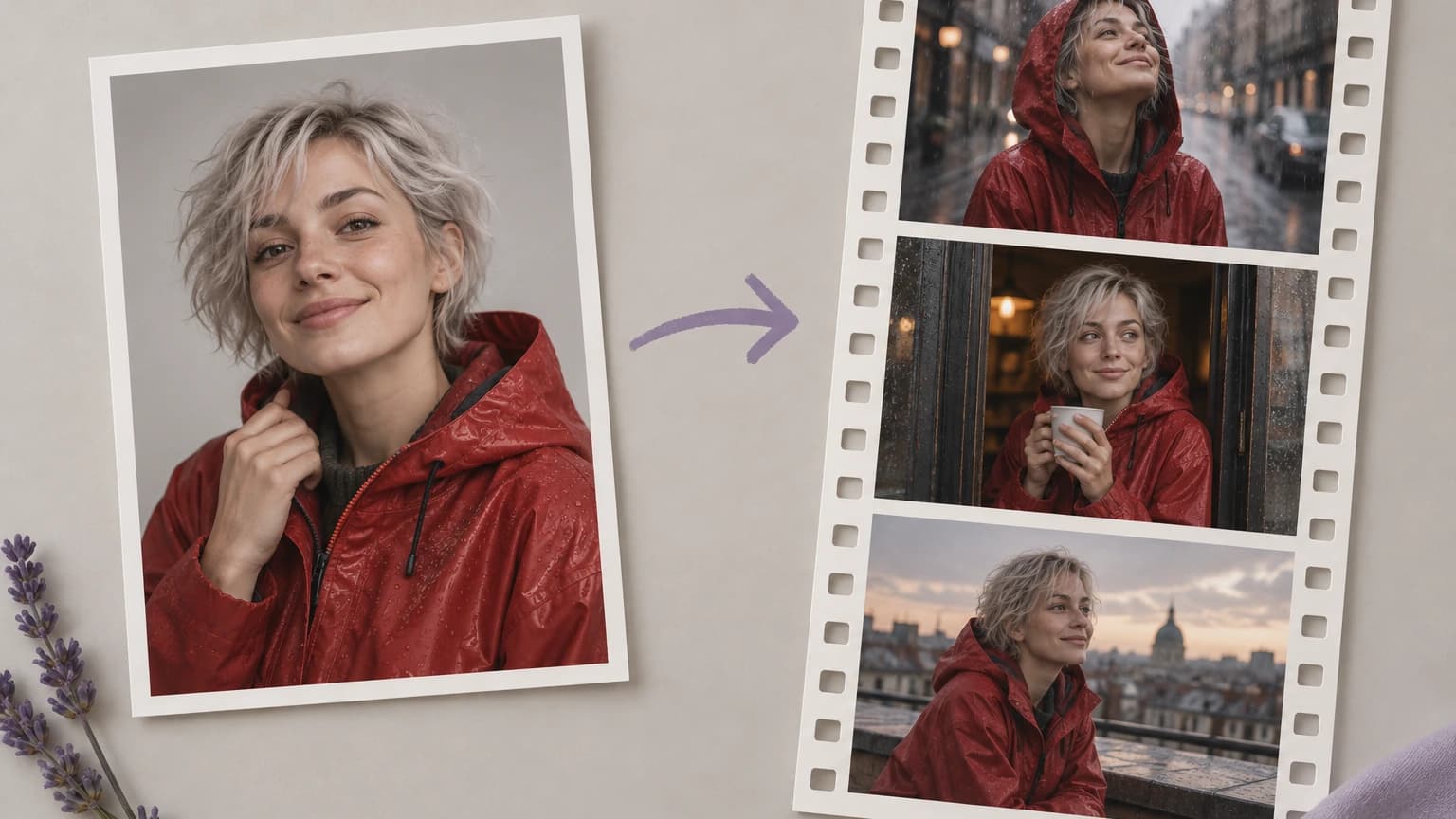
All three steps happen in the tool at the top of this page: an image, a camera move or your own description, then one button.
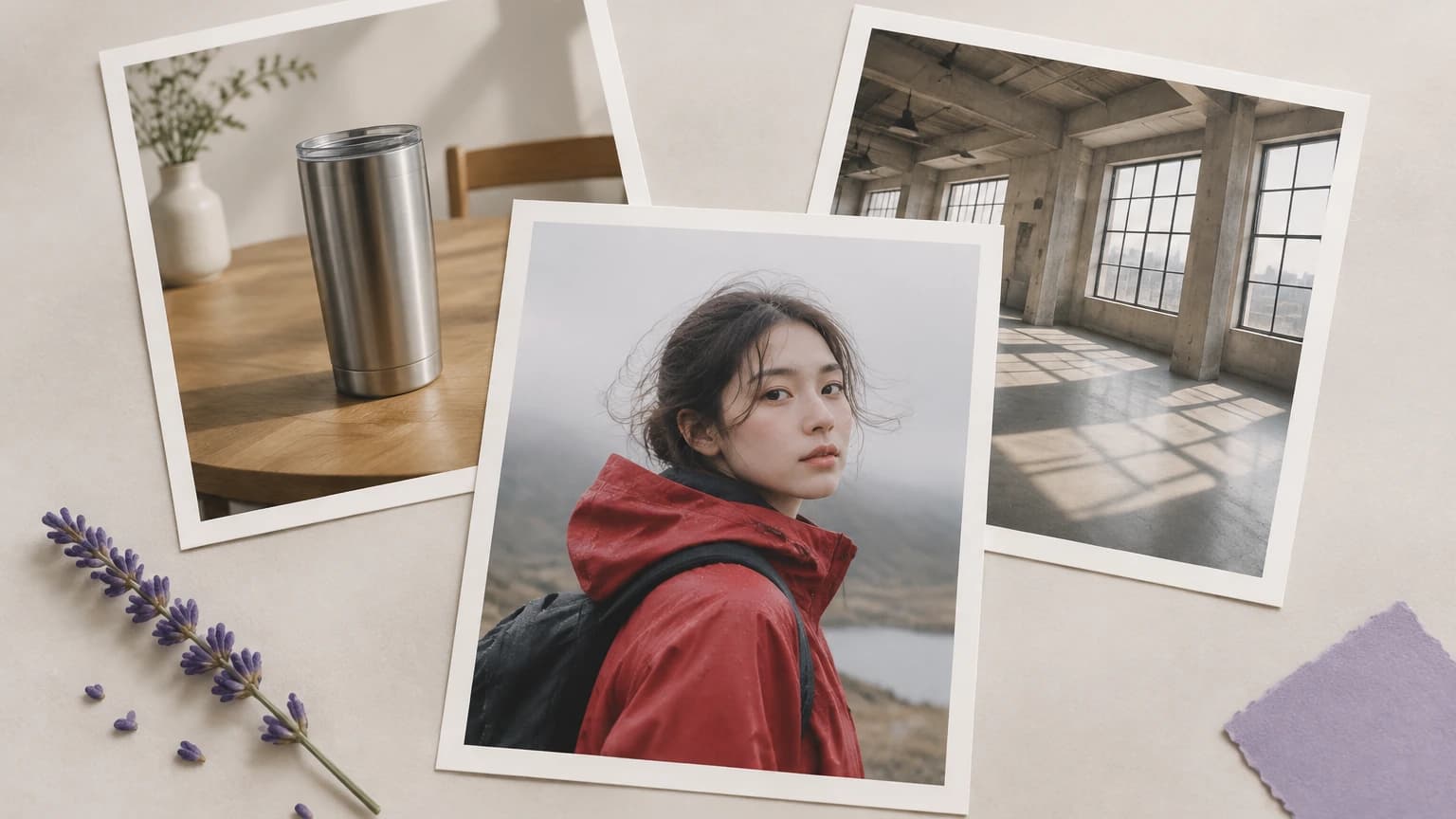
Choose one of the sample images or select Upload your own. Start with a sample to see how the moves behave, then switch to your own photo.
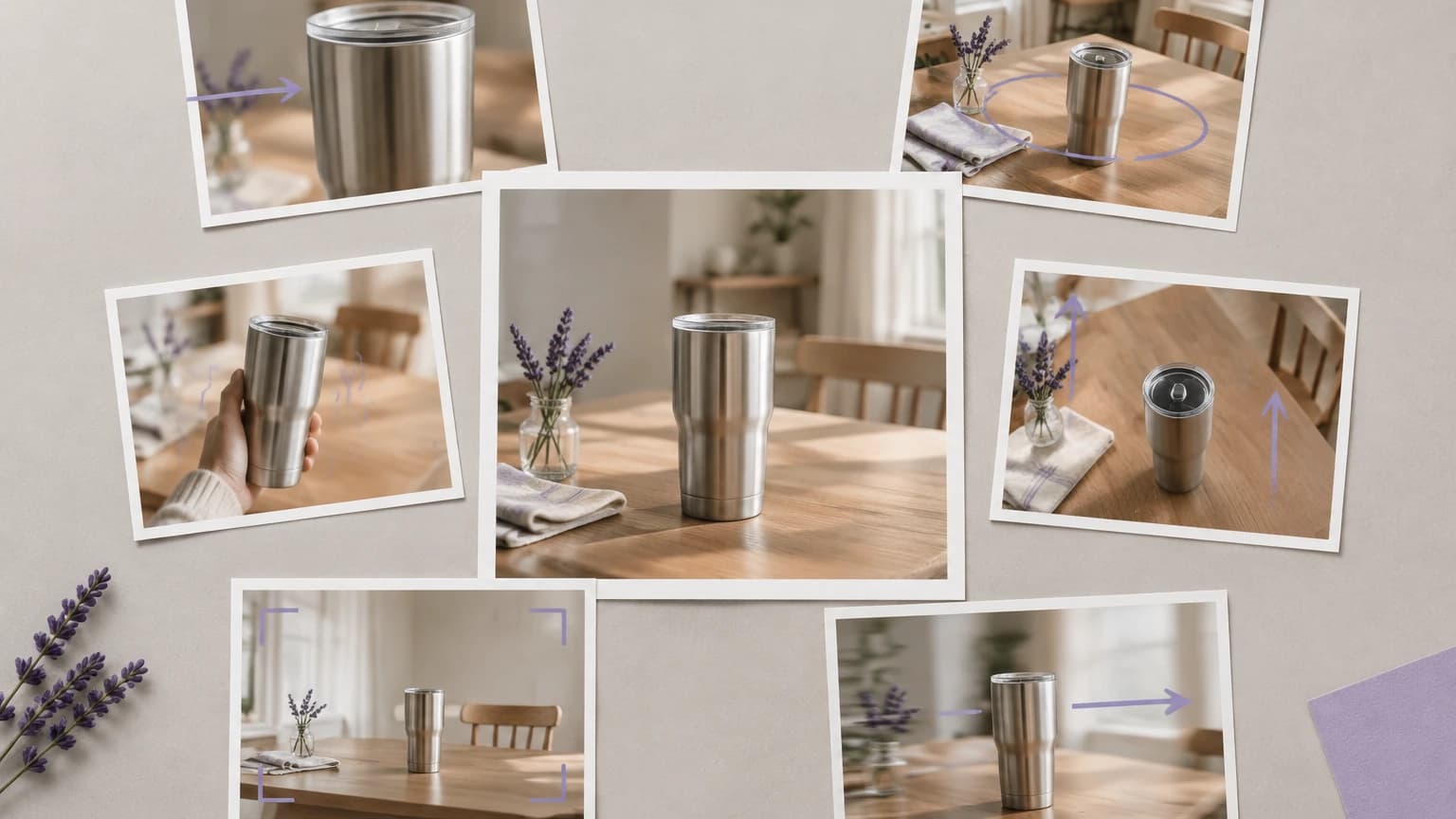
Pick one of six presets, from a slow push in to a crane up, or skip the presets and write the shot yourself: the action, what enters the frame, the mood.
Press Animate it. The model builds the clip from your image and your chosen move or description, so check the result before you run the next one.
The first four happen inside the tool above; the last two need the canvas, where a clip can go to another video model or take in more references.
Upload a character, product or location photo, or try a sample image first. The picture you choose sets the look the clip starts from.
Generate videoPick a push in, an orbit, a crane or a locked-off frame without writing a word. Each preset tells the model how the camera should travel.
Generate videoWrite the action, what enters the frame and the mood when a preset is not enough. Your prompt shapes what happens in the clip, not only the camera.
Generate videoEach run renders its clip in a project in your account, so the result is ready to edit on the canvas rather than being a one-off download.
Generate videoOn the canvas, send the same image to other video models, including ones with dedicated reference modes, and keep the take that suits the shot.
Generate videoOn the canvas, connect more than one reference image to a video node, such as a character and a location, and reuse them across shots.
Generate videoSkip the presets and type one of these as the shot, with your own subject in place of ours. All four follow the same pattern: an action, the light, then a single camera move.
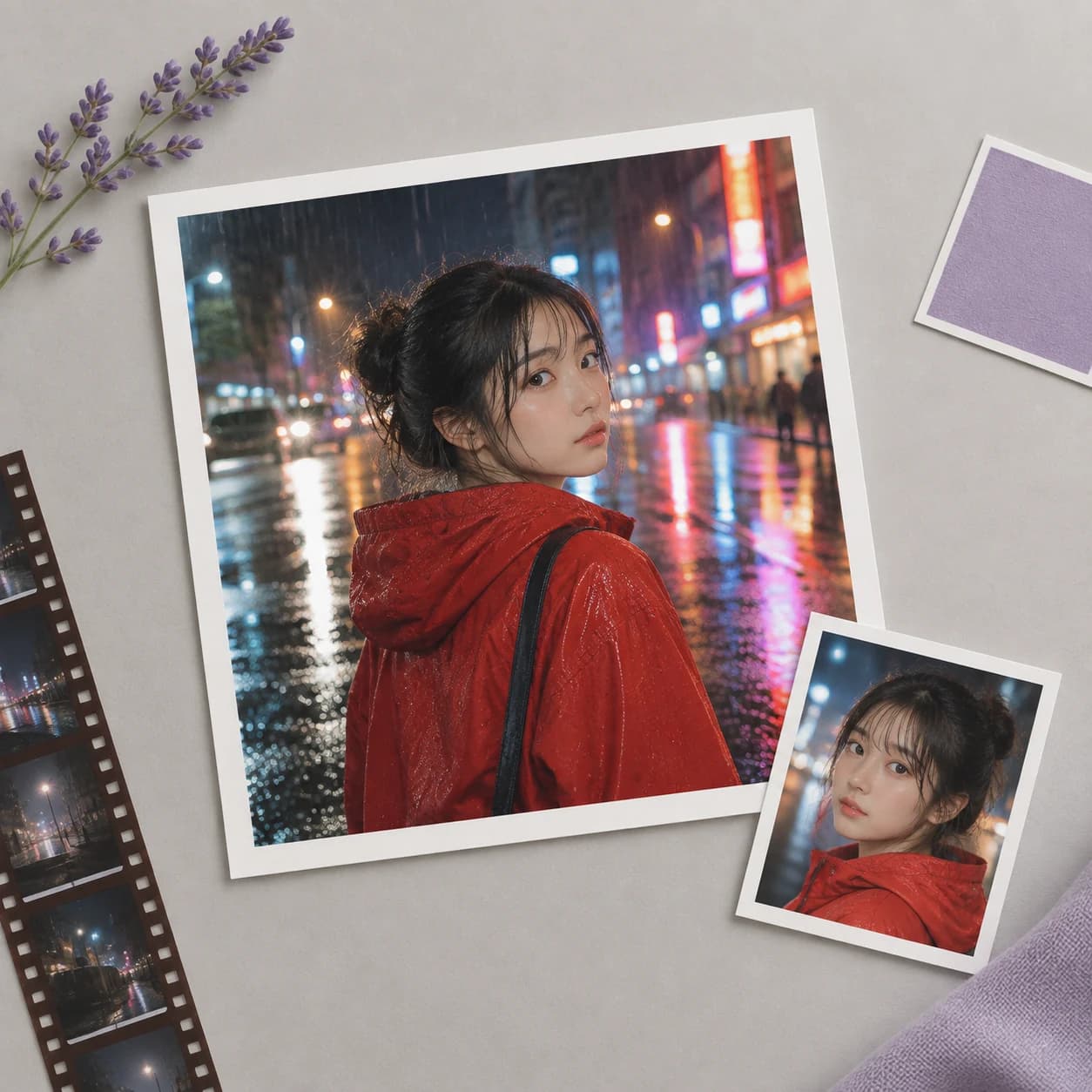

A creator posts a short every week around the same designed character, and viewers notice when the face changes. Each episode starts from that character's reference image instead of a fresh description written from memory.
Generate video
A brand film has to join live footage with a few generated shots, and a shot that looks borrowed from another campaign stands out. Generating those shots from the campaign's own stills helps them sit with the material around them.
Generate video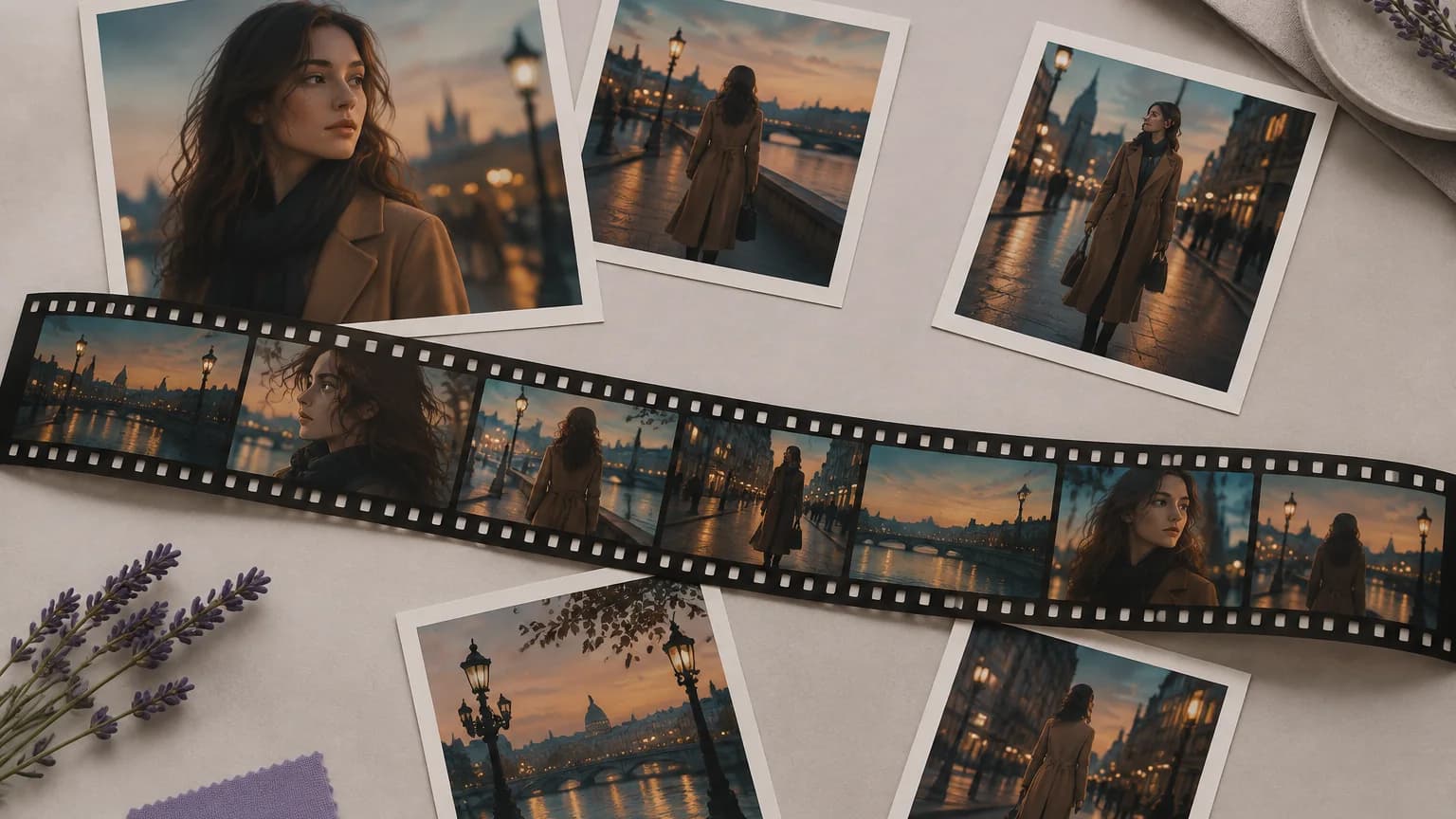
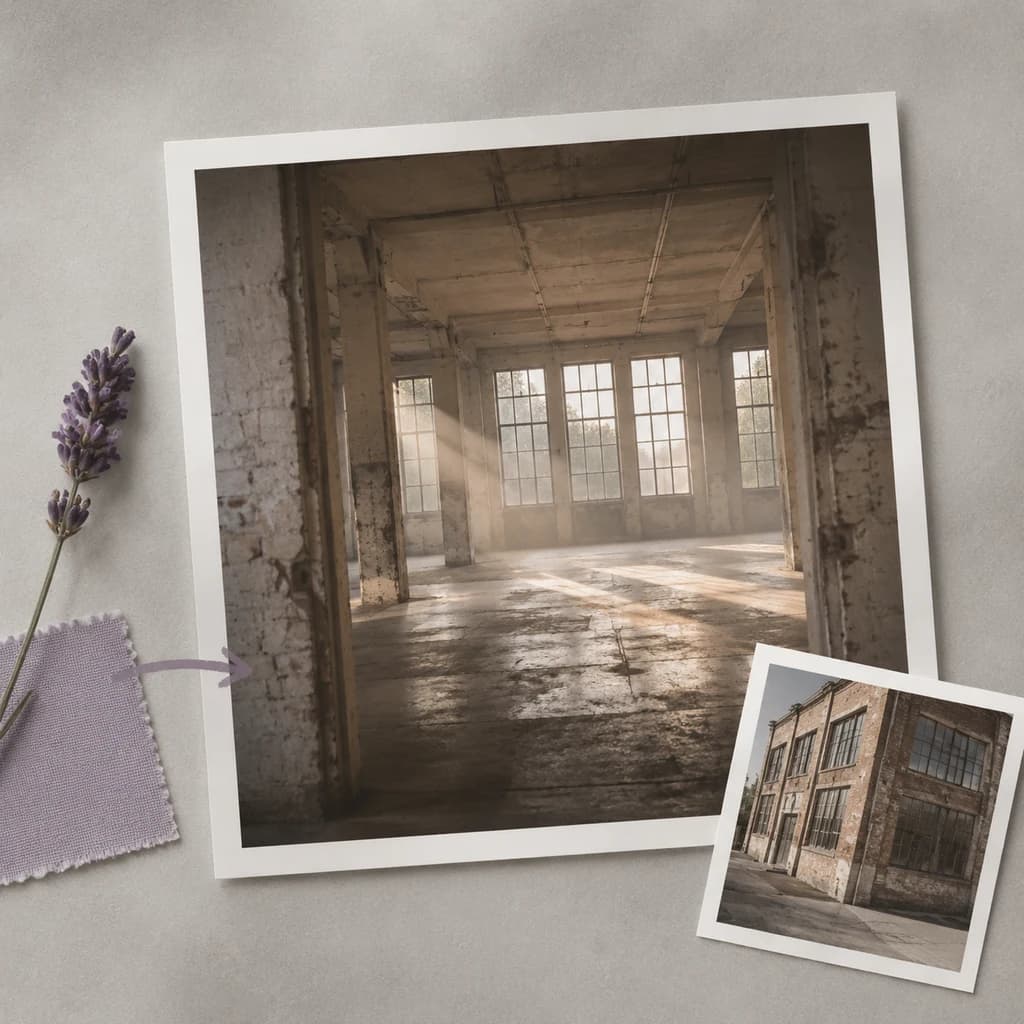
A production team is planning a shoot at a place they have only photographed. That scout photo becomes the reference for each preview clip, so camera moves are tested in the right setting.
Generate video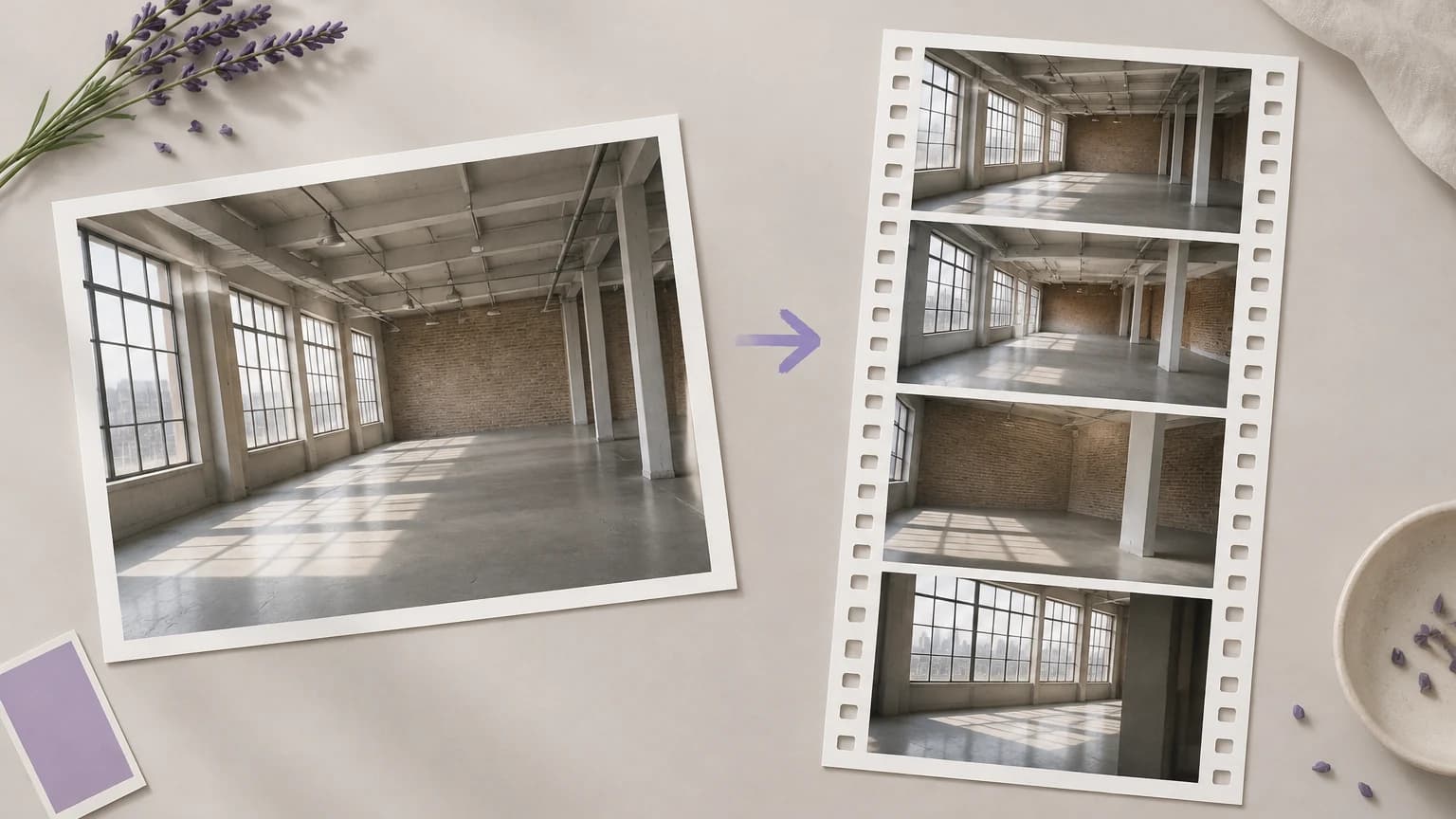
An agency pitching a concept has stills but no budget for a shoot, and a static deck struggles to sell an idea about movement. A few short clips made from those stills show the client how it moves before anyone commits.
Generate video
A social team sits on a library of approved photos while the feed rewards video. Turning the strongest ones into short clips gives the feed some motion without booking new content or clearing new images.
Generate video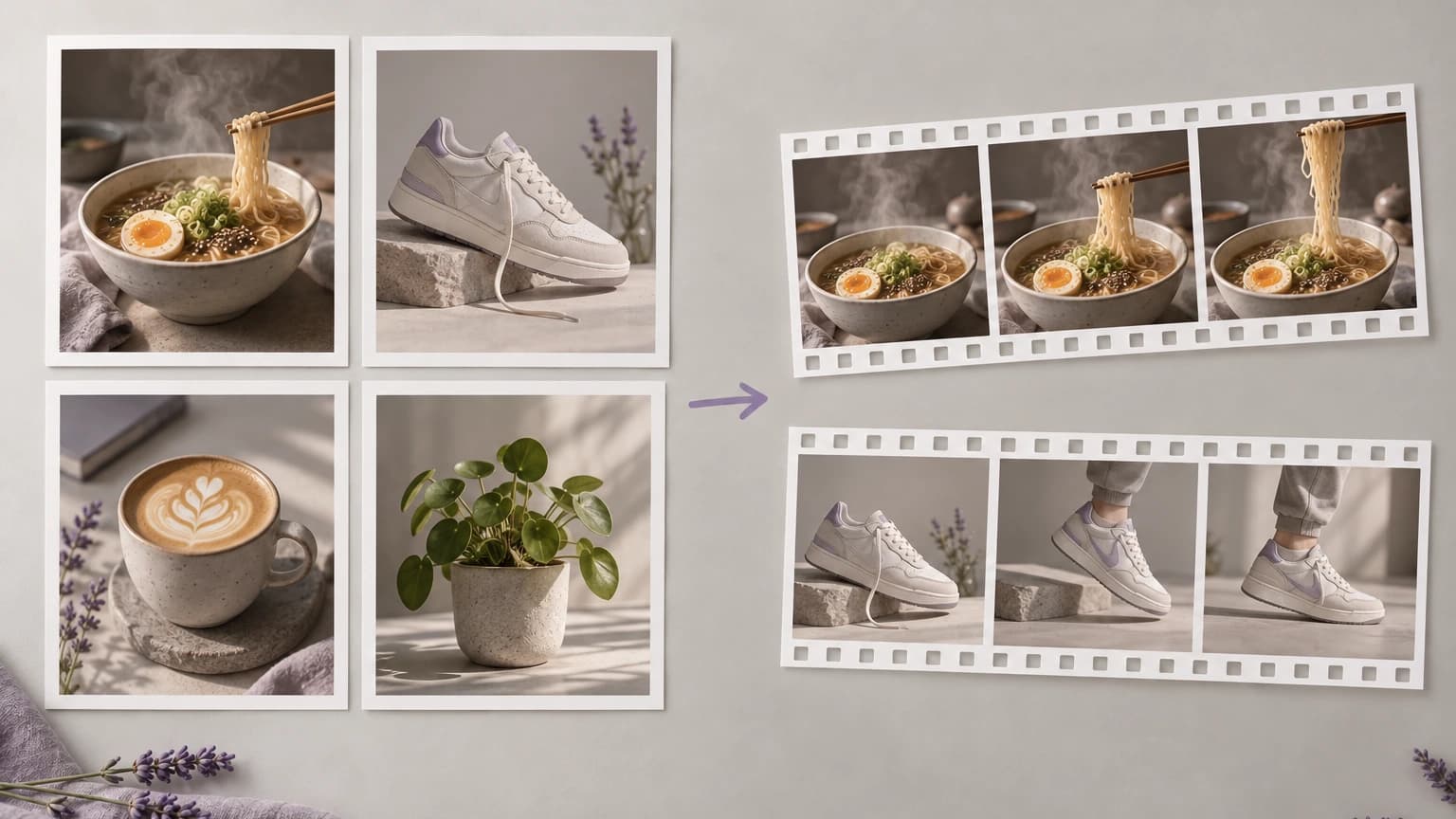
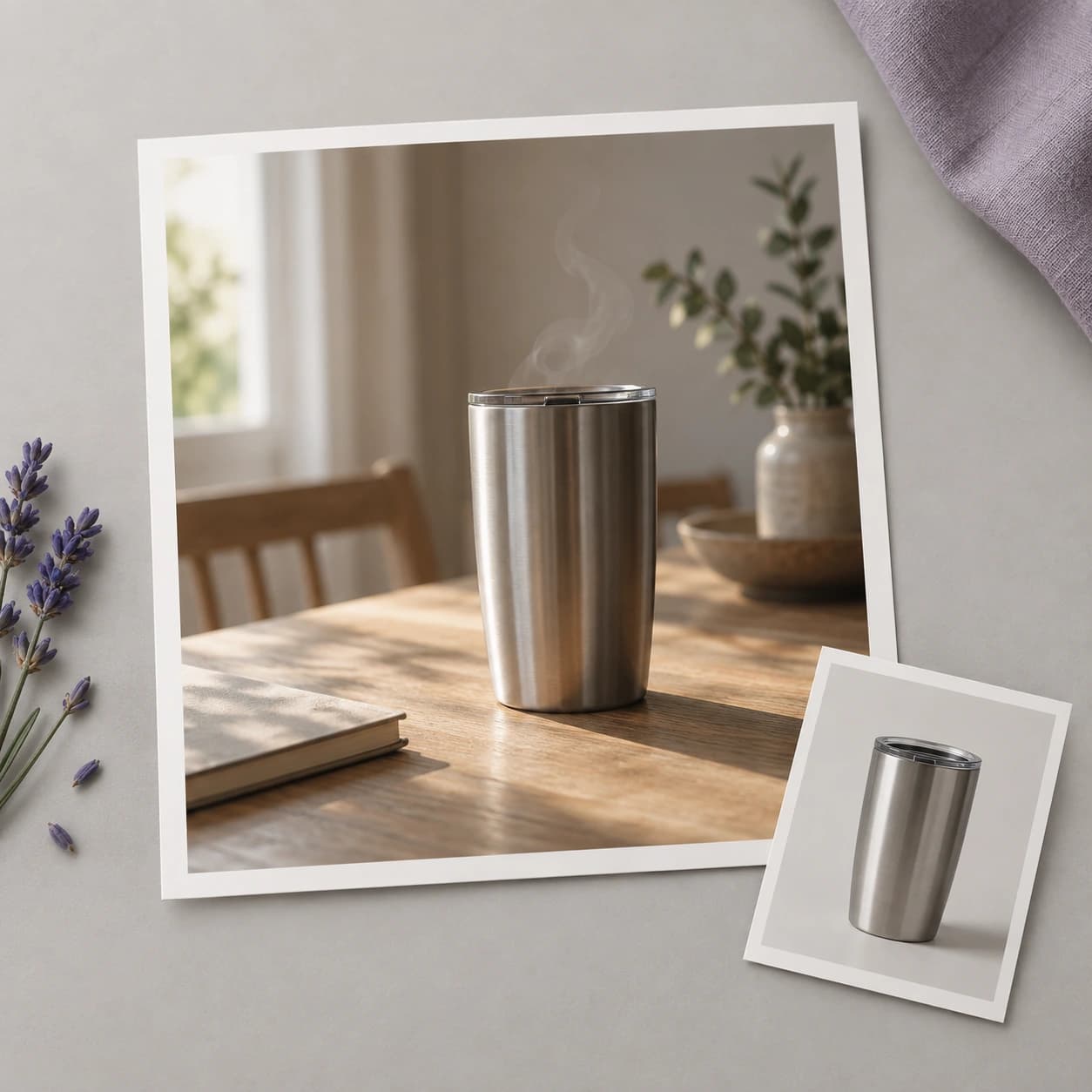
A launch has signed-off packshots and no motion shoot booked before the date. The approved image goes in as the reference, so every clip starts from artwork the team has already cleared.
Generate video
| Input | One image per run: JPEG, PNG or WebP. HEIC and HEIF photos are converted to JPEG in the browser | |
|---|---|---|
| Image size | Both sides at least 300 px; PNG and WebP files up to 30 MB | |
| Camera moves | Six presets: slow push in, gentle orbit, handheld follow, crane up, locked off and parallax dolly | |
| Prompt | Optional. Describe the shot yourself instead of choosing a preset | |
| Output | One 5-second 720p clip in a 16:9 frame, rendered in a project in your account | |
| Credit cost | Up to 65 credits for a 5-second 720p shot. Plan discounts and included allowances may lower this | |
| Free plan | 40 credits a month, which is less than one run of this tool | |
| People in references | A reference showing a recognizable real person is refused before the generation starts | |
| Commercial use | Clips made on a paid plan can be used commercially unless their model says otherwise; rules at /help/commercial-rights/can-i-use-generated-content-commercially |
The tool above has no model picker. On the canvas, each of the five video models below has a reference mode that holds the look of an image or clip, and Nano Banana 2 is an image model for making or cleaning up a reference first.
Reference to video is a way of generating AI video from a guide image as well as a prompt. The image shows the model what to hold on to, such as a character, a product, a place or a look, and the prompt supplies the action and the camera. The result follows the picture rather than the words alone.
There is, but it does not cover this tool. A new account starts with 40 credits a month, and one 5-second 720p clip here uses up to 65 credits, so making a clip needs a paid plan. Current plans and prices are on the Astorie pricing page.
Yes, when the clip is made on a paid plan: it belongs to you from the moment it is generated. Two limits still apply: a video model marked non-commercial stays that way, and the rights to any real person, brand or character in your reference are yours to clear. See /help/commercial-rights/can-i-use-generated-content-commercially.
Start from one sharp, well-lit reference that shows only the character, and use it for every shot. Reference images help but do not lock a face or outfit, because each generation is a new take. Treat the first shot you approve as the benchmark and regenerate any take that drifts from it.
Upload a reference photo, pick a camera move, and make your first clip.