

How to Animate Images with AI

If you only need a pan, zoom, fade, or moving text, a conventional photo animation effect is faster. Use generative image-to-video when the subject, background, lighting, or camera needs to move beyond a preset effect.
Primary CTA Animate an Image Secondary CTA View the Video Node Guide
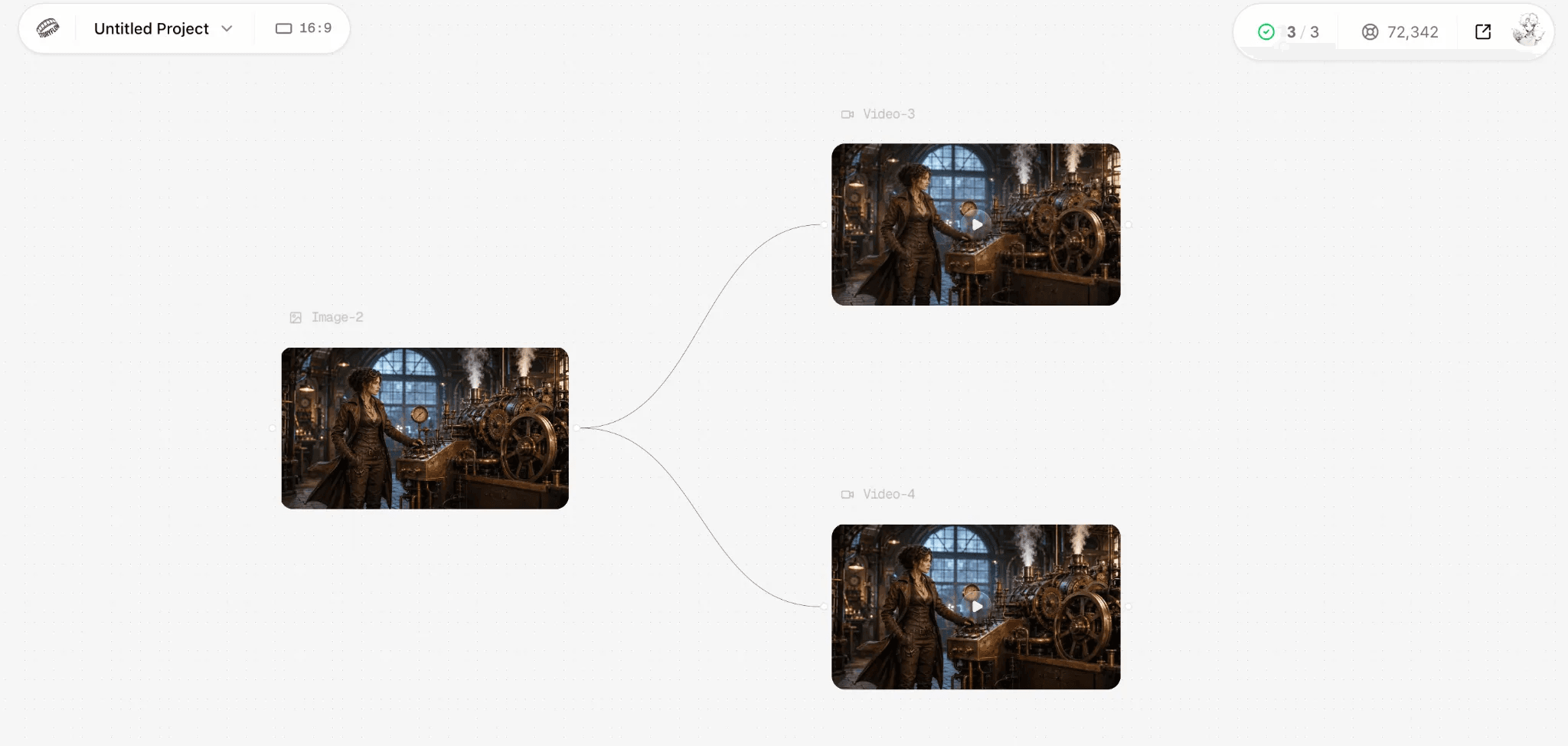
A real Astorie canvas with one still image connected to two completed video branches. The screenshot proves the fan-out workflow; it does not establish that one underlying model is universally better.
How to Animate an Image with AI in Five Steps
1 Upload a Clear Source Image
Use the highest-quality version of the image you have. A clear subject, clean edges, and enough space around the intended movement give the model a stronger starting point. If the picture contains a person, check that the face and hands are visible. If it contains a product, inspect the label and logo before generating because small text can deform once the scene moves.
2 Create and Connect a Video Node
Place the still in an Image node, create a Video node, and connect the image to it. Astorie identifies the connection as image-to-video and uses the image as the starting frame or visual reference. Keeping the source on the canvas also makes it easier to reuse the same input for another model later.
3 Choose a Model and Starting Settings
Open the live model selector and choose an image-to-video option that matches the shot. Then set the aspect ratio, duration, resolution, and any model-specific mode that the node exposes. Start with the shortest practical duration and a draft resolution. A larger output will not correct a weak motion plan, and a short test makes prompt mistakes cheaper to find.
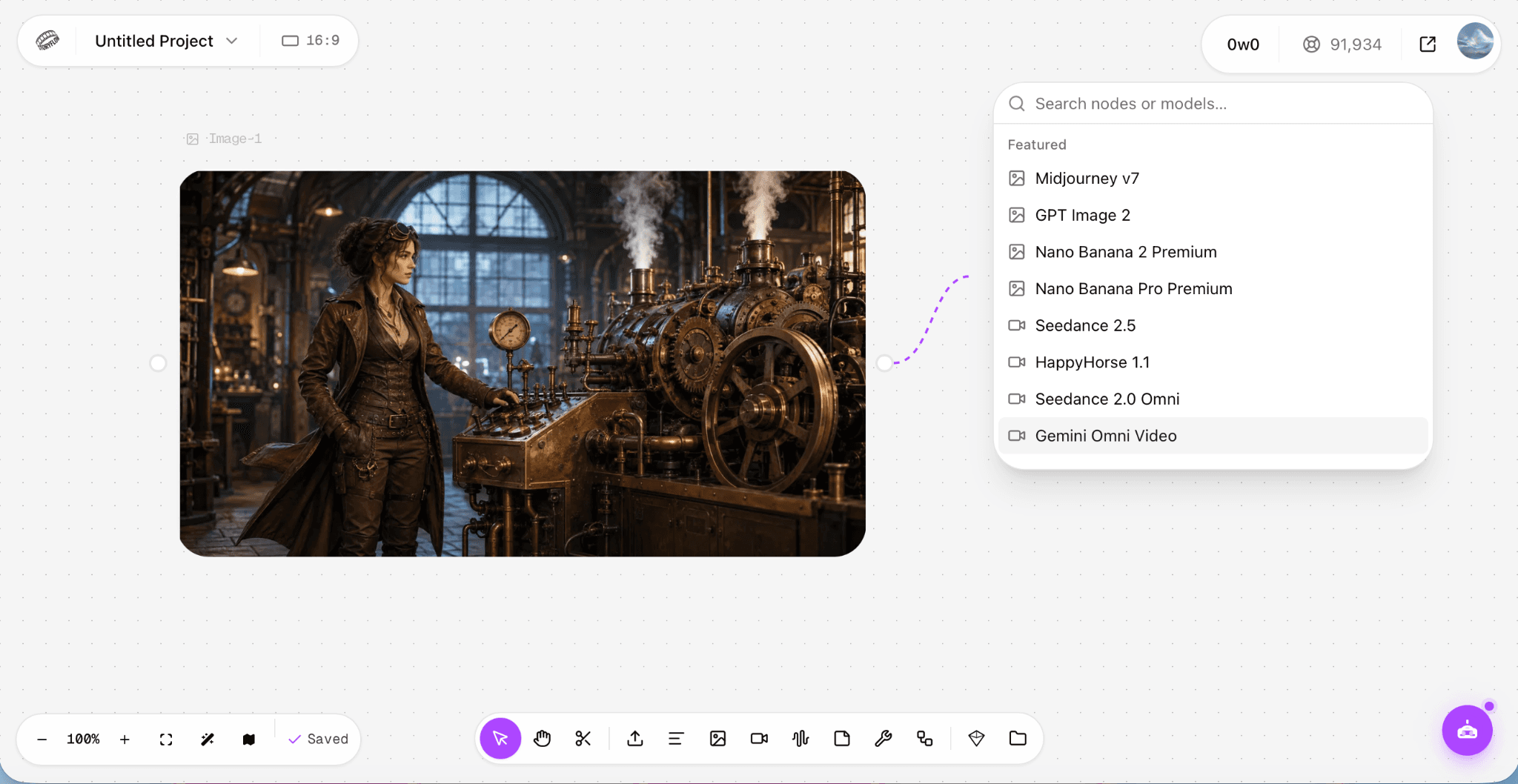
The Astorie model selector beside the source image. Seedance 2.5 and other video models were visible in the tested account when this screenshot was taken.
4 Write a Motion Prompt
Focus the prompt on what changes over time. A useful structure is main action + supporting movement + camera direction + details that must remain consistent. You do not need to describe every object already visible in the image, but continuity instructions can protect faces, hands, products, clothing, text, and object shape.
The inventor glances at the pressure gauge and slowly adjusts a lever with her right hand. The large flywheel and exposed gears rotate steadily while soft steam rises from the pipes. A light draft gently moves the loose strands of her hair and the hem of her coat. Warm workshop lights flicker subtly in the background. Slow cinematic push-in. Keep her face, hands, clothing, machinery, lighting, and the original steampunk style consistent.
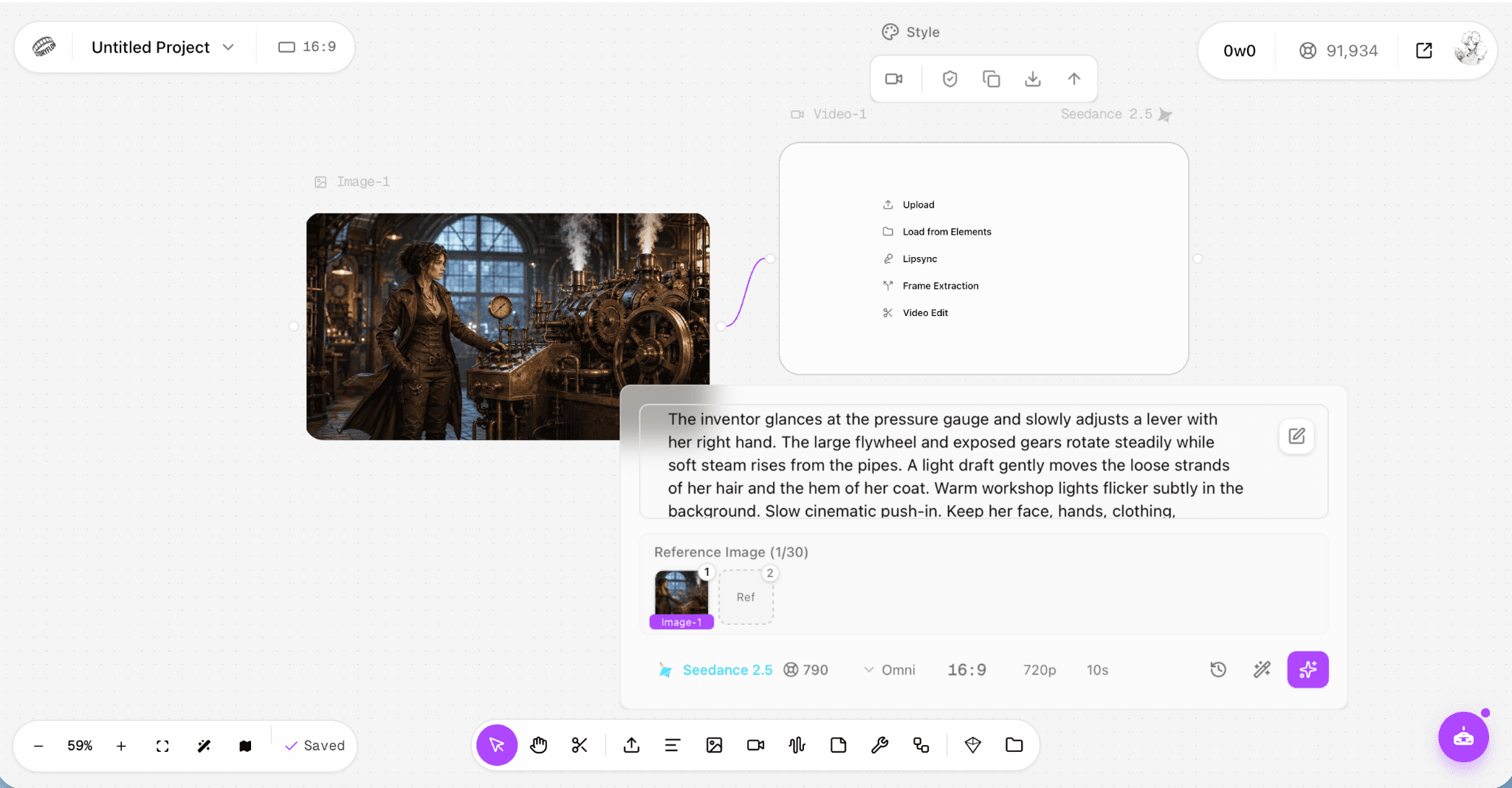
The real test setup before generation. The canvas shows the source image, motion prompt, Seedance 2.5 Omni mode, 16:9 framing, 720p, a 10-second duration, and the displayed credit quote.
5 Generate and Review the Full Clip
Generate the clip and watch it from beginning to end. A strong single frame is not enough. Check whether the intended action happens, whether the camera follows the prompt, and whether faces, hands, text, products, and background geometry remain stable throughout the shot.
In this Astorie test, the 10-second 720p run completed and the clip showed the requested character movement, machinery, steam, and camera push-in. Hand-to-lever contact and the background light still needed another pass. That result is useful because it gives the next revision a specific target rather than a vague request for better quality.
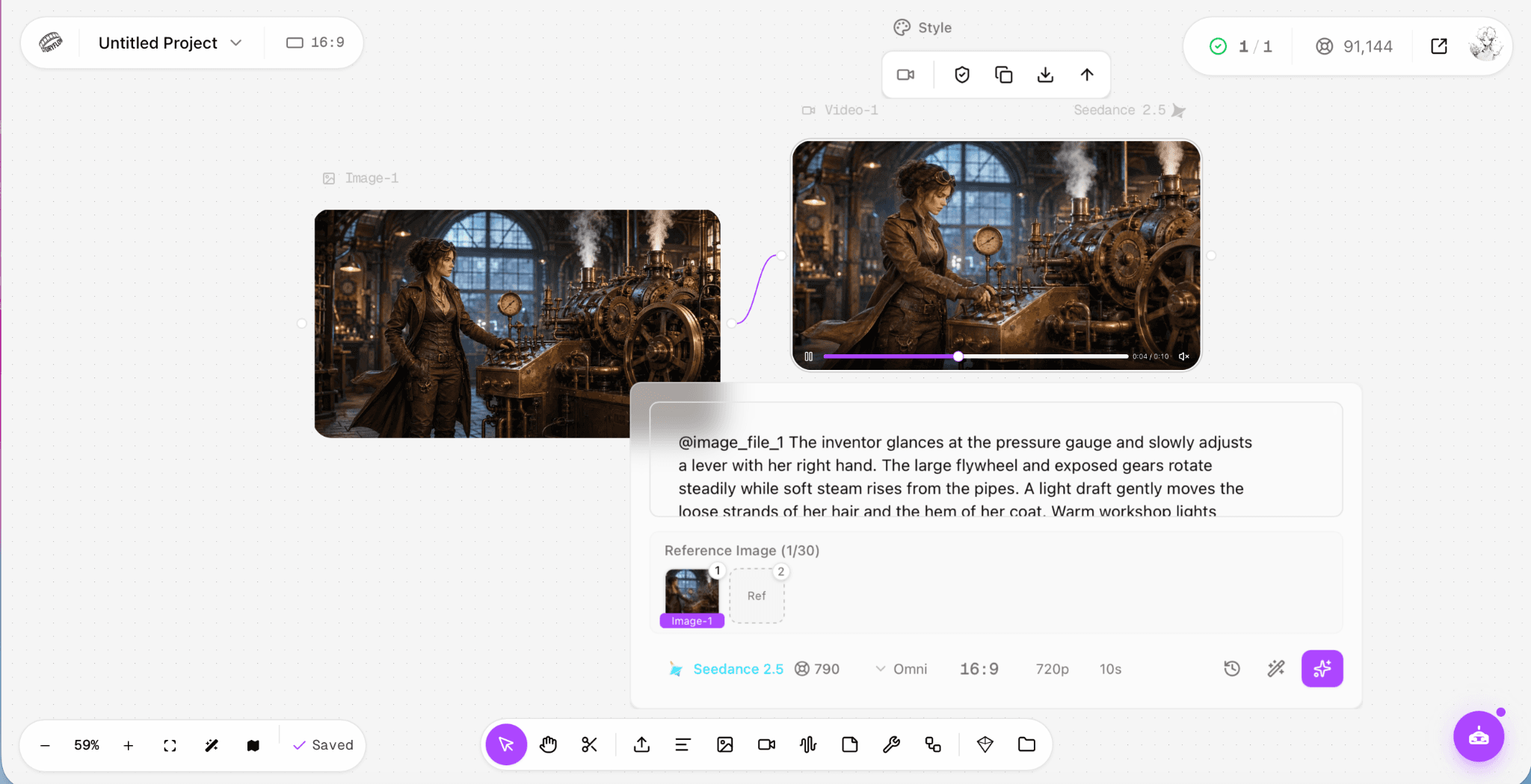
The completed image-to-video run at roughly four seconds. The source, generated clip, prompt, model, and settings remain visible on the same Astorie canvas.
Image to Video Versus Photo Animation Effects
The phrase image animation can refer to two different jobs. Choose the method based on what needs to move.
Method | Use it when | Main limitation |
Photo animation effect | You need a pan, zoom, fade, parallax preset, or moving text around an otherwise unchanged image. | The subject itself does not perform a new action. |
Generative image to video | A person, product, illustration, background, lighting, or virtual camera needs new movement. | The model can alter fine details, so every frame needs review. |
Which Images Animate Best
A model can only infer motion from what the source image makes visible. Choose an input that supports the action you plan to request.
• Use implied motion when possible. A person mid-step, wind-blown hair, rising steam, waves, smoke, or a product photographed at an angle gives the model a direction to continue.
• Leave room for the movement and camera path. A tight crop gives the model less information when a hand, head, or object moves toward the edge of the frame.
• Keep faces, hands, logos, and important product details sharp. Compression artifacts in the source often become moving artifacts in the result.
• Match the action to the pose. A formal portrait is better suited to blinking, breathing, a small smile, or a slight head turn than to running or dancing.
• Reduce occlusion. Hidden hands, crossed limbs, reflections, and overlapping objects make physical relationships harder to preserve.
How to Write a Motion Prompt
Write the prompt as shot direction. Name one main action, then add only the supporting movement the shot needs. Give the camera one clear instruction, even when that instruction is static camera. Finish with continuity constraints for anything that must not drift.
Source | Prompt focus | Example |
Portrait | Small expression and camera stability | She blinks once, turns slightly toward the window, and gives a restrained smile. Hair moves gently. Static camera. Preserve her face and clothing. |
Product | Surface detail and controlled camera path | The bottle stays upright while a highlight travels across the glass. Slow 30-degree arc from left to right. Preserve the label, cap, and proportions. |
Landscape | Layered environmental motion and depth | Clouds drift slowly and foreground leaves move in a light breeze. Slow push forward with gentle foreground and background parallax. |
Illustration | One readable action and style continuity | The character raises the lantern as the cloak moves in the wind. Slight upward camera move. Preserve the line work, face, costume, and palette. |
For a longer clip, divide the action into timed beats only when the selected model and duration can support them. Change one variable per rerun so you can identify what improved or failed.
How to Choose an Image Animation Model
Choose by shot requirement rather than by a universal ranking. The live Astorie selector is the final source for current availability, modes, duration, resolution, and credit quotes.
Shot requirement | What to test |
Portrait or recognizable person | Identity stability, blinking, expression, head movement, hands, and unwanted camera drift |
Action or stylized illustration | Direction, momentum, fabric and environmental motion, physical contact, and style retention |
Landscape architecture or product | Dolly, pan, orbit, parallax, straight lines, surfaces, labels, and edge stability |
Reference-led or longer shot | Reference limits, supported duration, continuity controls, output resolution, and live cost |
For model-specific steps, use the Kling 3.0 portrait guide, the Seedance 2.0 motion guide, or the Ray 2 camera guide. Keep detailed parameter claims on those child pages so this guide remains the universal workflow.
Why Compare More Than One Model
The same still and prompt can produce different strengths and different failures. For an important shot, branch one source image into two or three Video nodes. Keep the source, prompt, aspect ratio, duration, and resolution as close as the interfaces allow, then compare the full clips against the same checklist.
• Did the intended action happen at the right intensity
• Did the face, hands, product shape, logo, and background remain stable
• Did the camera follow the requested path without extra movement
• Did the model preserve the original style and lighting
• Was the result usable without several extra reruns
A single run should be described only as in our test. It shows what happened with that source, prompt, and setting combination; it is not proof that the same model will win every image.
How to Fix Common Image Animation Problems
Problem | Likely cause | Next change |
Movement is too weak | The action is vague or crowded by secondary instructions. | Use one stronger verb and remove nonessential motion. |
Movement is too large | The requested action exceeds what the starting pose can support. | Reduce the range and add slow, subtle, or restrained. |
Face or hands change | The model must invent hidden anatomy or complex contact. | Use a clearer source, simplify the action, and reduce turns or hand interaction. |
Camera drifts | The prompt does not define camera behavior. | Add static camera or one specific pan, push, pull, or orbit. |
Logo or text warps | Generative motion is altering small hard-edged details. | Keep the object still, use a subtle camera move, and verify every frame. |
Scene feels flat | Foreground, background, and camera all move as one layer. | Name separate foreground and background motion, then add a gentle camera path. |
Result has several unrelated actions | The prompt asks the model to stage too much at once. | Split the idea into separate shots and generate each one independently. |
How to Make a Longer Video from Still Images
Build a longer sequence as several short shots. Choose one clear action and camera move for each still, reuse the same character or product reference, and keep the color treatment and camera language consistent. Review each clip before assembling the sequence. This is usually more controllable than asking one generation to perform several actions and camera changes.
For a connected workflow, see Astorie's Multi-Shot AI Video feature and the Video Node documentation.
Frequently Asked Questions
Can I Animate a Photo for Free
Astorie currently advertises a free plan with no credit card required. The models, resolutions, and credits available to a free account can change, so use the live selector and pricing page as the final source before generating.
What File Type Should I Use
Use a clean JPG or PNG at the highest practical quality. PNG is useful for graphics, logos, and sharp edges, while a well-exported JPG is usually suitable for photographs. Avoid sending a screenshot of an image when the original file is available.
Does Image to Video Preserve the Original Image
It uses the uploaded image as the first frame or visual reference, which helps retain the subject and composition. Motion can still change faces, hands, text, clothing, and object geometry, especially when the requested action is large or occluded.
How Long Should the First Clip Be
Use the shortest duration that can reveal whether the motion and camera direction work. Increase duration or resolution after the shot is stable. Available lengths depend on the model and mode shown in the live node.
Can I Animate Text or Logos
Yes, but hard-edged typography can warp during generative motion. Keep the logo or text itself still, request a subtle camera or lighting change, and inspect every frame before using the clip in a commercial deliverable.
Do I Need Video Editing Skills
No editing experience is required to generate a first clip. Editing becomes useful when you want to combine several animations, add audio or captions, trim the timing, or prepare multiple aspect ratios.
Which Astorie Model Should I Use
Start with a model that supports the kind of motion your shot needs, then test another model when identity, camera behavior, or detail retention matters. Use the live selector for current options and the model-specific guides for detailed settings.
Animate Your Image on the Astorie Canvas
Start with one clear still, one motion brief, and a short test. Keep the source connected, review the entire result, and change one variable at a time. Compare another model only when the shot is important enough to justify the extra run, then increase duration or resolution after the movement is stable.
Ready to try it on the canvas?
Open Astorie and fan your prompt across every frontier model in one workflow.