

How to Make Realistic AI Videos: A Shot-by-Shot Workflow

To make realistic AI videos, lock the visual facts before you animate, direct one believable action per shot, keep camera movement restrained, and reject any clip that changes the subject, vehicle, lighting, or geography. A seven-image Tang-dynasty farewell project shows how this workflow works in practice and where continuity can still fail.
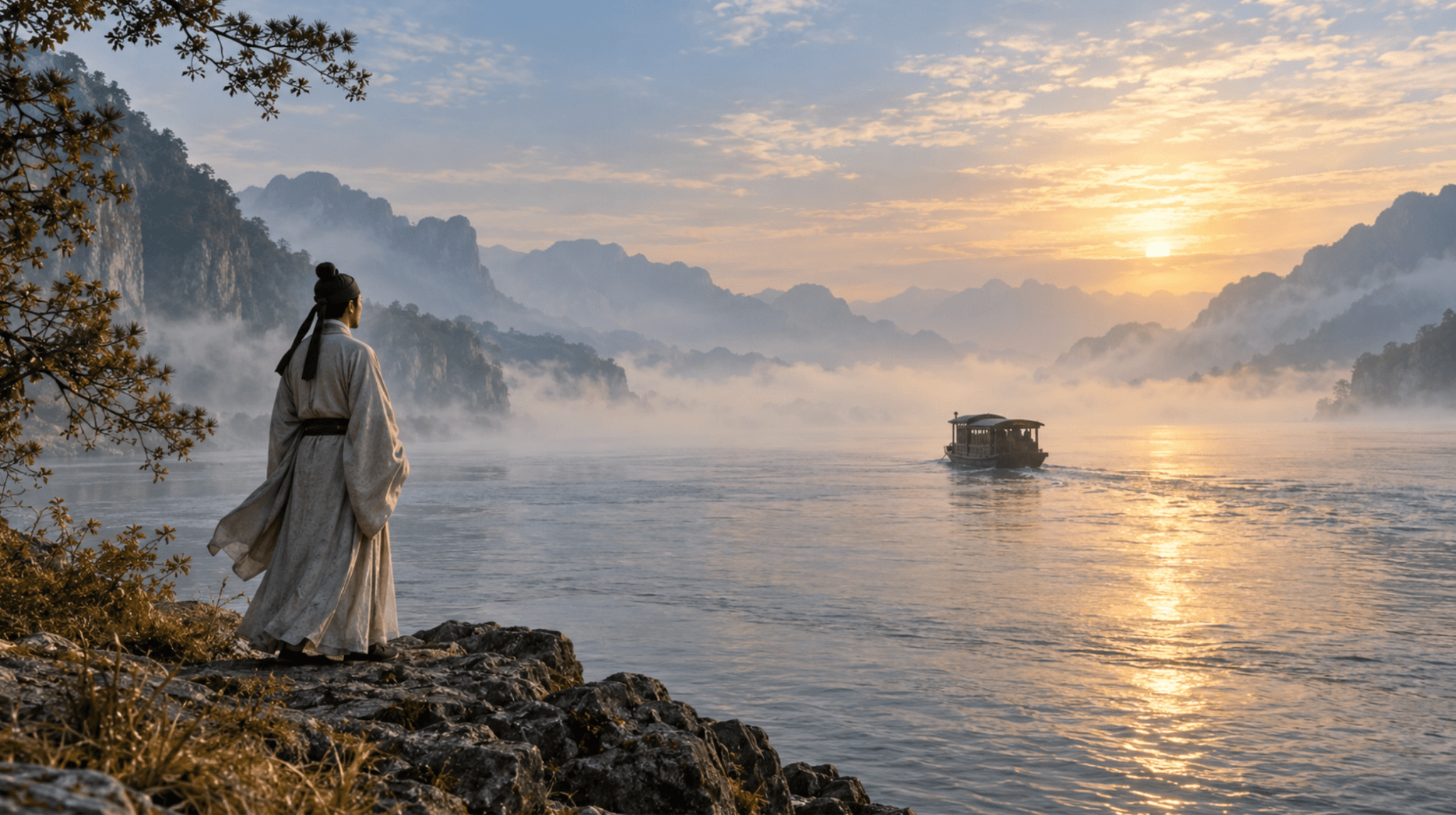
How Do You Make Realistic AI Videos?
Start with a believable still image, then ask the video model to perform a small, physically clear change. Realism breaks when the model must invent identity, wardrobe, architecture, camera movement, crowd behavior, and a complex action at the same time. The practical solution is to control what must remain fixed and animate only what the shot needs.
In this hands-on example, Clara built a quiet historical farewell around Li Bai watching Meng Haoran’s boat leave. Seven 16:9 still images established the people, clothing, river, boat, tower, lighting, and emotional progression. Short Seedance 2.5 Omni clips were then generated inside Astorie. Astorie served as the multi-model node canvas and workflow layer; the underlying model generated the motion.
Step 1: Define the Physical Truth of the Shot
Write down what a viewer must believe before writing a cinematic prompt. For this scene, the poet stays on shore, the passenger boat moves away, the river remains open, the tower stays behind the poet, and the morning light does not jump. These are continuity facts, not decorative adjectives.
Lock | Decision in this project | What to inspect |
Character | Pale ivory hanfu with a dark blue outer layer | Face, silhouette, sleeve length, hair and proportions |
Vehicle | One small wooden passenger boat | Hull and canopy do not turn into a sailboat or larger vessel |
Geography | Open river in front; tower behind/left | No structure suddenly blocks the horizon |
Motion | Boat only travels farther away | No return, reversal, teleporting or unexplained speed change |
Light | Misty blue-and-gold morning | Direction, contrast and reflections remain consistent |

Figure 1. Astorie generation setup used to direct a controlled historical river shot. This is a real workflow screenshot from October 6, 2026.
Step 2: Build or Select a Strong First Frame
A first frame should already solve composition, wardrobe, lighting, and spatial relationships. Do not expect motion generation to repair a weak image. Leave room in the direction of travel, keep hands and faces readable, and avoid tiny props whose shapes are likely to change.
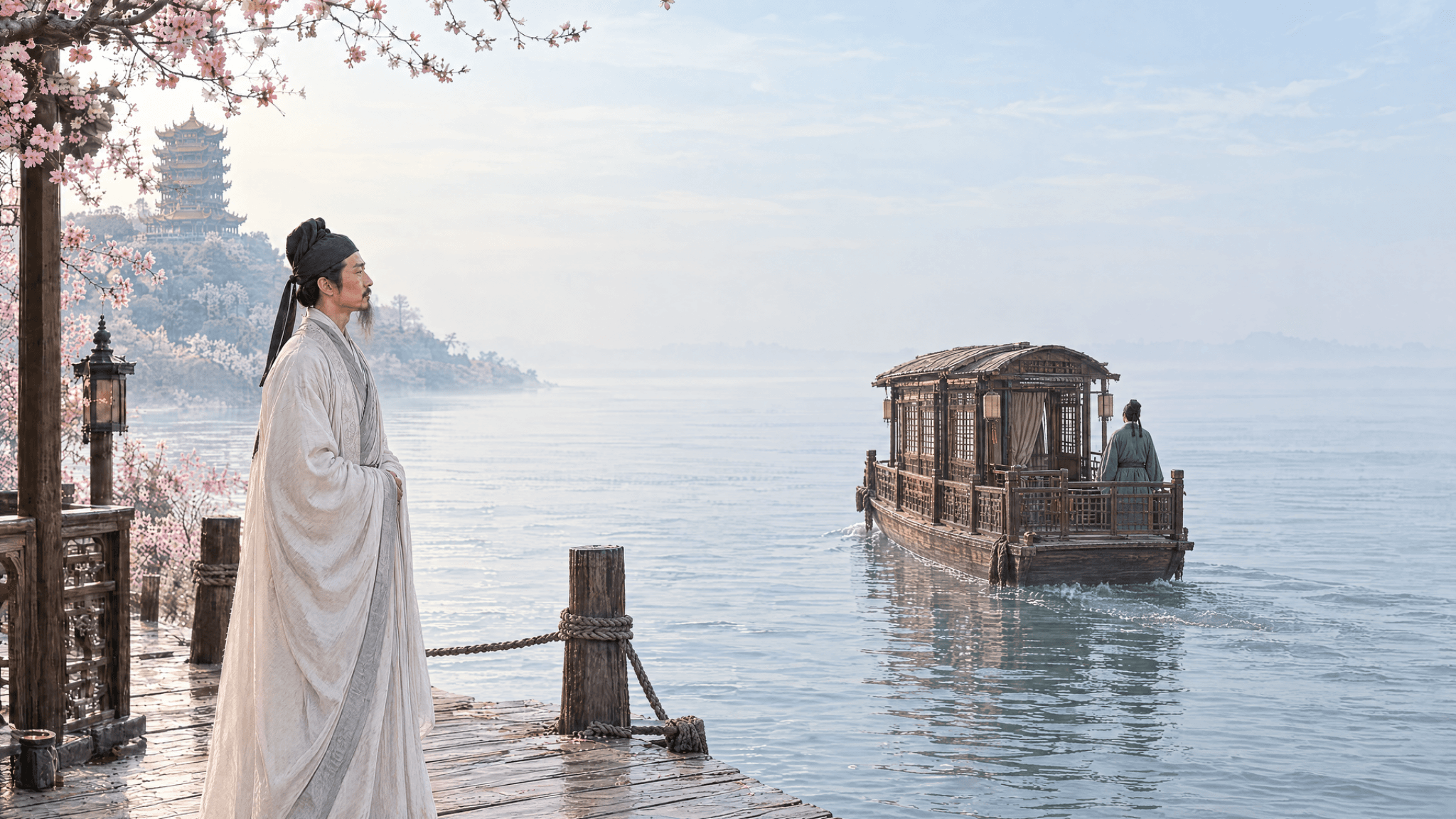
Figure 2. Original 16:9 still showing the departing boat while the poet remains on shore. It was used as project evidence, not generated for this article cover.
Step 3: Write a Motion-First Prompt
Describe movement in the order the viewer experiences it: subject action, environmental response, camera behavior, and ending state. Then name the most damaging changes to avoid. Adjectives such as cinematic or realistic can support direction, but they cannot replace physical instructions.
SUGGESTED PROMPT TEMPLATE — NOT TESTED AS WRITTEN The [subject] remains [fixed action/pose] while [moving object] travels [single direction]. [One environmental motion]. Camera: [one restrained move]. End state: [clear final composition]. Keep [identity, clothing, object, lighting and geography] unchanged. No [highest-risk substitutions, extra subjects, cuts or transformations]. This reusable template is a recommendation. The supplied outputs do not prove this exact wording. |
Step 4: Configure and Run the Generation
Create or open an Astorie project and add the image and video-generation nodes needed for the shot.
Connect the approved still image as the visual input. If the model mode is text-only, restate every locked scene fact in the prompt.
Select Seedance 2.5 and the Omni mode shown in the tested interface. Keep the exact model label visible in the project record.
For the tested horizontal shot, set 16:9, 1080p and five seconds. The interface displayed an estimated 380 credits; the supplied evidence does not document final post-run debit or failed-run charging.
Run one shot at a time and watch the status. Save the prompt, settings screenshot and exported file before revising.

Figure 3. A generated result shown beside its Astorie settings and connected source. The screenshot documents the workflow, not universal model reliability.
Step 5: Review the Result Frame by Frame
Watch once at normal speed for emotional credibility, then scrub slowly for structural errors. A usable clip should preserve identity, object type, direction of travel, horizon, and light. Small water or fabric motion can make the shot feel alive; extra people, a changing boat, or a camera path that reveals impossible geography should trigger a rerender or a different source frame.
Check | Pass condition | Revision if it fails |
Identity | Same face, hair and costume throughout | Use a clearer reference and reduce action complexity |
Object permanence | Boat keeps the same hull and canopy | Name the boat type and explicitly ban substitutions |
Motion | Movement follows one direction at plausible speed | Shorten the requested action or remove competing motion |
Camera | One slow move or a locked shot | Remove pans, rotations or cuts |
Ending | Last frame is clean enough to connect to the next shot | Specify the final composition and regenerate |
What the Test Proved — and What It Did Not
The supplied project proves that this workflow produced several usable five-second historical shots on the test date. It also exposes a real boundary: one later clip changed the passenger boat into a sailboat, so it was not used as evidence of continuity. That failure supports a narrower conclusion—short, simple actions were easier to control in this project—not a claim that every Seedance or Astorie run will behave the same way.
The test did not compare models under identical prompts, measure generation speed, document final credit debits, or establish a general winner for realism. Treat the 380-credit number as the interface quote shown for the tested configuration, not as a guaranteed bill.
Download and Export
Open the completed video node, preview the entire clip, and download the original MP4. Keep the exported file beside the source still, prompt, and settings screenshot. If the shot is part of a longer film, use a descriptive filename such as 04-boat-departs-v1.mp4 so the approved take cannot be confused with a rejected rerender.
Troubleshooting Realism Problems
Problem | Likely cause | Practical fix |
The face changes | Reference is small or action is too complex | Move closer, simplify the action, and reuse the approved still |
The boat changes type | The prompt names motion but not object invariants | Describe hull/canopy and add “no sailboat” |
The shot feels frozen | Prompt overprotects every pixel | Allow one subtle environmental motion such as sleeves or ripples |
The shot feels artificial | Too many simultaneous moves | Keep one subject action and one camera behavior |
Generation will not run | Disconnected media or unsaved node state | Reconnect the input, save the node, verify its status, then retry; the supplied screenshots show both warning states |
FAQ
Should I use text-to-video or image-to-video for realism?
Use image-to-video when identity, wardrobe, composition, or product shape must stay recognizable. Text-to-video gives the model more freedom, which can be useful for natural variation but makes precise continuity harder to control.
Does a longer generation automatically look more realistic?
No. More time gives the model more frames in which details can drift. Generate only the action the shot needs, then connect approved clips in an editor when a longer sequence is required.
Can Astorie edit the final film?
Astorie organized and generated the assets in this project. The supplied workspace did not document internal timeline stitching, so the 60-second composite was assembled in an external editor.
Final Checklist
The starting image already looks believable.
The prompt contains one clear action and one camera instruction.
Identity, object type, geography, light and ending state are locked.
The clip passes a normal-speed watch and a frame-by-frame check.
The original MP4, prompt, settings screenshot and approved status are archived.
Hands-on Test Record
This record separates what the supplied project proves from details that were not documented. Missing timing, billing, or rerun data is not inferred.
Record field | Documented value |
Executor / date / host | Clara / October 6, 2026 / Astorie |
Model route shown | Seedance 2.5, Omni in the tested Astorie interface |
Input role | Seven supplied 2048×1152 still images used as story and shot references; individual node screenshots document the connected workflow |
Original prompt status | Shot prompts differed. The evidence set does not preserve every full copyable horizontal prompt; the reusable prompt box in this article is explicitly labeled untested. |
Visible settings | Horizontal route shown as 16:9, 1080p and 5 seconds |
Runs / outputs | Seven horizontal MP4 exports were supplied. Complete attempt and rerun history was not documented. Video-6-02 changed the passenger boat into a sailboat and was excluded as a continuity success. |
Timing basis | Clara reported approximately three minutes for one generation; this was not a stopwatch-controlled benchmark and is not generalized. |
Credits | The interface displayed an estimated 380 credits for the shown setup. Final debit and failed-run charging were not documented. |
File verification | Each supplied horizontal clip is 1920×1080, 24 fps and 5.056 seconds, with HEVC video and an AAC audio stream. |
Audio review | The presence of an audio stream was technically verified. Its content and quality were not evaluated in this article. |
Video used here | astorie - Video-4-01.mp4 |
Ready to try it on the canvas?
Open Astorie and fan your prompt across every frontier model in one workflow.