

How to Make Short AI Videos: From Hook to Export

How to make short AI videos: start with one hook, one payoff, and one target format; connect clean references to a video model; direct the clip by time; then inspect the actual file before adding captions and exporting. The tested example below produced a 15.072-second, 1080 × 1920 vertical UGC-style product clip in one Seedance 2.5 Omni generation.
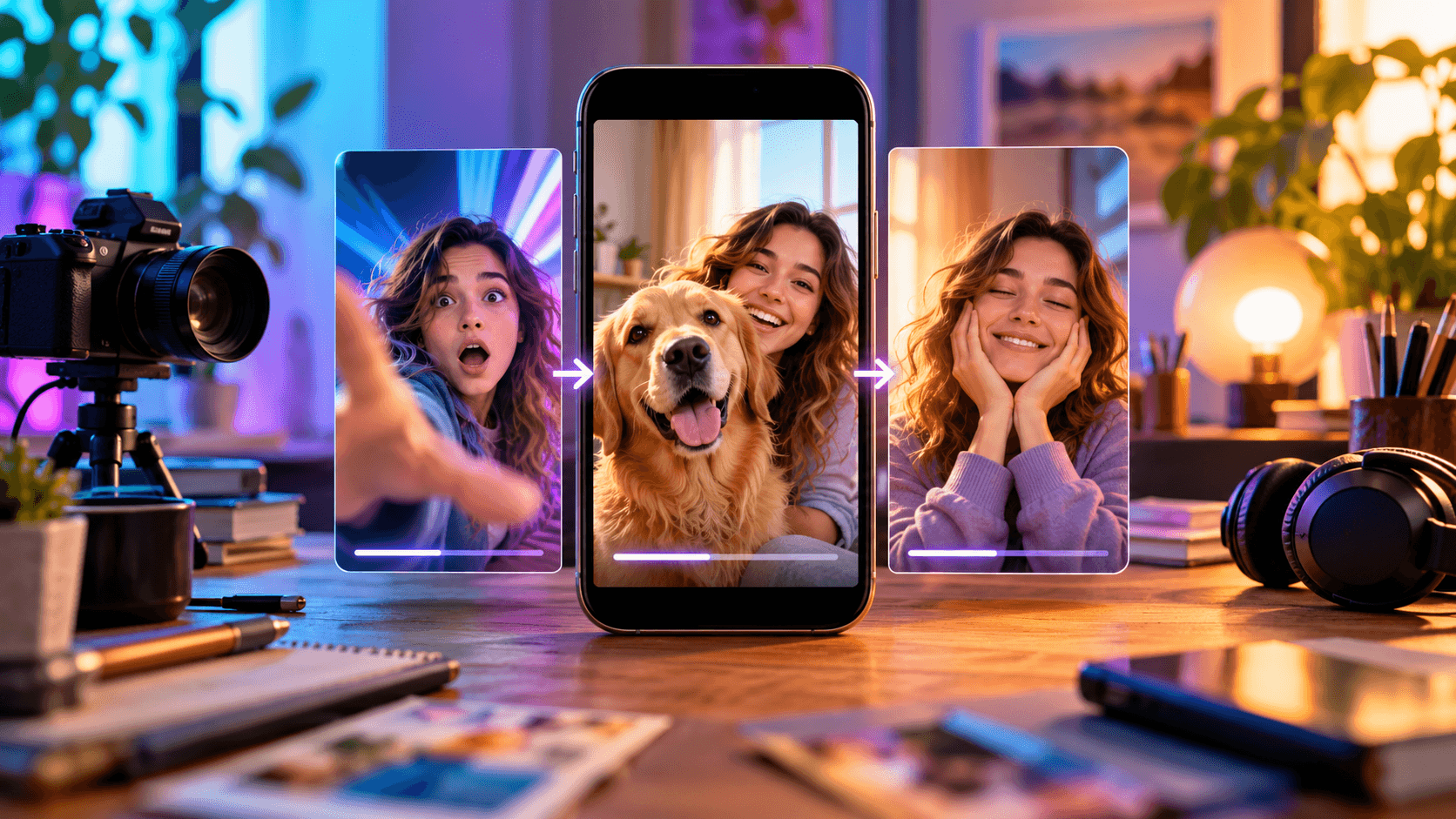
Hero concept: one short-form workflow moving from hook to product action to closing beat. Not test evidence.
How to make short AI videos: the quick answer
Use this eight-part workflow: decide the audience action, write a short beat sheet, collect identity and product references, create an Astorie canvas, add and connect the image and video nodes, choose the exact model and output settings, generate, then review the visual and audio tracks before export. A short video succeeds when every second advances the same idea; extra scenes usually cost clarity before they add value.
Choose one outcome: stop the scroll, explain one fact, show one transformation, or prompt one action.
Write a hook, proof/action beat, and payoff before writing a long prompt.
Prepare clean subject, scene, product, and optional opening-frame references.
Create a project in Astorie and add the required image-generation, image-input, and video-generation nodes.
Connect each reference to the Seedance 2.5 Omni node and state its role in the prompt.
Set 9:16 for vertical social video, choose duration and resolution, review the displayed estimate, and run.
Open the completed output and inspect identity, text, hands, cuts, dialogue, and the exported audio track.
Download the clip, then add verified captions, CTA, and safe-zone graphics in the finishing pass.
1. Choose one job for the clip
A short AI video needs a single sentence that describes what the viewer should understand or do. For the tested clip, that sentence was: introduce a new lemon sports drink in a casual phone-shot review and end with a rating. The generated sequence therefore had only four functional beats: hook, product reveal, opening/taste, and verdict.
Decision | Write this before prompting | Tested example |
Audience | Who should recognize the problem or desire? | People who watch creator-style product discoveries. |
Hook | What earns the next two seconds? | An oversized pile of crushed cans plus a direct question. |
Proof/action | What visible action supports the message? | Show, open, and drink from the can. |
Payoff | What closes the loop? | A brief ‘nine out of ten’ verdict. |
Next action | What should happen after the clip? | Not supplied in the test; add a real CTA in editing. |
Duration rule: Do not fill the selected duration with unrelated shots. If the idea only needs eight seconds, make an eight-second clip or give the remaining time to a clear demonstration rather than a second topic. |
2. Write a beat sheet before the generation prompt
A beat sheet converts an idea into time. It is easier to debug than a descriptive paragraph because each interval has a job and a visible state change. For a 15-second clip, leave no beat dependent on fine print that must remain readable while the object is moving.
Time | Beat | Required visible result | Risk to check |
0:00–0:04.5 | Hook | Presenter close to lens; crushed-can pile at left. | Opening reference may overpower product continuity. |
0:04.5–0:09 | Reveal | One sealed can; label toward camera. | Brand letters can deform during pickup. |
0:09–0:13 | Action | Tab opens; presenter takes one drink. | Finger/tab geometry and mouth contact. |
0:13–0:15 | Payoff | Can returns beside face; short verdict. | Dialogue must finish before the last frame. |
3. Prepare references with separate responsibilities
Reference overload creates conflicts. A useful prompt states what each image controls and what the model should ignore. In this project, the character sheet controlled face, hair, clothing, and microphone; the empty room controlled camera, framing, and light; the product packshot controlled can proportions and artwork; and the crushed-can image controlled the opening composition.
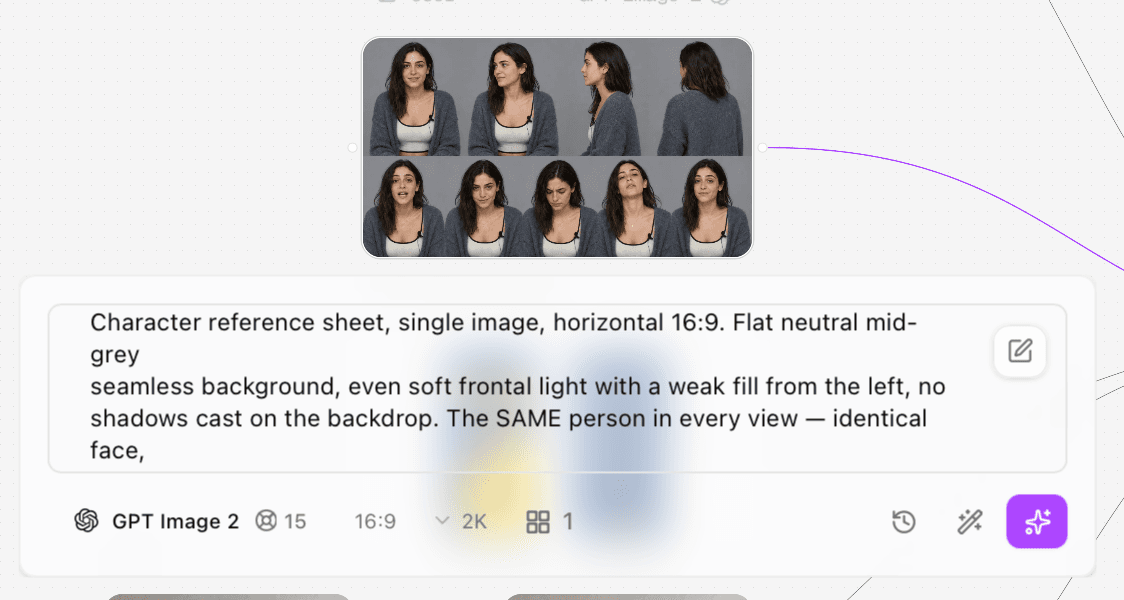
Figure 1. Original GPT Image 2 presenter reference sheet used for identity, wardrobe, expression, and microphone continuity.
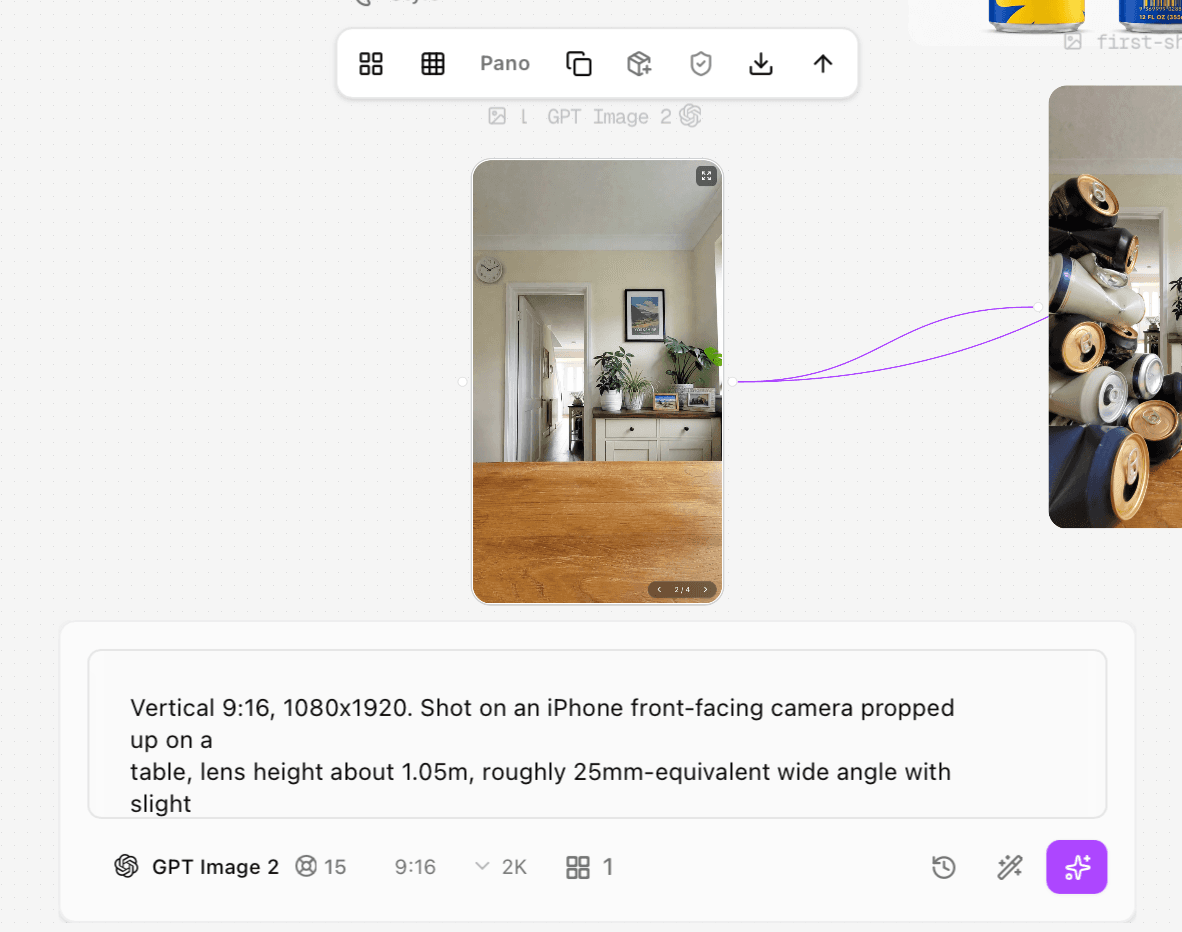
Figure 2. Original 9:16 empty-room reference used for camera height, table placement, background, and daylight.
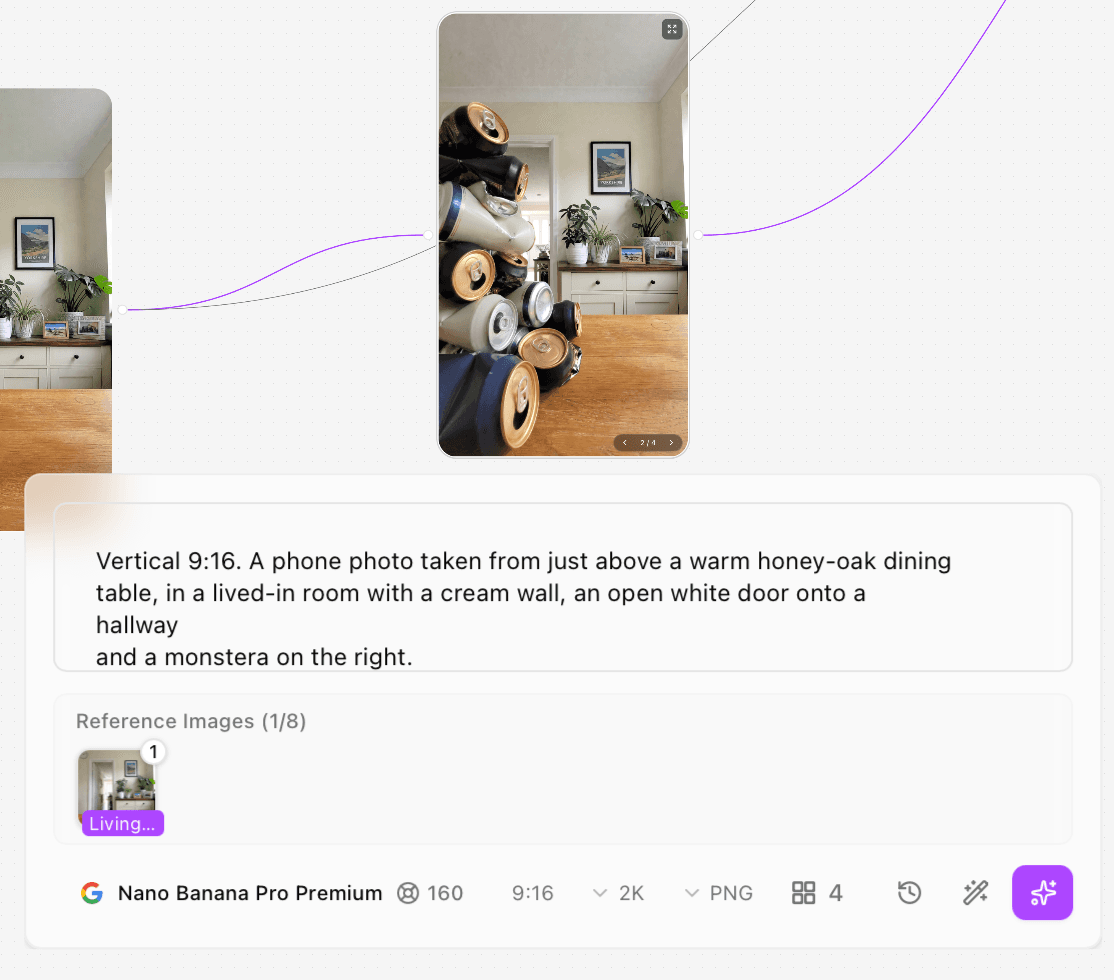
Figure 3. Original crushed-can opening image generated with Nano Banana Pro Premium from the room reference.
The input images were created at 2K before video generation. The presenter and room each showed a 15-credit estimate; the four-output crushed-can generation showed 160 credits. These are recorded interface estimates from the supplied screenshots, not a claim about the current public price or final account debit.
4. Build and connect the Astorie canvas
Create a project, add nodes for any references you need to generate, add the uploaded product image, and add a video-generation node. Choose Seedance 2.5 Omni in the tested video node. Connect the four references to that node, then name them clearly enough that the prompt can address them without ambiguity.
Input role | Connected reference | Prompt instruction |
Character | @User | Use face, hair, wardrobe, and mic; ignore the reference-sheet background and layout. |
Opening frame | @first-shot | Use the crushed-can pile and its left-side composition for the opening only. |
Product | @Astorie-Lemon | Use can shape, blue/yellow artwork, silver rim, and forward-facing label. |
Scene | @Living room | Use room, locked phone camera, tabletop framing, and right-side daylight. |
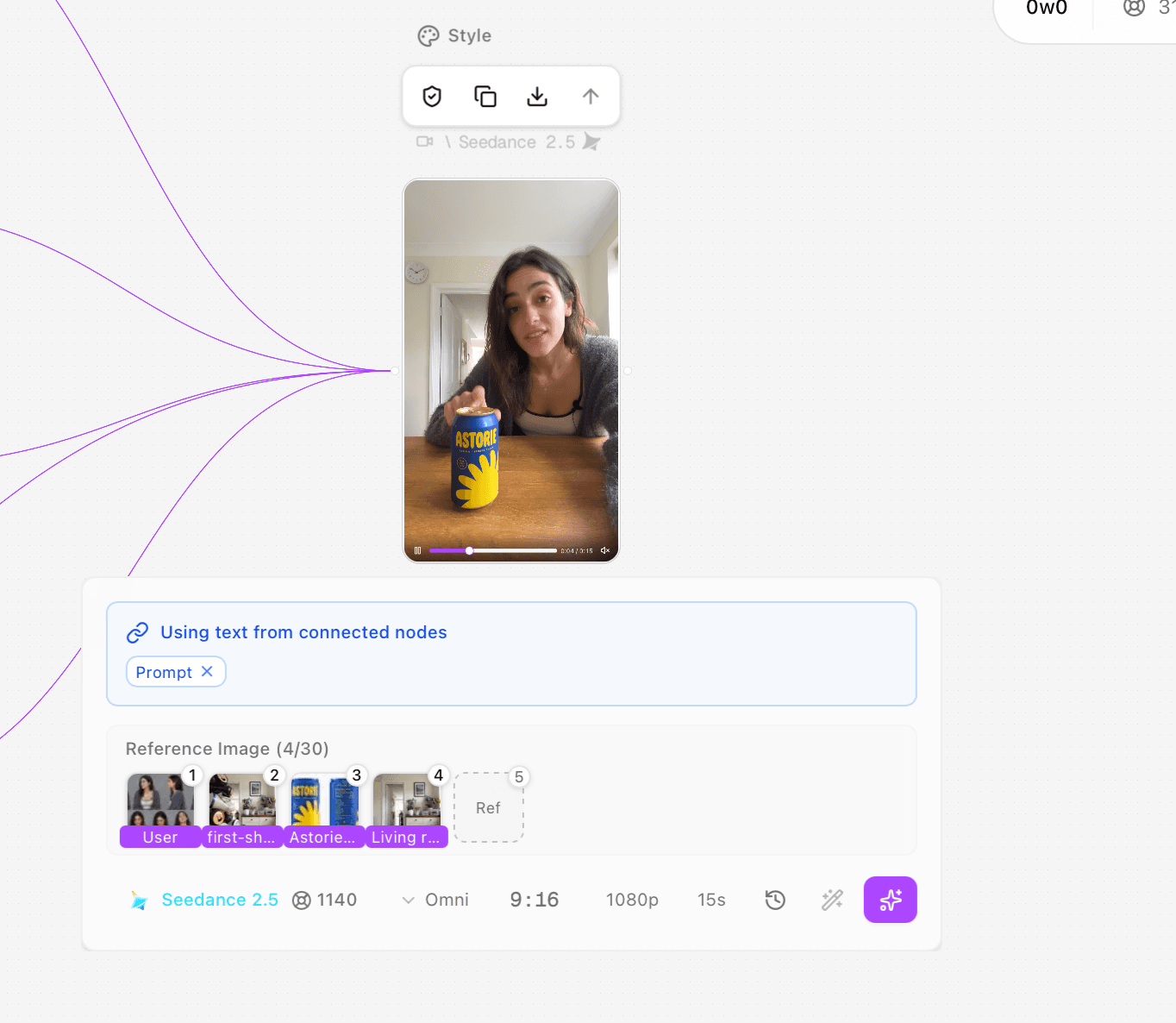
Figure 4. Original Astorie canvas and completed Seedance 2.5 Omni video node for the 15-second test.
5. Prompt by role, timeline, and constraints
Start with reference ownership, then define camera and sound rules that apply to every beat, and only then describe the timed actions and dialogue. Put measurable constraints at the end: label orientation, no watermark, final hold, or no extra objects. This order makes conflicts visible when you review the output.
Full tested prompt
The following is the original prompt transcribed from the supplied generation screenshots. It is reproduced as test evidence, including the spoken styling ‘A Storie.’ For future publishing, keep the official ASTORIE spelling in any on-screen brand copy and verify the pronunciation/dialogue with the brand owner.
@Living room controls the room, camera position, framing and light only — ignore Throughout, every shot: an iPhone front camera propped on the dining table, lens She sits behind the table in the right half of frame, chest up, slouched, hands Shot 1: she is leaned in close to the lens, elbows on the table, upper body Shot 2: hard cut, same lean-in distance held. The table is bare wood and one Shot 3: the can is back down on the table. She says, "Let's rate it one through Every label reads left to right, "A STORIE" never mirrored or warped. No watermark. |
6. Select the exact model and settings
Setting | Tested value | Why it mattered |
Model | Seedance 2.5 Omni | The selected node accepted visual references and generated dialogue/audio in one clip. |
Aspect ratio | 9:16 | Native vertical composition for a phone-first short. |
Resolution | 1080p | Output file measured 1080 × 1920. |
Duration | 15 seconds | Actual exported duration was 15.072 seconds. |
References | 4 | Character, opening frame, product, and scene had distinct roles. |
Displayed credits | 1,140 | Pre-run estimate shown in the supplied interface; actual account debit was not captured. |
Before selecting Generate, read the estimate shown in your own panel. After the task completes, record the activity or billing entry separately. Do not rename an estimate as ‘actual cost’ simply because the generation succeeded.
Audio control in this test: The supplied Seedance 2.5 Omni panel does not show a separate audio on/off switch. Dialogue and sound were directed in the prompt, and the exported file contains an AAC track. On a new run, check the current node for an audio control; if none is shown, use the prompt and any supported audio reference as the documented control path rather than inventing a hidden setting. |
7. Run, review status, and record the output
Run the node and wait for a completed state. Open the result at full size rather than approving the thumbnail. Save the exact prompt, model label, settings, displayed estimate, run status, output filename, and—if available—the post-run debit. The supplied evidence documents one successful output but does not establish the total number of attempts or generation time, so neither is estimated here.
Test record
Field | Recorded value |
Executor | Clara |
Test date | October 6, 2026 |
Host | Astorie canvas |
Model/version | Seedance 2.5 Omni |
Input roles | @User character; @first-shot opening frame; @Astorie-Lemon product; @Living room scene |
Original prompt | Reproduced in full above |
Settings | 9:16; 1080p; 15 seconds; four image references |
Generation count | One supplied successful output reviewed; total attempts not logged |
Timing | Generation time not logged; exported file duration 15.072 seconds |
Displayed estimate | 1,140 credits |
Actual account debit | Not separately captured in the supplied evidence |
Output | astorie - Video-80-01(2).mp4; 1080 × 1920; 24 fps; HEVC |
Audio check | AAC stereo 32 kHz track present; spoken content and audio quality were not independently transcribed or scored |
Rerun | No revised-prompt rerun documented |
8. Audit the result in passes
Reviewing everything at once makes misses easy to overlook. Use separate passes for structure, continuity, product detail, motion, and sound. The tested output completed its short-form arc, but it also shows why a successful generation is not automatically a publish-ready video.
Check | Observed in supplied output | Publishing action |
Arc | Hook → reveal → open/drink → verdict completed in 15.072 seconds. | Keep; the clip answers one idea. |
Character and room | Face, wardrobe, mic, room, and phone-shot framing broadly stayed stable. | Check every cut at full size. |
Opening prop | Pile remained mainly black, off-white, and dark navy instead of consistently branded blue cans. | Accept as generic history or regenerate with a label-locked opening reference. |
Product | Main ASTORIE wordmark and yellow graphic were comparatively readable; fine text was less stable. | Use a held packshot or graphic overlay for legal/offer copy. |
Hands/action | Pointing, pickup, tab opening, drink, and final hold were readable. | Inspect contact frames; trim any warped frame. |
Audio | The file contains an AAC stereo track. | Listen to the final export and compare every spoken line before publishing; this review does not rate it. |
Captions/CTA | No captions or explicit next action were included. | Add verified captions and one CTA in the finishing edit. |
Final video
9. Finish and export
Download the chosen clip from the completed node. In your editor, verify the project is still 1080 × 1920 and that no automatic crop removes the product or face. Add captions from the verified audio, not from the prompt alone. Keep essential text inside platform safe zones, place one final CTA after the verdict, and export a review copy before the publishing master.
Watch once with sound for speech, hiss, room tone, clipping, and sync.
Watch once muted for story clarity, captions, label direction, and final-frame readability.
Scrub frame by frame through hand-object contact, lip shapes, and cuts.
Compare the exported file—not only the canvas preview—with your reference assets.
Record the final file name, resolution, codec, duration, and actual account debit if the platform exposes it.
Troubleshooting short AI videos
Problem | Likely cause | Fix before rerunning |
The hook arrives late | Too much setup or scene description before the first action. | Move the visual question and direct address into 0–2 seconds. |
References fight each other | More than one image controls the same face, room, or product. | Assign ownership explicitly and tell the model what to ignore in each reference. |
Logo or fine text warps | Small moving typography exceeds reliable motion fidelity. | Use a clean close hold, shorten motion, or add approved copy as an overlay in editing. |
Hands fail at the opening action | Too many simultaneous gestures and dialogue beats. | Split pickup and opening into distinct beats or cut to a closer insert. |
Dialogue runs into the end | Too many words for the selected duration. | Read the lines aloud, cut copy, and reserve the last half-second for a hold. |
Generation estimate is high | Longer duration, higher resolution, or extra outputs increase the displayed estimate. | Prototype at the lowest acceptable setting, approve structure, then run the final specification. |
The clip has no clear next action | The generation prompt ended at a reaction. | Add one factual CTA in post; do not invent a price, date, or discount. |
Frequently asked questions
How long should a short AI video be?
Use the shortest duration that completes one idea. The tested example needed 15 seconds for four beats; a single reveal may need less, while an explanation may need multiple clips rather than one overloaded generation.
Should I generate captions inside the video prompt?
For accuracy and editability, add captions after you verify the exported audio. Generated in-scene text can warp, and prompt text is not proof of the final spoken wording.
Do I need reference images?
No for every concept, but references are useful when identity, packaging, room layout, or an opening frame must remain recognizable. Give each reference one job.
Can I call the displayed credits the actual cost?
No. Treat the number shown before generation as an estimate unless you also capture the completed activity or billing entry. In this test, 1,140 credits was the displayed estimate and the final account debit was not recorded.
What should I check before posting?
Check the export’s duration, crop, identity, hands, product label, text, speech, lip sync, captions, CTA, watermark, and sound. Watch both with and without audio.
Ready to try it on the canvas?
Open Astorie and fan your prompt across every frontier model in one workflow.