

Assess the source
- Identify objects or surfaces that distract from the subject
- Note the direction and softness of the existing light
- Keep a reference for the subject details that need checking
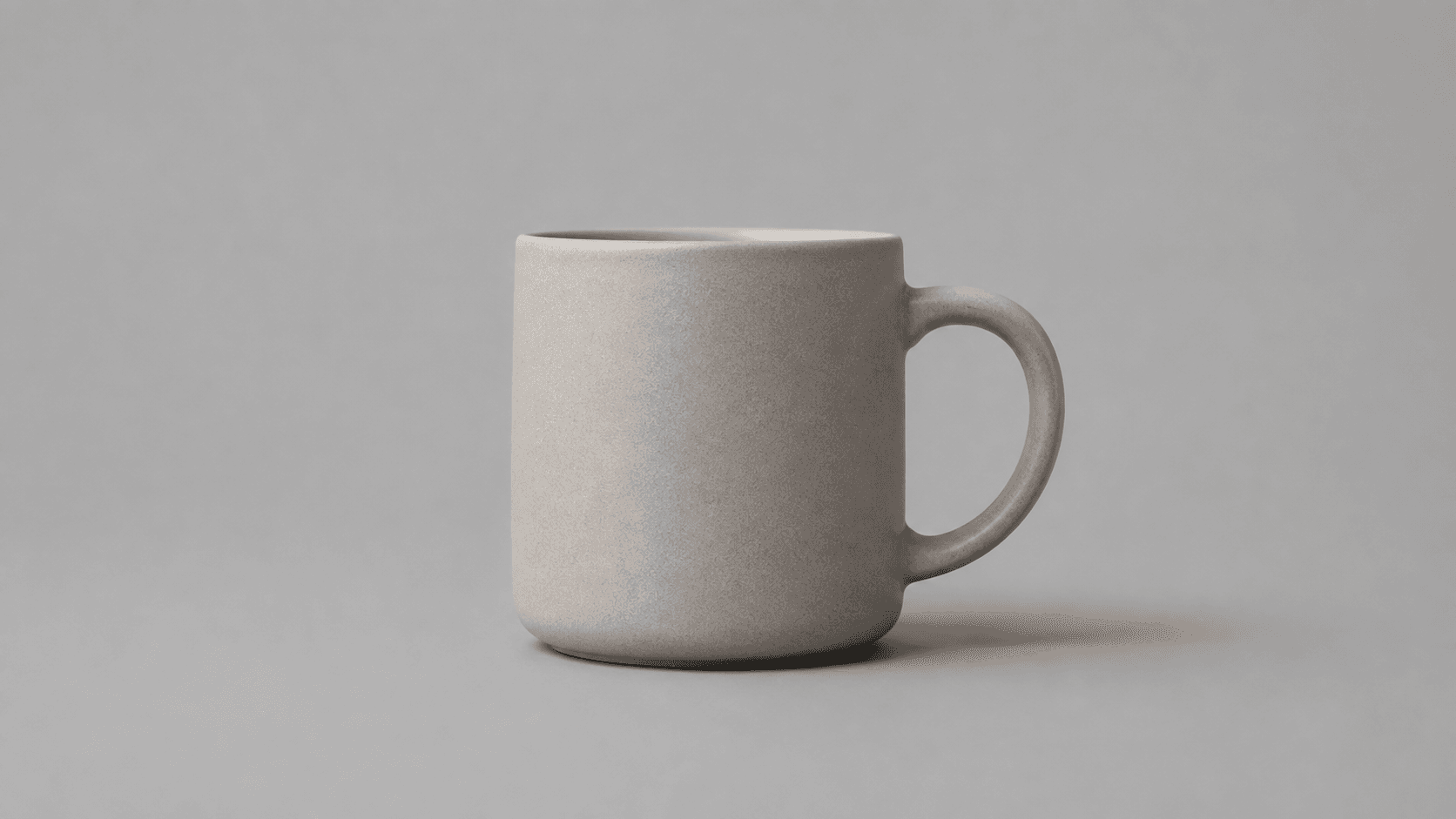
Choose a source photo and a scene preset, or describe the backdrop you want. Review the generated image before using it.
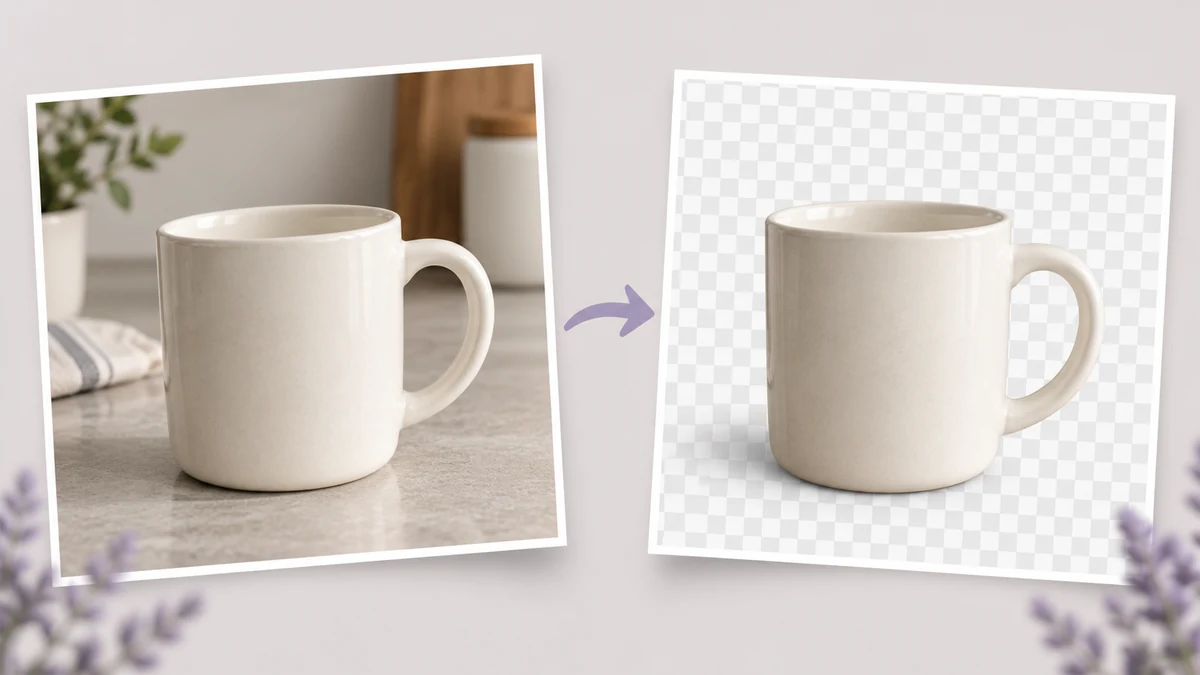
A background changes how the subject relates to its surroundings. Use this comparison to decide what the new setting needs to do.
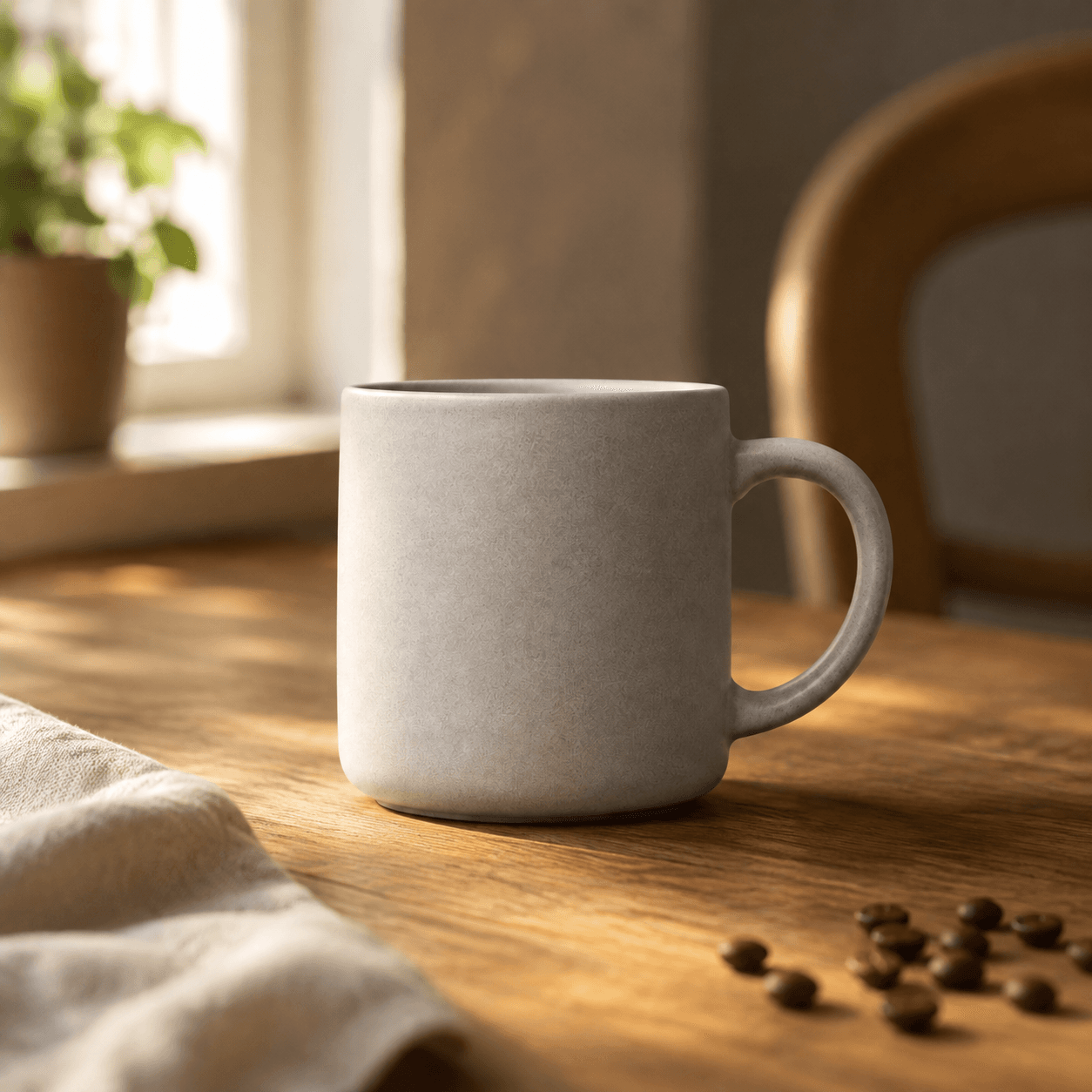
Begin with an existing photo or one of the available sample images.
Choose a sample or upload the photo whose surroundings you want to change. A clear view of the subject gives you a useful reference when you inspect the generated version.
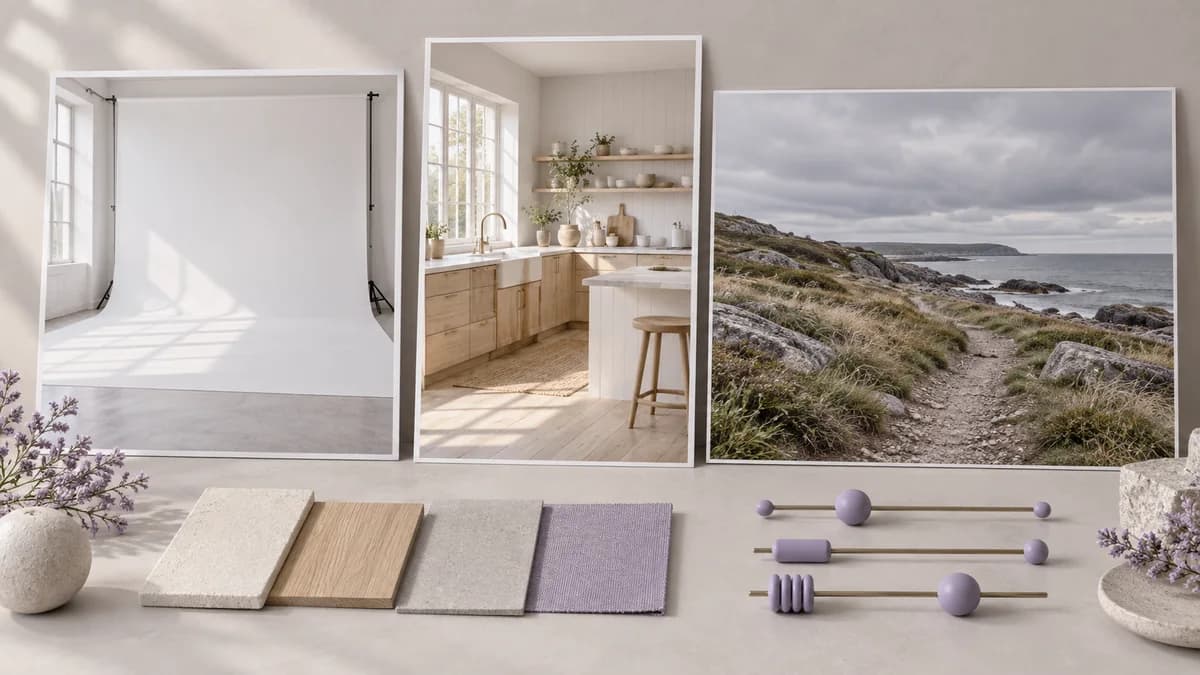
Select a scene under Pick a set, or use Or describe the shot yourself to write the backdrop. Name the surface, light direction and nearby objects you want the prompt to request.
Press Reshoot it to generate an image. The result is saved in your personal canvas. Compare it with the source and inspect subject edges, shadows and any writing before using it.
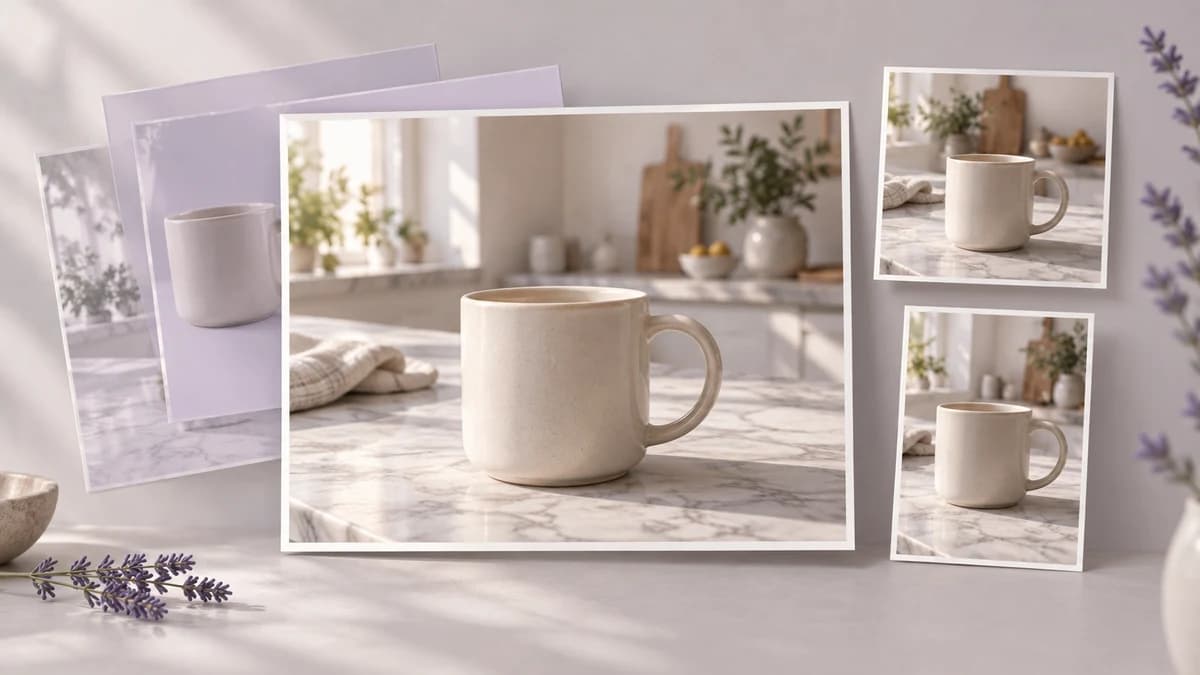
Make decisions about the scene before judging the finished composition.
Describe what the subject stands on, such as stone, wood or a studio floor. This gives the prompt a concrete relationship between the object and its surroundings.
Generate a backgroundName where the light should come from and whether it should be soft or hard. Assess that direction in the generated scene rather than assuming a perfect match.
Generate a backgroundAsk for fewer props, a plain wall or a softly focused distance when surrounding detail would compete with the subject. Inspect the final composition for adequate separation.
Generate a backgroundA preset loads a prepared scene prompt. Its text supplies a starting direction that you can inspect and adjust before generating your own version.
Generate a backgroundUse the sample images to explore a background brief before preparing an upload. Choose your own photo when the result needs to depict your particular product.
Generate a backgroundThe image is saved in your personal canvas. Return to it for further review; controls available in a separate canvas workflow are distinct from this page.
Generate a backgroundUse these suggested prompts to describe a new background. All illustrations on this page show scene concepts; they are not screenshots or verified outputs from the current tool.
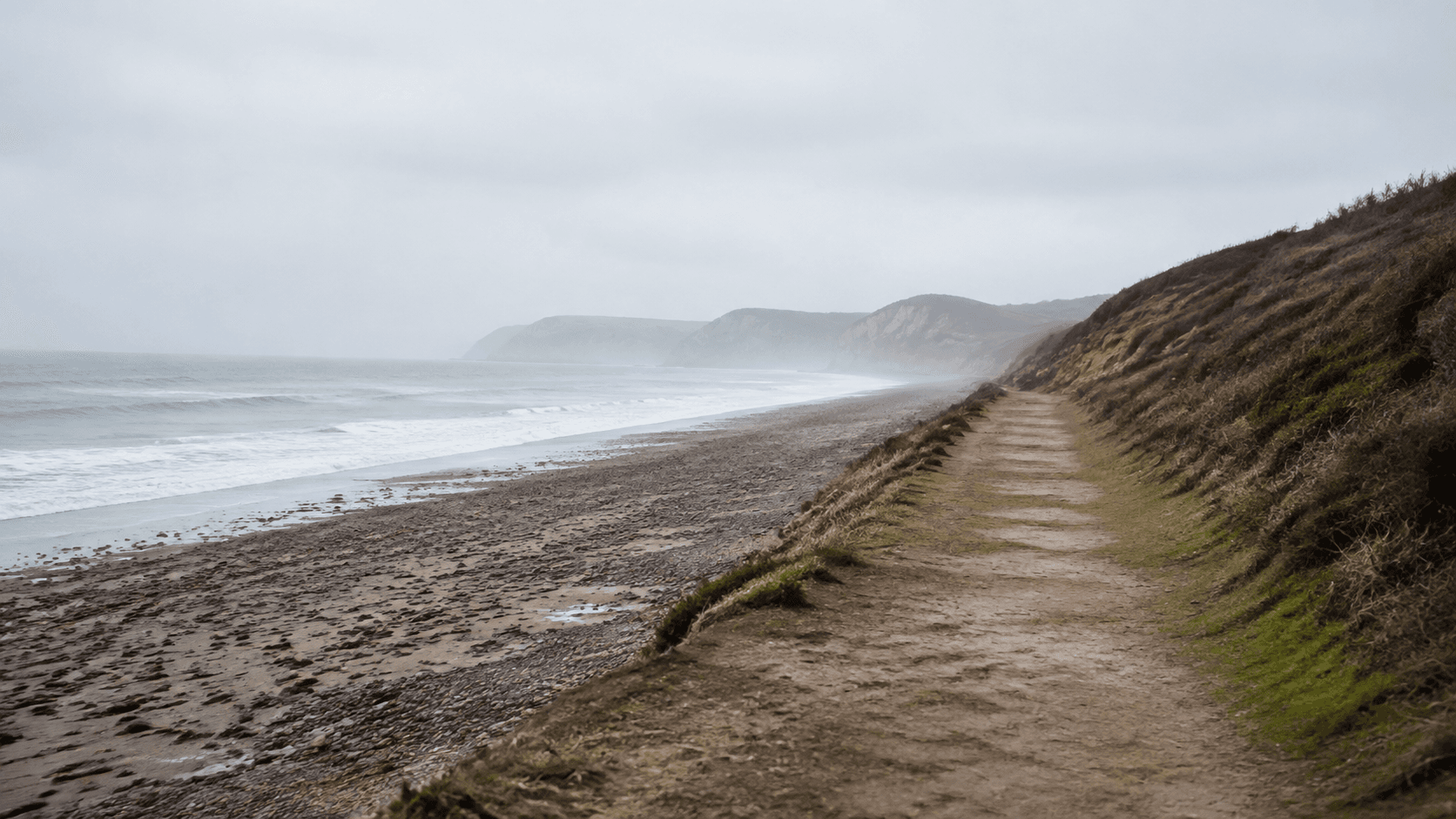
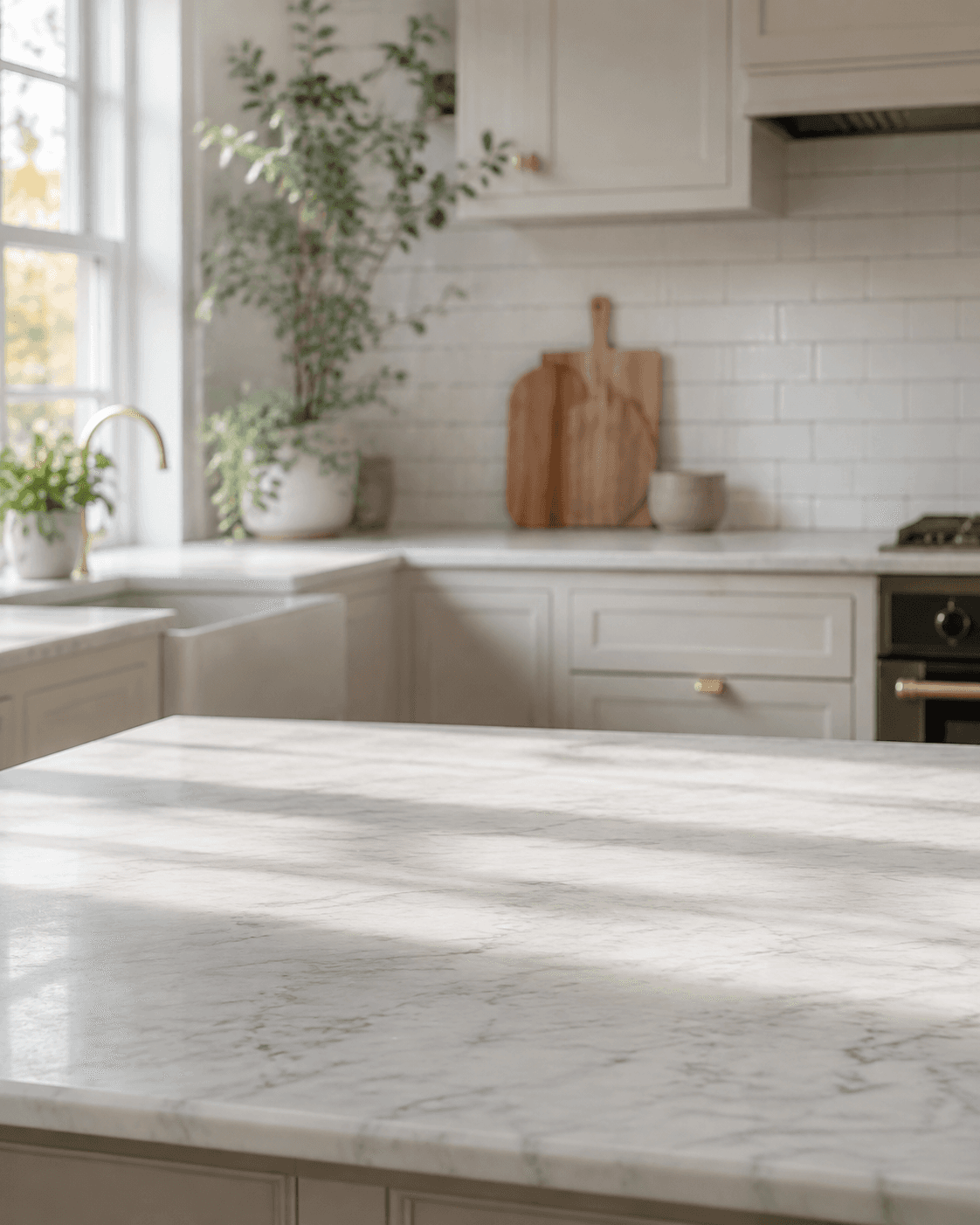
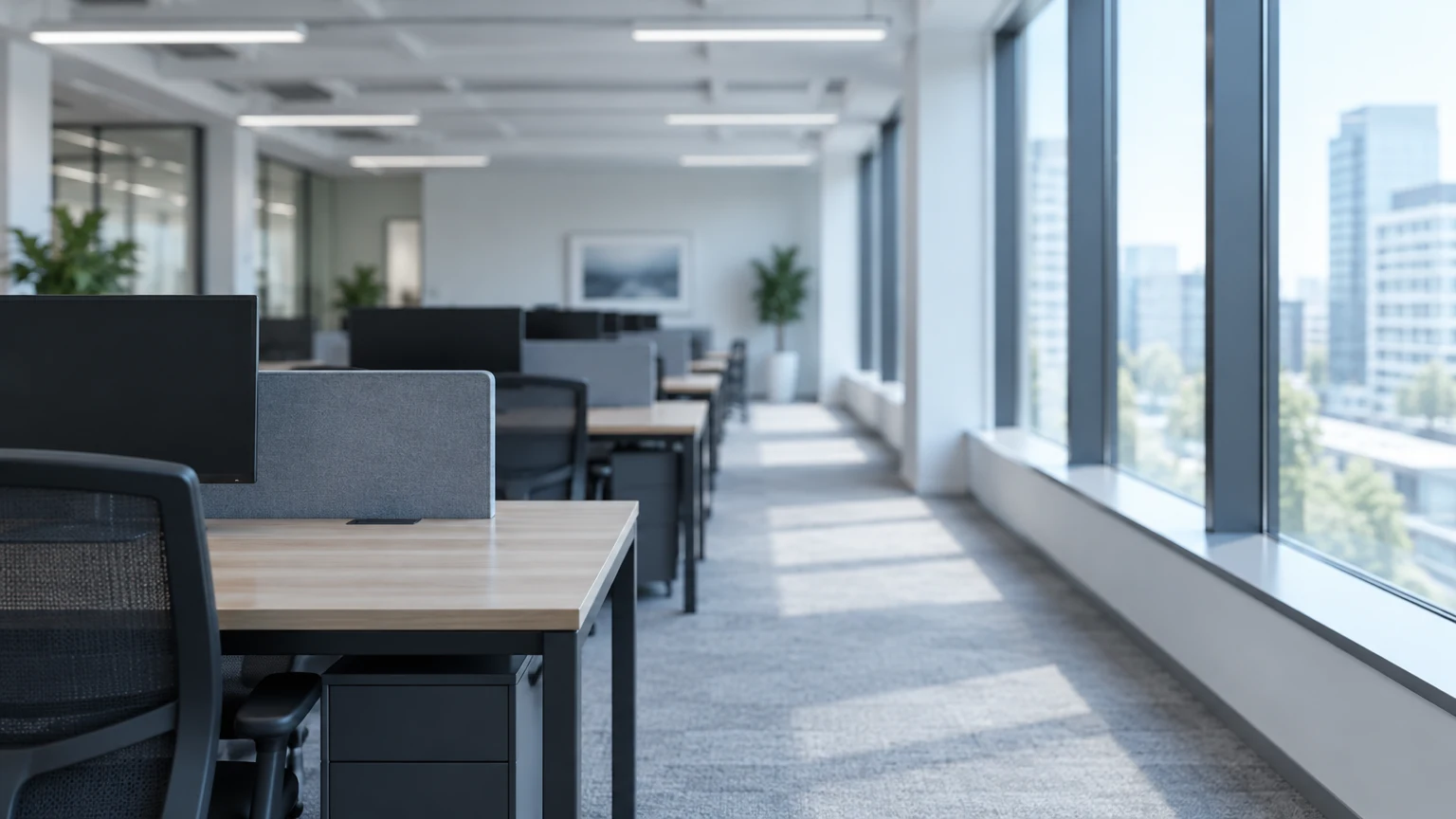
A designer is choosing a setting for a product photograph on a website. Explore a restrained backdrop, then assess the image in the actual page layout before deciding how to crop or place it.
Generate a background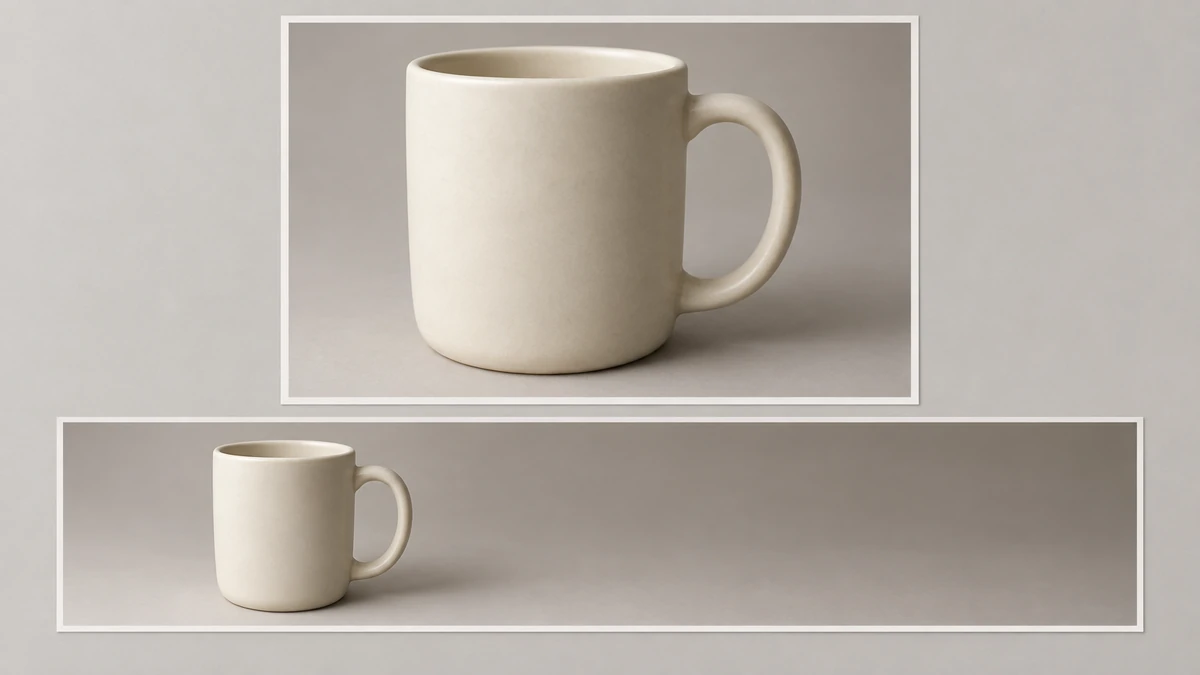
A team needs to discuss the surroundings for a product before commissioning a campaign. Place scene directions beside the source photograph and use that comparison to make the art direction more specific.
Generate a background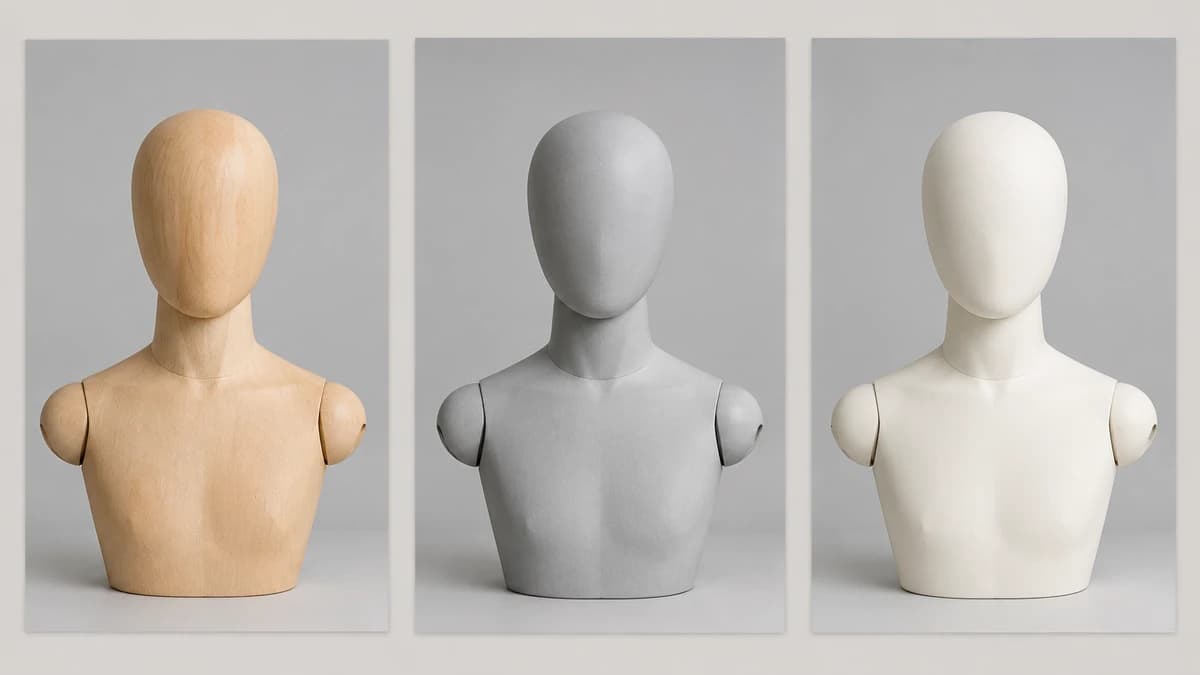
A marketer has an approved product image but wants a setting that fits a seasonal story. Develop the background concept first, then check it against the intended post and its copy.
Generate a background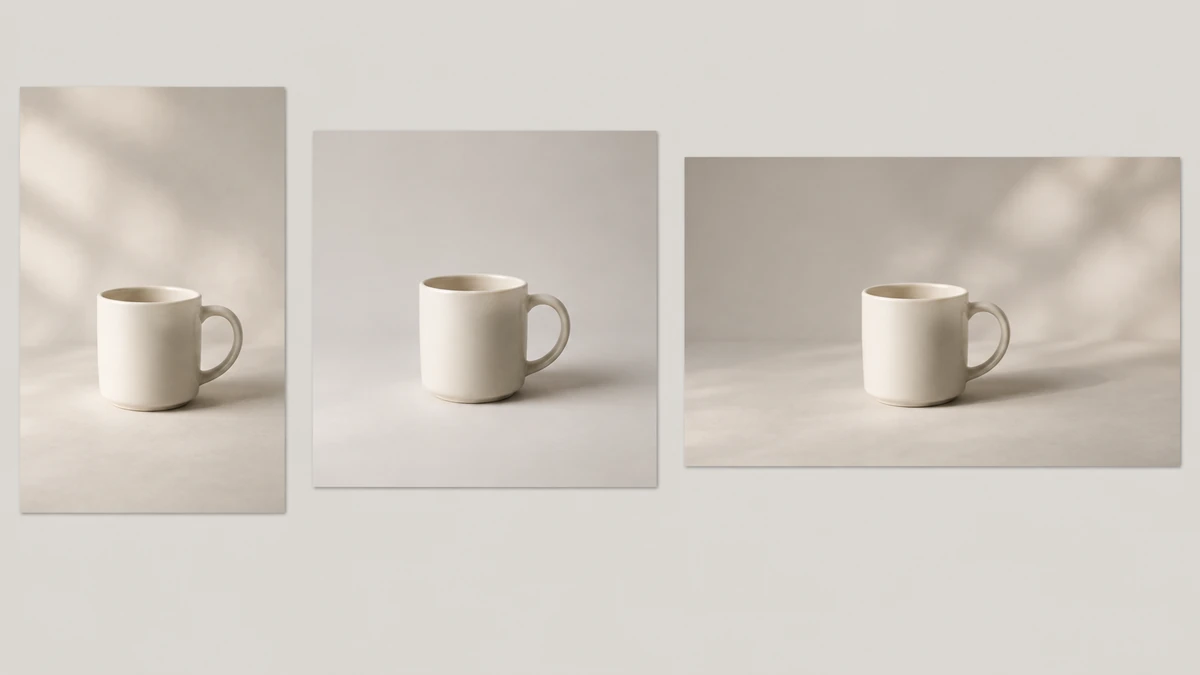
A creative team wants to explain how a photographed object could sit within a proposed location. Use a generated scene as a visual reference for discussion, without presenting it as a completed shoot.
Generate a background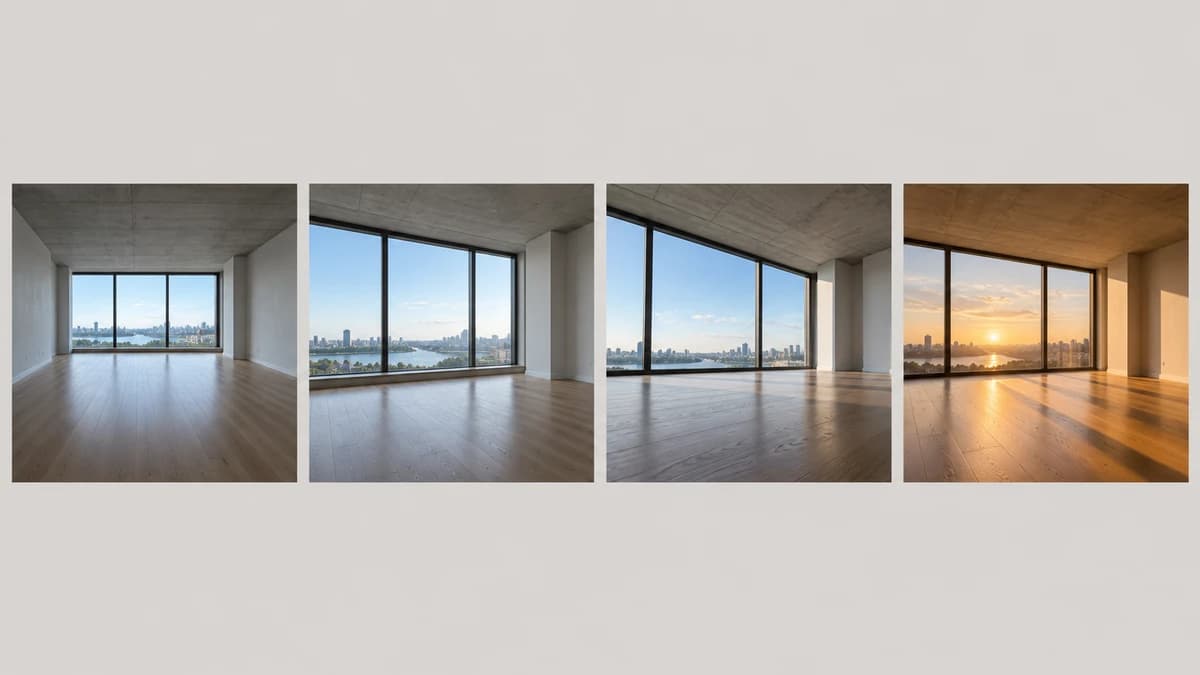
A seller needs a less distracting setting for a listing. Review the proposed background together with the marketplace requirements, and inspect the product details before selecting an image for upload.
Generate a background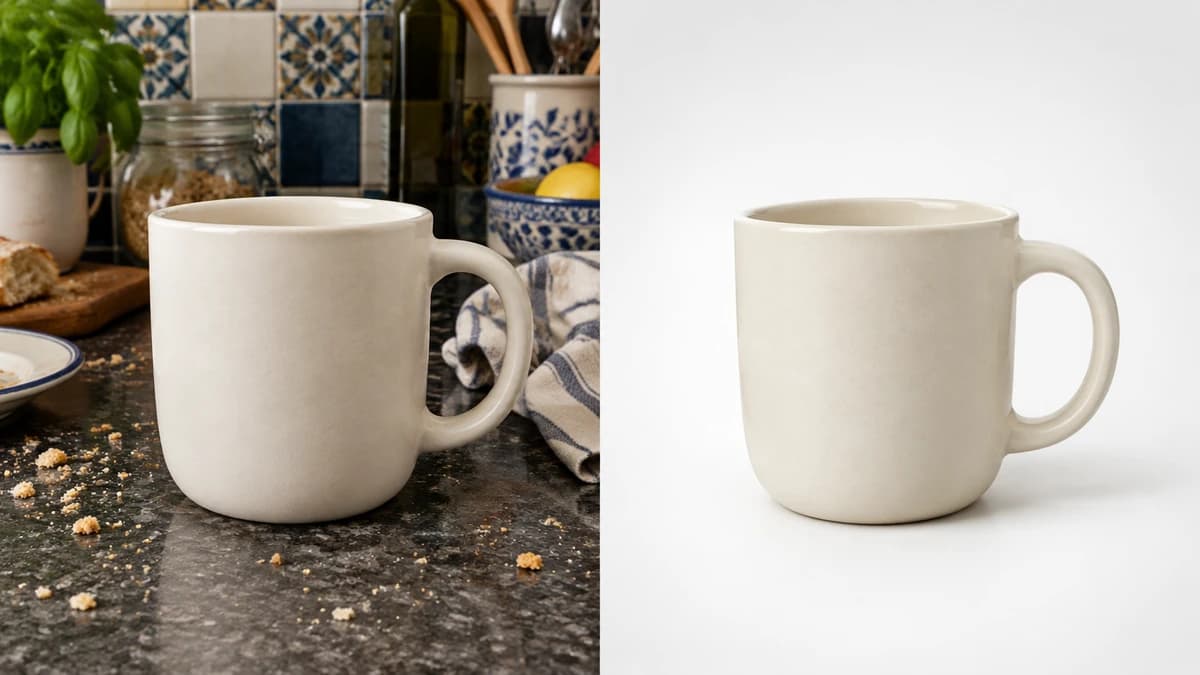
A catalog editor wants related products to share an art direction. Record the surface and light in a brief, apply it to each source separately and check the resulting set for differences.
Generate a background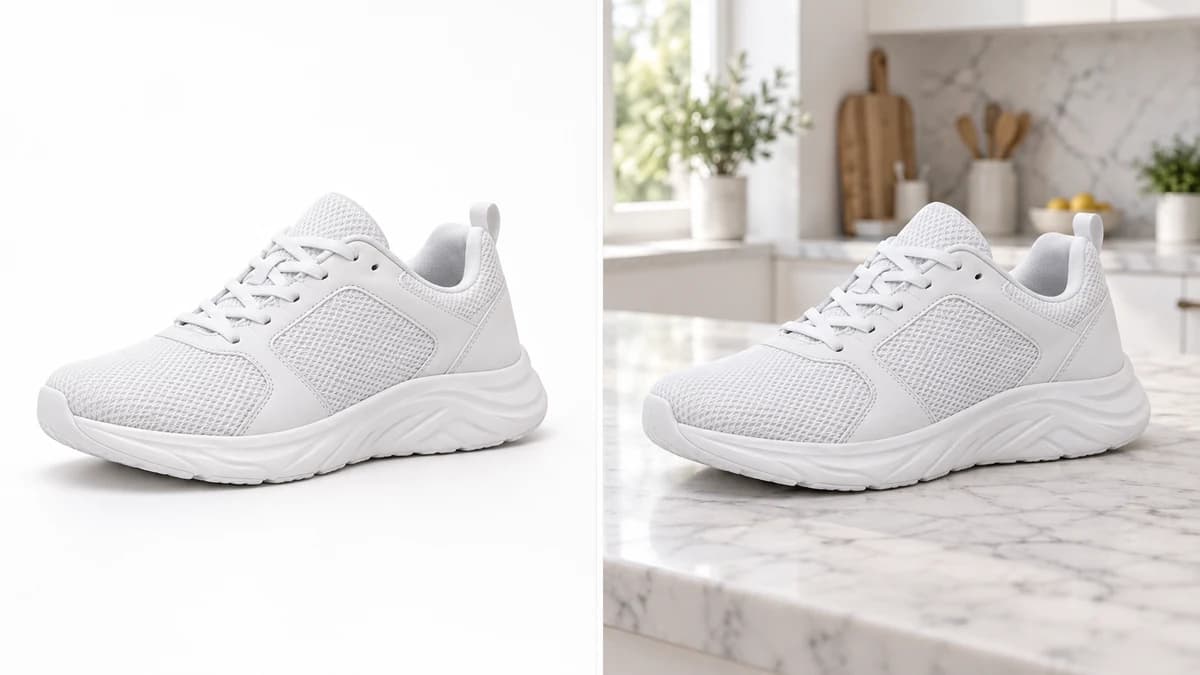
| Starting image | A source product photo or a sample selected in the image section. | |
|---|---|---|
| Scene direction | Choose a scene preset or write a background description. | |
| Output | A generated static image; inspect the available file and output settings in your account. | |
| Free plan | A free plan is available without a credit card. Review current account details at /pricing. | Verified 2026-10-12 |
| Subject fidelity | Check the product outline, color, writing and distinctive details against the source. | |
| Saved result | The result is saved in your personal canvas. | |
| Request cost | Check the current credit requirement shown for your generation request. | |
| Commercial use | Commercial rights apply to new generations made on a paid plan, subject to model-provider terms and input rights. Free-plan outputs are for personal, non-commercial evaluation. Paid-plan outputs retain their commercial rights after downgrade or cancellation. | Verified 2026-10-12 |
| Upload data use | On default plans, uploads, prompts and outputs may be used to train Astorie and affiliate models. Provider policies apply. Enterprise opt-out requires a written agreement; information already incorporated into trained models or derived datasets may persist after source removal. | Verified 2026-10-12 |
Browse these image models for separate canvas workflows. Open a guide to review the available inputs and controls before developing another background.
It creates a proposed scene using a source image and a background brief. Use it to explore a different setting for a photographed product. The generated subject may differ from the source, so inspect details rather than assuming that only background pixels have changed.
Yes. Astorie's current free plan includes 40 credits per month, with no credit card required. Check the credit requirement shown for your request before generating. Free-plan outputs are for personal, non-commercial evaluation; consult /pricing and the commercial-rights policy when planning content for a business.
Yes, for outputs generated on a paid plan, subject to model-provider restrictions and your rights to the source material. Free-plan generation is for personal, non-commercial evaluation. Upgrading applies commercial rights to new generations; outputs created on a paid plan retain those rights after cancellation or downgrade. See /help/commercial-rights/can-i-use-generated-content-commercially.
Start with the light visible on the subject in your source photo. Describe its direction and softness in the background prompt, and request a contact shadow where the subject meets a surface. Review the result for mismatched shadows or reflections and revise the brief if necessary.
Start with a source photo and a setting you can describe, then assess the generated scene in your personal canvas.