AI Background Generator

Only the background changes. Your subject photo stays as it is while the AI background generator builds a new scene behind it. The canvas carries 34 image models, so a result you do not like is one retry away on another model.

AI Background Generator

Only the background changes. Your subject photo stays as it is while the AI background generator builds a new scene behind it. The canvas carries 34 image models, so a result you do not like is one retry away on another model.

A background generator that does not stop at the export

A background you cannot re-run on another model, or re-open next month, is a background you will end up making twice. Most tools in this category put one model behind the button and stop at the download.

A single-model tool

  • One model sits behind the button, so a result you do not like leaves you rewording the prompt for that same model
  • Presets stand in for prompt control, so the look you can reach is the look someone else already built
  • The download is the end of the line
02-single-result

The same job on the Astorie canvas

  • A saved canvas carries its lighting setup forward, so the second batch starts where the first one ended
  • The cutout, the mask and the crop stay as editable nodes, so a fix later does not mean starting the background again
  • Send the finished image straight into an image-to-video model in the same file
03-three-models-a

How to generate a background with AI in 3 steps

The steps below assume you already have a subject photo, because compositing is the harder of the two jobs.

  1. 1

    Step 1 · Bring in the subject

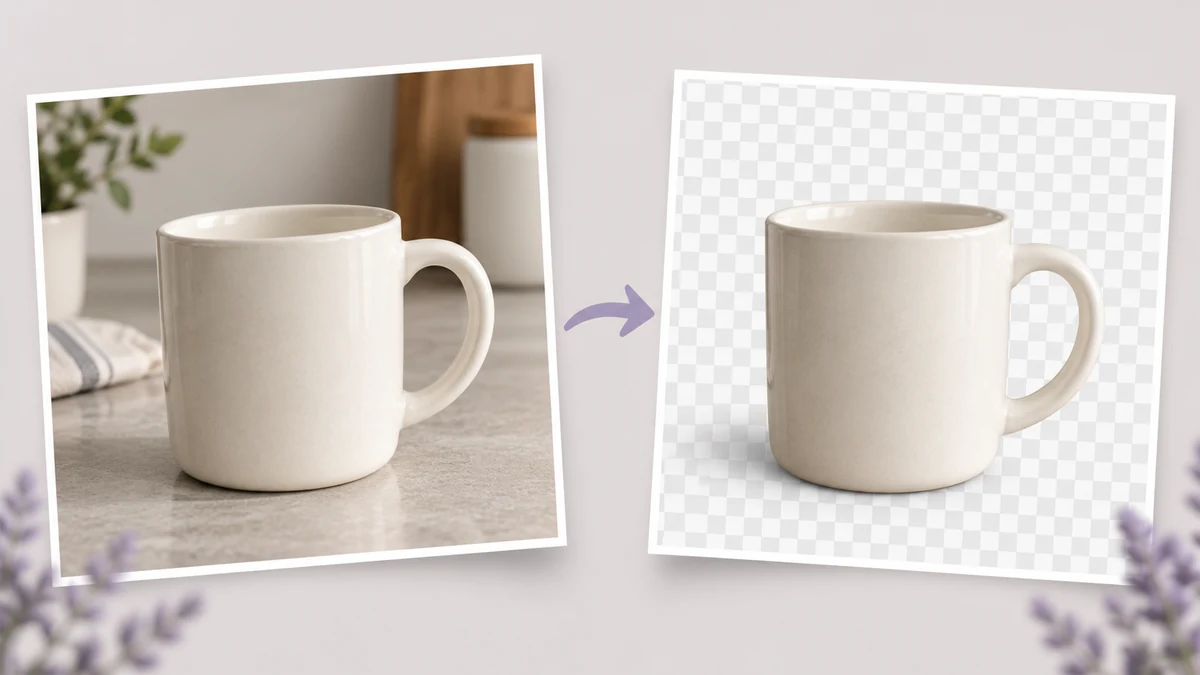
    Drop a JPEG, PNG or WebP onto the canvas. The cutout node separates the subject from whatever is behind it and hands you a clean edge to work with.

    Concept illustration of a cream mug photo beside the isolated subject on a checkerboard background.
  2. 2

    Step 2 · Set the prompt and the options

    Write the scene, then set model, aspect ratio, batch size, resolution and file type in one panel. Type / for a saved prompt template, or @ to reuse an element.

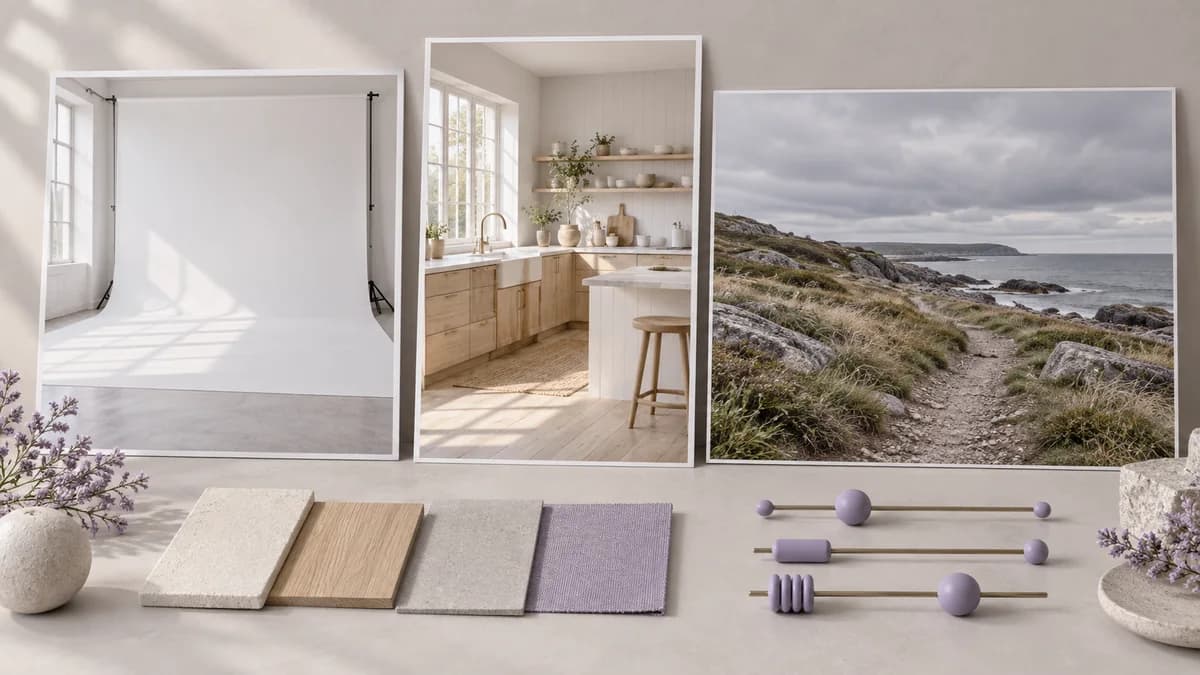
    Concept illustration of studio, kitchen and coastal backgrounds with format choices and material swatches.
  3. 3

    Step 3 · Composite and export

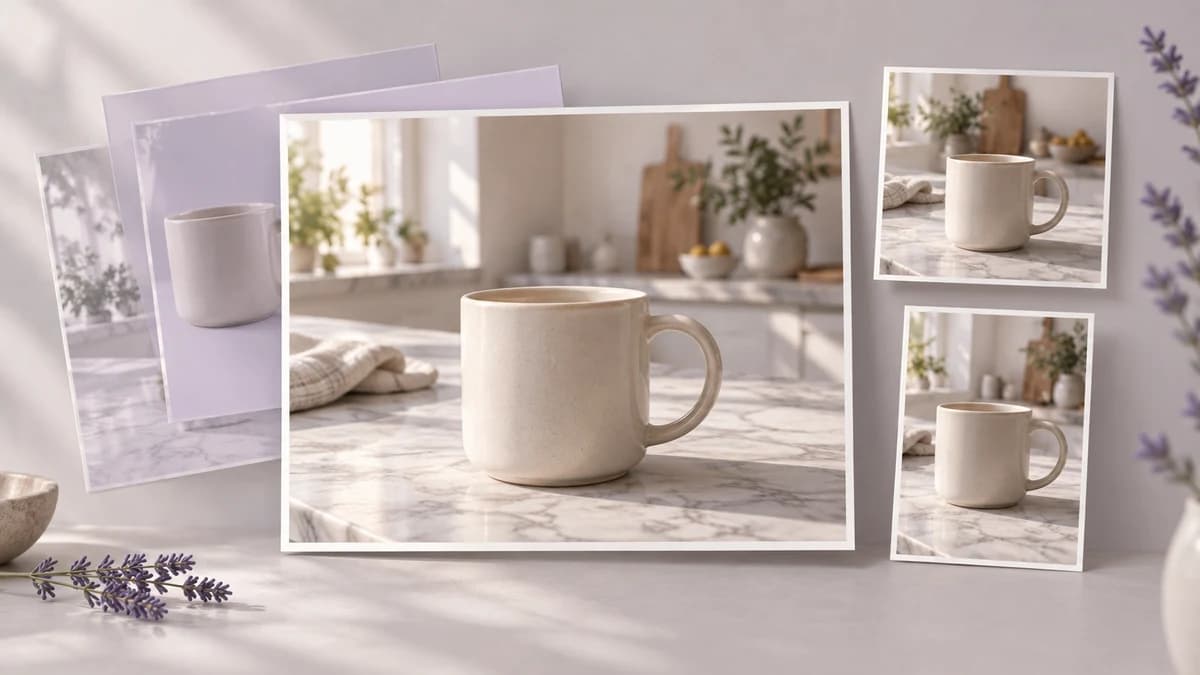
    Bring the subject and the background together on one node, check the contact shadow where they meet, fix the edge with the mask brush, then export.

    Concept illustration of a cream mug composited into a kitchen scene, with square and portrait export crops.

What the background generator does

The list runs from what goes into a generation to what happens after the download.

Backgrounds from text alone

Describe a room, a street, or a flat colour field, and the generator returns a background image you can composite into later.

Generate a background

Match a reference image

Ideogram V3, Gen4 Image, Omni Image and FLUX Kontext Multi read reference images, so you can point a generation at an existing campaign frame instead of describing it in words.

Generate a background

One prompt, several placements

The same scene comes out at 1:1, 4:5, 16:9, 9:16 or 21:9, so a listing image, a Story frame and a wide banner share one look.

Generate a background

Reuse the whole setup

The canvas keeps the model choice, the prompt and the option panel. The next SKU or the next episode starts from those instead of a blank box.

Generate a background

Up to nine candidates a run

Batch generation returns as many as nine images from a single pass, which is usually enough to find the one that matches the subject lighting.

Generate a background

Finish it in the same file

Bria RMBG 2.0 for the cutout, a mask brush for the edge, crop for the placement, Topaz or Magnific when the export needs more pixels.

Generate a background

AI background prompt examples

Copy a prompt and swap the nouns to fit your own scene. Each one ends with the framing it was written for.

Who uses an AI background generator

Site headers and wide banner slots

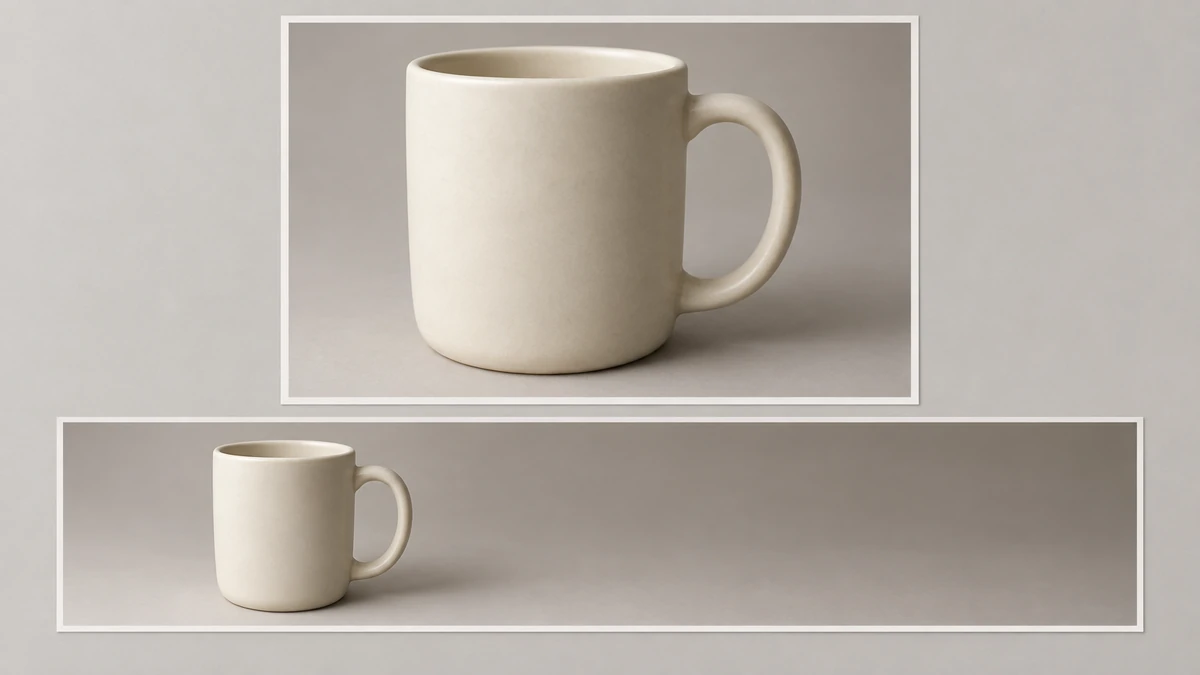
A homepage hero and an email banner are far wider than anything a camera framed, and cropping a normal photograph to 21:9 throws most of the scene away. Generating the background at that shape from the start leaves the subject sitting where the layout needs it.

Generate a background
A standard photograph of a cream ceramic mug above a much wider panoramic version of the same shot with generated background extending to the right.

Portraits, headshots and team pages

A remote team sends in phone selfies taken against five different walls. Each keeps its face and gets the same backdrop, so the about page reads as one set of photographs. For portraits generated from scratch, see `/features/ai-headshot-generator`.

Generate a background
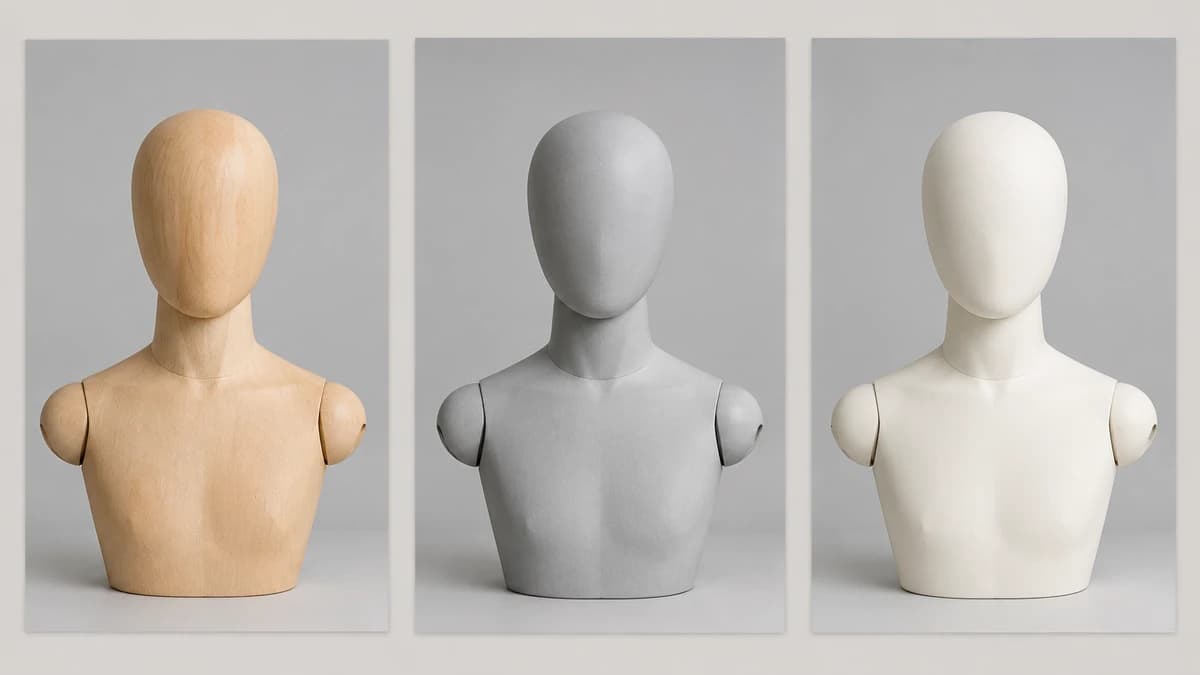
Three head-and-shoulders mannequin busts photographed against the same pale grey studio backdrop, shown as a matching set of headshots.

Social posts and ad banners

One campaign has to land in a feed post, a Story and a display banner. Cropping a single photograph into three shapes tends to push the product out of the safe area, so each placement gets its own backdrop.

Generate a background
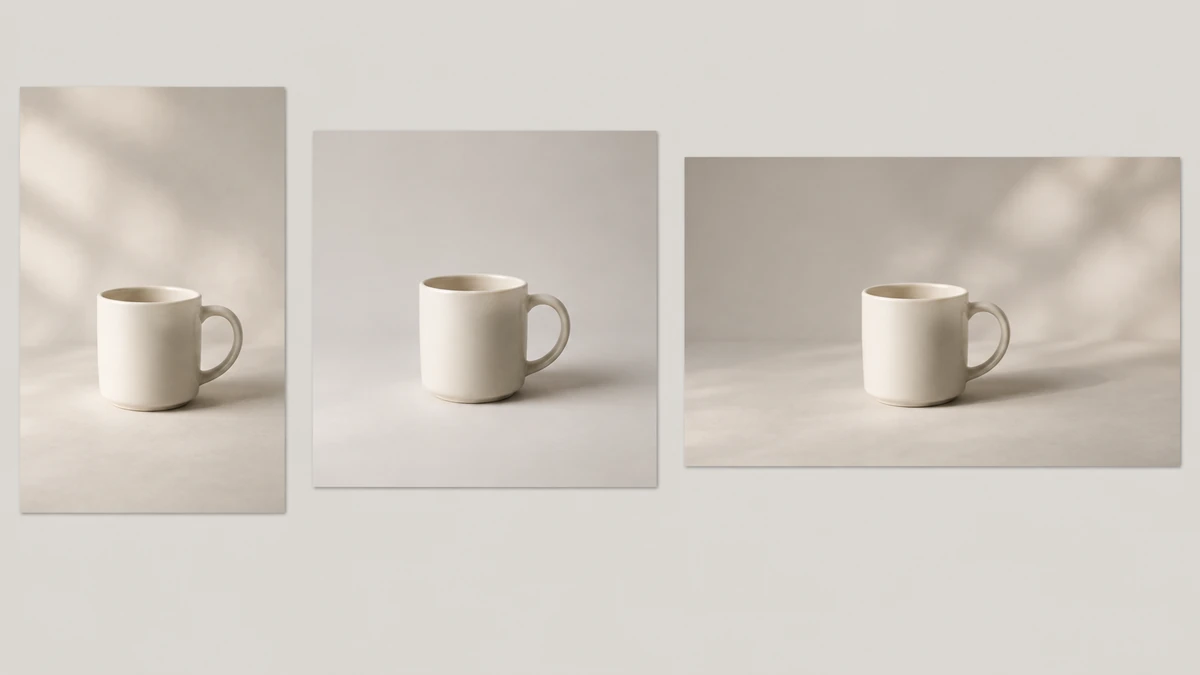
The same cream ceramic mug shown in a tall, a square and a wide print, each with its own background composed for that shape.

Storyboard and scene reference frames

A director blocking a sequence needs the location before the cast is booked. The background stands in as a reference frame, so the shot list can be argued over before anyone spends a day on set.

Generate a background
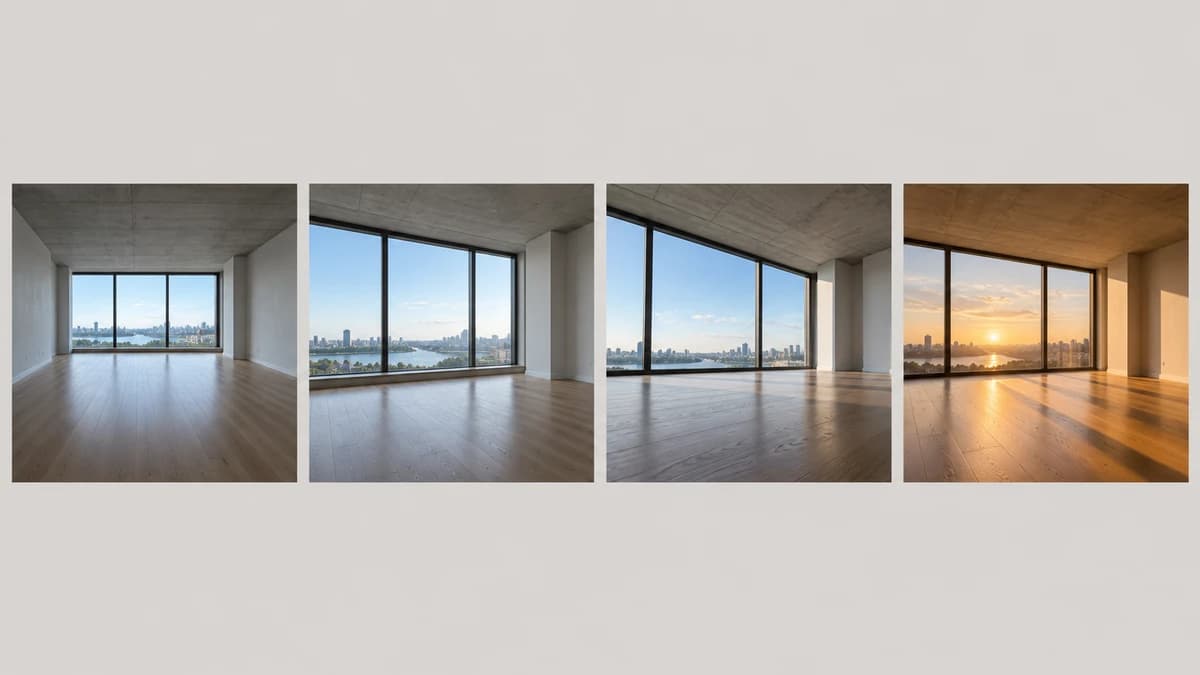
Four reference frames of the same empty room from different camera angles and times of day, pinned in a storyboard strip.

Marketplace listings with strict image rules

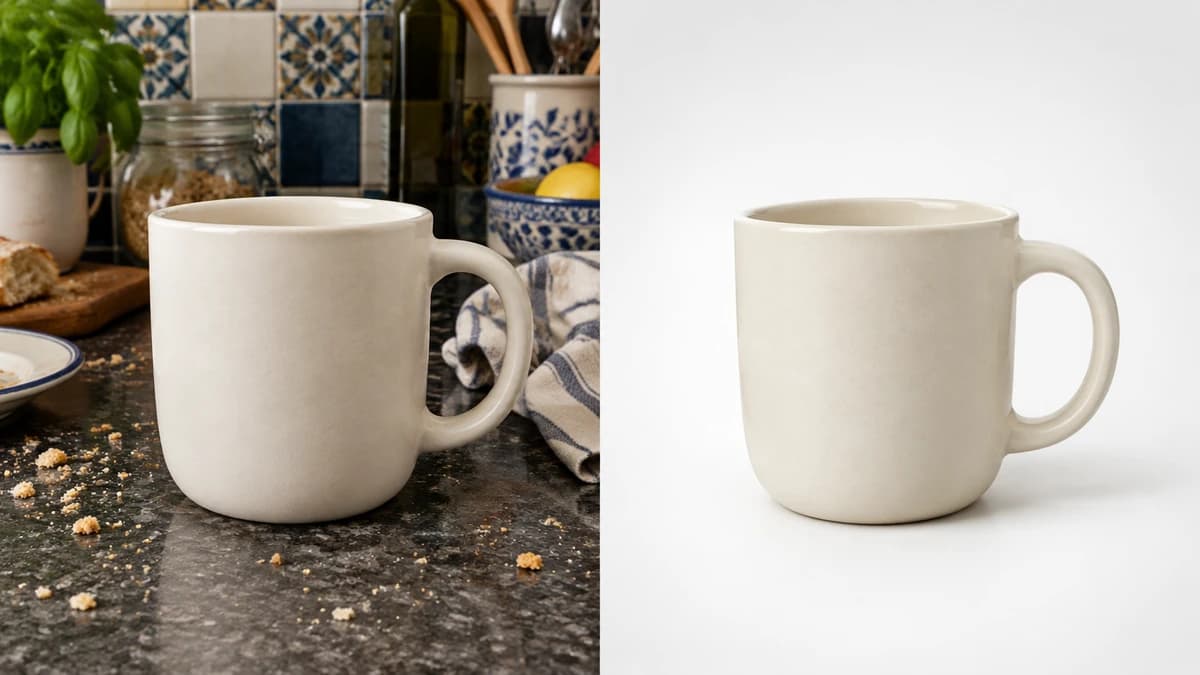
Most marketplaces want the main listing image on a plain white field, and a shot taken on a kitchen counter will not pass that check. The subject is already in the frame, so only the backdrop is regenerated as a white sweep at the ratio the listing asks for.

Generate a background
The same cream ceramic mug on a cluttered kitchen counter beside the same mug on a plain white studio sweep.

AI background generator for product photos

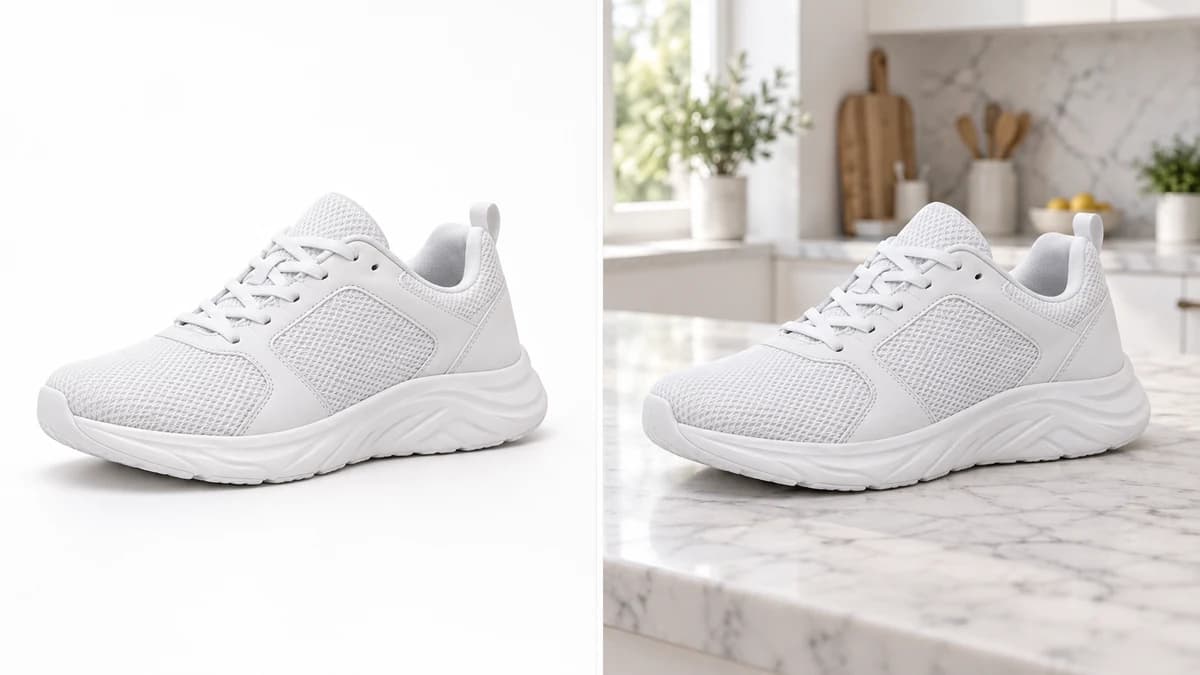
A seller whose whole catalogue was shot on a kitchen table cannot book a studio day per SKU. The subject photos already exist, so you only regenerate the backdrop, and the same white sweep runs down the list.

Generate a background
The same unbranded white sneaker shown with a white studio backdrop and a bright kitchen background.

Formats, ratios and licensing

InputA subject photo, or nothing at all when you are building a background from text
Export format and resolutionPNG or JPEG, at 1K, 2K or 4K
Aspect ratios1:1, 4:5, 5:4, 3:2, 2:3, 16:9, 9:16 and 21:9, plus wider and taller options such as 4:1 and 1:8
Free plan40 credits a month, no card needed; results are for personal exploration only and are not licensed for commercial use
Models used for compositingFLUX Kontext and Qwen Image Edit for single-image edits; Nano Banana 2, Qwen Image Edit Plus and Seedream v4.5 Edit also accept multiple images
Batch sizeUp to 9 images per run. A 4-image batch costs roughly four times a single image at the same settings
Credit costVaries by model and resolution. The exact cost is shown on each node before you run it
Commercial usePaid plans only, with per-model exceptions. See /help/commercial-rights/can-i-use-generated-content-commercially
Uploaded imagesRetained while the project exists. Used to operate Astorie and to train and evaluate its own and affiliated models, unless an enterprise agreement says otherwise. Workspace projects are visible to the workspace

Best AI models for backgrounds

All 34 image models are available from the same node, so the choice costs a click rather than a subscription. These five come up most often on background work.

FLUX.2

Provider
Black Forest Labs
Type
image

Background generator FAQ

What is an AI background generator?

It is a tool that creates the setting behind a subject instead of deleting it. Most of the category does one of two jobs: replacing the background in a photograph you already have, or producing a background image on its own. The first has to match the lighting already on your subject; the second does not.

Is there a free plan?

Yes, and it does not ask for a card. A new account starts with 40 credits a month, which is enough to generate backgrounds and compare models on the canvas. Results made on the free plan are for personal exploration only and are not licensed for commercial use, so treat it as a way to see the output before you pay. Prices are on /pricing, and each node shows its credit cost before it runs.

Can I use the results commercially?

On a paid plan, yes, and ownership of the output transfers to you the moment it is created. The free plan is for personal, non-commercial evaluation. Two limits hold on every plan: a model labelled non-commercial in its node panel stays non-commercial, because Astorie cannot override a provider's own terms, and clearance for real-person likenesses, brands and copyrighted characters is still yours to get. See /help/commercial-rights/can-i-use-generated-content-commercially.

How do I make the lighting match between the subject and the background?

Decide the direction first and hold it in both halves. Write it into the background prompt, camera left or overhead or backlit, and check it agrees with the light already on your subject photo. Merge the two with an editing model such as FLUX Kontext rather than pasting one over the other, and ask for a contact shadow.

Generate your first background

Open the canvas, pick a model, and run the first background against your own subject photo.