

A face without a brief
What to decide
- An expression chosen apart from the subject
- Clothing with no connection to the audience
- A background that competes with the material
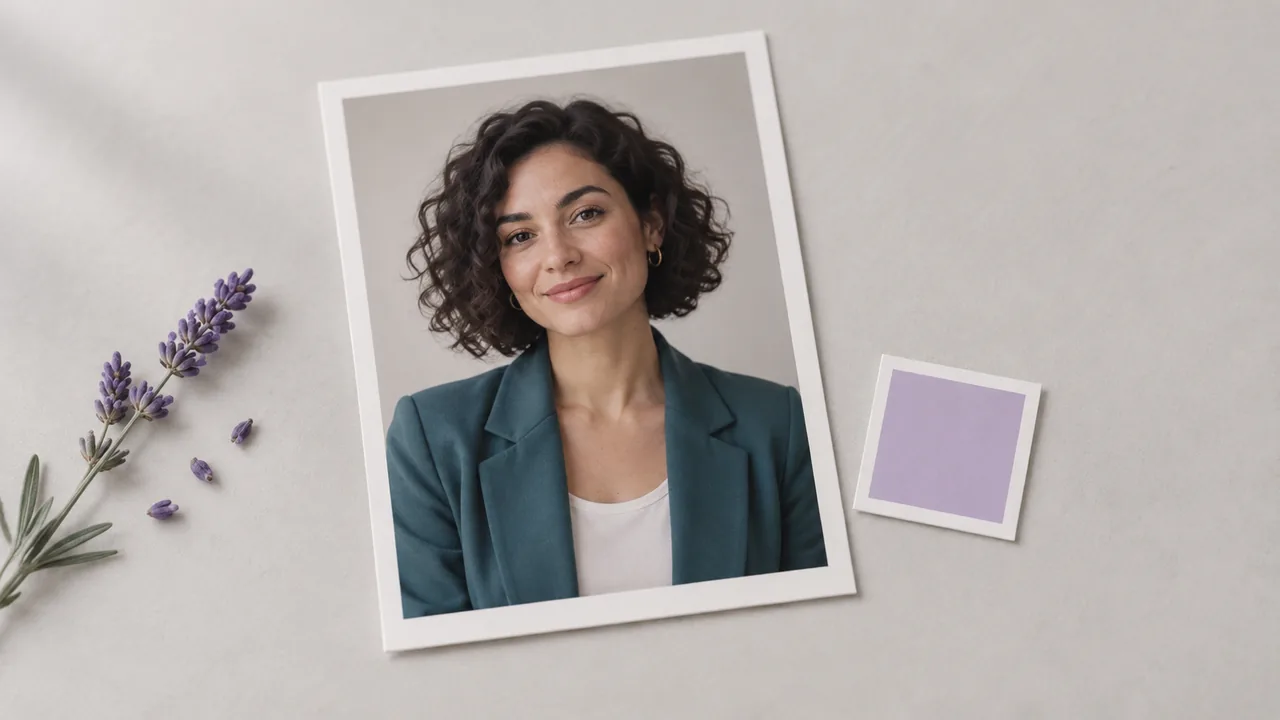
Select a portrait brief, edit the details, and add an optional reference if needed. Select Generate portrait to create the image. Preset examples use the Neutral portrait input.
A portrait can look plausible yet feel wrong for its audience. Define the presentation context before choosing the host.
What to decide
What to describe

Build the portrait in the generator above, then review it beside the material it will introduce.
Start with a presenter preset or your own description. Decide whether the material calls for a photographic portrait or an illustrated host before adding details.

Describe the appearance, expression and framing in the prompt. If you supply a reference image, use one you have permission to use and explain the details that matter.
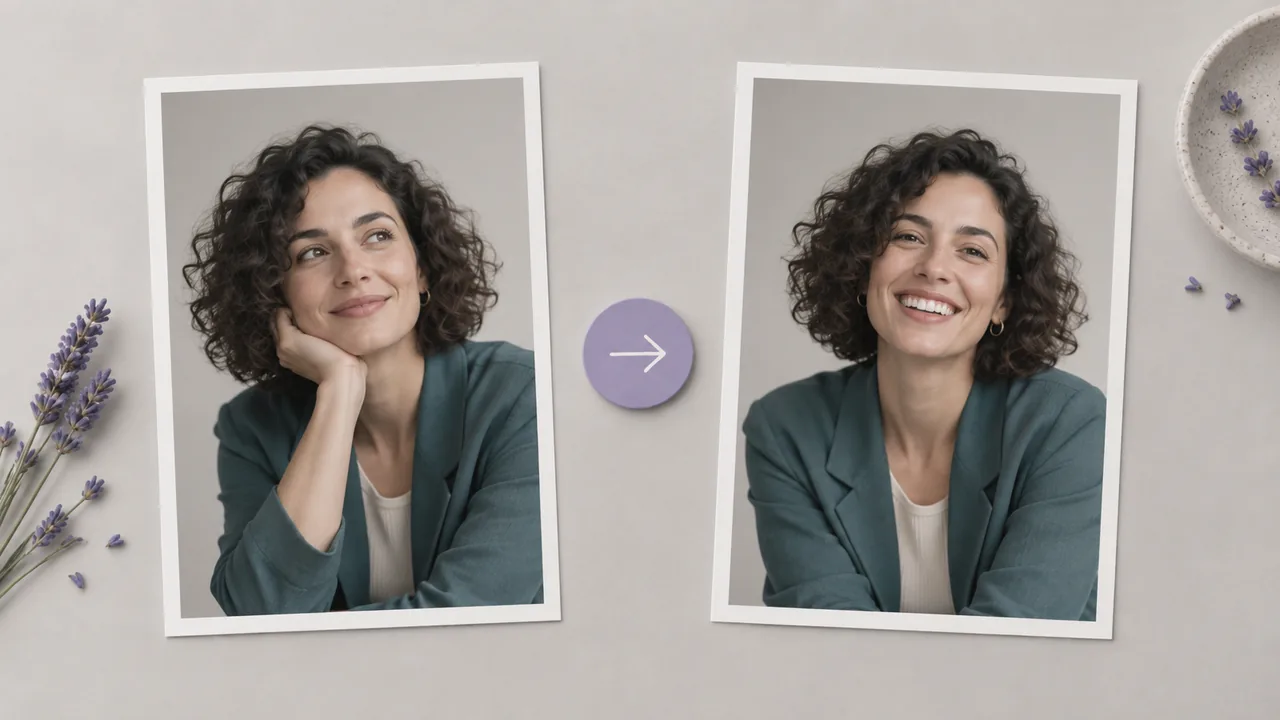
Select Generate portrait and inspect the still image at its intended display size. Revise the brief if the expression, crop or background distracts from the material.

Make separate decisions about the person, the framing and the visual tone so the portrait suits the material around it.
Write a role and a few visual details for an invented host. The brief can begin with text, without a source portrait or a completed character drawing.
Create a portraitSupply an optional image to guide the appearance. Inspect the new face for unwanted changes, and obtain permission before using a recognizable person as your reference.
Create a portraitThe presenter presets offer different written starting points. Read the selected prompt and replace details that do not fit the subject or audience of your presentation.
Create a portraitRequest a photographic or illustrated treatment in the prompt. Assess whether that choice suits the surrounding diagrams, product visuals or other material your audience will see.
Create a portraitDescribe a head-and-shoulders view or a wider composition. Check the generated crop against the layout, including any room needed for a title or adjacent illustration.
Create a portraitExplain the expression you want, then inspect the face at the size you intend to show it. Small details can change how a presenter appears to the audience.
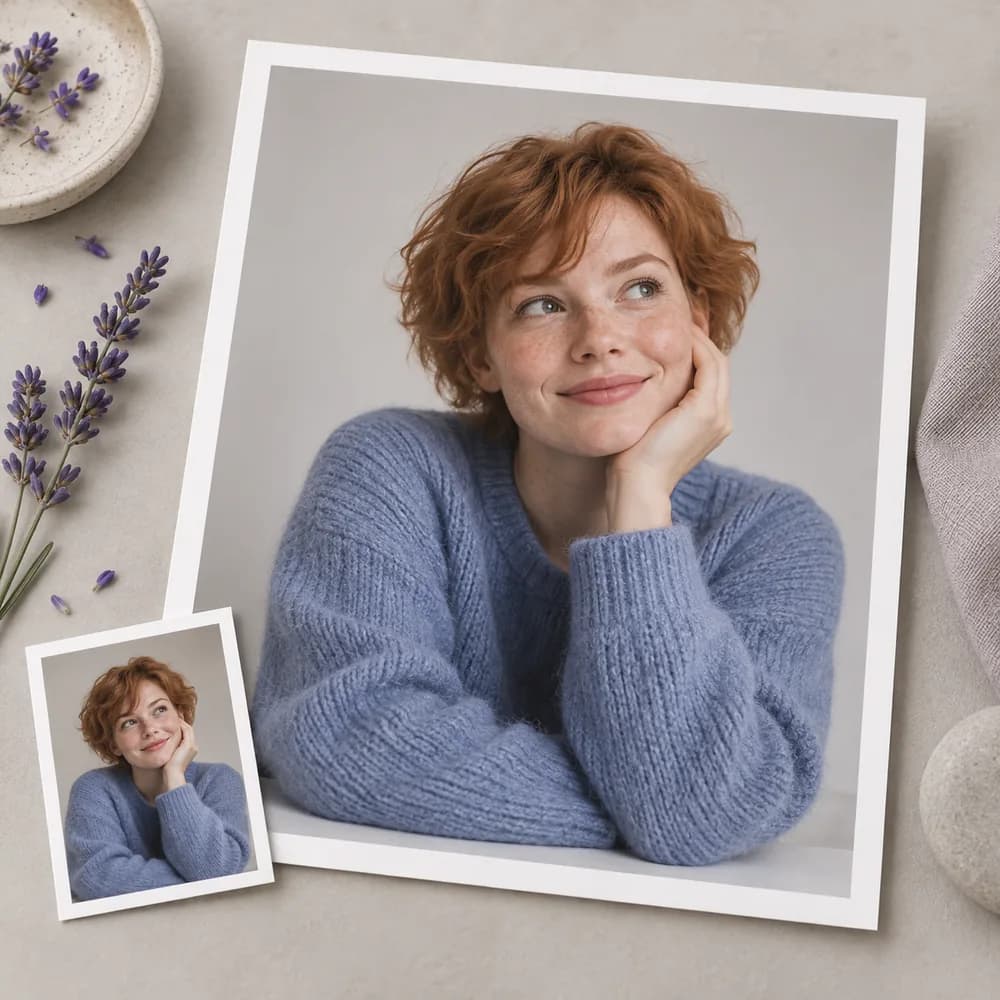
Create a portraitTry these prompts for a fictional host. All illustrations on this page show portrait concepts; they are not screenshots or verified outputs from the current tool.


A lesson author needs a presenter whose appearance suits a quiet explanation. Compare the portrait with the teaching material, then decide whether the clothing and expression fit the subject being introduced.
Create a portrait
A team is planning a narrated product introduction but has not decided how its fictional host should look. Compare still portrait directions first, then assess the selected face beside the actual product visuals.
Create a portrait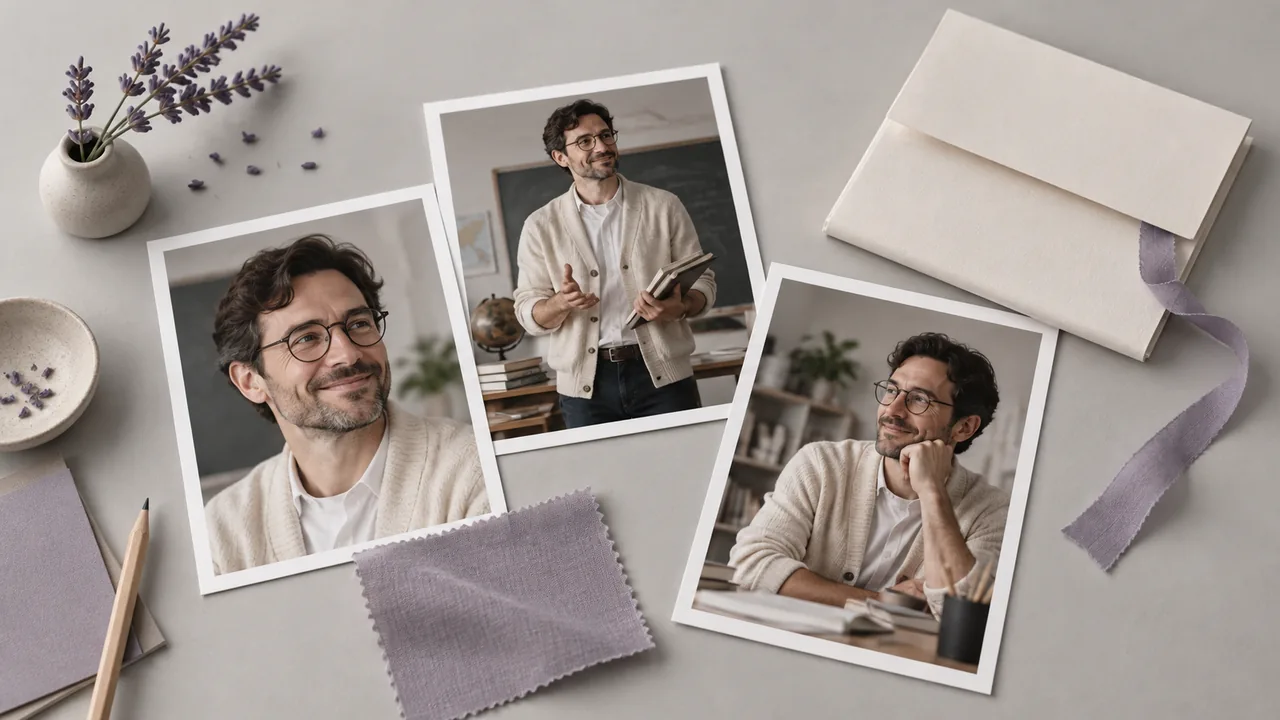
A training designer needs a virtual guide for new onboarding material. Review the proposed face with the people responsible for the lesson, and decide whether its tone feels appropriate to the workplace and subject.
Create a portrait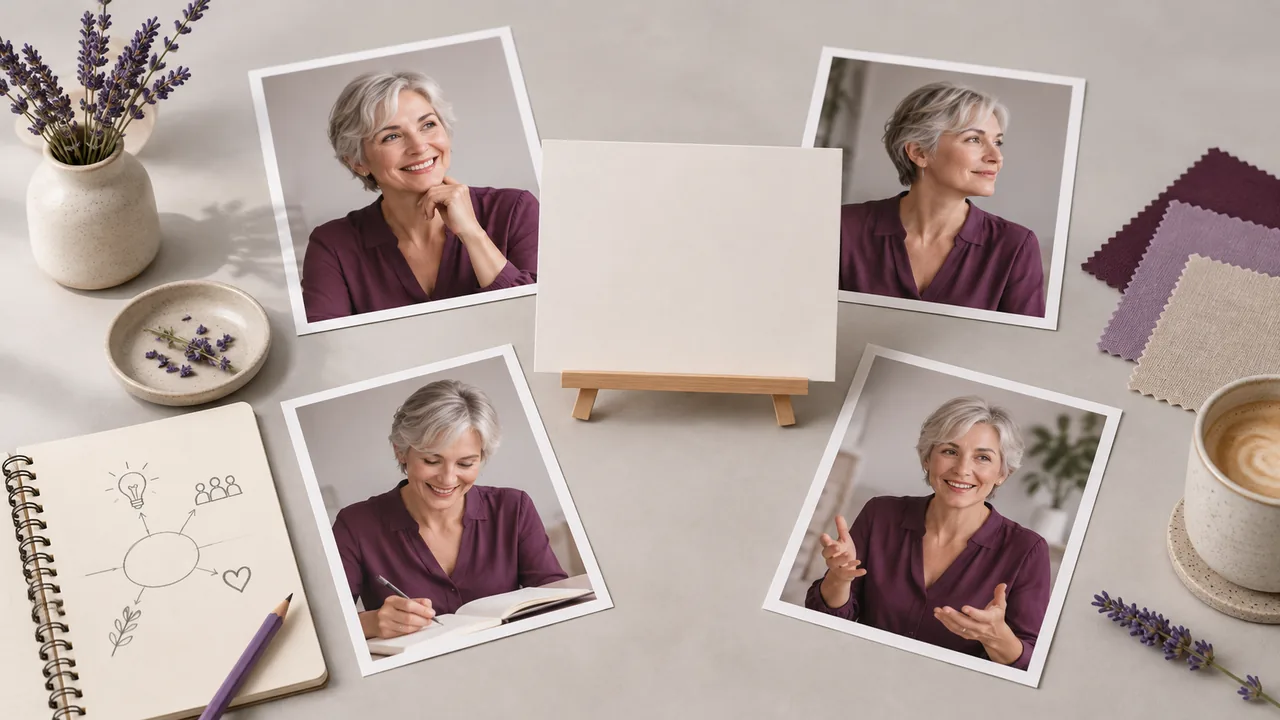
A producer is establishing a visual reference for a recurring host. Keep a chosen portrait for comparison and inspect later variations before treating them as part of the same presentation identity.
Create a portrait
An explainer creator prefers a drawn host to a photographic presenter. Develop the illustration treatment and face as a still, then judge how it sits with the diagrams and typography planned for the lesson.
Create a portrait
A creative team is pitching the appearance of a virtual host before the presentation is produced. Place a portrait beside the concept material so stakeholders can discuss how the person should relate to the intended audience.
Create a portrait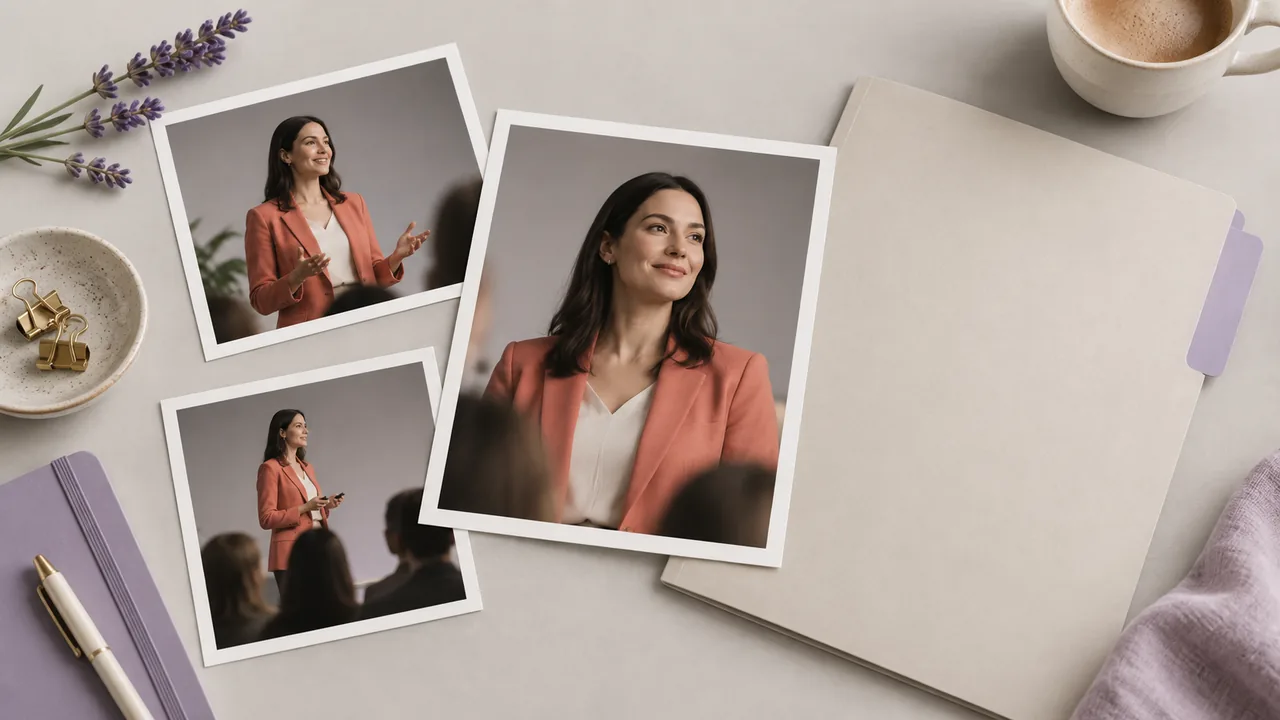
| Output | A square 1K PNG image. This form uses fixed output settings; prepare the final crop and layout separately. | |
|---|---|---|
| Input | A written portrait brief with an optional reference image. | |
| Editorial context | Assess the chosen portrait beside the lesson or presentation it introduces. | |
| Animation | Speech and motion require a separate workflow. This portrait request does not animate a face or clone a voice. | |
| Identity review | Check facial proportions and distinctive traits across generated versions; a reference does not guarantee identical results. | |
| Request cost | Check the requirement shown for your account before you start a generation. Current plan details are on the pricing page. | Verified 2026-10-12 |
| Plan options | Astorie lists a free plan with no credit card required. Check current access and allowances for the request you want to make. | Verified 2026-10-12 |
| Commercial use | Paid-plan outputs may be used commercially under the applicable provider terms and input rights. Free-plan generations are for non-commercial evaluation. | Verified 2026-10-12 |
| Uploads and privacy | On standard plans, uploads, prompts and outputs may be used for training. Provider data policies also apply; enterprise opt-out requires a written agreement. Previously learned or aggregated data may persist after source deletion. | Verified 2026-10-12 |
Explore these image models in separate canvas workflows. Their guides describe the portrait and reference controls available for further work.
On this page, an AI avatar generator creates a still portrait of a fictional presenter from a written brief and optional reference. The portrait can help you plan a visual host for a lesson or introduction. It is not a speaking or animated avatar.
Astorie offers a free plan with no credit card needed to start. Check the current generation requirements in your account, and consult pricing for the plan and allowance that fit your portrait work.
Commercial use is covered for paid-plan outputs, with model-provider conditions and input rights still applying. Portraits generated on the free plan are intended for non-commercial evaluation. Get permission for a real person's likeness and avoid implying an endorsement they have not given.
Review the portrait beside the material it will introduce. Check whether the expression, clothing and background fit the subject and audience. Inspect the face at its final display size, and obtain feedback from the people responsible for the lesson before selecting the host's appearance.
Return to the portrait form with your audience and the tone of the material in mind.