

Start with the approved source
- Check the visible product, package and label against the actual item
- Decide what the campaign needs to say before writing the scene
- Identify which offer details and quotes require approval
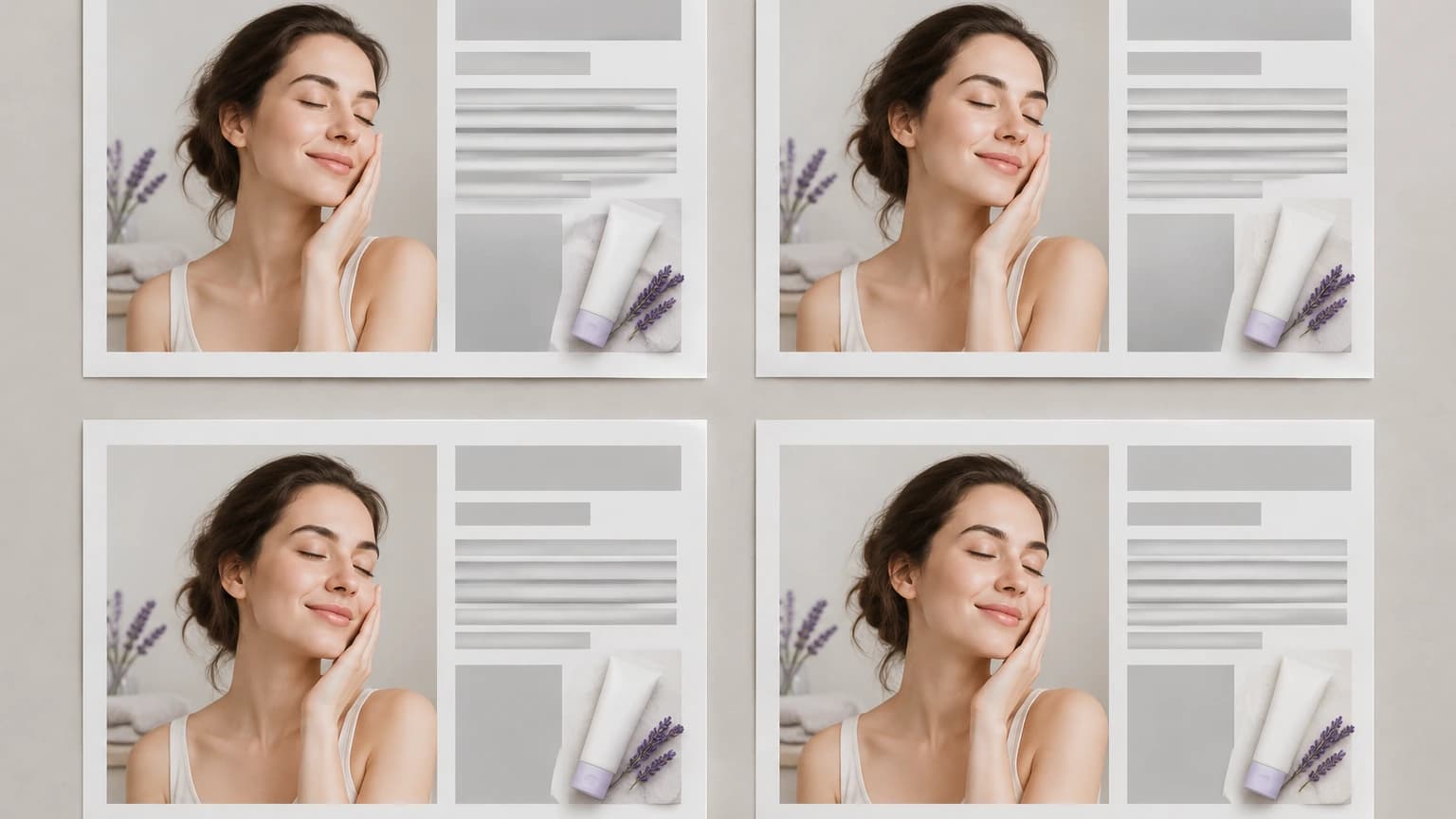
Choose a source photo and a setting. Describe the product placement and where campaign text will go; add approved copy after generation. Preset examples use the Labelled bottle input.
Separate the photographed product from the campaign elements that will be added later. Use the comparison to plan how the image will support the message.
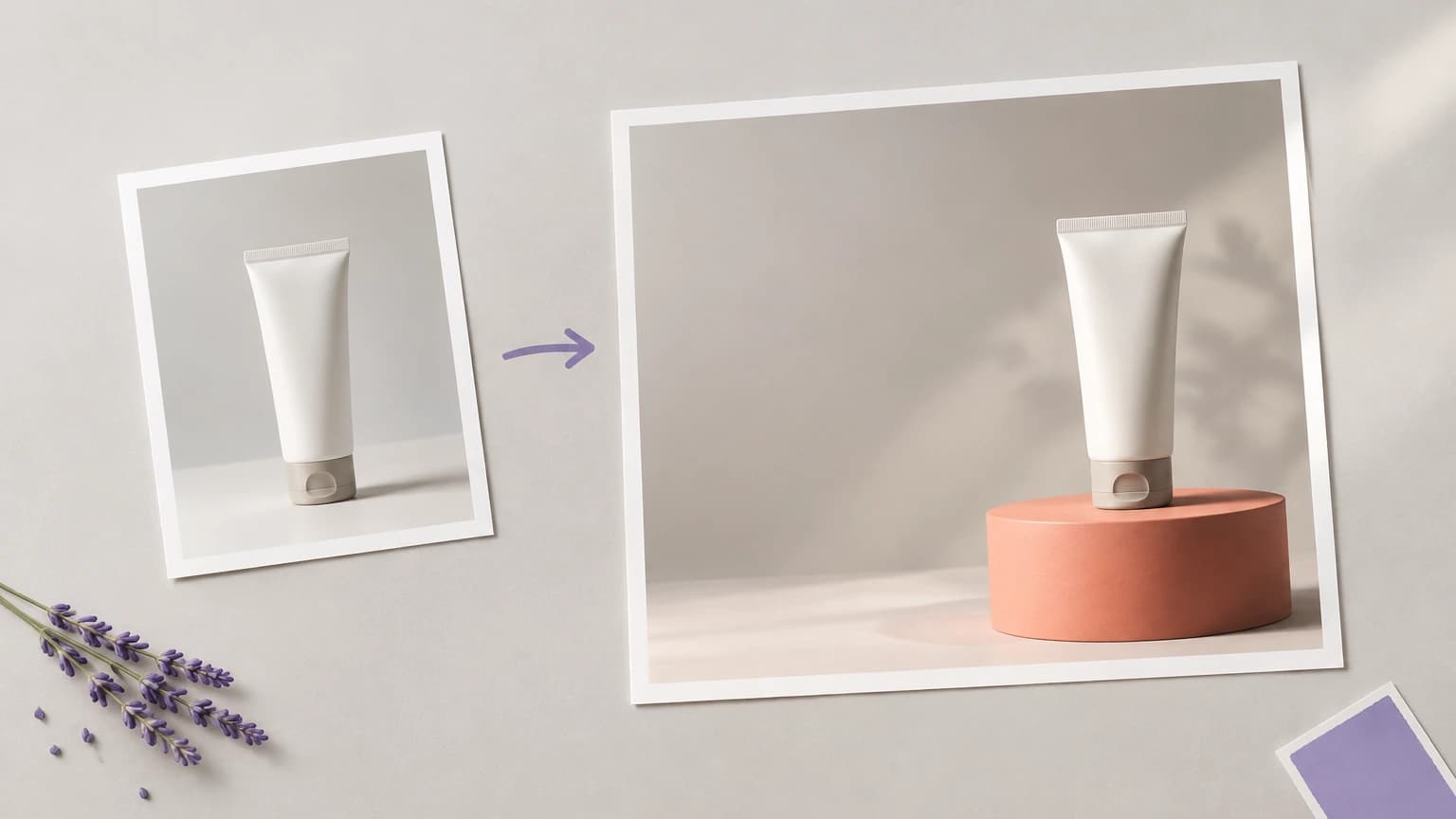
Prepare an image concept here, then assess it as part of the finished ad.
Select a sample or upload a clear product photograph. Use an approved source when the image needs to represent a specific item, and keep it available for a detail comparison.
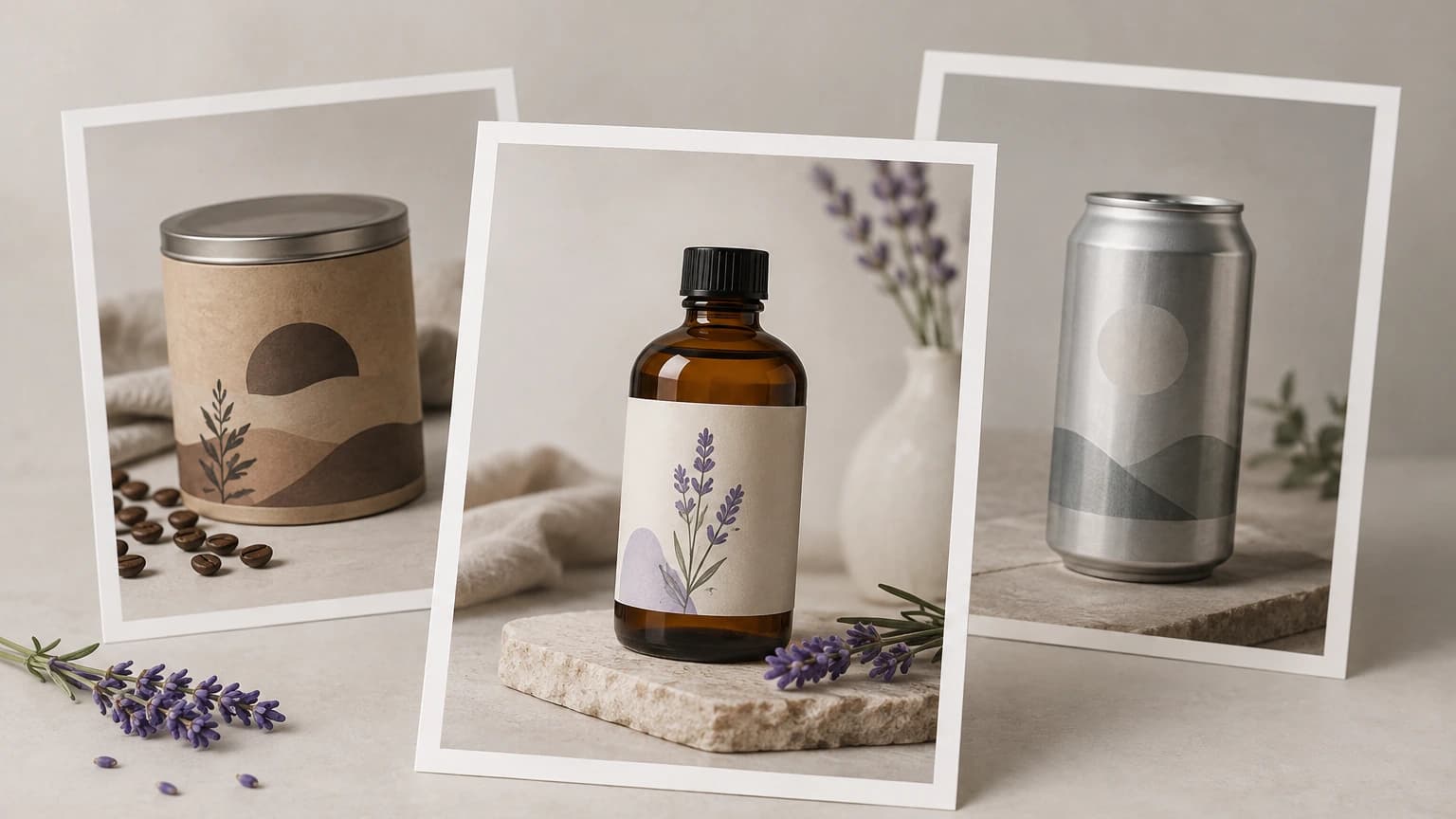
Choose a setting, then edit the prompt with the product position, lighting and space for a headline. Add the final offer and approved text in your design workflow.

Press Generate ad image and review the generated scene in your personal canvas. Check packaging details and the planned copy area before combining the image with a headline, price or other approved text.

Use the generation controls for the visual concept, and keep campaign approval separate.
Use your product photo as the source for the scene request. Keep the original available to check proposed ad images for changes to labels, shape and identifying details.
Generate an ad visualA preset supplies a written starting prompt. Review its description and decide whether the setting fits the message and audience of the campaign you are planning.
Generate an ad visualEdit the prompt when the campaign calls for a specific surface, color or arrangement. Describe those choices directly rather than expecting a preset name to communicate the full brief.
Generate an ad visualThe sample photos help you explore a scene idea before your campaign source is ready. They are workflow examples, not substitutes for an approved product photograph.
Generate an ad visualThe image is saved in your personal canvas so you can return to it during review. Additional canvas controls belong to that workspace, not the generator form above.
Generate an ad visualPrepare offer details and quotes from approved information. Inspect the complete layout and any lettering in the image rather than treating generated text as verified campaign material.
Generate an ad visualAdapt these suggested prompts for your product ad concept. All illustrations on this page show visual directions; they are not screenshots or verified outputs from the current tool.

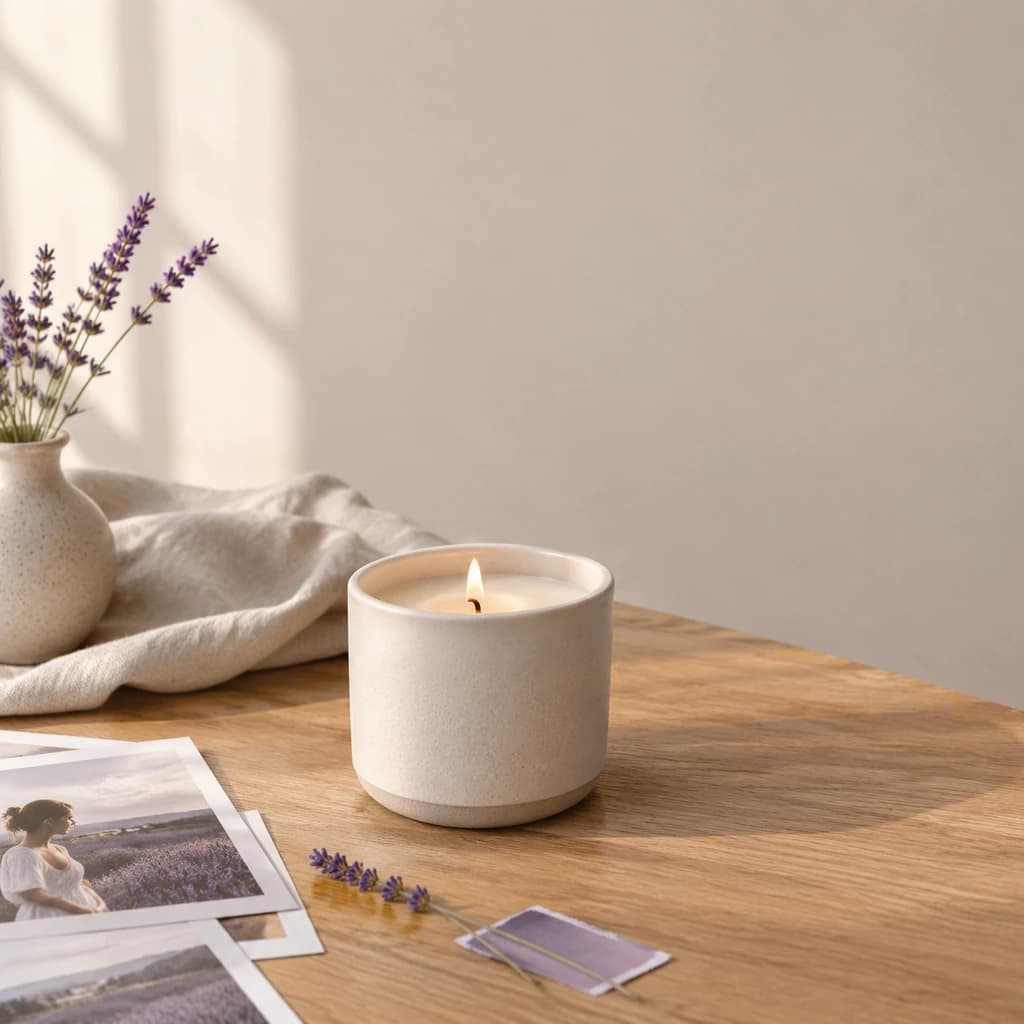
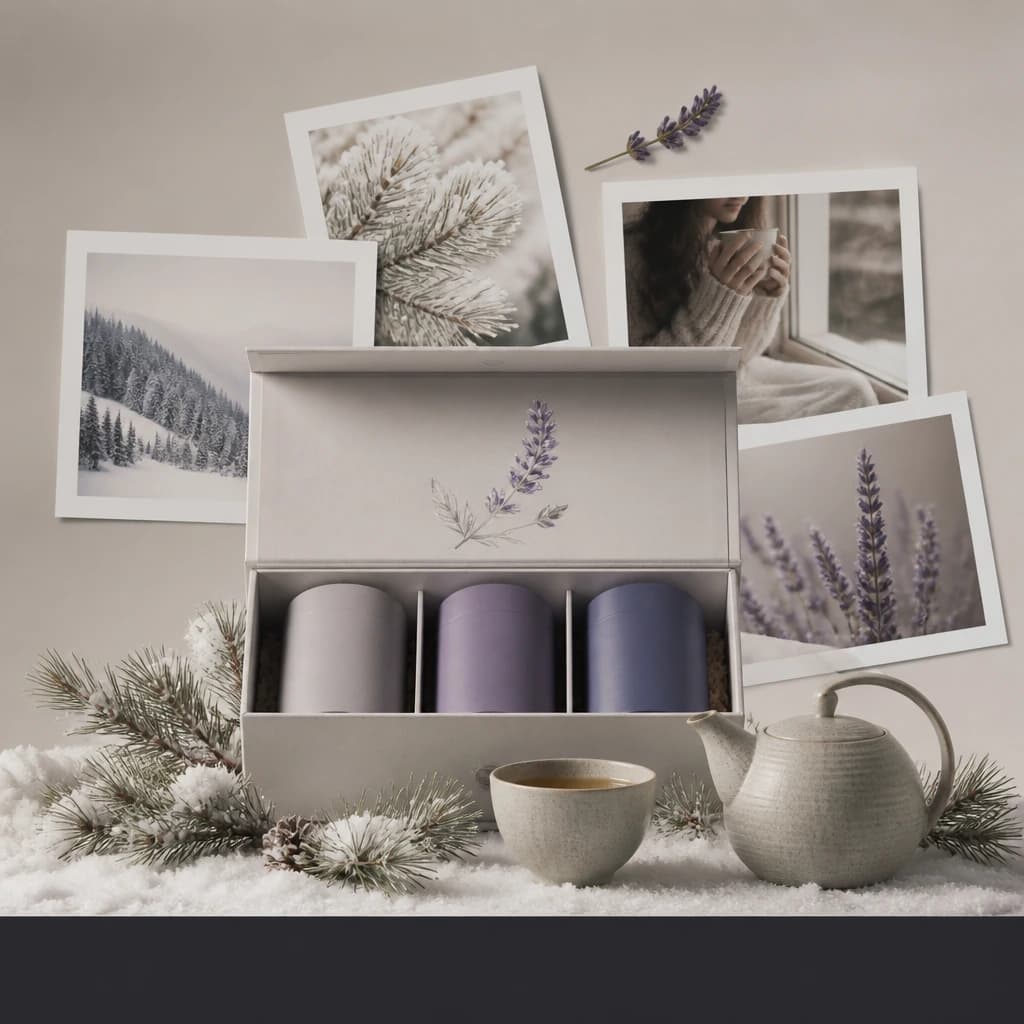
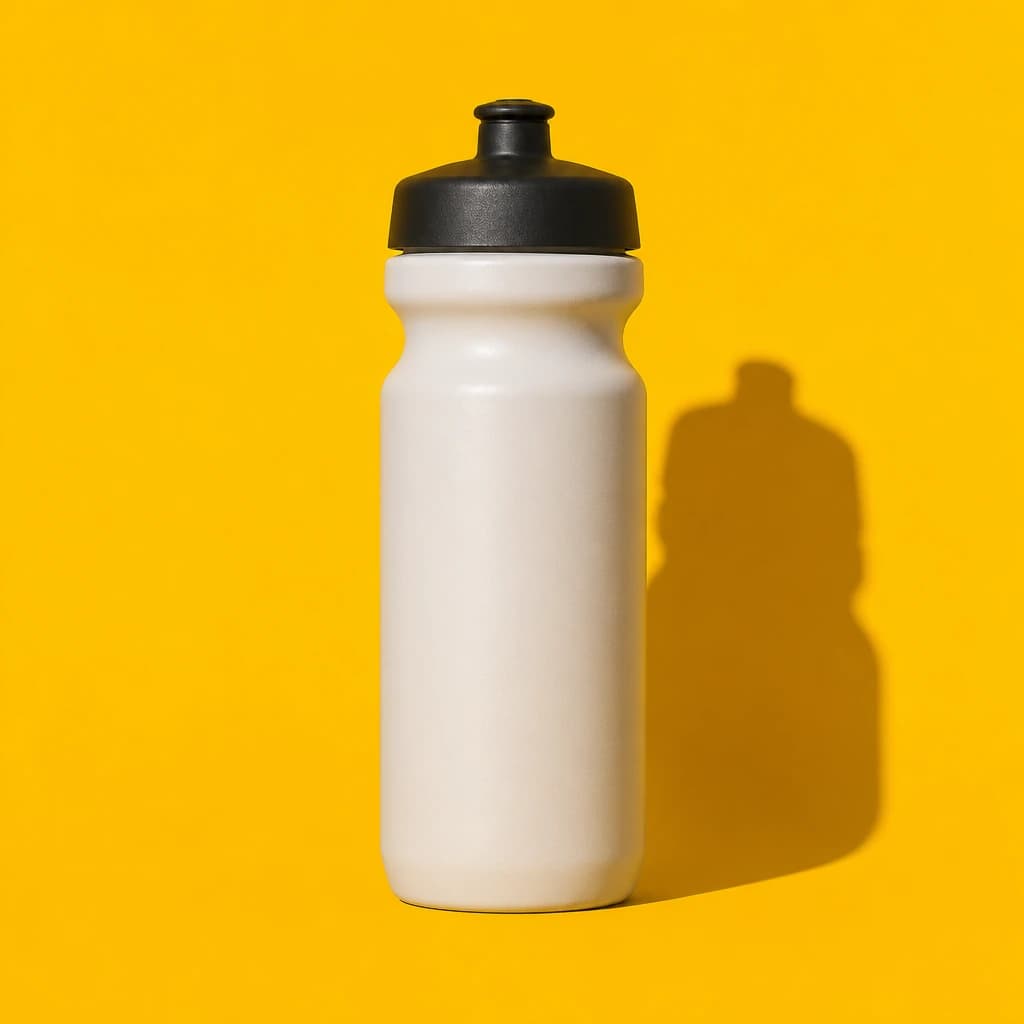
A launch team has an approved packshot and needs a visual direction for the announcement. Explore a scene that fits the positioning, then place it beside the proposed headline for stakeholder review.
Make an ad for your product
A shop has approved the discount and dates. Request an uncluttered area in the image, add the confirmed offer separately and check that the finished layout remains legible at the intended size.
Make an ad for your product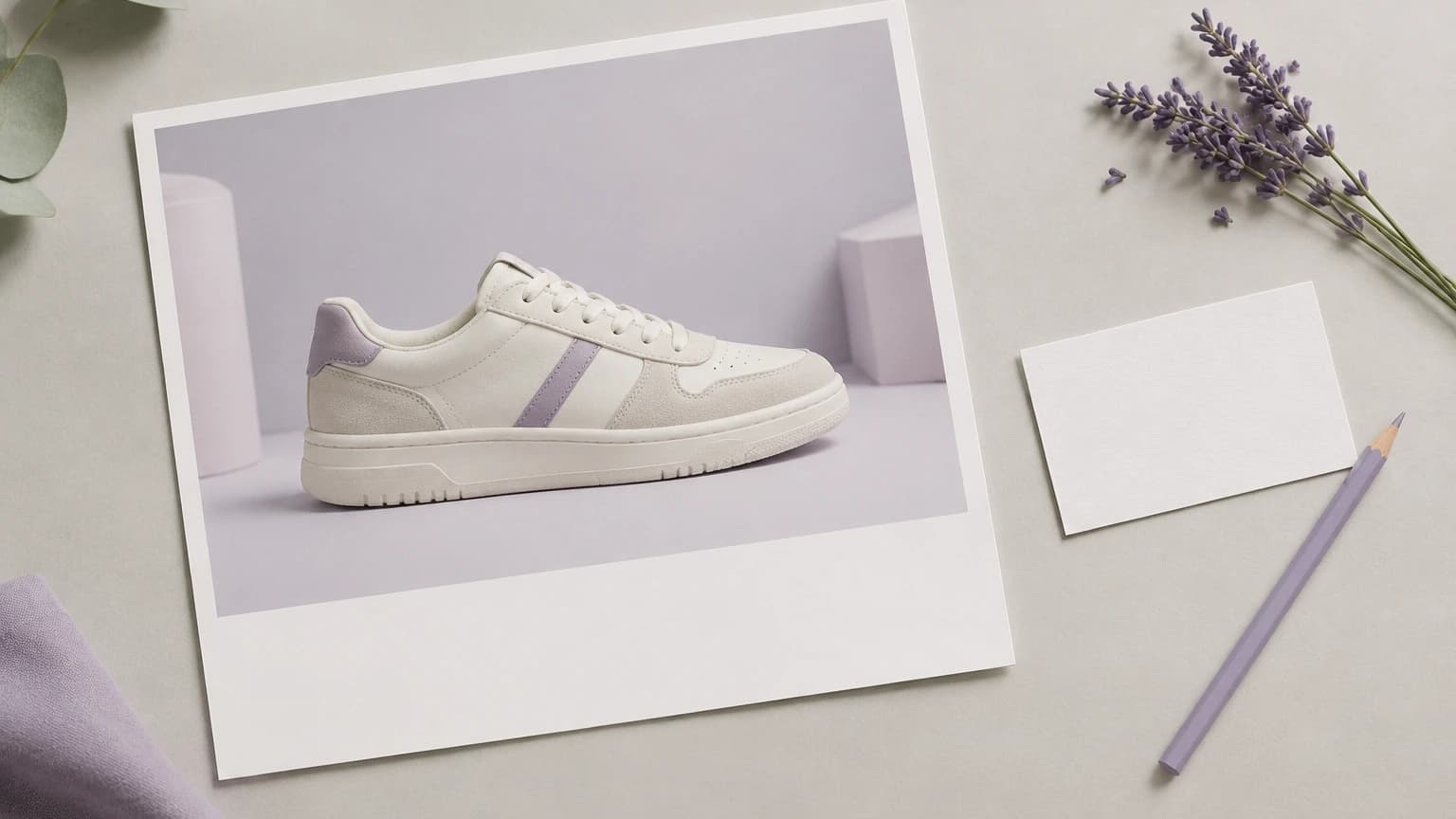
A marketer has permission to use a review and wants the product beside it. Assess a restrained scene against the approved quotation, without asking the generator to invent a testimonial.
Make an ad for your product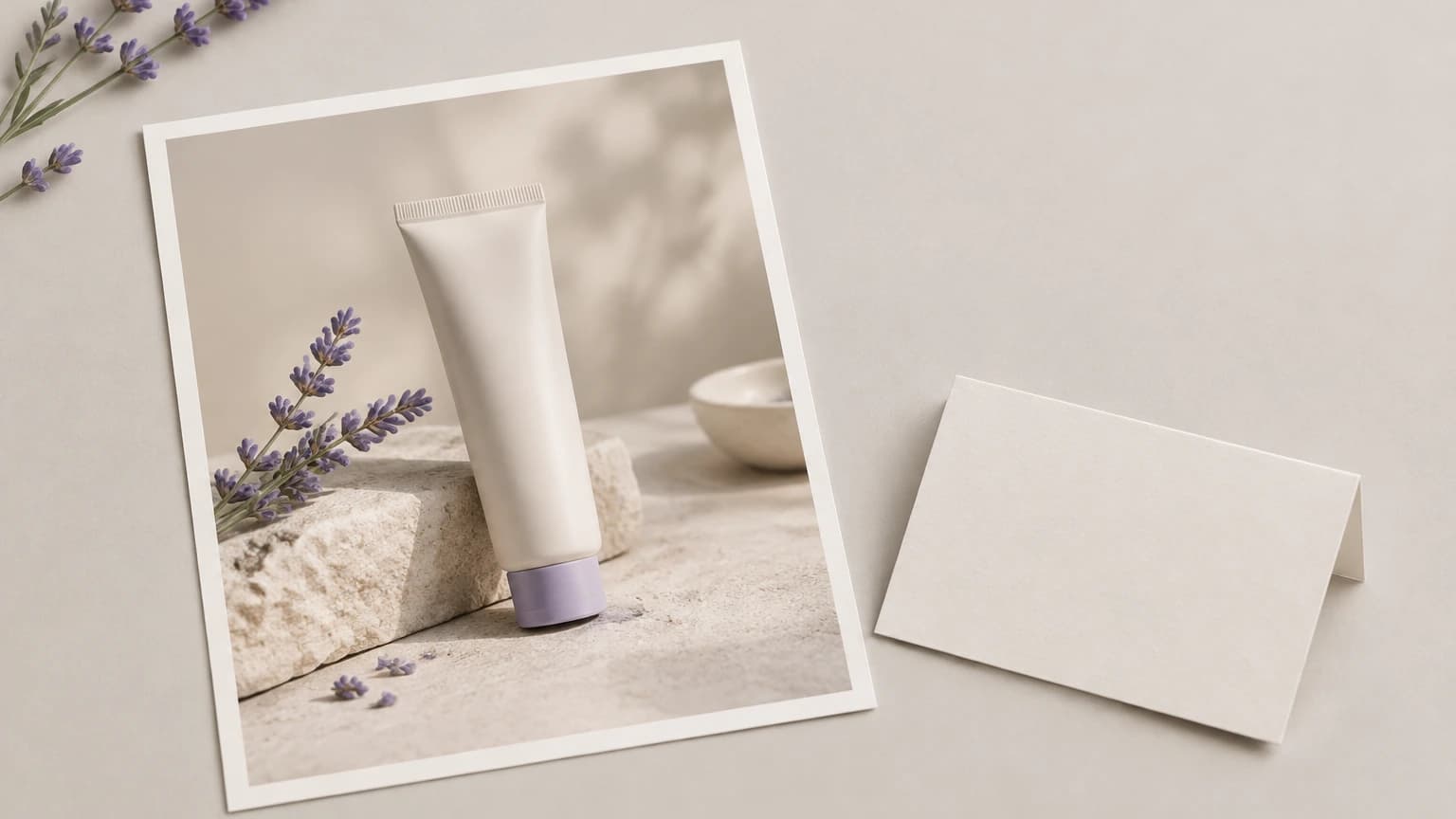
A seller wants to connect an established product with a holiday theme. Develop a setting around the current source, then review whether the seasonal details support the message without obscuring the item.
Make an ad for your product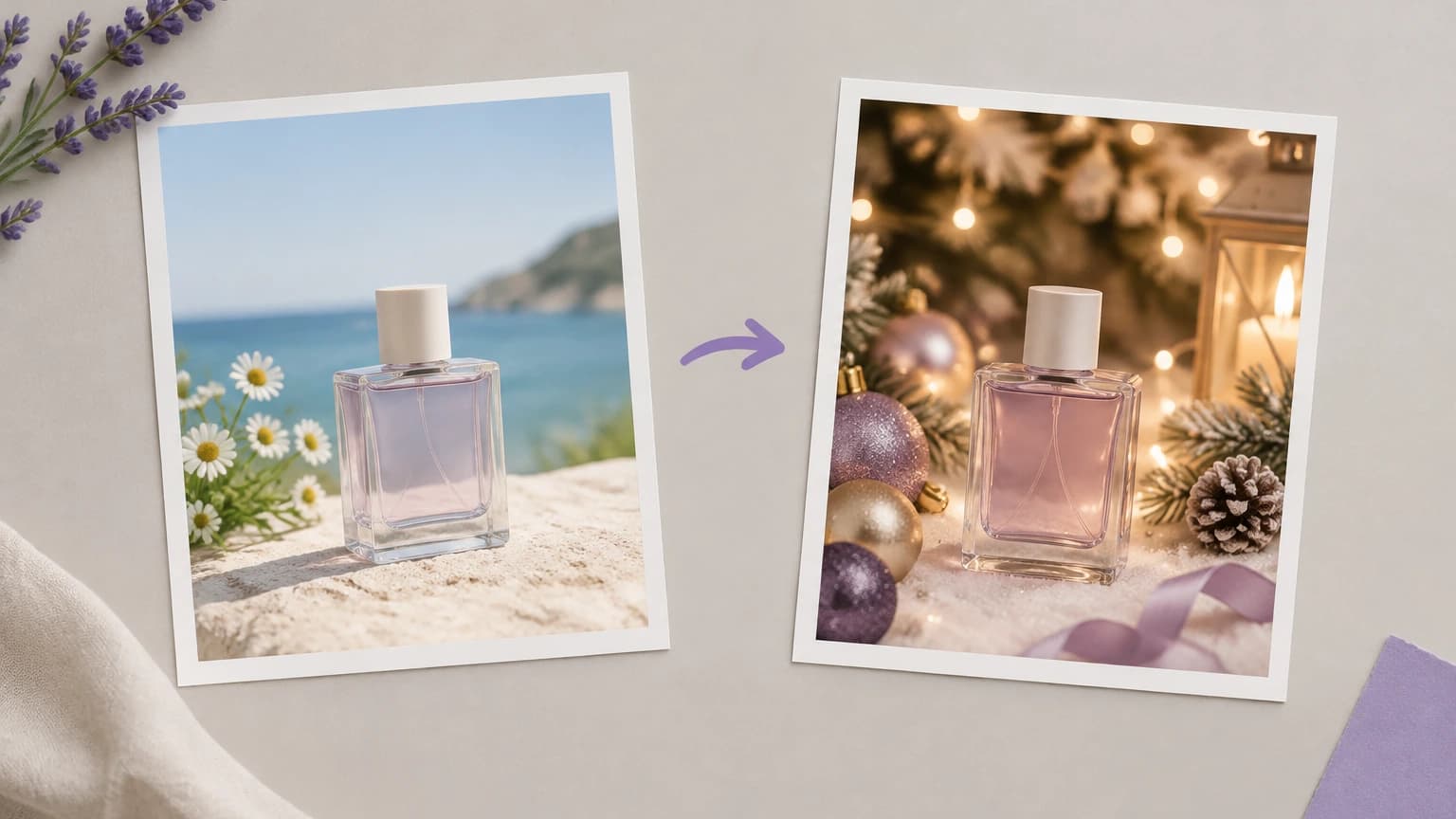
An ecommerce team is preparing a sponsored placement where the product must remain identifiable. Evaluate the image at the intended display size and check the destination requirements before submitting the ad.
Make an ad for your product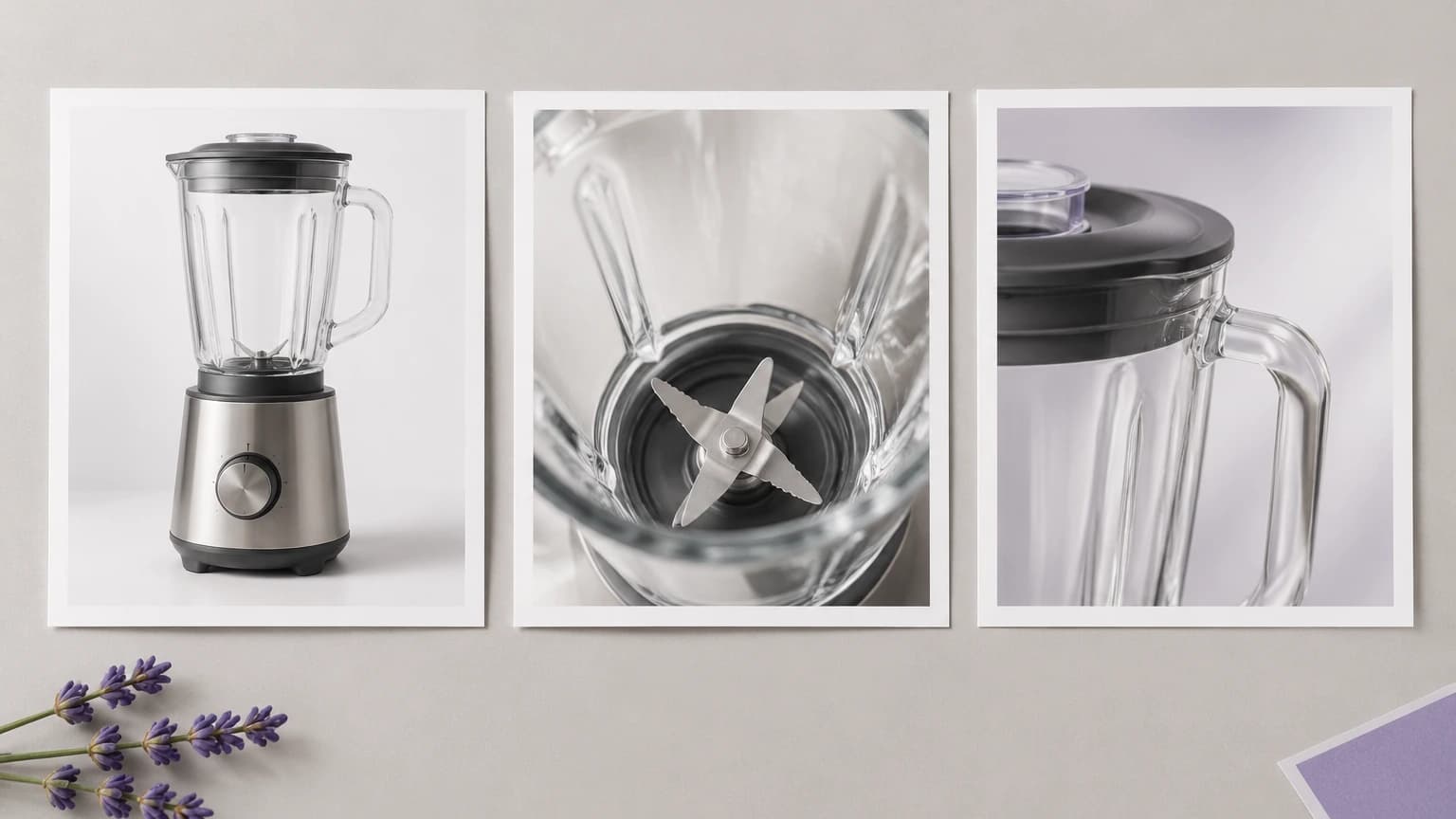
A social manager is planning an image for a paid post. Establish its visual direction in the scene request, then inspect the selected result with the actual copy before preparing the campaign asset.
Make an ad for your product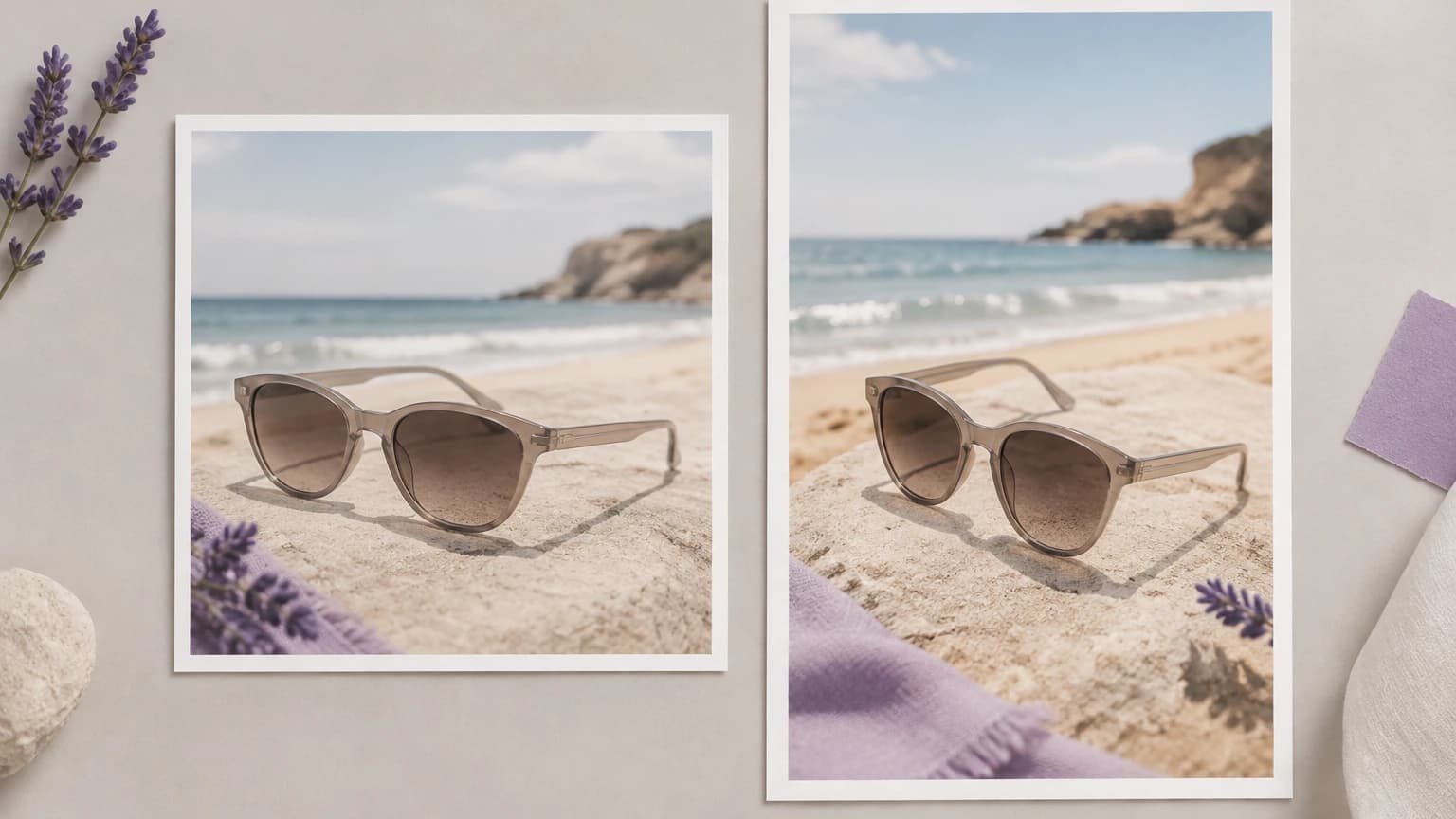
| Starting image | A product photo from your upload or the available input samples. | |
|---|---|---|
| Output | A square 1K PNG image. This form uses fixed output settings; prepare the final crop and layout separately. | |
| Scene controls | Select a preset or edit the prompt; model choices are not part of this page configuration. | |
| Text review | Check generated lettering and add approved campaign copy in your chosen layout workflow. | |
| Campaign readiness | Review the full image, copy and destination requirements before publishing an ad. | |
| Upload data use | On default plans, uploads, prompts and outputs may be used to train Astorie and affiliate models. Provider policies apply. Enterprise opt-out requires a written agreement; information already incorporated into trained models or derived datasets may persist after source removal. | Verified 2026-10-12 |
| Request cost | Check the current credit requirement shown for the generation request. | |
| Free plan | A free plan is available without a credit card. Current account options are listed at /pricing. | Verified 2026-10-12 |
| Commercial use | Commercial rights apply to new generations made on a paid plan, subject to model-provider terms and input rights. Free-plan outputs are for personal, non-commercial evaluation. Paid-plan outputs retain their commercial rights after downgrade or cancellation. | Verified 2026-10-12 |
Browse these models for separate canvas workflows. Open a guide to compare the available inputs and controls when planning further ad imagery.
It makes a static image concept from a product photo and a scene description. Use the result alongside copy and an offer that you have approved. A generated scene still needs product-detail and layout checks before it is suitable for a campaign.
Yes. Astorie offers a free plan with no credit card required. Consult the current pricing page and your account for the included allowance. Check the credit requirement shown for your request before generating. Free-plan outputs are for personal, non-commercial evaluation; consult /pricing and the commercial-rights policy when planning content for a business.
Yes, for outputs generated on a paid plan, subject to model-provider restrictions and your rights to the source material. Free-plan generation is for personal, non-commercial evaluation. Upgrading applies commercial rights to new generations; outputs created on a paid plan retain those rights after cancellation or downgrade. See /help/commercial-rights/can-i-use-generated-content-commercially.
Name the intended area in the prompt, such as an uncluttered wall above the product or open space on the left. Inspect the result with the actual headline at its intended size. If props or the product crowd that area, revise the brief and review another version.
Use an approved product photo and a clear campaign brief, then review the image together with your final copy.