

An image without direction
What to decide
- No chosen camera movement
- Several possible actions competing for attention
- No criteria for judging the finished take
Astorie
Choose a reference image and a motion preset, then edit the prompt for the shot you want. Select Animate it to generate the video.
A still image explains appearance, while the motion brief describes what should happen next. Give the camera and the subject a clear direction.
What to decide
What to describe
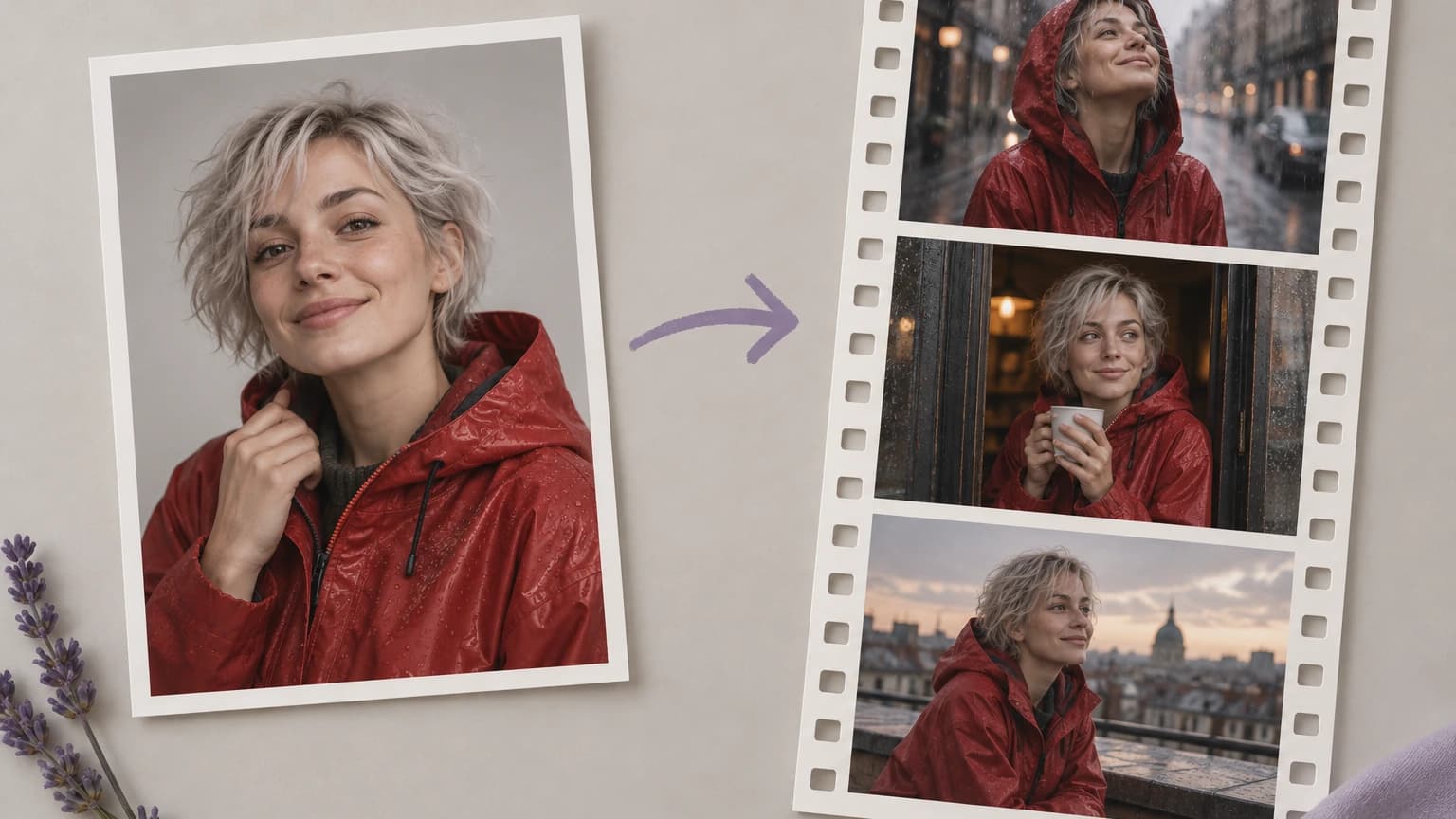
Use the video form above to add one reference image, direct the movement and generate a clip.
Select a sample or upload an image of the subject you want to animate. Use a clear view and make sure you have the rights needed to supply it.
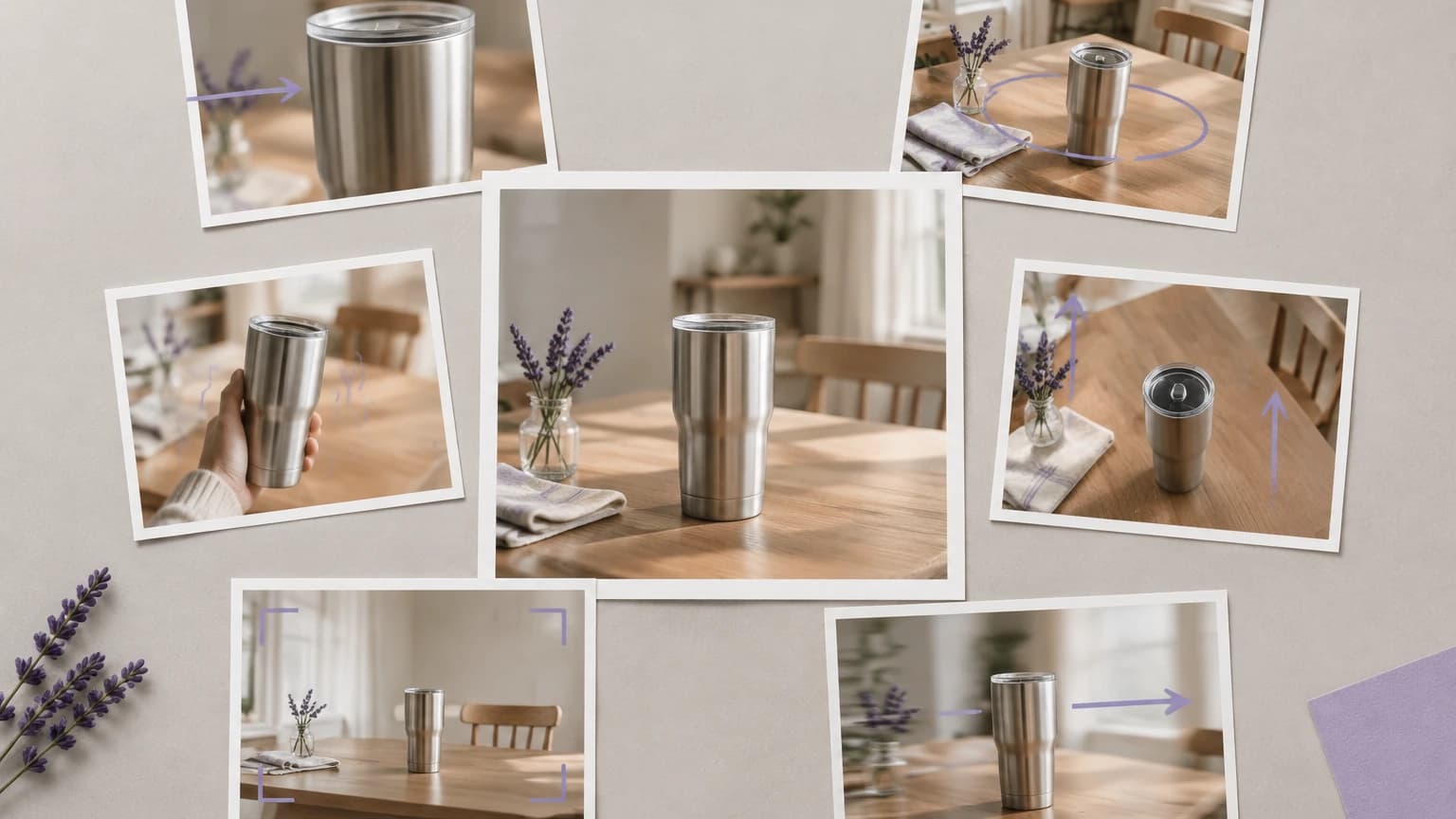
Start from a camera preset, then edit the prompt to describe the action and movement you want. Keep the request focused enough to judge the result.
Select Animate it. Watch the clip for subject changes, distorted objects and unexpected movement before revising the prompt for another attempt.
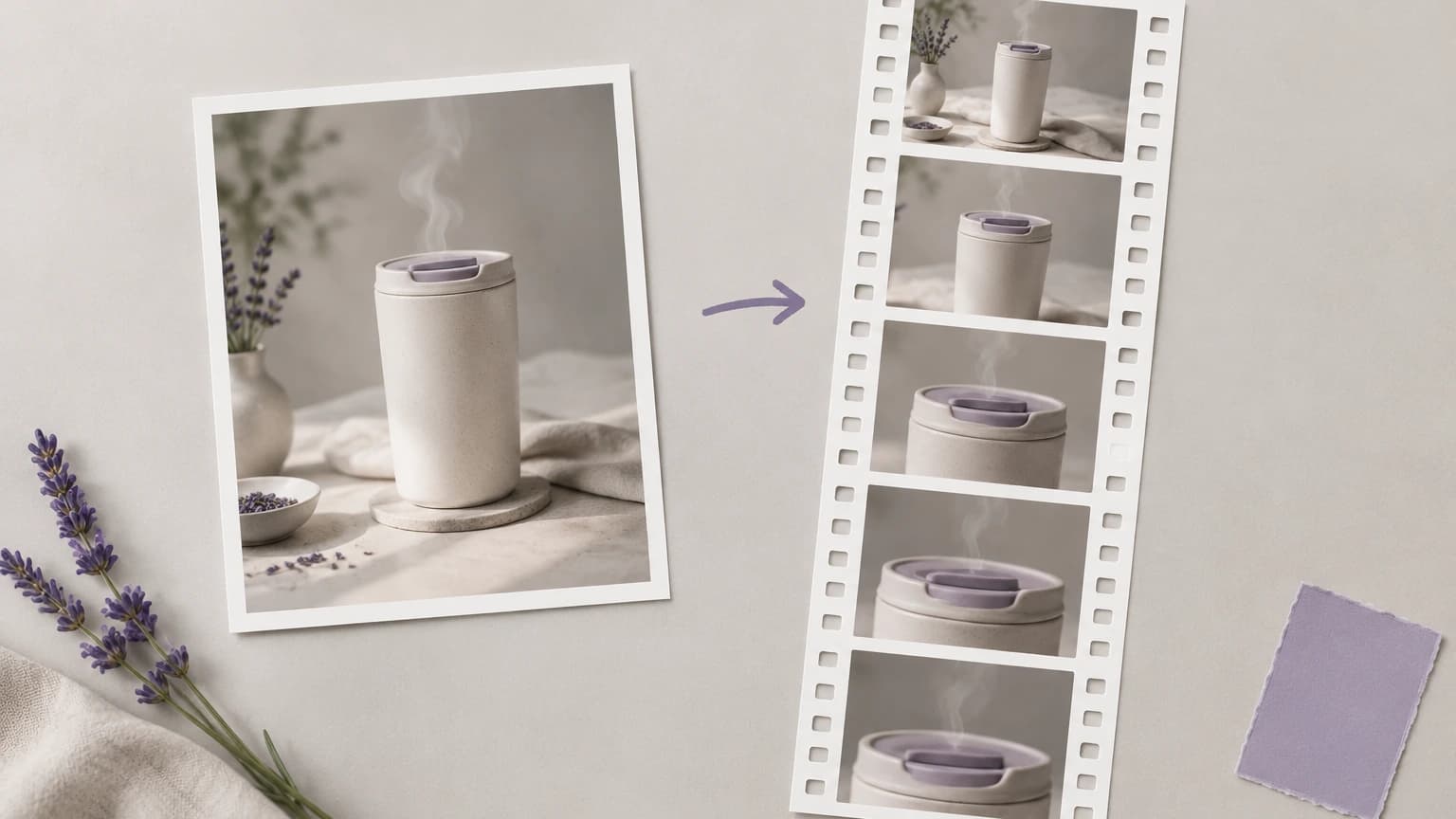
Separate the reference, the subject action and the camera movement when planning a shot. A focused brief makes each take easier to assess.
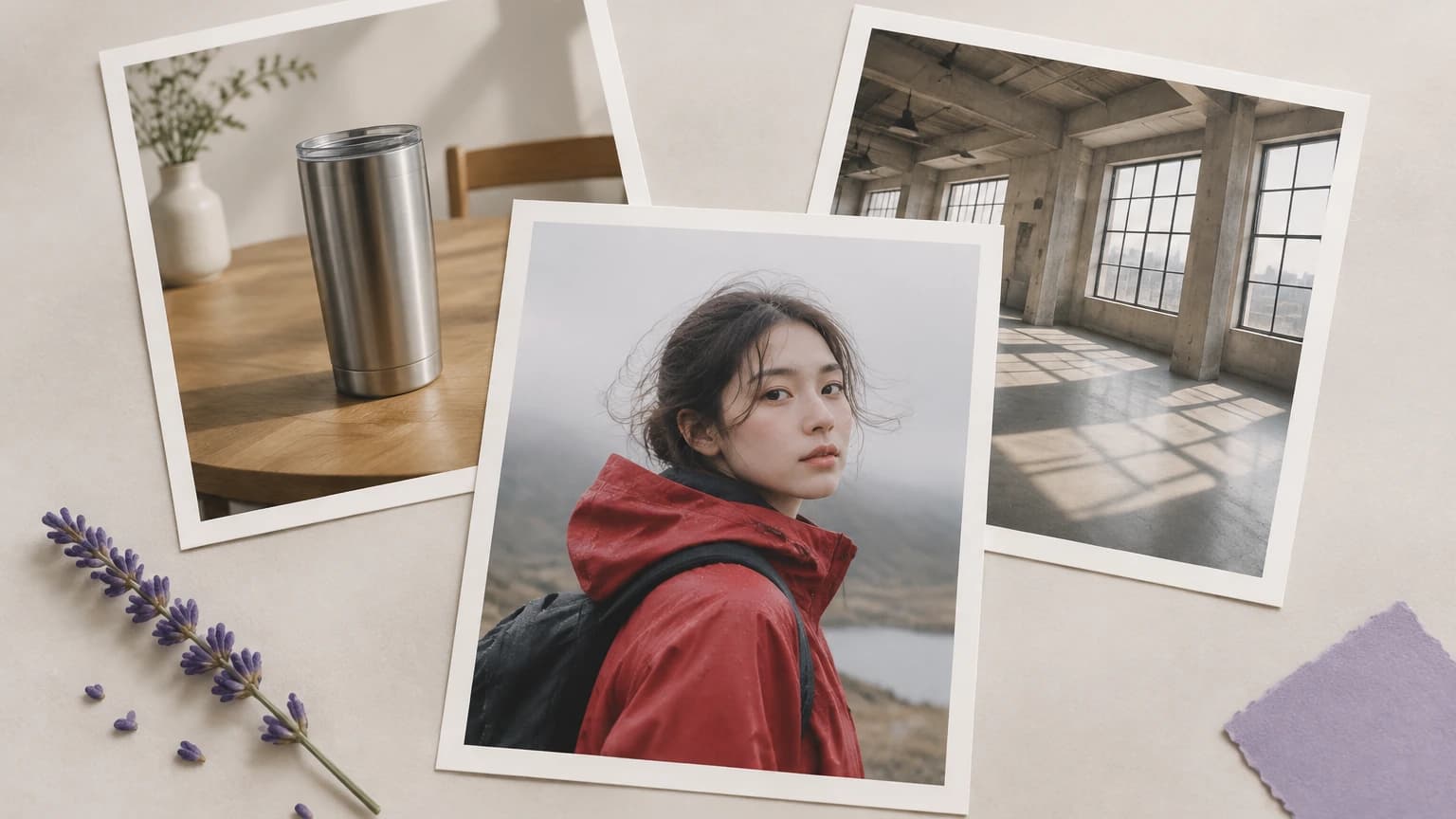
Use a character, product or location image to guide the scene. Select a clear view of the subject so the picture communicates the appearance you want to develop.
Animate an imageChoose a camera preset to begin the motion brief. Read its prompt and adjust the movement to suit the distance, framing and subject in your reference.
Animate an imageWrite what should happen in the scene, such as steam rising or a person turning. Distinguish that action from the camera movement so the brief stays readable.
Animate an imageAsk for a manageable action instead of several competing events. A concise brief gives you clearer criteria for deciding whether the resulting take fits your idea.
Animate an imageReview faces, hands, product labels and other important details throughout playback. Compare them across the clip when deciding which take fits your intended shot.
Animate an imageIdentify the main problem in the result, then adjust the motion description. Review the next take against the same visual criteria before selecting it for further work.
Animate an imageAdapt these briefs for your reference image. All illustrations on this page are shot concepts, not interface screenshots or frames from verified generated videos.
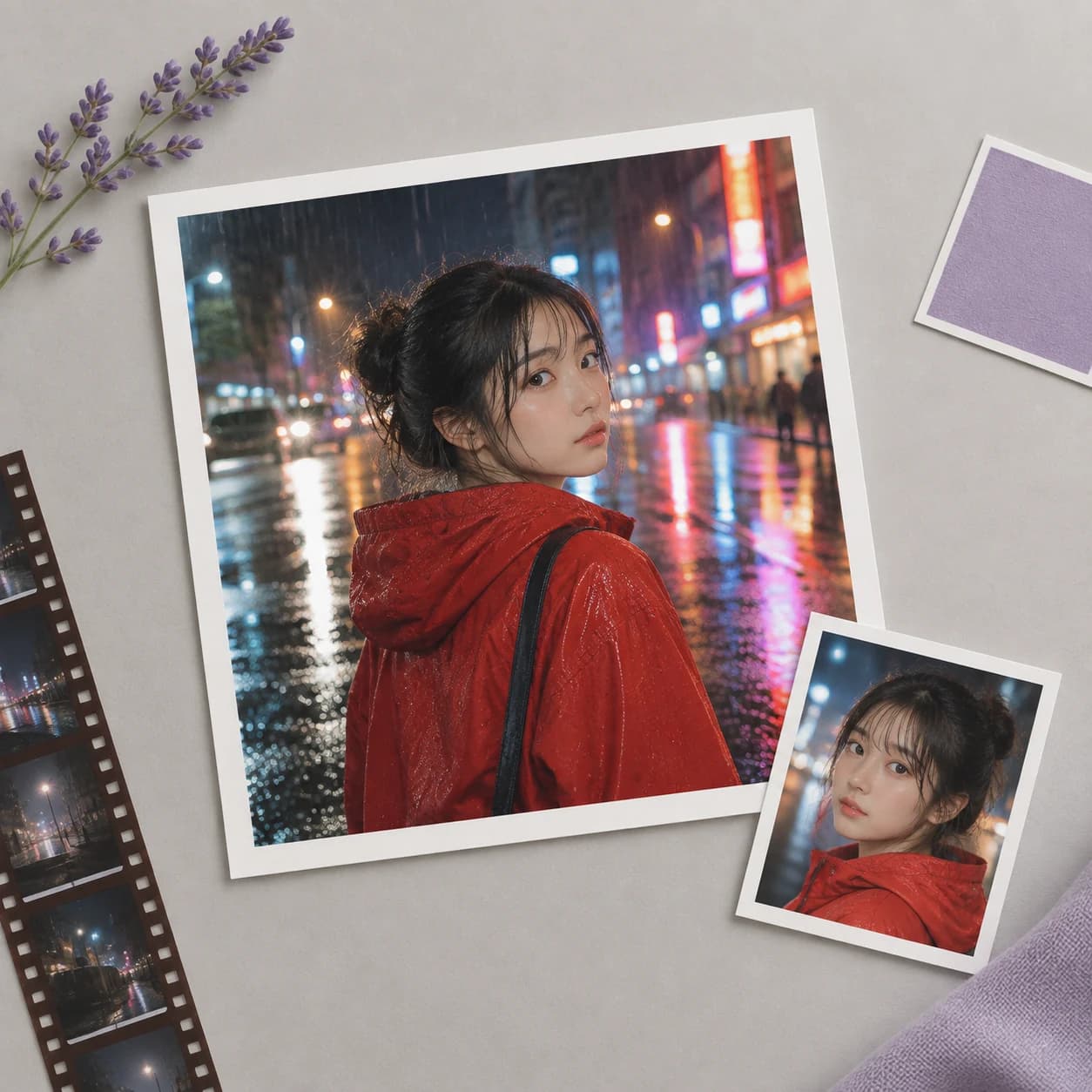
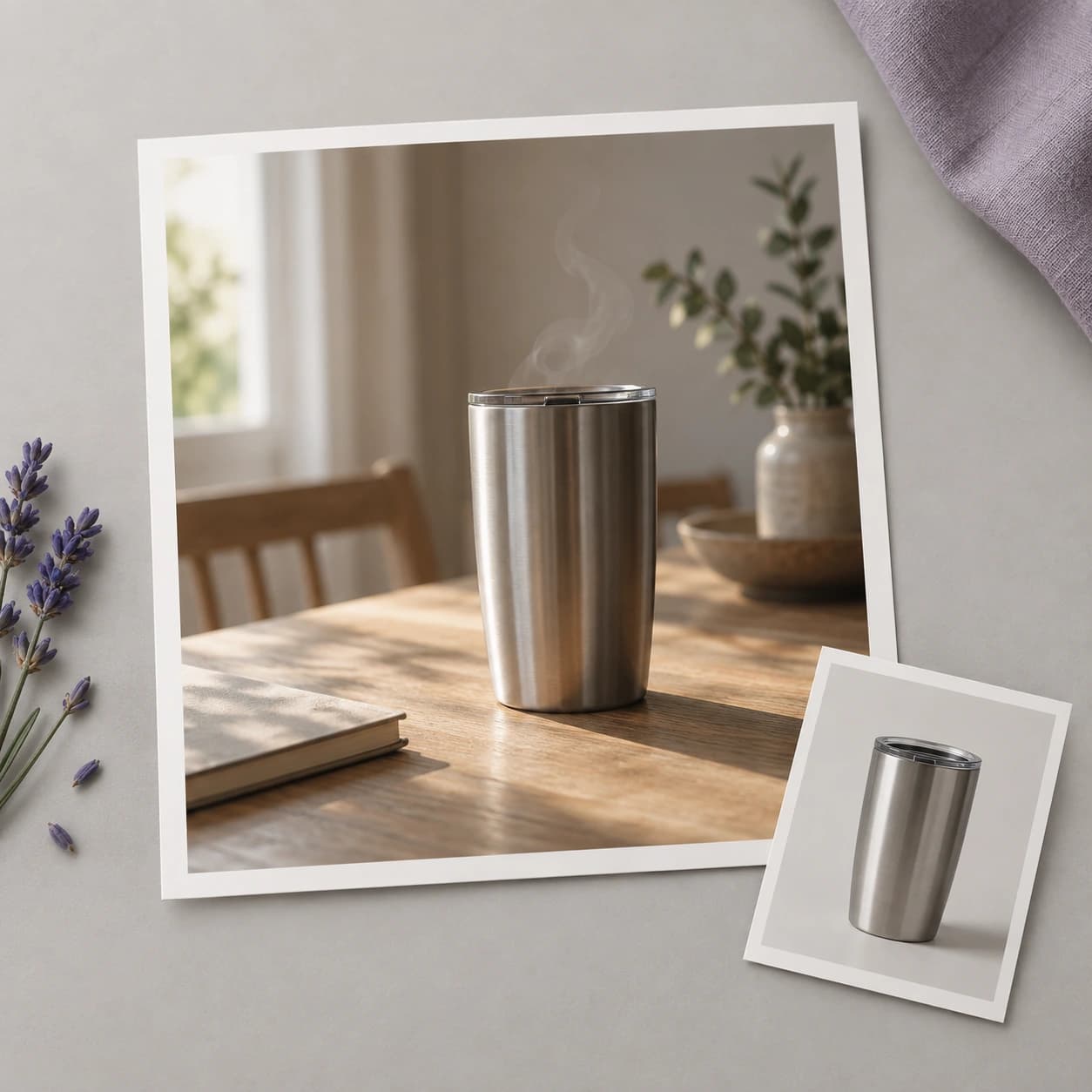
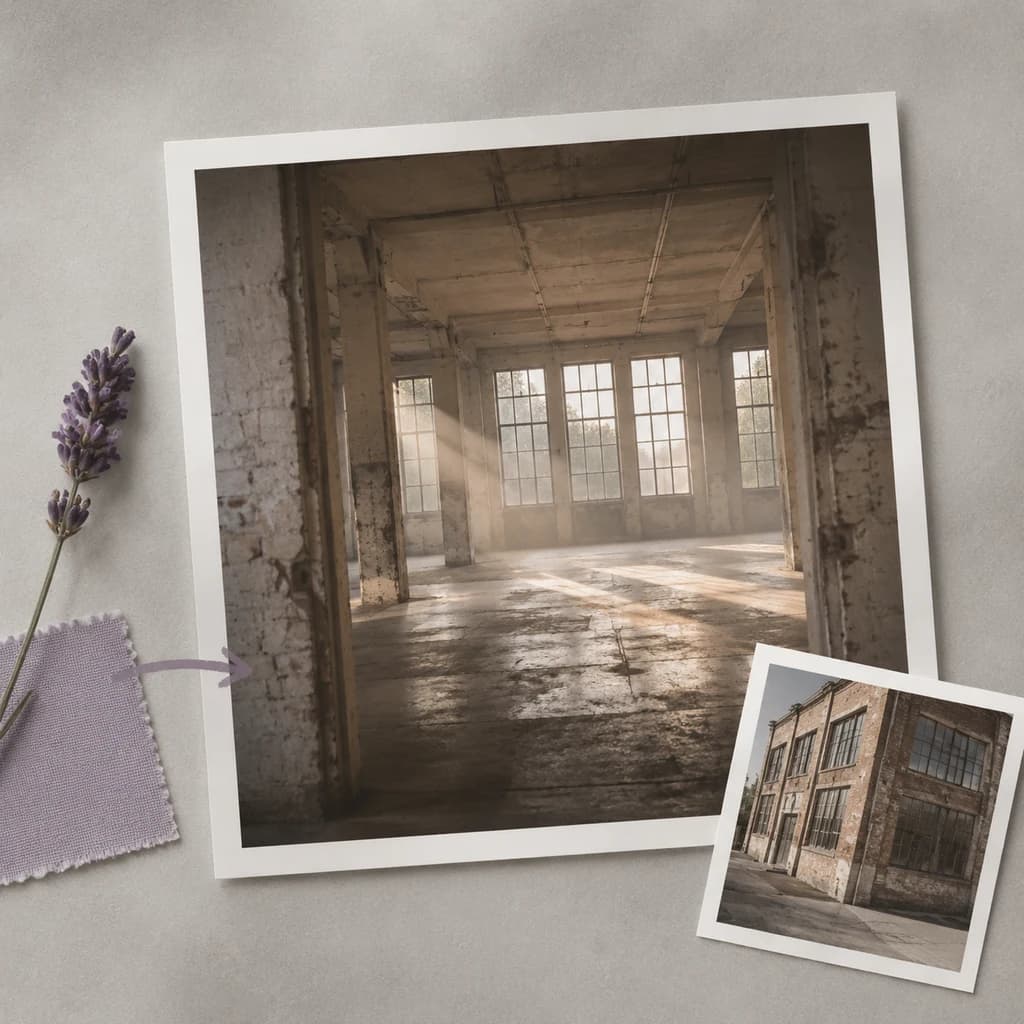

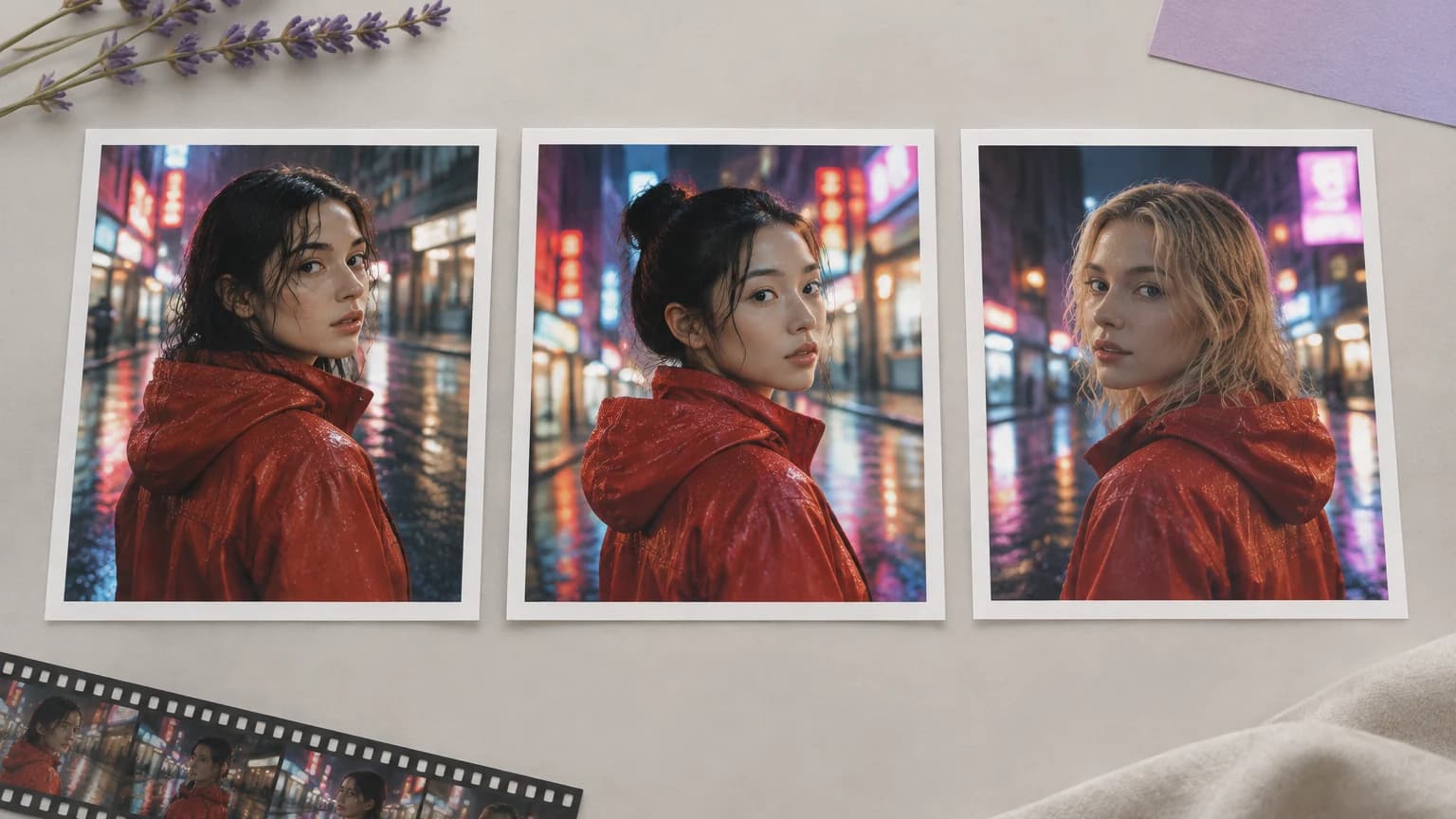
A creator is planning several shots around a recurring figure. Use a chosen reference as a visual starting point, then compare each take for differences in the face, clothing and proportions.
Animate an image
A brand team needs to discuss how a still campaign image could move. Review generated concepts beside the other material before deciding which shots warrant further production work.
Animate an image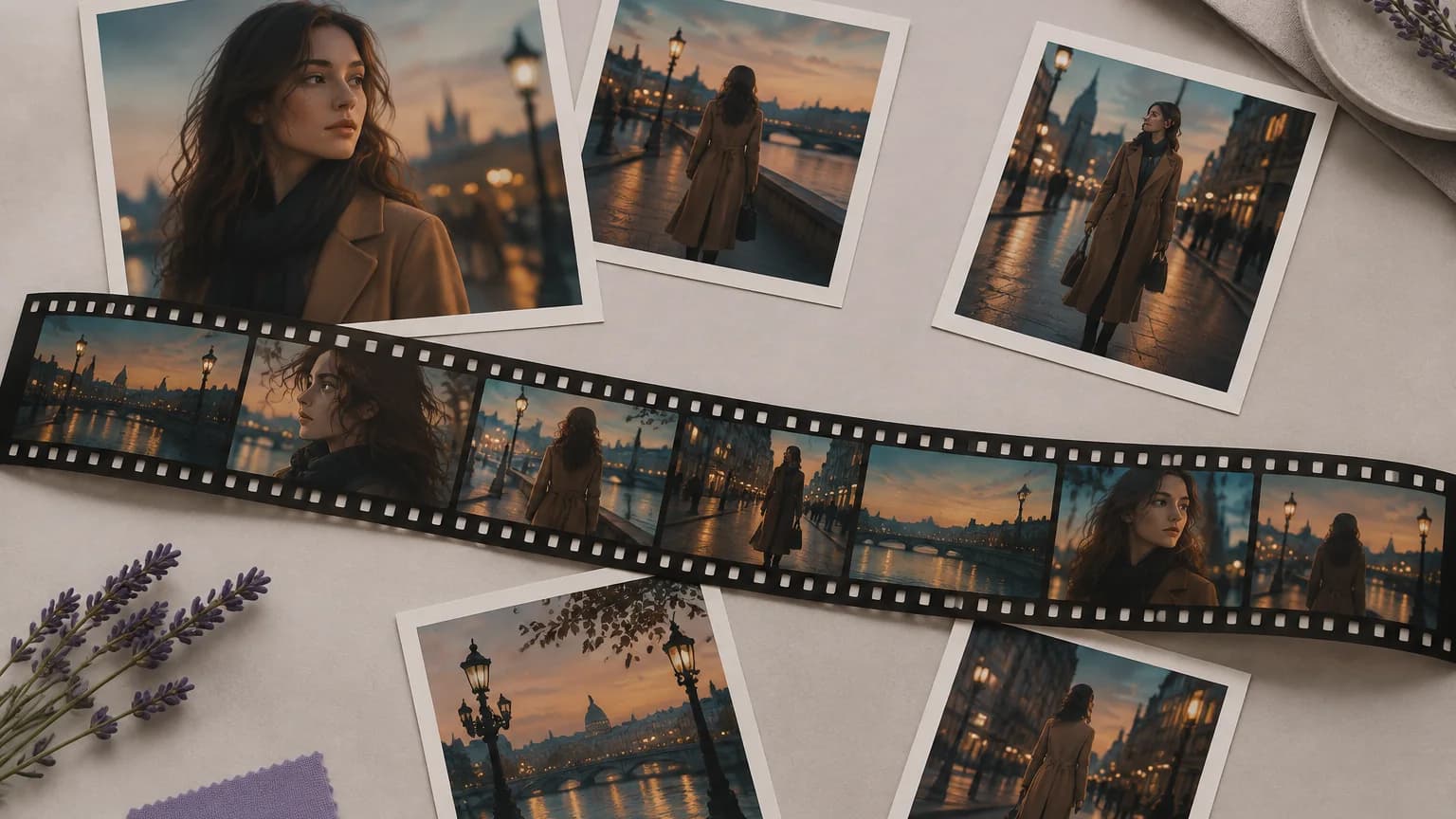
A production team has scout photos but no moving preview of its idea. Use a photo to explore a camera direction while recognizing that the model may invent unseen details.
Animate an image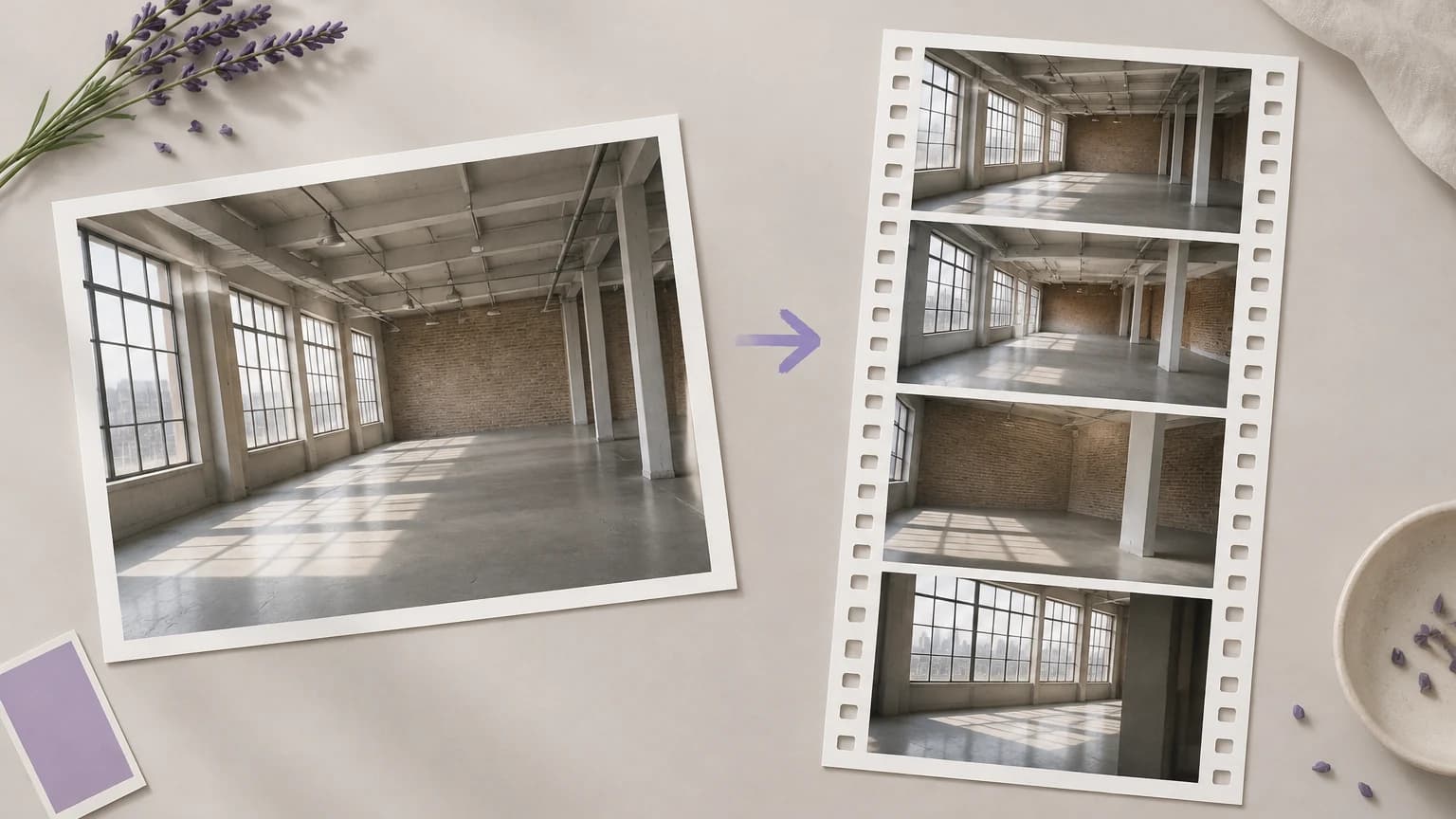
An agency wants to explain a motion idea before a shoot is commissioned. Label the generated clip as a concept and use it to discuss pacing and visual direction.
Animate an image
A social editor is exploring movement for an existing photo. Assess whether the generated action suits the post, and review both the source permissions and the result before sharing it.
Animate an image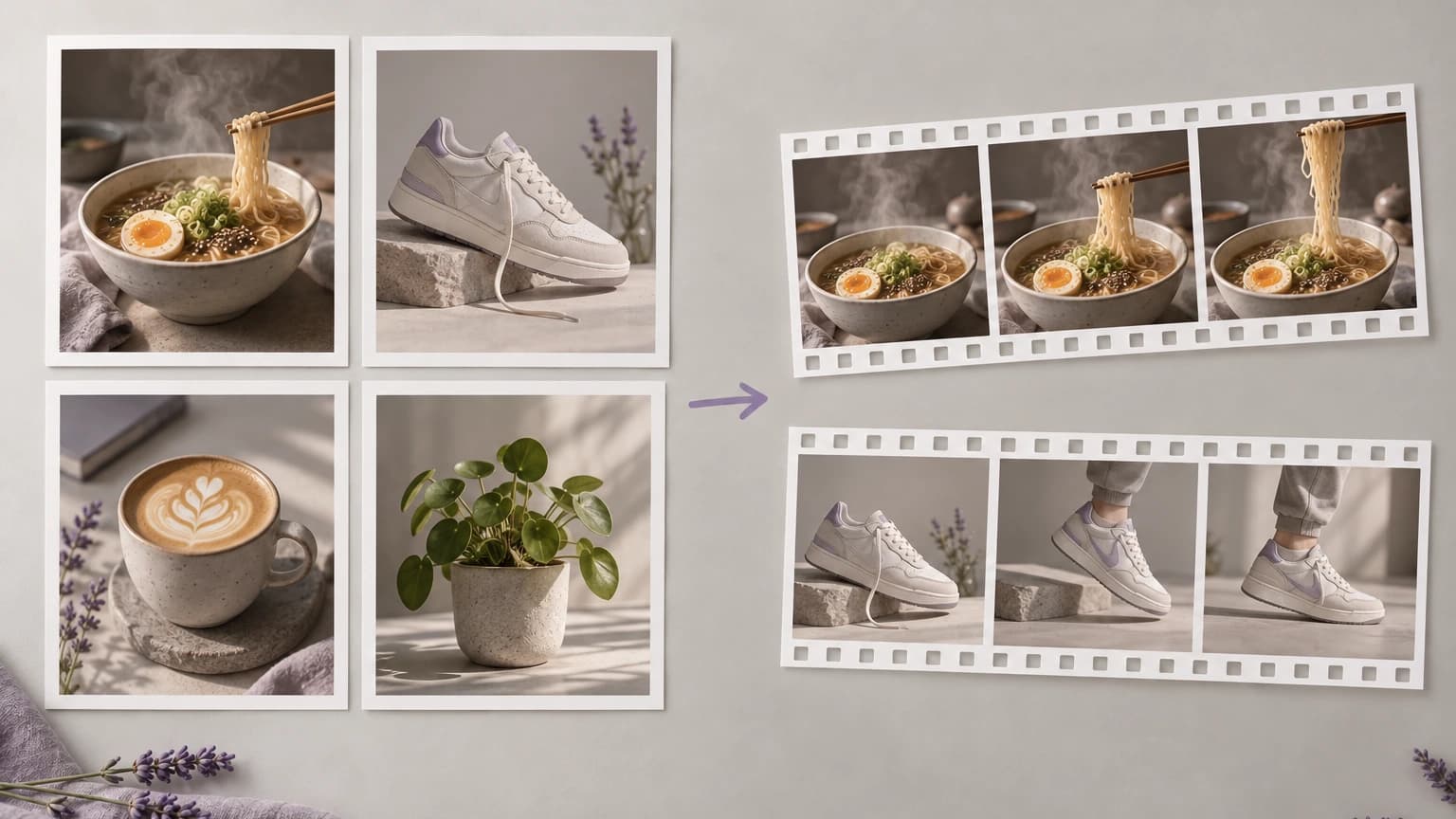
A launch team has packshots and needs an early motion concept. Inspect packaging, text and shape throughout the clip before treating any generated take as a usable representation of the product.
Animate an image
| Reference input | One image selected from the samples or supplied through the upload control. | |
|---|---|---|
| Upload guidance | Follow the current file and size guidance shown by the upload control. | |
| Motion presets | Slow push in, gentle orbit, handheld follow, crane up, locked off and parallax dolly. | |
| Motion prompt | Read the selected preset prompt and edit the action or camera direction to suit the reference. | |
| Output | A video clip generated from your chosen reference image and motion brief. | |
| Request cost | Check the requirement shown for your account before generating. Current plans and allowances are on the pricing page. | Verified 2026-10-12 |
| Plan options | Review the pricing page for current plans and the access requirements for video generation. | Verified 2026-10-12 |
| People in references | Use images you have permission to supply. Check the applicable rules for recognizable people and review the output before sharing it. | |
| Commercial use | Paid-plan clips may be used commercially subject to provider terms and reference rights. Free-plan generations are for non-commercial evaluation. | Verified 2026-10-12 |
Browse these video models for separate canvas workflows. Open each guide to compare its supported inputs and motion controls.
Reference to video uses an image together with a motion brief to request a generated clip. On this page you supply one image, choose or edit a preset prompt, and request video. You do not need to generate a new reference image as a separate first step.
Check the requirement displayed for your account before starting a clip. The pricing page lists the current plans and included allowances, including the free account option; eligibility for the video you want to generate depends on your account's current access.
Clips created on paid plans carry commercial-use rights under Astorie's policy, subject to provider conditions and rights to the reference material. Free-plan generations are for non-commercial evaluation. Clear any necessary permissions for people, brands and artwork before distributing the clip.
Use a clear reference and compare the face, outfit and proportions throughout each clip. Keep an approved take as a visual benchmark for later review. Reusing the same image can guide the request, but it does not lock the character or guarantee continuity between generations.
Return to the video form with one image and the action you want to explore.