
A standalone file workflow
- Leave the project to inspect a separate export
- Separate the original from its processed copy
- Move the selected file back into the project

Use an AI video upscaler to prepare a larger rendition of selected footage. Configure the task on the canvas, then watch the processed clip in motion before deciding whether it fits the sequence.
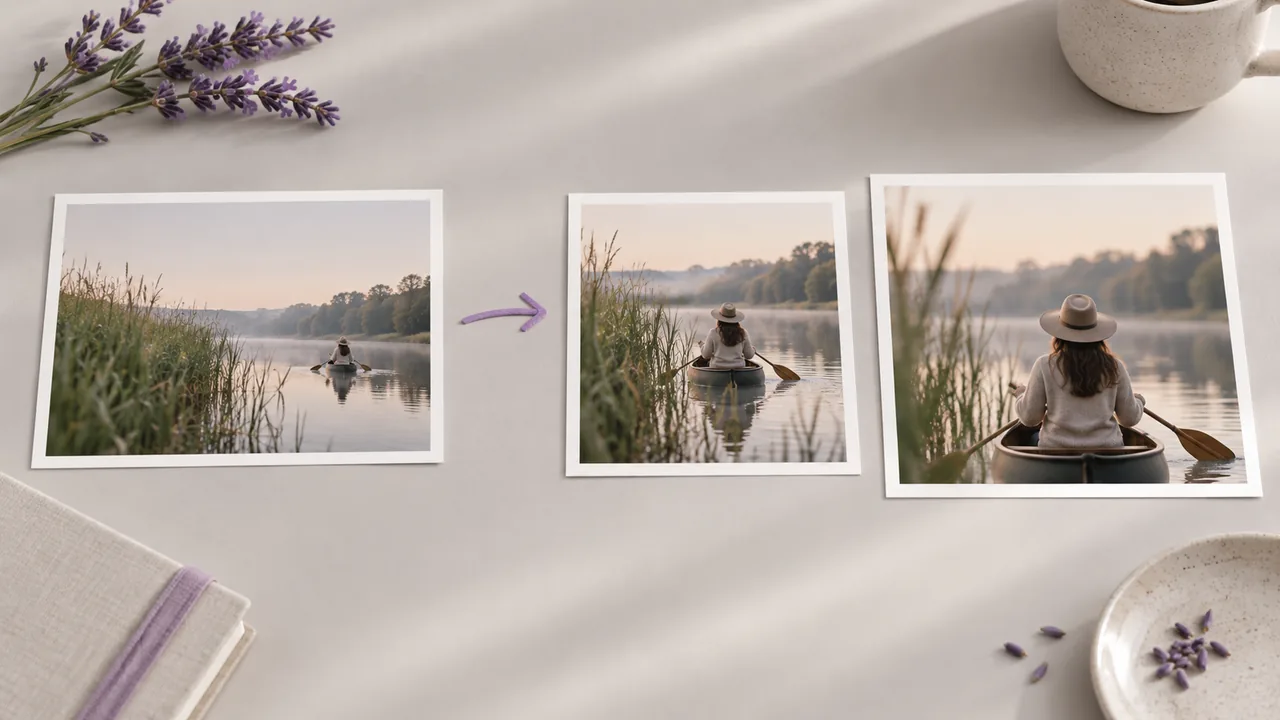
A sharp-looking still cannot show how processed details behave during movement. Keep the source and the resulting clip available while you review the sequence from beginning to end; illustrations show workflow concepts, not tested tool results.
Select the take you intend to deliver, with its action and framing already decided.
Open a canvas with the video you intend to use and connect it to Video Upscale. Choose the take whose action and framing are already suitable for the project.

Inspect the supported output settings for the configured operation. Match the requested processing to the source and destination, using the controls actually offered by that model, then check the request before starting the task.

Play the result through and compare moving edges, textures and transitions with the source. Reconsider the processing choice if the appearance changes in ways that distract from the shot.

The workflow keeps the selected take, engine choice and resulting video distinct at each stage.
Video Upscale receives a connected clip as its input. It is a finishing operation for footage you have chosen, rather than a request to invent a new scene.
Open the canvasChoose a video-upscaling engine in the tool before submitting the clip. The selector establishes which processing path receives the footage for this request.
Open the canvasUse the resolution or scale settings that the selected model exposes. The source and chosen engine determine the supported request instead of a single promise for every uploaded clip.
Open the canvasSome engines expose frame-rate controls in addition to enlargement. Review the selected model's actual parameters; those controls are not shared by every video-upscaling path.
Open the canvasThe configured request has a displayed credit requirement before execution. Check it after choosing the engine and settings so the estimate matches the processing task you intend to run.
Open the canvasThe processed output returns to the canvas workflow as a video. Review the sequence there before taking the chosen version into the next stage of your project.
Open the canvasApply these review briefs to your own processed footage. These still illustrations explain inspection targets; they do not demonstrate temporal quality or tested upscale results.




A filmmaker has chosen a generated take for its action and framing but needs a larger rendition for the sequence. Review the processed motion before delivery, and keep the original available when assessing visual changes.
Open the canvas
An editor is preparing a rotating product shot for a larger placement. Inspect the label and silhouette across the full movement so the approved version still represents the item as it appears in the source.
Open the canvas
A creator is finishing a clip with water and fine foliage behind a moving subject. Watch those textures through the processed sequence, then decide whether the new rendition suits the pace and viewing conditions of the edit.
Open the canvas
A training producer wants to reuse an existing presenter clip in a revised lesson. Evaluate the processed face and hands in motion before integrating the footage, keeping the original explanation intact during the review.
Open the canvas
A short film commissioned for an event will play on a display much larger than the editing preview. Assess the processed rendition under those playback conditions and complete the remaining delivery checks before handing it over.
Open the canvas
A filmmaker is assembling a portfolio from clips made at different times. Process selected footage individually, then compare it in the final sequence so the decision reflects how each shot sits beside the others.
Open the canvas
| Input | An existing connected video in a canvas project. | |
|---|---|---|
| Operation | Video enhancement processes the uploaded footage; it is separate from generating a new clip. | |
| Models | Video Upscale offers Topaz, SeedVR, Wavespeed and Magnific engines. | |
| Destination brief | Settle the delivery destination and sequence before finishing the chosen take. | |
| Output format | The completed video operation returns an MP4 file. | |
| Access and request cost | Check your account access and the displayed requirement for the configured operation. | Verified 2026-09-28 |
| Free account | A free plan is listed on the pricing page; no credit card is required to start. Specific task access is separate. | Verified 2026-09-28 |
| Commercial use | Paid-plan generated outputs have commercial rights subject to provider terms and input rights. Free-plan generation is for non-commercial evaluation. | Verified 2026-09-28 |
| Upload data use | Default-plan uploads, prompts and outputs may be used for training. Provider policies also apply. Enterprise opt-out needs an agreement; learned or aggregated data may persist after source deletion. | Verified 2026-09-28 |
Use these catalog models for a separate generation task before selecting footage to enlarge. Video Upscale has its own engine selector; the cards below do not perform the enlargement operation.
Video enlargement is a finishing operation applied to footage that already exists. Astorie provides that operation as a connected canvas tool. Judge its output as a moving sequence, because resolution alone does not describe how small details behave throughout a shot.
Yes, Astorie offers a free account option without requiring a credit card. The plan describes how you can begin using the platform; it does not promise unrestricted access to every video operation. Review the current pricing information and your account eligibility before setting up Video Upscale.
You must have the rights needed to process and distribute the source footage. Astorie's commercial grant for paid-plan generated outputs remains subject to provider terms and does not clear borrowed footage. Review the commercial-rights guide before delivery, particularly for clips containing identifiable people, brands or licensed material.
Watch the complete result at its intended playback speed and compare it with the source. Follow faces, hands, fine textures and moving edges through the shot, including transitions. A larger frame size or an attractive paused image does not show whether the whole clip is suitable for delivery.
Choose the take first, then set up its video-upscaling request on the canvas.