

MiniMax H3 Image Generation and Editing Guide
For MiniMax H3 image generation and editing, distinguish the research model from the public product route: MiniMax’s documented still-image API uses image-01, while the H3 routes verified here generate video. H3 research includes text-to-image and image-to-image tasks, and H3 video can yield extracted stills. This article has not verified a local H3 still-generation or editing workflow. [1–3]
In Astorie, keep the task tied to the node’s actual model: edit the illustration on an image node, approve it, then connect that still to H3 when motion is needed. The supplied project used an image model for color changes and H3 for animation. That separation helps avoid paying for a video when the deliverable is simply a corrected picture.
MiniMax H3 image generation and editing by task
Requested result | Documented route | What is being verified |
New still from a description | MiniMax image-01 text-to-image | Native still-image generation |
New still guided by one subject image | MiniMax image-01 subject-reference path | New image with subject characteristics |
Change a chosen region in a current illustration | A tool with documented masks/inpainting or a manual composite | Exact preserved regions must be checked |
Move an approved image | H3 first/last-frame video path | Timed video anchored by source image |
Guide a video with mixed examples | H3 reference video path | Video informed by referenced media |
Select a still from finished video | Frame extraction | H3-derived frame, not a verified still endpoint |
The distinction is about how the result is created, not whether its saved filename ends in PNG or JPEG. A native still request creates an image directly. A video-frame export saves an instant from a generated sequence. A localized edit changes a defined region of an existing image. Each can produce a still file, but they have different controls and evidence requirements.
MiniMax’s image-01 guide uses a text prompt plus aspect ratio for text-to-image, and its subject_reference array for the image-based route. The documented subject-reference example accepts one reference image per request and returns a new image. That is useful for recreating a person in another scene, but it does not promise that an arbitrary local patch will be changed while all other pixels stay identical. MiniMax lists image-01 at $0.0035 per generated image in its public pay-as-you-go table; host subscriptions and outputs can be different. [2, 4]
Generate a still with MiniMax image-01
The following is an implementation recipe from MiniMax’s current guide, not a new hands-on image-01 test. Obtain an API key for the public MiniMax API, keep it in an environment variable, and submit a POST request to https://api.minimax.io/v1/image_generation with Bearer authentication. [2]
Body for a text-to-image request:
{
"model": "image-01",
"prompt": "A watercolor illustration of a scholar reading beside a canal, medium shot, warm paper texture",
"aspect_ratio": "16:9",
"response_format": "base64"
}
On a successful response, decode each entry in data.image_base64 and save the image. The official example writes JPEG files. Before animating, check the subject, composition and small details at the intended display size. Treat an unsatisfactory pose as an image-stage problem rather than expecting a later video request to repair the illustration automatically.
Use one reference when identity matters
Add a subject_reference array containing one object with type set to character and image_file set to the reference image URL. The documented path supports one reference image per request. Use a clear subject image, then describe the new scene or pose in the prompt. This requests a new image guided by the subject, not a pixel-locked replacement of a selected patch. [2]
Additional field for the subject-reference request:
"subject_reference": [
{"type": "character", "image_file": "YOUR_REFERENCE_IMAGE_URL"}
]
The URL in this example is a field to replace with your own accessible image, not a submitted test asset. Keep the same image-01 model, aspect ratio and response handling as above. Compare the returned face, hairstyle, clothing and proportions with the source before approving the result.
Edit a specific object before sending the image to H3
For a book-cover recolor, retain a copy of the approved original, select the image-editing node, attach that original and describe the one desired change. Compare the result against the original at equal scale. If unchanged pixels are a delivery requirement, use a masking or compositing process and verify the protected area; a convincing visual match is not a pixel-level guarantee.
In the available Astorie project, GPT Image 2.5 changed a lantern from red to blue and, in a later 2K branch, the scholar’s book from ochre to red. The tester estimated about thirty seconds per edit and saw little other visible difference. Those are useful observations about that image model in this one illustrated scene. They neither prove a pixel-perfect unchanged background nor demonstrate a MiniMax image-01 or H3 still-edit command.
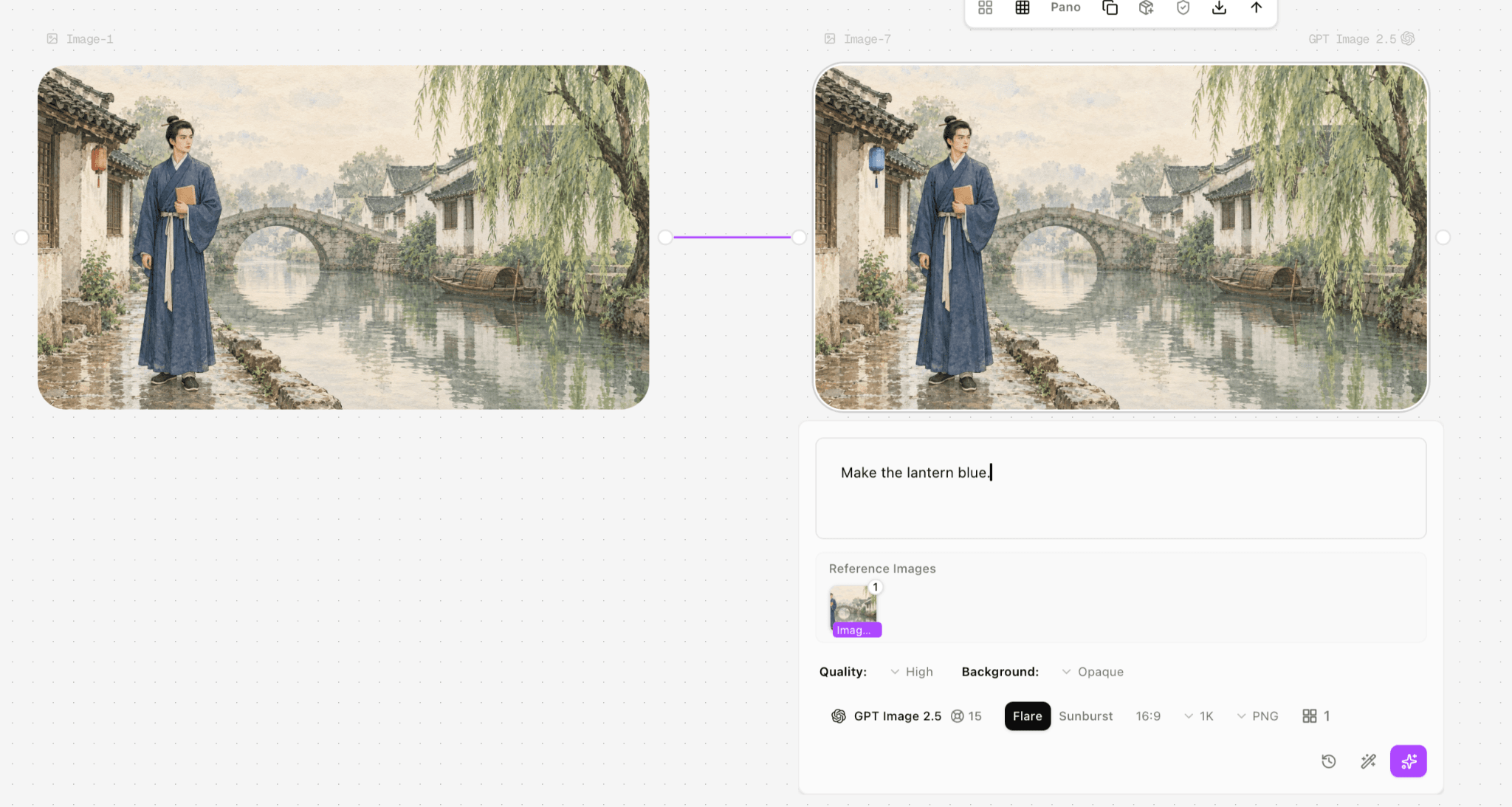
Figure 1. The lantern-color change is on an image node labeled GPT Image 2.5, not on an H3 still-image endpoint.
In this example, the benefit of an image-stage correction is that the approved color becomes part of the source used by the video model. The handoff adds one review step and one asset version, but avoids trying to enforce a still-image correction through a motion prompt. Keep the original and edited versions separately so a rejected animation does not erase the approved illustration.
Animate the approved still with H3
Add or select the still in Astorie, connect a Video node, choose MiniMax H3 and verify its appearance in the Reference Image area. The supplied example displays Omni, 16:9, 768p and eight seconds. Write the desired motion and sound, review the quoted credits, generate, then download the video. A visible reference thumbnail confirms attachment; it does not expose the API role used internally.
If calling the API directly, use first-frame input when the opening picture must be anchored, or reference generation when the image should guide appearance. MiniMax lists 4–15 seconds at 768p or 2K for H3. The image stays a separate approved asset; the new deliverable is a timed sequence. [1]
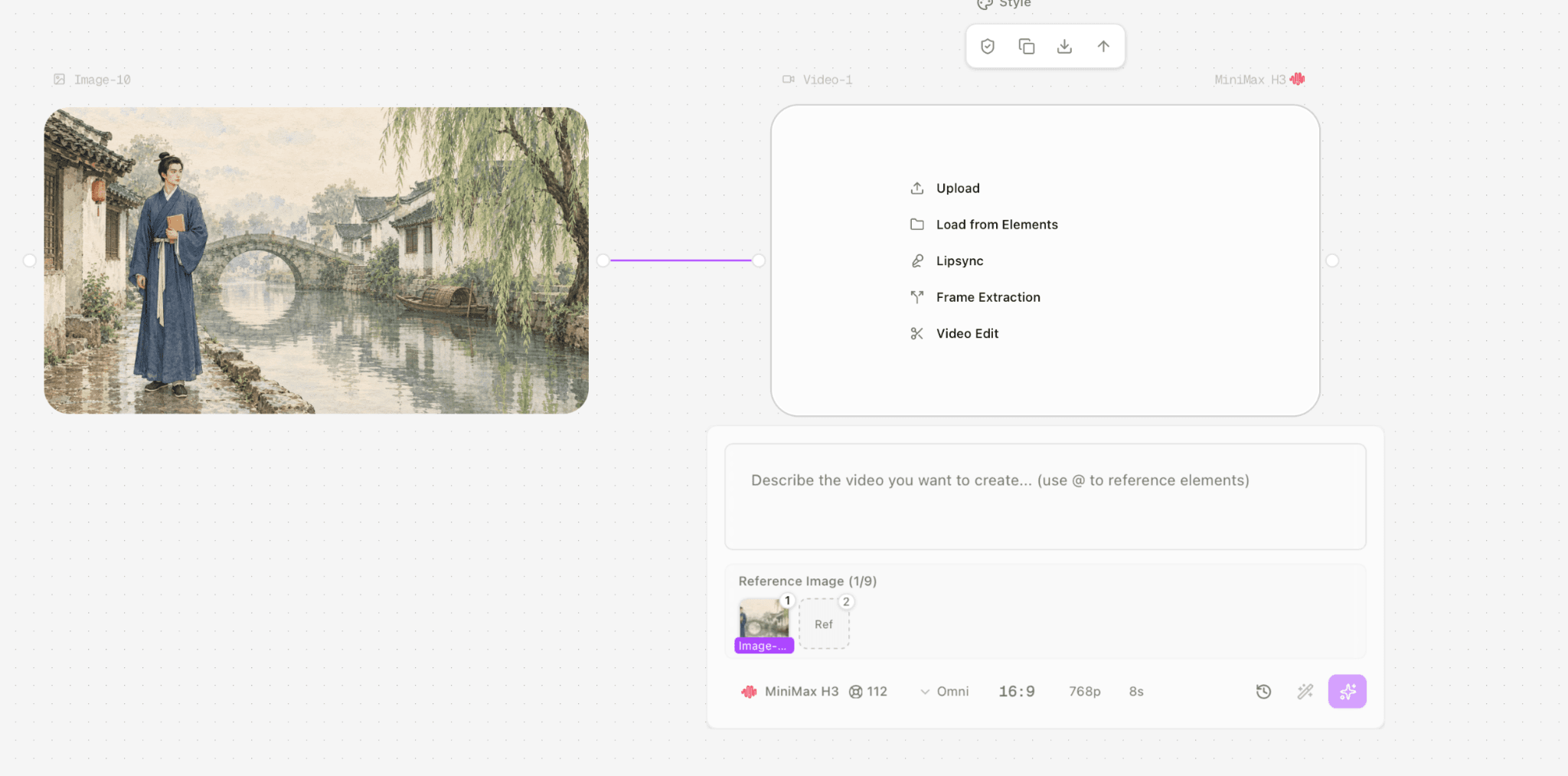
Figure 2. Existing image connected to an H3 video node; this screenshot concerns a timed video request.
The project owner supplied this workflow’s screenshots and output. Its value here is the verified handoff from an existing still to a video node. The recorded image edits belong to the displayed image model, and the video belongs to H3; neither is presented as an image-01 test.
Extract a usable still from an H3 video
Use the original downloaded MP4, choose the desired moment and export that frame at the video’s native dimensions. For example, the following FFmpeg command extracts one frame at 3.2 seconds; replace the input filename with your own file. It is an extraction recipe, not a new model generation.
ffmpeg -i input.mp4 -ss 00:00:03.200 -frames:v 1 h3-frame.png
Check the frame for motion blur, deformed fingers, half-blinks and transient texture changes. A frame that looks acceptable during playback may be unsuitable as a cover image. The two supplied H3 MP4s are 1344 × 768, so extracting them does not produce native 2K or 4K detail. Increasing a saved image’s dimensions afterward is a separate resize or enhancement step.
A useful caption is “Frame extracted at 00:03.200 from an H3-generated video.” The image is genuinely H3-derived, while that wording makes clear how it was obtained. Save the source MP4 and chosen time alongside it. If the frame is edited later, record that additional model or editing step too.
Choose the route by the final deliverable
Deliverable | Practical route | Acceptance check |
New illustration | image-01 text or subject reference | Identity, composition and image detail |
Exact local color correction | Mask-capable editor or composite | Requested area changes; protected area matches |
Animated illustration | Approved still → H3 video | Continuity, action and soundtrack |
Poster moment from an existing clip | H3 MP4 → selected frame | Sharpness and artifacts at that instant |
Keep a satisfactory still in its existing image workflow. Move to H3 when motion, shot progression or a soundtrack is part of the brief; those benefits come with temporal and audio review. Use frame extraction when the desired composition already exists in the video, rather than paying for another generation that may change it.
FAQ
Does H3 research mention image tasks?
Yes. MiniMax lists text-to-image and image-to-image reference/editing in its pretraining description. That is distinct from the public API examples verified here. [3]
Can MiniMax image-01 edit an existing picture?
The documented subject-reference path creates a new still guided by one clear subject image. The cited guide does not document an arbitrary masked inpainting guarantee. [2]
Is an H3 video frame an H3-derived image?
Yes. It is a frame from an H3 video, not proof of a separately exposed still-image generation endpoint.
Sources
Official specifications and prices checked September 27, 2026. Image-01 and extraction instructions are documented recipes, not claimed additional tests.
2. MiniMax image-01 text and subject-reference guide
3. MiniMax H3 research and pretraining tasks
4. MiniMax image-01 and H3 public pricing
Ready to try it on the canvas?
Open Astorie and fan your prompt across every frontier model in one workflow.