

Cover and divider art
Use a shared visual direction for the pages that carry the deck narrative.
PRESENTATION VISUALS
Explore title art, section dividers and concept imagery from one visual brief. The three clean-energy visuals are illustrative concepts, not a generated deck or verified Astorie results.
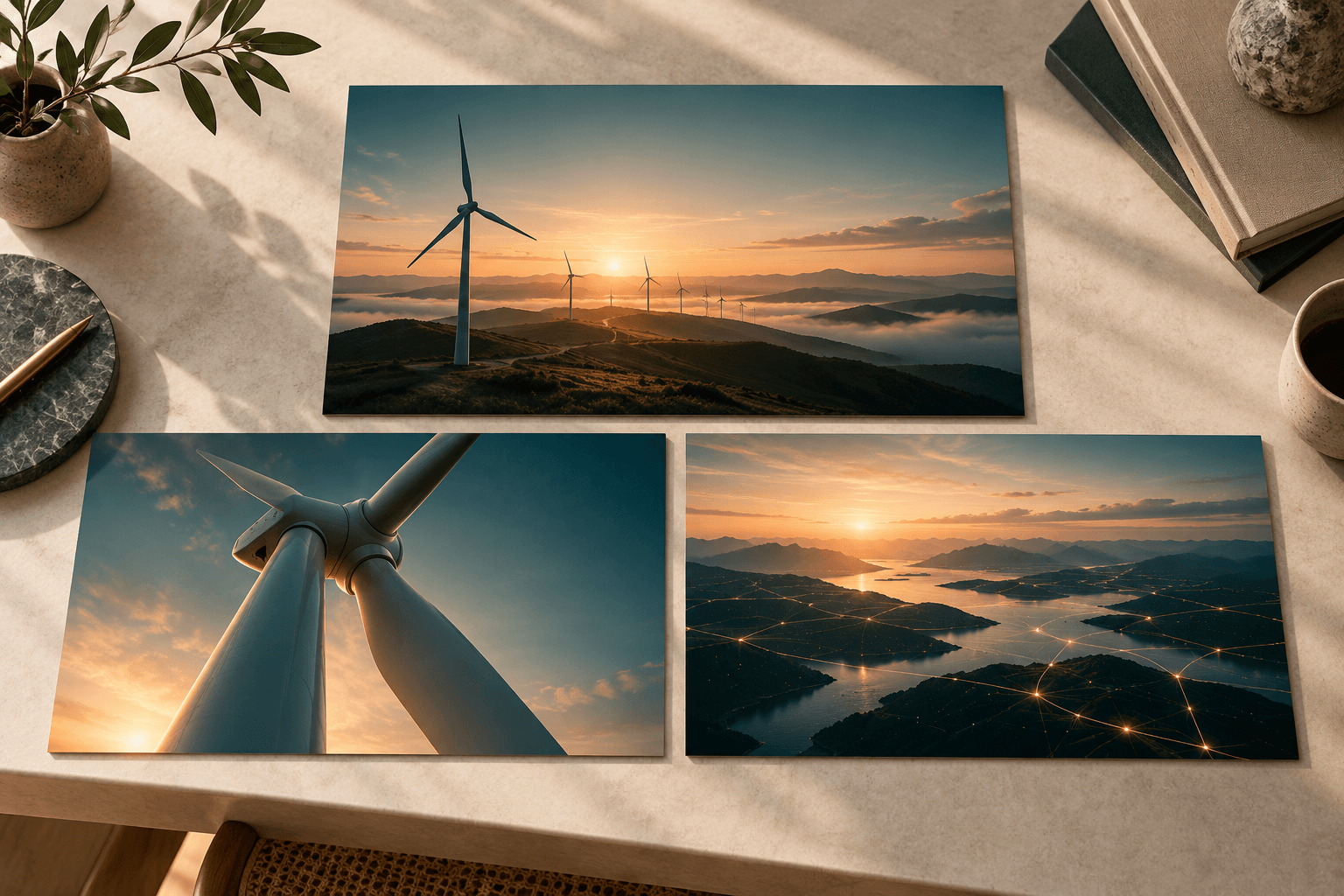
Describe the subject, framing, palette and space needed for editable slide text. Add your final typography and data in the slide app.
Choose a subject, palette, format and image style that can carry across sections.
Describe the role of each image, such as a cover, section divider or concept illustration.
Check the visual set together, then add editable text, charts and layout in PowerPoint, Keynote or Google Slides.
Use a shared visual direction for the pages that carry the deck narrative.
Show ideas and settings that would be hard to photograph for an early draft.
Keep titles, figures and charts in the slide app so they stay accurate and easy to revise.
| Input | A visual brief, optional style reference and the intended slide format. | |
|---|---|---|
| Output | Image assets for a presentation, not an editable slide deck. | |
| Review | Check consistency, crop, factual imagery and clear space for slide text. |
No. This workflow creates slide imagery. Build the editable layout, text and charts in a presentation app.
Reuse the same palette and style brief, then review the images together and revise outliers.
Keep important words editable in your slide app. Generated in-image text can be wrong or hard to revise.
Choose a clear role for the image, generate a concept, and assemble the final slide in your presentation app.