Astorie

AI Style Transfer

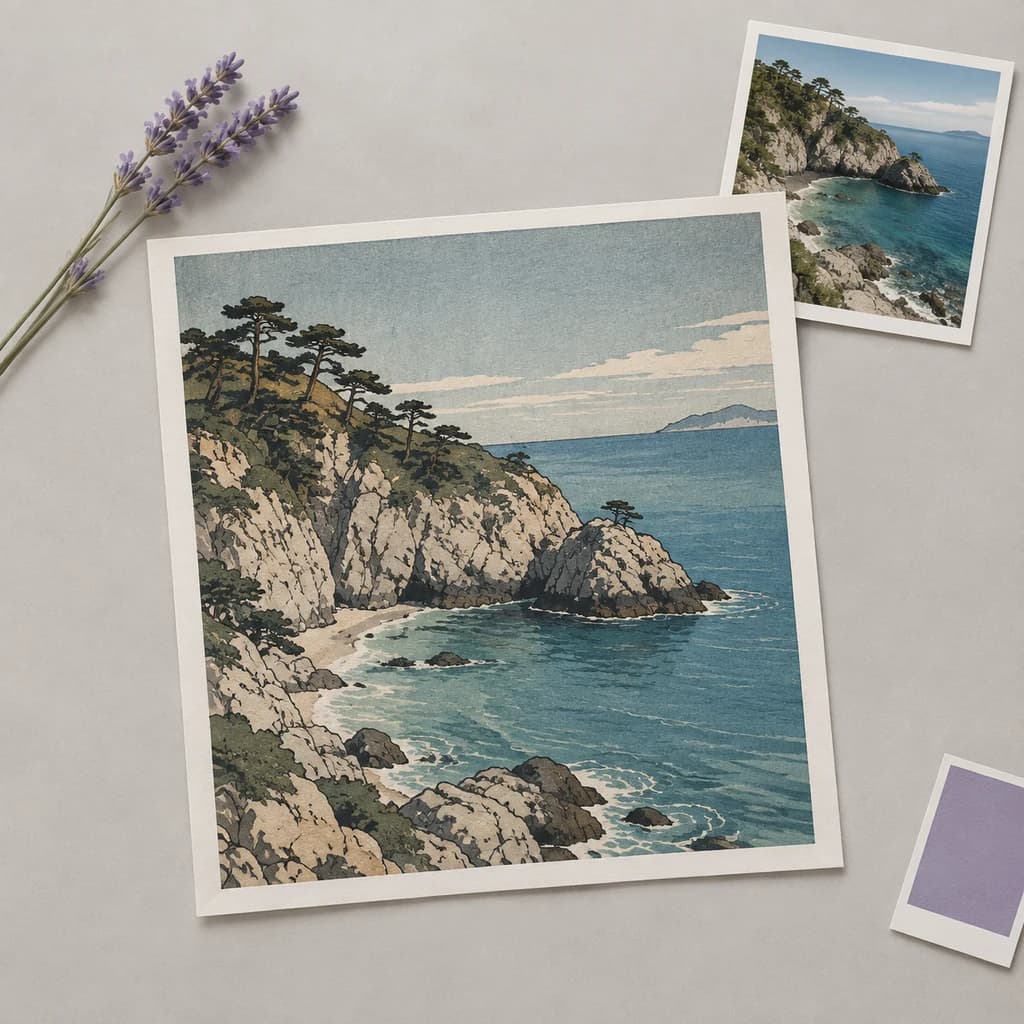
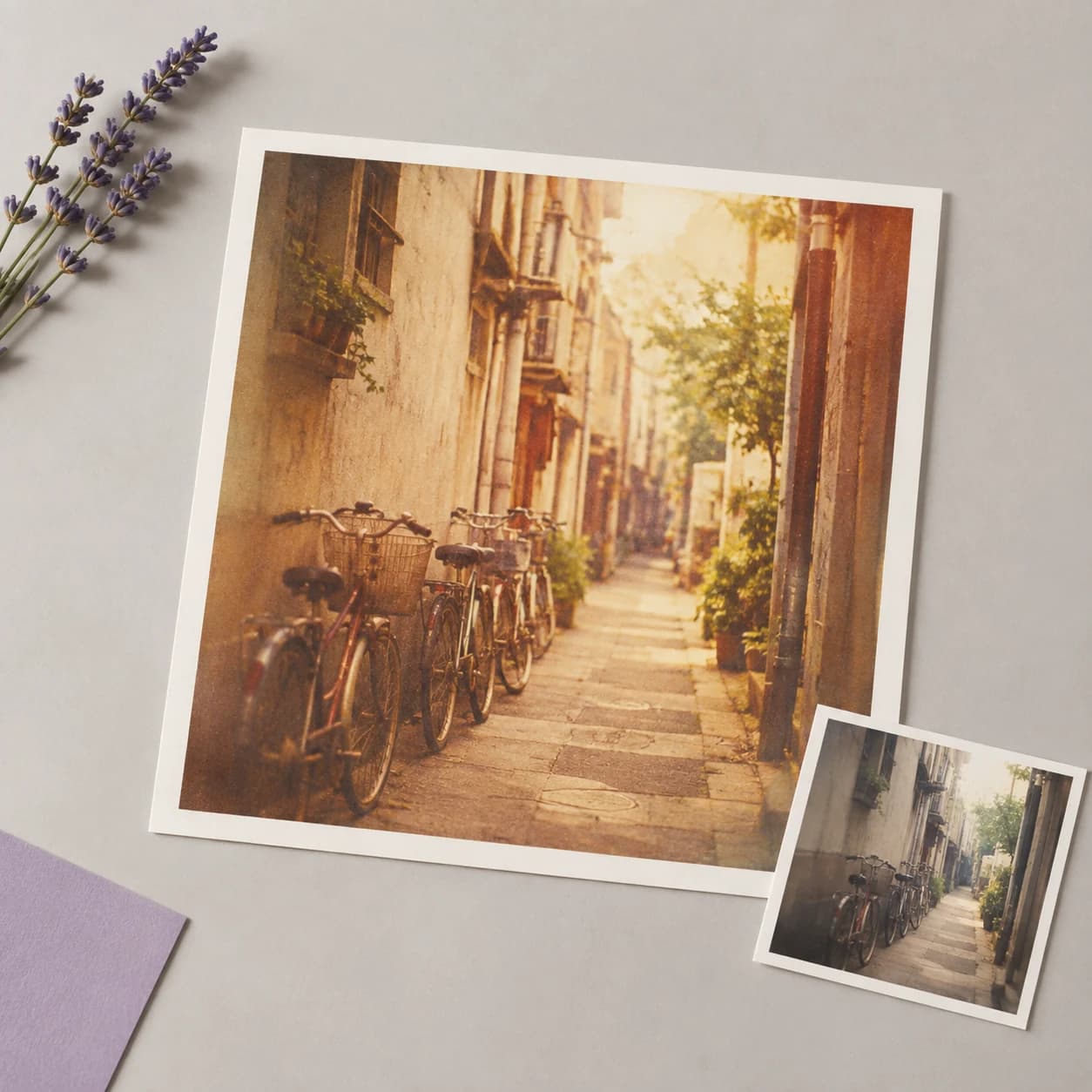
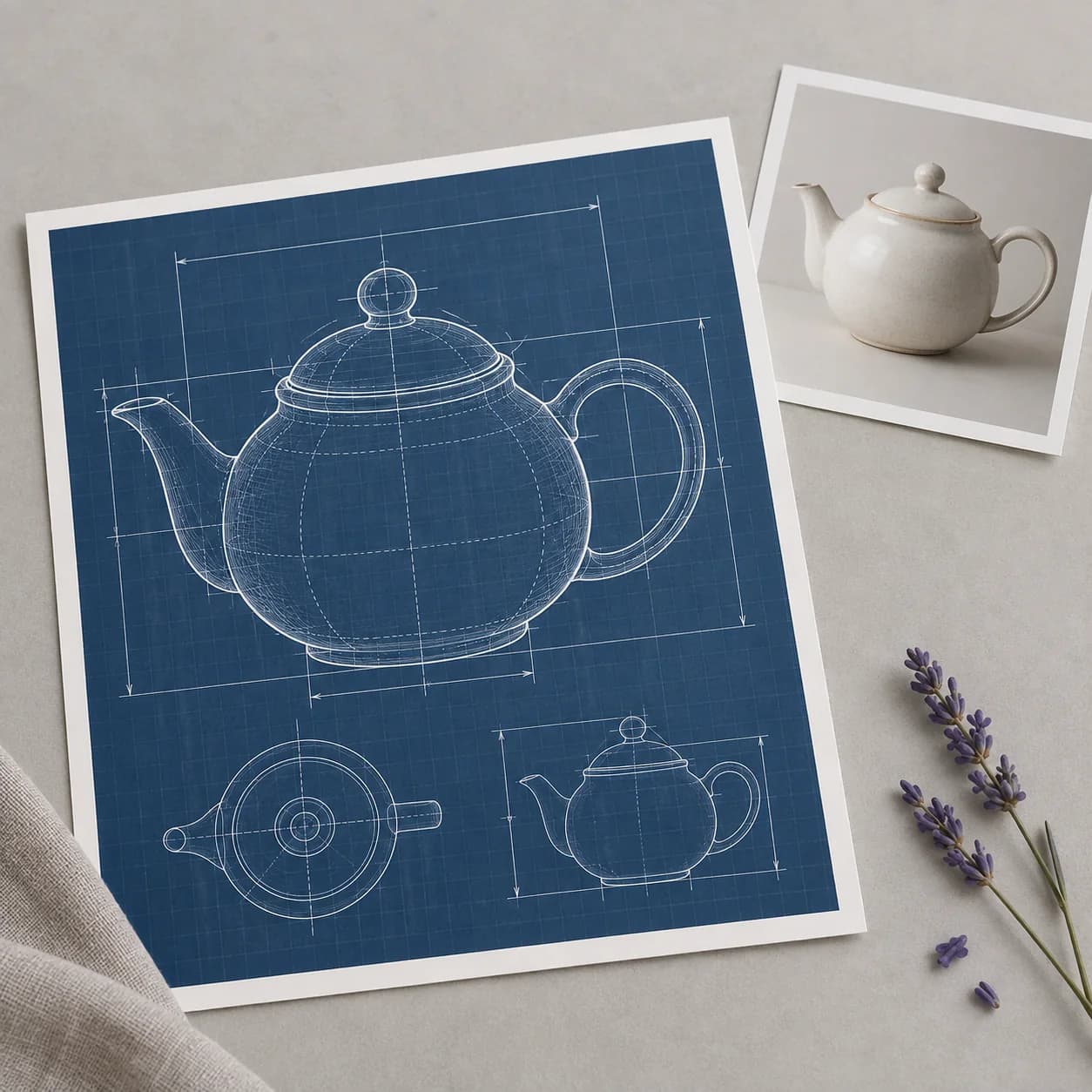
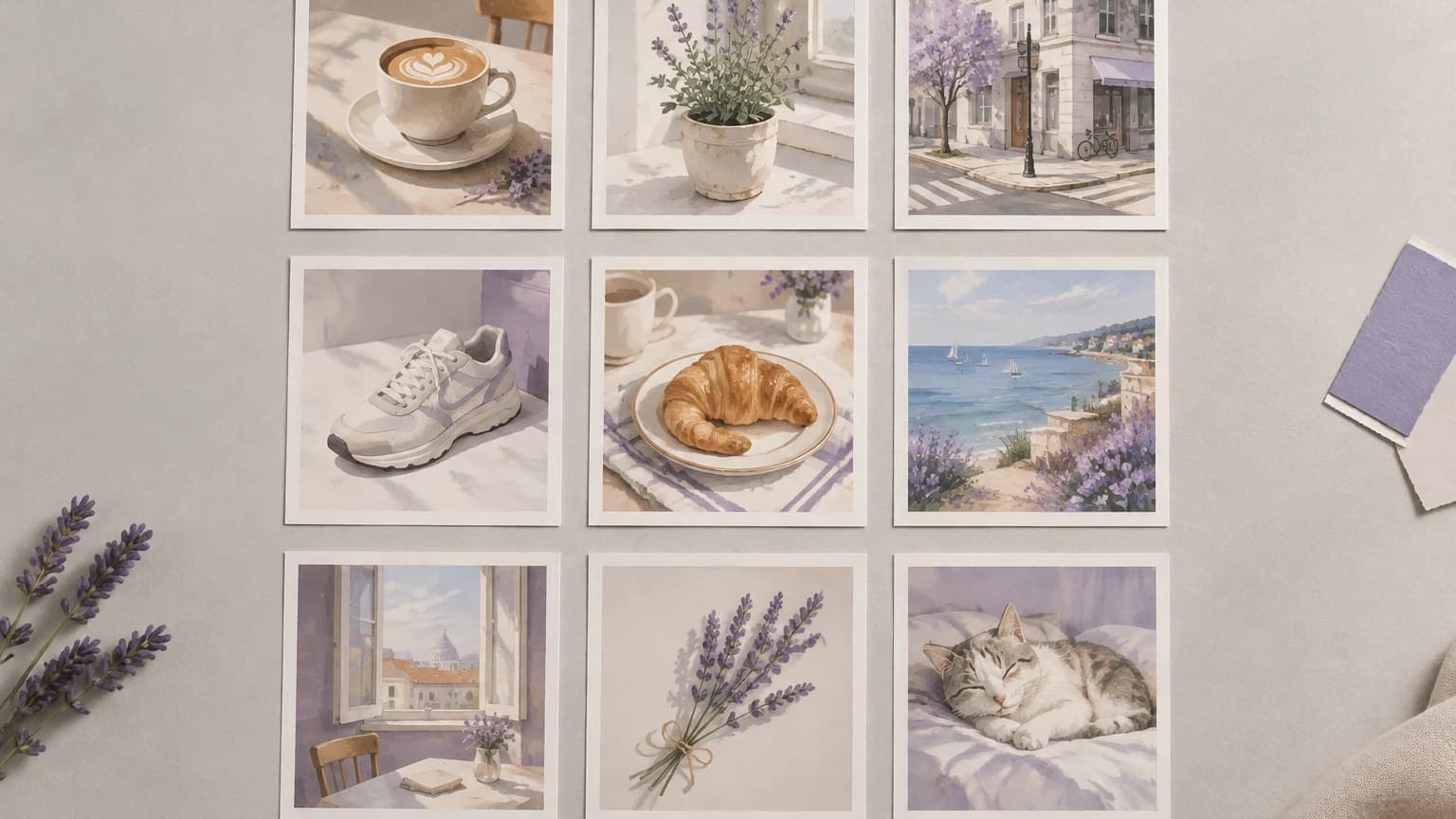
Your photo keeps its subject; the rendering style is what changes. AI style transfer repaints your photo in a new style and aims to keep the subject and layout, returning a square 1:1 image. Choose a photo, choose a look, and press Create.

AI Style Transfer

Your photo keeps its subject; the rendering style is what changes. AI style transfer repaints your photo in a new style and aims to keep the subject and layout, returning a square 1:1 image. Choose a photo, choose a look, and press Create.

Style transfer that keeps going after the first image

Style tools that stop at a finished file leave you starting over for the next photo in the set. The usual trade is a fixed menu of looks and no way to carry one forward.

A filter-style restyler

  • The look comes from a fixed list, so a style you have in mind but cannot find there is out of reach
  • A single engine produces every result, so a look it gets wrong cannot be tried anywhere else
  • The exported file is where the work stops
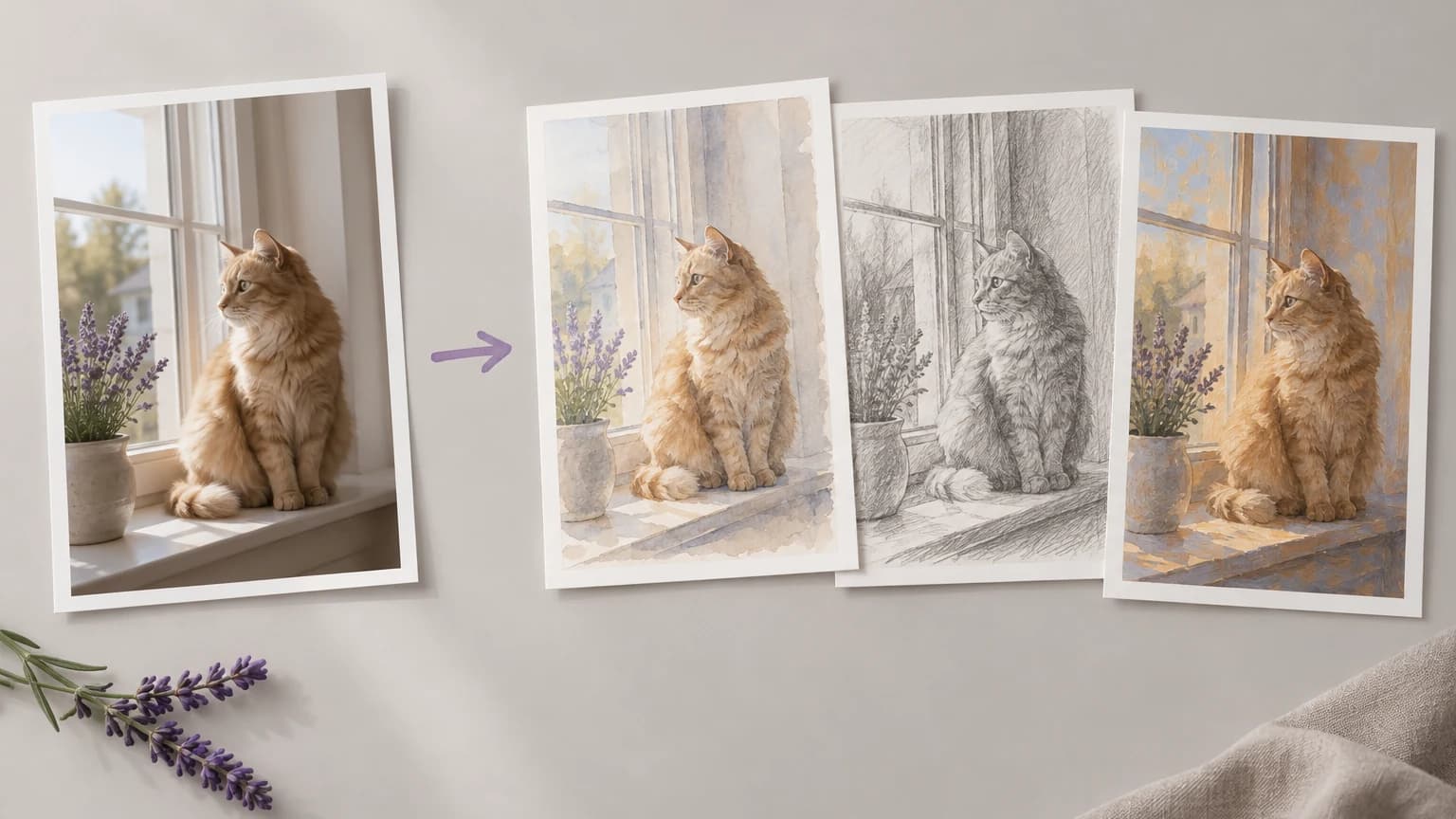
Three prints of one photo with the same generic filter

The same job on Astorie

  • Six presets cover the common looks, and a text box takes any look you can put into words
  • The canvas behind the tool offers a choice of image models, so a look one model misreads can be run on another
  • Each result is saved to a project in your own account, ready to pick up again on the canvas
A photo restyled as watercolor, pencil sketch and oil painting

How to do style transfer with AI in 3 steps

The steps follow the tool at the top of this page, which picks the model for you, so the only choices are the photo and the look.

  1. 1

    Step 1 · Pick a source image

    Start from a sample, or bring a JPEG, PNG or WebP of your own. A photo with one clear subject gives the style the least to get wrong.

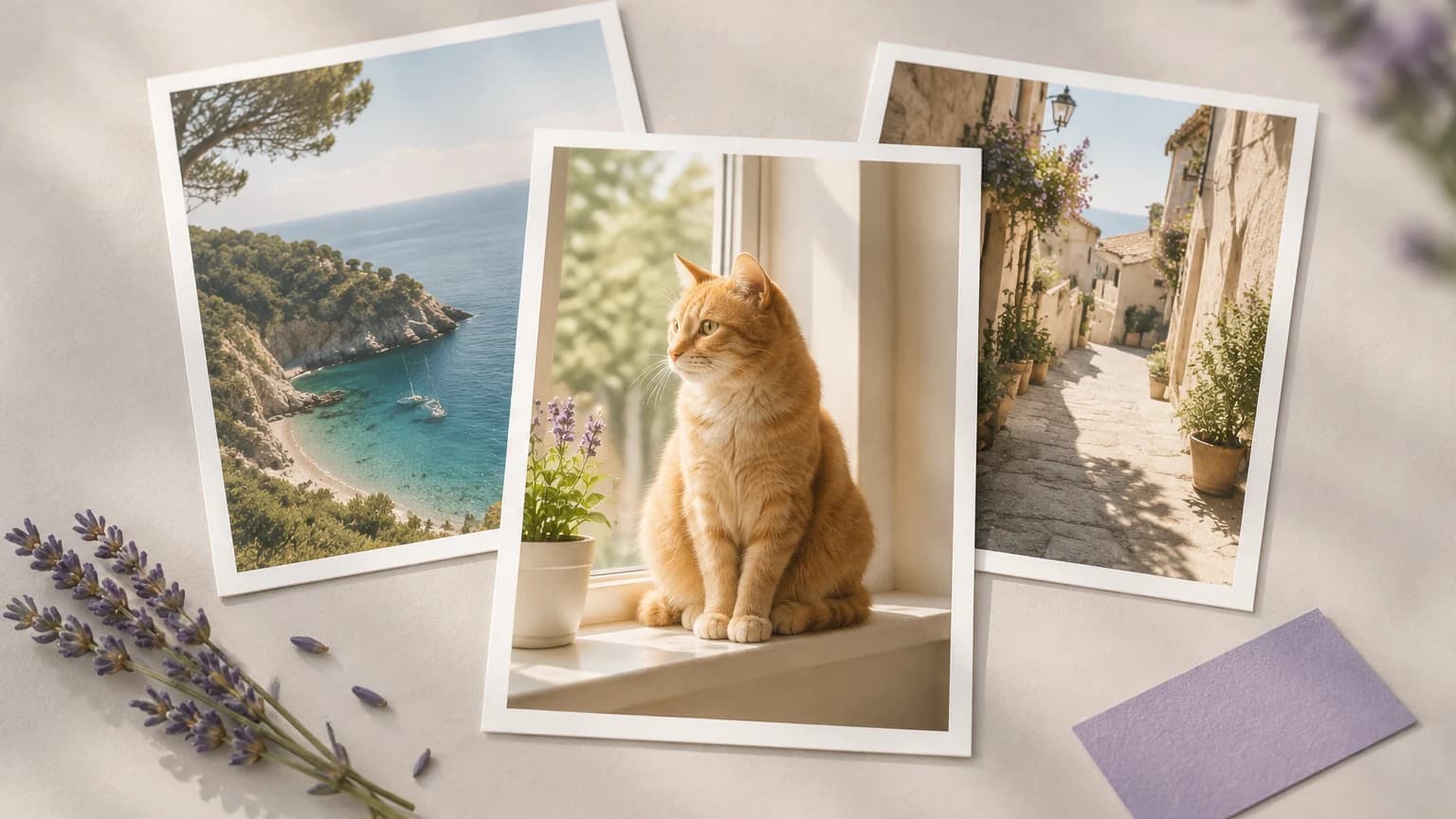
    Three sample photos with the cat photo chosen
  2. 2

    Step 2 · Pick a style

    Choose Watercolor, Oil painting, Anime, Cyberpunk neon, 3D clay render or Pencil sketch, or skip the presets and describe the look you want in the text box.

    One photo surrounded by six style swatches
  3. 3

    Step 3 · Create and review

    Press Create and compare the result with the original, checking faces, labels and small text first. If something drifted, adjust the description and run it again.

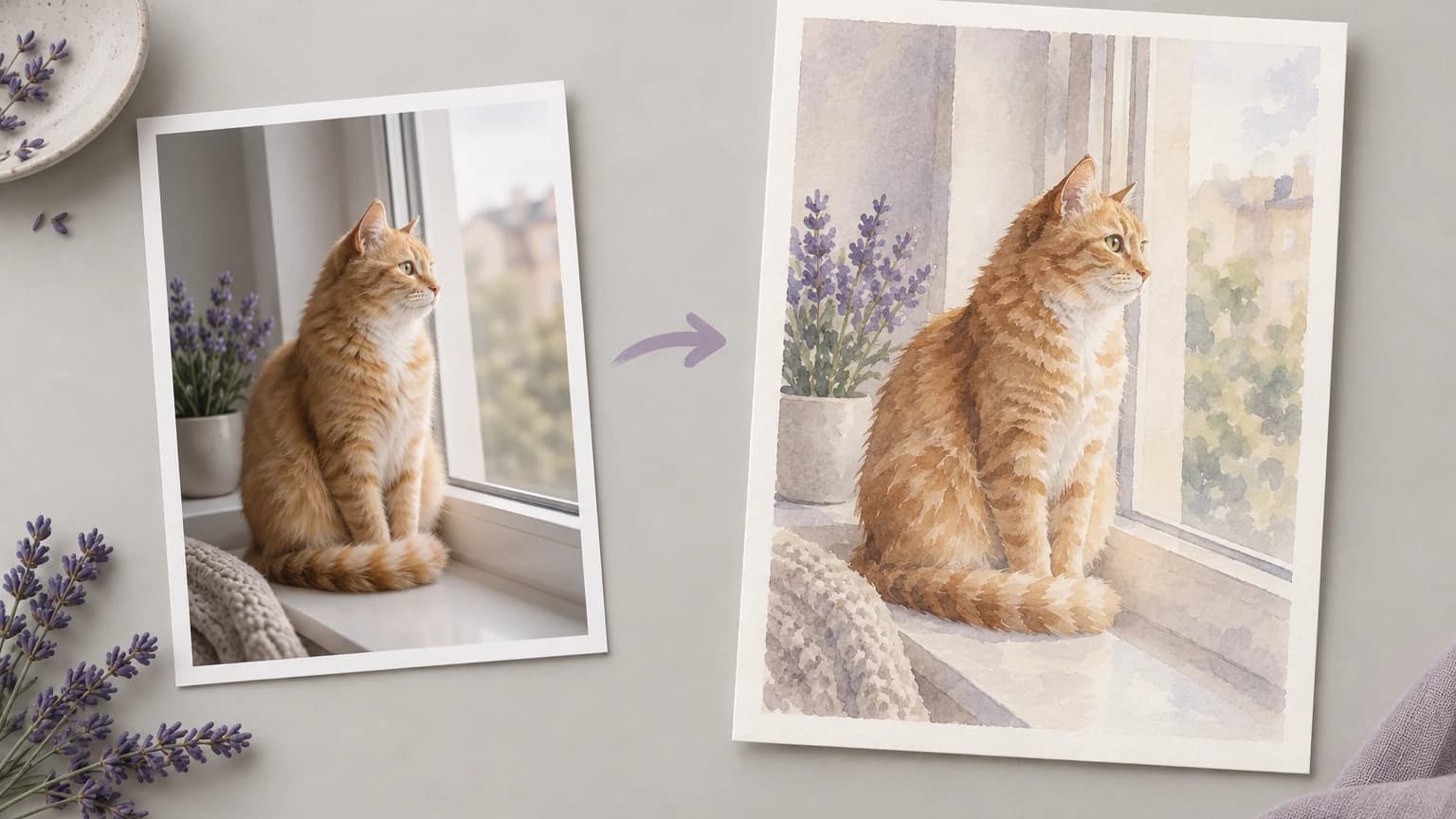
    A photo and its watercolor restyle side by side

What the style transfer tool does

Listed from what the tool on this page does to what the canvas behind it adds once a result is saved.

Presets or your own words

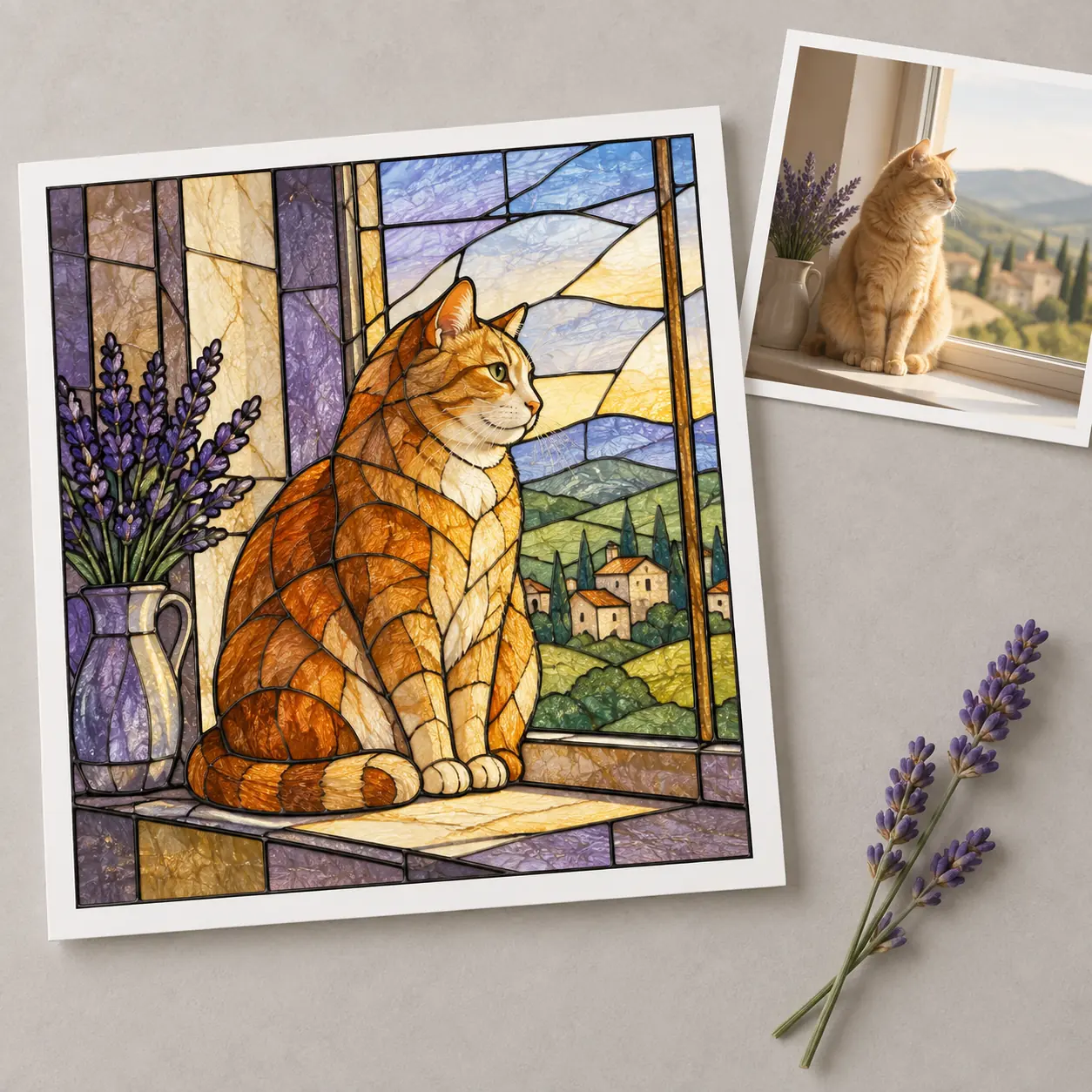
Six presets give a first result without writing anything; the text box beside them takes any other look, from stained glass to a blueprint drawing.

Transfer a style

Photos from any phone

HEIC and HEIF photos are converted to JPEG in the browser, and oversized JPEGs are resized before upload, so a phone photo goes in as it is.

Transfer a style

Attach a photo first

A photo can be attached before you create an account; it stays in your browser, up to 25 MB, until you start a generation.

Transfer a style

Style from a reference

On the canvas, a second image can carry the look instead of a preset. FLUX Kontext is built to read reference images for style consistency.

Transfer a style

One look across a whole set

Keep the style reference connected on the canvas and wire it into the next source photo, so a series shares one treatment without setting it up again.

Transfer a style

Keep working on the result

Continue from the result on the canvas: upscale it for print or a hero slot, or remove the background before it goes into a layout.

Transfer a style

AI style transfer prompt examples

Paste any of these into the describe-the-style box and change the medium or the colors to suit your photo. The last clause of each one tells the model what to leave alone.

Who uses a style transfer tool

Social feeds that need one house look

A social team posts photos from phones, agencies and stock libraries, and the grid looks like five different brands. Running each image through the same style brings the feed together without reshooting anything.

Transfer a style
A social feed grid in one consistent style

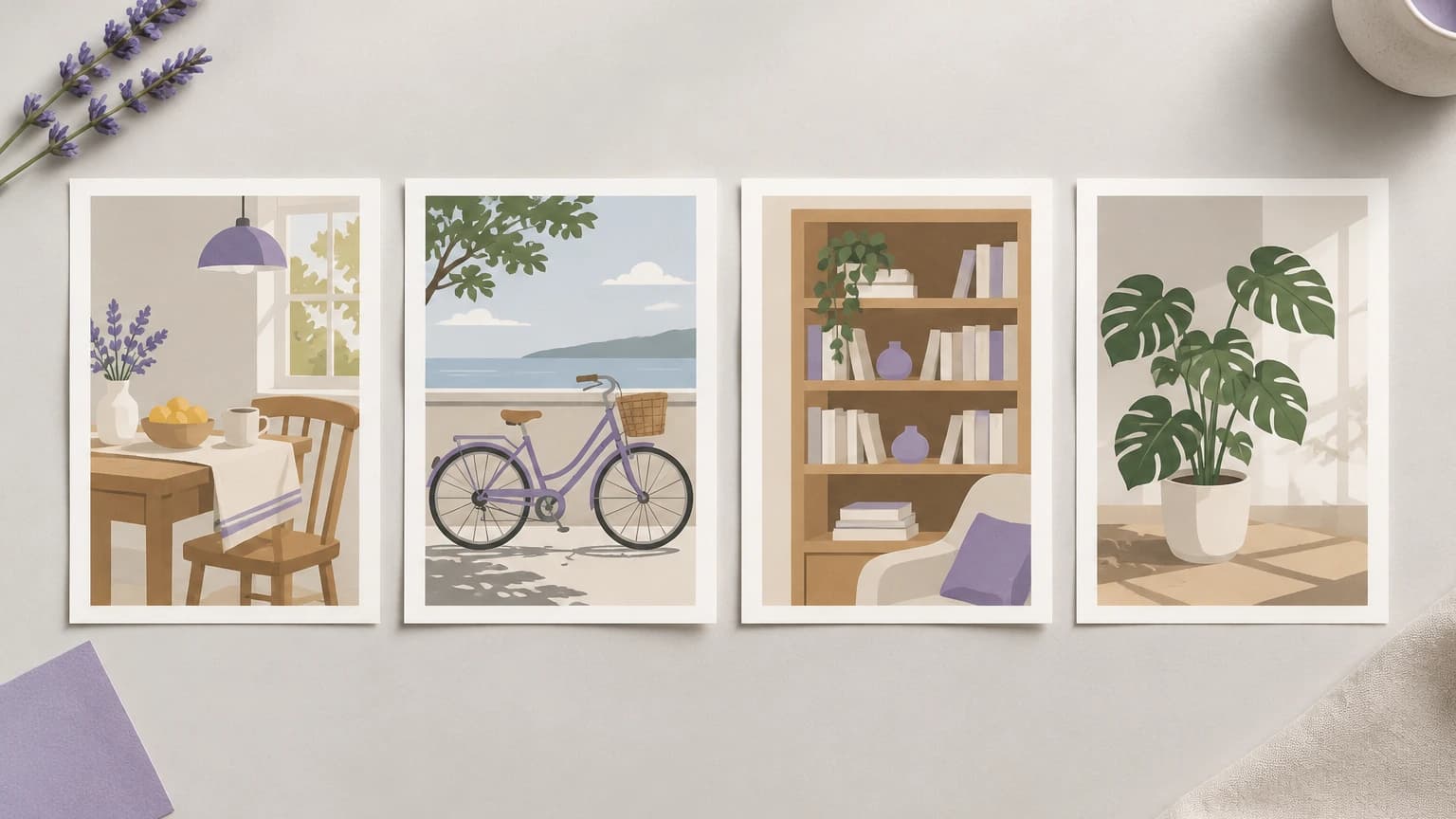
Cover images for a recurring series

A creator publishes a weekly episode and wants every cover recognizable at a glance in a crowded feed. Saving the written style once and pasting it for each new cover keeps the series recognizable without redesigning it every week.

Transfer a style
Four series covers in the same graphic style

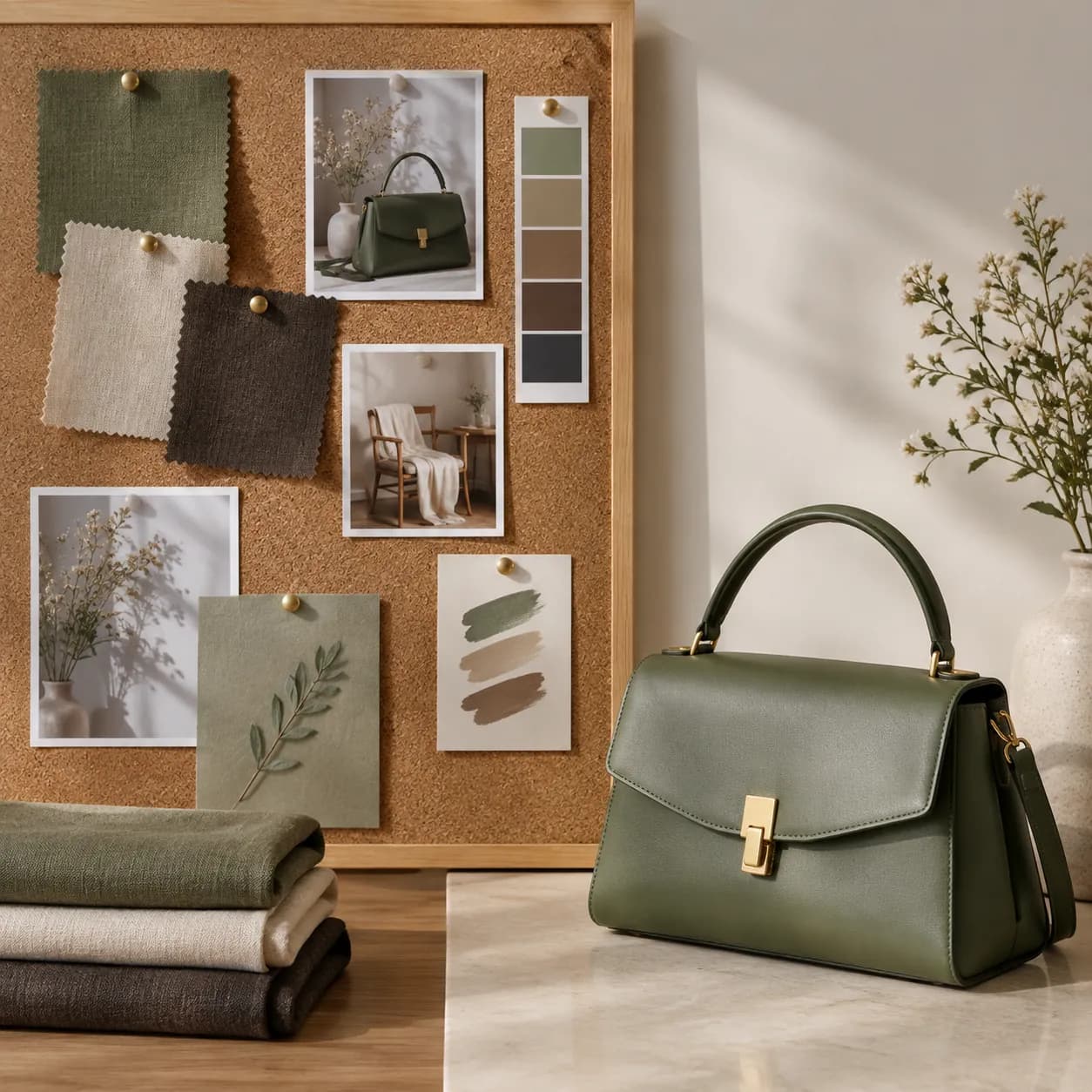
Mood boards that have to become assets

A brand team has signed off a mood board, but no photographer is booked yet. The mood board image becomes the style reference on the canvas, and the product photos already on file take on the approved look.

Transfer a style
Product photos restyled to match a mood board

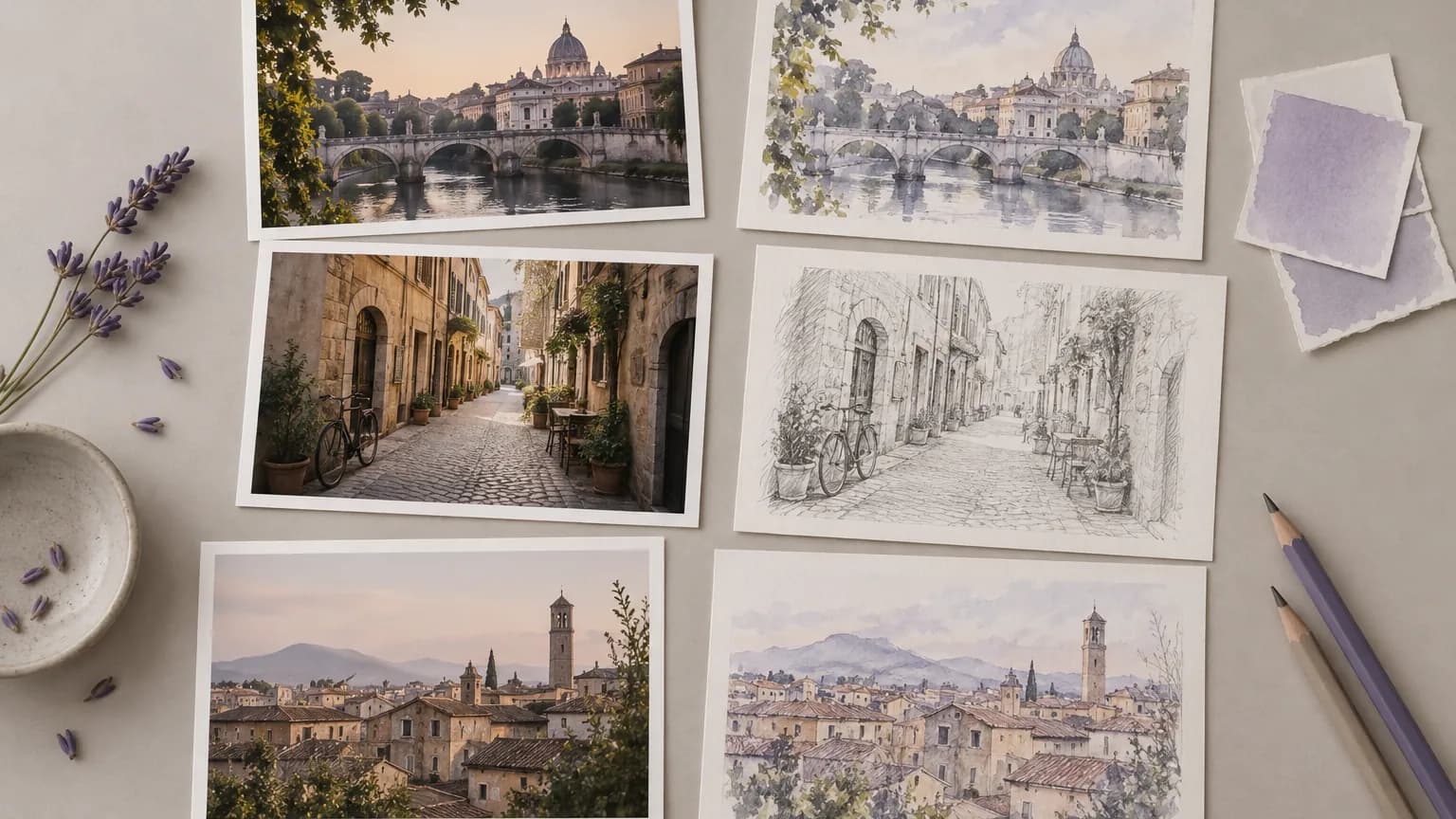
Illustrated versions of existing photos

An editor needs a set of illustrations for an article, and the budget covers photos, not an illustrator. Restyling the photos as watercolor or pencil sketch gives the piece an illustrated look built on real scenes.

Transfer a style
City photos turned into illustrations for an article

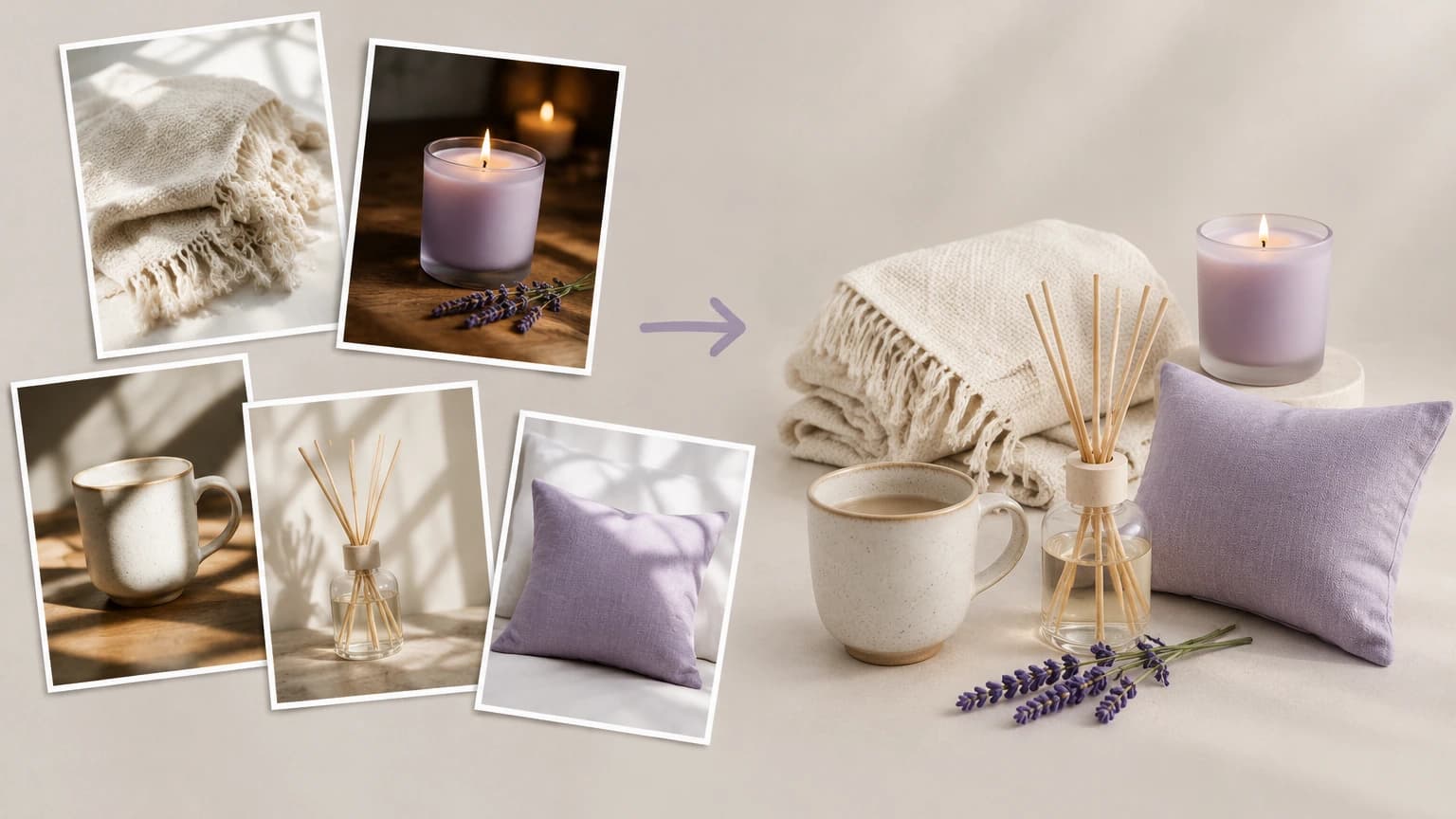
Testing a direction before a shoot

A creative director wants to know whether a new visual direction holds up across a product line before booking a studio. A few existing photos restyled in that direction show the answer before any budget is spent.

Transfer a style
Products restyled to test a new visual direction

AI style transfer for product photos

An online shop's catalog was photographed over several months in different light, and the listings look like three separate shoots. Restyling the existing photos with one written look gives every listing the same treatment without a reshoot.

Transfer a style
A product catalog restyled into one consistent look

Formats, limits and licensing

InputA single JPEG, PNG or WebP photo for each run; GIF, SVG and animated WebP are refused
Upload limitsMinimum 300 pixels per side. Maximum 30 MB for PNG or WebP uploads
OutputOne PNG per run, at 1K, in a 1:1 frame
ModelChosen by the tool; on the canvas you pick from the image models listed below
DownloadsFree accounts download with a watermark; the original without a watermark is for paid members
Credit cost20 credits maximum for one styled image; a better plan or a monthly allowance can bring that number down
Free planCovers roughly two styled images a month on its 40 monthly credits
Commercial useAllowed for results made on a paid plan, within any limits a model sets. Details at /help/commercial-rights/can-i-use-generated-content-commercially
Uploaded imagesKept in a project in your own account rather than a team workspace; retention and deletion follow the privacy policy

Best AI models for style transfer

The tool above picks its model for you. On the canvas you choose it yourself, and these six image models are a good place to start for a style pass.

FLUX.2

Provider
Black Forest Labs
Type
image

Style transfer FAQ

What is AI style transfer?

It is a way to change how an image looks without changing what it shows, so a photo can become a watercolor or a pencil drawing of the same scene. The tool on this page applies a preset or a written style; on the canvas, a second image can supply the style instead.

Is there a free plan?

Yes. Signing up needs no card, and a new account starts with 40 credits a month. This tool uses up to 20 credits per image, so the free plan covers about two runs; downloads on it carry a watermark, and anything made on it is for personal use rather than commercial work. Prices are on /pricing.

Can I use the results commercially?

Paid-plan results are yours the instant they are made; free-plan results stay limited to personal use. Two limits apply on every plan: a model marked non-commercial stays that way, and clearance for real-person likenesses, brands and copyrighted characters, including in the style images you supply, is yours to get. See /help/commercial-rights/can-i-use-generated-content-commercially.

How do I keep the subject from changing?

Say so in the prompt. Ending with a line such as keeping the subject and composition unchanged draws the boundary for the model. Start from a photo with one clear subject, check labels and faces against the original, and on the canvas run FLUX Kontext with the style image wired in as its own input.

Transfer your first style

Pick a photo and one of the six looks, run your first restyle, then carry it onto the canvas.