

Impact and foley
Describe a specific action, surface and strength instead of a generic effect name.
SOUND FOR VIDEO
Brief an impact, ambience or transition around the picture and listen to the result in context. The cup and waveform image is an illustration, not playable or verified audio.
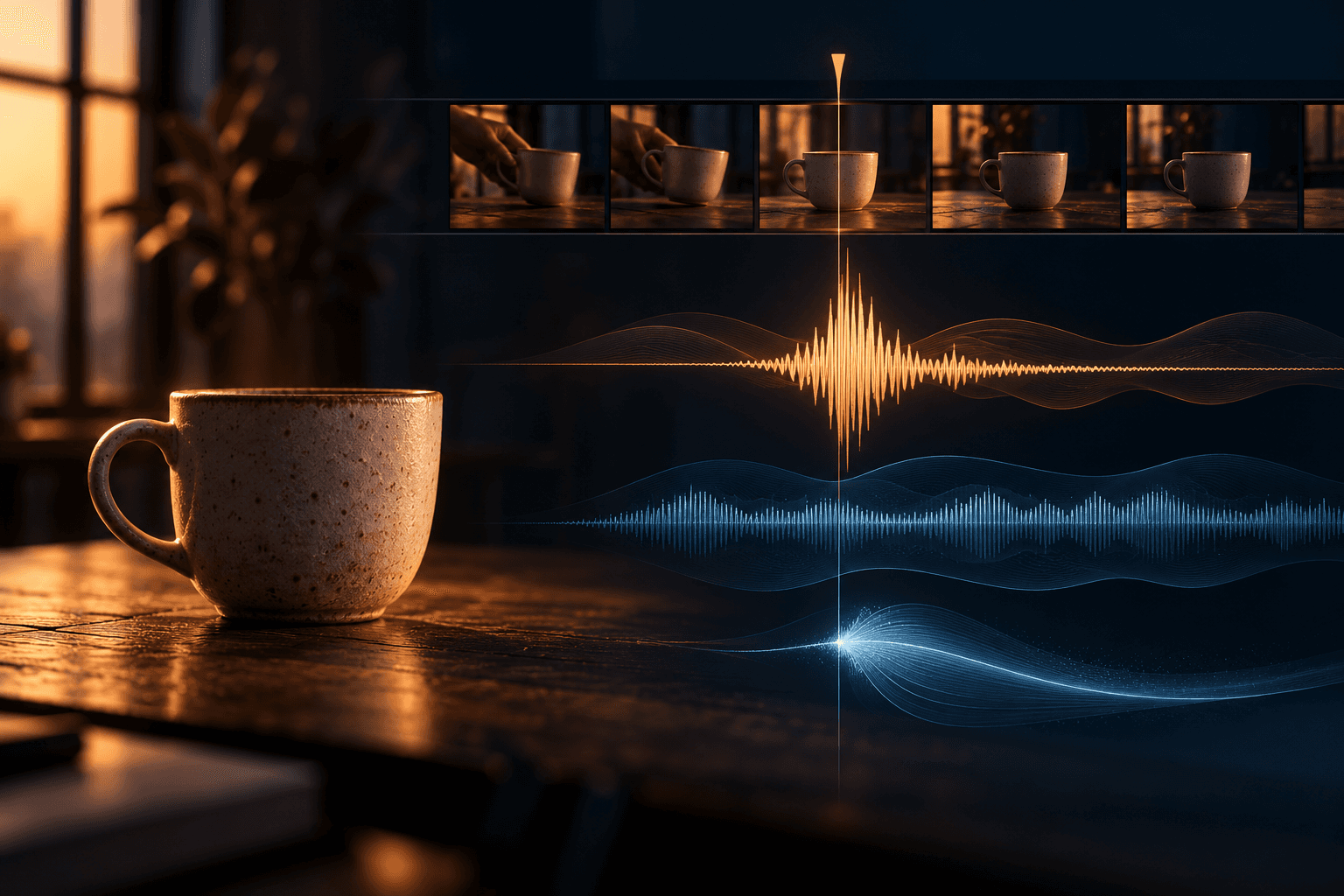
Identify the on-screen action, timing and approximate length of the cue.
Write a brief for the source, texture, intensity and environment in an audio workflow on the canvas.
Listen alongside video, dialogue and music; revise the cue or edit its timing and level as needed.
Describe a specific action, surface and strength instead of a generic effect name.
Build a room or outdoor bed that supports the visual setting without masking dialogue.
Test a short cue at a cut and judge whether it helps the edit or draws attention away.
| Input | A written sound brief tied to a video moment. | |
|---|---|---|
| Output | An audio cue to audition on the canvas; the page image is illustrative and has no sound. | |
| Review | Listen for timing, level, artifacts and fit with dialogue and music. |
No. This page shows an illustrative image. Open the Astorie canvas to generate and audition audio.
Describe the action, material, environment, intensity and approximate timing, then listen and revise.
Commercial use of new generations depends on your plan, the selected model provider’s terms and your rights to the inputs. Check Astorie’s current commercial-use policy before release.
Create on the canvas, listen with picture, and check rights and levels before publishing.