
GPT Image 2.5 Keeps Changing My Image: How to Stop Unwanted Edits
To stop GPT Image 2.5 from changing the rest of your image, edit from the actual source image, request one localized change, and explicitly list the elements that must remain unchanged. Save a clean checkpoint after every successful edit, compare the target and non-target regions, and branch from the last good version instead of continuing from a degraded result.
Astorie supports that reference-first workflow on a visual canvas: the source image can feed a new image node, the prompt and model settings remain visible, and each accepted output can become the next checkpoint. In our three-step 2K test, GPT Image 2.5 Flare changed a lantern to blue, then a book to red, then added a crane on the bridge while preserving the scene well enough that no other change was obvious at normal viewing size.
GPT Image 2.5 keeps changing my image and the short fix
Use the original or best accepted output as a reference image. Do not ask the model to reconstruct the scene from text.
Make one change per generation. Separate color, object, pose, text, and composition requests.
Write “Change only” before the edit and follow it with a preservation list.
Describe location and identity precisely: object, color, side of frame, nearby landmark, and desired final state.
Inspect the whole frame at 100–200%, not only the edited object.
If drift appears, return to the last clean image. Do not compound the error through more edits.
Our three-edit preservation test
The test used the same 16:9 watercolor scene as a reference image in Astorie. Every edit ran with GPT Image 2.5 Flare at High quality, 2K, opaque background, and PNG output. Each job used 20 Astorie credits and took about 30 seconds. This is one successful chain, not evidence that every image or edit will remain unchanged.
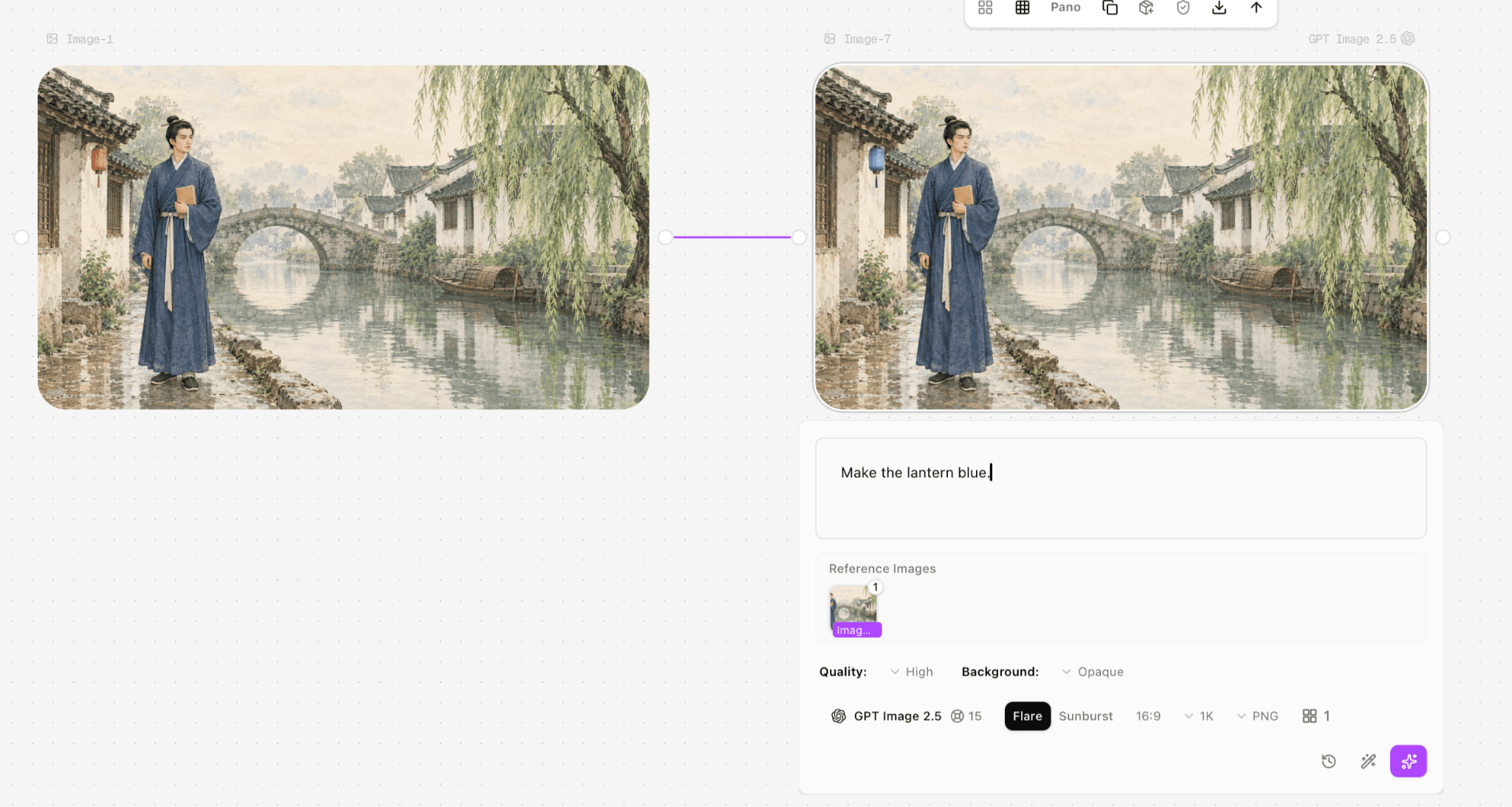
Figure 1. Edit one changed only the wall lantern from red to blue. The scholar, book, bridge, boat, willow, framing, and watercolor treatment remained visually stable.
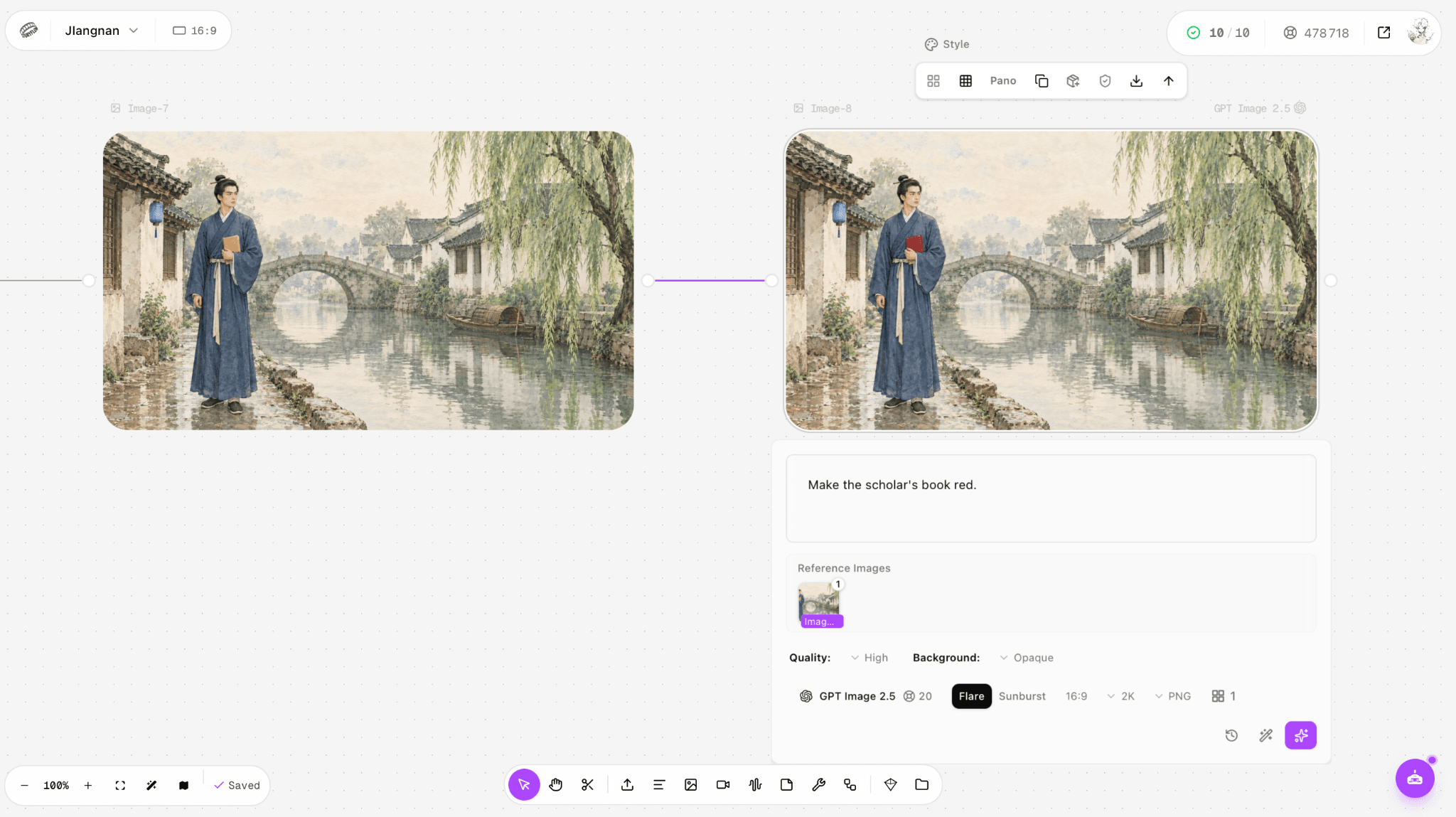
Figure 2. Edit two changed the scholar’s book to red while retaining the blue lantern and the rest of the composition.
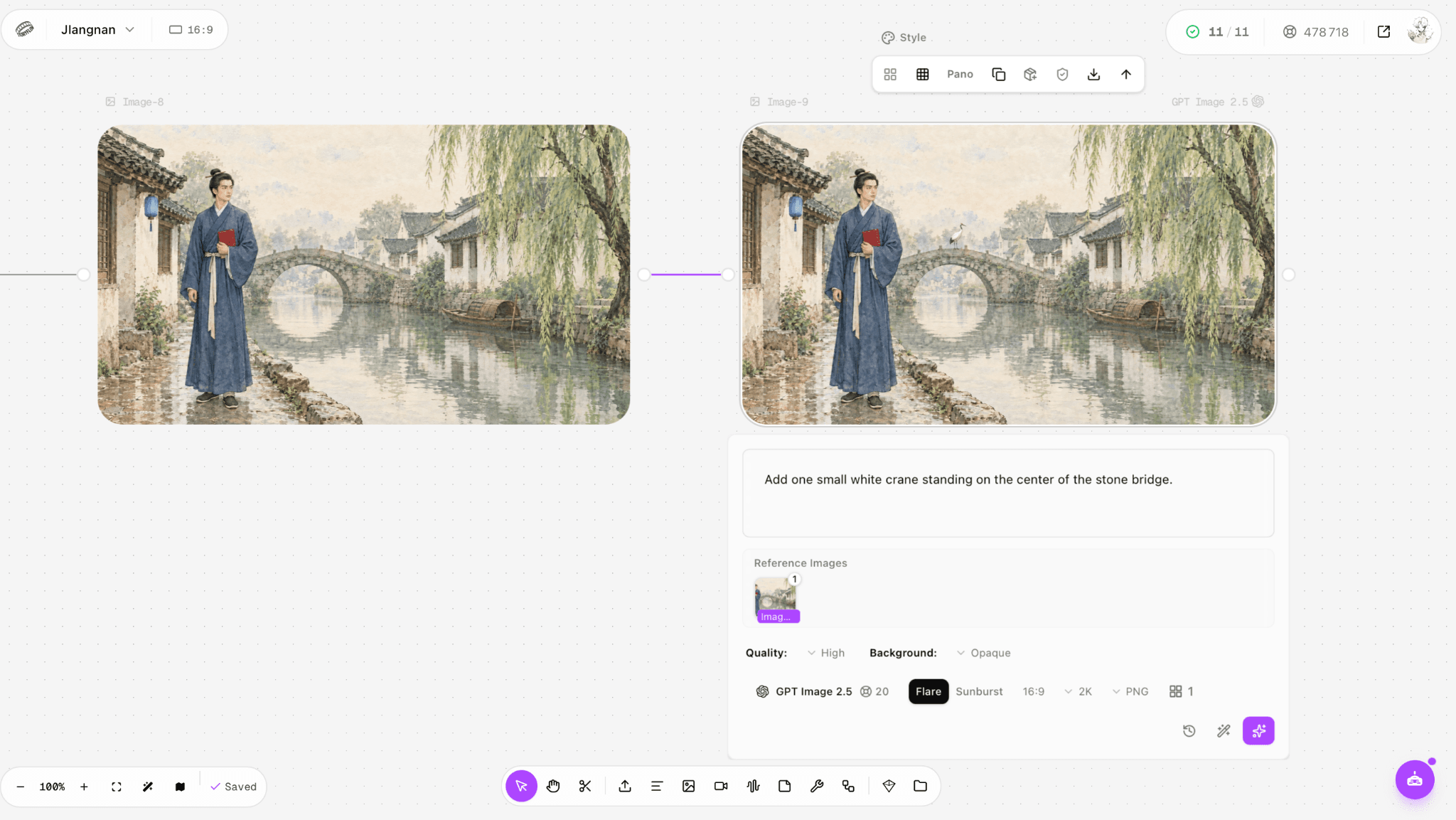
Figure 3. Edit three added one small white crane at the center of the stone bridge while retaining the earlier color edits and the surrounding scene.
Use a prompt that defines both the edit and the lock
A stable edit prompt has four parts: the one permitted change, the exact location, the desired final state, and the preservation lock. This structure is more useful than adding adjectives such as “perfect” or “high quality.”
Reusable prompt template: “Change only [target object] at [location] to [new state]. Preserve the exact composition, camera angle, crop, subject identity, pose, facial features, clothing, lighting, shadows, color palette, background, architecture, text, and all other objects. Do not add or remove anything else.”
For removal, replace the first sentence with “Remove only [object] from [location], reconstructing the immediate background naturally.” For an addition, specify count and scale: “Add one small white crane standing at the center of the stone bridge.” Count words reduce the chance of duplicated objects.
OpenAI’s official prompting guide recommends the same pattern: describe the target change precisely, use “only” language, and explicitly preserve the camera, lighting, composition, and surroundings. The model’s improved subject preservation helps, but instructions still need to resolve ambiguity.
A checkpoint workflow that limits cumulative drift
Duplicate or branch the source node before editing. The untouched source is your rollback point.
Apply the smallest high-value change first. Large structural changes make later comparisons harder.
Compare the output with its direct parent at the same zoom. Check face, hands, silhouette, object count, text, edges, background geometry, crop, and pixel dimensions.
Accept and label the version only if both the target edit and preservation checks pass.
Use the accepted output as the reference for the next single change. If any non-target region drifts, retry from the parent with a tighter lock.
After several edits, compare the current version with the original as well as the immediate parent. This catches slow blur, resizing, or palette drift.
That last comparison matters. In a recent user discussion about GPT Image 2.5, one creator reported that a comic page became progressively blurrier and smaller through repeated edits. The report is anecdotal, but it describes exactly the failure that parent-only review can miss.
What to do when the image still changes
Situation | Best next step | Replacement benefit | Migration loss | Switch trigger |
Small color or object edit | Stay on Flare with a one-change lock | Fast workflow and visual continuity | A retry may still reinterpret texture | Retry once when the target is right but a nearby detail drifts |
Repeated spill-over edits | Restart from the original or last clean checkpoint | Removes accumulated drift | Later successful edits must be repeated | Any face, crop, text, or geometry changes outside the target |
Difficult identity or composition preservation | Switch from Flare to Sunburst | A more capable precision-oriented model | Longer generation and potentially different rendering | Two tightly prompted Flare attempts miss the same preservation constraint |
Pixel-perfect commercial asset | Finish the localized change in a deterministic image editor | Exact mask and unchanged pixels outside it | Manual work and a split workflow | Zero-tolerance brand, legal, packaging, or layout requirement |
Choose the right interface for the edit
Use a conversational or node-based workflow when edits build on one another. OpenAI recommends the Responses API for multi-turn editing and the Image API for one-shot generation. In Astorie, visual references and branching make the lineage easier to inspect. If masking, sketching, or region selection is available in your interface, use it for a spatially narrow change; the mask limits ambiguity even though the model may still harmonize nearby pixels.
Stay with Flare when speed matters and the reference already holds. Sunburst is the logical replacement when preservation is difficult. The gain is precision-oriented capability; the loss is slower output and a possible stylistic shift. Do not switch simply because a color edit needed one retry—switch when the same structural failure repeats after the prompt and reference are already specific.
Why unwanted changes happen
Generative editing is not the same as changing a single layer in Photoshop. The model predicts a coherent new image conditioned on the reference and instruction, so it may redraw neighboring texture, lighting, anatomy, or framing while satisfying the requested change. Ambiguous phrases such as “make it better,” multiple simultaneous requests, and long edit chains increase the space the model must reinterpret.
OpenAI says Images 2.5 follows iterative edits more reliably and better preserves subjects. That is a relative improvement, not a guarantee of identical untouched pixels. A recent task-specific evaluation of image forgery edits reported fewer unintended surrounding changes for Flare and Sunburst than for GPT Image 2, but it did not find a corresponding improvement in target-edit correctness. Because the benchmark is narrow and new, it should support cautious expectations rather than a universal claim.
Frequently asked questions
Can I guarantee that no other pixel changes
No. A generative editor may redraw non-target pixels even when the result looks stable. Use a masked deterministic editor when unchanged pixels are a hard requirement.
Should I put every edit in one prompt
Usually no. One change per generation makes failures attributable, preserves rollback points, and keeps the preservation list clear.
Should every new edit reference the latest image
Only if the latest image passes both target and preservation checks. Otherwise branch from the last clean checkpoint. For a badly drifting chain, restart from the original and combine already-proven constraints carefully.
Does higher quality stop drift
Not by itself. Quality supplies more generation effort; it does not turn a generative edit into a pixel-locked operation. Prompt scope, reference choice, masking, and checkpoint discipline are more direct controls.
The practical answer
The most reliable way to stop GPT Image 2.5 from changing your image is to reduce the edit surface: one reference, one requested change, one explicit preservation lock, and one reviewed checkpoint at a time. Astorie’s node history makes that discipline easy to see and undo, but zero drift still requires human comparison—and, for pixel-perfect work, a deterministic editor.
Sources
Official documentation is the authority for current product facts. Community links are included only as anecdotal reports and are not treated as controlled benchmarks.
OpenAI — Introducing ChatGPT Images 2.5
OpenAI — Image generation guide
OpenAI — Image prompting guide
OpenAI — GPT Image 2.5 Flare model
OpenAI — GPT Image 2.5 Sunburst model
Reddit community report — blur and size drift across repeated edits
Reddit community prompt pattern — change only one thing
Ready to try it on the canvas?
Open Astorie and fan your prompt across every frontier model in one workflow.