Image

AI Photo Restoration on Astorie

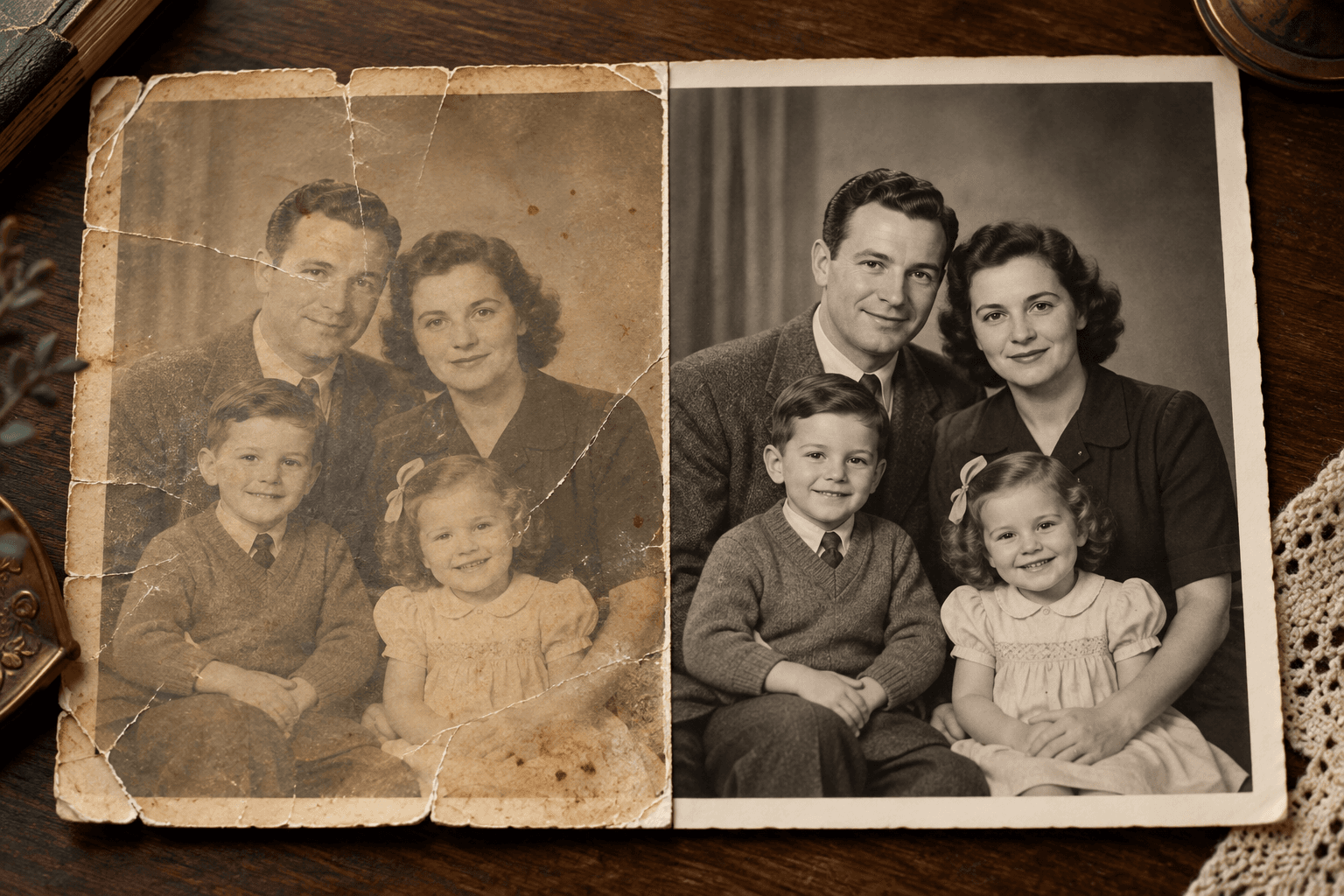
Damage in, restored heritage out — chained for archival quality. Astorie's canvas runs the damaged scan through edit-aware models like Flux Kontext and Nano Banana 2, refines difficult areas through chained iteration, upscales to archival resolution, and outputs a restored deliverable. The chain handles repair, refinement, and resolution in one canvas rather than across three tools.

What this feature solves

Family archives, heritage scans, and historical photo libraries arrive in tough condition. Tears, creases, fading, water damage, color shift, and emulsion degradation all live on the same scan. Generic AI photo enhancers run a single pass and call it done — but the result usually fixes some damage while introducing new artifacts elsewhere. Faces smooth into mannequins, fabric loses texture, edges over-sharpen. Without iterative control, the restoration feels generic rather than respectful of the original.

The deeper problem is the chain. Real restoration is multiple passes: first repair the major damage (tears, creases, missing emulsion), then refine local areas (faces, hands, fabric detail), then color-correct, then upscale to archival resolution. One-tool workflows force you to commit to one engine for all steps, and any tool that handles every step well is rare. Without a way to apply different models to different problems on the same source, the restoration is shaped by the limitations of whichever tool you happened to pick.

And there is the honesty issue. AI restoration fills gaps with plausible content based on what the model predicts the original looked like. For most family archive use that is acceptable — the goal is a viewable image, not forensic accuracy. But for legally sensitive use, IP-controlled heritage assets, or any case where the original needs to be preserved as ground truth, AI restoration is not a substitute for professional conservation. Tools that claim photographic accuracy without acknowledging this are misleading.

Why Astorie is different

On Astorie, restoration becomes a chain of nodes. Drop the damaged scan as an image node. First pass: route through Flux Kontext with a repair prompt for the major damage — tears, creases, missing areas. Second pass: route through Nano Banana 2 for face and hand refinement. Third pass: route through GPT Image 2 for color correction and tonal balance. Each step lives as a separate node on the canvas, so iteration on any single step does not require redoing the others. The chain is the workflow.

Multi-model fanout for difficult areas. When face refinement needs comparing across engines, fan out the face-pass node across Nano Banana 2, Flux Kontext, and Qwen Image and pick the winner. The original scan stays unchanged at the top of the canvas, which is critical: every iteration tracks back to the canonical source rather than building on a previous lossy edit. That preservation discipline is what archival work demands.

Upscale and export close the loop. After repair and refinement, chain the polished output through the image-upscale tool node to bring the deliverable up to archival or print resolution. The full chain — original scan → damage repair → refinement → color correction → upscale → export — sits as a saved canvas template that can be reused across an archive. For institutions and family archivists working through a collection, the template scales the workflow.

Common use cases

Restore family archive photos for printing and gifting

Run the chain on each scan — repair, refine, color, upscale — and deliver a presentable print-ready output for memorial, anniversary, or heritage book use.

Recover faded or damaged ad-archive imagery

Brand teams revisiting older campaign photography use the canvas chain to bring archival assets up to modern delivery quality.

Refine difficult areas selectively

When a single area (face, fabric detail, hand) needs special attention, fan out a per-area refinement node rather than re-running the whole image.

Repair scanned heritage photos for digitization projects

Libraries, museums, and family historians digitizing collections use the chain to standardize quality across diverse source conditions.

Before-and-after publishing for editorial features

Generate the restored version alongside the original for side-by-side editorial use — clear lineage, clear before/after.

Save the restoration chain as a workflow template

Once the chain works on one image, save it for the rest of the archive. Each new scan moves through the same proven sequence.

Recommended model stack

How the workflow works in Astorie

  1. 1

    1. Scan the original at the highest resolution available

    The chain is only as strong as the source. Scan at 600 DPI minimum, 1200 DPI for archival work. Keep the original as a node at the top of the canvas.

  2. 2

    2. First pass: repair major structural damage

    Wire the scan into a Flux Kontext node with a repair prompt — fix tears, creases, missing emulsion, watermarks. Do not chase fine detail at this stage.

  3. 3

    3. Second pass: refine faces, hands, and identity-critical areas

    Wire the repaired output into a Nano Banana 2 node for face and hand refinement. The model preserves identity better than generic enhancers.

  4. 4

    4. Third pass: color correction and tonal balance

    Route through GPT Image 2 for color and tonal correction. If the original was monochrome, decide whether to colorize or restore the original tone palette faithfully.

  5. 5

    5. Optional: fan out difficult areas across engines

    When a specific area (a face, a fabric pattern) needs comparison, fan out the area-refinement node across Nano Banana 2, Flux Kontext, and Qwen Image. Pick the winning take.

  6. 6

    6. Upscale and export the master

    Chain the final restored output through the image-upscale tool node for archival or print resolution. Export as the deliverable for the family, archive, or publication.

Example workflow

A family archivist is restoring a 1942 wedding portrait — a small black-and-white print with a vertical tear running through the bride's veil, water damage along the bottom edge, and significant fading across the entire frame. They scan at 1200 DPI and drop the scan onto an Astorie canvas. The first node is Flux Kontext with the prompt "repair vertical tear, restore water damage along bottom edge, preserve tonal balance." The second node is Nano Banana 2 refining the bride's and groom's faces, the bouquet, and the lace detail on the veil. The third node is GPT Image 2 for tonal rebalance — bringing back the deep blacks and clean highlights characteristic of 1940s portrait emulsion. They fan out the face-refinement node across two takes and pick the one preserving the bride's original expression most faithfully. The final restored image chains through the image-upscale tool to a print-ready 4K master. The archivist exports both the original scan and the restored master for a heritage book the family is publishing for the couple's 80th anniversary.

Tips and common mistakes

Tips

  • Always keep the original scan as the top node. Every iteration tracks back to it; never edit the canonical source in place.
  • Restoration is a chain. Repair structural damage first, refine faces second, color correct third. One-pass restoration cuts corners.
  • For identity-critical areas (faces, hands), run two or three engines in parallel and pick the most respectful take.
  • Be honest with the family or stakeholder: AI restoration fills gaps with plausible content, not ground truth. Set expectations.
  • Save the canvas as a template the moment one image works. Archive workflows scale on template reuse.

Common mistakes

  • Running a single one-pass enhancer and calling it restoration. Real archival work needs the chain.
  • Editing the original scan in place. Keep the source as a node and chain forward.
  • Over-refining faces. The model can smooth identity into mannequin territory — pull back if the result loses character.
  • Ignoring color shift. Old photos have characteristic tonal palettes; preserving the original look is part of respecting the heritage.
  • Promising forensic accuracy. AI restoration is plausible reconstruction, not ground truth — stay honest about that with stakeholders.

Related how-to guides

Related models and tools

Related features

AI Image Upscaler — Upscale Keyframes and Stills on Astorie

Upscale keyframes, products, and still assets before video generation on Astorie.

AI Style Transfer — Apply Artistic Styles to Images on Astorie

Transfer artistic styles between images using AI on Astorie.

AI Background Remover — Cutout Subjects on Astorie

Prepare product, character, and compositing assets with AI background removal on Astorie.

AI Character Reference — Reference-Image Workflows on Astorie

Use reference images to guide AI model outputs on Astorie's canvas.

AI Character Consistency Across Images and Video

Keep a subject consistent across image and video generations on Astorie using reference workflows.

AI Product Photography — Studio-Quality Product Images on Astorie

Generate studio-quality product photos for e-commerce on Astorie's canvas.

AI Headshot Generator — Professional Headshots in Minutes

Generate professional headshots for LinkedIn, resumes, and team pages on Astorie's canvas.

AI Mockup Generator — Product, Device, and Brand Mockups

Generate product, device, and brand mockups for marketing on Astorie's canvas.

AI Thumbnail Generator — YouTube and Social Thumbnails

Generate scroll-stopping thumbnails for YouTube, podcasts, and social on Astorie.

AI Logo Generator — Brand Marks and Wordmarks on Astorie

Generate logo concepts, brand marks, and wordmarks on Astorie's canvas.

AI Emoji Generator — Custom Emoji on Astorie

Generate custom emoji and stickers for Slack, Discord, and brand on Astorie.

AI Sticker Generator — Telegram, WhatsApp, Discord Packs

Generate sticker packs for Telegram, WhatsApp, Discord, and iMessage on Astorie.

AI Comic Strip Generator — Multi-Panel Comics on Astorie

Generate multi-panel comic strips with consistent characters on Astorie's canvas.

AI Presentation Slides — Pitch Decks and Slide Visuals

Generate slide visuals, pitch deck imagery, and presentation graphics on Astorie.

AI Icon Generator — App and UI Icons on Astorie

Generate app icons, UI icons, and brand icon sets on Astorie's canvas.

AI Character Design — Game and Story Characters on Astorie

Design original characters for games, stories, and animations on Astorie's canvas.

AI Architecture Rendering — Building and Space Visualization

Generate architectural renderings, exterior visualizations, and concept art on Astorie.

AI Interior Design — Room and Space Visualization on Astorie

Visualize interior designs, room concepts, and decor schemes on Astorie's canvas.

AI Game Asset Generator — Sprites, Concept Art, Backgrounds

Generate game-ready assets, sprites, concept art, and backgrounds on Astorie.

Related docs

Related reading

Comparisons

Frequently asked questions

Will AI restore my photo perfectly?

AI restoration produces a plausible reconstruction — not ground truth. For most family-archive and editorial use, the result is excellent. For forensic, legal, or IP-sensitive cases, professional conservation remains the right answer. Always preserve the original scan separately.

Which model is best for restoration?

No single model wins all stages. Flux Kontext leads on structural damage repair (tears, creases, missing areas). Nano Banana 2 leads on face and identity refinement. GPT Image 2 handles color correction well. The chain combining all three is what produces archival-grade output.

Can AI colorize a black-and-white photo?

Yes. Edit-aware models like GPT Image 2 and Flux Kontext can colorize, though the result is a plausible interpretation rather than the original color. For heritage work, decide carefully whether colorization is appropriate or whether faithful tonal restoration of the monochrome is more respectful to the source.

How do I handle damaged areas like missing edges or large tears?

Use Flux Kontext with a clear repair prompt for the structural damage first. The model fills the missing area with plausible content. Review the result against the surrounding context and iterate the prompt if the fill does not match the era or the subject.

How is this different from one-click photo enhancers?

One-click enhancers run a single pass on the whole image and accept whatever the model produces. Astorie's chain treats restoration as multiple controlled passes — repair, refine, color, upscale — each on its own canvas node. The control matters when the source is irreplaceable.

Can I restore many archive photos at once?

Yes. Save the canvas as a template once the chain works on one image, then duplicate the canvas per scan. The chain is consistent across the archive, and the workflow scales on template reuse rather than per-image redesign.

Build it on the canvas

Open Astorie and wire this workflow up in minutes. Free to start — no card required.

This website uses cookies

We use basic cookies and product analytics to keep Astorie secure, remember preferences, and plan long-term improvements. You can also allow full marketing tags.

Read more