

Two Visual Ingredients
An amber vase and sunflowers
- Use the vase picture for the container.
- Use the flower picture for the arrangement.
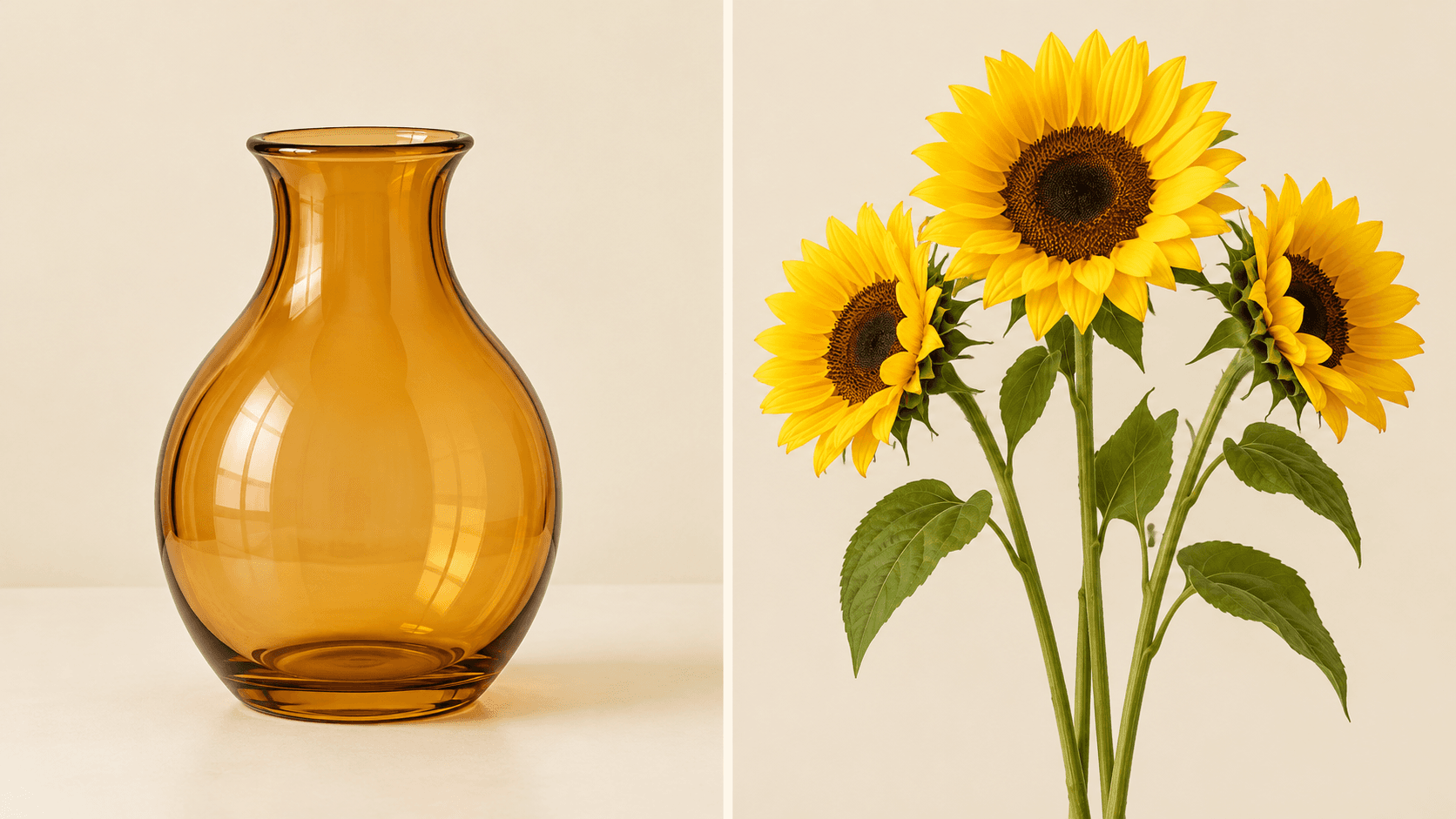
Choose the vase-and-flowers sample or upload one board containing your source pictures. Describe their arrangement; for separate image uploads, use the multi-image canvas linked below.
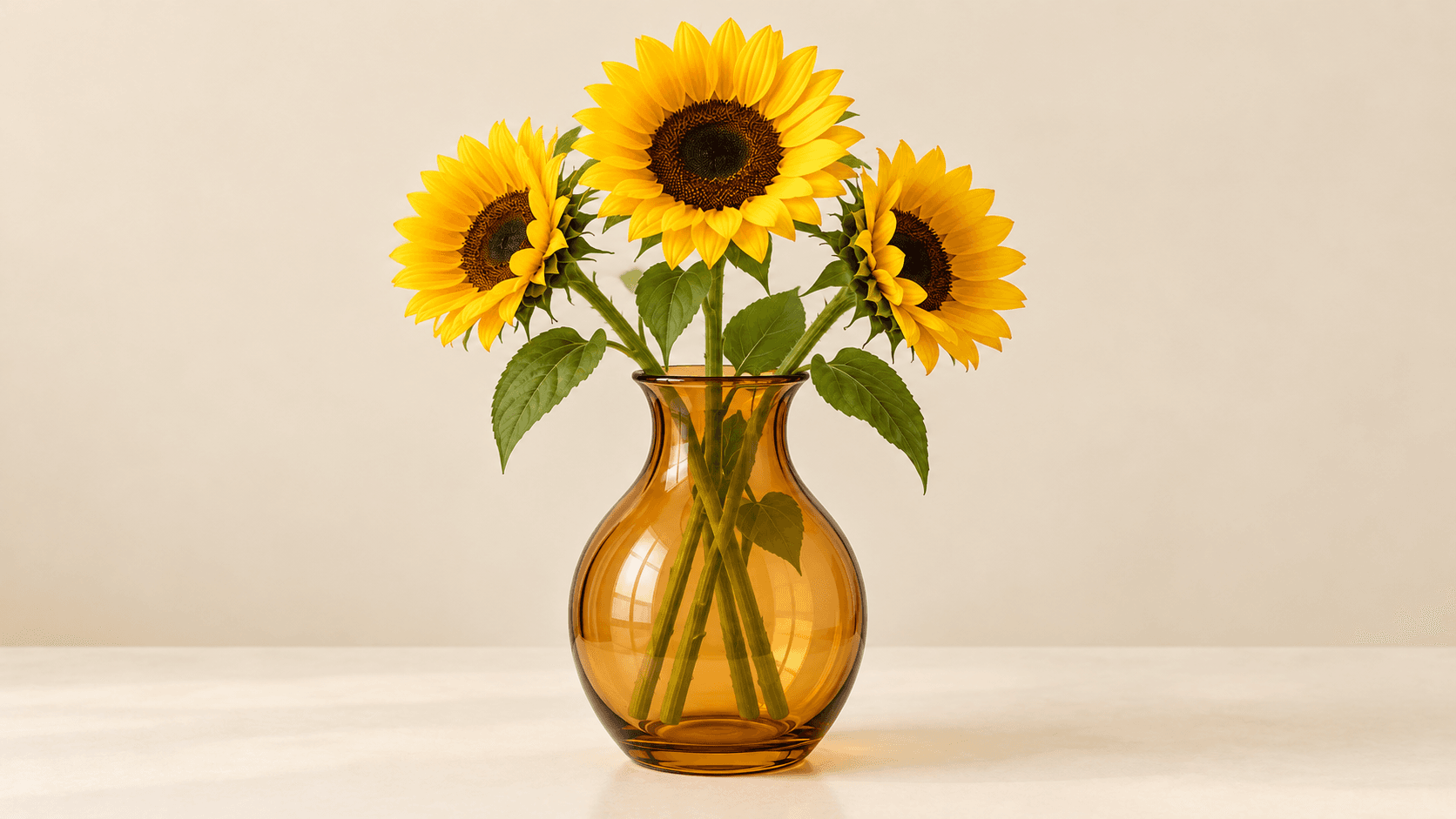
Concept illustration: a separate vase and flower reference become a single still-life arrangement. These images explain the composition; they are not verified outputs from this Astorie generator.
An amber vase and sunflowers
Flowers placed inside the vase
Prepare your source pictures before using the form. Keep the originals available for comparison.
Select Vase + sunflowers, or arrange your own permitted pictures into one clearly separated board and upload that image. Make each object large enough to identify.
Choose Place inside or Arrange side by side, then edit Describe the composition. Name your objects and replace the left/right directions if your board uses a different order. Specify their placement, shared surface and light.
Select Generate composition and sign in if prompted. Compare the result with each source for missing objects, changed shapes, awkward overlaps and inconsistent shadows. Refine the brief as needed.
Start with a relationship you can describe in one sentence. These are composition ideas to explore with your own references.
Put flowers in a vase or fruit in a bowl. State which object contains the other, then inspect openings, edges and contact points.
Arrange a product beside a complementary object for a visual concept. Give the product priority and leave the space you need for a later layout.
Describe which object belongs in front and which sits behind it. Say what should remain visible, then inspect overlaps, scale and contact shadows in the result.
The inline form and the canvas offer different reference workflows.
| On this page | One sample or uploaded reference-board image, an arrangement preset and an editable composition prompt. | |
|---|---|---|
| Separate source files | Open or create a canvas project and connect your sources to an Image node that supports multiple references. Reference support depends on the selected model. | |
| Result | A newly generated still image to review. Source geometry, color, lettering and placement can change. | |
| Precise layouts | Use a layer-based editor when you need exact pixel placement, editable layers or a fixed side-by-side collage. |
Continue with reference blending, image variations or background removal.
AI tool
Combine visual ideas into a new image. Try the reference-board demo below, or open the canvas to work with separate source images and a written composition brief.
AI tool
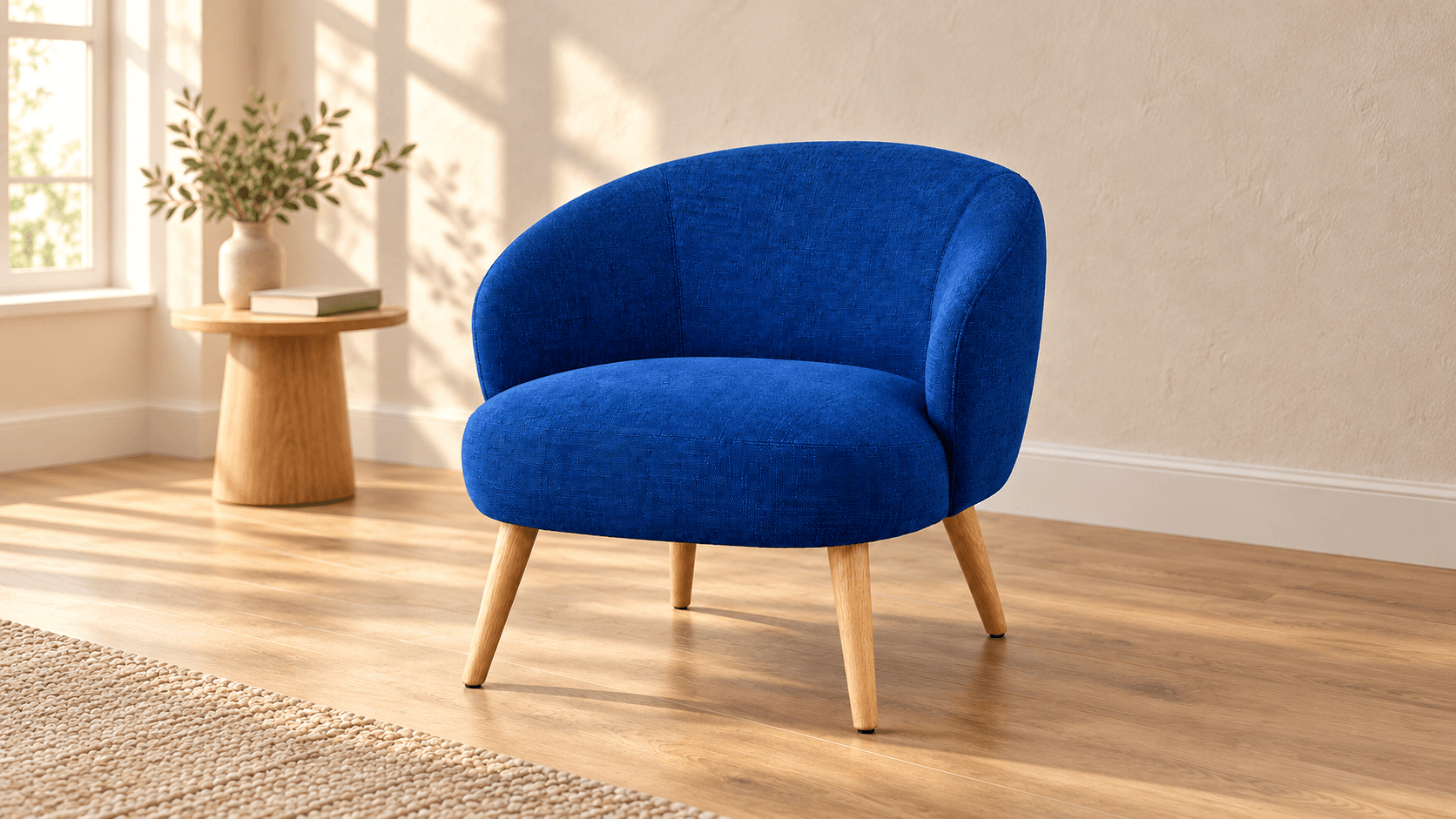
Use this AI image variation generator to explore a new background, lighting or visual style from one reference. Compare each candidate with the source. For a rendering closer to the original composition, try the AI image recreator.
AI tool
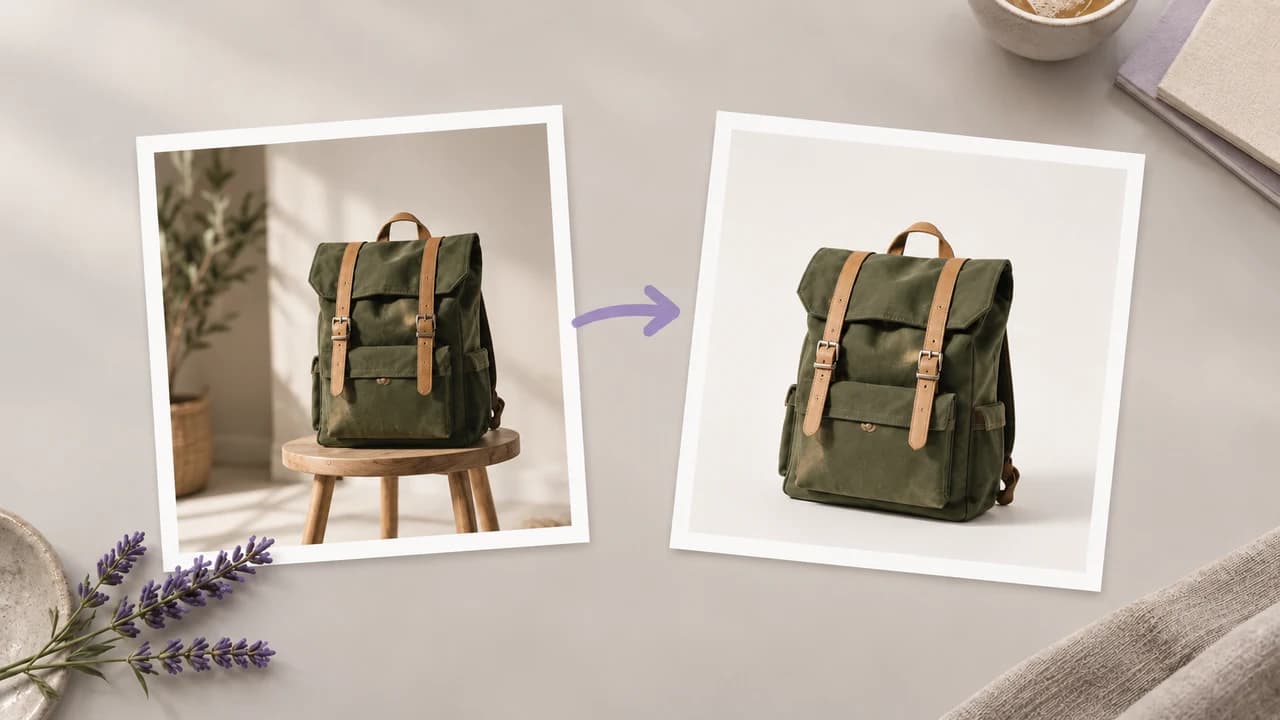
An AI background remover prepares the subject in your photo for a new layout. Create a cutout on the canvas and inspect its outline against the background planned for the finished design.
This form accepts one reference-board image at a time. Arrange the source photos into a single board before uploading, or use the canvas workflow to connect separate images to a compatible Image node.
The generator creates a new scene from your references and prompt. For a fixed collage that retains the original image pixels, arrange the pictures in a layout or layer-based editor.
Both use reference-guided generation. This page focuses on the relationship between two objects: one inside, beside or behind the other. The image blender page explores broader compositions such as subjects in settings and different visual treatments.
Name each object, its position and its relationship to the others. Use readable references and inspect every result; the prompt cannot guarantee that all source details will be retained.
Check current pricing and the credit requirement shown in your signed-in generation flow before running a request. Model choice and account terms affect the available generation options.
Paid-plan generations carry commercial rights subject to the model provider’s terms and your rights to the inputs. Free-plan outputs are for personal, non-commercial evaluation; upgrading applies to new generations. Review the current commercial-use policy before client or advertising work.
Under the default consumer, free, pro and team terms, Astorie may use uploads, prompts and outputs for training and product improvement. Third-party provider policies also apply. Enterprise opt-out requires a separate written agreement. Files are retained with projects; deletion follows the standard schedule, and information already used in training or derived datasets may persist. Review the upload-data policy before supplying sensitive references.
Try the sample board to explore an arrangement, or keep your source files separate on the canvas.