Description-Based Visual Review

AI Image Similarity Checker Workflow: Compare Descriptions

Prepare one description for the original and one for the revision, checking each against its image. Ask a Text node in Smart Mode to list matches, differences and missing information in those descriptions. Verify the list against both files; it is not a direct two-image analysis or a similarity score.

  • Checked descriptions
  • AI text comparison
  • Human image review
Photographic oak and linen interpretation of the original chair sketch

Describe the Reference and the Revision

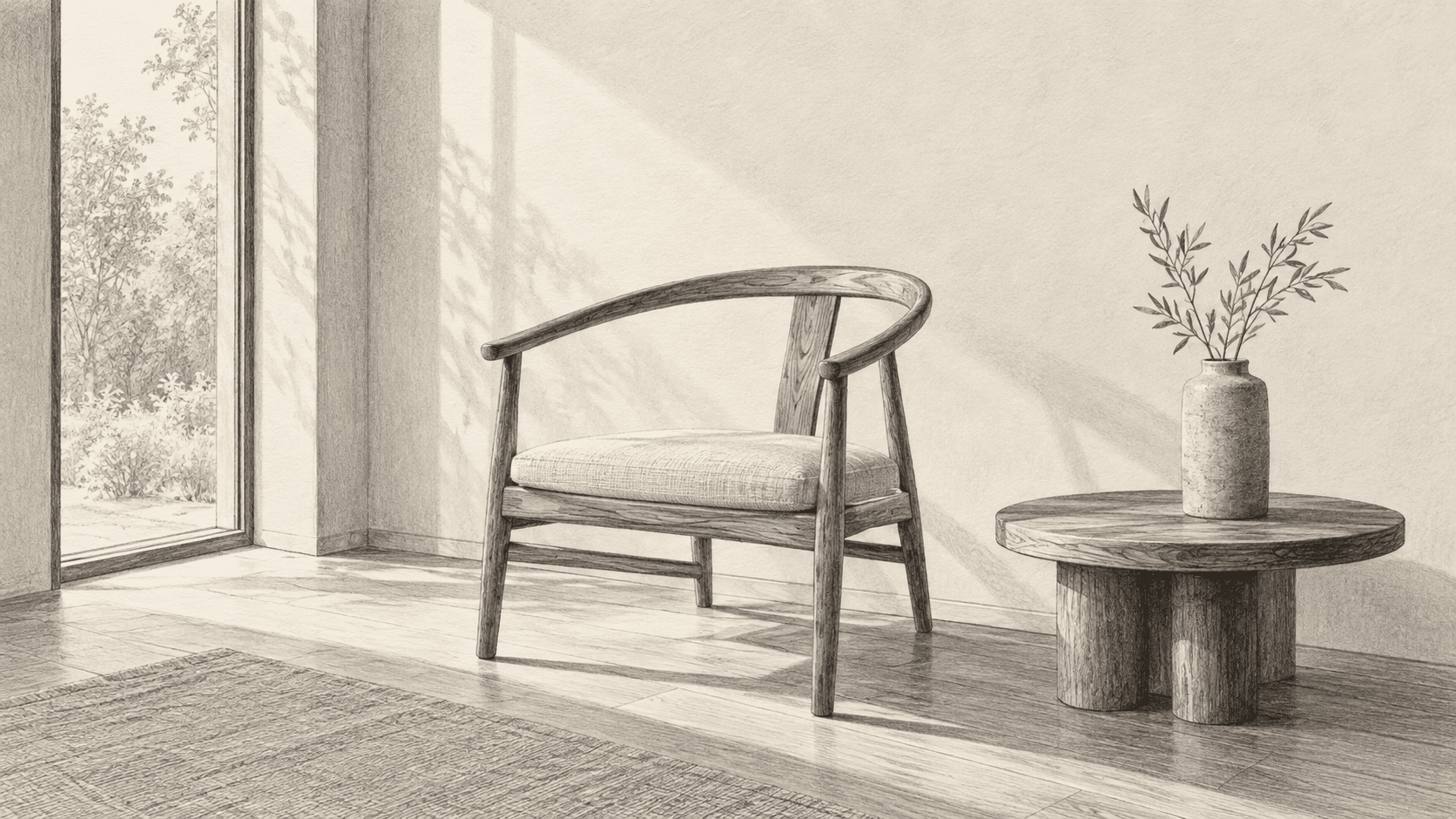
Concept illustration: this sketch and rendered room show visible features to record before comparing descriptions. These are not an AI comparison result or verified Astorie outputs.

Describe the Reference

Check the notes against the sketch

  • Record the chair silhouette and the side table’s relative position.
  • Describe the viewpoint, crop and spacing between objects.
  • Mark details the sketch leaves unspecified; do not invent colors or materials.
Original chair and side-table sketch used as a recreation reference

Describe the Revision

Use the same feature categories

  • Record furniture shapes and positions visible in the rendering.
  • Describe visible color, materials and lighting separately from layout.
  • Check the wording against the rendering before using it in the AI text comparison.
Photographic oak and linen interpretation of the original chair sketch

How to Compare Image Descriptions with AI

The inputs to the comparison are two checked text descriptions. The original files remain the evidence for your final visual review.

  1. 1

    Prepare both images and descriptions

    Open your projects and choose or create a canvas project. Keep the original and revision clearly named. Write a short description of each using the same categories: subject shapes, object positions, crop, colors, lighting and important details. Check each note against its image.

  2. 2

    Optionally draft one description at a time

    A Text node in Smart Mode can connect an image for reverse-prompting. With a model that supports that input, ask for a descriptive prompt for one image. Repeat separately for the other if helpful. Correct omissions or invented details against each file before using either description.

  3. 3

    Ask Smart Mode to compare the checked text

    In a Text node’s Smart Mode conversation, paste the checked descriptions under Original and Revision. Ask: Compare only these descriptions. List stated matches, differences and details mentioned in only one. Distinguish missing information from a visual change. Do not infer unseen details or assign a similarity score.

  4. 4

    Verify the difference list against both files

    Inspect the original and revised images yourself for every relevant point. An item missing from one description may still be visible in that image. Correct or discard unsupported AI notes, and record uncertainty. The final result is a qualitative review, not a measured similarity value.

Choose What to Describe Before Comparing

Use the same categories in both descriptions. AI can compare the wording, but shared wording does not prove that the images match.

Composition and Framing

Describe viewpoint, crop, object sizes and spacing in both notes. When the text comparison finds a match or change, inspect those relationships in the actual images.

Color and Lighting

Record palette, contrast, shadows and material appearance separately. A matching color word is not a calibrated color measurement; verify the visible colors yourself.

Subject Details and Lettering

Include important silhouettes, small objects and writing in the notes. If one description omits a detail, check the image before recording a visual difference.

What Description-Based Comparison Can Establish

AI compares text notes. Human inspection connects those notes back to the images.

InputsTwo checked descriptions of an original image and a revision. Optional single-image description drafting depends on the selected canvas model’s supported inputs.
OutputAn AI text list of stated matches, differences and missing information, followed by your verified visual-review notes. The AI text can be incomplete or wrong.
Similarity scoreThe AI comparison does not inspect the two image files together or calculate a percentage, SSIM, pixel difference or embedding-similarity score.
Duplicate searchComparing descriptions does not search for duplicate images or find matches across the web.
Identity and rightsAn AI text comparison or visual resemblance does not establish identity, copyright ownership or permission to reuse an image.
Quantitative evaluationUse a dedicated measurement tool with a defined method when you need reproducible pixel, structural or embedding-based results.

Description-Based Image Similarity Questions

What does this AI image similarity checker workflow compare?

It compares two text descriptions that you have checked against their images. Smart Mode can help list stated matches, differences and missing information. You then inspect both image files to verify the notes. It is not a direct two-image analyzer or an automatic similarity score.

Can I compare an original image with a changed composition or color palette?

Yes, through checked descriptions and a visual review. Describe composition and color in both notes, ask AI to compare the text, and inspect the original files to confirm each relevant point. Similar descriptions do not establish matching pixels or fine details.

Can I upload two images here and receive a similarity percentage?

No. This page does not offer a two-file analyzer, percentage or pass/fail threshold. The canvas workflow compares checked text descriptions, with optional single-image description drafting and final human review of the files.

How does visual similarity differ from pixel differences or SSIM?

Pixel-difference methods examine image values, while SSIM assesses structural image quality relative to a reference. This workflow compares text descriptions and asks you to verify the resulting observations visually. It calculates neither measurement, and its notes must not be presented as numerical similarity results.

Can this find duplicate images or detect plagiarism?

No duplicate-image database or web-match search is part of this workflow. Comparing visible features does not identify the source of an image or establish whether it is licensed. Review provenance and permissions separately.

Can it confirm that two pictures show the same person?

No. Resemblance in visible features does not establish identity. Do not use a generated description or this qualitative checklist as an identity-verification result.

What are the limits of AI-assisted visual review?

A description can omit details, misread lettering or invent features. Comparing descriptions can repeat those errors or mistake missing wording for a visual difference. Correct each description first, then verify the AI comparison against both images. Record uncertainty rather than treating confident text as proof.

How are uploaded reference images handled?

Default consumer, free, pro and team terms permit uploads, prompts and outputs to be used for training and product improvement. Provider policies also apply. An Enterprise training opt-out requires a separate written agreement. Project files are retained with the project and follow the standard deletion schedule; information already used in training or derived datasets may persist. Check the current data policy before supplying sensitive references.

Can I use generated comparison notes commercially?

Paid-plan generations have commercial rights subject to provider terms and your rights to the inputs. Free-plan outputs are for personal, non-commercial evaluation; upgrading applies to new generations. A generated note does not grant rights to the images it describes or certify their ownership.

Start with Two Checked Descriptions

Open a project, describe the original and revision, compare the checked text with AI, and verify the notes against both files.