

Bottle and Jar Labels
Explore artwork and a visual hierarchy for cylindrical containers. Check actual label dimensions and how the design wraps before committing to production.
Start with the selected reference and starter prompt, or replace the reference with an image you have permission to use.
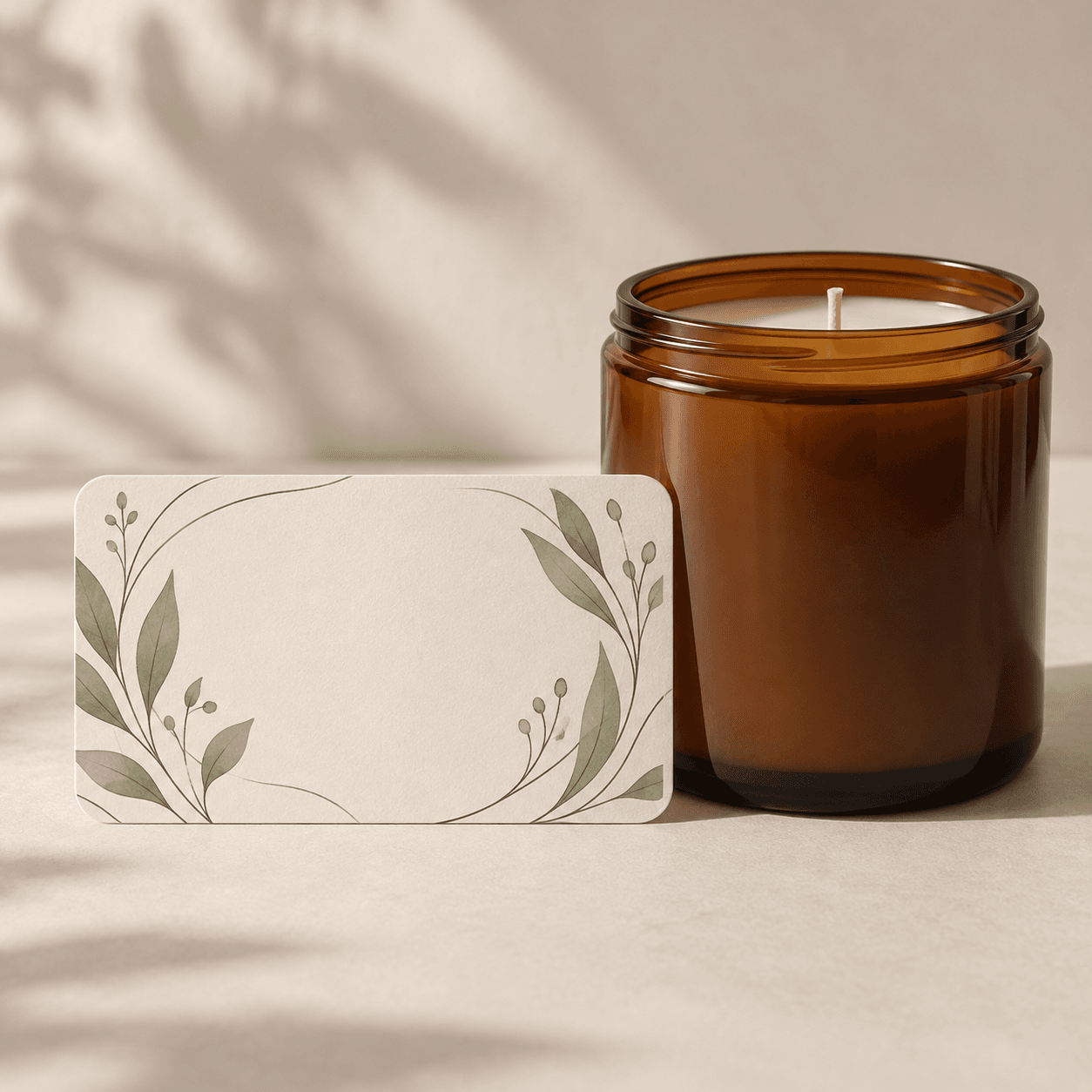
Start with the selected candle reference, or use a reference you own. Describe the container, label shape, decorative style, palette and areas to leave clear for text.
Choose Generate label concept. Review contrast, placement and the amount of space available for the product name and required information.
Rebuild the selected direction in a layout tool. Add verified product copy, genuine barcodes, dimensions and printer-specified bleed, then inspect a physical proof.
Explore artwork and a visual hierarchy for cylindrical containers. Check actual label dimensions and how the design wraps before committing to production.
Ask for reserved text areas when exact wording matters. Typeset ingredients, warnings and other required information separately using verified source copy.
Use concepts to compare decorative styles. A generated image does not establish a dieline, a scannable barcode or regulatory compliance.
Treat it as a design concept. A layout or prepress tool is needed to set real dimensions, bleed, color settings and accurate type to your printer’s requirements.
Do not rely on generated text for ingredients, warnings or barcode data. Use verified product information and a proper barcode workflow, then check the finished artwork.
This page focuses on the label artwork and information hierarchy. A mockup workflow helps visualize how an approved design may look on a product.
Astorie grants commercial rights for outputs generated on paid plans, subject to the underlying model provider’s terms and your rights to the inputs. Free-plan outputs are for personal, non-commercial evaluation; upgrading applies to new generations going forward. Review the current commercial-use policy before selling or delivering work.
Under the default consumer, free, pro and team terms, Astorie may use uploads, prompts and outputs for training and improvement. Model providers have separate policies. Enterprise training opt-out requires a separate written agreement. Project files are retained for the workflow, and deletion may not remove data already used in training or derived datasets. Check the current policy before uploading sensitive material.
AI tool
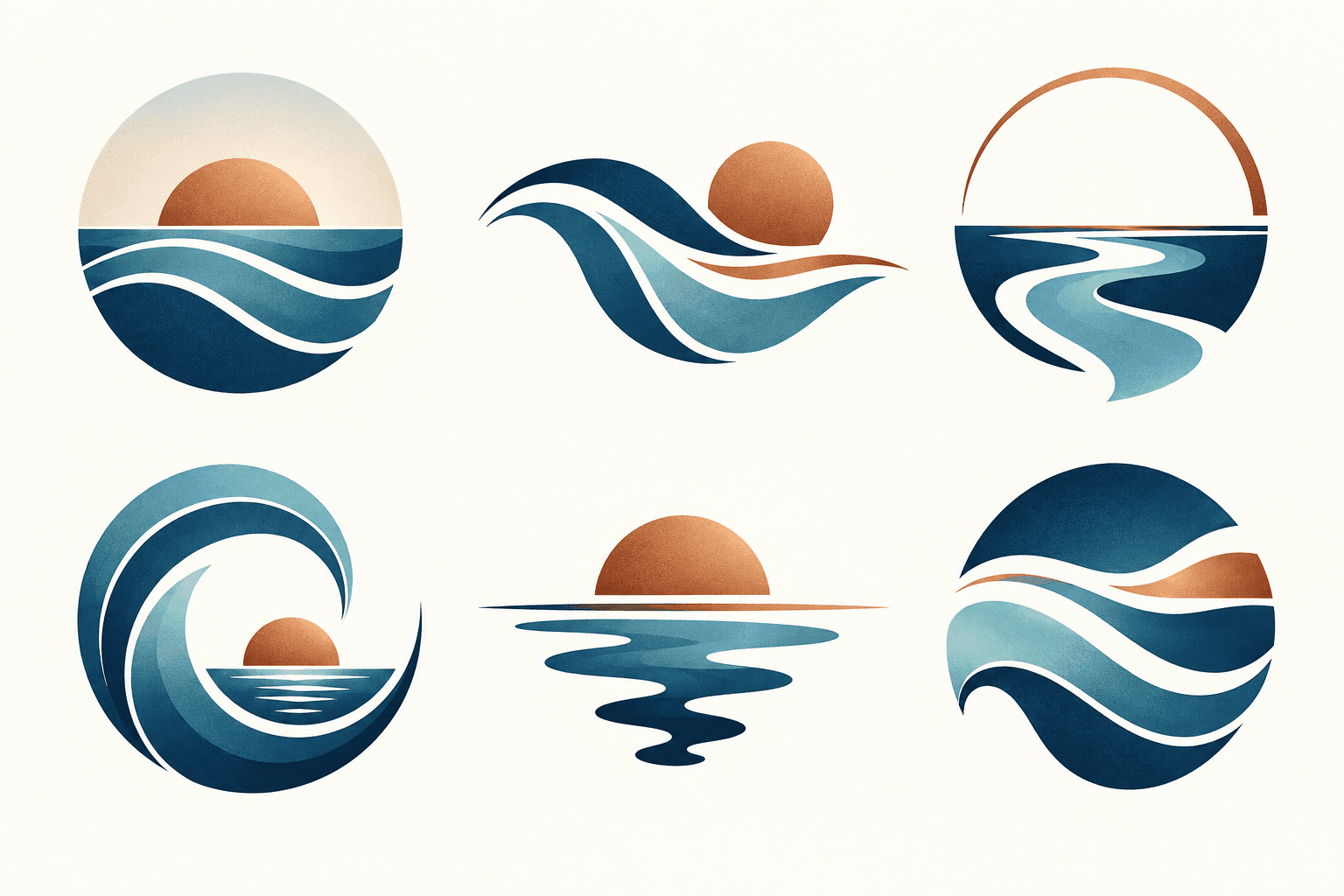
Describe your brand and explore visual directions for a mark. Compare shape, color, and legibility, then take promising concepts through design refinement and trademark review before adoption.
AI tool
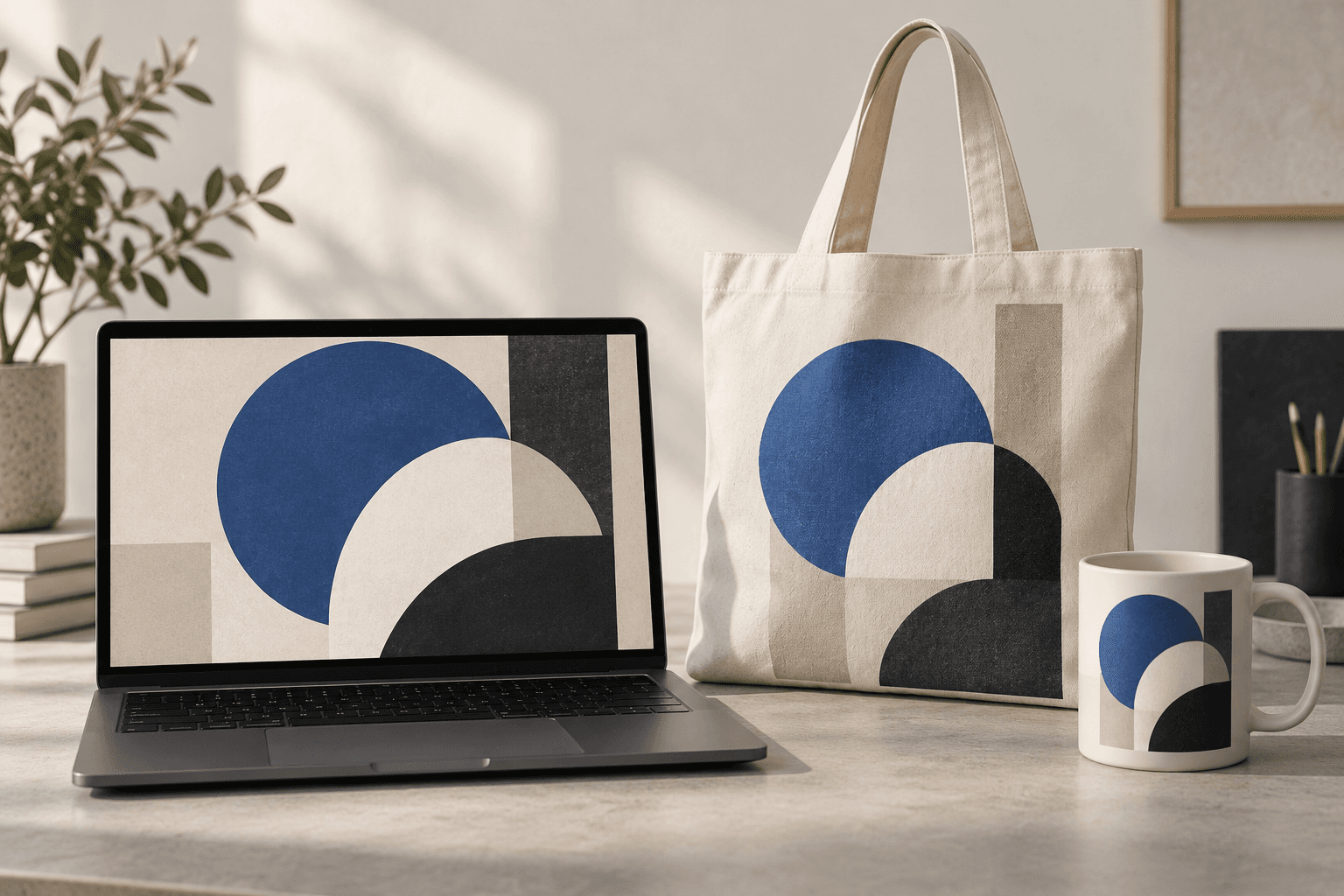
Place a design idea on a product or device scene to preview how it might look in context. Start from your artwork or product reference, describe the surface, and inspect details before using the image in a presentation.
AI tool
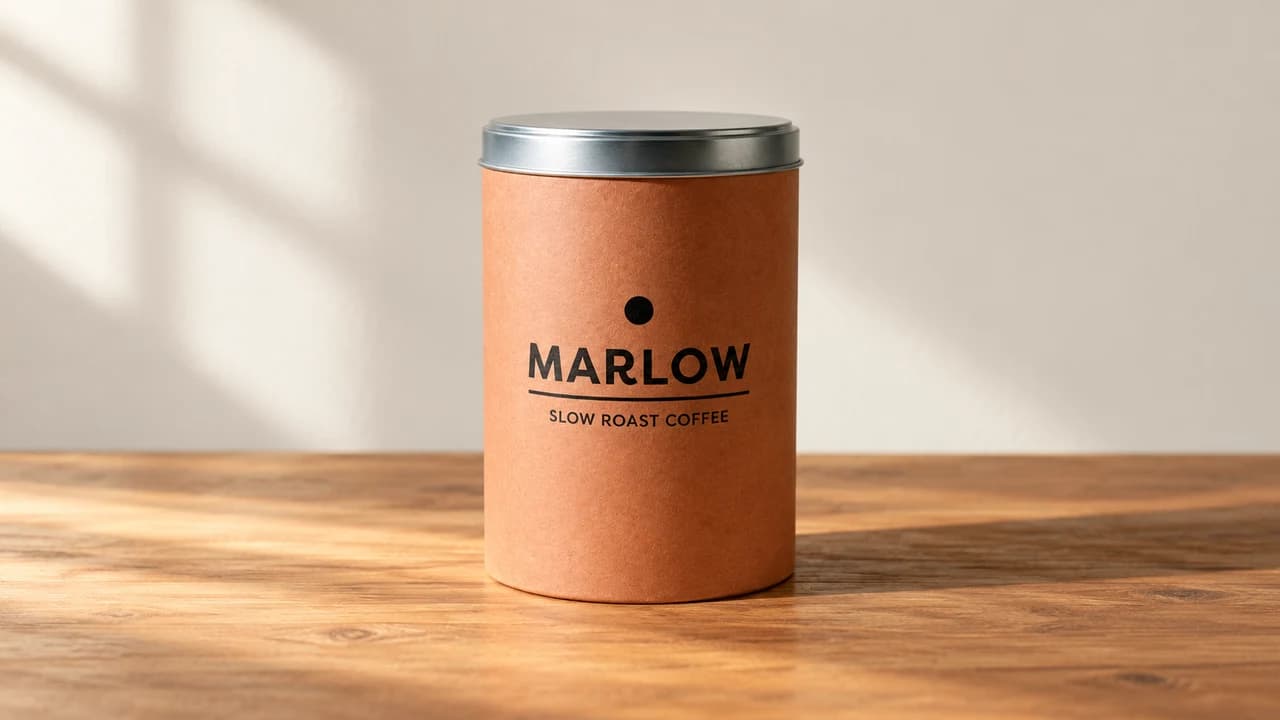
Explore studio and lifestyle scenes for a product photo. Start with a clear reference, choose a setting below and compare labels, color and proportions before preparing a listing.
Start with the reference, refine the brief and review the image before taking the idea into production.