

Camera Movements: Types, Examples and How to Create Them with AI
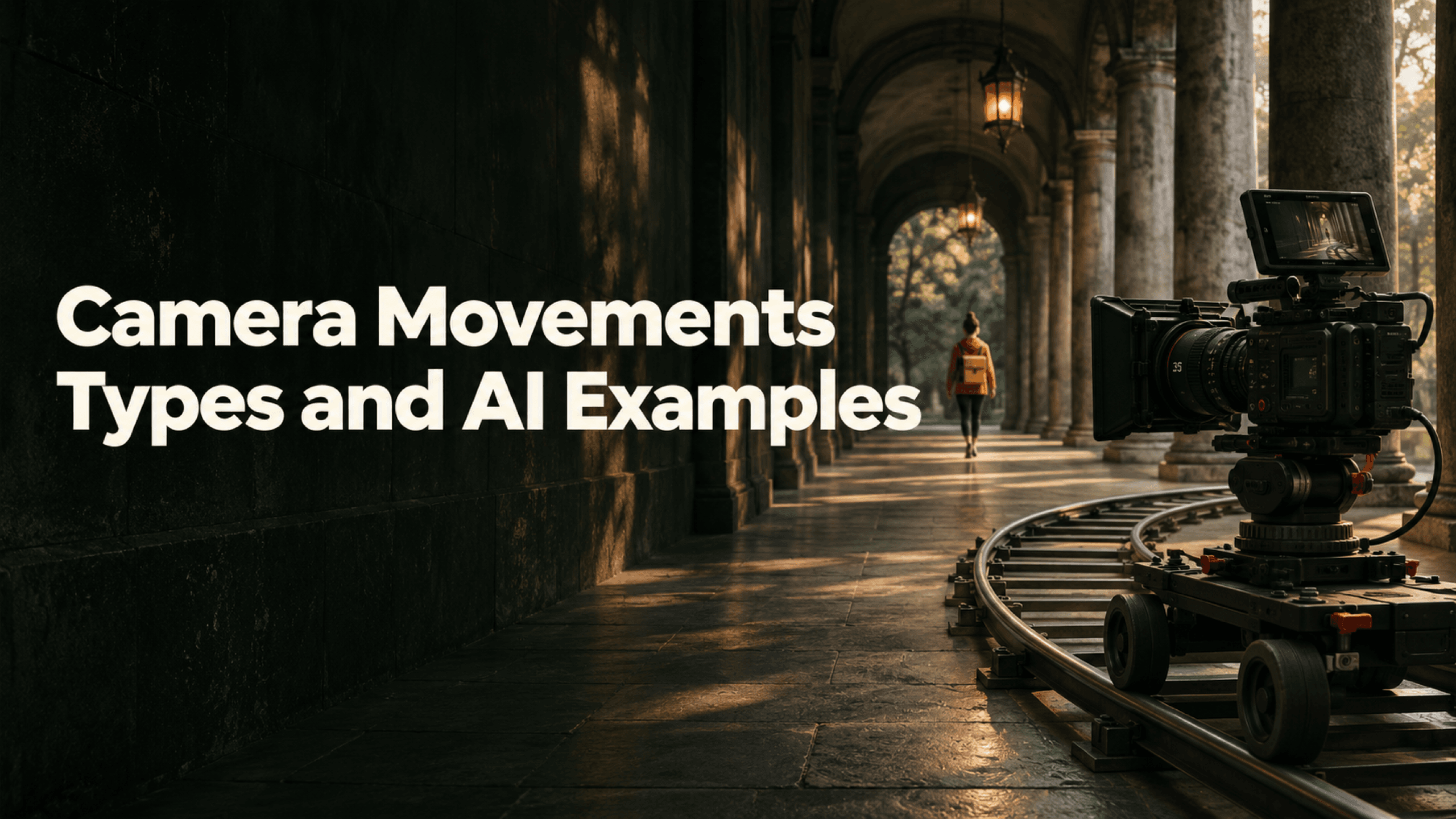
Camera movements change where the audience looks from and how a scene is revealed. A push-in brings you closer to a subject; a pull-out gives the surroundings more room; a follow carries you with the action; an orbit changes the angle around it. Choose the purpose before choosing the preset.
AI can help you explore those choices from a still reference. We used one courier in a stone colonnade and generated Static, Dolly in, Dolly out, Orbit and Follow versions in Astorie Director. The results make the differences visible, including where a preset needed more direction.
Camera movements and when to use them
Start by asking what should change for the viewer. Do you need a detail to become more prominent, a location to open up or a moving person to stay with us? The move should answer that question. StudioBinder’s camera movement guide is a useful visual reference for the broader filmmaking vocabulary.
Move | What changes in the image | A useful reason to choose it |
|---|---|---|
Static | Camera position and angle stay fixed | Let blocking or a performance carry the shot |
Pan / tilt | Camera rotates horizontally / vertically | Reveal a subject or follow a change in attention |
Dolly in / push-in | Camera approaches the subject | Move from the wider action toward a detail or reaction |
Dolly out / pull-out | Camera retreats from the subject | Reveal surroundings or create distance |
Truck / lateral track | Camera travels sideways | Reveal foreground layers or accompany lateral action |
Follow | Camera travels with the subject | Keep the person prominent while the location changes |
Orbit / arc | Camera curves around the subject | Reveal another angle and the surrounding depth |
Crane / boom | Camera rises or falls through space | Connect a person to a larger setting |
Zoom and rack focus belong beside this vocabulary, but they change different things. A zoom changes focal length and framing from the same position. A rack focus transfers sharpness between distances. Neither, on its own, establishes that the camera traveled through the location.
A dolly zoom combines camera travel with an opposing zoom, so the subject stays roughly the same size while the background relationship changes. A push-in that simply makes the person larger is not enough to identify that effect.
Set up the same scene in Astorie Director
Open a project and add your reference image. Pick a scene with depth: a foreground object, your subject and something farther away. Our right-hand column, courier and distant blue door give you landmarks to follow as the camera changes position.
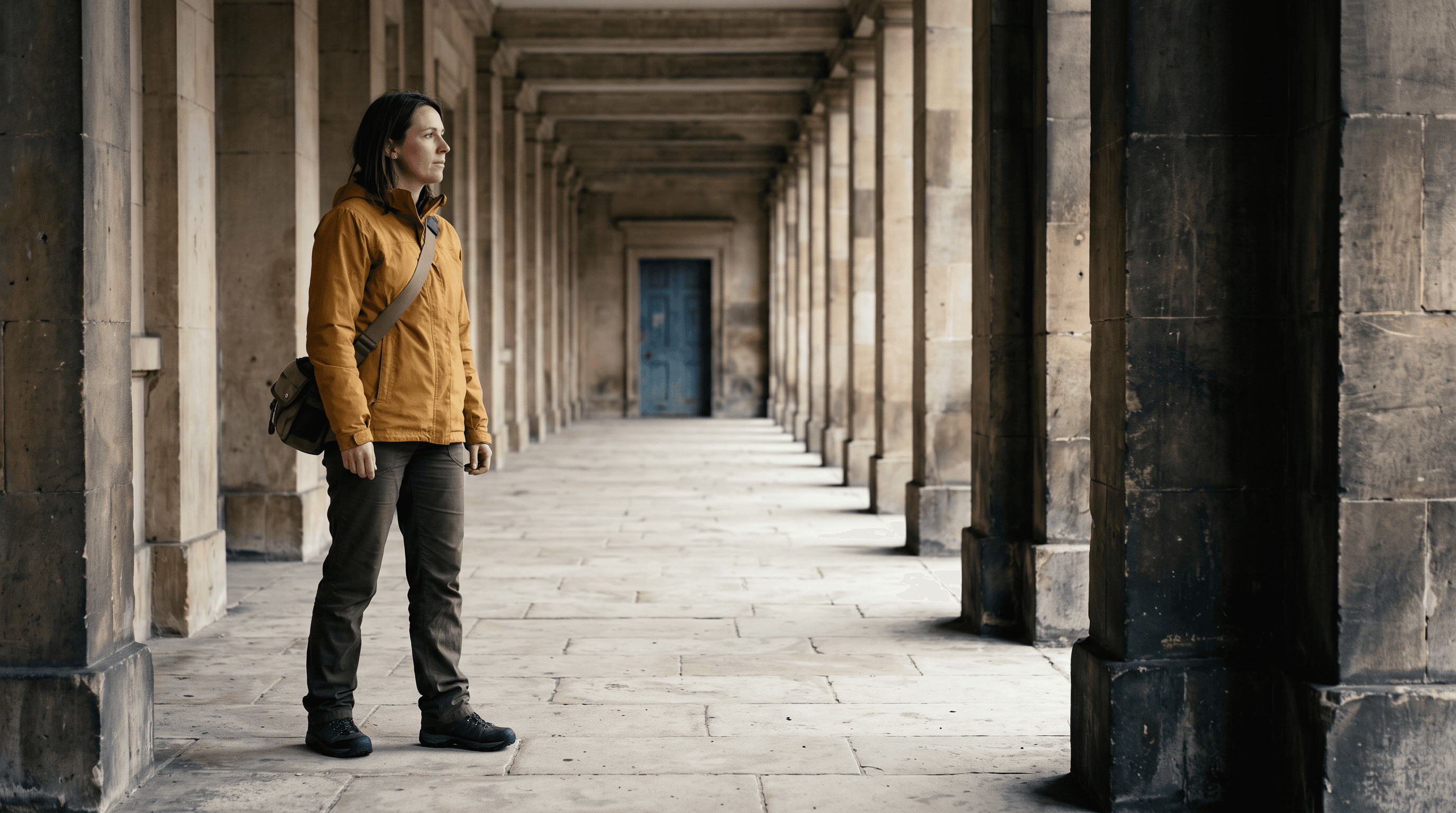
Figure 1. The courier reference separates the person, foreground column and distant doorway.
The still was generated with Nano Banana 2.1 Premium, Thinking level Medium, Web Off, 16:9, 2K and PNG. The video stage uses Astorie Director. You can begin from your own suitable reference instead of recreating this image.
- Add a Video node and select Astorie Director.
- Connect the still as the single Reference Image and check its thumbnail.
- Use 16:9, 720p, five seconds and Real-time for the examples below. Leave World, Camera, Lens and Color palette at Auto.
- Enter the subject action below. Change Movement for each version while leaving the other inputs and directions in place.
- Generate each version separately, wait for completion and download the full result.
The same woman courier in the ochre-yellow jacket takes three slow, natural steps from left to right along the covered stone walkway. Keep the same face, clothing, crossbody bag, column layout, tiled floor, blue doorway, and soft overcast daylight as the reference image. She stays fully visible and continues at an even pace. One continuous five-second shot, no cuts, added people, text, dramatic gestures, or changes in the setting.
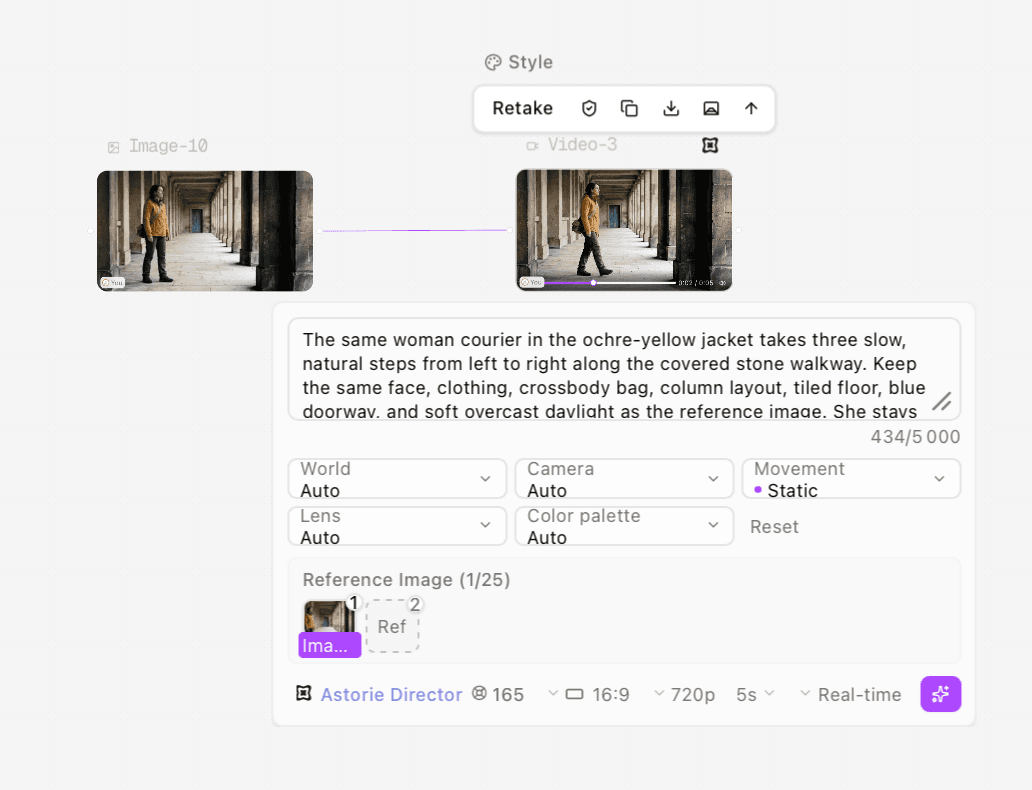
Figure 2. The first version uses Movement: Static; the same reference and action prompt supply the other four base versions.
Keep subject action in the prompt and camera choice in Movement. This lets you reuse the scene description while exploring a new viewpoint. The Video node guide explains the input and parameter workflow; check the controls shown by the model you actually select.
For a simpler starting-image and motion-prompt entry, the camera control tool offers a separate workflow. The examples in this article use Director’s Movement presets on the canvas.
Read the five generated examples
Static lets the person move through the frame
Static: the architecture stays fixed while the courier walks right and passes behind the foreground column near the end.
A static shot can contain plenty of movement. Here the background provides a fixed frame while the courier crosses it. Near the end, the right foreground column hides her. If you need the complete walk visible, leave more travel space or shorten the action before generating another take.
Dolly in brings the courier closer
Dolly in: the shot approaches the courier and finishes much tighter, cropping her legs.
The courier grows from a full-body view toward an upper-body composition, with changing relationships between the column and distant doorway. The move draws attention to her, but the output no longer meets the prompt’s full-body request. Decide which matters to the scene: a close approach or seeing the complete walk.
Dolly out gives the location more room
Dolly out: this version begins tighter and opens to show more of the courier and floor.
The frame opens out, but its starting composition is tighter than the supplied reference and the sideways action is weak. A reference image guides the scene; in this result it did not lock the exact opening frame. If you are matching a previous shot, inspect the generated first frame before building an edit around it.
Orbit needs a visible change of angle
Orbit, first version: lateral movement and parallax are visible, but the view remains mostly side-on and ends with foreground occlusion.
Parallax alone does not make the intended arc clear. The first Orbit output reads mostly as movement alongside the courier. Watch whether her viewing angle changes and whether the columns reveal different faces. The foreground column also blocks her near the end.
Follow travels with the person
Follow: the courier stays at a similar size and position while the background moves across the frame.
The side view keeps the courier prominent as the wall moves behind her. It also becomes an upper-body shot. This is a useful follow effect if the walk and face matter more than the feet; it needs a different take if a full-body action is essential.
Give Orbit a path rather than repeating its name
For one revision, we kept the original reference, Director, Orbit and the same output settings, then appended this paragraph to the base prompt:
Move the camera along a clear curved arc around the walking courier, changing from a side view toward a frontal view. She keeps walking right without turning to face the camera. Show the columns and doorway changing perspective. Do not simply track parallel to her path.
Orbit revision: the view changes more clearly from side-on toward frontal, while the shot also tightens and the walk becomes less distinct.
The curved path is clearer in the revision, but the shot also moves closer and the walk becomes harder to see. For a scene built around her footsteps, the next direction to try is a wider arc that keeps her feet in view. For a reaction shot, the closer framing may serve the scene.
Check the camera path and framing
What you notice | What to inspect next | A practical next direction |
|---|---|---|
Subject grows but the scene looks flat | Relative movement of near and far landmarks | Ask for a small camera approach with visible foreground parallax |
Orbit looks like a side track | Change in the viewing angle around the subject | Name a starting and ending angle and a curved path |
Person moves in a Static shot | Whether the architecture stays fixed | Keep the action if the fixed framing serves it |
Feet disappear during a move | Start and end framing | Choose a wider view or reduce the approach |
A foreground column blocks the ending | The subject’s final position relative to the column | Shorten the walk or revise the planned travel space |
On the next take, change one direction at a time so you can tell whether it addressed the problem. Use the connected canvas workflow to keep the reference, presets and selected outputs together.
Finally, play each complete download at the intended speed and with sound. Check for cuts, sudden shifts, uneven movement and changes to the face, bag or columns. An attractive start and end frame cannot show everything that happens between them.
FAQ
What is the difference between camera movement and subject movement?
Camera movement changes the viewpoint. Subject movement changes the person or object within the scene. The Static example has a walking courier and fixed architecture, so the subject moves while the camera stays put.
Is a dolly the same as a zoom?
A dolly changes the camera position. A zoom changes focal length. Look at the relationship between foreground and background, not only at the subject getting larger.
How is Follow different from Orbit?
Follow keeps pace with the subject. Orbit curves around the subject to reveal another angle. The first Orbit example stayed mostly side-on; the revision made the angle change clearer.
Will a reference image hold the exact first frame?
Do not assume it will. Our Dolly out version began tighter than the reference. Inspect the opening composition if it must connect to another shot.
Can every movement in the table be generated with these presets?
Use Static, Dolly in, Dolly out, Orbit and Follow to follow the examples above. The table also includes moves such as crane and pan to help you plan other shots. Check your selected model’s controls before choosing how to create those moves.
Ready to try it on the canvas?
Open Astorie and fan your prompt across every frontier model in one workflow.