

Video Shot List Template with a Filled Example
A video shot list template turns a script or idea into one row per shot: what the viewer needs to see, how the camera should frame it, what moves, which input the shot uses, and what still needs approval. Start with the copyable blank template below, then use the filled flower-shop example to see how planning connects to real AI-generated candidates.
Copy the blank video shot list template
Paste this comma-separated header into a spreadsheet and add one row for each planned camera setup. Keep the shot ID stable when you replace a candidate. A new output version changes the file reference, rather than silently becoming an approved shot.
Shot ID,Story beat,Size / angle,Action,Movement,Duration target,Input / reference,Priority,Output / version,Review status
SL01,,,,,,,,,Planned
For a filmed production, add location, setup order, talent, props, sound and focal length where they affect the shoot. For AI production, add the actual model, input role, prompt version, generation count and output filename. A framing label such as “Medium shot” is not a measured focal length.
A filled three-shot example
The example follows one simple visual progression: understand the shop, notice the arrangement, then inspect a flower. The durations below are generation targets. They are not an approved 15-second edit, and they do not include transitions or handles.
Shot | Story job | Framing and movement | Input chain | Review decision |
|---|---|---|---|---|
SL01 | Establish the rainy flower shop | Wide / eye level; Static | Shared scene image | Candidate; review continuity |
SL02 | Direct attention to the bouquet | Medium / eye level; Dolly in | SL01 wide image → medium image | Partial; vase base cropped later |
SL03 | Show petal texture | Close-up / eye level; Static | SL02 medium image → close-up | Candidate; review petal differences |
Copy the complete filled rows
The compact table above summarizes the coverage. These complete comma-separated rows use every field in the blank template, including action, priority and duration target.
Shot ID,Story beat,Size / angle,Action,Movement,Duration target,Input / reference,Priority,Output / version,Review status
SL01,Establish the rainy flower shop,Wide / eye level,Rain outside; indoor props still,Static,5s generation target,Shared scene image,Must have,Wide image + video,Candidate; review continuity
SL02,Direct attention to the bouquet,Medium / eye level,Arrangement remains still,Dolly in,5s generation target,SL01 wide image → medium image,Must have,Medium image + video,Partial; vase base cropped later
SL03,Show petal texture,Close-up / eye level,Flower remains almost still,Static,5s generation target,SL02 medium image → close-up,Useful detail,Close-up image + video,Candidate; review petal differences
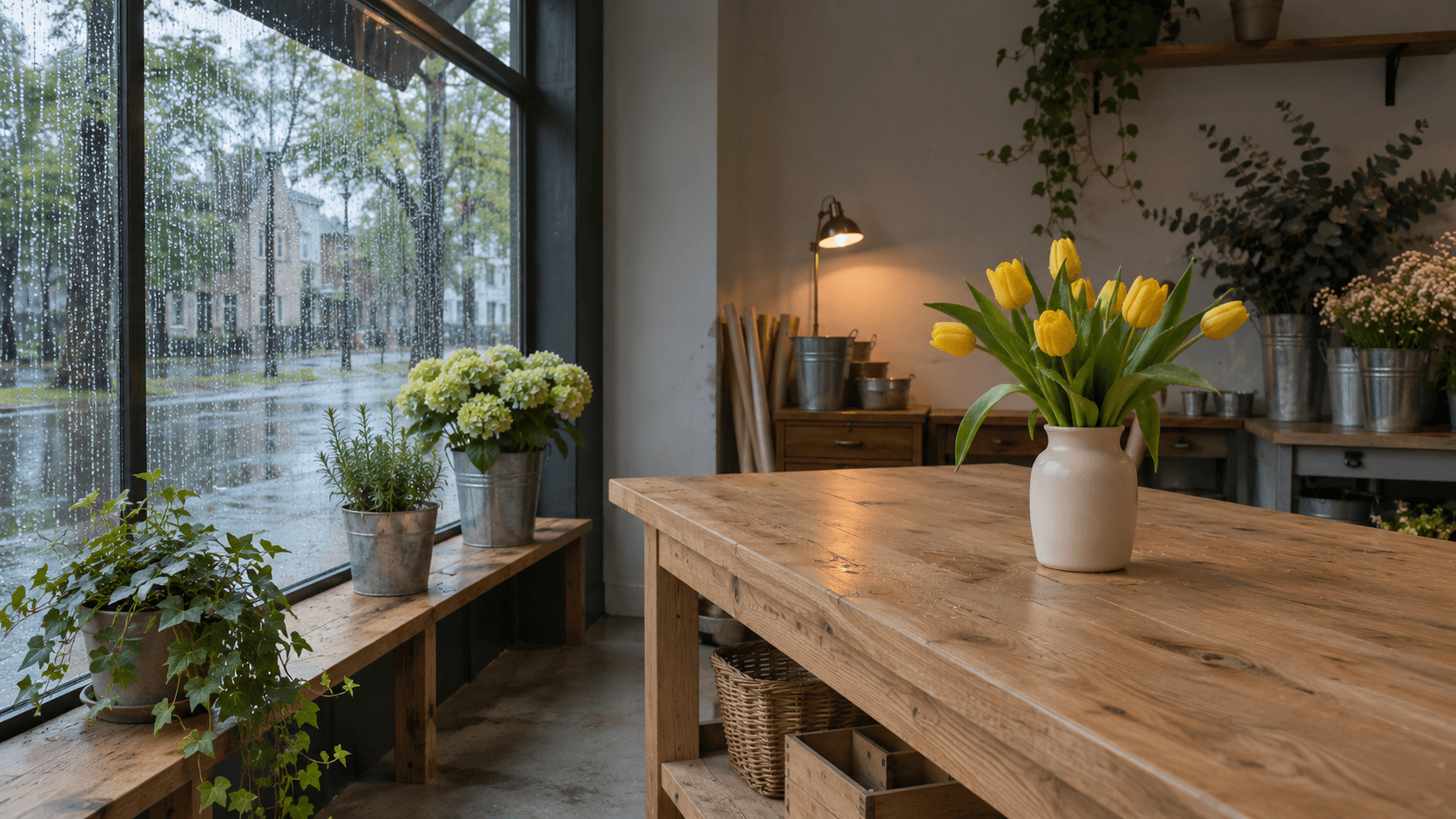
Figure 1. AI-generated scene input prepared for this exercise: rainy window left, oak worktable right and a cream jug of yellow tulips. This is the starting reference, not a Director output.
Fill the list before writing generation prompts
Give every shot a story job
“A cinematic flower shop” describes a setting but leaves coverage unclear. “Establish the shop before showing the bouquet” gives the wide shot a reason to exist. If two rows communicate the same information, decide whether you need both before generating them.
Separate framing, action and camera movement
Write the subject action and the camera action in different fields. A still bouquet can appear in a moving-camera shot. Use one camera movement per short test so a result can be checked against a specific request. In this example, only SL02 asks for a push toward the arrangement.
Record what must survive between shots
List a few visible anchors: window side, jug handle, yellow flowers, table material and practical lamp. Also record an acceptable crop. A close-up can exclude the vase base; a medium shot described as showing the whole arrangement cannot quietly lose it.
Keep generation and approval separate
Use statuses such as Planned, Generated, Review needed and Approved for edit. “Generated” confirms a file exists. Approval requires checking the intended cut, motion and delivery needs. The list becomes a small production record instead of a collection of attractive thumbnails.
Turn the rows into Director candidates in Astorie
On the Astorie canvas, create an Image node, select Astorie Director, enter the shot description and connect the scene image as a reference. For this test Clara used World Auto, Camera Auto, Color palette Auto, 16:9 and 1K. The Lens choices were Wide deep focus, Medium shot and Close-up shallow focus respectively.
The wide output supplied the medium image, and the medium supplied the close-up. This reuses approved scene cues within the project, while each generation still needs inspection. It does not turn a reference into a pixel-identical crop or a guaranteed continuity lock.
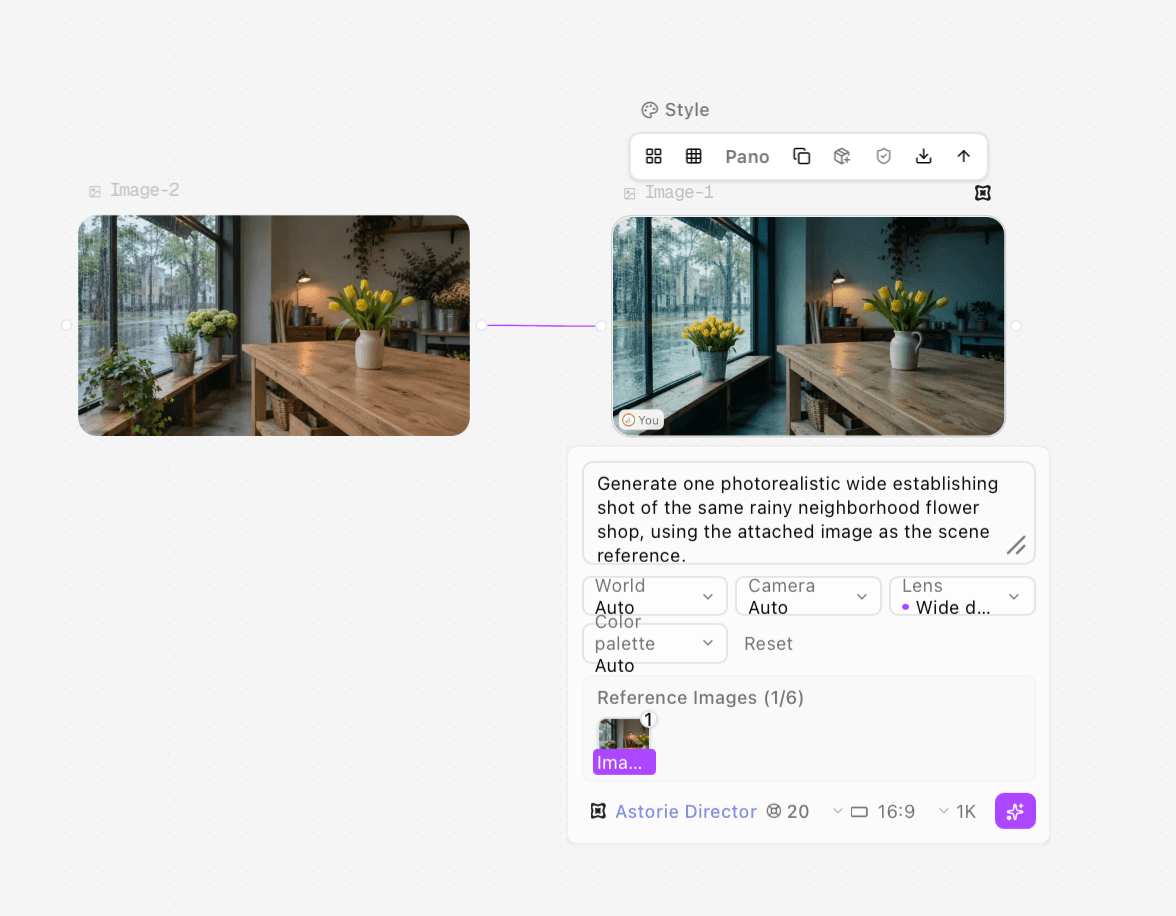
Figure 2. Clara’s completed wide-image node and settings. The full prompt and one-run count were confirmed separately; truncated UI labels are not the complete test record.
Original wide-image prompt used by Clara
Generate one photorealistic wide establishing shot of the same rainy neighborhood flower shop, using the attached image as the scene reference.
Keep the established room layout: the large rain-streaked storefront window on the left, the light oak florist's worktable on the right, and the same cream ceramic jug-shaped vase with its handle, yellow tulips and green leaves on the table. Retain the rear wooden cabinet, small warm lamp and subdued background plants.
Use an eye-level wide composition with deep focus. Show enough of the window, worktable and surrounding interior for the viewer to understand the space before a later medium shot and close-up. Keep the complete vase and bouquet visible with breathing room around them. Avoid a tight crop of the flowers.
Maintain the soft cool daylight through the rainy window, the modest warm glow from the rear lamp, and the natural yellow, green, cream and oak colors. Keep straight architectural lines, plausible furniture, realistic petals and believable materials.
Do not add people, hands, animals, extra main vases, signs, readable text, logos, watermarks, borders or interface graphics. Produce a single coherent image, not a collage or storyboard.
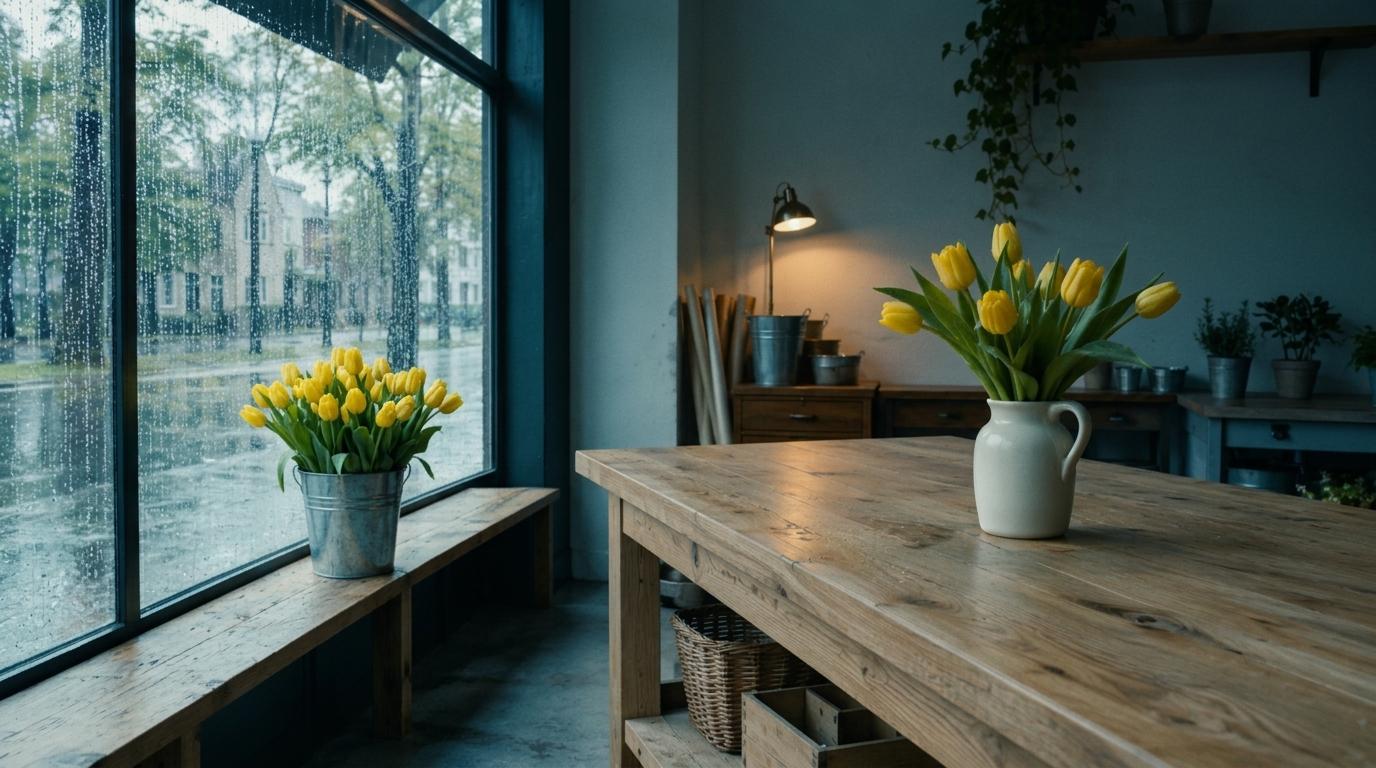
Figure 3. The wide Director image candidate. The window-side flowers changed to yellow, and the room became cooler than the starting reference. These changes were retained in the record.
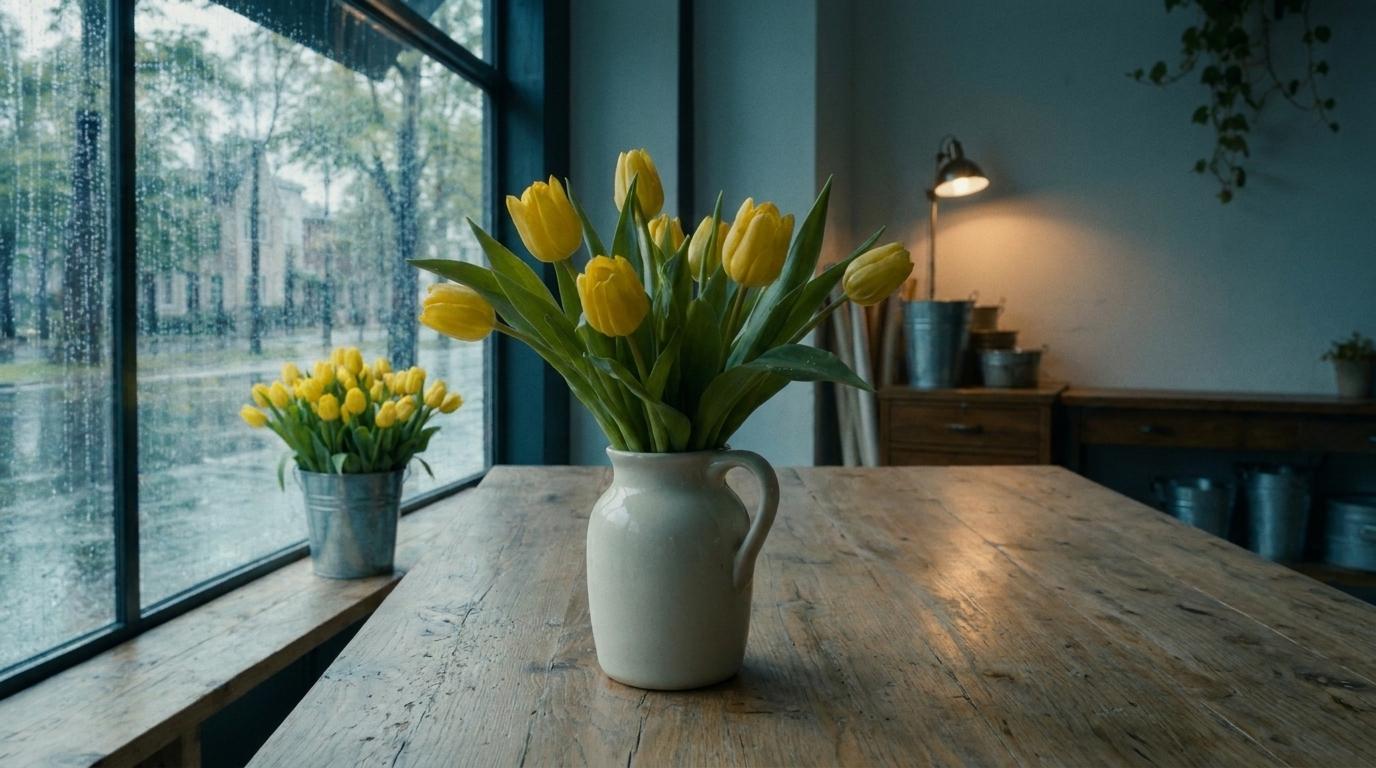
Figure 4. The medium candidate keeps the complete jug and bouquet readable, with a closer viewpoint. Flower arrangement and background relationships vary from the wide image.
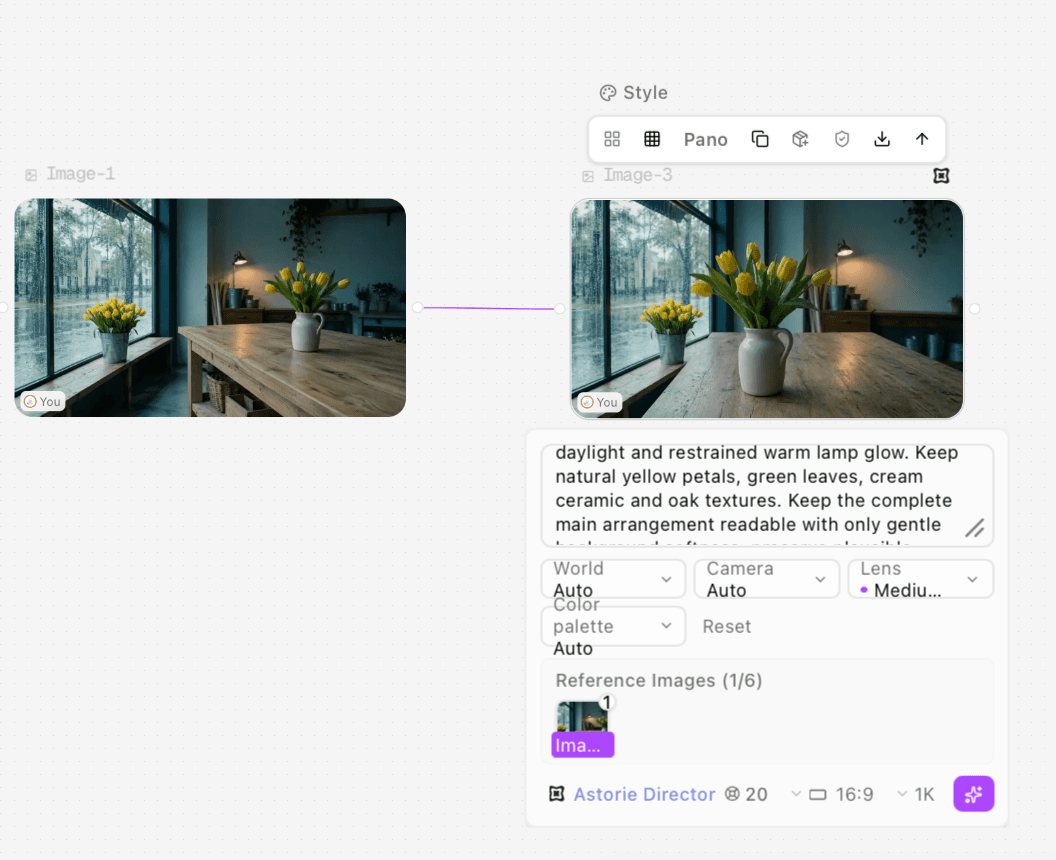
Figure 5. Medium-image settings and the connected wide reference in Clara’s test.
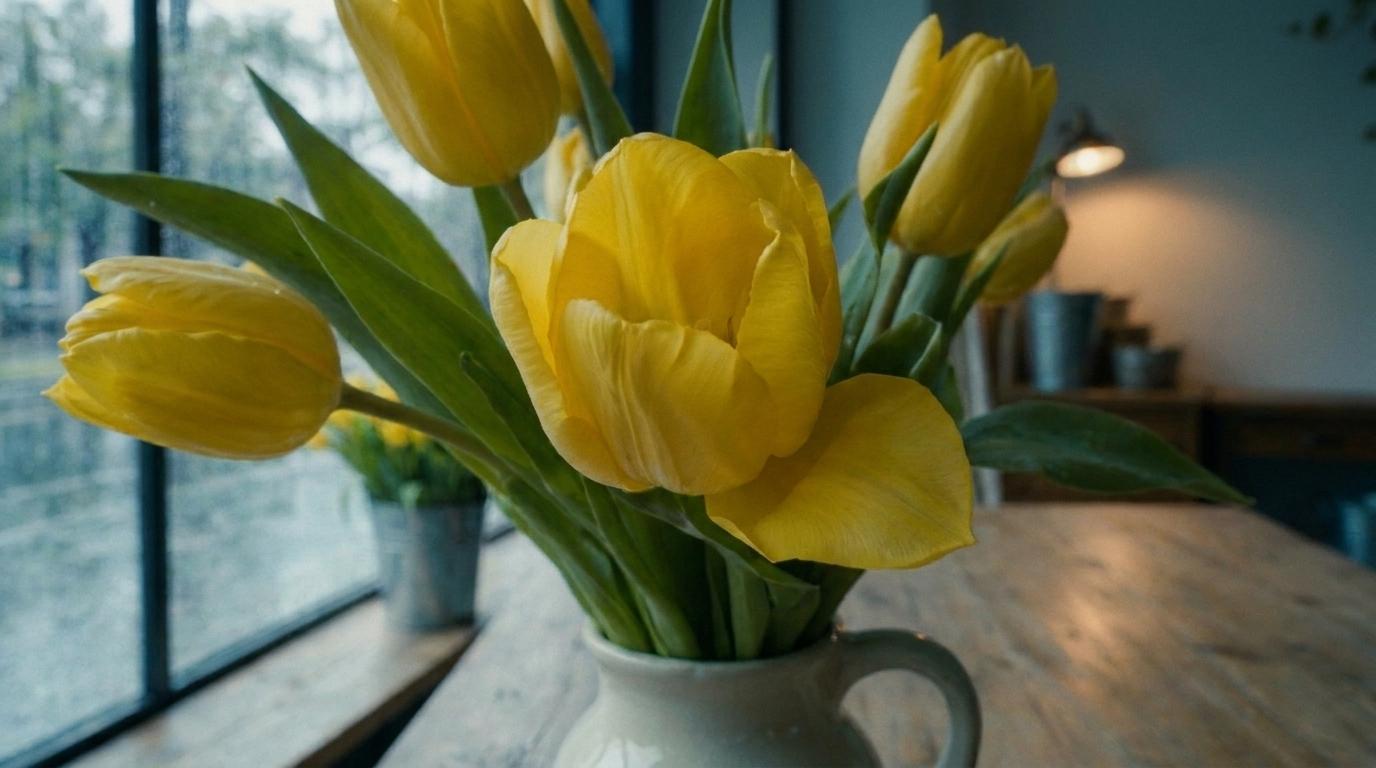
Figure 6. The close-up candidate emphasizes petal texture. The blossom is more open than in the medium image; this is a generated detail view rather than an exact magnification.
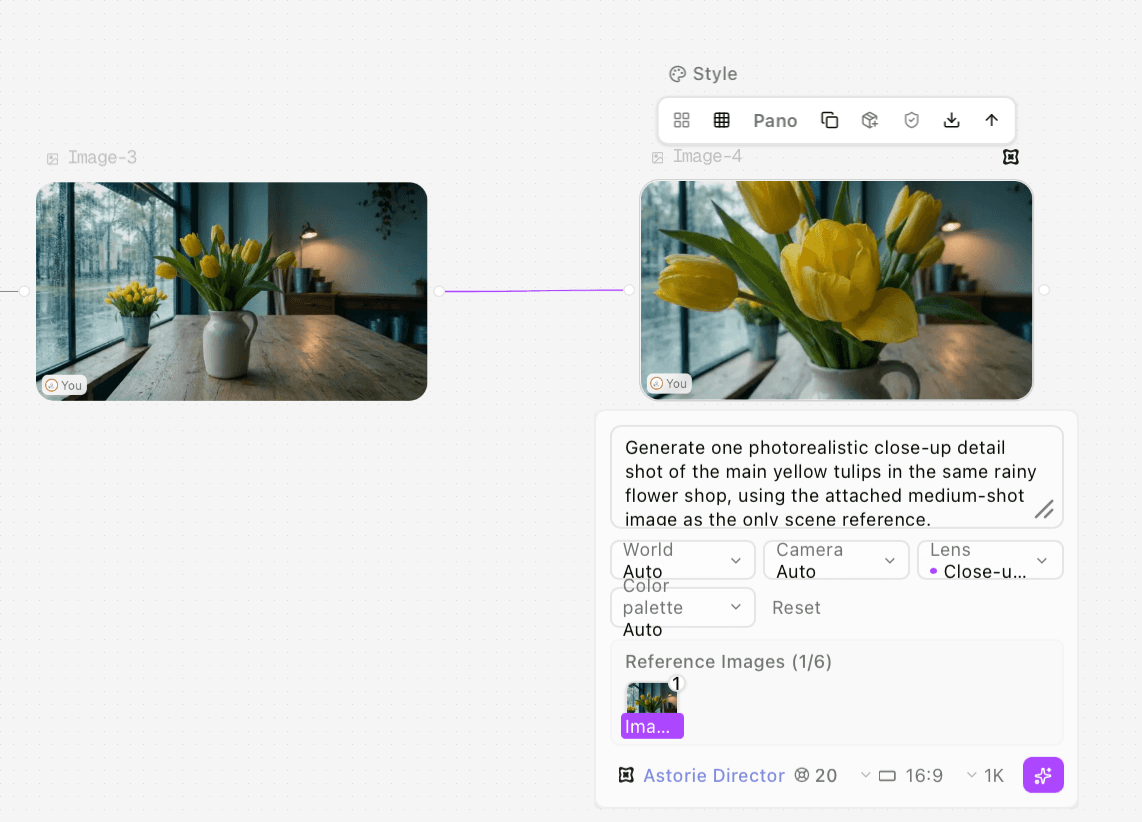
Figure 7. The close-up node uses the medium candidate as its scene reference.
Generate one video for each planned shot
Create a Video node for each selected image and connect that image as the scene reference. In these tests the reference area showed 1/25; the input was not verified as a locked first frame. Select Astorie Director, 16:9, 720p, 5s and Real-time. Keep World, Camera and Color palette on Auto. Match the Lens and Movement choices to the row.
Run once, wait for completion, preview the result, and use the video toolbar’s Download control to keep the complete MP4. Record the displayed quote before running and check any actual charge separately. Here the quotes were 20 credits per image and 165 per video: 3×20 + 3×165 = 555 quoted credits, excluding preparation of the initial reference. Itemized actual charges were not verified.
Original wide-video prompt used by Clara
Create one continuous 5-second photorealistic wide establishing shot of the rainy neighborhood flower shop, using the attached wide image as the scene reference.
Use a locked-off static camera at eye level with a wide, deep-focus composition. Keep the rain-streaked window on the left, the oak worktable on the right, the main cream ceramic jug with its handle and yellow tulips on the table, and the separate galvanized bucket of yellow tulips by the window. Preserve the rear cabinet, small warm lamp, furniture proportions and established spatial relationships.
Keep the indoor scene almost still. Allow only subtle rain movement outside and down the window glass. The main bouquet, jug, tabletop and background objects should hold their shapes and positions throughout the shot. Match the reference's soft cool rainy daylight and modest warm lamp glow, with stable exposure and color.
No camera pan, tilt, push-in, zoom, orbit, reframing or focus pull. No cuts or transitions. Do not add people, hands, animals, new flowers, containers, text, logos or watermarks. Avoid changing the room layout, bending straight lines, morphing petals or making the vase slide.
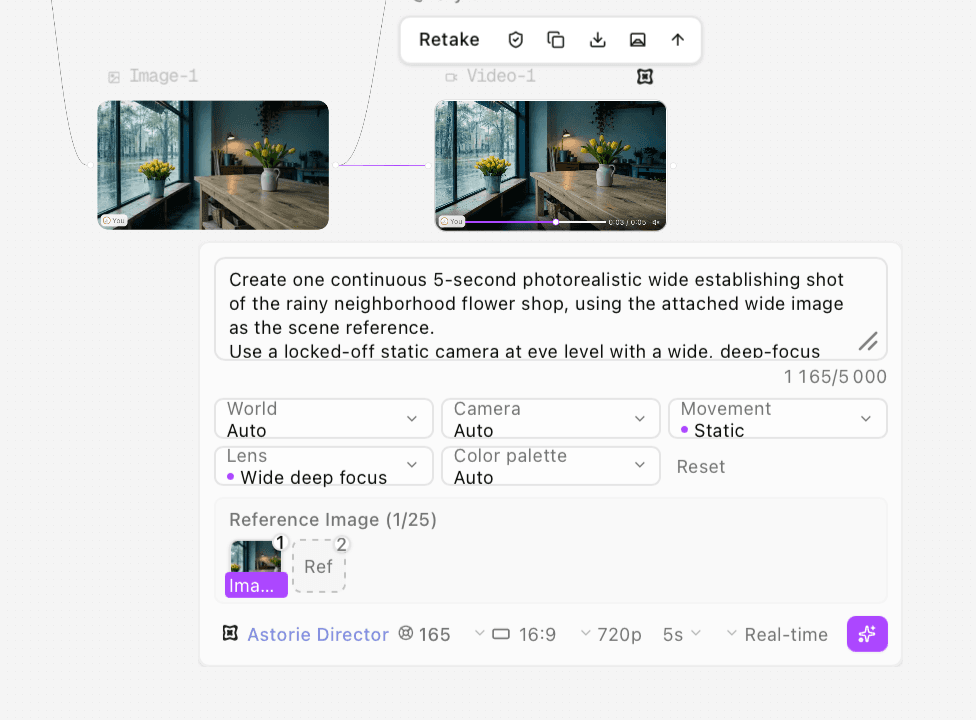
Figure 8. Completed wide-video node: Static, Wide deep focus, 720p, 5s and Real-time.
Wide establishing candidate generated by Clara with Astorie Director from the wide scene reference; complete original output.
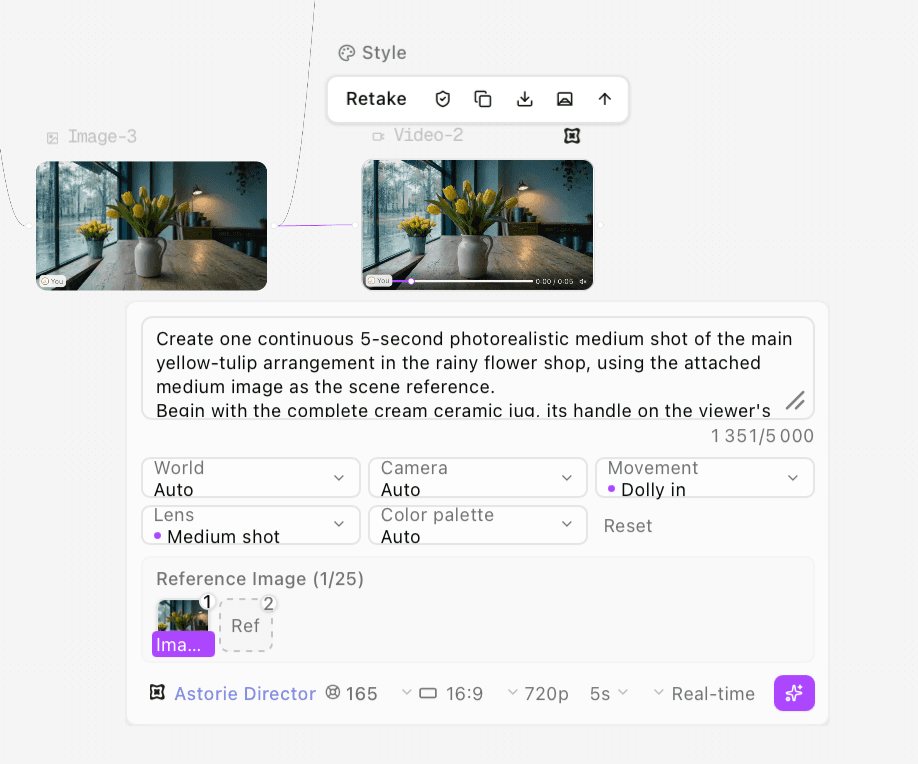
Figure 9. The medium-video node uses Dolly in and Medium shot. The requested complete vase does not remain in frame throughout the output.
Medium push-in candidate. Later sampled frames crop the vase base, so the full-arrangement requirement was only partly met.
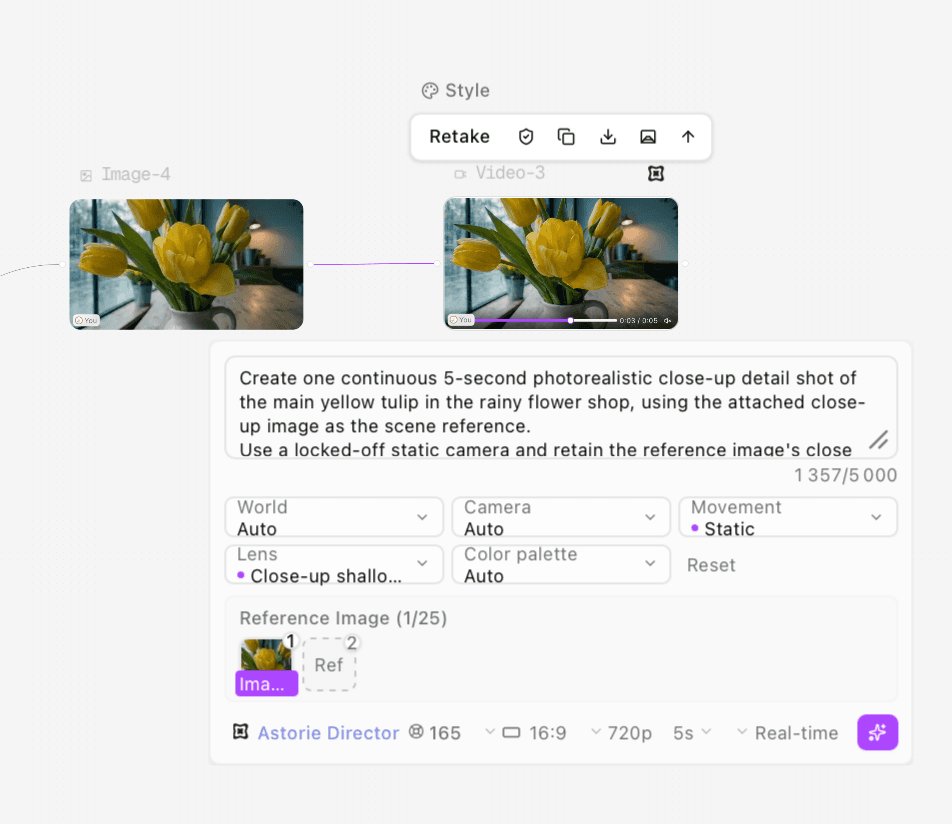
Figure 10. Completed Static close-up video with the close-up image as reference.
Static close-up candidate generated from the flower detail image; complete original output.
Review the list against the actual files
Check the subject at the start, middle and end, then play the full clip before approving a cut. Look for changes in background props, petal shapes, exposure, framing and the direction of attention. Compare neighboring shots together, rather than approving each in isolation.
In the supplied samples, the wide and close-up remain broadly recognizable. The medium push-in tightens enough to crop the vase base later. Approximately 0–1.5 seconds is only an early editing candidate from the sampled frames; exact trim points and a complete sequence have not been approved. Keeping that failure beside the original row makes the next decision specific: choose an earlier section, revise framing, or replace the shot.
For a longer sequence, continue with the guide to planning connected AI video shots. When a useful moment should become a reference for another row, the frame extraction workflow explains how to keep the source moment available. Inspect cross-shot direction and action with the continuity editing checklist and examples.
Where the AI workflow helps
A traditional shot list still defines coverage. In this case the same rows also supplied explicit framing and preservation instructions for image and video nodes. Related inputs and outputs stayed connected on one canvas, so the next shot could reuse a selected reference without rebuilding the brief from scratch.
The test did not automatically execute a spreadsheet, assemble an edit, match audio or measure time saved against a conventional shoot. Selection, continuity review, trimming, sound and delivery remain production tasks.
Frequently asked questions
What should a video shot list include?
At minimum, a stable shot ID, story purpose, framing, subject action, camera movement, input or location, duration target, priority and review status. Add model and prompt versions for AI-generated shots.
How is a shot list different from a storyboard?
A shot list describes the required coverage in rows. A storyboard visualizes those shots. A reference image can accompany a row, but it does not replace action, movement or approval requirements.
Should every AI shot use the same prompt?
Reuse the scene anchors, then specify the job of each shot separately. A wide establishing shot and a close-up need different framing and preservation instructions.
Can one prompt finish the whole shot list?
That was not tested here. Clara generated three images and three separate videos, with one run per generation, then the files were reviewed as candidates.
Test method and sources
Clara supplied the six Director outputs and setting screenshots and confirmed that each full supplied prompt was used unchanged, once. Files were received and checked on November 17, 2026; the exact generation timestamps were not independently logged. Director’s underlying model version was not exposed. The three videos are H.264, 1280×720, 24 fps and about 5.042 seconds each, with 121 decoded frames and one audio track per file.
All frames decoded without a reader error. Eleven stills per video were inspected at half-second intervals. This checks sampled visual content, not uninterrupted motion, brief flicker, audio content or final edit quality; no full-speed or audio listening review was performed. The initial scene image was prepared with a built-in image tool whose version was not returned.
For general shot-planning context, see StudioBinder’s video shot list guide. The template and filled example above were prepared for this article; the workflow observations come from Clara’s supplied files.
Ready to try it on the canvas?
Open Astorie and fan your prompt across every frontier model in one workflow.