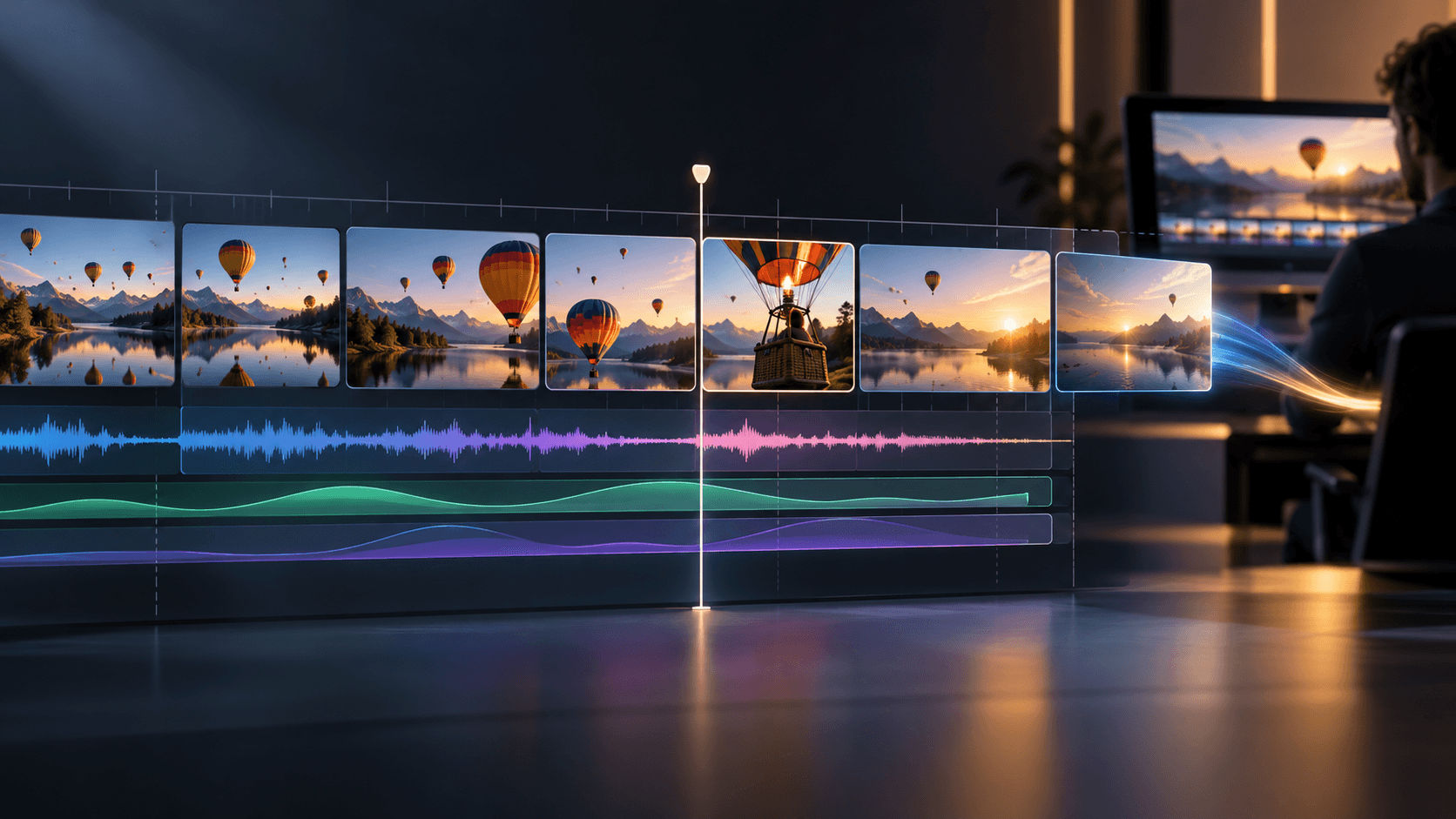
Workflow

AI Video to Premiere Pro on Astorie

Adobe Premiere Pro is the editor's home — Astorie's canvas is the upstream factory that feeds it. Generate, sequence, and export AI shots at clean frame rates and editor-friendly codecs, then drop the bundle straight into Premiere's bin without a transcode round-trip. Astorie exports MP4 and MOV; the editor does the actual cutting in Premiere.

What this feature solves

Editors working in Adobe Premiere Pro have a precise expectation for incoming media: standard frame rates (23.976, 24, 25, 29.97, 30, 60), editor-friendly codecs (H.264 for proxies, ProRes for masters), and clean Sequence Settings that match the timeline. Most AI video tools spit out an MP4 at whatever frame rate the model picked and whatever codec the platform compressed it to. The editor opens the file in Source Monitor, sees the mismatch, and either transcodes through Adobe MediaEncoder or re-conforms in the timeline — either path costs hours and degrades the file.

The other break is workflow continuity. Editors live in Premiere — bins, Source Monitor, Project panel, sequence presets, MediaEncoder presets, scratch disks, and proxy workflows are all part of how a real cut comes together. AI video tools that treat their MP4 as a final dead-end ignore everything that happens after that file is saved. The editor has to import, conform, color-tag, label, and organize before cutting can start. For a thirty-second spot with eight AI shots, the prep work alone can swallow the morning.

And there is the iteration loop. Editors revise. The director changes the cut, asks for a different shot, asks for a re-time, asks for a longer or shorter beat. If the AI source lives in another tool, the iteration costs another download, another transcode, another re-import, another conform. The editor's revision velocity collapses to whatever the AI tool's turnaround is, which is unacceptable in a real production where the editor is the rhythm-keeper of the project.

Why Astorie is different

Astorie exports MP4 and MOV at frame rates and codecs Premiere Pro opens natively. NLE export packages 23.976, 24, 25, 29.97, 30, and 60 fps options at H.264 proxies or ProRes-friendly masters. Drop the bundle into a Premiere bin and the Source Monitor opens cleanly. Sequence Settings match the timeline because the export already reflects the spec the editor chose. No MediaEncoder pre-pass, no transcode, no codec mismatch dialog. The factory floor speaks Premiere's language directly.

Sequence builder respects edit order. Build the cut on the canvas in shot order; the export delivers a numbered bundle the editor can drag into the bin and assemble in seconds. Each clip carries clean metadata — duration, frame rate, codec — so Premiere's clip identification works without manual rename. The bin organizes itself the way an editor expects rather than the way an AI tool happens to dump files. That detail matters at scale: a campaign with thirty AI shots becomes thirty bin entries, not thirty unidentifiable filename hashes.

Iteration stays tight. When the editor needs a re-time, a different shot, or a longer beat, Astorie handles the change on the canvas — swap the source video node, regenerate the shot, re-export — and the new file lands at the same spec. The editor relinks (or just re-imports) and the timeline updates. Revisions stay inside Adobe's tooling rather than bouncing through MediaEncoder. The result: AI video that fits an editor's day, not the other way around.

Common use cases

Adobe creative team adopting AI video for client spots

Generate AI cuts on Astorie, export NLE-ready, and drop into the existing Premiere project without rewriting the post pipeline.

Solo editor producing AI-driven social cuts

Build the rough cut on the canvas, export to Premiere, finish with the editor's usual tools (Lumetri, Essential Sound, Effects Controls).

Mixed live-action and AI shot list

AI shots from Astorie and live-action footage from set live in the same Premiere bin at matching specs, ready for a unified timeline.

Director revisions land back into the same Premiere project

When the director asks for a different take, regenerate the canvas node, re-export, and relink in Premiere — no project rebuild.

Proxy and master workflow for high-volume cuts

Export H.264 proxies for cutting and ProRes masters for finishing, both at the same frame rate, both ready for Premiere.

Adobe agency rolling AI into existing client workflows

Plug Astorie into the agency post pipeline so AI video flows through the same Premiere → Audition → After Effects chain the team already uses.

Recommended model stack

How the workflow works in Astorie

  1. 1

    1. Build the AI shot list on the canvas

    Create a video node per shot, wire references into the shots that need them, and pick the right model per shot type. The canvas mirrors the editor's shot list.

  2. 2

    2. Lock frame rate and aspect ratio per the Premiere project

    Match the spec the editor configured in Premiere's Sequence Settings. Common picks: 23.976 fps for cinematic, 29.97 fps for broadcast, 30 fps for streaming, 60 fps for sports and motion-heavy edits.

  3. 3

    3. Generate, fan out for hero shots, pick winners

    Run the canvas. For hero shots, fan out across multiple engines and pick the take that fits the cut. For repetitive shots, generate once and move on.

  4. 4

    4. Sequence the cut on the canvas

    Drag winning takes into the sequence builder in cut order. The sequence carries metadata Premiere will read on import.

  5. 5

    5. NLE export to MP4 or MOV at the editor's spec

    Choose H.264 for proxies or ProRes-friendly MOV for masters. Set frame rate and codec to match the Premiere project. Bundle exports preserve cut order.

  6. 6

    6. Import the bundle into Premiere and start cutting

    Drop the bundle into a Premiere bin. Drag onto the timeline. Source Monitor opens cleanly. Begin editing using Lumetri Color, Essential Sound, and the editor's usual finishing tools.

Example workflow

An Adobe-shop ad agency is producing a fifteen-second beverage spot. The lead editor configures a Premiere Pro project at 23.976 fps, 16:9, ProRes 422 master format. The creative team builds an Astorie canvas with one Sora 2 establish, two Seedance 2 product macros, one Kling 3 push-in on the can, and one Veo close-up on the talent's hand. They fan out the establish across two engines for safety, pick the Sora take, and lock the cut on the canvas in shot order. NLE export packages the sequence as five MOV files at 23.976 fps ProRes 422. The editor drops the bundle into the Premiere bin, drags onto the timeline in shot order, opens Lumetri for color, drops the talent VO into Essential Sound, and finishes the spot in two hours. No transcoding, no relinking, no Sequence Settings dialog wrestling.

Tips and common mistakes

Tips

  • Match Premiere's Sequence Settings before exporting. Frame rate and codec mismatch is the single biggest workflow tax.
  • For drafts and rough cuts, export H.264 proxies; for finishing, export ProRes masters. Both work in the same Premiere project.
  • Label canvas video nodes the way you want them labeled in the Premiere bin. The export carries the labels through.
  • Use the canvas as a director-review playground; only NLE export the takes that survive director sign-off.
  • When the director asks for a re-take, regenerate the canvas node and re-export. The Premiere project relinks against the new file.

Common mistakes

  • Exporting at default model frame rate without checking Premiere's Sequence Settings. The mismatch forces a conform.
  • Downloading raw MP4 instead of using NLE export. Raw MP4 forces a MediaEncoder transcode before Premiere will respect it.
  • Skipping the sequence builder. Loose MP4s in random order force the editor to manually order the bin.
  • Re-rendering at higher resolution after the cut is locked. Iterate at draft, then upscale chosen masters before export.
  • Treating the AI canvas as an island. The point is editor handoff — design every step on the canvas with the Premiere bin in mind.

Related how-to guides

Related models and tools

Related features

Related docs

Related reading

Comparisons

Frequently asked questions

Does Astorie directly integrate with Adobe Premiere Pro?

Astorie exports files (MP4 and MOV) at frame rates and codecs Premiere Pro opens natively. There is no extension or panel inside Premiere — the integration is at the file level, designed so the editor can drop the bundle into a bin and start cutting without a transcode pass.

What frame rates and codecs does the export support?

Standard frame rates: 23.976, 24, 25, 29.97, 30, 60. Codecs: H.264 for proxies and rough cuts, ProRes-friendly MOV for masters. Match Premiere's Sequence Settings before exporting and the timeline accepts the bundle without conforming.

Can I drop an Astorie export onto a Premiere timeline directly?

Yes. Import the bundle, drag onto the timeline. Source Monitor opens cleanly, Lumetri reads the file, Essential Sound respects the audio embed if present, and Effects Controls behave normally. Standard editor flow from there.

How do I handle director revisions across the canvas and Premiere?

Regenerate the affected canvas node, re-run NLE export with the same spec, relink (or re-import) in Premiere. The Premiere project rebuilds automatically against the new file. No need to rebuild the timeline.

Can I mix AI cuts with live-action footage in the same Premiere project?

Yes — that is the intended workflow. Match Premiere's Sequence Settings on both AI export and live-action ingest, and both clips coexist in the same bin and timeline at matching specs. Color matching happens via Lumetri the same way it would for any cross-source project.

How is this different from generic AI video tools?

Generic AI tools dump an MP4 with whatever frame rate the model picked. Astorie's NLE export targets Premiere Pro's expected ingest spec from the start. The factory floor is built to feed the editor's timeline, not to deliver a stand-alone clip in isolation.

Build it on the canvas

Open Astorie and wire this workflow up in minutes. Free to start — no card required.

This website uses cookies

We use basic cookies and product analytics to keep Astorie secure, remember preferences, and plan long-term improvements. You can also allow full marketing tags.

Read more