

How to Create AI Furniture Product Photos
AI-generated editorial cover illustrating furniture photography; the generic chair is conceptual, not the tested Duvivier Serge model.
Create AI furniture product photos by starting with the real furniture photograph and verified dimensions, producing a clean catalog view and a separate room scene, then checking structure, perspective, floor contact and material appearance. Treat a generated room as a visual candidate; it does not measure the product or prove that it fits a real space.
AI Furniture Product Photos Need Dimensions and a Reference
Record the model, furniture type, finish, dimensions and source view before generating. Keep dimensions from the manufacturer’s correct model row, not a neighboring sofa, bench or pouf in the same collection. For a finish-sensitive listing, obtain an approved material reference rather than inventing a leather or fabric name from a photograph.
Clara’s example is the Duvivier Canapés Serge Fauteuil Club by Pierre Gonalons. Its official page describes an Art Deco and 1970s-inspired interpretation of the Chesterfield. The armchair row lists 96 cm horizontal length, 79 cm depth and 70 cm height. The same page also lists sofas and other pieces; those measurements are not interchangeable. [1]
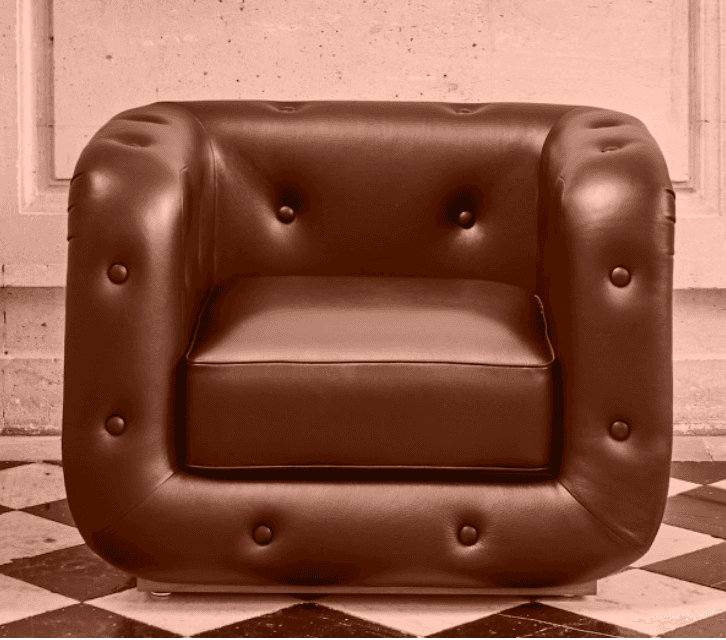
Figure 1. Original brown leather armchair reference used by Clara. The photograph establishes the visible configuration, not a named leather colorway.
Use an authorized original that shows the complete chair, including the base and visible feet. Photograph the front, back, side and upholstery detail when those views are needed. If the input has soft detail or cropped feet, supply a better real photograph before treating a larger generated image as a construction reference.
Prepare two briefs. The catalog brief should make the product easy to inspect on a simple surface. The room brief should explain the intended environment and composition. If you later need measured room planning, use a surveyed room and a dimensioned asset or scale drawing in an appropriate planning tool. A reference prompt alone does not establish physical scale.
Build the Furniture Workflow in Astorie
1. Create the project and branch from the original
Choose New Project in Astorie and name it for the product and scene. Add an Image node, upload the armchair photograph, then add a separate Image node for generation. Connect the source image output to the generation node’s image input. Astorie documents this single-reference image-to-image route and the relevant generation controls. [2, 3]
Clara’s studio case connected Image-31 to Image-33. The room case also used original Image-31, connected to Image-34. Keep the same original upstream when exploring a different setting so you can inspect each candidate against the real chair. Do not silently turn a regenerated studio chair into the source for every later scene.
2. Set the intended ratio in the panel
Both retained requests show GPT Image 2.5 as the model label in Astorie, Flare mode, Extra high quality, Auto background, the 2K option, PNG and one result. This records the interface used in the tests, not an independently verified provider API version.
The studio export is 4:3 at 2048 × 1536 pixels. The room export is 16:9 at 2048 × 1152, despite an earlier suggested 4:3 brief. Use the actual ratio and downloaded file dimensions in the asset record. For a product tile, protect the whole chair; for a wide room image, decide where the product and any website copy need to sit before running.
3. Generate a clear catalog candidate first
Request the photographed angle, complete furniture and a neutral setting. Ask for soft light that reveals the upholstery and a short contact shadow. Avoid a low-key scene that hides the base or language that encourages extra buttons, exaggerated leather grain or a deeper cushion.
Untested example prompt to adapt:
Create a clean catalog photograph using the uploaded armchair photograph as the product reference. Preserve its visible silhouette, rounded arms, cushion arrangement, front button positions, seams, base and feet. Keep the photographed angle and brown leather appearance. Use a pale neutral seamless background, broad soft light and a restrained contact shadow. Do not invent hidden construction, add cushions or change the upholstery. No extra furniture, props, people or text. Keep the complete chair fully inside the frame.
4. Run, inspect and download the studio file
Check the connected thumbnail, model, ratio and displayed quote, then click Generate or the run control shown in your node. Wait for a completed result, open it at full size and use Download in the result controls to save the PNG. Keep the source and settings screenshot beside that file. [3]
The test panels display 35 beside the credit icon. That is the recorded quote, not a verified debit or a universal current rate. Save your actual account charge if you need production accounting. If a run fails, check the file and selected node’s accepted inputs before another attempt, and preserve any error message.
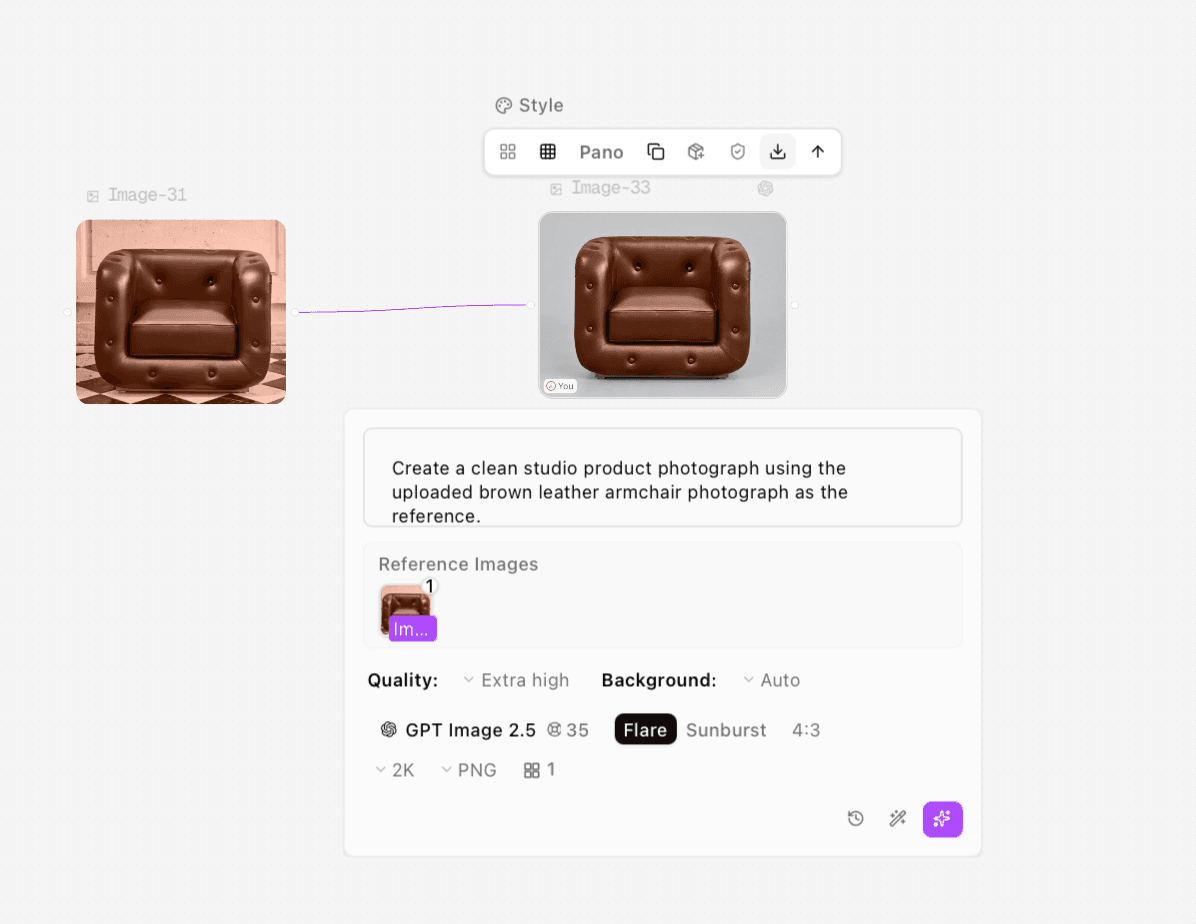
Figure 2. Clara’s studio request connects the original chair to the generation node with 4:3 settings visible.
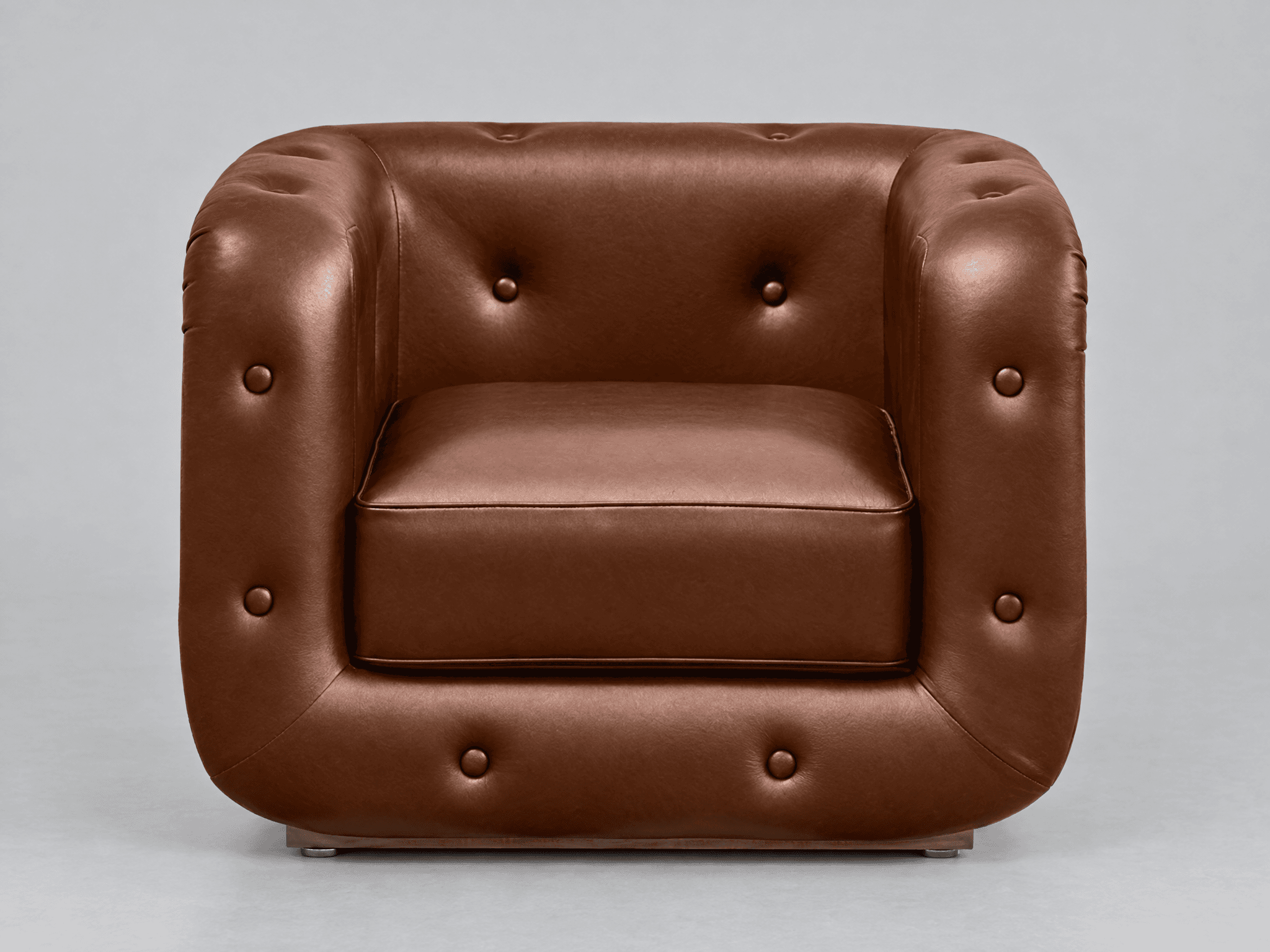
Figure 3. Studio export, 2048 × 1536 pixels. The chair is complete, while leather grain, highlights and base detail need comparison.
Build a Room Scene Without Confusing Mood With Scale
For a room candidate, describe the floor, wall, light direction and camera position. Keep the chair unobstructed so its arms, cushion and base remain inspectable. Supply the official dimensions as planning context if useful, but do not treat those numbers in a prompt as a measurement constraint that has been verified in the output.
Untested example room prompt to adapt:
Create a restrained living-room scene using the uploaded original armchair photograph as the product reference. Keep its visible structure, upholstery, seams, cushion and feet consistent with the source. Place the complete chair on a continuous wood floor against a quiet plaster wall, with soft window light and a believable floor-contact shadow. Use a natural eye-level three-quarter composition without extreme wide-angle distortion. Keep the chair unobstructed. No other furniture, rugs, props, people, text or added cushions. Treat supplied dimensions as planning context, not proof of measured scale.
Use a separate node and reconnect the original chair. Select the wide ratio in the settings if your placement calls for it, then repeat the same run, inspection and download process. Save this as a room candidate, not a measured room-fit rendering.
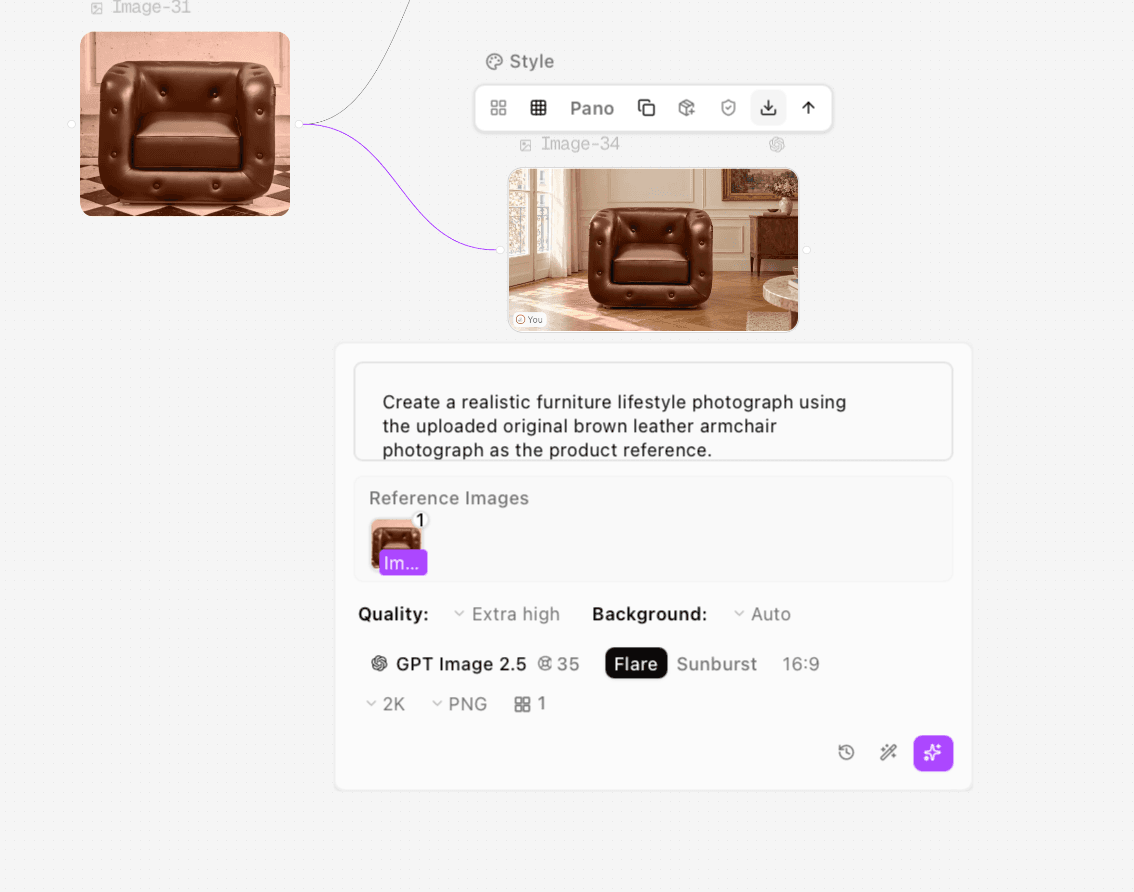
Figure 4. Clara’s room request also uses the original chair. The actual selected ratio is 16:9.
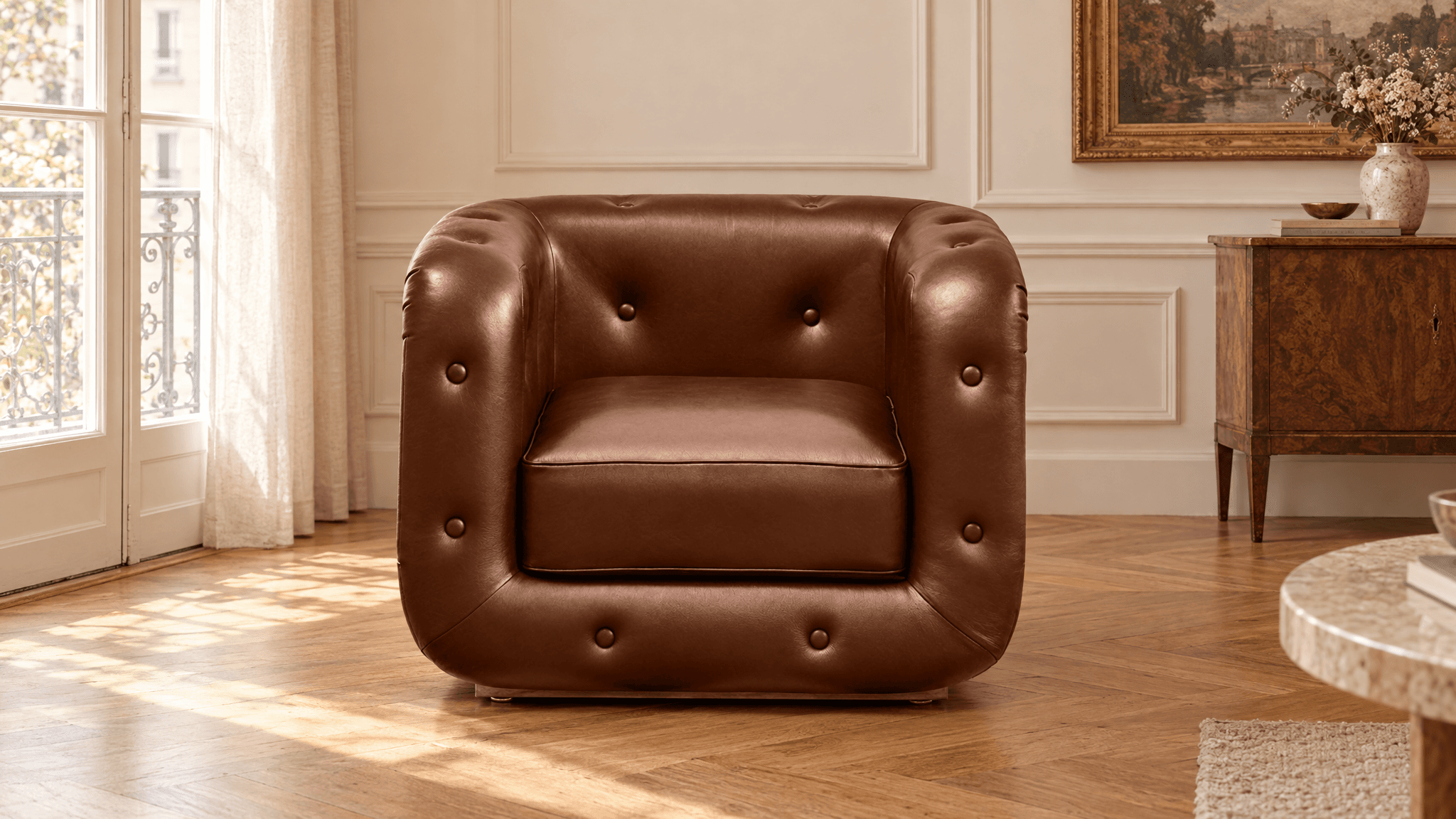
Figure 5. Room export, 2048 × 1152 pixels. Floor contact is visually plausible, but the output adds furniture and decorations outside the requested scope.
Clara’s studio output retains a recognizable rounded-arm silhouette, single cushion and main front buttons. Leather grain and highlights are stronger, and base or foot detail is more explicit than the source. It remains a candidate requiring product review rather than an approved replacement for a construction photograph.
The room output has qualitatively plausible grounding and floor perspective. It also adds a sideboard, part of a coffee table, a rug and decorations despite the brief’s request against extra furniture. Therefore, the supplied room case does not demonstrate full prompt compliance. No surveyed room, measured prop or dimensioned placement was tested, so its apparent scale is not validated.
Check Structure, Perspective and Material in That Order
Check | Practical comparison | Approval boundary |
Structure | Count cushions, visible buttons, arms, seams and feet against the source | Reject invented or removed parts. |
Proportion | Compare silhouette and relative part positions in a similar view | Do not convert perspective pixels into product centimeters. |
Perspective | Review floor lines, chair orientation and plausible camera viewpoint | Reject twisted bases or a chair that disagrees with the floor plane. |
Contact | Inspect feet, base shadows and nearby occlusion | Reject floating contact or shadows implying a different support surface. |
Material | Compare color appearance, grain, seams and highlights | Reject a new fabric or leather finish; use real detail photos for material proof. |
Scene scope | Look for added furniture, objects or hidden product areas | Remove or reject additions that conflict with the intended scene. |
Review the export at 100% and again at its intended page size. A photograph can look persuasive in a thumbnail while a foot merges with the floor at full size. Conversely, a plausible chair-to-rug relationship is only a visual check when neither rug nor room has a verified size.
If actual fit matters, compare the real product dimensions with measured room clearances. Use a dimensioned plan or a correctly scaled model for that decision. Publish verified dimensions in product copy or an accurate graphic, keeping them separate from an unmeasured lifestyle image.
Finish the Asset Set and Handle Revisions
Use an accurate catalog photograph for product identity, real detail images for upholstery and construction, and a reviewed room image for context. Name masters by model, view, scene and revision, then create web derivatives separately. Preview crop and focal point in the destination page so responsive layouts do not cut off the chair’s base or arms. See Astorie’s product photography guide for the general reference workflow.
If the chair structure changes, return to the original and a simpler composition. If extra furniture appears, tighten the scene brief or build an empty background separately and composite the original chair on a protected layer. Match the photographed chair’s viewpoint and light direction to that background; inspect edges and contact shadows afterward. This fallback and the suggested room template were not retested in the supplied cases.
If the problem is scale, repeating a dimension in the prompt is not a measurement method. Move that task into a dimensioned planning workflow. Keep any new generated scene as a separate revision and approve its product and environment again before publishing.
FAQS
Can AI show whether a chair fits my room?
A generated scene can help explore a look, but it does not prove fit. Measure the room, use verified furniture dimensions and check clearances in a dimensioned plan or scaled model.
Can I change the leather color and call it another available finish?
Only use a finish name and image supported by the actual product offering and an approved reference. A synthetic recolor does not establish the appearance of a physical finish.
Why did the room image add furniture despite the prompt?
The inspected output did not fully follow that restriction. Review a new revision or use a separate background and protected product layer; no successful removal rerun is claimed here.
Should catalog and room images use the same ratio?
Choose the ratio for each placement while maintaining a consistent product appearance. The documented catalog file is 4:3 and the room file is 16:9; check derivatives and responsive crops before publication.
Ready to try it on the canvas?
Open Astorie and fan your prompt across every frontier model in one workflow.