

How to Create AI Jewelry Product Photography
AI-generated editorial cover illustrating jewelry photography; the unbranded ring is conceptual, not the tested Henri Privat product.
Create AI jewelry product photography by starting with a clear photograph of the real piece, changing one scene brief at a time, and checking the metal, stone and setting against the original before publishing. Use AI to explore presentation; retain real close-ups wherever a buyer needs exact construction or gemstone detail.
AI Jewelry Product Photography Starts With the Real Piece
A useful jewelry image must identify the piece as well as flatter it. For a ring, that means the band profile, shoulder structure, setting outline and visible stone arrangement. For earrings, check the pair and fastening; for a necklace, check the links, pendant and attachment points. Choose the photograph that actually shows the feature you want to sell.
Clara tested two studio directions using a Henri Privat Bague Grenat Ovale reference. The official product page identifies this ring as BAE109, with 18K gold and a natural oval garnet measuring 9 × 7 mm. Those are manufacturer specifications, not measurements recovered from the generated images. [1]
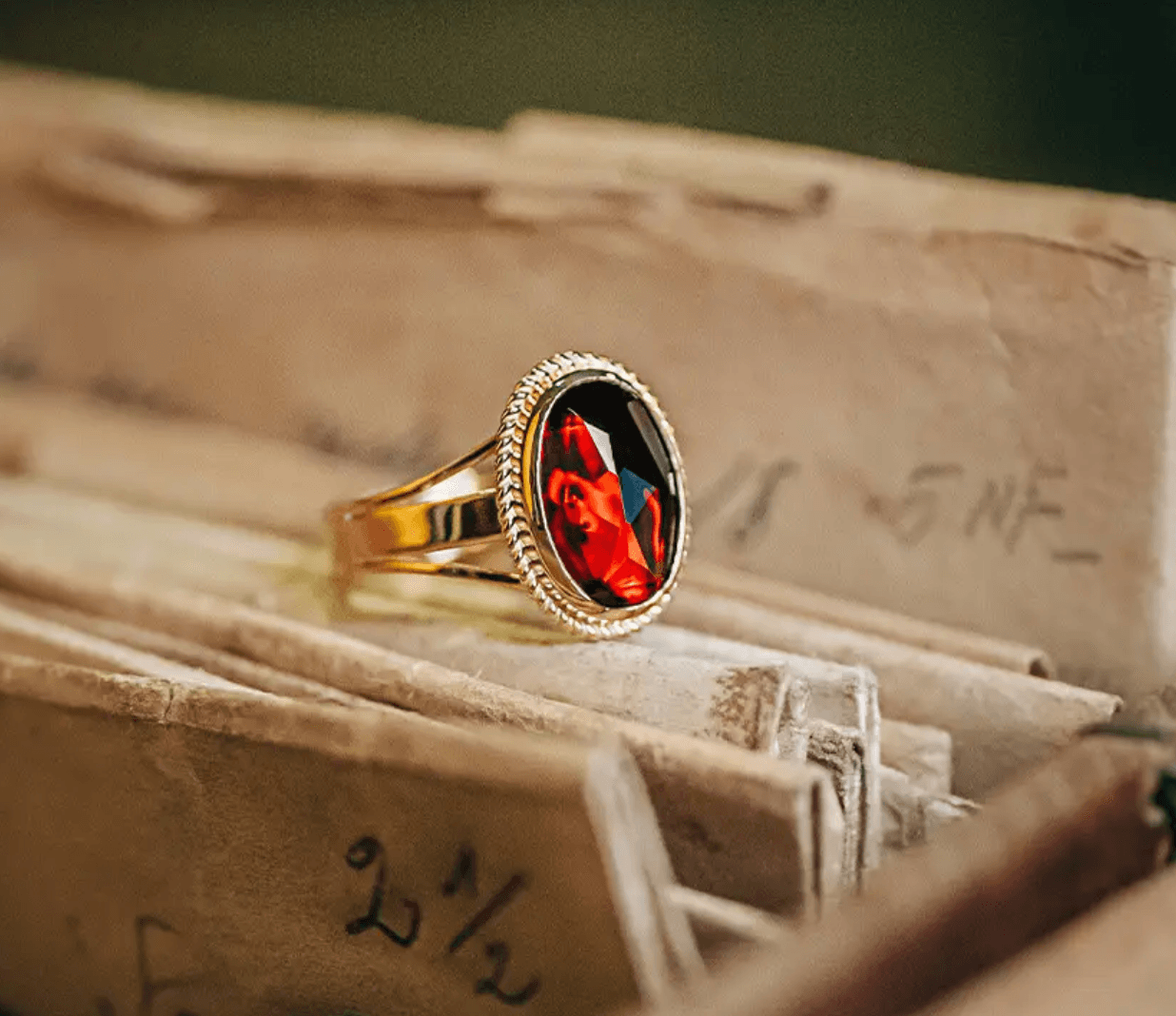
Figure 1. Original ring reference supplied for Clara’s Astorie test. The small product area limits the fine detail that can be checked.
Prepare an identity sheet before generating: reference filename, SKU, metal, stone count and shape, setting type, and the photographed view. Keep commercial-use permission with your source records. A manufacturer photograph is a useful reference only when you have permission for the intended use.
If the product occupies a small part of the source, obtain a sharper original or photograph a closer view. A larger generated file may look more detailed while adding information the source never captured. Do not use that added detail to describe a hallmark, stone quality or an unseen setting.
Build the Jewelry Workflow in Astorie
1. Create a project and keep the original upstream
Open Astorie, choose New Project, and give it a name such as “BAE109 studio candidates.” Add an Image node from the canvas controls or double-click the canvas and choose Image. Upload the original photograph into the source node. Add a separate Image node for generation and connect the source image output to its image input. Astorie’s Image Node documentation describes this single-reference image-to-image route. [2, 3]
Rename the source and each candidate so their roles are clear. For the first test, Image-16 fed Image-17; the dark alternative used the same Image-16 source and fed Image-18. Returning to the original makes it easier to see what each request changed.
2. Select the model and a restrained starting setup
Clara’s retained interface shows the model label GPT Image 2.5, mode Flare, quality Extra high, background Auto, the 2K option, PNG and one result. The tested ratio was 1:1, and both exports are 2048 × 2048 pixels. GPT Image 2.5 is the label recorded in this Astorie interface; this guide does not equate it with an independently verified provider API version.
Use those settings as a documented starting point if they are available in your account. Choose the ratio in the panel, then check the downloaded dimensions. The word “square” in a prompt does not replace the ratio control. Keep the complete top and base of the piece in frame, with enough space for a catalog crop.
3. Brief the light around the material
Describe a broad, soft light for the first catalog candidate, a neutral surface and a short contact shadow. Ask for visible metal edges without turning gold into a uniformly yellow shape. On the gem, ask for believable reflections without added sparkle rays or extra stones. These are photographic directions, not guarantees of faithful material rendering.
Untested example prompt to adapt:
Create a studio product photograph using the uploaded jewelry photograph as the reference. Keep one complete piece in the same viewing angle. Preserve the visible band profile, split shoulders, oval stone, setting outline and metal tone shown in the source. Place it on a warm ivory surface with a seamless neutral background, broad soft light and a short grounded shadow. Do not add stones, engraving, sparkle effects, props or text. Do not invent details that are unclear in the source. Keep the whole piece inside the frame.
4. Generate one candidate and inspect the file
Check the connected thumbnail and prompt, review the displayed credit quote, then click Generate or the run control shown in your node. Wait for a completed result; an error or a node preview alone is not an approved photograph. Open the result at full size before choosing Download in the result controls. Keep the original PNG as your review master. [3]
The retained panels show 35 beside the credit icon. That is a displayed quote in these tests, not a verified debit or a current universal rate. If you need a budget record, capture the quote and your account’s actual charge record separately for every run. Do not assume an unwanted result is free to replace.
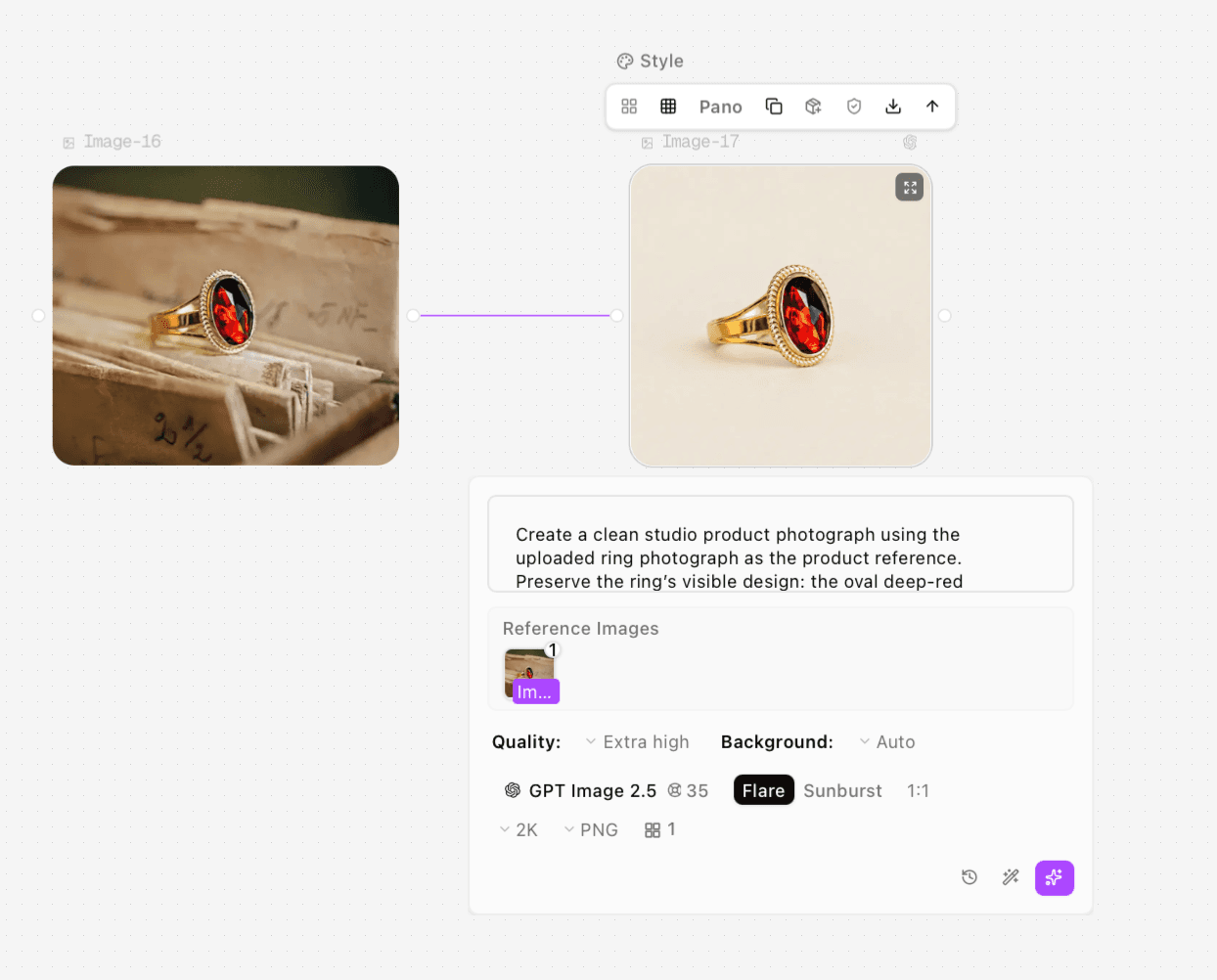
Figure 2. Clara’s ivory-background request in Astorie: the original ring is connected to the generation node, with the selected model and settings visible.
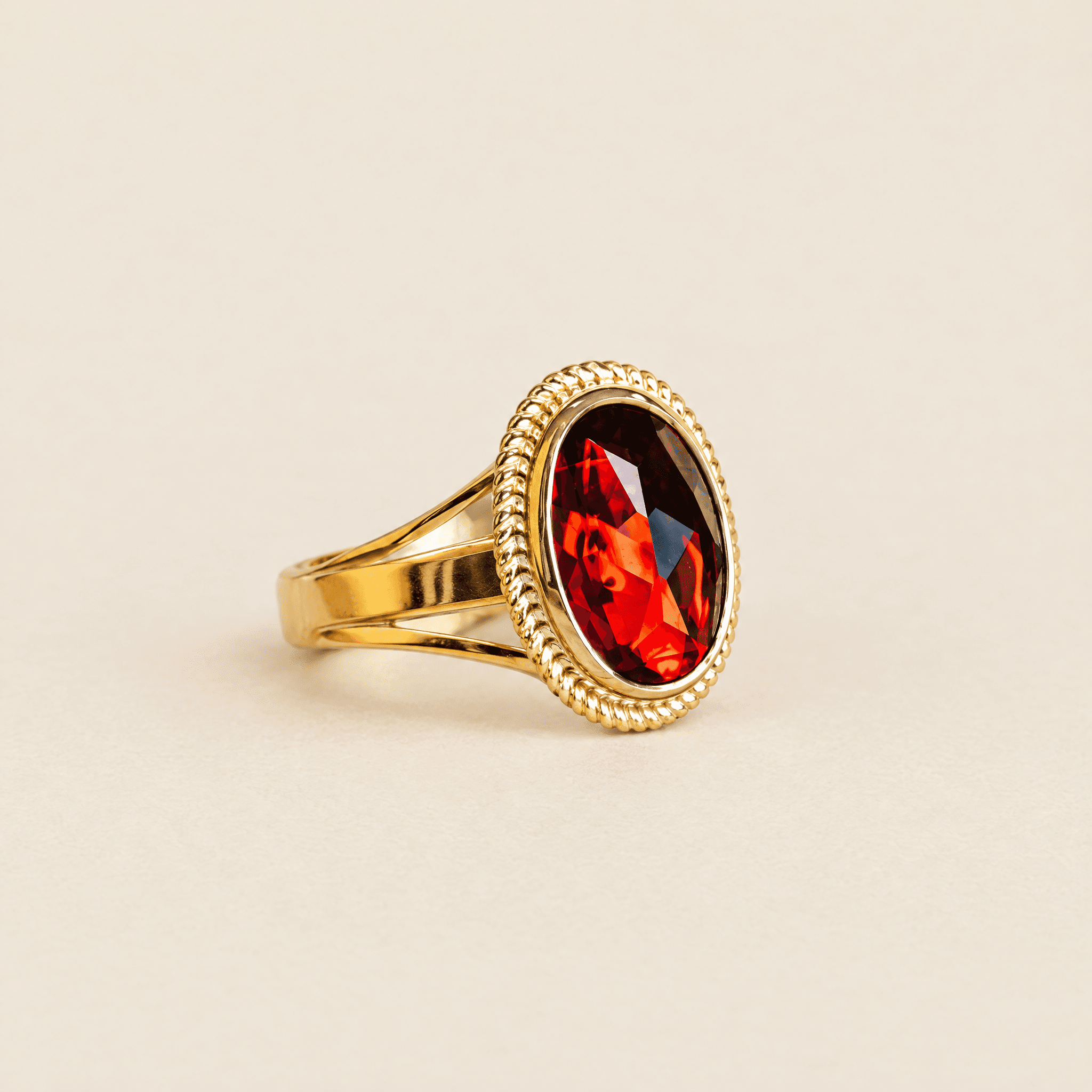
Figure 3. Exported ivory-background candidate, 2048 × 2048 pixels. The setting rim and metal finish require comparison with the original.
Check Metal, Gemstone and Setting Before Approval
Compare the source and export side by side at the same apparent product size, then inspect each at 100%. Start with the silhouette rather than the appealing background. Move to the shoulder openings and setting, then inspect the gemstone and small metal details. A different reflection can be reasonable; a different piece of jewelry is a rejection.
Check | What to compare | What to do if it changes |
Metal | Tone, edge thickness, openings and surface finish | Reject changed construction; request a less dramatic lighting brief for another candidate. |
Stone | Count, shape, outline and visible color appearance | Keep real gem close-ups for buyer inspection; do not manufacture a clearer facet pattern. |
Setting | Rim, prongs if present, shoulders and attachments | Reject added or removed structural features. |
Markings | Existing engraving or hallmark, if genuinely visible | Use the real detail photograph when characters matter. |
Framing | Whole piece, contact shadow and useful crop | Adjust the requested composition without hiding disputed details. |
In Clara’s ivory export, the oval red stone and split shoulders remain recognizable. The decorative rim looks thicker and more regular, and the gold appears more saturated. The source is not sharp enough to verify the added facet detail. This candidate demonstrates a new presentation, not exact preservation of the ring.
For the second direction, Clara requested a dark charcoal background from the original photograph. The export separates the gold edges from the background, but the rim still shows regenerated detail. Because the scene and lighting briefs differ, these are two styling cases rather than a controlled lighting-only comparison.
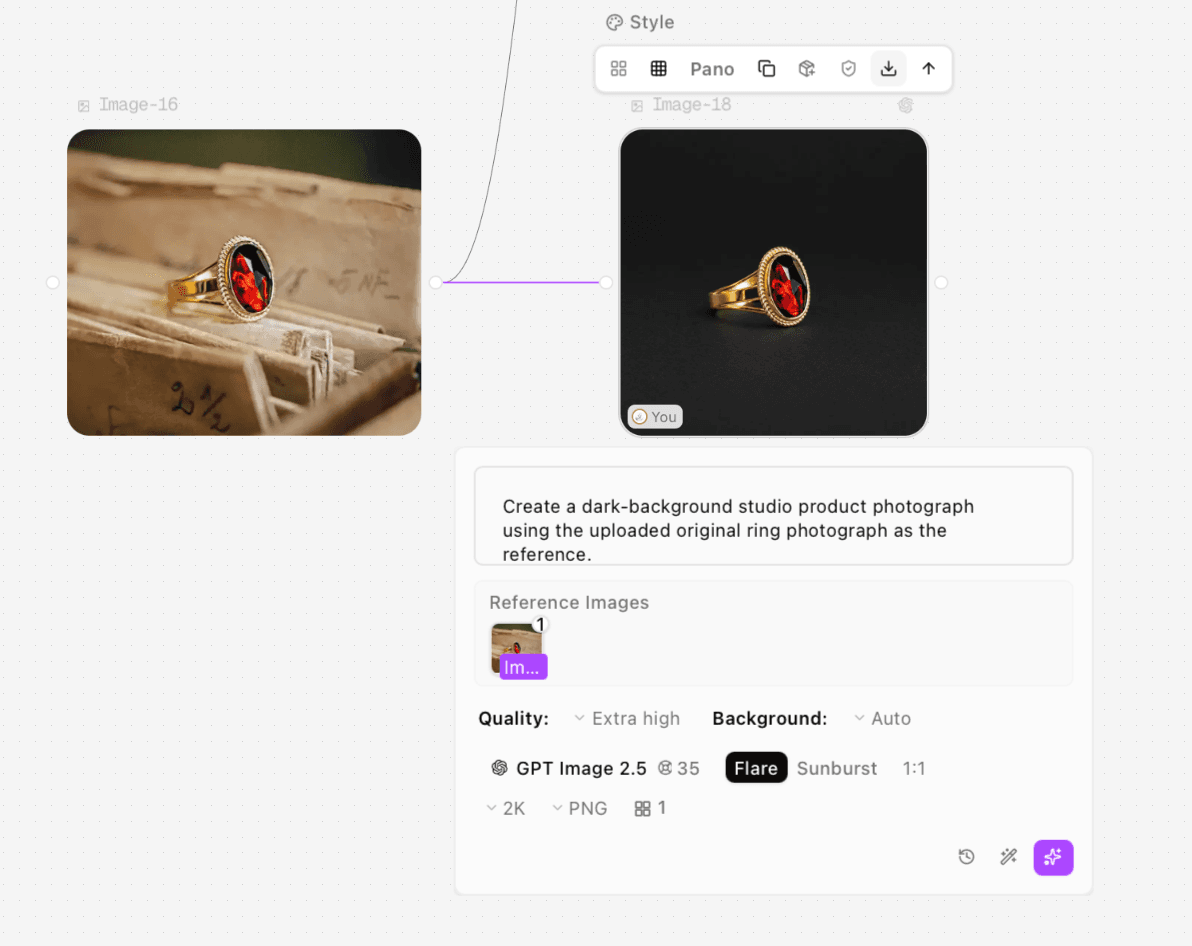
Figure 4. Clara’s dark-background request also connects to original Image-16; it is a separate styling direction.
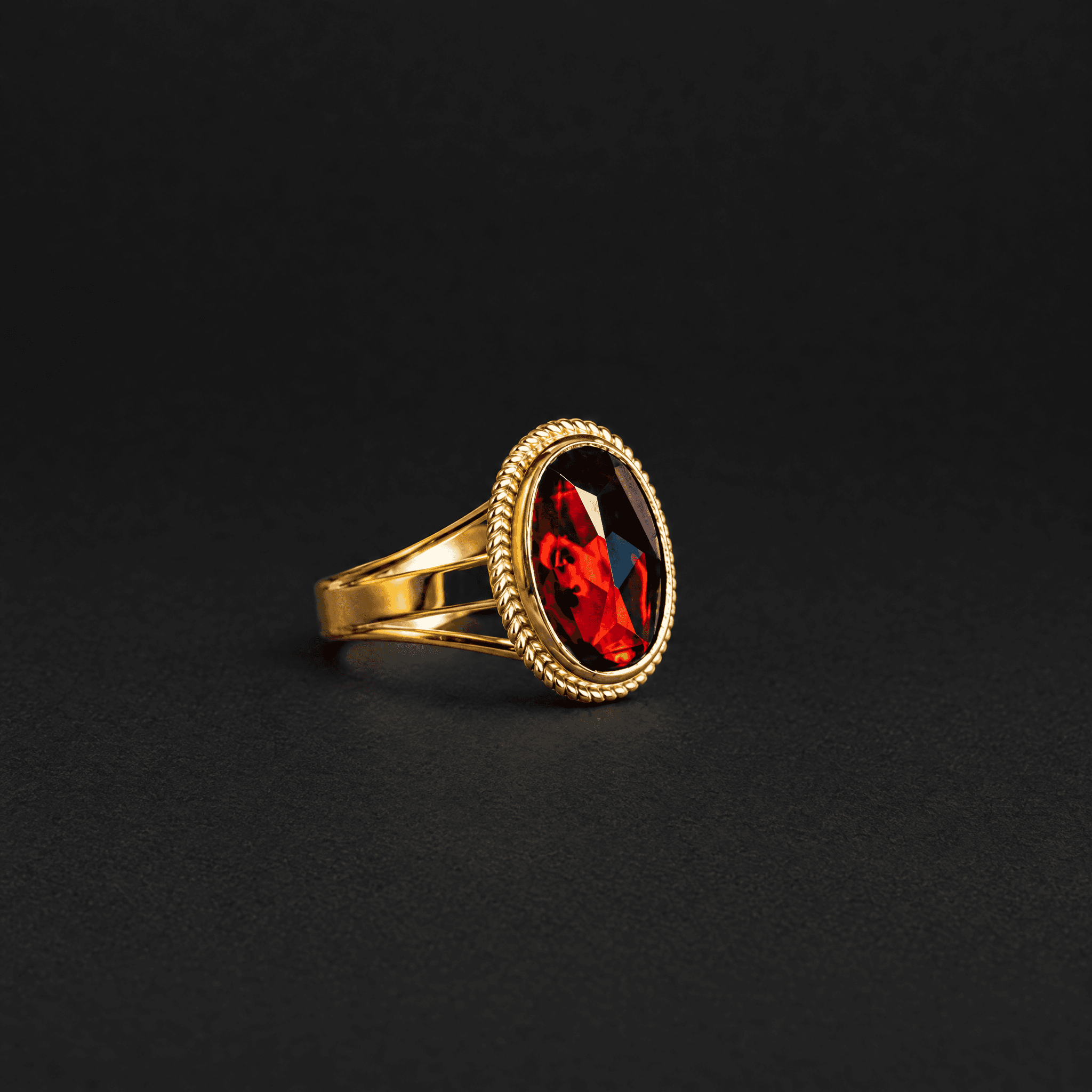
Figure 5. Dark charcoal export, 2048 × 2048 pixels. Recognizable overall form does not establish accurate fine metalwork or facets.
Choose the Image Role and Finish the Gallery
Use a verified real photograph for the view that proves the item’s condition, setting and markings. A reviewed AI candidate can support a styled gallery or campaign direction when its visible product details are acceptable for that role. Do not publish an inaccurate setting as a close-up simply because the lighting is attractive.
If the product itself must stay unchanged, use a separate editing workflow: isolate the real photographed piece, preserve it on a protected layer, and build the background around it. Inspect the mask along the setting and band, then check the composited result for halos and mismatched shadows. This is a recommended fallback; it was not the route tested in the two exports above.
Name assets by SKU, view and revision, such as “BAE109-front-ivory-review01.png.” Record the output file that was approved, not just the node name. Make web derivatives from that master, add descriptive alt text, and preview the final page at thumbnail and full-image size. For the general reference workflow, see Astorie’s product photography guide.
Troubleshoot the Detail That Failed
If gold looks flat, simplify the environment and request broader soft reflections with visible edges. If the gem turns opaque or gains implausible sparkles, remove dramatic brilliance language and compare another candidate with the original. Neither change proves a fix until the new export is inspected.
If the setting changes again, stop requesting more descriptive detail. Use a sharper real reference or the protected-product compositing route. When upload or generation fails, check the file opens locally, confirm the selected node’s accepted inputs, and verify the source connection before another run. If a revised prompt is used, save its new output separately and repeat the approval checklist.
FAQS
Can AI create a new angle from one ring photograph?
It can produce a candidate view, but a hidden setting or band surface would be inferred. Supply a real photograph of the required angle for a sale image that needs to show actual construction.
Can a generated macro photograph prove gemstone quality?
No. Generated facets, clarity and inclusions are not evidence about the physical stone. Use real macro photography and relevant product documentation for those claims.
Should I use a white or dark background?
Choose by image role. A light neutral background supports straightforward catalog inspection; a dark background can support an editorial direction. Approve the product separately in each candidate and check your destination’s image requirements.
Does 2K output mean the jewelry details are accurate?
No. Resolution describes the file dimensions, while accuracy depends on what matches the real reference. Both tested square exports were 2048 × 2048, yet small metalwork still needed review.
Ready to try it on the canvas?
Open Astorie and fan your prompt across every frontier model in one workflow.