

How to Create AI Makeup Product Photos
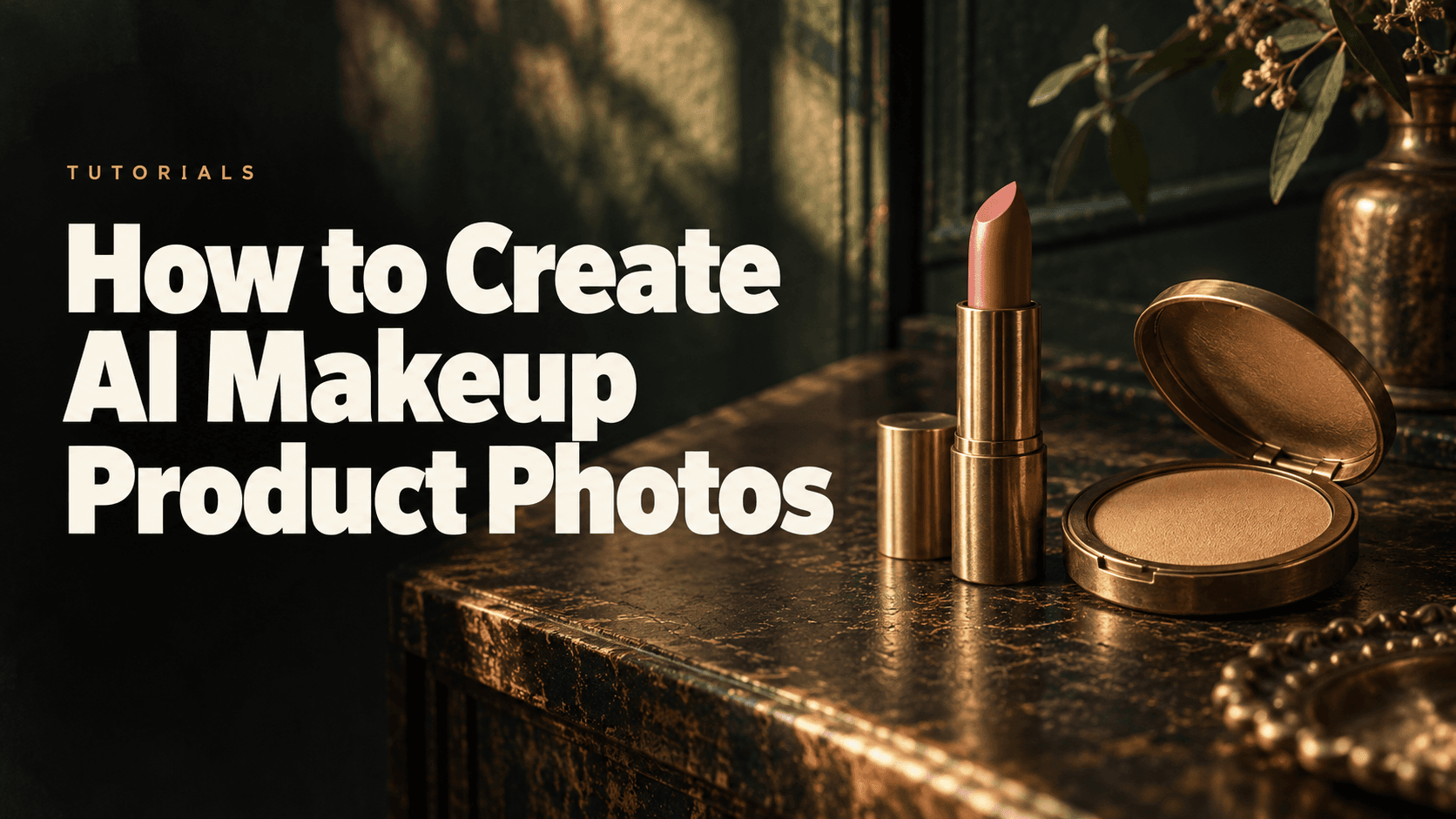
AI-generated editorial cover illustrating makeup photography; this unbranded set is conceptual and separate from the tested refill products.
Create AI makeup product photos by photographing the real packaging and formula first, generating a clearly defined catalog or editorial scene, and checking shade appearance, surface finish and label text against the originals. Keep real swatches and application photographs for claims about color or performance on skin.
AI Makeup Product Photos Start With Real References
Packaging and formula answer different shopping questions; one clear photograph can show both, so two image inputs are not required for every SKU. A closed lipstick shows the tube and label; an exposed bullet shows shape and finish. A powder refill shows the pan, pressed surface and sleeve. For a shade comparison, add a real swatch photographed under consistent conditions rather than asking a generator to infer it from the packaging.
Create a short asset sheet for each SKU: exact shade name, product format, visible components, reference filenames and intended image role. Use photographs you are permitted to use commercially. Keep separate files for each shade and each packaging version; a generic product URL may open a different default variant.
Clara’s tests used two La bouche rouge products. The lipstick reference visibly reads LE NUDE ROSIE. The linked lipstick product page currently defaults to Rosewood, so its default title does not identify the uploaded lipstick. The powder page defaults to La Terre Blonde — Mat; the supplied powder photograph has no independently readable shade label, so this guide does not assign that shade to the photographed pan. [1, 2]
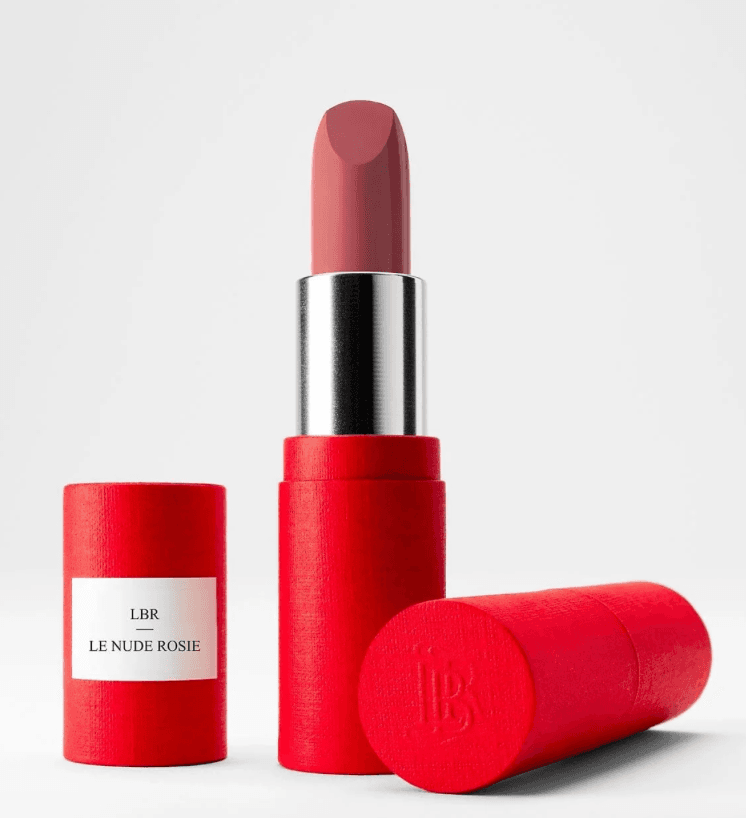
Figure 1. Original lipstick reference used by Clara. LE NUDE ROSIE is visible on the product label; three components are shown.
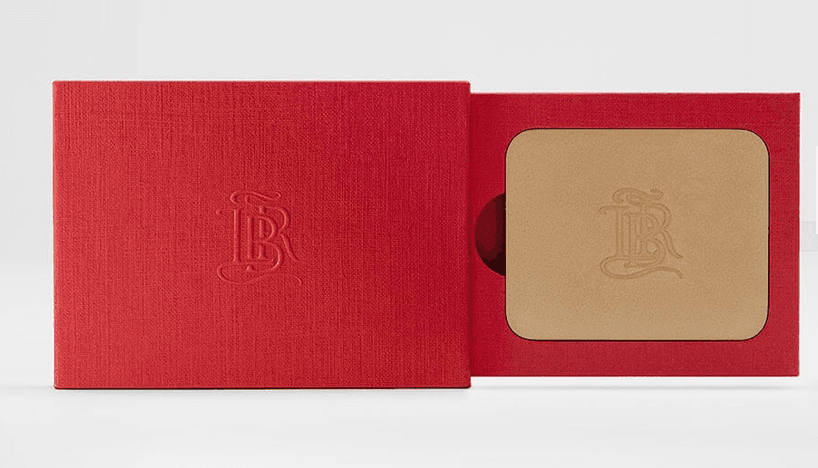
Figure 2. Original powder reference used by Clara. The red paper refill packaging should not be described as a leather compact.
The manufacturer explains that the powder refill can be used in its paper case or placed in a separate leather compact. That distinction matters in a product photograph: adding a leather case would imply a different visible configuration. [2] Keep the reference arrangement unless your brief and product offer genuinely require another one.
Create the Makeup Scene in Astorie
1. Set up a project with separate product branches
Choose New Project in Astorie and name it for the SKU or makeup shoot. Add an Image node and upload the lipstick photograph. Add a second Image node for generation and connect the uploaded image to its image input. For powder, upload the powder photograph into its own source node and connect that source to a separate generation node. This follows Astorie’s documented image-to-image route. [3, 4]
Keep the products in separate branches so a lipstick component does not become an accidental powder reference. Clara’s lipstick branch connected Image-19 to Image-20; the powder branch connected Image-21 to Image-22. Check the actual connected image before each run.
2. Choose the actual ratio and generation settings
The retained panels show GPT Image 2.5 as the Astorie model label, Flare mode, Extra high quality, Auto background, the 2K option, PNG and one result. This records the tested interface label, not an independently verified provider API version.
The lipstick test used 1:1 and exported 2048 × 2048 pixels. The powder test used 4:3 and exported 2048 × 1536. If a gallery needs matching tiles, choose a common target ratio before generating future assets or make reviewed crops afterward. Do not label the existing powder export square simply because the planned brief suggested a square image.
3. Keep formula texture in the preservation instructions
Ask for one modest light setup and a neutral surface. Describe what is visible: an angled lipstick tip, its current finish, a matte pressed-powder surface, the pan and the paper sleeve. Avoid vague requests to make the formula look “richer” or “more luxurious,” which can invite unwanted sheen or exaggerated grain.
Untested example prompt to adapt:
Create a clean catalog photograph using the uploaded makeup photograph as the reference. Preserve the exact visible product configuration, component count, packaging proportions, label wording and formula appearance. Keep the lipstick tip or pressed-powder surface as shown; do not add wet gloss, glitter, loose powder or a new swatch. Use a pale neutral background, broad soft light and a restrained contact shadow. No hands, faces, props, extra products, added text or decorative badges. Keep every component fully inside the frame.
For powder, remove lipstick-specific wording before use; for lipstick, remove powder-specific wording. A short product-specific brief is easier to inspect than instructions for several incompatible products.
4. Run, review and download the original output
Confirm the source, model, ratio and result count, then review the node’s quote and click Generate or its run control. Wait for a completed result, open the full-size preview and use the result’s Download control to save the PNG. Astorie documents generation and download controls on Image nodes. [4]
The test panels display 35 beside the credit icon. It is a recorded quote, not confirmed actual billing or a promise of current pricing. For production accounting, retain the quote and the actual account charge separately. If generation fails, check file validity and the selected node’s input requirements before retrying.
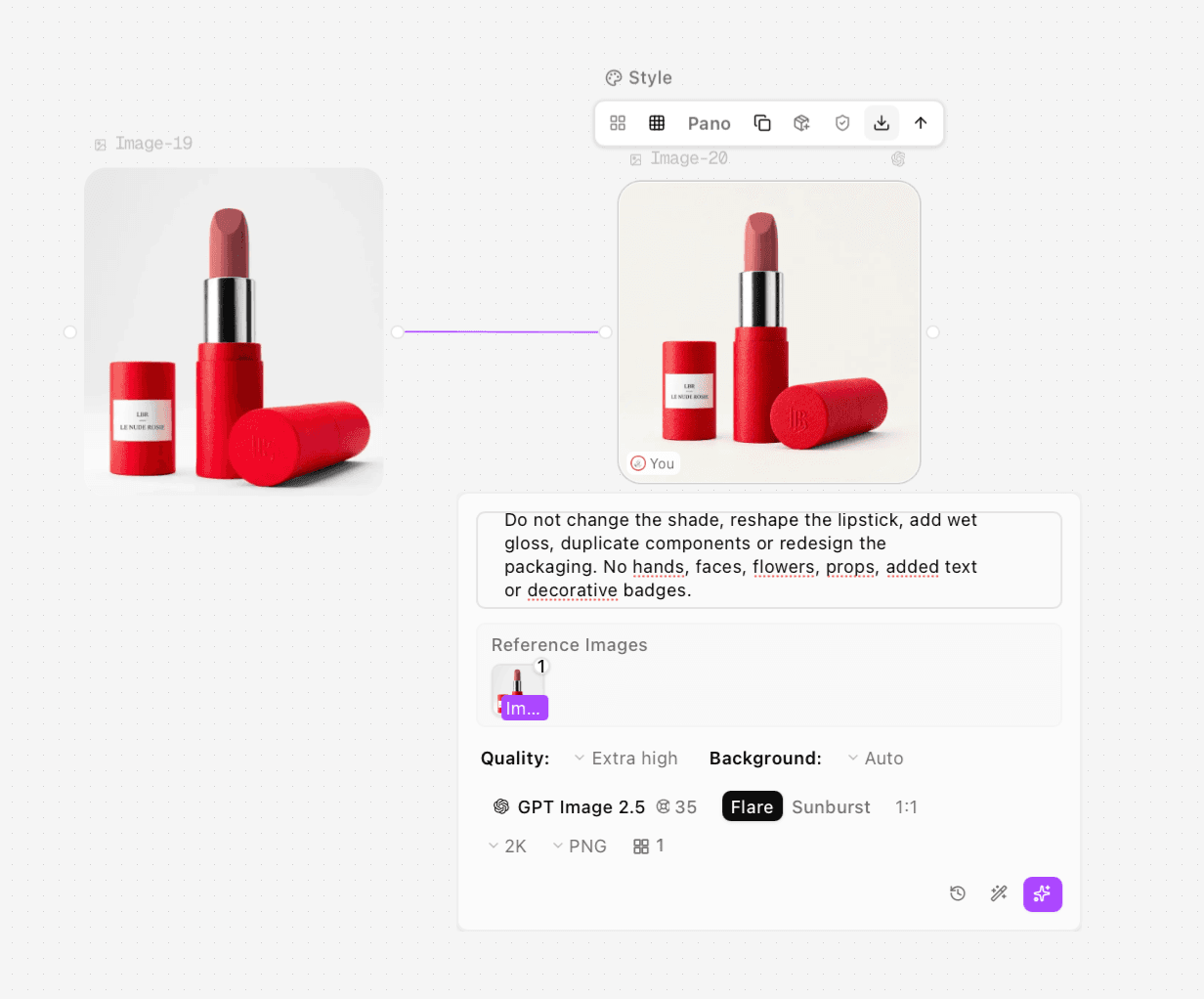
Figure 3. Clara’s lipstick request, with the source connection, model label and square settings visible. Only part of the submitted prompt is on screen.
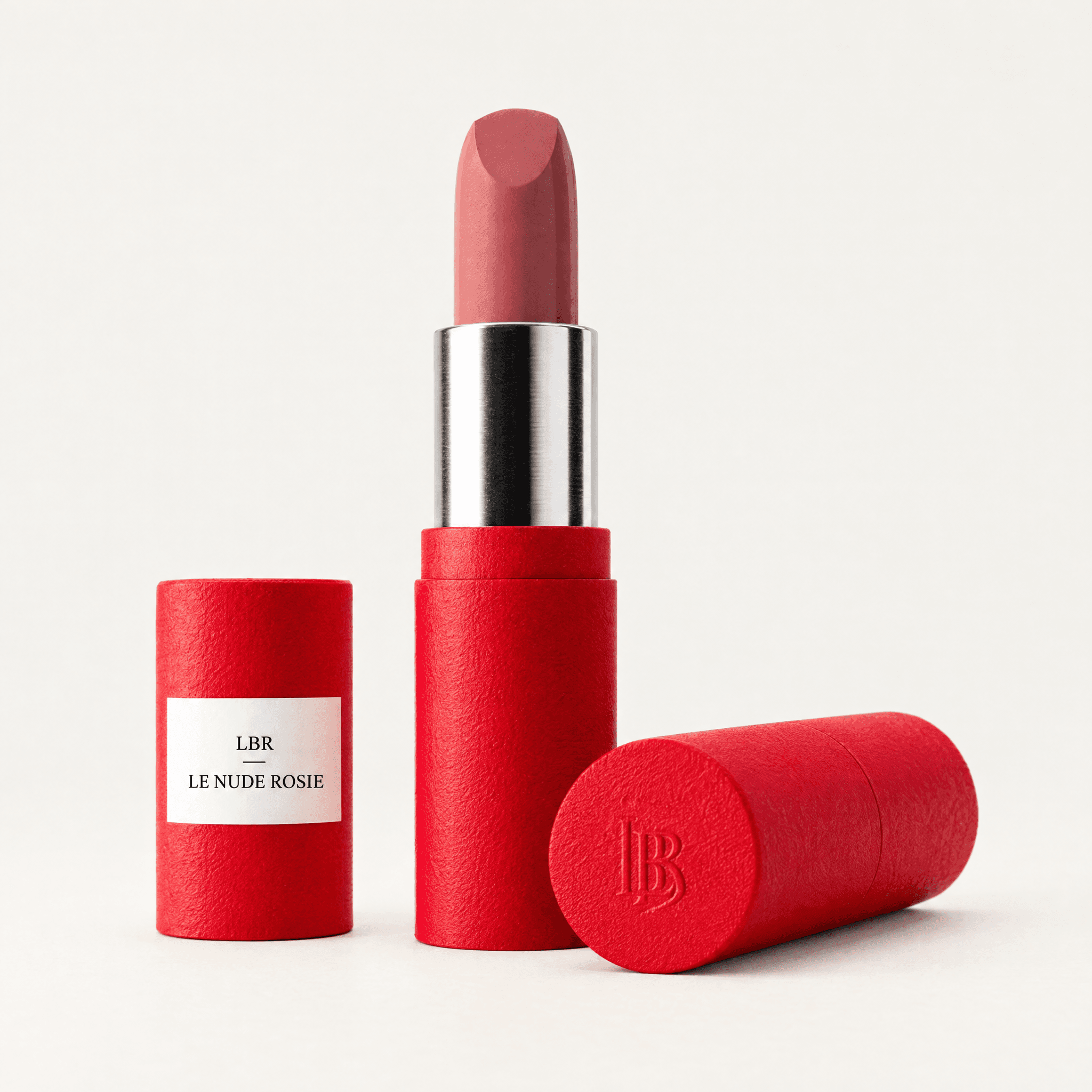
Figure 4. Lipstick export, 2048 × 2048 pixels. The configuration and label remain recognizable, while shade appearance and texture need review.
Check Shade, Finish and Packaging Separately
First compare component count and geometry. Then read every visible label. Finally compare formula appearance in the same viewing environment. Do not allow a convincing composition to excuse a changed shade name, missing cap or a matte bullet that has become glossy.
Review area | Acceptance question | Safer response to a mismatch |
Shade appearance | Does the candidate visibly depart from the approved photograph? | Reject the candidate for shade selection; retain real swatches. |
Lipstick surface | Is the tip, exposed length and visible finish consistent? | Use a clearer real bullet close-up or preserve the photographed product layer. |
Powder | Is it still pressed and matte, with the actual surface relief? | Reject invented glitter, cracks, grain or loose powder. |
Labels | Are product name, shade text and marks accurate? | Use the real label photograph; do not invent an unreadable character. |
Packaging | Are all sleeves, caps and pans present in the correct form? | Return to the correct SKU reference and a simpler arrangement. |
In Clara’s lipstick output, the three components remain recognizable and LE NUDE ROSIE is readable. The bullet appears somewhat lighter and pinker, with stronger granular texture; the red packaging also looks coarser. This is a visual comparison of the two files, not a calibrated color measurement.
The powder export retains a matte-looking surface without obvious added glitter. Its grain, surface monogram and red packaging texture are more pronounced, and the powder appears lighter or more beige than the reference. The attractive scene therefore does not establish faithful shade or surface detail.
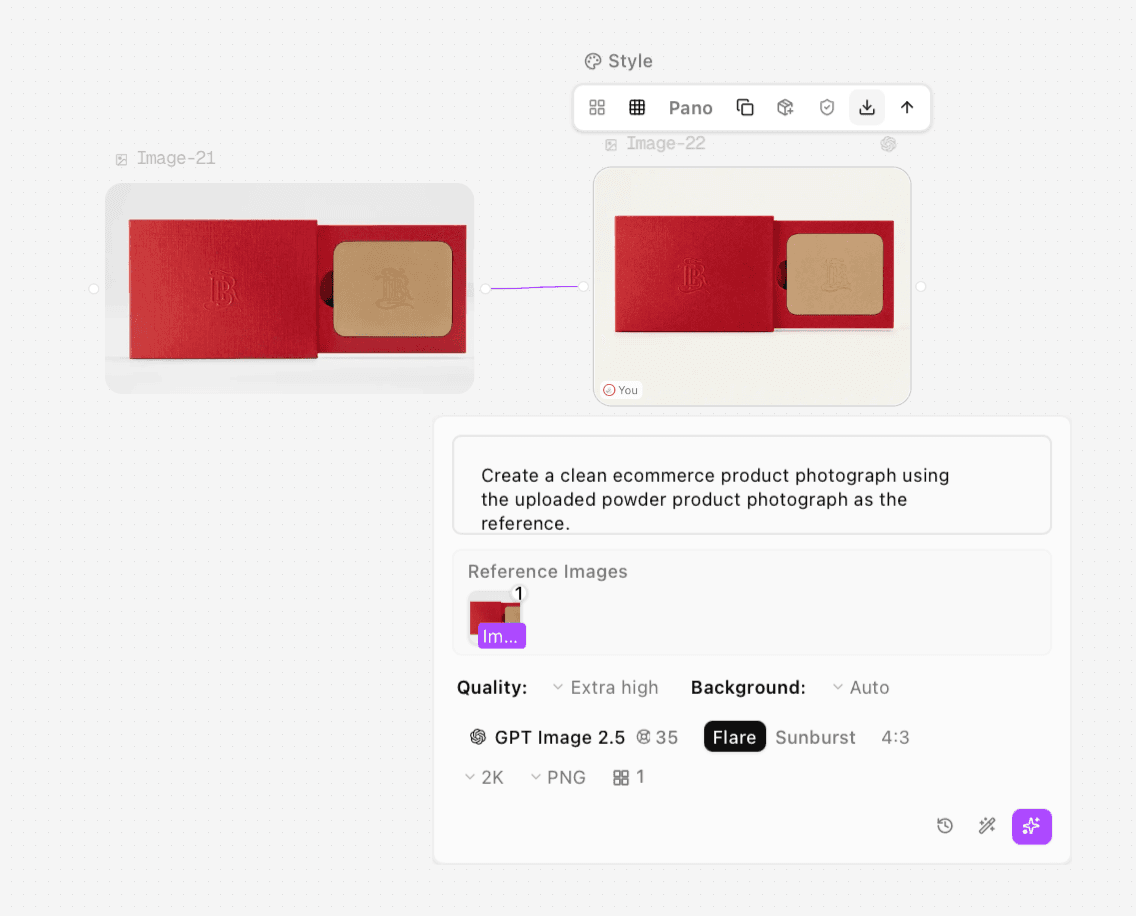
Figure 5. Clara’s powder request uses its own source branch and 4:3 settings.
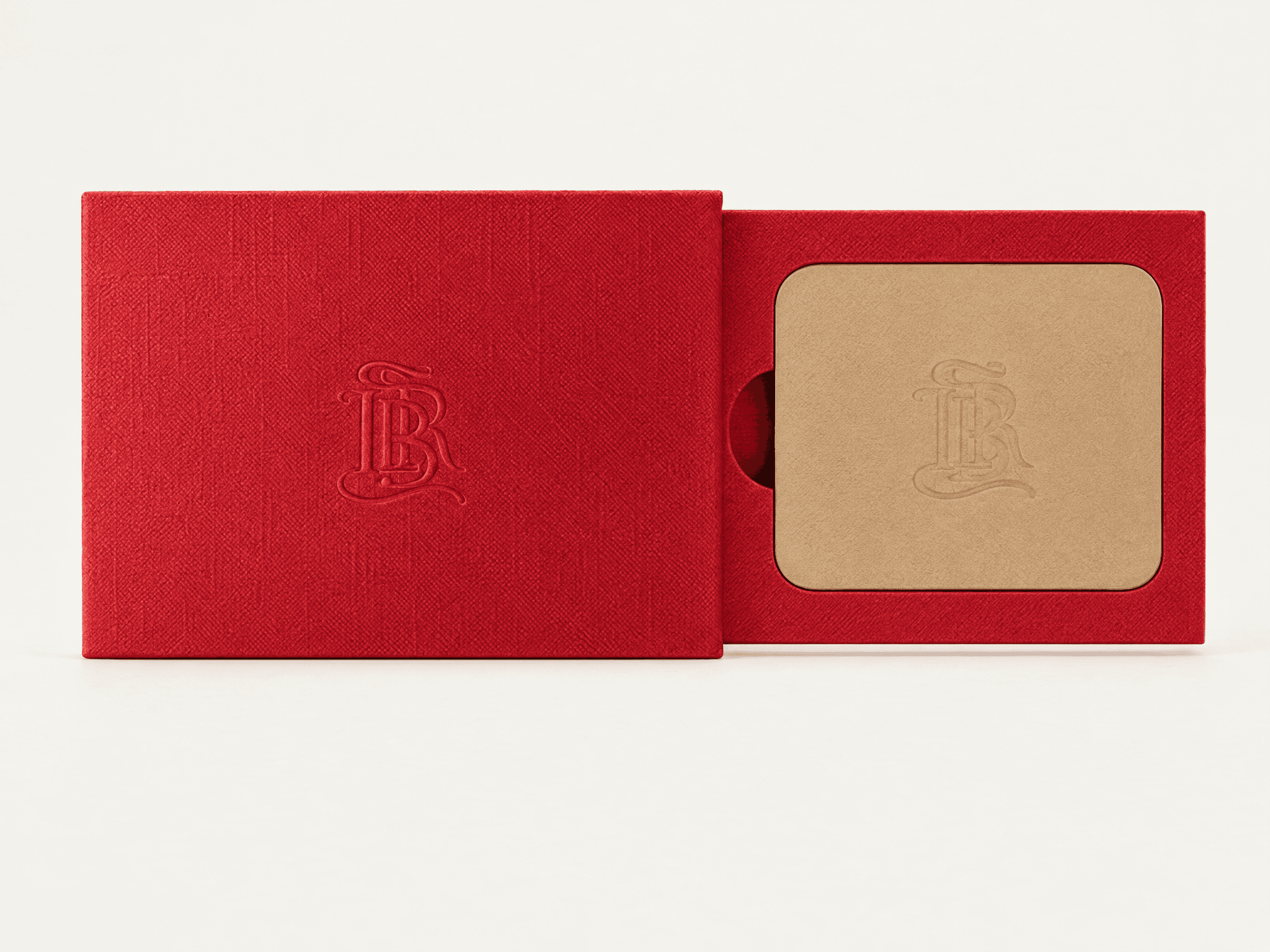
Figure 6. Powder export, 2048 × 1536 pixels. The surface remains matte-looking, but fine texture and color appearance have changed.
Build a Gallery That Answers Makeup Questions
Use an accurate packshot for product identity, a real close-up for the exposed formula, and real shade swatches for shade choice. Add reviewed AI scene candidates where the job is presentation. Photograph actual application when the image needs to communicate coverage, payoff or finish on skin; those properties cannot be established by these two studio tests.
For a practical color review, photograph the actual shades under consistent controlled light with a neutral reference, use the same camera setup, and inspect them on a calibrated display. Treat this as a recommended capture process, not a claim that a prompt or matching pixel sample can guarantee a shopper’s screen color. Recheck the exported web file after conversion and compression.
If exact product appearance is essential, isolate the original photograph and protect the product layer while building a separate background. Keep labels and formula pixels from that approved photograph, then inspect mask edges and shadows. This fallback was not tested in the supplied generation runs.
Name files by SKU, shade, view and revision. Keep the unedited PNG master and make web derivatives separately. Preview the complete gallery so adjacent images do not imply different shade families or included accessories. The broader setup is covered in Astorie’s product photography guide.
Troubleshoot Before Publishing
If a lipstick becomes glossy, remove sheen-enhancement language and explicitly request the visible source finish. If powder becomes rough or sparkly, remove dramatic raking light and ask for the photographed matte surface. Save the next output separately and verify it; these suggested changes have not been retested here.
If labels change repeatedly, use the real product image rather than asking the model to keep rewriting tiny text. If a shade still looks different after neutral lighting, stop using that candidate for shade selection. A real swatch and a restrained scene are more useful than a polished image of the wrong product appearance.
FAQS
Can I generate a complete shade range from one lipstick photograph?
You can explore concepts, but recoloring one product does not establish the real shades. Supply and review actual photographs or swatches for each shade used in a sales gallery.
Can the powder page’s default shade identify my uploaded photograph?
No. The default is useful page context, but an unlabeled image does not independently establish its shade. Verify the SKU or shade from the original source record.
Can AI create an accurate on-skin swatch from the packaging?
The packaging does not show how the formula applies to skin. Use a real application or swatch photograph for that purpose; no on-skin swatch was tested in this guide.
Should the lipstick and powder have the same crop?
Use consistent ratios for comparable gallery tiles, while preserving complete components. The documented outputs have different ratios, so review any derivative crops before publishing them together.
Ready to try it on the canvas?
Open Astorie and fan your prompt across every frontier model in one workflow.