

Choose One Readable Action
Try a small gesture, drifting steam or gently moving foliage. Specify the action and camera behavior in the prompt; examine the result to see whether it matches your brief.
Try the mountain lake sample or upload your own image. Use the starting motion prompt or edit it, then generate a video to review before converting it to GIF in a separate encoder.
CONCEPT STORYBOARD
A still reference defines the starting scene. Choose a small movement to test, then inspect the generated video before GIF encoding.
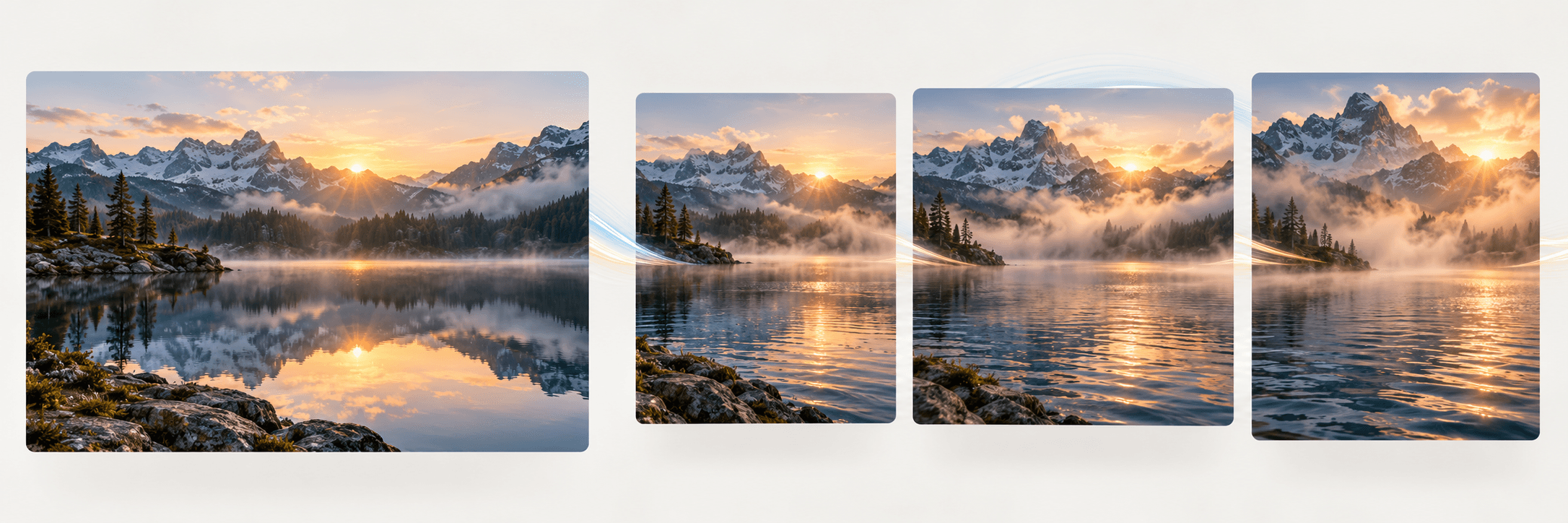
Use Astorie for the motion-generation stage and a separate encoder for the GIF file.
Try the mountain lake sample or upload a photo or illustration you have permission to animate. Keep the subject readable and decide which part should move. This input is one starting frame, not a sequence of uploaded photos.
In Describe the motion, name one subject action and what should stay still. Select Generate video to create a clip. A request for a repeating movement is a creative instruction, not a seamless-loop setting.
Watch the full video for changing faces, lettering, edges and background details. Check the first and last frames of the segment you want to repeat; a visible jump may require trimming or another generation.
Open the reviewed video in a separate video-to-GIF encoder that accepts its format. Choose the segment to repeat and the available size and timing options, then encode the GIF. Check playback and file size where you plan to use it.
Decide what the GIF needs to show, then review the video and the encoded file separately.
Try a small gesture, drifting steam or gently moving foliage. Specify the action and camera behavior in the prompt; examine the result to see whether it matches your brief.
An animation that plays well once can still jump when repeated. Compare the end of your chosen segment with its beginning and adjust the cut in your separate editor or encoder.
GIF uses indexed colors, so video-to-GIF conversion can change gradients and fine detail. In your encoder, review the available size and timing options, then preview the actual GIF rather than relying on the video preview.
The two stages have different outputs and controls.
| Input on this page | One required still image and a written motion prompt. | |
|---|---|---|
| Output on this page | A generated video clip. This page does not directly create a .gif file. | |
| GIF stage | Use a separate encoder that accepts the reviewed video. Its supported inputs, encoding options and limits apply. | |
| Multiple photos | This embed does not arrange multiple uploaded photos into timed GIF frames. Use a separate sequence or slideshow editor for that task. | |
| Loop and fidelity | A seamless repeat and unchanged subject details are not guaranteed. Review the generated clip and encoded GIF. | |
| Format-only conversion | If you only need to change a still JPG or PNG into a static GIF, use an image-format converter; AI motion generation is unnecessary. |
Combine objects into one starting scene, try a visual variation, or explore the underlying image-to-video workflow.
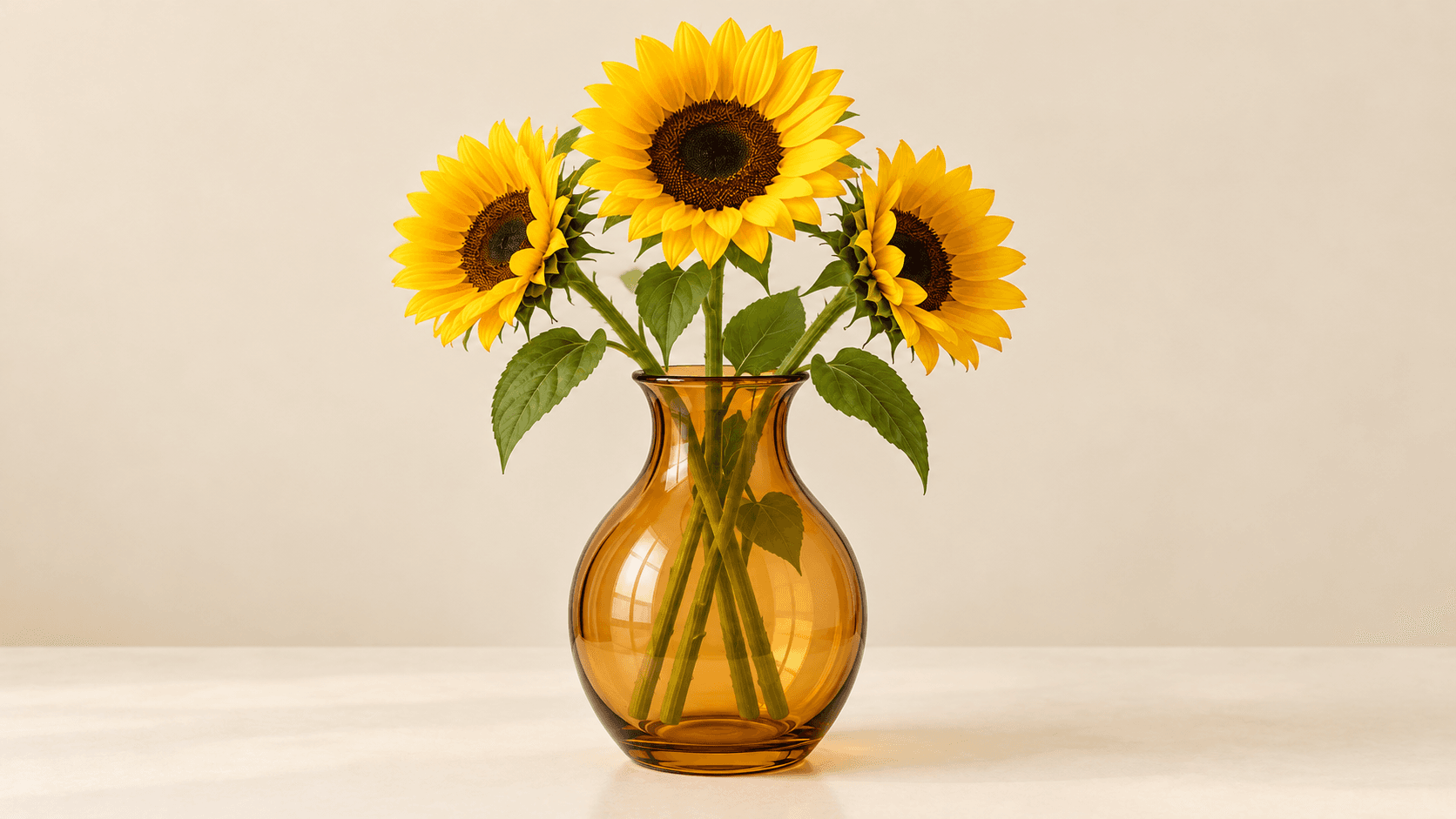
AI tool
Use this AI image combiner to combine objects from two photos into one generated scene. Describe whether one object sits inside, beside or behind the other. Start with a reference board, or connect separate images on the canvas.
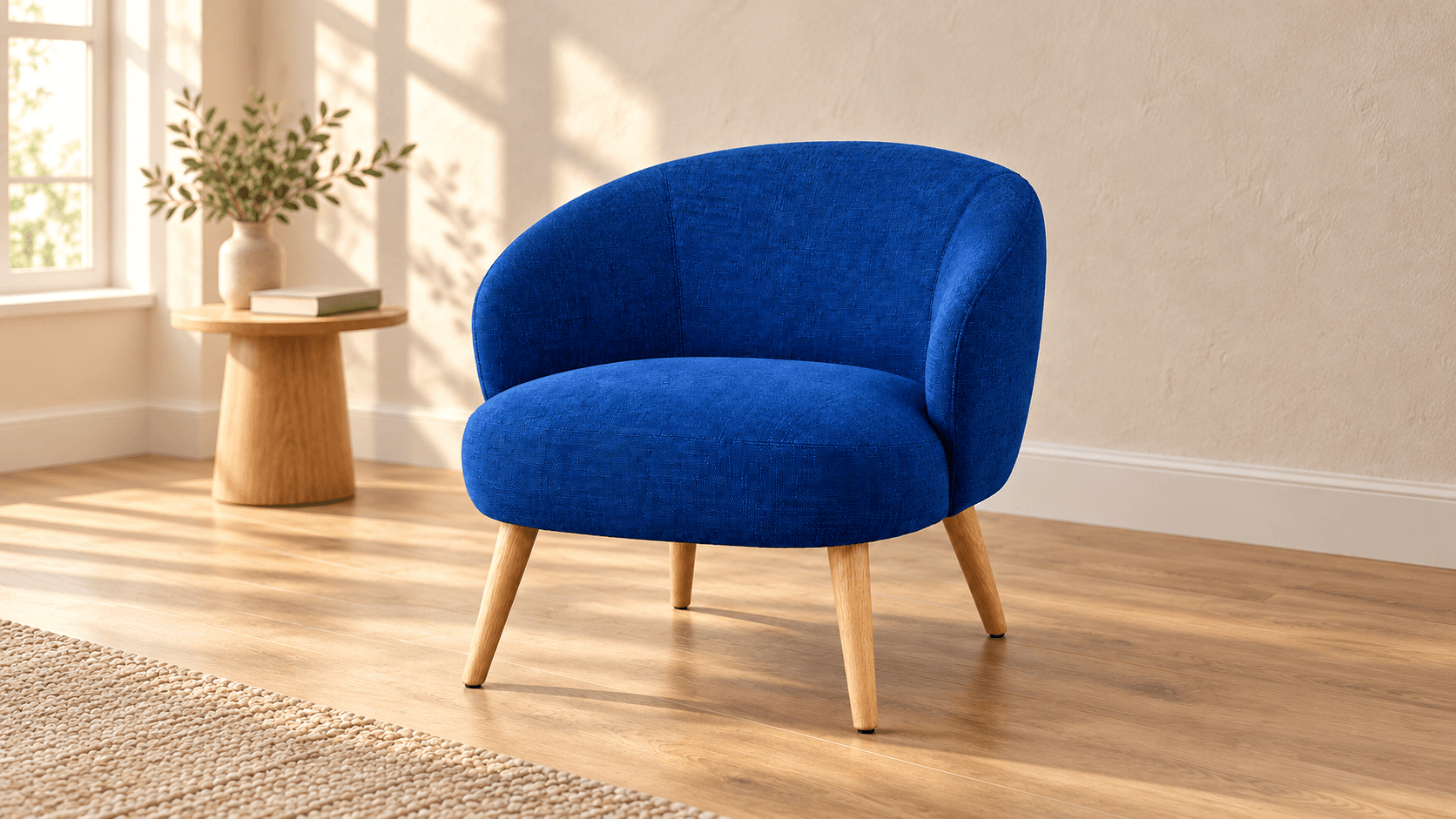
AI tool
Use this AI image variation generator to explore a new background, lighting or visual style from one reference. Compare each candidate with the source. For a rendering closer to the original composition, try the AI image recreator.
AI tool
Turn a still photograph, illustration, or concept frame into a short moving clip with AI image to video. Upload a clean starting image, specify subject motion and camera direction, and review the generated shot frame by frame before editing.
No. The generator produces a video from one reference image and a motion prompt. To make an animated GIF, review that clip and encode it in a separate compatible video-to-GIF tool. There is no Astorie Download GIF control in this workflow.
GIF is an image format that can contain animated frames; MP4 is a media container used for video and audio. A video clip is not a GIF simply because it repeats in a player. To obtain a .gif file, encode the video as GIF rather than changing its filename. This page does not promise a particular video container.
This embed uses one starting still to generate new motion. It does not provide photo ordering or a per-photo frame-delay timeline. If you already have the frames for a GIF or want a photo slideshow, arrange and encode them in a separate sequence editor instead.
That is a format-conversion task. Use a separate image converter if you want a static GIF with no newly generated motion. This workflow is for creating motion from a still before video-to-GIF encoding.
A seamless loop is not guaranteed. Request a small repeating action, inspect the generated video, and test the cut in your encoder. GIF color limits and encoding choices can change the appearance of a full-color video, so review the final file for color shifts, detail and playback jumps.
Astorie lists a free plan, but video-generation availability and credit costs depend on the current plan and generation. Check the current price and account allowance before running the video stage. A separate GIF encoder has its own fees and limits; this page does not promise a free end-to-end conversion.
New generations made on a paid Astorie plan may be used commercially, subject to the model provider's terms and your rights to the input image and depicted people, brands or artwork. Free-plan generations are for personal, non-commercial use; upgrading applies to new generations going forward. Paid-plan outputs retain commercial rights after cancellation or downgrade. Also check the separate encoder's terms.
Under Astorie's default consumer, free, pro and team terms, uploads, prompts and outputs may be used to operate and improve the service and train or evaluate models. Providers have their own data policies. Enterprise no-training terms require a separate written agreement. Project files are retained while the project exists; deletion follows the standard schedule, and trained or derived information may persist. A separate encoder has its own data policy.
Try the sample or upload a still, then generate a video to review. Finish the GIF in a separate compatible encoder.