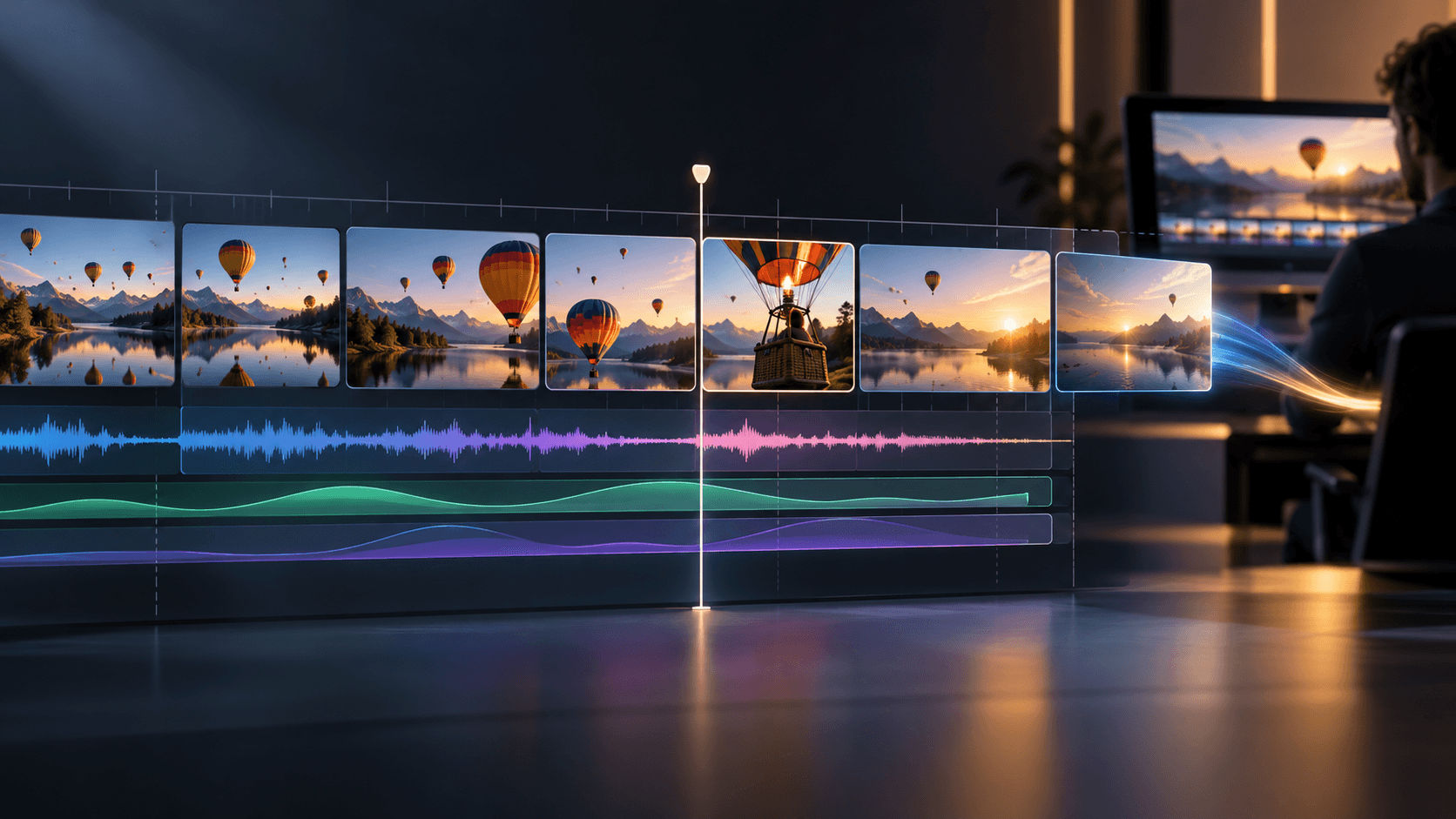
Video Editing Workflow

Video to Video AI for an Existing Clip

Revise or restyle an existing video clip on the Astorie canvas with video to video AI. Connect a source clip to a Video node in Video Editing mode, describe a focused visual change or supply a style reference and compare the generated take frame by frame against your original footage.

Concept illustration comparing an original three-frame sailboat sequence with a restyled gouache interpretation; not a verified Astorie output.

Plan a Focused Edit with Video to Video AI

Video-to-video generation starts from motion, timing and framing that already exist in your source clip. Comparing a broad, unguided restyle with a targeted canvas edit shows how keeping the original footage nearby helps you preserve the movement that matters.

Broad Restyle without Source Checks

  • Asking a model to change the subject, camera angle, pace and environment all at once turns an edit into an unpredictable new clip.
  • Starting from shaky, dimly lit or heavily compressed footage passes those motion flaws directly into the transformed output.
  • Judging a video-to-video result from a single still frame hides temporal flicker and identity drift across the shot.
Concept illustration of a blurry source frame leading to warped geometry in a restyled output card.

Targeted Video-to-Video Edit on the Canvas

  • Keep an untouched copy of your source clip on the canvas and connect it to a Video node to trigger Video Editing mode.
  • Specify exactly what should change, such as surface style, lighting mood or a reference-guided reskin, and what motion should stay.
  • Play the revised clip alongside the source footage to verify timing, silhouette stability and clean edges across every frame.
Concept illustration of a clean source frame paired with a restyled frame that preserves subject silhouette and horizon structure.

How to Revise a Clip with Video-to-Video AI in 4 Steps

Start with a clean source clip that you have permission to edit and a clear idea of the single visual change you want to test.

  1. 1

    Prepare and inspect your source clip

    Select a short, well-lit video clip with readable subject motion and clean framing. Keep the untouched original on the Astorie canvas so you can compare timing and details after generation.

  2. 2

    Connect the clip to a Video node

    Add a Video node and connect your source video to its input port. In the documented Video node workflow, a Video connection sets the node to Video Editing mode. Add a reference image or text brief if your chosen model supports guided restyling.

  3. 3

    Select a supported editing model and run

    Choose a video model on the canvas that supports video-to-video editing, such as Runway Aleph where available in your workspace, and run the generation step.

  4. 4

    Compare the result against the original footage

    Play the generated take and the source clip side by side. Check that the core movement, subject outlines and frame timing hold up before exporting the revised shot for your sequence.

What to Compare against the Source Clip

Inspect three areas across the full duration of the clip before replacing the original shot in your cut.

Motion and Timing Preservation

Watch key gestures, camera pans and contact points alongside the source video. Confirm that the edited version follows the original rhythm rather than drifting out of sync mid-shot.

Subject Silhouette and Edge Stability

Look closely at hair, hands, clothing edges and fast-moving props. Video-to-video transformations can introduce shimmer or edge crawl where the new visual style meets a complex background.

Lighting and Color Consistency

Check that the new surface look or lighting direction stays steady from the opening frame to the end of the clip rather than shifting brightness or hue as the camera moves.

Inputs, Output and Review

Keep your source footage, model selection and quality checks aligned across the canvas workflow.

InputA permitted source video clip connected to a Video node in Video Editing mode, plus a focused edit prompt or supported reference image.
OutputA transformed or restyled video clip on the canvas for frame-by-frame comparison with your original footage.
ReviewCompare motion timing, subject identity, edge stability and lighting consistency against the untouched source clip.
Plans and creditsVideo-to-video runs consume workspace credits based on the selected model and clip settings; check the pricing page for plan details.
Rights and finishingUse only source footage you have rights to modify, and handle final trimming, audio sync and color finishing in your NLE.

Video to Video AI FAQ

How is video to video AI different from text-to-video or image-to-video?

Text-to-video invents a clip from written words, and image-to-video animates a still frame from scratch. Video to video AI starts from an existing moving clip connected to a Video node so you can transform its visual treatment or scene details while building on the source motion and framing.

Does every video model on the canvas support video-to-video editing?

No. Video-to-video editing requires a model and node mode that accept a video input, such as the Video Editing mode described in the Video node documentation and in-context editing models like Runway Aleph. Check the supported inputs of your selected model on the canvas before running a shot.

Will the edited clip keep every pixel and movement identical to my source footage?

No model guarantees pixel-exact preservation across an entire moving shot. Treat each video-to-video run as a creative transformation, keep your untouched original clip nearby and inspect important faces, products and edges frame by frame.

Why should I test one visual change at a time?

When you change lighting, costume, background and camera framing in a single request, it is hard to tell which part of the prompt caused flicker or drift. Testing one focused change per run keeps the source motion clearer and makes revisions much easier to evaluate.

Test One Focused Video Edit on the Canvas

Bring a source clip onto the Astorie canvas, connect a Video node in Video Editing mode and compare the transformed take against your original footage.