

How to Create AI Shoe Product Photography
AI-generated editorial cover illustrating shoe photography; the generic shoe is conceptual, not the tested Repetto product.
Create AI shoe product photography with separate real references for the side, rear and outsole, then generate and inspect each view against its own source. Keep the shoe shape, lacing, sole construction and visible branding on a review checklist before exporting a coordinated gallery.
AI Shoe Product Photography Starts With an Angle Plan
Plan views around what customers need to inspect. A side view shows the profile and heel; a rear view shows the counter and rear seam; an outsole view shows the actual sole and markings. Add real front, top and pair photographs where they answer questions your current references cannot answer. A single side photograph does not document every hidden surface.
Clara’s example is the white Repetto Zizi, base reference V377VE-050. Repetto specifies nappa calfskin, an unlined upper, a leather outsole and a leather-covered 2 cm heel, made in its French workshops. Those facts distinguish this version from a similarly named rubber-soled model. A brown heel in a photograph should not be labeled solid wood. [1]
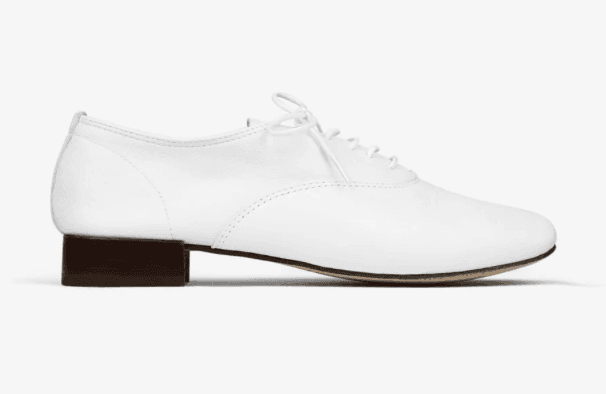
Figure 1. Original side-view shoe reference used by Clara. It shows the profile but cannot prove the hidden outsole markings.
Collect authorized original files at useful resolution. Keep the toe, heel, laces and sole edge inside the frame, and avoid overlapping shoes where one hides the other. If you need a pair, photograph the actual pair. Do not infer left/right matching from a generated single shoe.
Create an angle sheet with reference filenames, product version, color and visible size markings. The sole reference in this test visibly shows 37; the website currently opens another size by default. Neither fact establishes that every gallery image depicts the same physical size. Identify the image you are checking rather than silently combining those records.
Build and Run the Shoe Workflow in Astorie
1. Create the project and upload the side view
Choose New Project in Astorie and name it for the model, color and shoot. Add an Image node, upload the side photograph, then add another Image node for generation. Connect the uploaded image output to the generation node’s image input. Astorie’s documentation describes adding Image nodes, single-reference generation and result controls. [2, 3]
Clara’s first branch connected Image-23 to Image-24. Keep that source node unchanged. Upload the rear and outsole photographs into their own source nodes for later branches, so the sole is generated from an actual sole photograph rather than guessed from the side view.
2. Choose a consistent tested setup
The retained tests show the Astorie model label GPT Image 2.5, Flare mode, Extra high quality, Auto background, the 2K option, PNG and one result. All three shoe outputs used 4:3 and exported 2048 × 1536 pixels. This is the interface label and tested setup, not a provider API version claim or a guarantee of identical future controls.
Select the ratio in the node settings and preserve the complete shoe. Match the surface, light direction, crop margin and approximate apparent size across future views. Do not stretch the shoe to make several crops line up. A consistent gallery can contain different angles without forcing their silhouettes into the same shape.
3. Write one view-specific brief
Request the current camera angle, material finish and background. Preserve the visible laces and eyelets rather than asking for “perfect laces.” Keep the original sole thickness and heel profile. Do not add a new logo or infer brand text that the input does not show.
Untested example prompt to adapt:
Create a clean studio product photograph using the uploaded shoe photograph as the reference. Keep one complete shoe in the same visible angle. Preserve its toe shape, upper panels, seams, lacing pattern, eyelets, heel profile, sole thickness and existing visible markings. Use a pale neutral seamless background, soft side light and a short contact shadow. Do not invent another shoe, hidden construction, new branding or extra lace holes. No feet, props, added text or decorative badges. Keep toe and heel fully inside the frame.
For the rear branch, specify the photographed rear-oblique angle. For the outsole branch, specify the existing outsole view and visible markings. These adaptations are suggestions for future runs; the verified original-input excerpts are recorded separately in the test appendix.
4. Generate, inspect and save each view
Confirm the connected thumbnail, select the intended generation node, review its quote and click Generate or the run control. Wait for a completed output, open the full-size result and use Download to save the PNG. Keep the source, screenshot and export together before moving to another angle. [3]
The panels display 35 beside the credit icon. That is a displayed quote in the supplied tests, not a confirmed debit or current rate for every account. Capture your own actual account charge if you need production costs. If a node fails, check the selected model’s input requirements and the source connection before retrying.
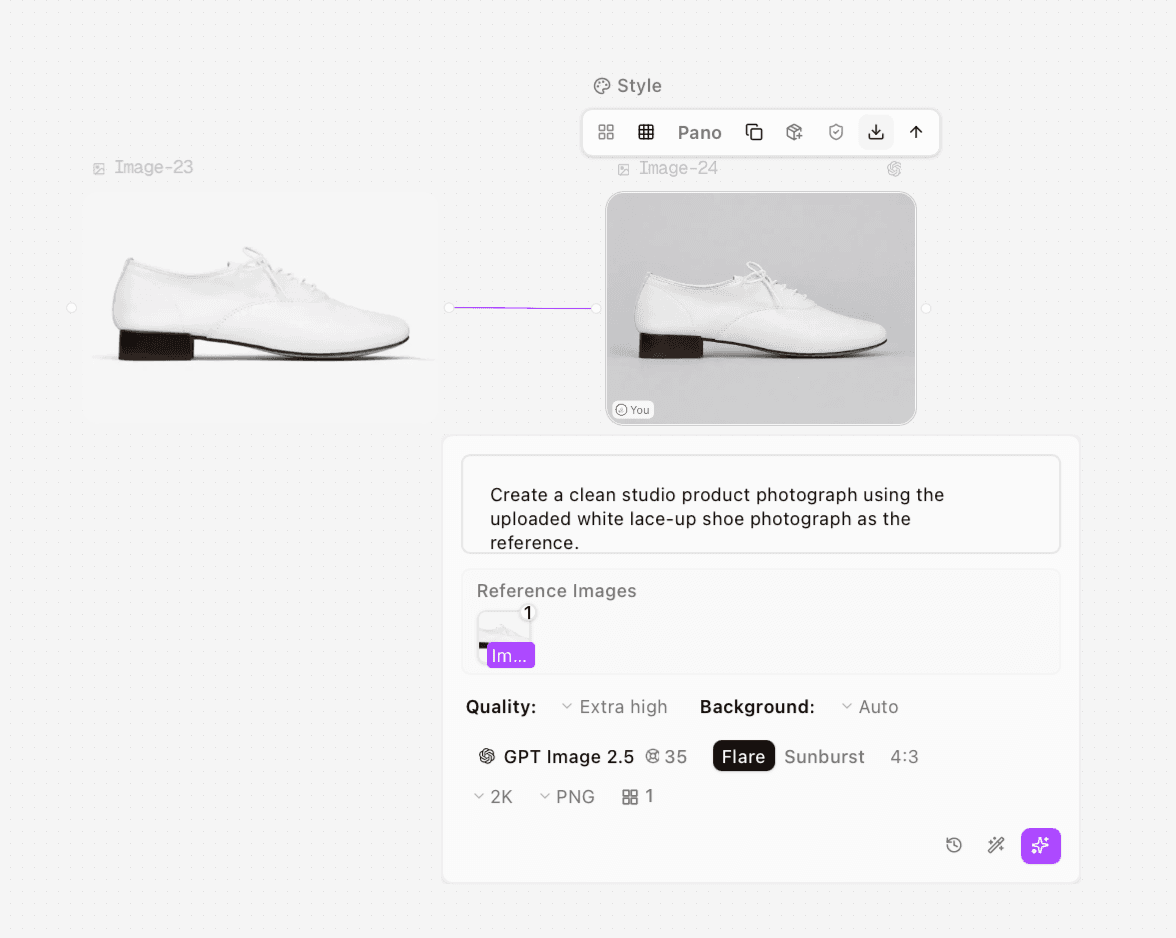
Figure 2. Clara’s side-view source is connected to the studio generation node, with 4:3 settings visible.
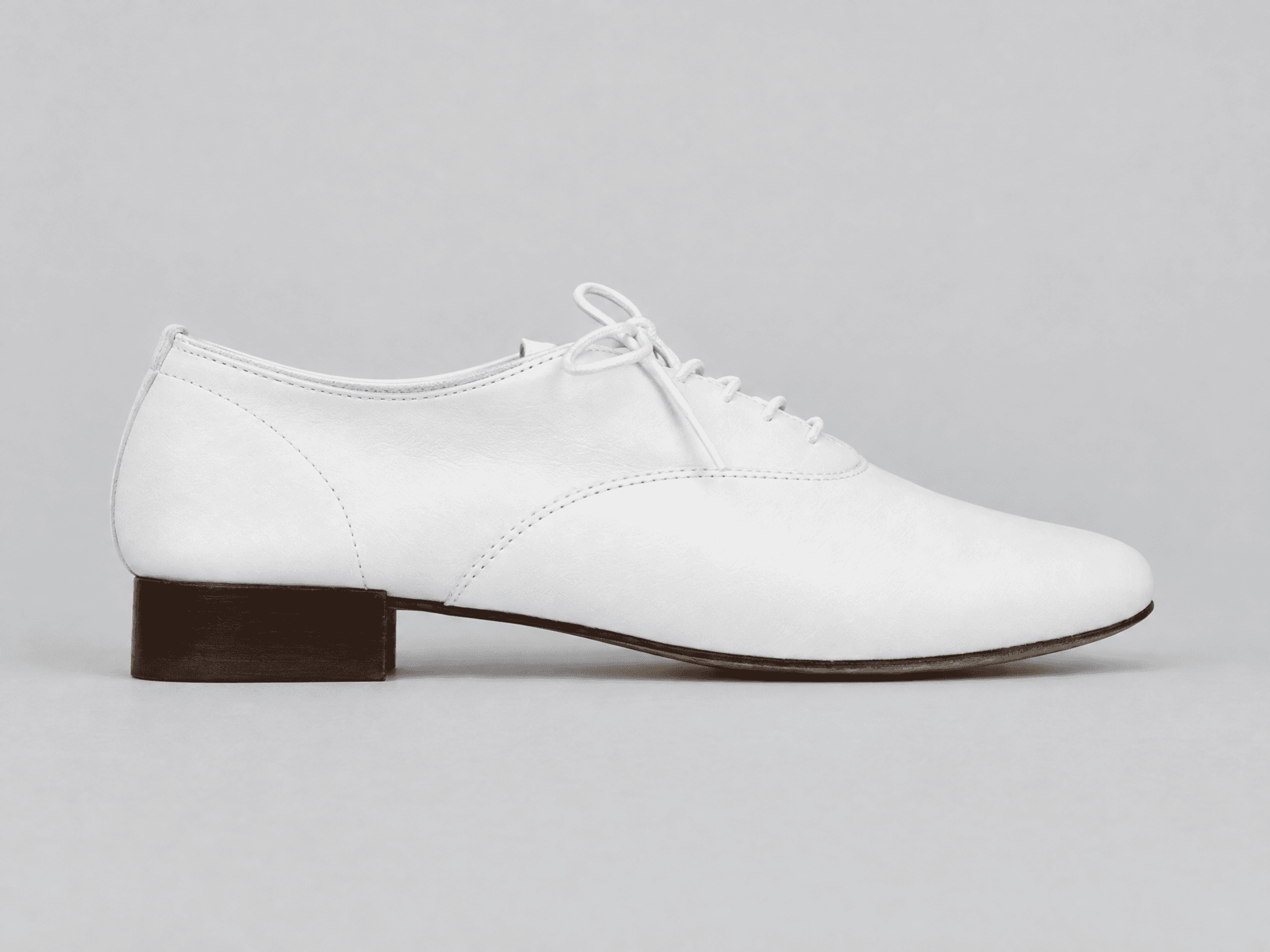
Figure 3. Side-view export, 2048 × 1536 pixels. Broad shape is recognizable; fine seams, grain and laces still need inspection.
Use Real Rear and Outsole References
The side output keeps a recognizable low lace-up profile. Its fine grain, stitching and laces are more explicit than the small source photograph. Greater apparent sharpness is not evidence that those details match the physical shoe. Review them as candidate detail, especially where the source is ambiguous.
For the rear case, Clara uploaded another photograph and connected Image-25 to Image-27. This view adds rear-seam and heel-counter information beyond the original side photograph.
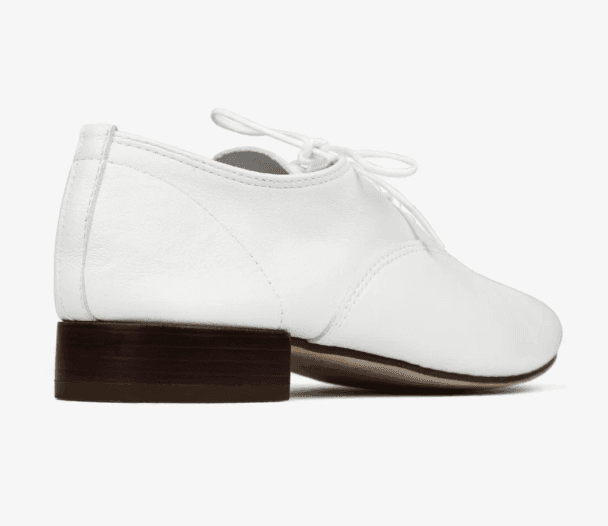
Figure 4. Original rear-oblique reference used for the second shoe branch.
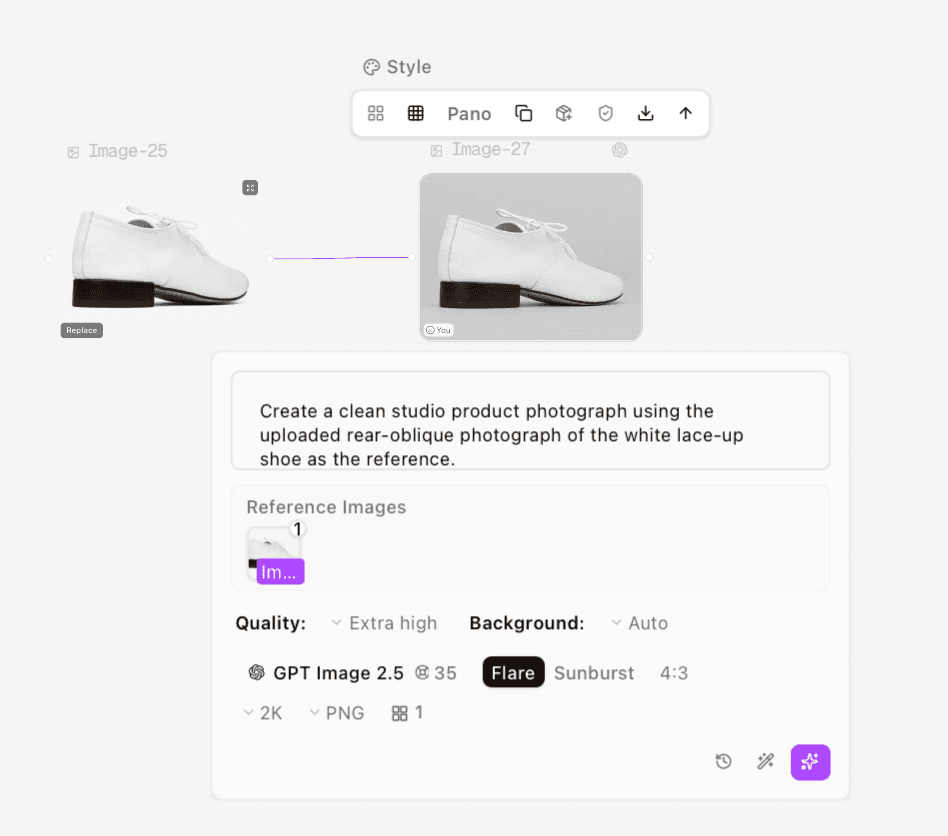
Figure 5. Clara’s rear-oblique source and its generation connection.
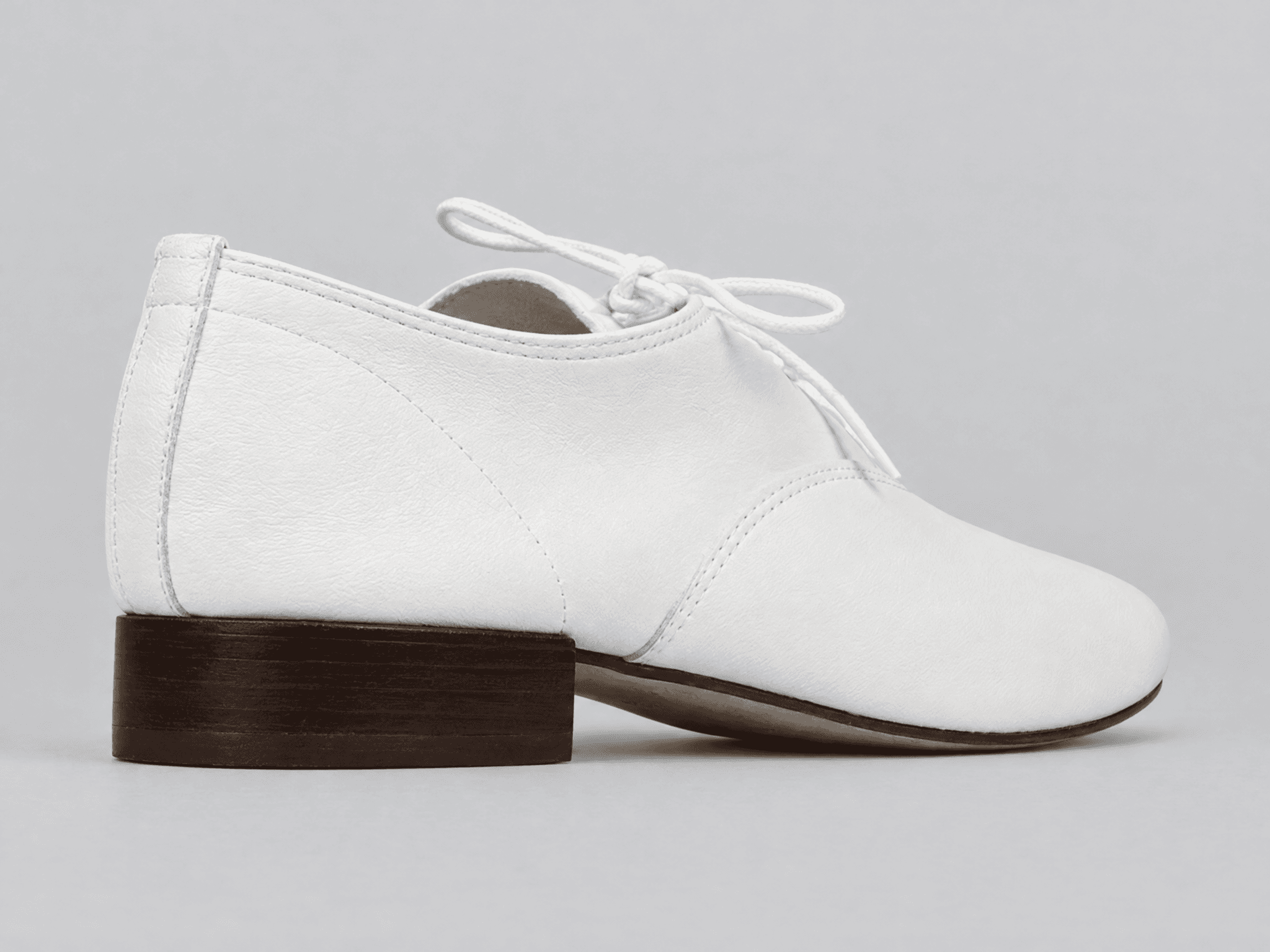
Figure 6. Rear-oblique export, 2048 × 1536 pixels. Check the heel covering, seams and upper silhouette against Figure 4.
The outsole case uses Image-26 as source and Image-28 as output. Its main words and size marking are broadly recognizable, but typography, grooves and surface texture have been regenerated. A readable-looking sole is not necessarily an exact sole. Use the original photograph when the markings or construction are the point of the image.
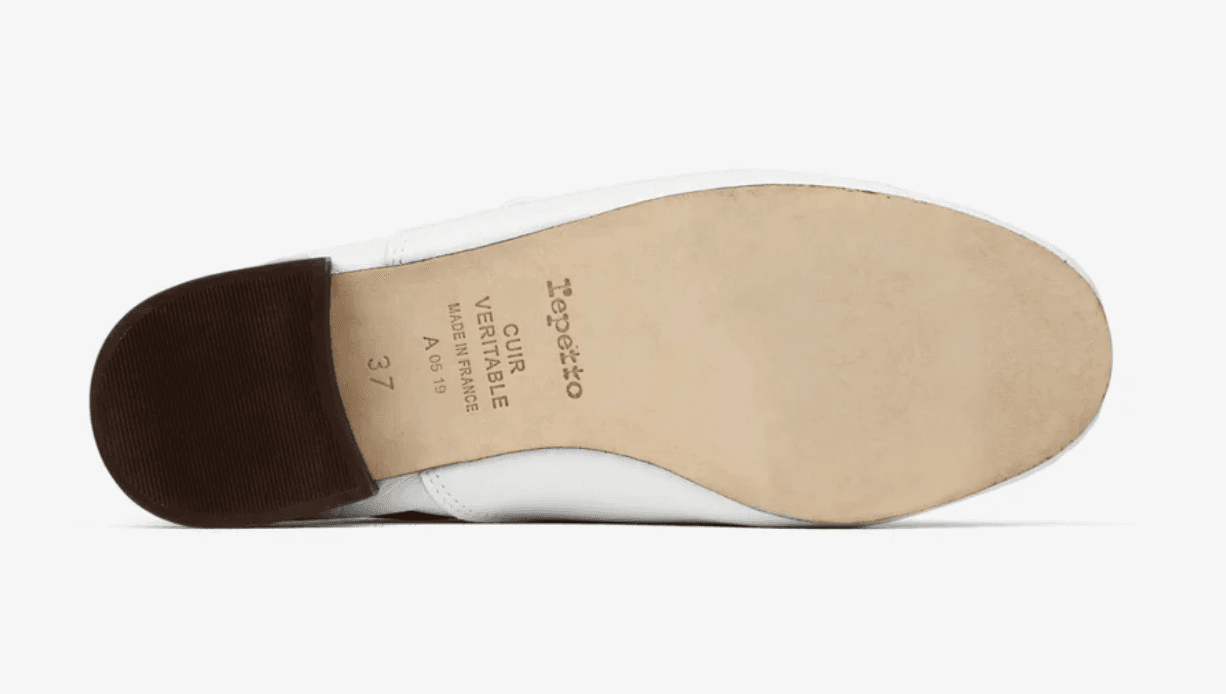
Figure 7. Original outsole reference. Its visible size marking belongs to this photograph and is not assigned to every other view.
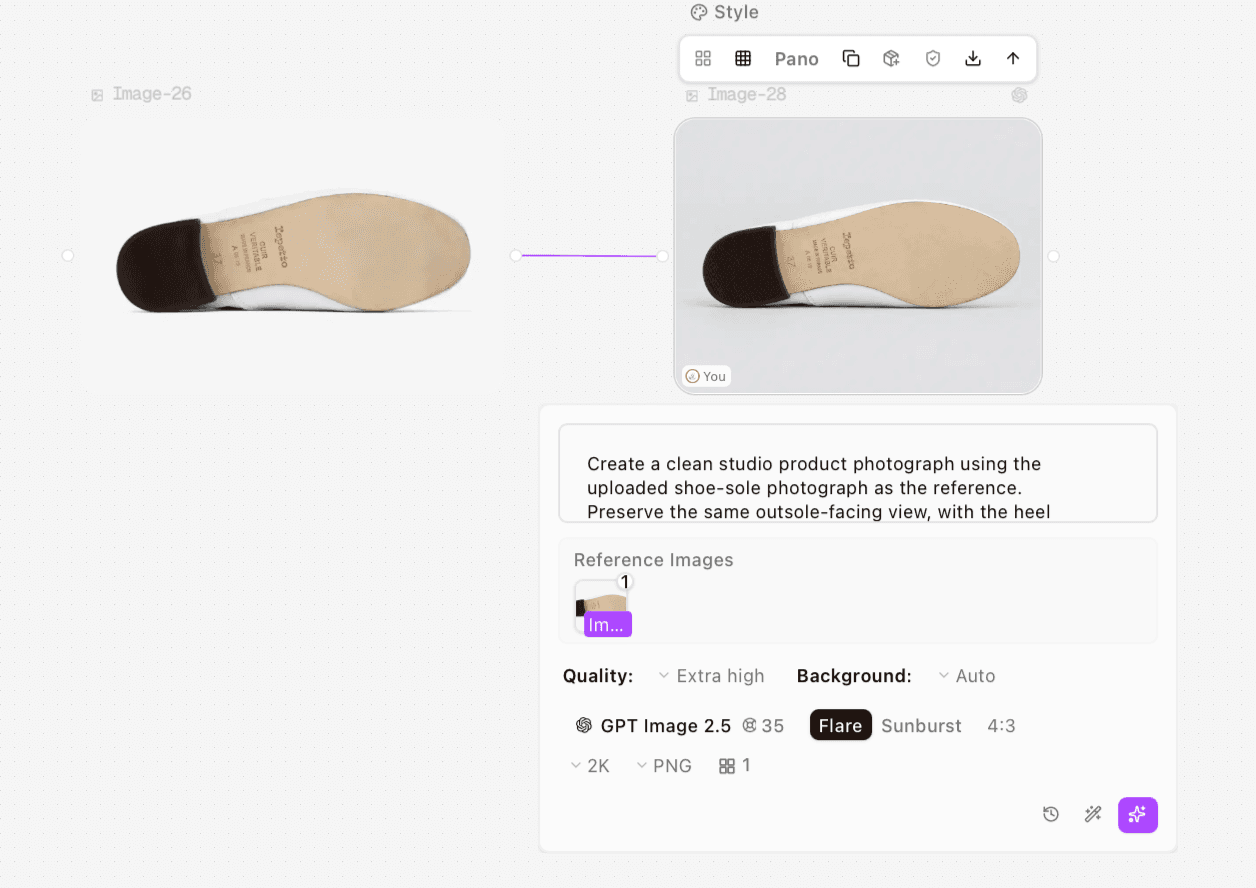
Figure 8. Clara’s outsole source is connected to its own generation branch.
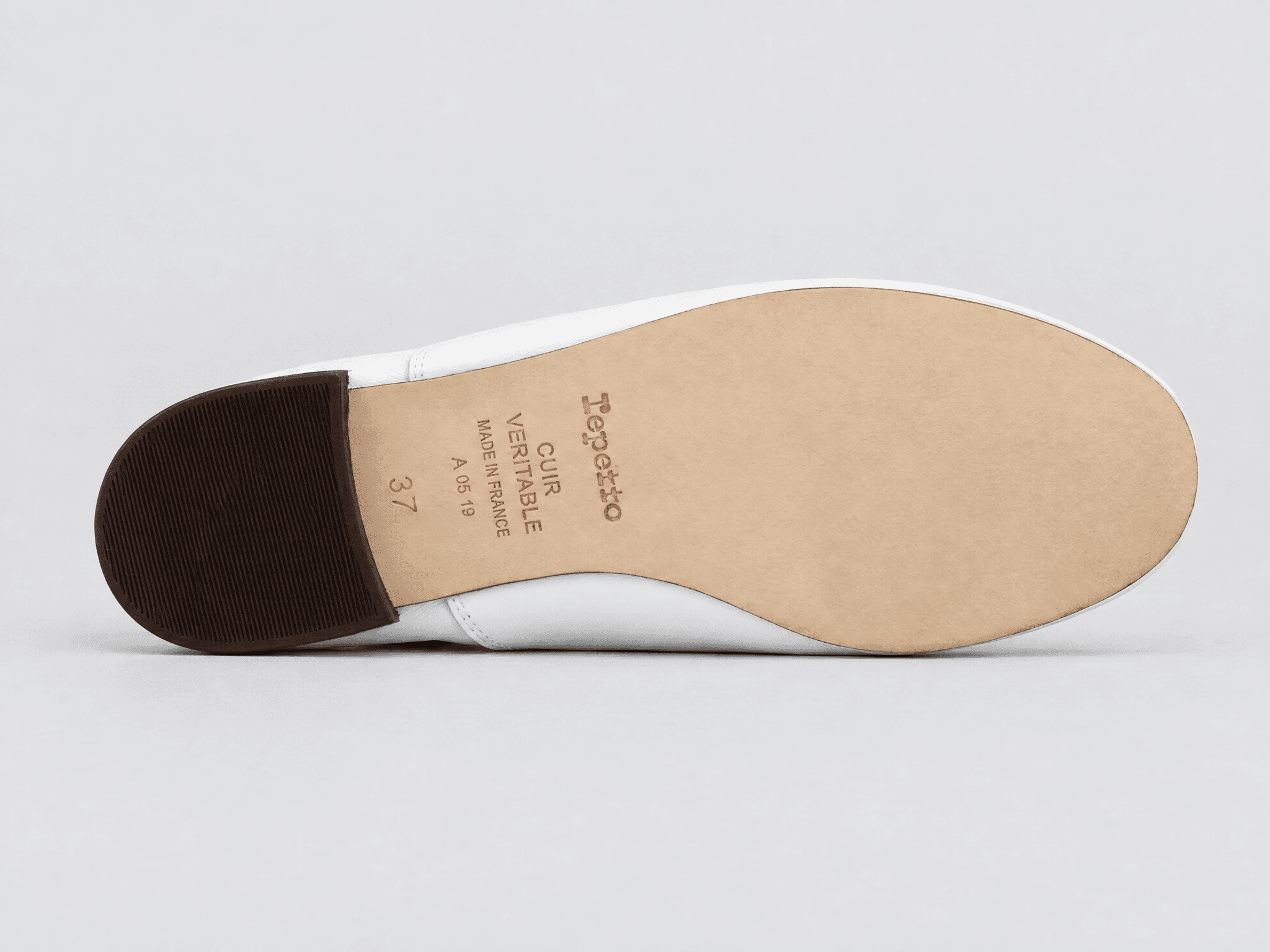
Figure 9. Outsole export, 2048 × 1536 pixels. Main markings remain recognizable, while lettering and surface details need exact comparison.
Approve a Gallery by Construction, Not Just Style
Area | Check against the corresponding source | Reject when |
Shape | Toe outline, topline, heel profile and sole thickness | The shoe becomes longer, fuller or structurally different. |
Laces | Eyelet positions, visible crossings, tongue and lace ends | Holes or crossings are added, removed or disconnected. |
Materials | Upper finish, sole type and heel covering | The leather version acquires rubber tread or an unsupported material. |
Branding | Actual visible words, marks and size characters | Letters change or a new mark appears. |
Set consistency | Color, variant, background, light and crop | Separate candidates look like different colorways or versions. |
Compare views at a similar apparent size and inspect detail at 100%. A candidate that passes the side silhouette check can still fail the outsole check. Approve each file for its intended role, then review the assembled gallery as a set.
The supplied supplemental collage includes a cropped heel and a top view of a pair. It was retained as reference material, not used as a generation input in the three documented branches. It does not prove that a top-view or pair output was tested.
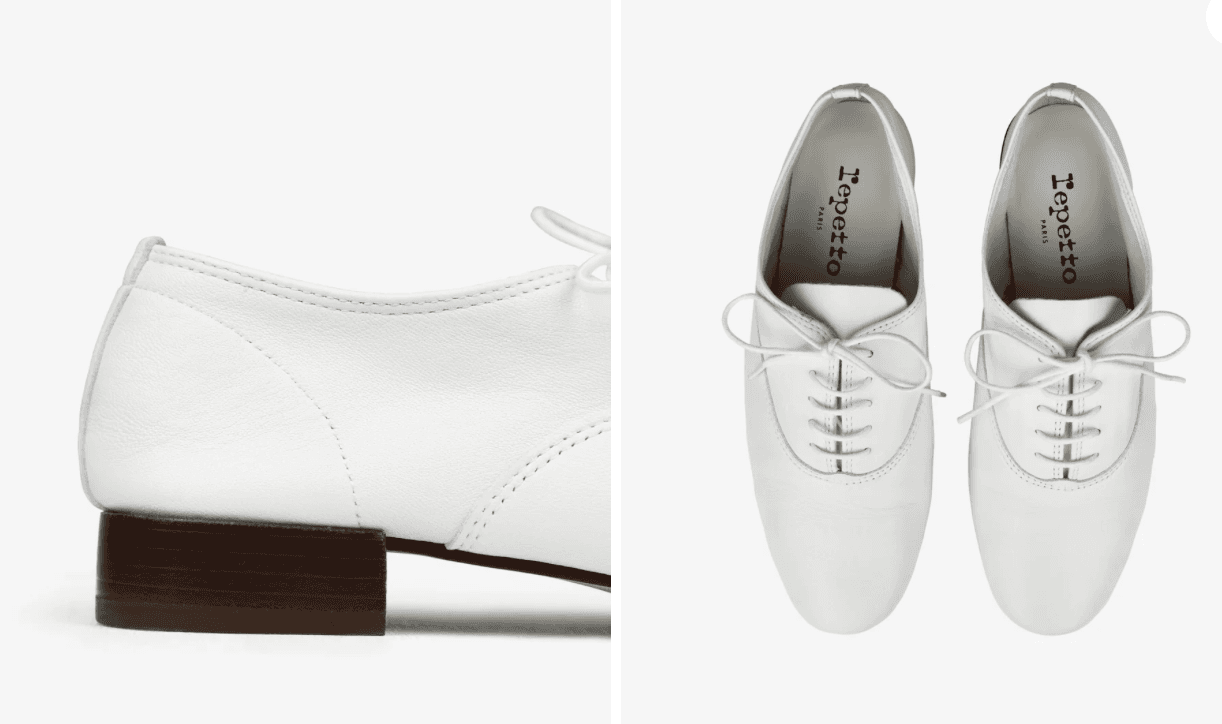
Figure 10. Supplemental heel and top-view reference collage, retained unchanged. No generated top-view or pair result is claimed from it.
Finish, Export and Troubleshoot
Keep the downloaded master and create web derivatives separately. Name files by SKU, view, color and revision, such as “V377VE-050-outsole-review01.png.” Use alt text that describes the actual view, and check the page’s thumbnail crops before publishing. Astorie’s general product photography guide covers the broader reference workflow.
If laces drift, return to the angle-specific source and simplify the brief. If sole text changes, keep the real sole photograph or preserve the photographed sole in a separate compositing workflow. If a white upper turns cream or gray, request neutral light and inspect the next file beside the source. These are proposed remedies, not documented successful reruns.
For exact commercial detail, use a protected original product layer and create the scene around it, checking the mask along laces and sole edges. Do not use a synthetic angle to fill a missing construction view. Capture that view instead.
FAQS
Can one shoe photograph generate every catalog angle?
It can generate inferred candidates, but it cannot document the unseen construction. Use real references for views that need to show actual soles, fastenings or branding.
How do I keep a pair consistent?
Photograph the actual pair and check left/right shapes, sizes, logos and lacing. This guide tested single side, rear and outsole views; it did not validate a generated pair.
Can I use the generated outsole instead of the real photo?
Only after exact review for its intended use. In the supplied case, markings and texture were regenerated, so retain the real outsole image when those details are evidence.
Does a realistic on-foot image prove fit?
No. Fit depends on the physical shoe and wearer. No on-foot image or fit test was performed here; use actual sizing information and real fitting evidence where needed.
Ready to try it on the canvas?
Open Astorie and fan your prompt across every frontier model in one workflow.