

Build a shot from words
Describe the subject, action, setting and camera movement in Text to video. Use a focused scene to explore how a written idea could play on screen.
xAI · Video generation
Turn a written scene or a still image into a short moving shot with xAI’s video model. Explore an action, a camera move or an atmosphere on the Astorie canvas.
Create short videos from text or a still image in landscape, portrait or square formats.
Describe the subject, action, setting and camera movement in Text to video. Use a focused scene to explore how a written idea could play on screen.
Choose Image to video when you already have a composition to work from. Add an image and describe what should move, while allowing for changes as the shot develops.
Choose 16:9, 9:16, 1:1, 3:2 or 2:3 in the Astorie canvas. Compose for the intended frame from the start, and check the result before placing it in an edit.
Take a shot idea into the Astorie canvas in three steps.
Click Open in canvas in the generator; sign in if asked. In the canvas, select Grok Imagine Video for your video node. Start with text or connect a starting image.
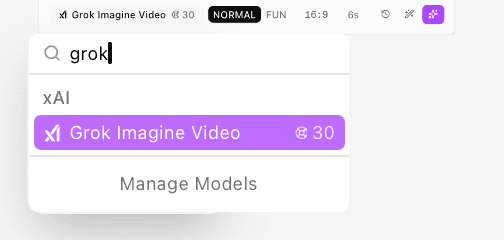
Write one clear action and a camera direction. Choose NORMAL, set the frame shape and select 6s or 10s. For image input, describe how the still should move. Click Generate in the canvas; Cancel appears while the take is processing.
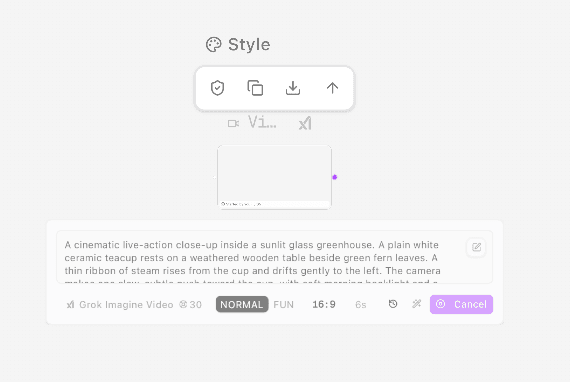
Open the completed take to preview it. Check motion, subject details, framing and any audio. Use Retake or revise the prompt or starting image when you want another version.
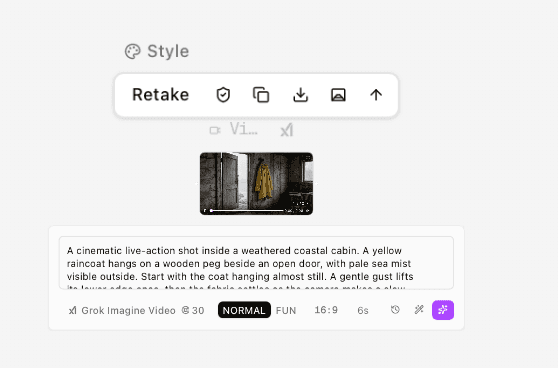
Develop an establishing shot, test movement in a still composition or plan a product teaser.
Explore an establishing shot before planning production. Give a location one readable action and one camera move so the clip can inform framing and timing.
Use an image of an interior or a set as the starting point for a motion study. Describe a subtle environmental change, then review how the composition develops over time.
Develop a short product teaser around a single unbranded object. Describe a restrained reveal through light or camera movement, then check the take before placing it in an edit.
Distinguish this Astorie model entry from other Grok versions and use the settings exposed for your task.
| Model | grok-imagine-video — xAI’s Grok Imagine Video, as listed in the Astorie model picker.Source ↗ · 2026-11-22 |
|---|---|
| Inputs on Astorie | Text to video and Image to video are exposed for this model.Source ↗ · 2026-11-22 |
| Output | Generated video from a written prompt or a starting image.Source ↗ · 2026-11-22 |
| Astorie aspect ratios | 16:9, 9:16, 1:1, 3:2 and 2:3 are available in the canvas.Source ↗ · 2026-11-22 |
| Astorie canvas settings | Choose NORMAL or FUN and a duration of 6s or 10s. The current panel has no separate resolution or audio switch; these use platform defaults.Source ↗ · 2026-11-22 |
| Version scope | This page covers grok-imagine-video. Grok Imagine Video 1.5 is a separate model; its controls and limits do not describe this Astorie entry.Source ↗ · 2026-11-22 |
Choose the input mode that matches the material you already have and the shot you want to explore.
| Dimension | Text to video | Image to video |
|---|---|---|
| Starting pointSource ↗ · 2026-11-22 | A written scene without a starting image. | An uploaded still composition. |
| Useful whenSource ↗ · 2026-11-22 | You want to explore a shot before choosing its visual starting point. | You already have an image and want to explore how it could move. |
| What to describeSource ↗ · 2026-11-22 | Subject, action, setting, camera and lighting. | Motion, camera and the changes that should occur after the supplied image. |
| What to reviewSource ↗ · 2026-11-22 | Whether the generated subject and composition fit the idea. | Whether subject details and spatial relationships remain usable as motion develops. |
Use generated clips as takes to assess before including them in a production.
使用最先进的 AI 模型开始创作。免费计划无需信用卡。
用 3 天体验 Pro 的全部功能
Compare the available input modes and settings before choosing another model.
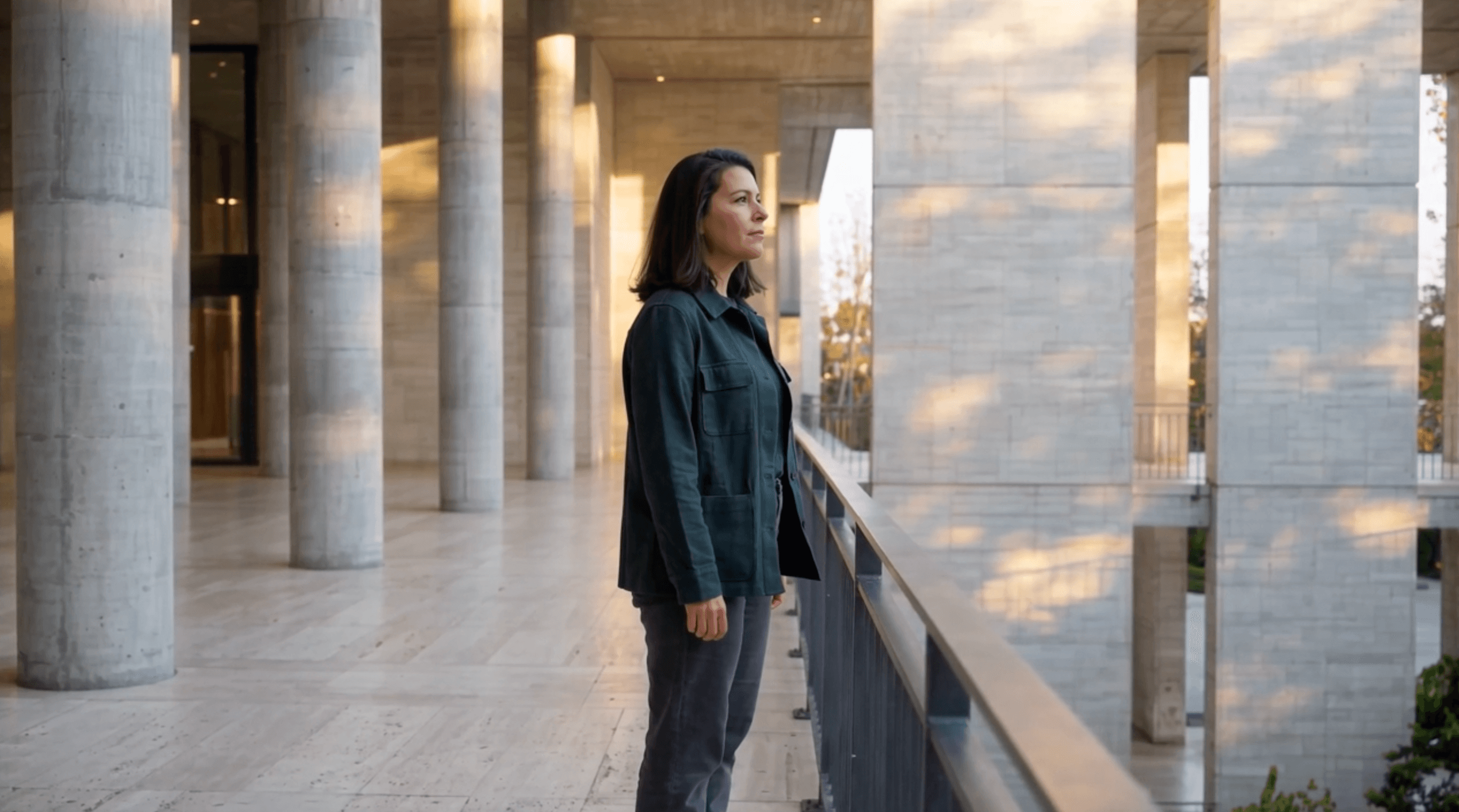
Give a scene time to unfold. Use wan-3.0 on Astorie to develop a shot from text or images, plan up to 30 seconds of action with native sound, and review the take in your canvas before it enters the edit.
Explore model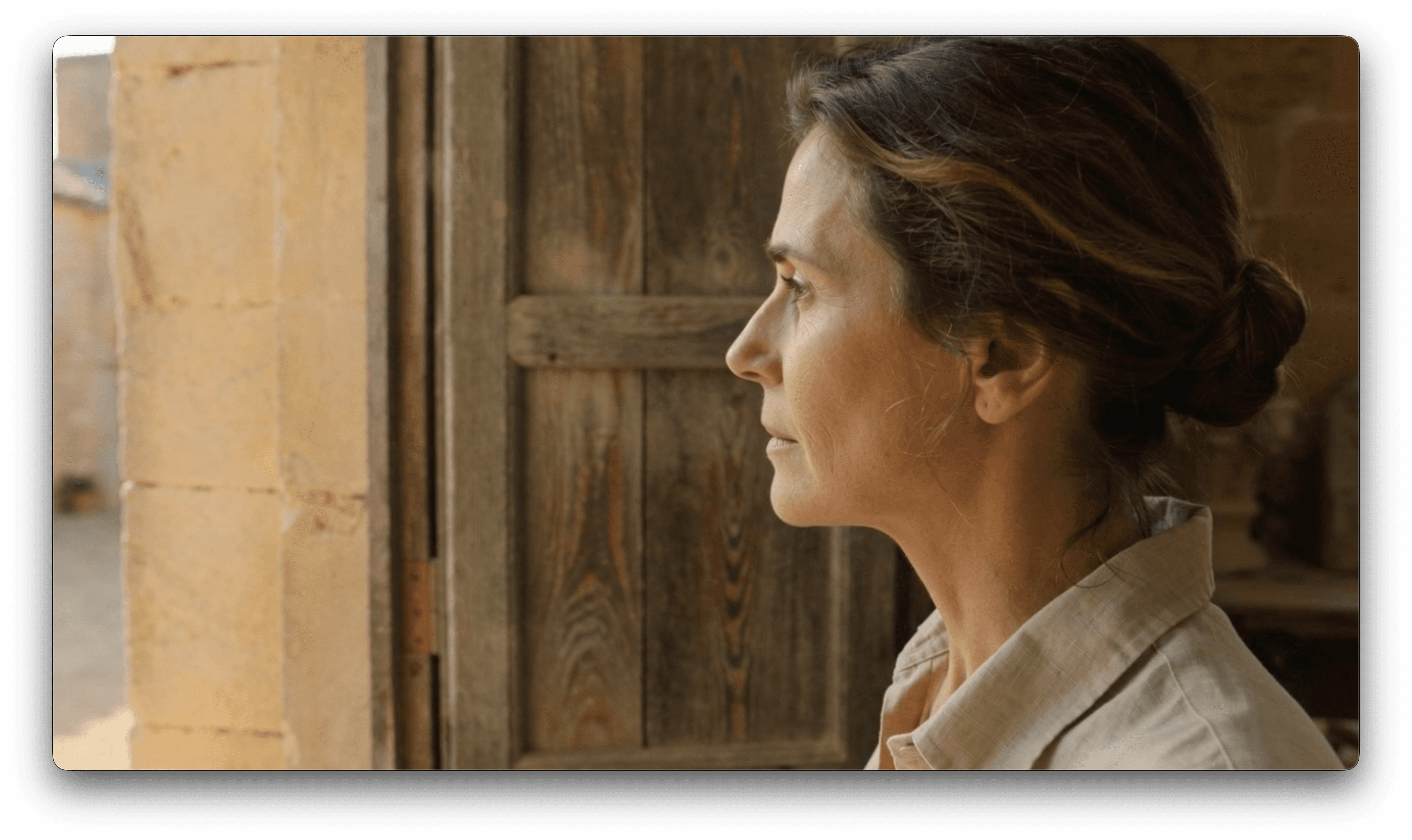
Direct a short scene from text or an opening image. Use Seedance 2.0 on Astorie to explore subject movement, camera timing and the sound of a moment, then take the configuration into the canvas to generate and review your video.
Explore model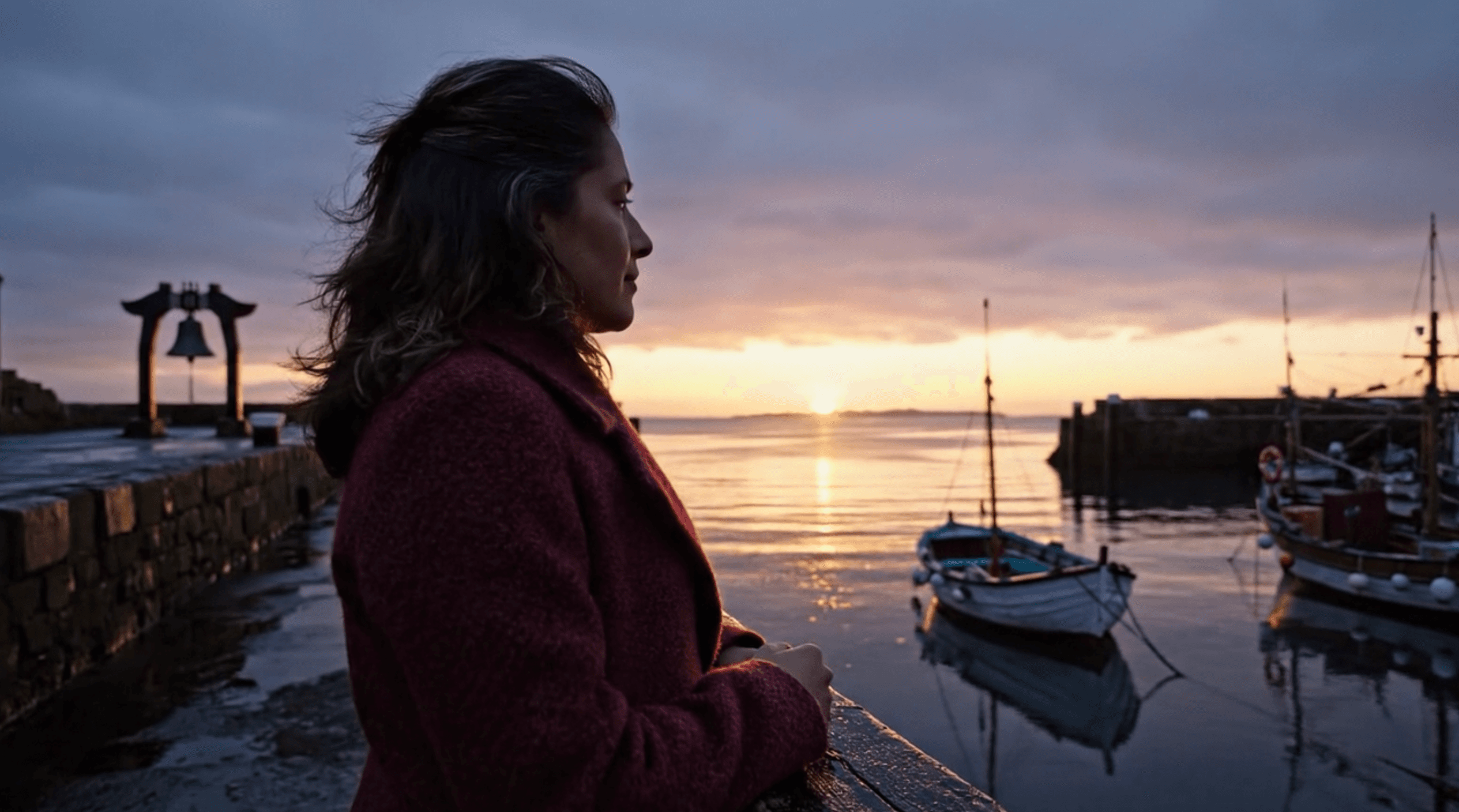
Turn a short scene brief into video with native sound. Use Veo 3.1 on Astorie to develop a cinematic moment, explore dialogue or bring a visual starting point into motion, then review the take in your canvas.
Explore modelLearn how to develop an image into motion and assemble generated shots into a short film.

To animate an image with AI, upload a photo or illustration, connect it to an image-to-video model, describe the motion you want, and generate a short clip. In Astorie, the source image, prompt, settings, and result stay on one canvas, so you can compare model runs without rebuilding the setup.
Read guide
To create an AI short film, write a compact script, convert it into a storyboard and shot list, lock the character and visual rules, generate each scene, add sound, then edit and export the approved shots as one film.
Read guideIt is xAI’s video generation model, listed as Grok Imagine Video in Astorie. This page covers the exact grok-imagine-video entry, which offers Text to video and Image to video on Astorie.
Yes. Choose Image to video, add a starting image and describe the motion you want. Review changes to the subject and composition as the video develops.
No. Open in canvas continues with the selected configuration on the Astorie canvas. Generation and credit use happen when you generate there. If you are signed out, the page first directs you to sign in.
Choose NORMAL or FUN, select 6s or 10s, and set the aspect ratio. The current Grok Imagine Video panel has no separate resolution or audio switch; those settings use platform defaults.
No. grok-imagine-video and Grok Imagine Video 1.5 are separate model entries. Features such as additional references or keyframe controls should only be used when the selected Astorie model exposes them.
Check the estimate for the selected settings before generating in the canvas. The estimate shown for a default configuration is not a fixed price for every task; Astorie’s plans are listed on this page.
Start with one subject, one visible action and one camera direction. Add the setting and lighting, then change a specific part of the prompt after reviewing each take.
Describe a scene or bring an image, then continue with grok-imagine-video on the Astorie canvas.