

Match on Action: Examples and How to Connect Your Shots
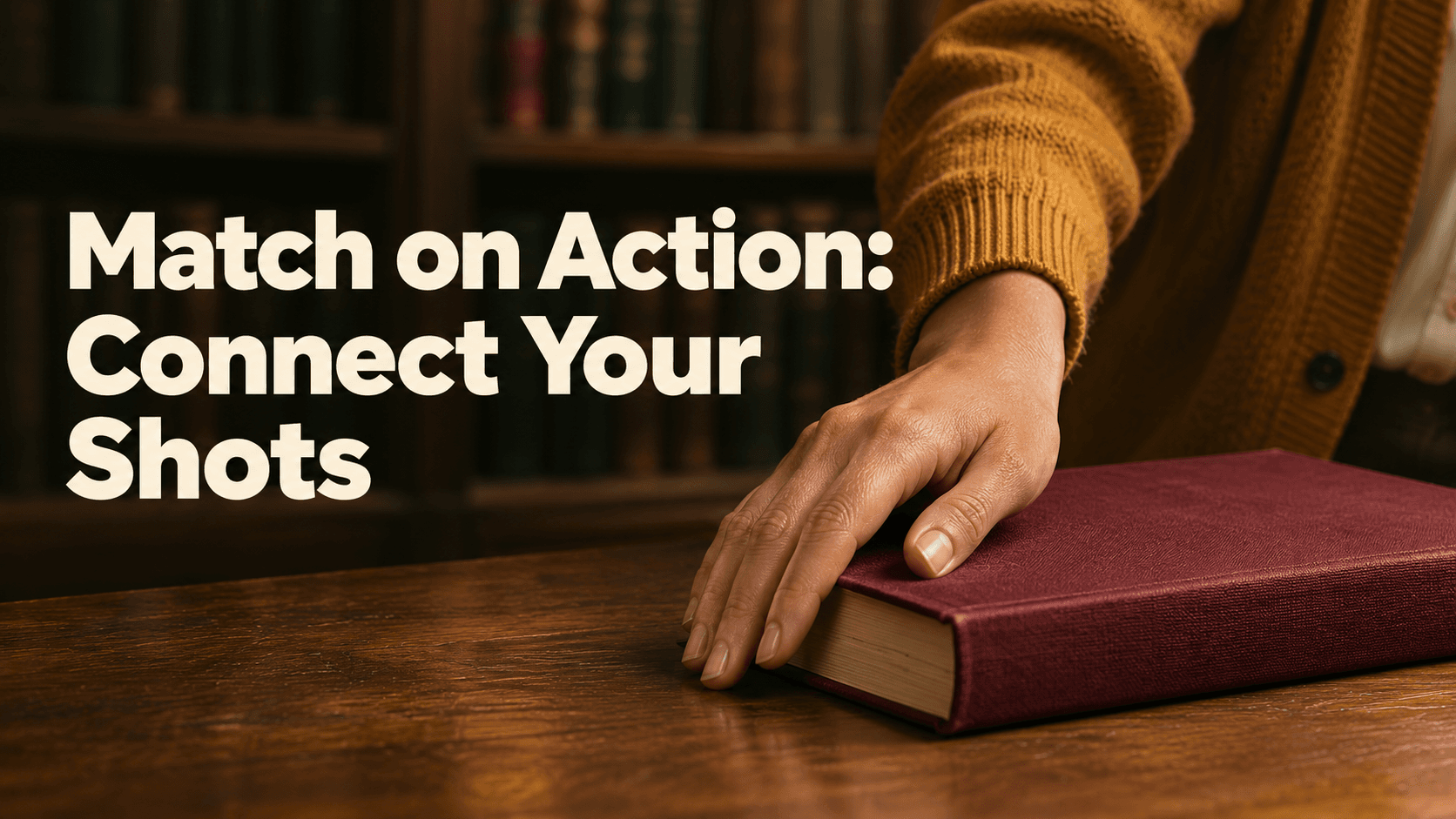
Match on action is an edit that carries one action across a change of shot. Cut while the movement is underway, then enter the next angle at a compatible phase so the action continues rather than starts again. Match direction, contact and progress through the gesture before worrying about identical timecodes.
A book sliding across a table makes the principle easy to inspect. The wider view establishes the person and action; the tighter view directs attention to the hand and book. We generated both views of a library scene in Astorie, then assembled two different joins from those same source clips.
What match on action keeps continuous
The action remains the same event across the cut. A hand already pushing a book should continue that push in the next view. If the incoming shot returns to the hand waiting beside the book, the edit repeats part of the gesture.
Adobe’s explanation of match on action in shot sequences describes coverage from different angles that preserves the subject’s action. For planning, choose a small gesture that you can repeat clearly: opening a door, setting down a cup or sliding an object.
Example you can plan | Outgoing view | Incoming view |
|---|---|---|
Slide a book | The hand and closed book are moving right. | A tighter view continues the same rightward slide. |
Open a door | The hand turns the handle and the door begins opening. | The next angle continues the opening at a compatible position. |
Set down a cup | The cup descends toward the table. | The close-up completes the descent and contact. |
A graphic match can connect different objects or scenes through shape or movement. Match on action has a more specific continuity job: make separate views read as one continuing action. Keep that distinction clear when explaining a transition to the editor or writing a generation brief.
Plan both angles around the same action
For the library example, the right hand already touches the closed burgundy book before movement begins. That starting contact matters. Asking a later shot to begin with a new reach would add an action phase that the first view does not need.

Figure 1. Main reference: the woman’s right hand is already in contact with the closed book.
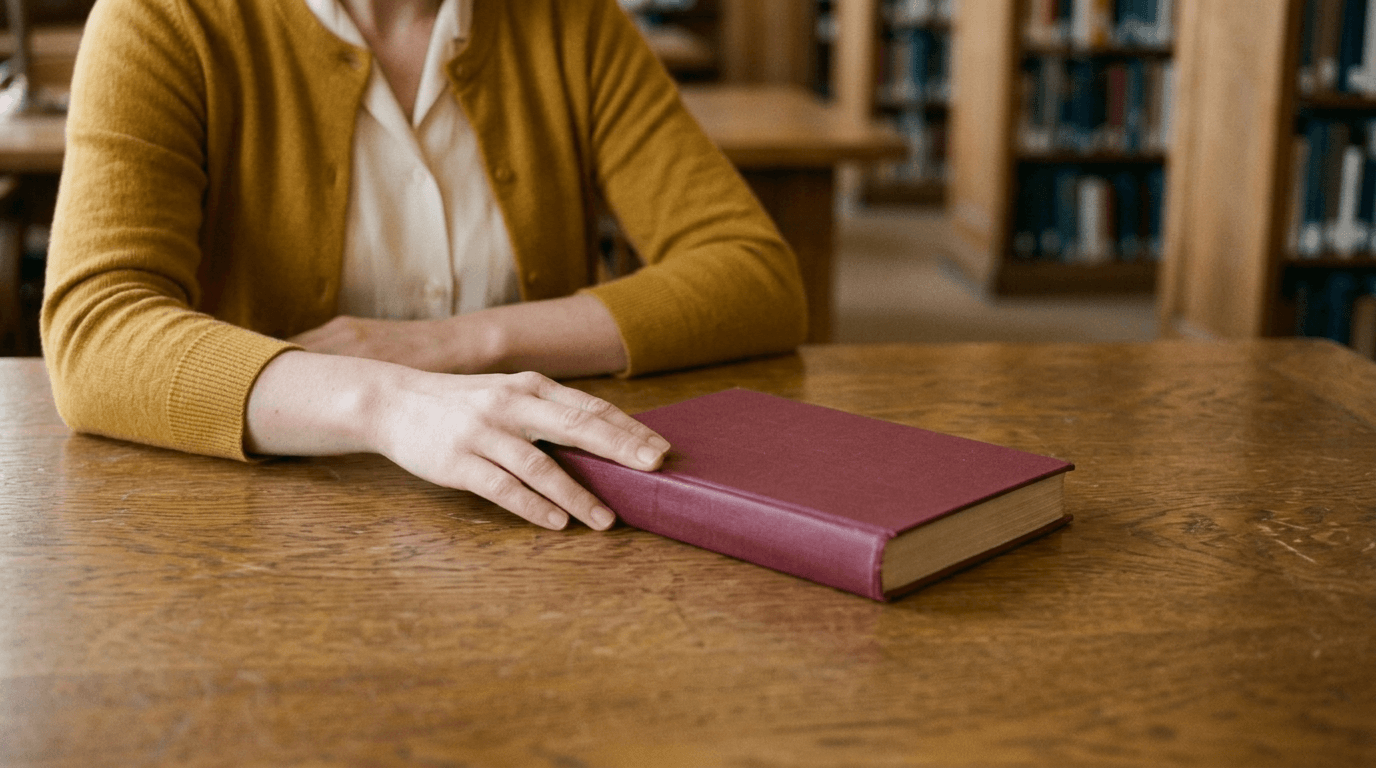
Figure 2. Tighter reference: the forearm, hand and complete book remain visible, with room to slide toward screen right.
Write down the hand, direction, prop state and start pose before generating the second view. “Right hand, closed book, contact already established, slide to screen right” is a more useful continuity brief than “make a cinematic close-up.” The shot-list template can help carry those decisions into the rest of a sequence.
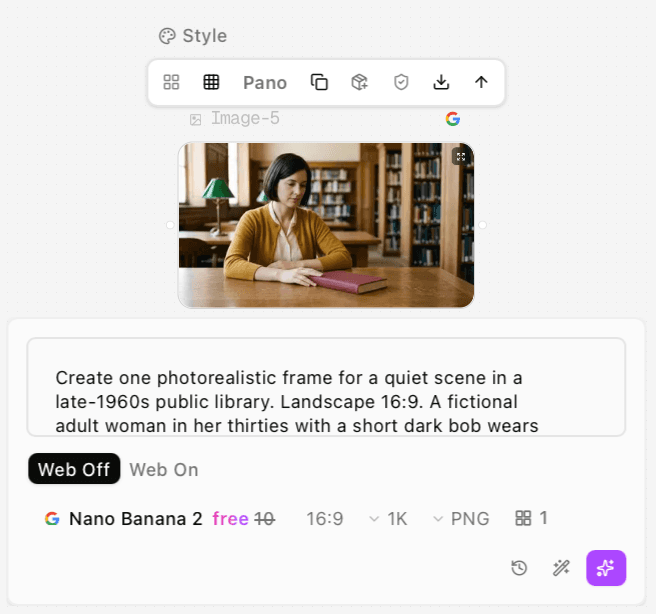
Figure 3. The main reference was made with Nano Banana 2.
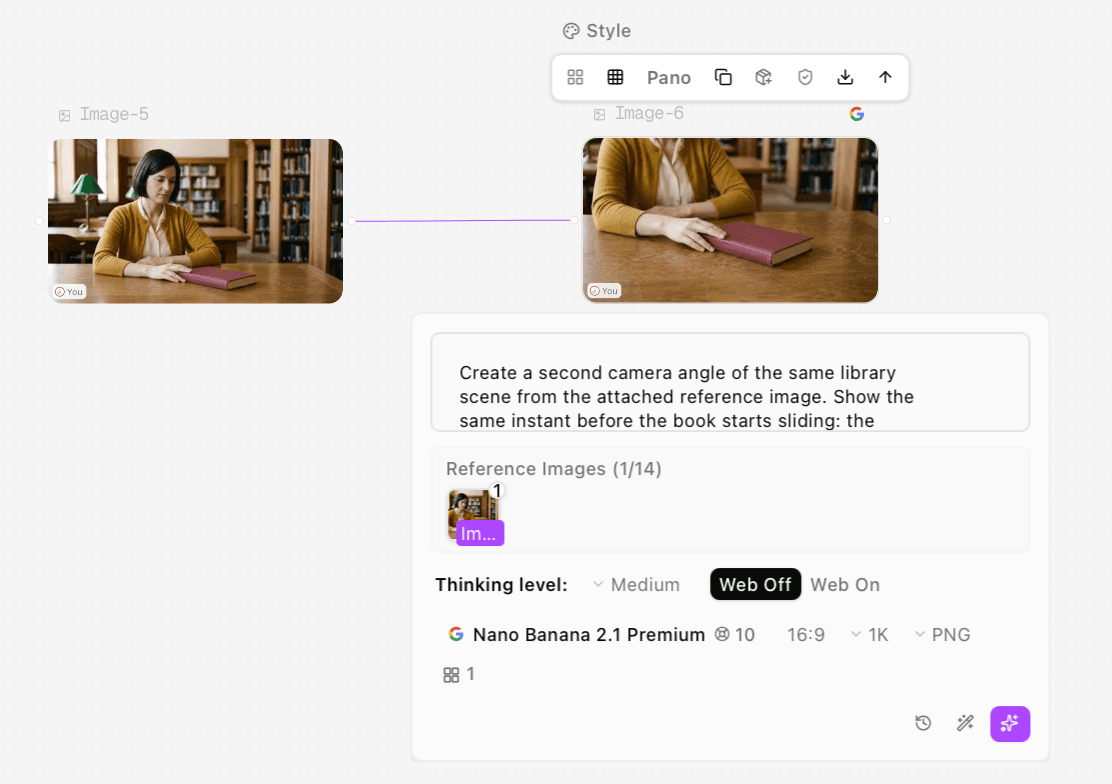
Figure 4. The tighter reference connects to the main image and uses Nano Banana 2.1 Premium with Medium thinking selected.
Generate coverage as two separate performances
Both supplied motion clips use Seedance 2.5 with Draft, Omni, 16:9, 720p and 5 seconds selected. Each node receives its corresponding still through Reference Image. Treat that as a visual reference route; the connection does not establish a locked first frame or a synchronized second camera.
Coverage | Reference and generation route | Action to carry |
|---|---|---|
Main angle | Main library still → Seedance 2.5 Reference Image | Right hand in contact; slide the closed book to screen right. |
Tighter angle | Tighter library still → Seedance 2.5 Reference Image | Repeat the same contact, direction and prop state from the closer view. |
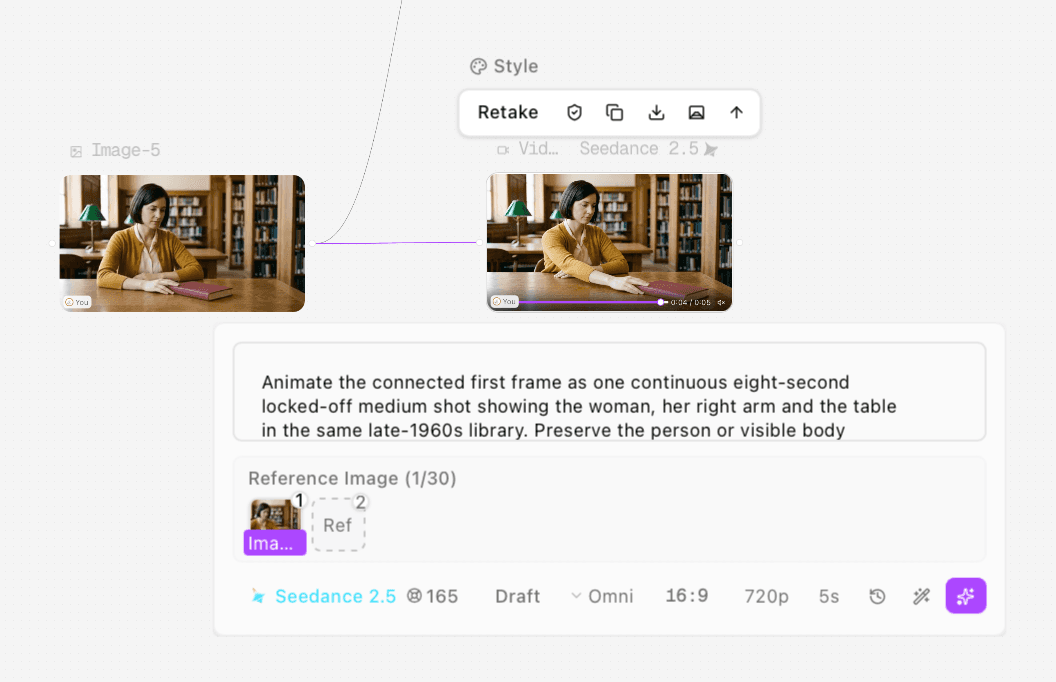
Figure 5. The main motion node uses the main image as a reference, with Seedance 2.5 Draft, Omni and 5s visible.
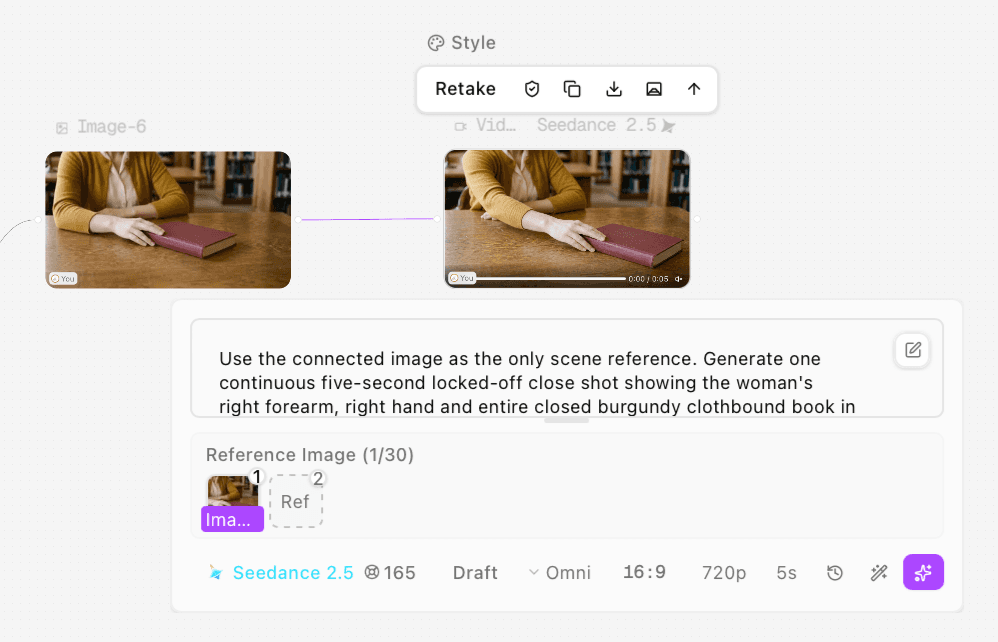
Figure 6. The second motion node uses the tighter image with the same visible video model, mode, resolution and duration.
Main-angle source: the right hand moves the closed book toward screen right.
Tighter-angle source: compare the contact pose, direction and progress through the same kind of slide.
The two clips start moving at different points in their own timelines. Their matching 5-second settings do not make them recordings of one simultaneous performance. AI gives you alternative coverage from the references; the edit still depends on selecting compatible moments.
Starting template for your own two-angle coverage
Use the connected image as the scene reference for one fixed-camera shot. Begin with the right hand already touching the closed book. Hold briefly, then slide the book flat from screen left to screen right by about half its width. Keep the hand in contact and the book closed and inside frame. Stop and hold. The left hand does not assist. Preserve the clothing, lighting and prop design. No second gesture, reverse slide, lifting, camera move or cut.
Adapt the framing description to each reference while keeping the action instructions consistent. Set duration in the node as well as in the brief. A prompt that asks for eight seconds does not change a 5-second duration selected in the generation controls.
Choose the cut by the action phase
Mark contact, early slide, middle slide and stop in both clips. Look for a pair in which the hand stays on the same part of the book and the rightward movement continues. Use timecode to find the moment again, not to assume the performances line up.
For this coverage, we selected an outgoing main-angle frame around the middle of the slide and an incoming tighter frame at a similar phase. The two frames around the cut help you inspect pose and object position. The moving previews are needed to judge rhythm.
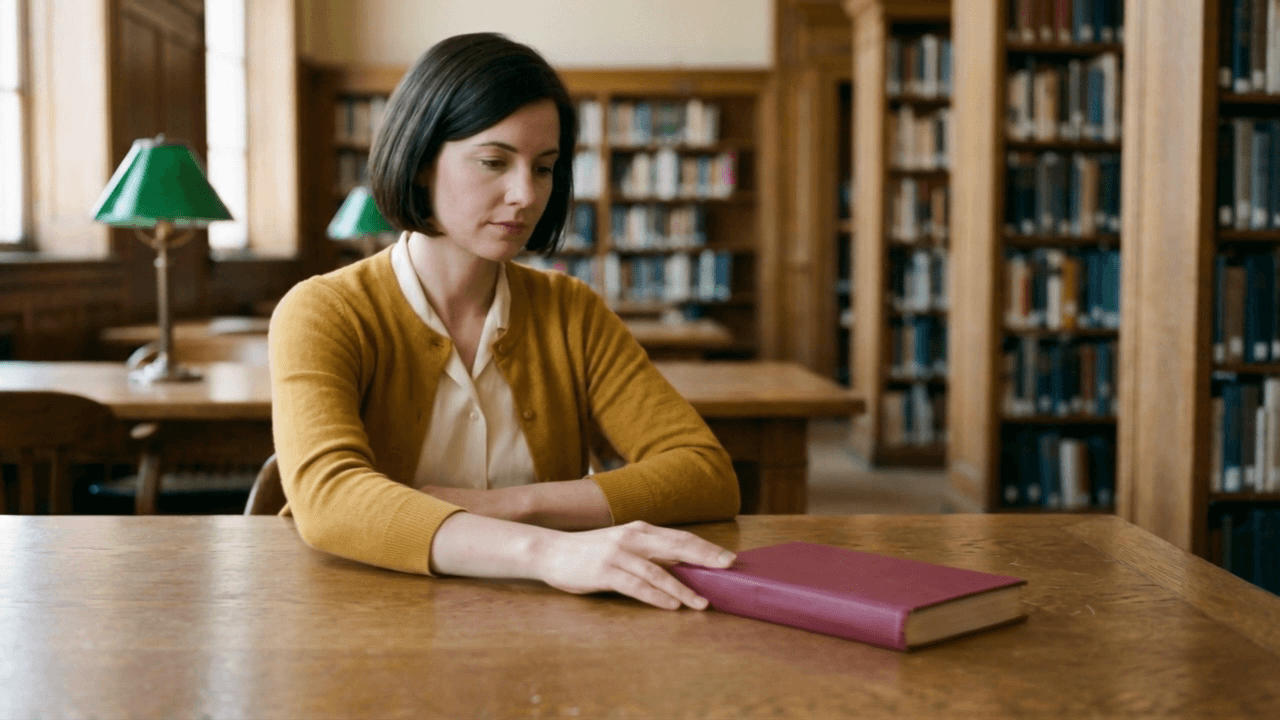
Figure 7. Outgoing main-angle frame: source frame 73, about 3.04 seconds.
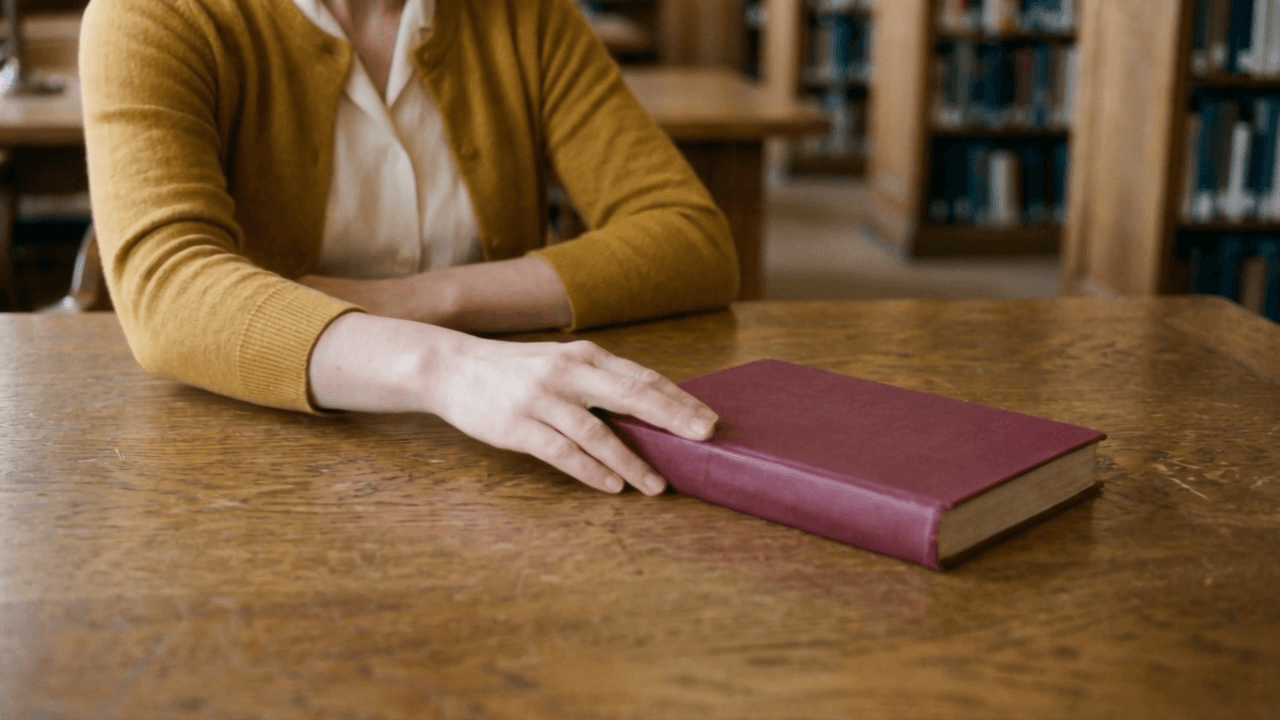
Figure 8. Incoming tighter frame: source frame 57, about 2.38 seconds.
These examples use 24 fps source clips. The source-frame ranges below include both endpoints and count from frame 0. The cut happens after main frame 73, so the next shot starts at about 3.08 seconds in each assembled preview.
Edit | Main source frames | Tighter source frames | What the selection does |
|---|---|---|---|
Action-stage alignment | 0–73 | 57–120 | Enters the second view partway through the slide. |
Repeated-action comparison | 0–73 | 16–120 | Returns to an earlier part of the gesture before continuing. |
Action-stage-aligned edit: main coverage followed by a tighter mid-slide section. Audio is intentionally omitted to focus on the visual join.
Repeated-action comparison: the same outgoing shot cuts to an earlier phase in the tighter coverage. This is an intentional edit choice, not a separate failed generation.
Play each join with a short lead-in and tail. Watch the right fingertips and book edge, then the overall movement. The first selection keeps the action order moving forward, but differences in grip, perspective or speed can still show at the cut. If the join feels abrupt, move the incoming or outgoing boundary a few frames and replay it before generating more coverage.
When you need a still to communicate the proposed join, use frame extraction to isolate the moment for discussion. A still can reveal a pose mismatch; it cannot tell you whether the moving cut has the rhythm you want.
Fix the edit before replacing the shot
Problem at the join | Try in the edit | Replace coverage when |
|---|---|---|
Action seems to restart | Advance the incoming shot to the matching movement phase. | The next view never contains a compatible phase. |
The book jumps forward | Try an earlier incoming point or a later outgoing point. | The two performances cannot supply a plausible continuation. |
The hand or book changes shape | Check a nearby moment or use coverage that does not expose the mismatch. | The required prop detail remains incompatible across useful frames. |
Screen direction reverses | Check whether another shot can re-establish the spatial relationship. | No available coverage explains the reversal. |
A short trim can remove repetition. It cannot turn a different grip or redesigned prop into the same object. Keep the working angle and replace only the coverage that prevents the cut. The broader continuity editing guide covers how action phase fits with eyelines and screen direction.
Frequently asked questions
Does match on action require identical timecodes?
No. Two performances can reach the same gesture at different times. Match the action state and movement direction, then refine the cut on the timeline.
Should I cut exactly on contact?
Contact is one useful landmark, but it is not the only possible cut. A moving hand, a sliding prop or the continuation after contact may provide a better join. Choose the point that carries the action clearly in your footage.
Can AI generate both angles already edited together?
The example here uses two separate generated clips and a later manual edit. A prompt for matching movement does not by itself select the final cut or repair continuity between the outputs.
Can sound help the transition?
A continuous sound bed or well-placed effect can support a visual join, but it does not fix a repeated movement or incompatible prop. The silent comparisons here isolate the picture decision; add and review sound as a separate finishing step.
Ready to try it on the canvas?
Open Astorie and fan your prompt across every frontier model in one workflow.