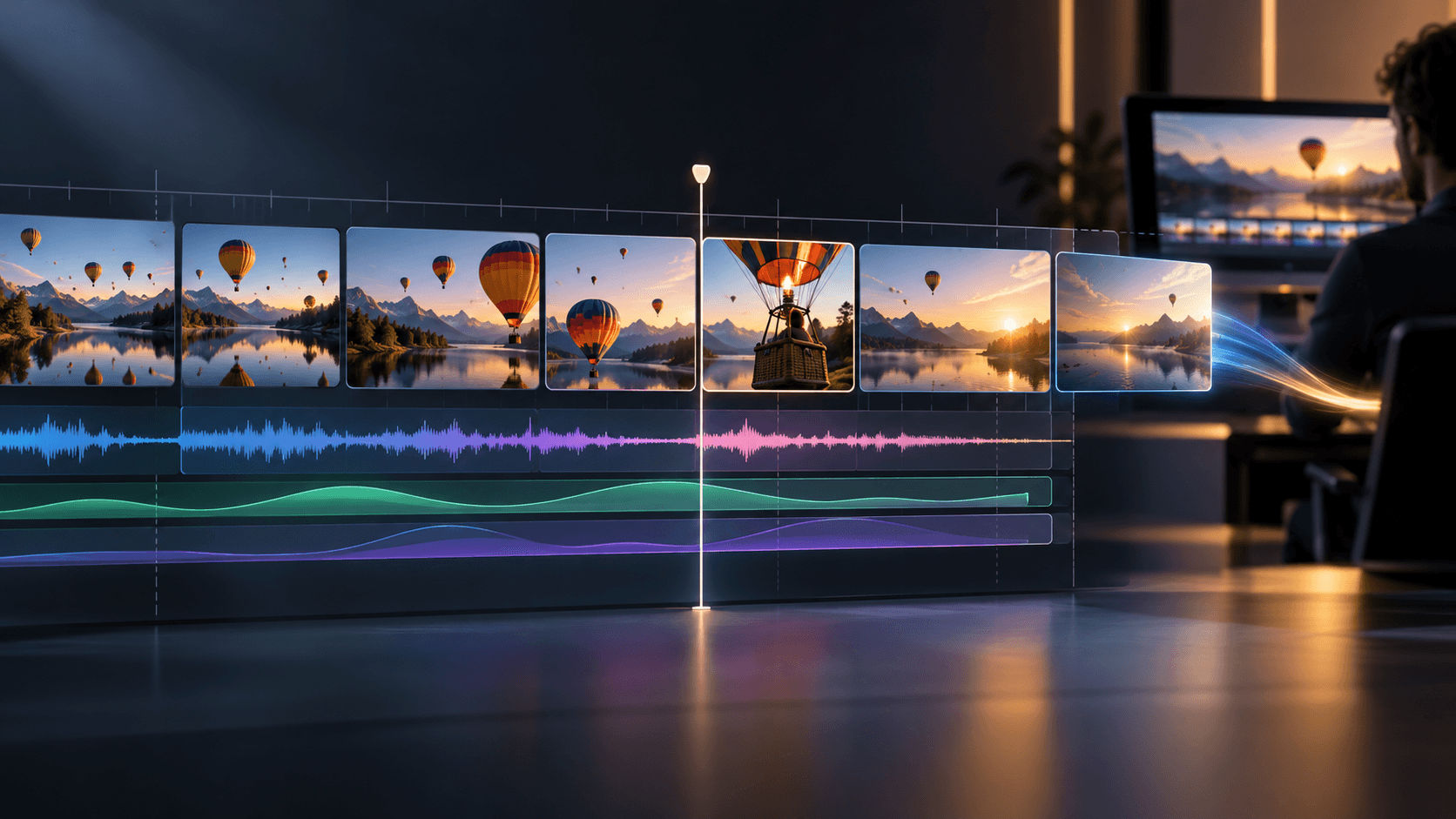
Multi-Shot Sequence Plan

Multi-Shot Video Generation with a Shot Plan

Plan multi-shot video generation on the Astorie canvas to build a connected multi-shot AI video sequence. Organize shared reference images, generate each shot with a focused motion brief and review continuity across cuts before assembling the final edit.

Concept illustration of a four-shot cinematic storyboard sequence with consistent subject and lighting; not generated video.

Plan Multi-Shot Video Generation around Shared References

A convincing multi-shot AI video sequence depends on what stays consistent from one cut to the next. Comparing isolated one-shot prompts with a planned canvas sequence shows why shared visual references and per-shot motion briefs prevent scenes from drifting apart.

Isolated Single-Shot Prompts

  • Writing a brand-new text prompt for every shot often changes the character's face, wardrobe and room layout between cuts.
  • Packing several camera moves and story beats into one long generation request leads to muddled motion and unusable cut points.
  • Reviewing clips one by one without placing them in sequence order hides jarring jumps in lighting and screen direction.
Concept illustration of disconnected shot prints with abrupt changes in wardrobe color and weather.

Planned Multi-Shot Sequence on the Canvas

  • Establish your character, props and environment in reference Image nodes before generating motion for individual shots.
  • Give each Video node one clear dramatic beat and one camera direction so every clip has a clean entry and exit.
  • Compare adjacent takes side by side on the canvas and capture end frames when the next shot needs a direct visual handoff.
Concept illustration of an anchor reference card maintaining wardrobe and lighting continuity across four sequential shot prints.

How to Build a Multi-Shot Sequence in 4 Steps

Start with a short shot list and the key visual references that anchor your scene on the Astorie canvas.

  1. 1

    Map the shot list and shared visual anchors

    Break your scene into individual shots, such as an establishing wide, a medium action beat and a close reaction. Prepare or generate reference images in Image nodes for the characters and locations that must stay recognizable.

  2. 2

    Connect references to a Video node for each shot

    Create a Video node for each planned beat and connect the relevant single Image node or multiple Image nodes for Multi-Image Reference where supported. Write a concise motion prompt that describes only the action and camera move for that specific shot.

  3. 3

    Capture frames to bridge connected cuts

    When a follow-up shot continues the exact moment of a previous clip, use Frame Extraction to capture the current or final frame as a JPEG still. Use that captured frame as the visual starting point or reference check for the next shot.

  4. 4

    Compare takes in order and export selects

    Review the generated clips in sequence order to check screen direction, lighting and pacing. Regenerate any shot that breaks continuity, then export the approved takes for timeline cutting and audio sync in your NLE.

What to Keep Consistent across Shots

Check three continuity anchors across every take before locking your selects for the edit.

Character and Wardrobe Cues

Compare facial features, hair, clothing colors and held props across wide and close-up shots. Keeping the same approved reference image connected on the canvas reduces drift between separate generation runs.

Environment and Lighting Direction

Check that key light direction, time of day, color temperature and background architecture match across cuts set in the same location. Even a small shift in shadow direction can make two shots feel like different scenes.

Action and Cut Points

Inspect the first and last frames of adjacent clips to confirm that subject posture, gaze direction and movement speed connect smoothly across the cut.

Inputs, Output and Review

Keep your shot plan, reference connections and editorial handoff aligned across the sequence.

InputA shot list, approved reference images in Image nodes and per-shot motion prompts connected to Video nodes on the canvas.
OutputIndividual reviewed video clips designed to cut together as a multi-shot sequence in your editing software.
ReviewCheck character identity, wardrobe, lighting continuity, screen direction and clean in/out frames across adjacent shots.
Plans and creditsEach shot generation and revision uses workspace credits according to the selected video model; see the pricing page for plan details.
Rights and assemblyThis workflow builds a sequence shot by shot on the canvas; final timeline editing, transitions and sound design happen in your NLE.

Multi-Shot AI Video FAQ

Does this workflow generate an entire multi-shot movie from a single prompt?

Rather than relying on one prompt to guess an entire edited scene, this workflow helps you plan and generate a sequence shot by shot on the Astorie canvas. Building one shot per node gives you direct control over framing, reference images and retakes when a single beat needs revision.

How do I keep the same character appearance across multiple video shots?

Start from a clear character reference still in an Image node and reuse that verified reference across the Video nodes in your scene. Where your chosen model supports Multi-Image Reference, you can also combine character and environment references before generating.

When should I use Frame Extraction between two shots?

Use Frame Extraction when the next shot needs to pick up directly from the ending pose, lighting or camera position of the previous clip. Capturing the final frame gives you a concrete visual reference to guide the next generation step.

Where do I assemble the final multi-shot cut and sound mix?

Once you have reviewed and approved the individual clips on the canvas, export the selected takes and bring them into your nonlinear editor to trim cut points, add transitions, balance color and mix dialogue and music.

Plan Your Next Multi-Shot Sequence on the Canvas

Lay out your reference frames, generate one focused shot per beat and review how the sequence cuts together.