

How to Make an AI Product Demo Video

An AI product demo video should show one verified product action with a visible start and endpoint. Prepare real product references, create a stable opening image, then direct the action in a short video generation. Check the moving parts and hand contact throughout the exported clip. If the mechanism cannot be represented accurately, film that action and use generated footage for supporting scenes.
This guide uses a manual coffee grinder to make the distinction practical. Two supplied Seedance 2.5 drafts showed a hand turning its crank while the body stayed largely stationary. Neither result followed the requested rotation count precisely. That makes the tests useful for learning how to review a demo, rather than proof that the generated action is ready for every product campaign.
An AI product demo video needs a real action
Write the demonstration as something a viewer can observe: a person turns a crank, opens a latch or adjusts a stand. Connect that action to what the audience needs to understand. A slow orbit around a closed product may introduce its appearance, but it does not explain its operation.
For software, capture the actual interface and use generated material around that recording. For a physical mechanism, collect photographs of the moving components and, ideally, a real operation clip. A single still establishes appearance more readily than the movement path of a mechanism hidden inside it.
The supplied grinder reference shows a wooden body, metal dome, central crank assembly and front drawer. Peugeot’s product page describes a manual grinder with a crank, grinding adjustment and a drawer for collecting ground coffee. [1] The photographed device supports a crank-turning brief; the source still does not verify every angle or the internal grinding process.
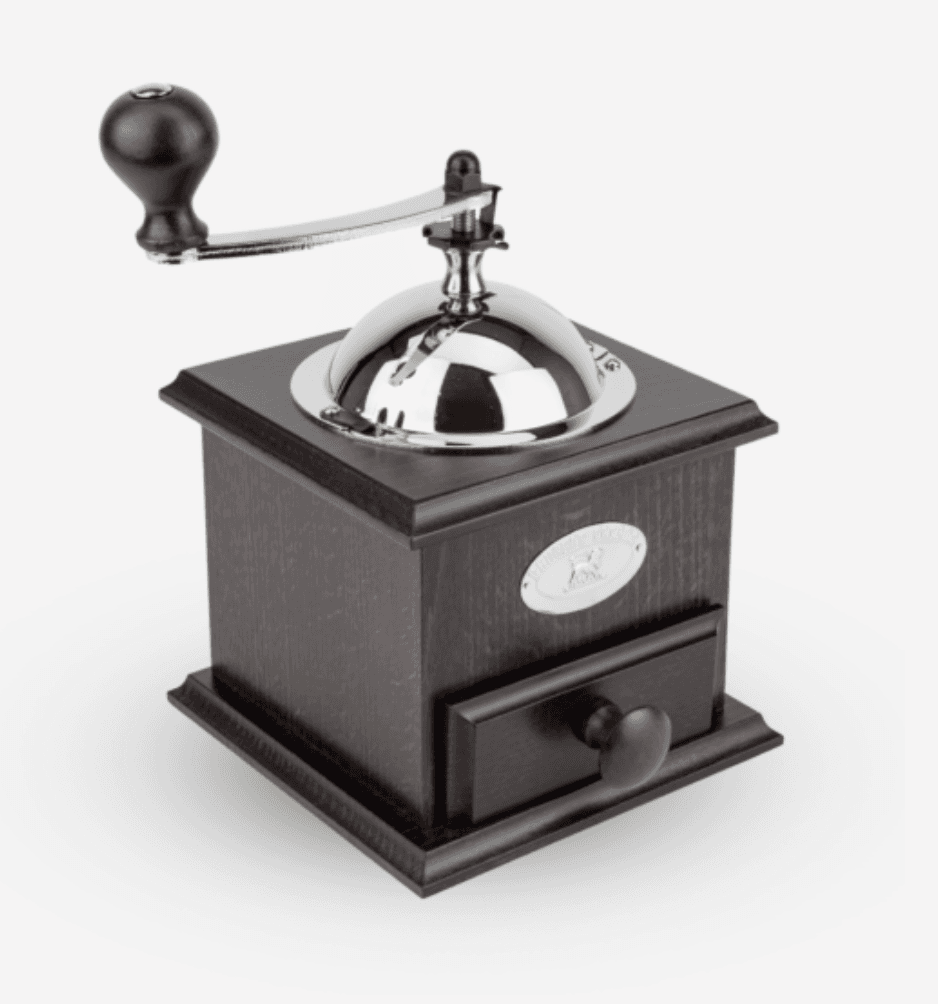
Figure 1. Supplied grinder photograph used to establish visible components.
Prepare a stable opening image
Create an Astorie project and place the product reference on the canvas. Attach it to an Image node and choose the route labeled GPT Image 2.5. Describe the setting while keeping the mechanism visible and stationary. Astorie’s Image Node guide explains the creation and reference workflow. [2]
The supplied Image-8 setup used Extra high quality, Auto background, 16:9, 2K and PNG. The exported image is 2048 × 1152 pixels. It places the grinder on a wooden kitchen worktop with space around the crank. Flare is selected in the panel; no separate effect test was supplied.
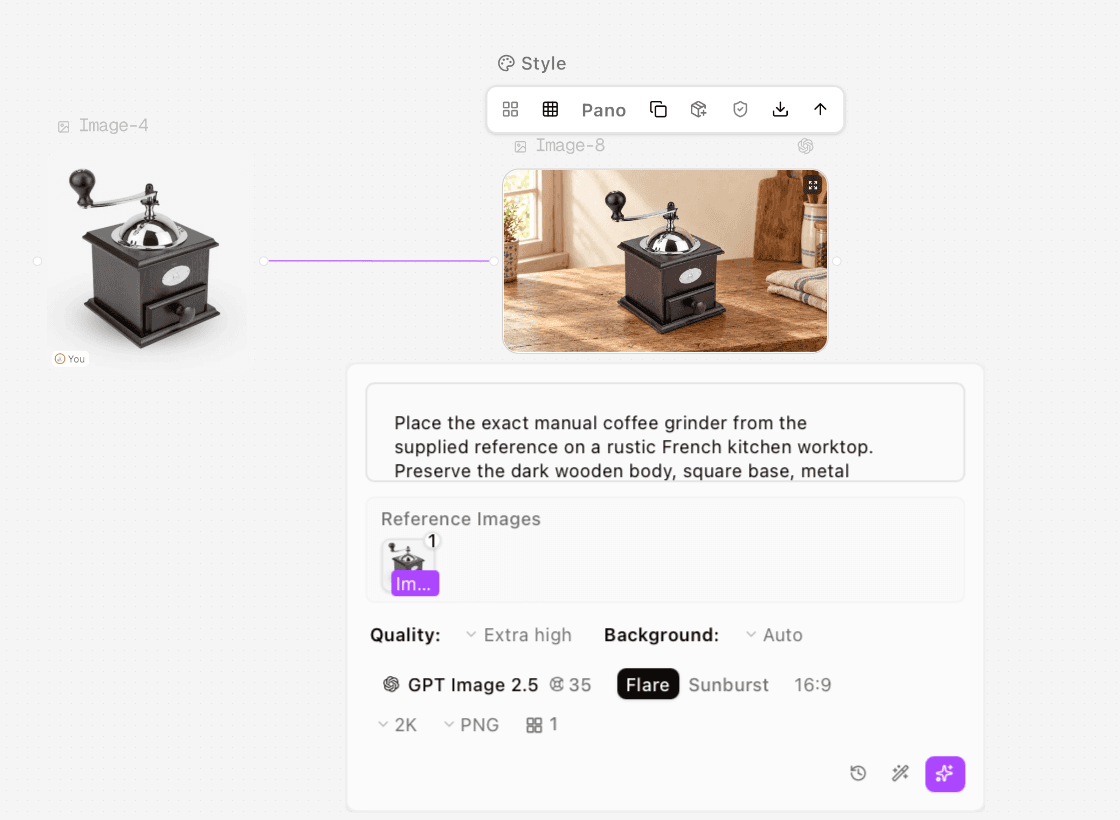
Figure 2. Actual Image-8 generation setup with the grinder reference and selected image controls.
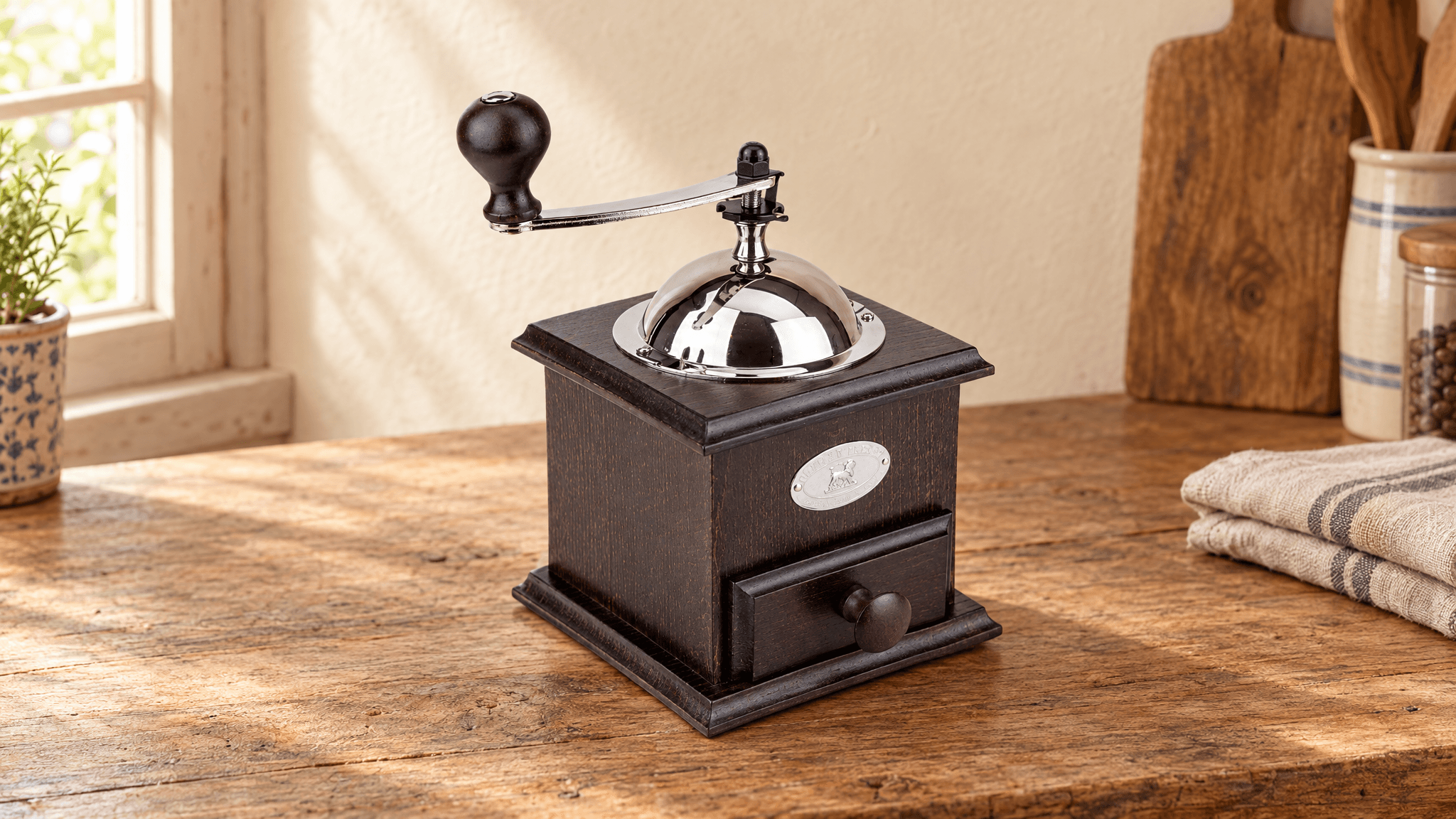
Figure 3. Image-8 became the shared opening reference for both action drafts.
Before animating, compare the crank length, knob, shaft position, body proportions and drawer with the source. The still is a preparation step, not a demonstration of the function. Avoid adding a hand until the product itself is established, because a hand can hide the part you need to inspect.
Define the action and its endpoint
Keep the first test narrow. The initial brief requested one complete revolution; the revision requested a slower half revolution. Both kept the drawer closed, avoided coffee grounds and used a fixed camera. This isolates the visible crank action instead of claiming to show the full grinding process.
A useful brief specifies who acts, where the hand makes contact, which axis the part rotates around and when movement ends. Describe fixed geometry as well as movement. A metal crank should behave like a rigid component, not a flexible ribbon.
The following is a reusable prompt template for a new test, not the full original input from either recorded run:
Use the attached grinder image as the opening composition. Keep the camera fixed.
A right hand enters, grips the wooden crank knob and slowly turns the crank around its central vertical axis. Stop at the requested endpoint, release the knob and withdraw.
Keep the crank arm rigid, with constant length and shape. Keep the knob attached to its tip. The wooden body, metal dome, base and closed drawer remain stationary.
Do not add beans, coffee grounds, opened components, extra hands, cuts or camera movement.
Add a rotation target only when you can review that target clearly. Time instructions guide the brief; they do not prove that the output executed the requested angle or timing.
Generate a short action draft
Connect Image-8 to a Video node, select Seedance 2.5 and inspect the reference area before running. The supplied panels show one reference, Omni mode, Draft, 16:9, 480p and five seconds. Astorie documents Video nodes and their image-led inputs. [3]
Review the quote and settings, then generate. Retain the first output before changing the prompt. Use a new branch or record the revised input separately so the second result cannot be mistaken for the first.
Recorded item | Video-4 initial brief | Video-5 revised brief |
Product reference | Image-8 | Image-8 |
Route and mode | Seedance 2.5, Omni, Draft | Seedance 2.5, Omni, Draft |
Selected format | 16:9, 480p, 5 seconds | 16:9, 480p, 5 seconds |
Requested rotation | One full turn in the supplied brief | One half turn in the supplied revision |
Exported video | 854 × 480 pixels, 24 fps | 854 × 480 pixels, 24 fps |
Main review finding | Repeated turning and visible crank-shape variation | Slower motion, but movement still exceeded half a turn |
Both panels display 70 beside a credit icon and a separate 1080p render offer. Actual deductions and 1080p outputs were not supplied. These are two documented drafts, not a complete attempt history or a cost comparison.
Inspect the mechanism through the whole clip
The first screenshot confirms the prompt opening “Use the supplied image as the opening frame. Create one continuous 5-second demonstration of the manual coffee grinder with a locked camera.” The revision screenshot confirms the opening “Use the supplied image as the opening frame. Locked camera, one continuous 5-second shot.” The remainder is not fully visible in either capture; the supplied working briefs explain the intended full-turn and half-turn targets.
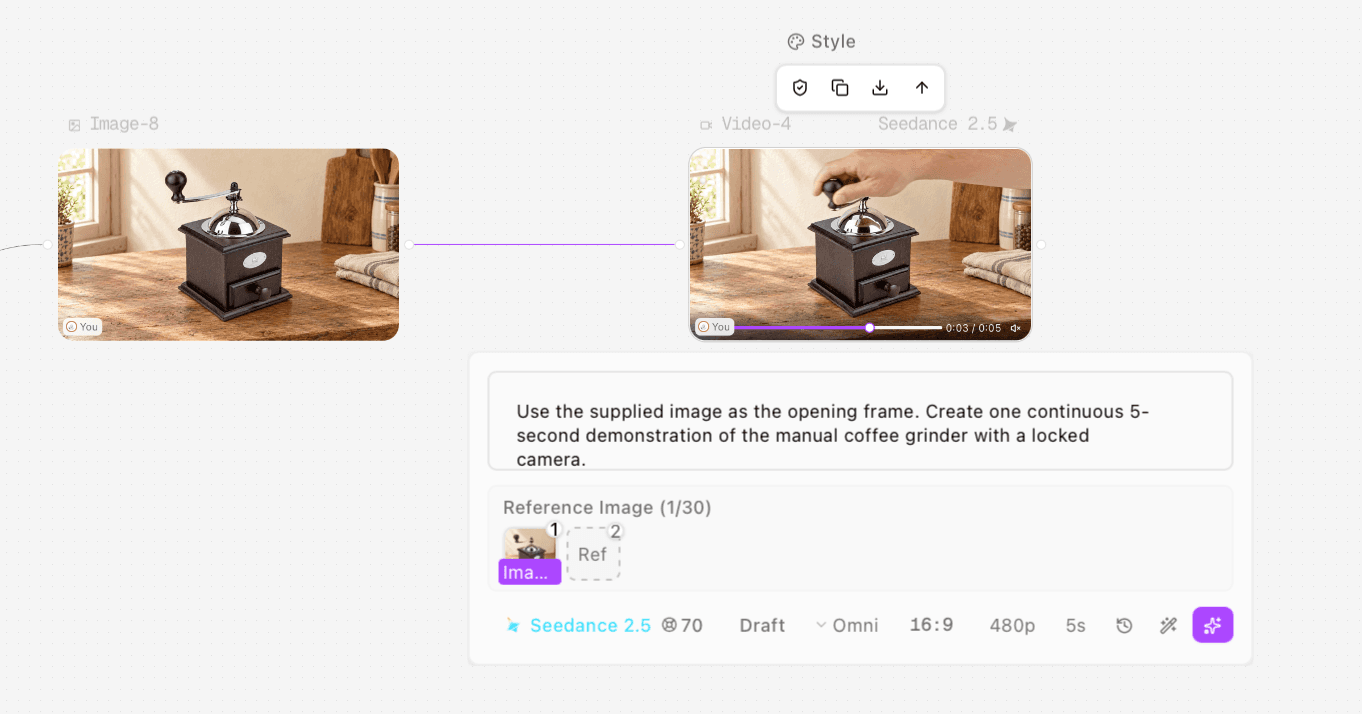
Figure 4. Actual initial action setup. The product still is connected to Video-4.
In the initial clip, the hand generally remains with the knob and the body stays largely stable. Around 1.25–1.5 seconds, the arm’s shape changes visibly as it turns. The sequence also continues through repeated rotation rather than the single requested revolution. Neither a stable body nor realistic hand skin is enough to certify the mechanism.
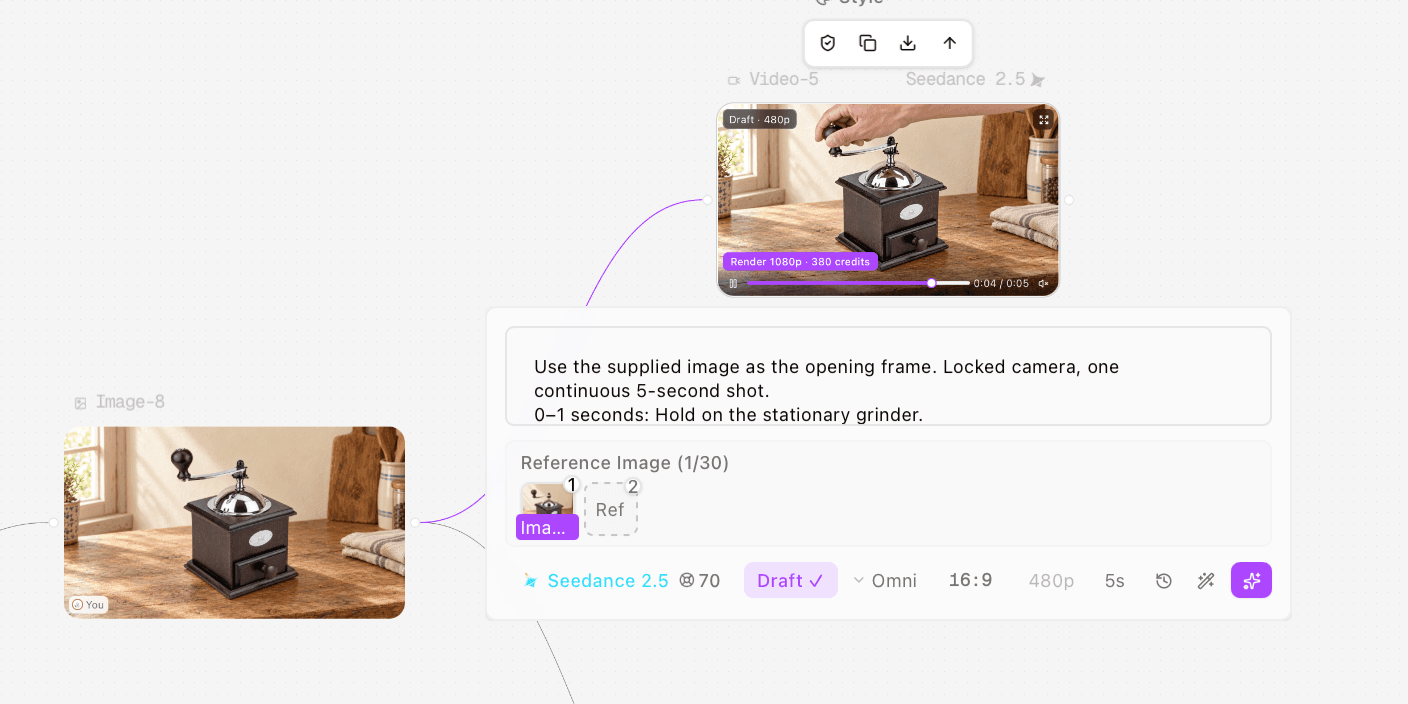
Figure 5. Actual revised action setup. Video-5 uses the same opening still and a revised motion brief.
The second clip slows the movement and ends with the hand withdrawing. Its body, drawer and background remain largely stable in the sampled frames. The crank nevertheless moves from left to right and returns left, exceeding half a revolution. The revision improved part of the pacing without demonstrating precise endpoint control.
These findings belong to the supplied drafts. They do not establish a general failure rate, a model ranking or reproducible mechanical accuracy.
Decide what footage can be used
Use an acceptance checklist before treating a generated action as a product demonstration. The endpoint should be measurable in the image: a mark reaches a position, a lid separates, or an adjustment reaches its intended state.
Area | Acceptance question |
Mechanism | Does the moving part keep its shape, size and attachment |
Motion path | Does it move around the real axis rather than bending or sliding |
Hand contact | Do the fingers stay connected to the part they control |
Stationary components | Do the body, base and unrelated parts remain stable |
Endpoint | Does the action stop where the brief requires |
Product claim | Does the clip show the claimed function rather than merely suggest it |
For this case, keep both drafts as an instructional comparison. They show why the review matters, but neither should be presented as a fully accurate half-turn demonstration. If a launch needs verified operation, capture the real crank action and use the generated kitchen scene or other imagery as supporting material. That hybrid path is a recommendation, not a third tested result.
Download review audio and assemble the demo
Download the original MP4 from the completed node, inspect its actual dimensions and watch the full file. Check sound separately before publication. Audio was not auditioned in these tests, so the presence of an audio stream is not used to judge grinding sound or audio quality.
A complete demo may need an introduction, a verified operation shot, a close view of the outcome and a next step. Add those in an editing workflow once the essential action passes. Neither coffee draft shows beans being ground, the drawer being opened or a finished ground-coffee result. Do not add those claims in captions.
For a related camera-only task, see Astorie image to video. The product video feature page provides the broader canvas route. This guide focuses on checking a physical action rather than selecting a general video generator.
FAQS
Is a moving product shot enough for a demo
No. A demo should communicate a real use or mechanism. A camera move can introduce the product, but it does not demonstrate operation.
Can I demonstrate a mechanism from one photo
You can test a simple visible action, as this case did. Additional real action references are preferable when the motion path, hidden parts or endpoint matter.
Did the revised prompt fix the grinder action
It slowed the movement but did not achieve the requested half-turn stop. Keep that distinction in the test record.
Should I render the current drafts at a higher resolution
Not as a way to resolve the action error. Establish an acceptable movement first, then inspect any higher-resolution render as a new output.
Ready to try it on the canvas?
Open Astorie and fan your prompt across every frontier model in one workflow.