COLOR INSPIRATION

Create a color palette board from an image

Turn a photo’s colors into a visual board for a mood, presentation or design brief. Choose a simple swatch strip or pair the photo with its color direction. These are AI-made suggestions, rather than measured color values.

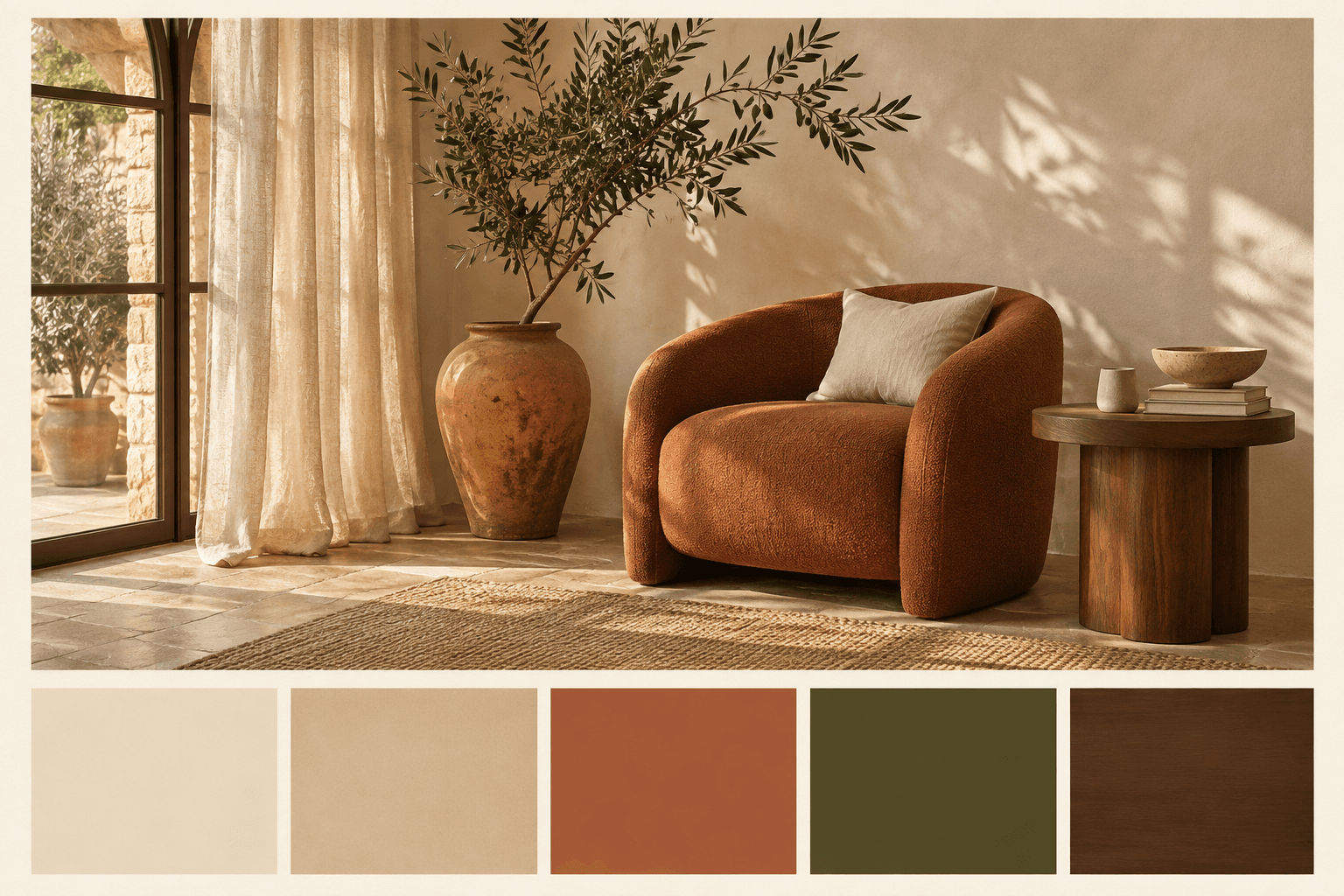
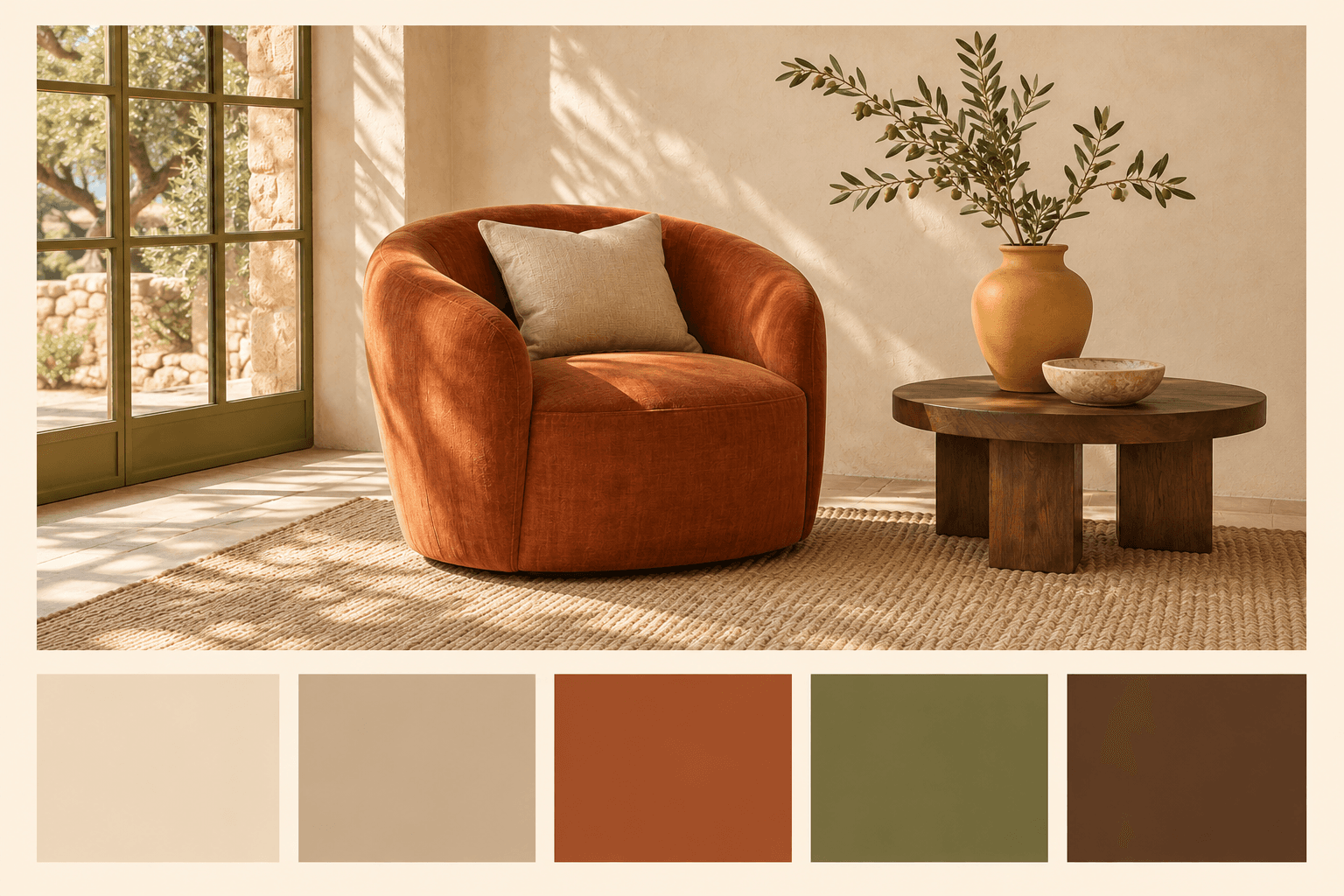
Illustrative AI concept board showing a sunlit terracotta-and-olive living room above five color swatches; not measured HEX or RGB extraction.

Make a palette board from your photo

Try a sample photo or upload your own image. Choose Five-swatch strip or Photo and palette board, then edit the swatch count, arrangement and color emphasis in Describe your palette.

Compare palette layouts from a reference

Compare three AI-created concept illustrations for the available layouts. Each explores a visual color direction; the form does not measure exact color values.

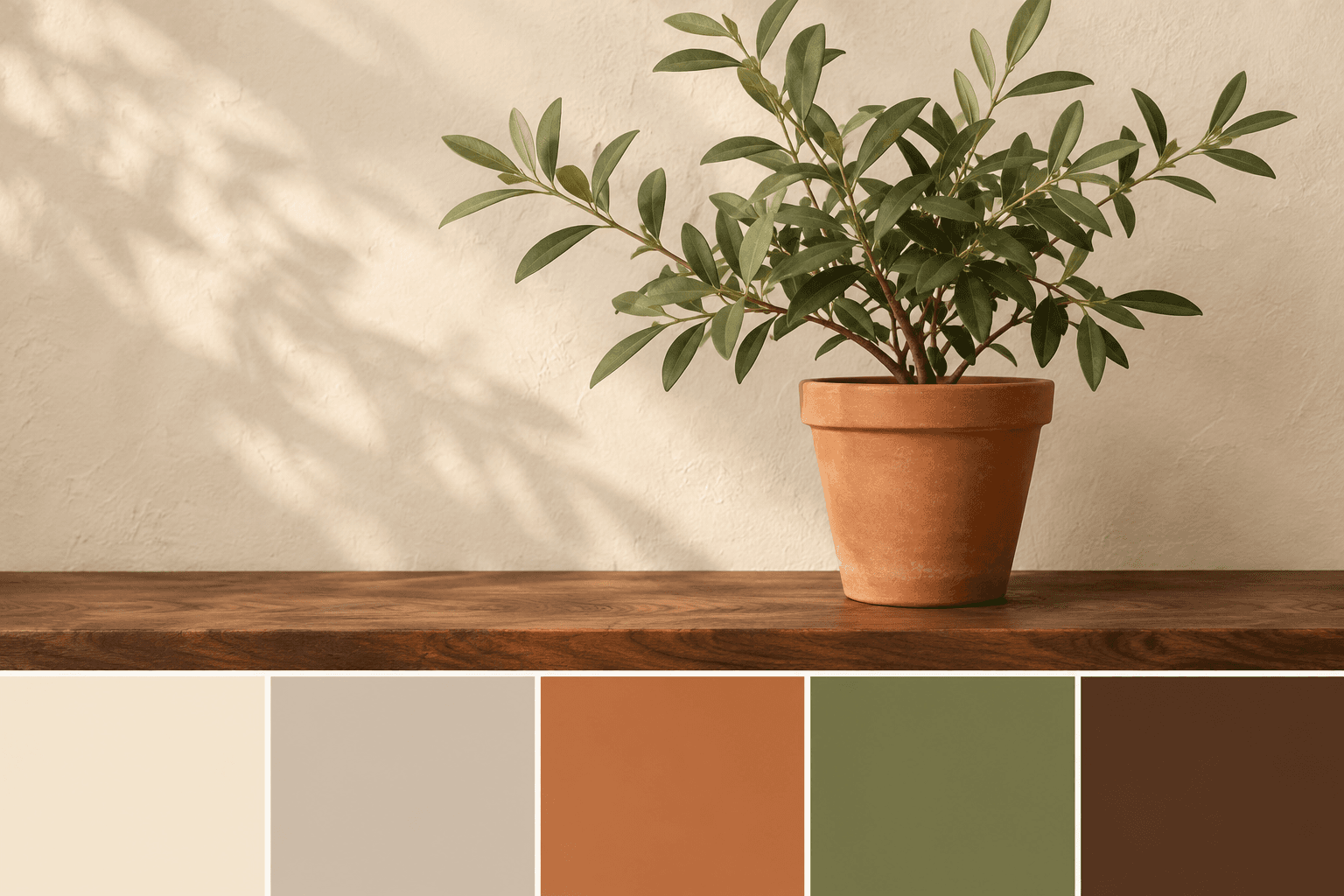
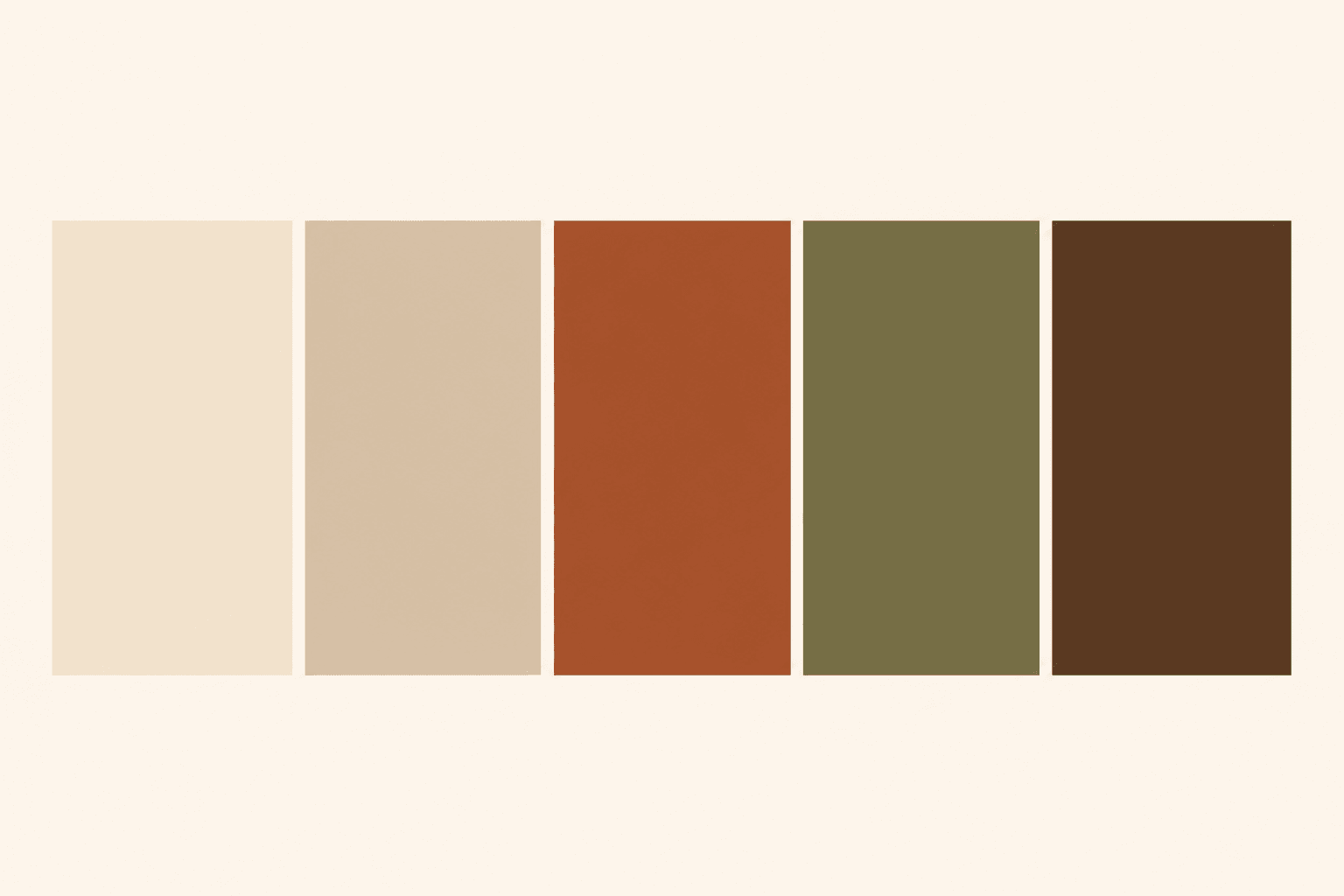
AI-created concept of five flat cream, beige, terracotta, olive and walnut swatches inspired by the room sample; not measured color data.
Five-swatch stripFive-swatch strip: request five flat swatches inspired by the room’s cream, stone, terracotta, olive and wood tones, with even spacing and no labels.
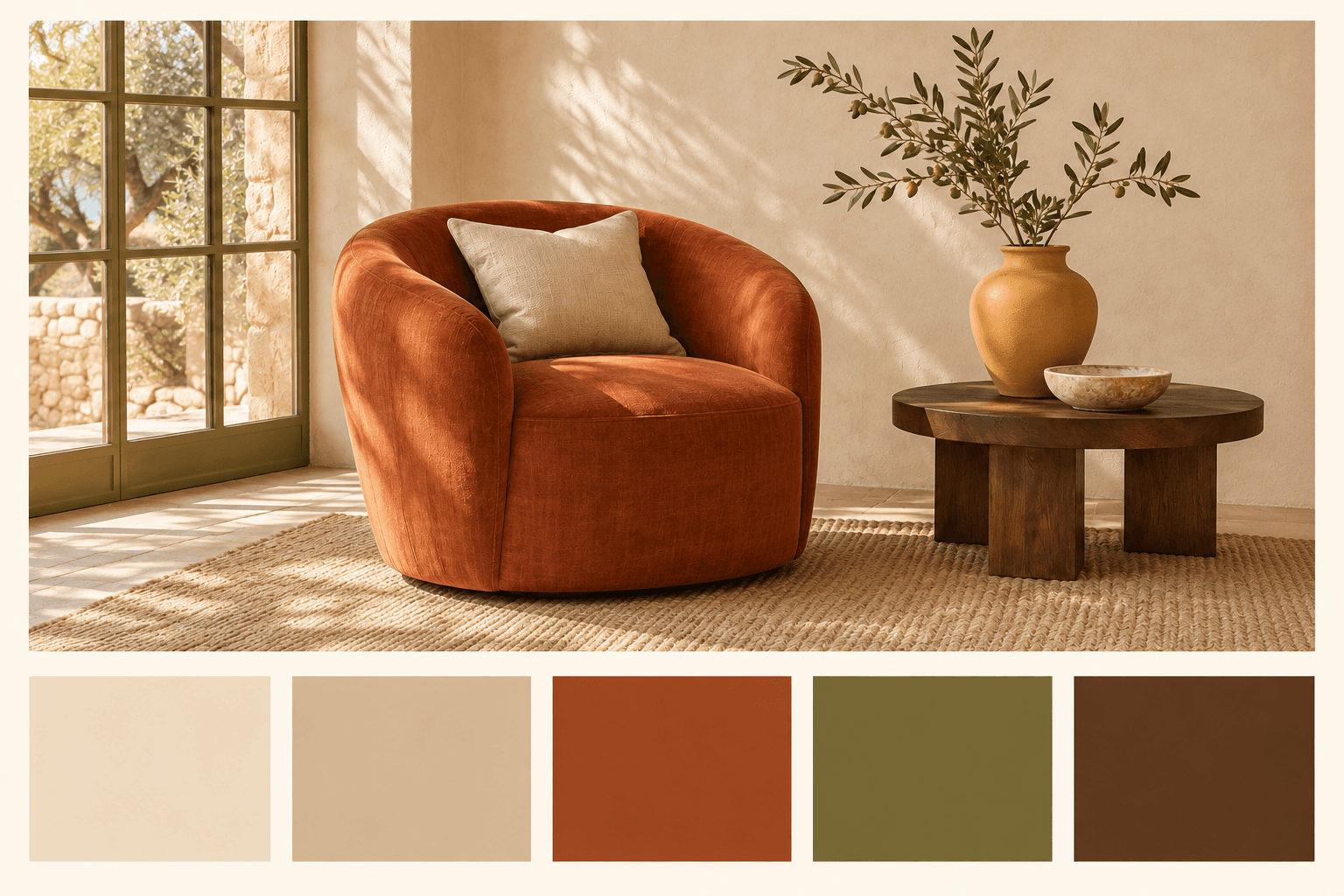
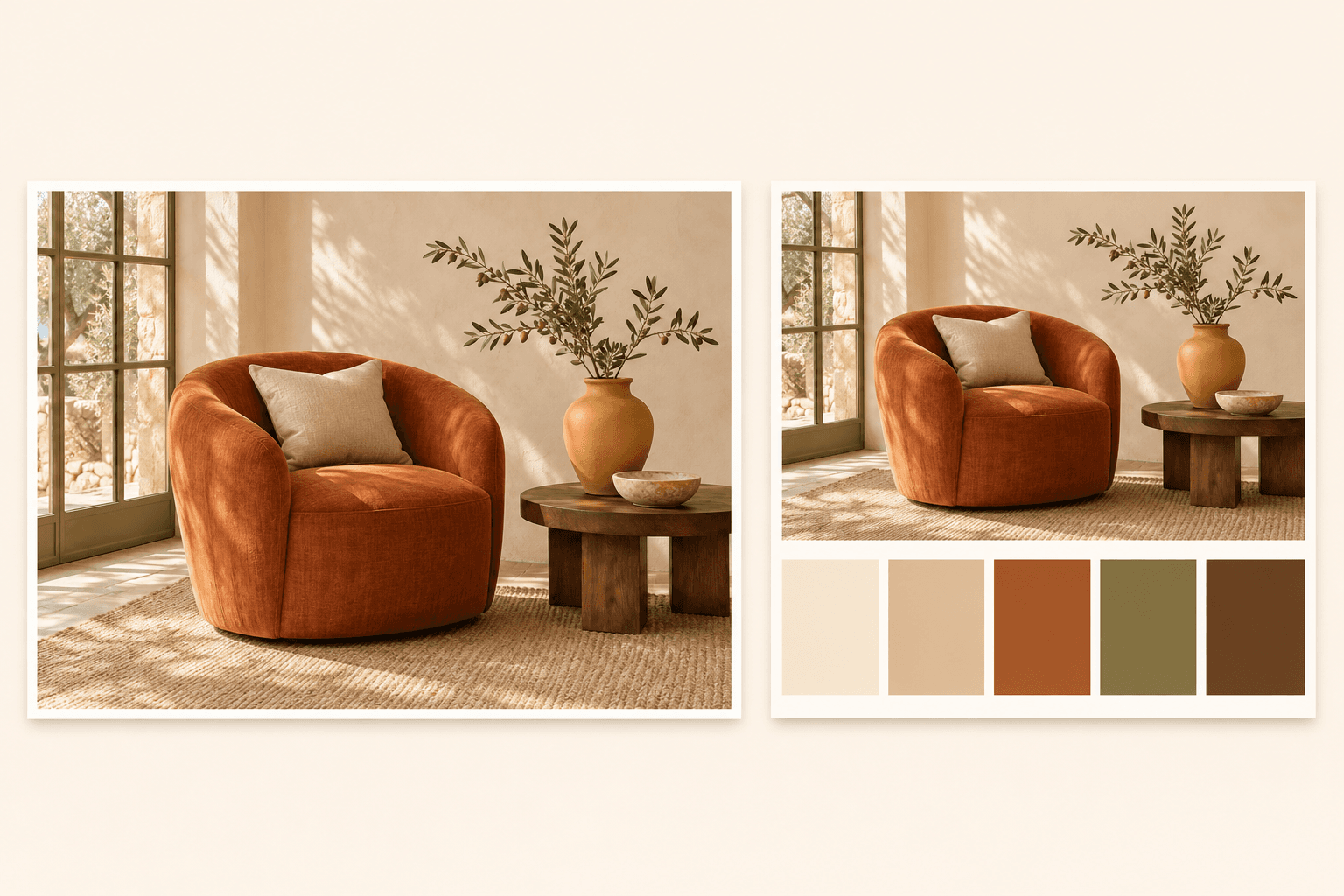
AI-created Photo and palette board concept using a visual interpretation of the sunlit terracotta chair room above five color swatches.
Photo and palette boardPhoto and palette board: place a visual interpretation of the room above five swatches. The included photo may be reinterpreted, so keep the original file separately.
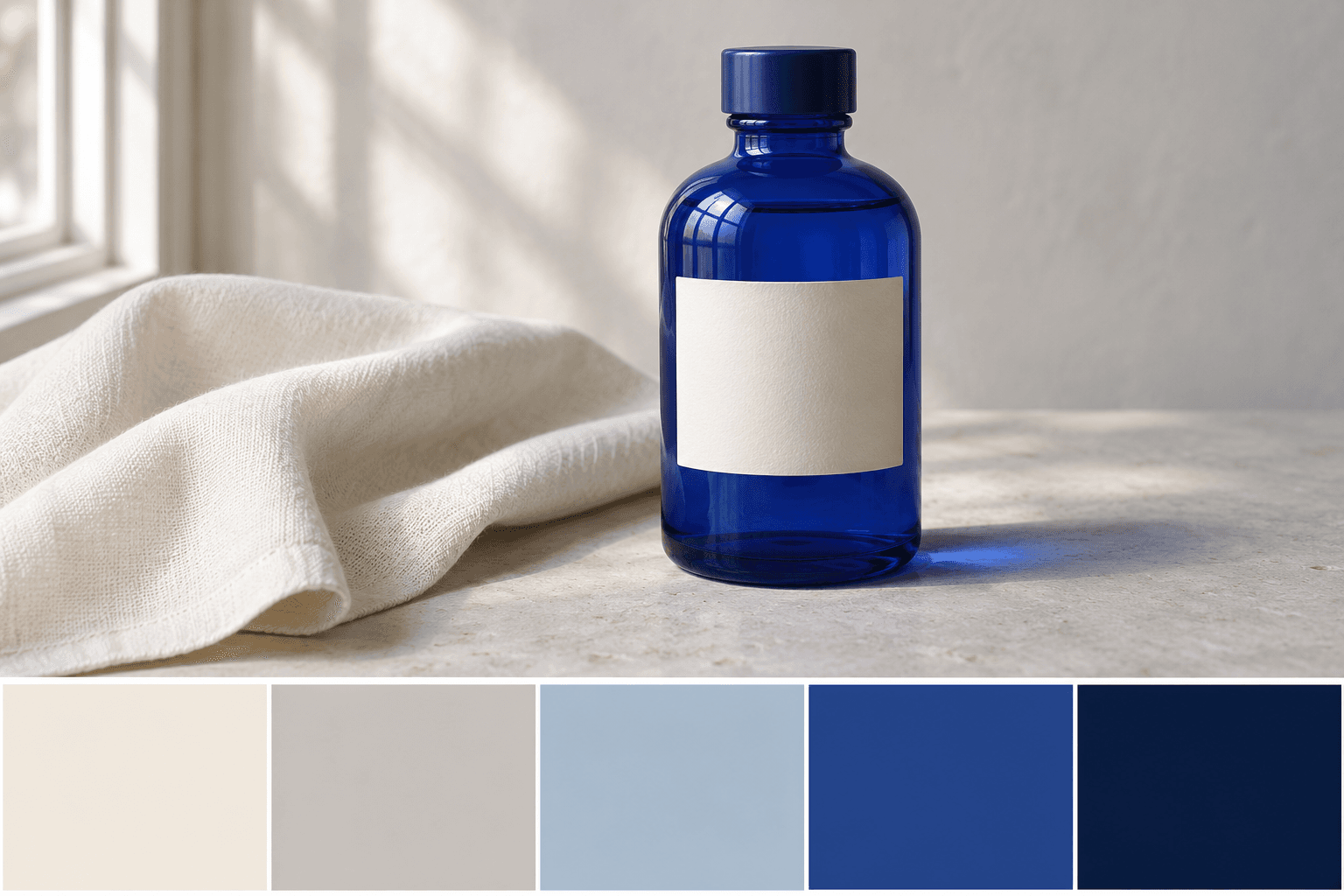
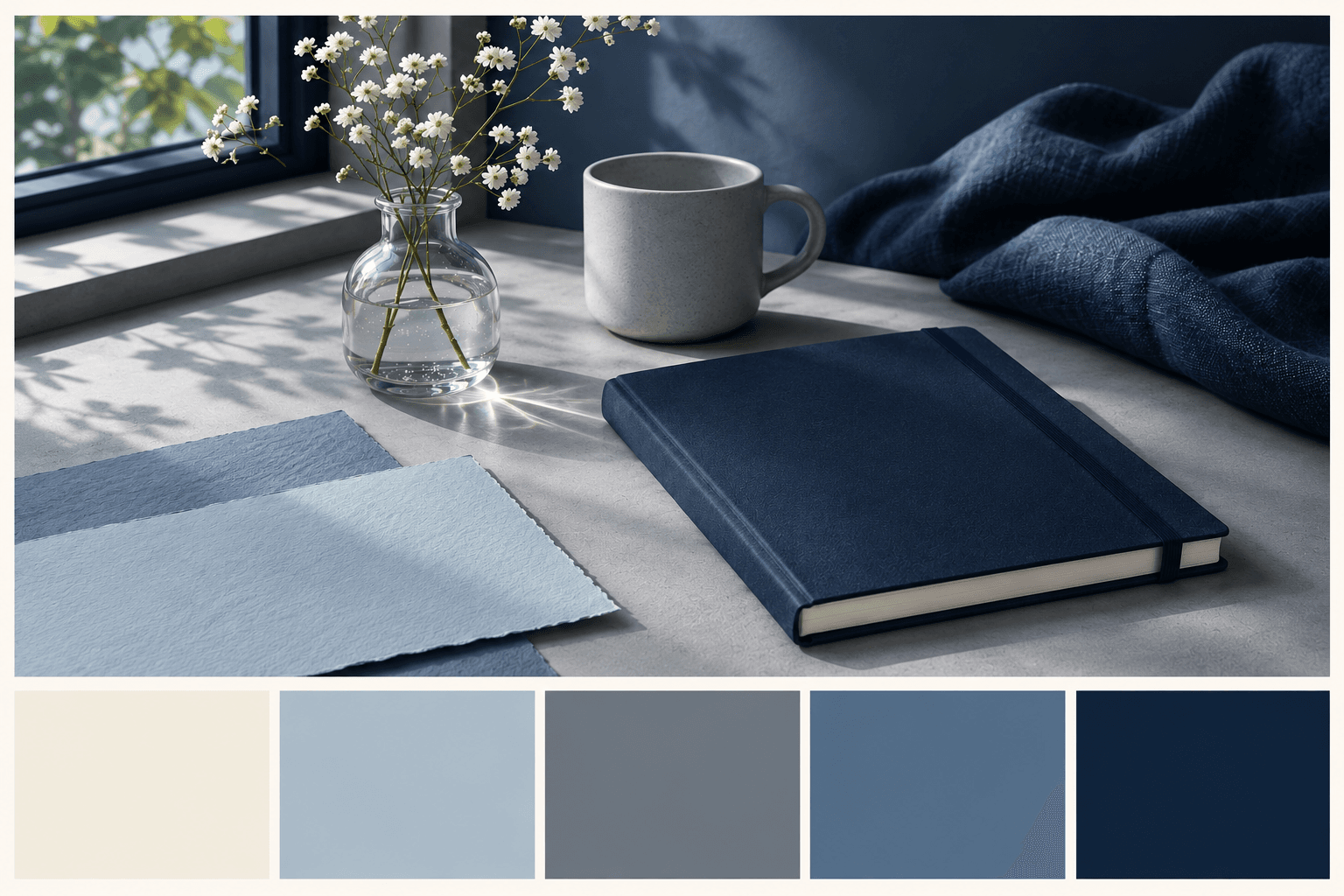
AI-created Photo and palette board concept showing the cool desk source and five navy, gray and pale swatches; not measured HEX or RGB data.
A different source, a cooler directionCool desk variation: use the navy-and-gray sample with the photo-and-palette layout. Describe a restrained set of light, midtone and dark swatches for a calmer visual direction.

How to make a palette board from a photo

Start with a clear source, decide how to present its colors and inspect the generated board beside the original.

  1. 1

    Choose a useful source photo

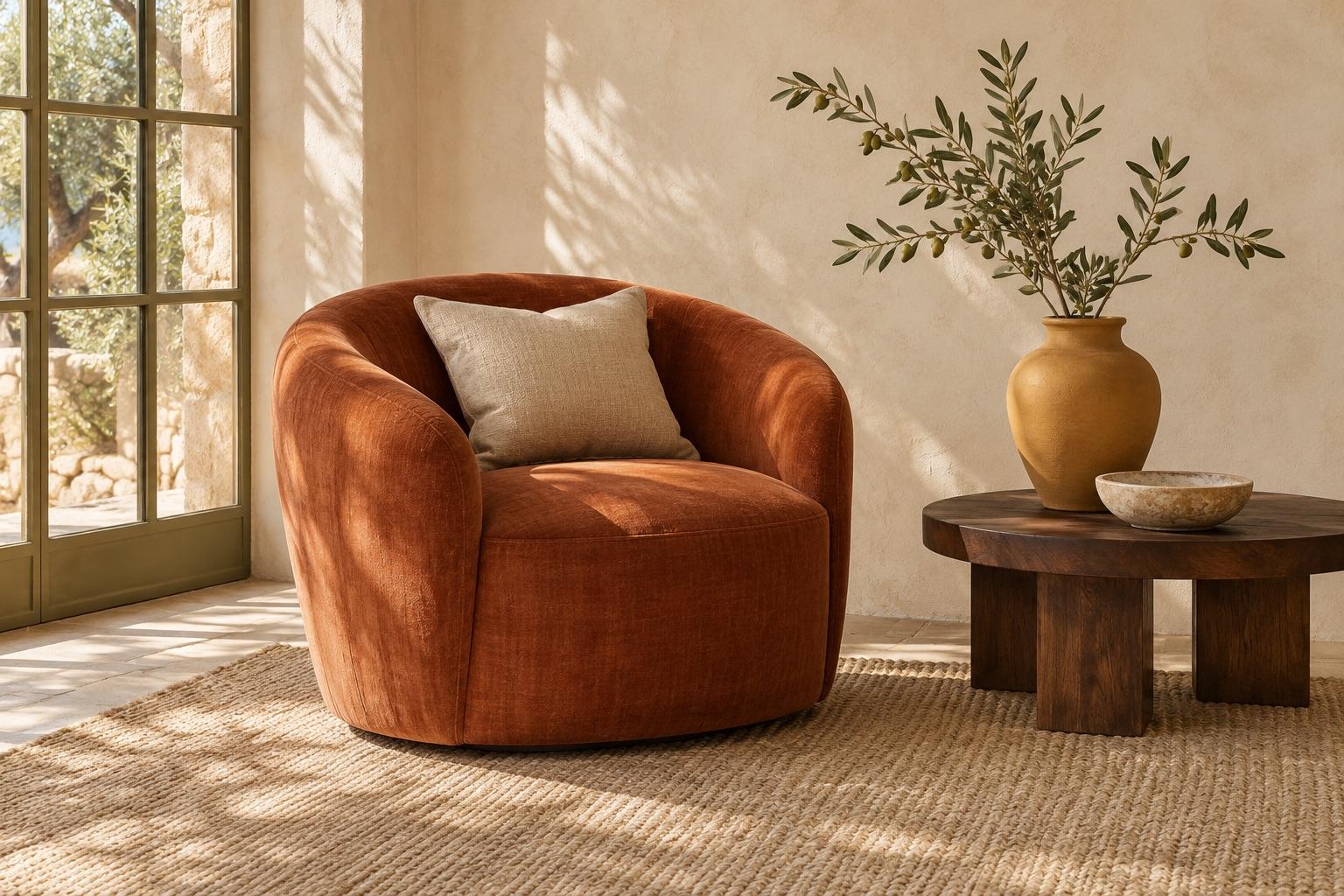
    Select a sample or upload an image with the colors you want to explore. Crop away borders or unrelated objects if they should not influence the board.

    Concept reference photograph of a terracotta armchair, ivory wall, olive branches and dark wood; no swatches or measured color values
  2. 2

    Select a layout and write the brief

    Choose Five-swatch strip or Photo and palette board. In Describe your palette, specify the swatch count, arrangement and any tones to emphasize, then select Generate palette.

    AI-created photo-and-palette layout illustration using the sunlit room and five visual color swatches.
  3. 3

    Review the board beside the source

    Check the requested layout, swatch count and color relationships. Keep the original photo separately. Use a dedicated color picker and design checks when you need exact values for web, brand or print use.

    AI-created side-by-side illustration of a source room photograph and its proposed palette board for visual review.

Give the palette a practical role

A board makes it easier to discuss the color mood of an image. Start with a reference suited to the decision you are exploring.

Interior mood boards

Use a room photo to explore how terracotta, cream, wood and olive relate. Request a spacious photo-and-palette board for a presentation, or a plain swatch strip for comparing directions. Verify real paint and fabric colors separately before specifying materials.
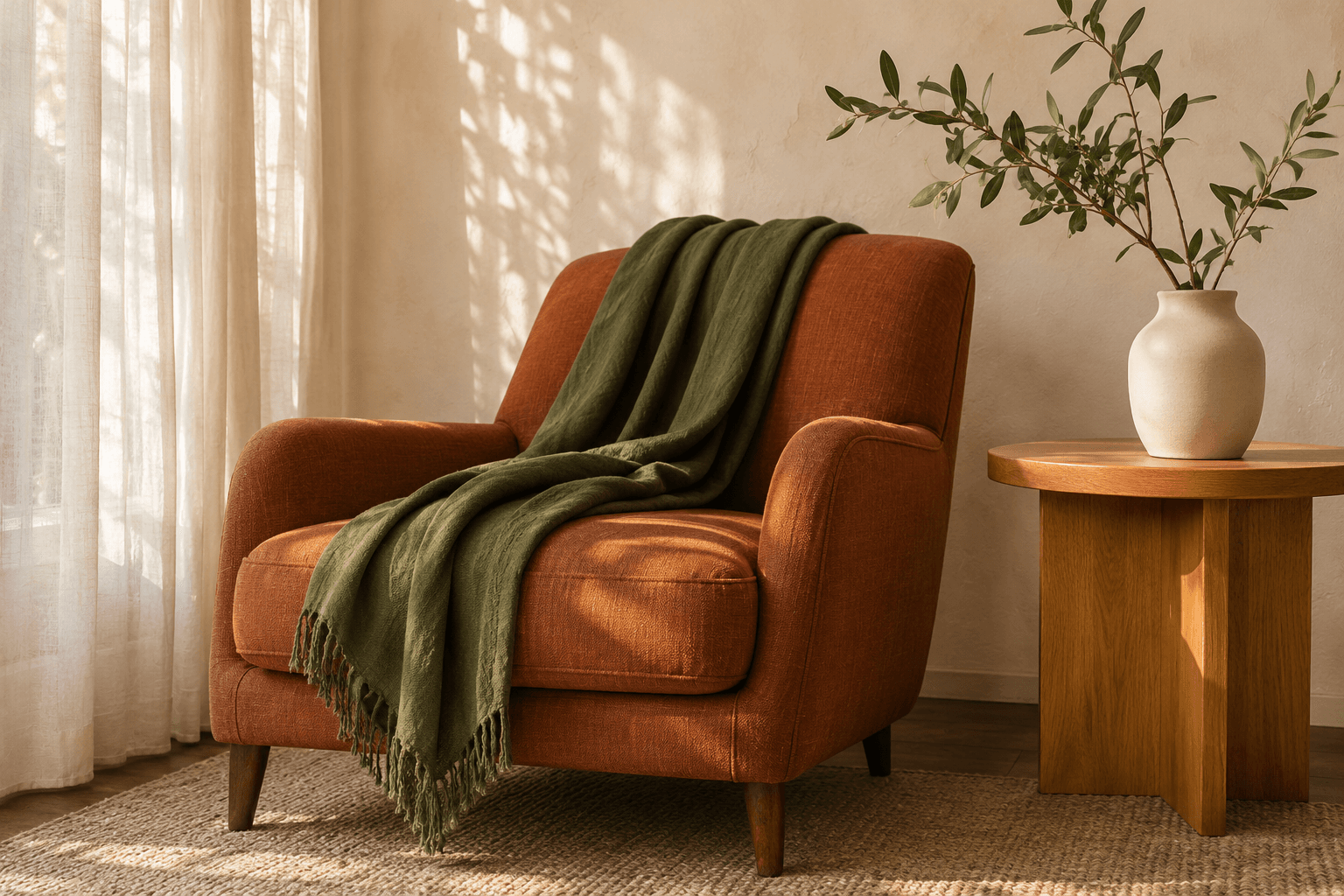
AI-created source photograph of a terracotta chair, olive throw, cream wall and oak table for exploring a warm workspace palette.
Illustrative source photo for a warm palette board.

Editorial and brand directions

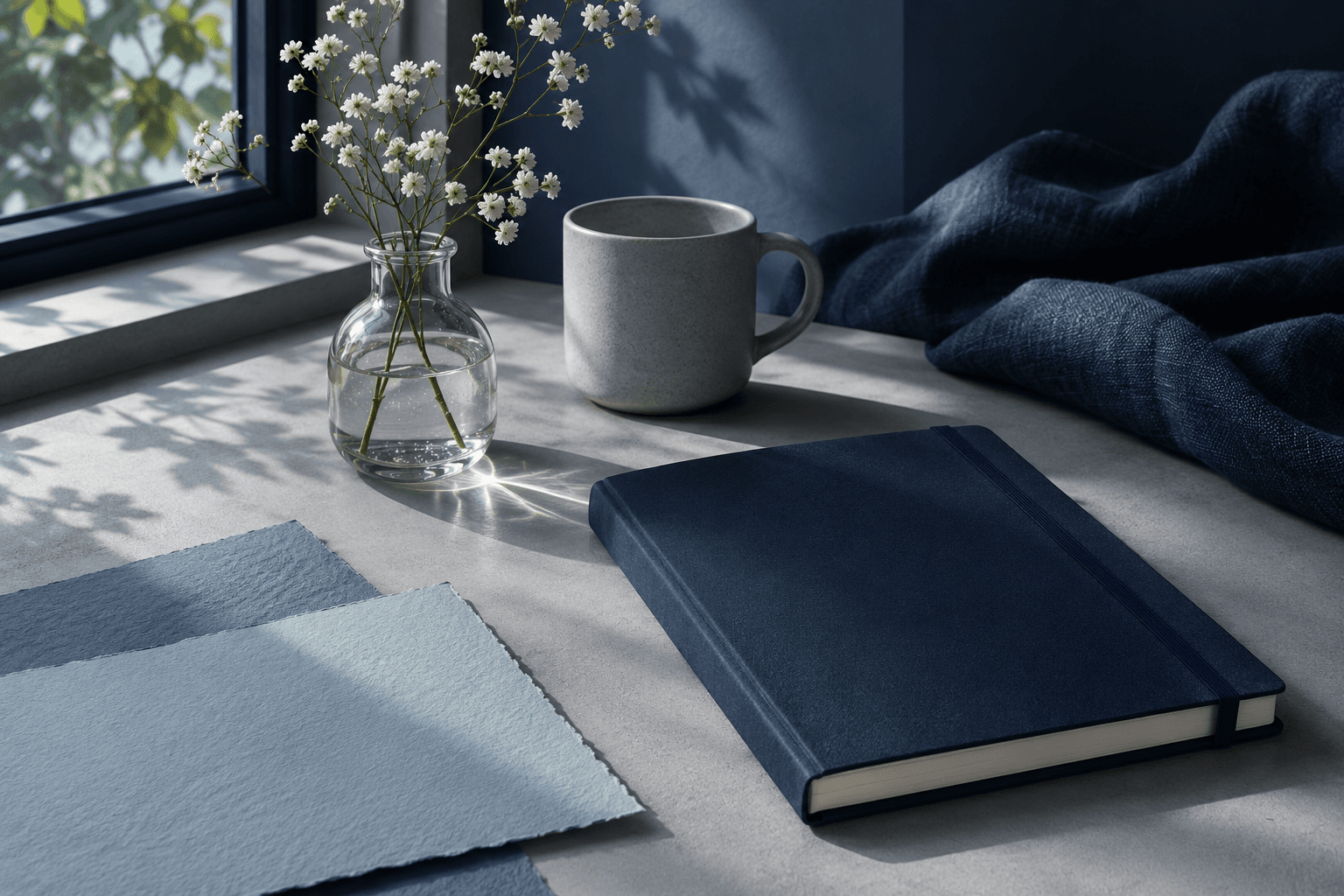
A cool desk photo can suggest a quieter navy and slate direction for a pitch or editorial mood board. Ask for five balanced swatches with no text or color codes. Use the result to compare visual ideas, then define final brand values and contrast in your design tools.

AI-created source photograph of a navy notebook, blue-gray papers and a gray cup for exploring a cool workspace palette.
Illustrative source photo for a cool palette board.

Board inputs, controls and color limits

The form generates an image of a palette board from your reference and written brief.

ReferenceChoose a sample or upload one source image with a clear color direction. A reference is required.
Layouts and promptFive-swatch strip and Photo and palette board provide starting prompts. Describe your palette remains editable.
OutputAn AI-generated image of a palette board. A requested swatch count or arrangement can need another revision.
Source photoA photo included in a generated board can be reinterpreted. Keep the original separately when its exact composition matters.
Color valuesThe form does not measure source pixels or provide verified HEX, RGB, CSS or Pantone values. Use a dedicated color picker for exact specifications.
CostGenerations use Astorie credits. Check the current quote and account allowance in the form before generating.
Commercial usePaid-plan generations have commercial rights subject to provider terms and input rights. Free-plan generations are for personal, non-commercial evaluation; upgrading applies to new generations.
Upload data useDefault terms permit using uploads, prompts and outputs for training and improvement; provider policies also apply. Enterprise opt-out requires a written agreement. Learned or derived information may persist after source deletion.

Questions about palette boards from photos

Does this extract exact HEX or RGB values?

No. It generates a palette image inspired by the reference, rather than measuring source pixels. Use a dedicated color picker for exact HEX or RGB values, and do not treat any AI-generated labels as measured specifications.

Can I choose the number of colors?

You can request a swatch count in the editable prompt. Start with a small set, such as five colors, and describe a clear arrangement. The generated image may need another iteration to match your requested count or layout.

What can I use the palette board for?

Use it to explore a mood for branding, interiors, illustration or a presentation. It works as a visual starting point for comparing directions. Validate final brand colors, text contrast and print specifications in the relevant design tools.

Will the source photo stay unchanged?

An image included in a generated board may be reinterpreted. Keep the original file separately, and combine it with approved swatches in your design editor when you need the photograph to remain unchanged.

Is the palette generator free?

Astorie offers a free plan, while generations use credits and availability depends on your balance and the current settings. Check the generation interface and pricing page for costs. Commercial use applies to content generated on paid plans, subject to provider terms and your input rights.

Find a color direction for your next idea

Choose a reference, select a layout and describe the board you want. Compare the result with the source before taking the colors into a design.