

Build a scene from a written brief
Describe the subject, location, action and camera movement to explore a new shot. Use the 3–15 second duration control to give a focused action a beginning and an ending.
Alibaba · Video generation
Develop a short scene with motion and sound using happyhorse-1.1 on Astorie. Begin with a written brief or an opening image, then choose the length and frame for the take.
Create a scene from text or an opening image, with native sound and selectable clip length and resolution.
Describe the subject, location, action and camera movement to explore a new shot. Use the 3–15 second duration control to give a focused action a beginning and an ending.
Connect one image to establish the starting composition, then describe how the scene should move. Review the result for changes to faces, object shapes and background details.
HappyHorse 1.1 supports native audio. Include a short line, ambience or a specific sound cue in the prompt and listen to the delivered take. The current Astorie panel has no separate audio on/off switch.
Set up, direct and review a take in three steps on Astorie.
Click Open in canvas in the generator and sign in if asked. Select HappyHorse 1.1 in the video node. Start with text or connect one image for an opening frame.
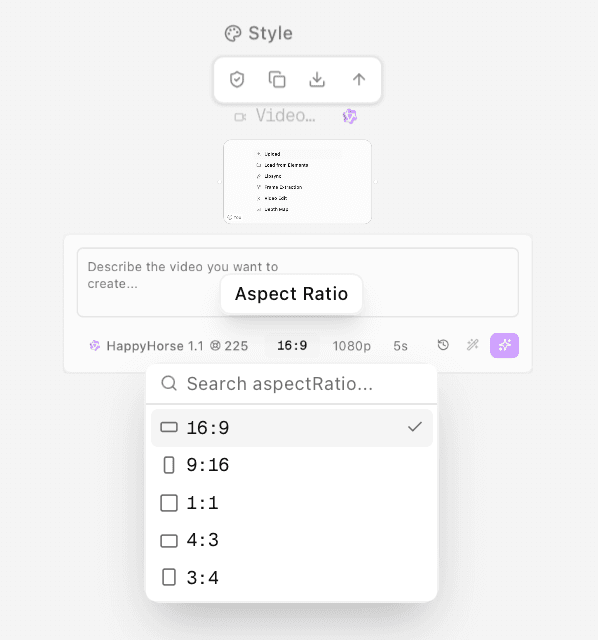
Describe the action, camera and any sound you want, then choose the available resolution and duration. For image to video, connect the opening image; the example pairs a paper-lantern still with a motion prompt at 1080p for six seconds.
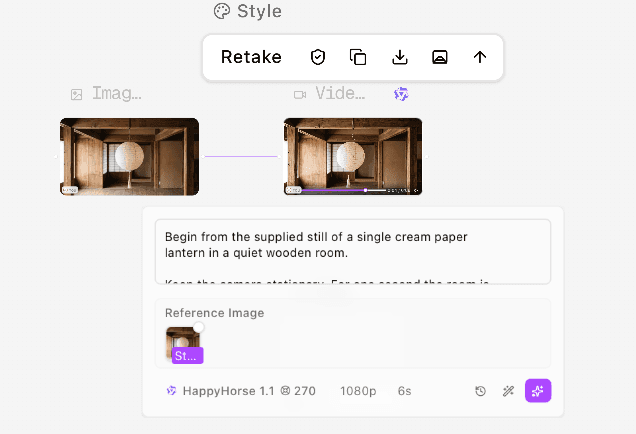
Check the current estimate, then click Generate in the canvas. Open playback when the take is complete, as shown by the pool result. Listen to its track and review framing, motion and changing details before adding it to your edit.
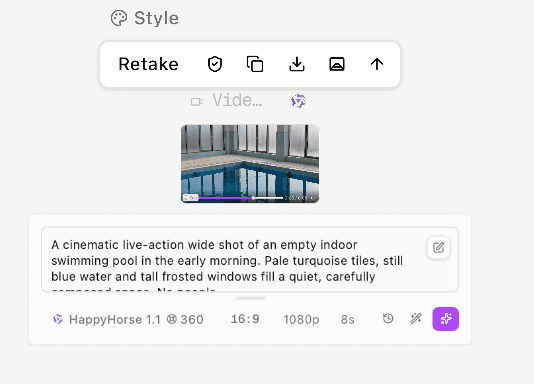
Explore a rainy establishing shot, a set-design still in motion or a brief on-camera performance.
Use a small weather event to establish place and atmosphere. Specify one clear camera direction and a restrained soundscape, then judge whether the shot has a useful rhythm for an opening.
Begin with a set-design image you can use. Request a small camera move to test depth and the reveal of the room, then inspect the boundaries of furniture and architectural details.
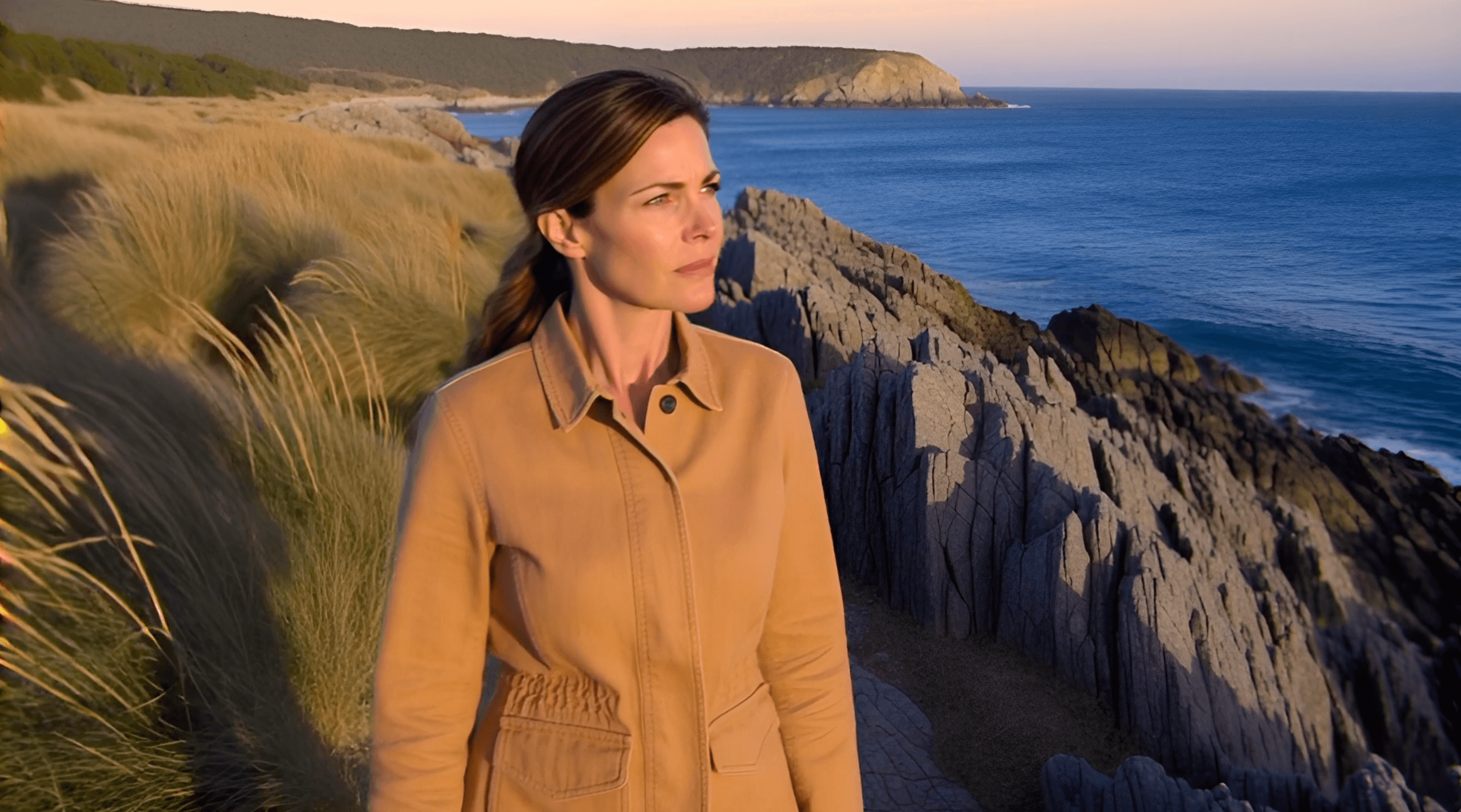
Give one adult performer a short line with room for a pause. Use the result to explore delivery and expression, then check the actual wording, lip movement and sound timing.
These settings describe the current Astorie entry; provider APIs may expose additional options.
| Model entry | happyhorse-1.1, displayed as HappyHorse 1.1 in the Astorie picker.Source ↗ · 2026-11-22 |
|---|---|
| Inputs on Astorie | Text to video or first-frame image to video. Reference-to-video is a separate provider endpoint and is not assumed to be exposed here.Source ↗ · 2026-11-22 |
| Clip length | 3–15 seconds, in one-second steps in the current canvas menu.Source ↗ · 2026-11-22 |
| Resolution | 720p or 1080p in the current Astorie panel.Source ↗ · 2026-11-22 |
| Framing | Text-to-video offers 16:9, 9:16, 1:1, 4:3 and 3:4. For first-frame input, prepare the image in the intended frame.Source ↗ · 2026-11-22 |
| Quality tiers | No separate Standard, Pro or Turbo tier selector is shown for this entry.Source ↗ · 2026-11-22 |
| Sound | The model supports native audio; there is no separate Generate Audio switch in the current Astorie panel. Review the returned track rather than assuming exact dialogue or sound timing.Source ↗ · 2026-11-22 |
| Scope | This page covers happyhorse-1.1. It does not imply access to all HappyHorse reference or video-editing endpoints.Source ↗ · 2026-11-22 |
Use text when you are inventing the scene, or an image when the opening composition is already defined.
| Dimension | Text to video | First-frame image to video |
|---|---|---|
| Starting materialSource ↗ · 2026-11-22 | A scene brief describing what is visible and what happens. | One still image plus a description of subsequent movement. |
| A practical taskSource ↗ · 2026-11-22 | Develop a weather shot or a brief performance from scratch. | Explore a camera move through an existing set design. |
| Framing decisionsSource ↗ · 2026-11-22 | Choose a supported ratio and compose the prompt for it. | Prepare the starting image with the intended composition and room for movement. |
| Review focusSource ↗ · 2026-11-22 | Whether the scene, action and sound communicate the brief. | How geometry and visible details change as the opening image moves. |
Treat each output as a candidate shot to review in the context of your sequence.
最先端のAIモデルで創作を始めましょう。Freeプランはクレジットカード不要です。
3日間、Pro のすべてを体験
Compare available inputs, duration controls and audio behavior for the shot you need.
Create short videos from text or a still image with Vidu Q3 on Astorie. Explore camera movement, environmental sound and a brief performance, with Pro and Turbo options for each take.
Explore model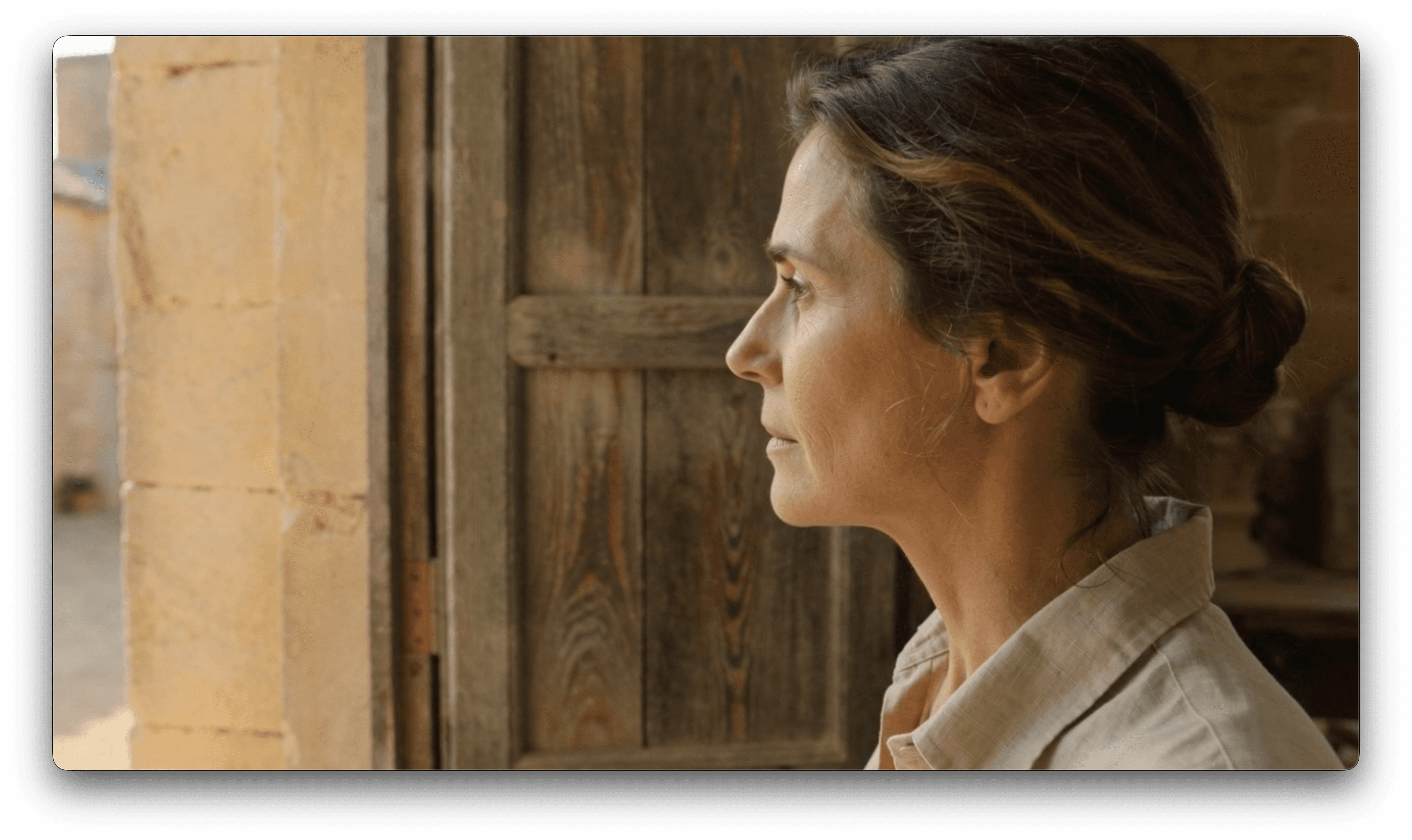
Direct a short scene from text or an opening image. Use Seedance 2.0 on Astorie to explore subject movement, camera timing and the sound of a moment, then take the configuration into the canvas to generate and review your video.
Explore model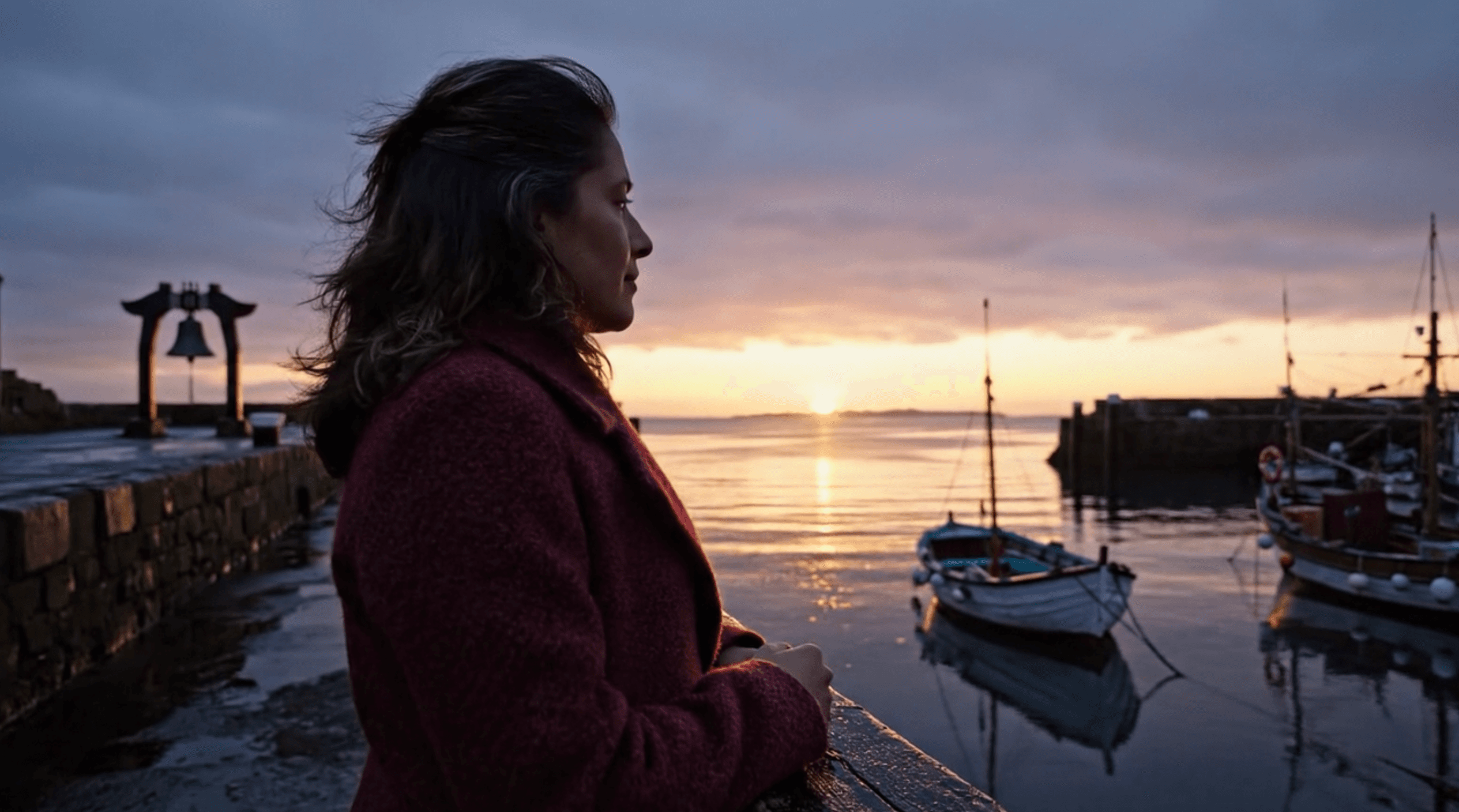
Turn a short scene brief into video with native sound. Use Veo 3.1 on Astorie to develop a cinematic moment, explore dialogue or bring a visual starting point into motion, then review the take in your canvas.
Explore modelLearn how to animate an image and organize generated takes into a short film.

To animate an image with AI, upload a photo or illustration, connect it to an image-to-video model, describe the motion you want, and generate a short clip. In Astorie, the source image, prompt, settings, and result stay on one canvas, so you can compare model runs without rebuilding the setup.
Read guide
To create an AI short film, write a compact script, convert it into a storyboard and shot list, lock the character and visual rules, generate each scene, add sound, then edit and export the approved shots as one film.
Read guideIt is Alibaba’s HappyHorse 1.1 video model entry on Astorie. You can start from text or a first-frame image and choose the duration and resolution in the creative canvas.
Yes. Connect one image as the opening frame and describe what should move next. Review details and spatial relationships in the result before treating the take as usable.
The current Astorie duration menu offers 3–15 seconds in one-second steps. Pick a length that gives one focused action enough time to start, develop and settle.
The current panel offers 720p and 1080p. Text-to-video has 16:9, 9:16, 1:1, 4:3 and 3:4 options. For image input, prepare the starting still in the composition you want to animate.
The model supports native audio. Describe the speech, ambience or effect you want and review the returned track. The current Astorie panel does not show an audio on/off switch.
No. It creates a project and a node with the selected configuration. If you are signed out, sign in first. Generation and credit use occur when you generate in the canvas.
Check the current estimate for your chosen duration and resolution in the canvas. The canvas shows the price for your plan before generation; an estimate is not a fixed fee for every take.
Set up happyhorse-1.1 in the generator, then continue with your prompt and selected settings on the Astorie canvas.