ByteDance Seed · Video generation

Seedance 2.5

Develop film scenes and advertising videos with a brief that directs action, camera and sound. Use Seedance 2.5 on Astorie to explore a narrative moment, a product reveal or a social creative, then review the clip before taking it into production.

  • Video with native audio
  • Reference-guided direction
  • Camera and scene blocking
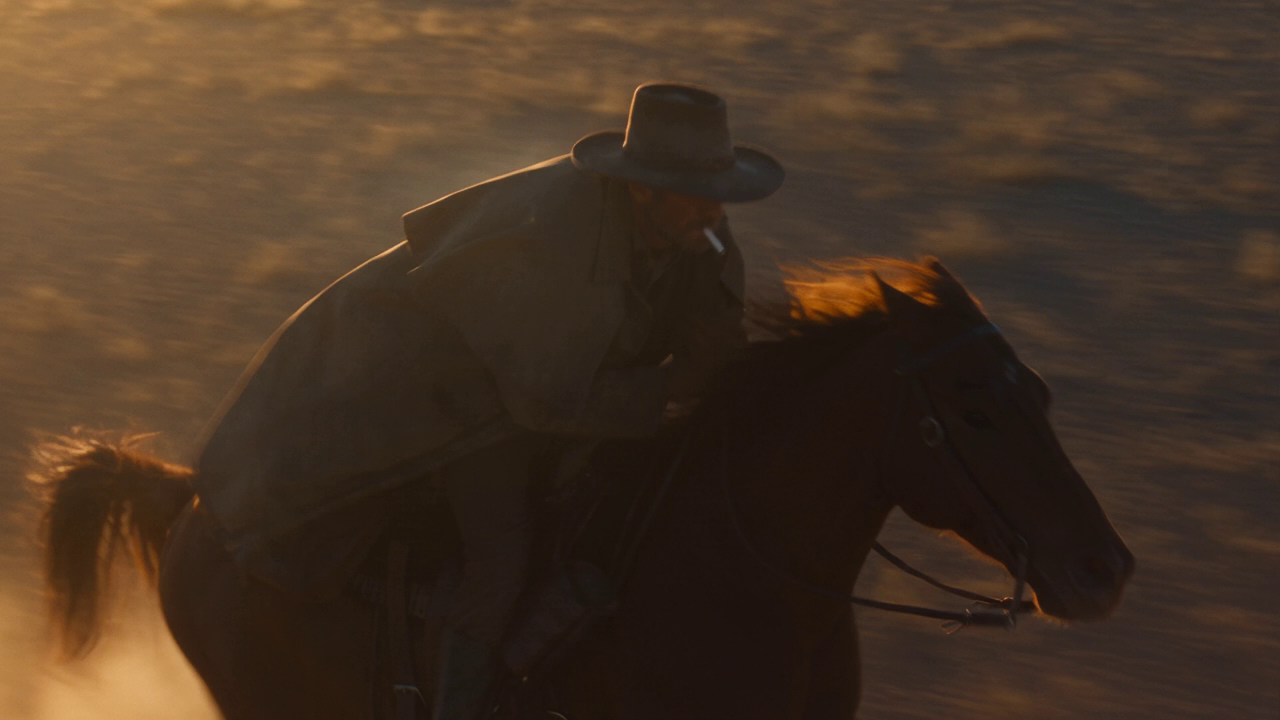
A rider and horse in warm evening light.

Key features of Seedance 2.5

Create video with native audio, reference-guided visuals and directed camera movement.

Direct movement through a scene

Give the subject a clear action and the camera a path to follow. Seedance 2.5 supports camera direction and performance blocking, making it a starting point for a moving shot rather than a single attractive frame. Describe the opening, turning point and final hold so the shot has somewhere to go.

A four-shot anime scene follows a paper crane from a rooftop flight to an outstretched hand.

Give each reference a clear role

Use references to guide a subject, setting or visual treatment instead of asking one image to control everything. Seedance 2.5 supports multimodal reference direction; Astorie’s documented Omni workflow connects visual references to the video node. State what each reference controls, then check the result for detail changes.

A character moving through a sunlit bookshop.

Write motion and sound in one brief

Seedance 2.5 generates audio and video together. Add dialogue, ambience or a specific sound cue alongside the visible action, and leave space for the moment to finish. Review the exported audio and picture together before approving speech, timing or synchronization.

A collage-style product spot with a colorful paper treatment.

How to create with Seedance 2.5 on Astorie

Start creating with Seedance 2.5 in three simple steps.

  1. 1

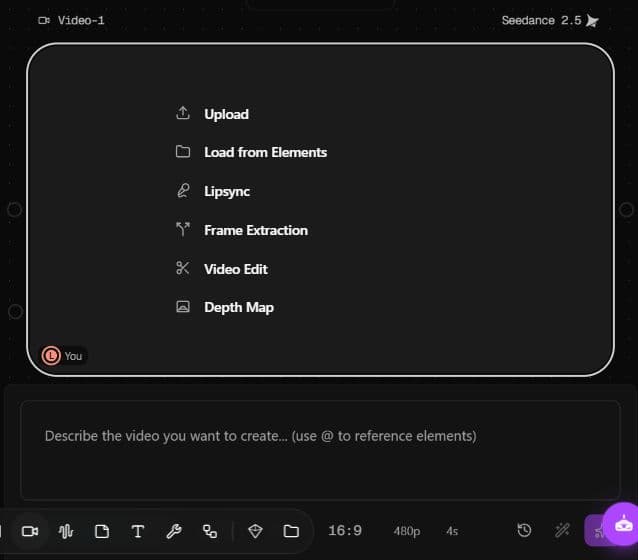
    Add a Video node

    Open an Astorie project and use the video toolbar to add a Video node. Prepare any subject or scene references, and connect the inputs needed for your shot.

    English Astorie canvas with a Video node labelled Seedance 2.5.
  2. 2

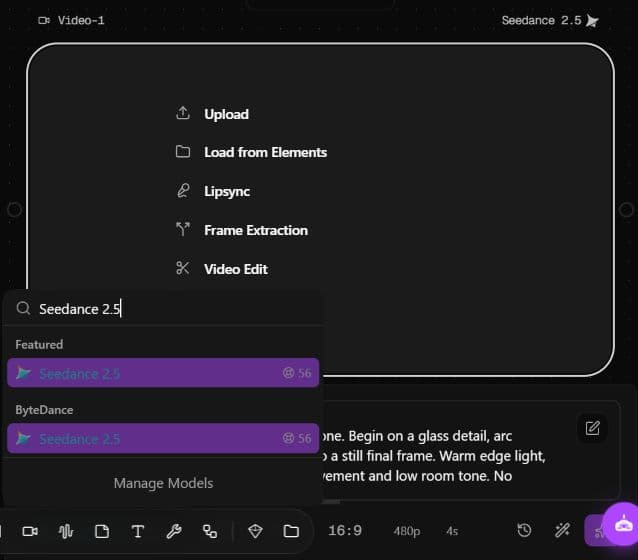
    Choose the model and format

    Find Seedance 2.5 in the model menu. Check Omni mode, aspect ratio, resolution and duration in the current panel, then review model access and the displayed credit estimate.

    English Astorie video-model menu filtered to Seedance 2.5, with Omni and output settings visible.
  3. 3

    Brief, generate and review

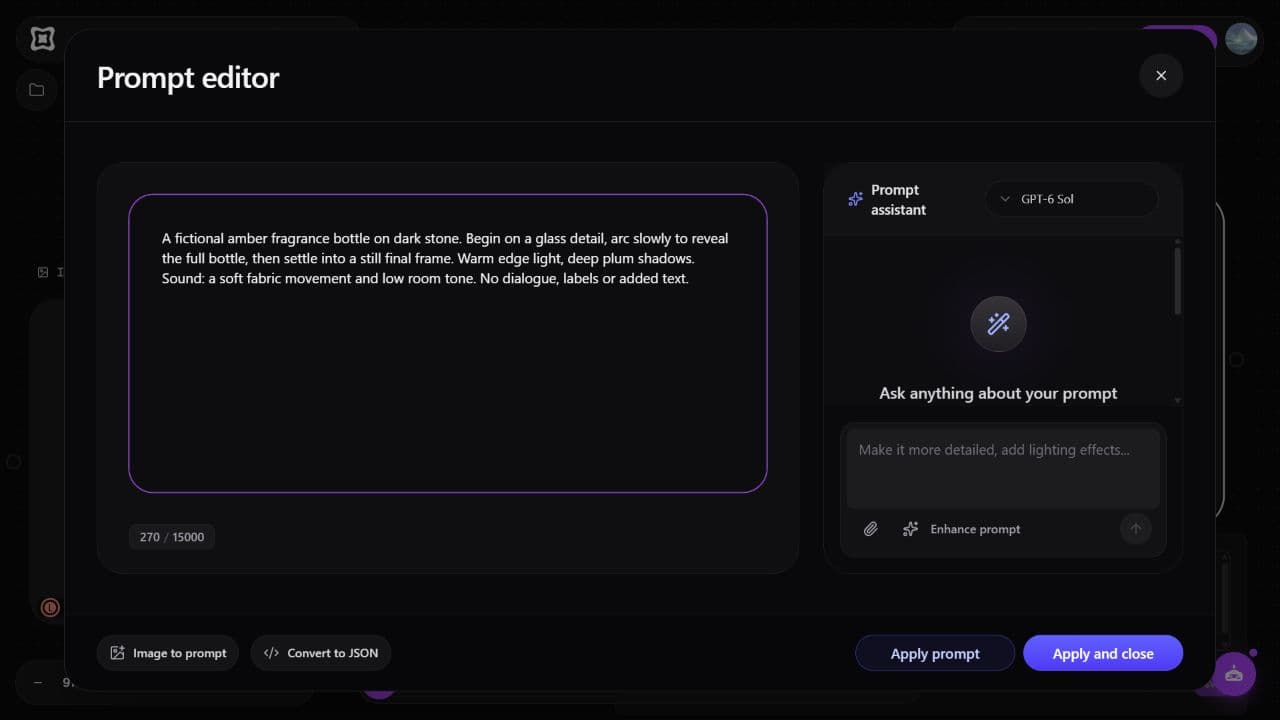
    Write the visible action, camera path and sound cues in the prompt editor. Generate when the settings are ready, then watch the completed clip with sound and inspect continuity before using it.

    Astorie Prompt editor with a product video brief.

From the opening shot to a campaign in motion

Develop product ads, previsualize film scenes and create tactile beauty videos for social.

Turn a product direction into an ad sequence

Plan a reveal, a detail beat and a closing packshot around one visual idea. Keep the product readable as the motion changes, and leave a clean hold for approved campaign copy. The collage-style example shows one possible advertising treatment; inspect packaging and add final claims only after review.

Prompt starter: A fictional lavender skincare bottle on torn cream paper. Open on a paper edge sliding aside, reveal the bottle, cut to a soft glass detail, then hold a clean packshot. Tactile purple-and-cream collage styling, gentle paper sounds, no dialogue or added text. Match the beat count to the selected duration.

Previsualize the turn in a film scene

Give the shot a change that matters: a character arrives, crosses a threshold and notices something. Use camera position, lighting and a final reaction to make the turn readable. Review the geography and performance before using the clip as a reference for the next production decision.

Prompt starter: Follow an adult in a rust coat through a narrow stone lane at blue hour. Keep the camera a few steps behind as they enter a warm, empty room, stop beside a table and turn toward a faint off-screen sound. One continuous take, measured walking pace, footsteps and room tone, no dialogue.

Build a tactile close-up for social

Focus a short beauty or lifestyle creative on one visible gesture. Specify the product texture, hand movement and final pose, then choose the supported ratio for the placement. Check skin, fingers and contact frames; create a separate version for each format rather than relying on an automatic crop.

Prompt starter: A close-up of an adult applying a small amount of clear skincare gel to one cheek in soft window light. Begin on the gel texture, follow one slow hand movement, then settle on the finished gesture. Natural skin detail, a quiet bathroom ambience, no spoken claims or added text. Compose for the selected social format.

Seedance 2.5 inputs, settings and boundaries

Separate the model’s documented capabilities from the controls offered by Astorie. Check the selected node before committing a production brief.

Provider and versionByteDance Seed · Seedance 2.5.Source ↗ · 2026-11-06
Main taskGenerate moving scenes with native audio from a written brief and supported references.Source ↗ · 2026-11-06
Reference directionThe provider documents image, video and audio reference support. Use the input types exposed by the selected Astorie workflow.Source ↗ · 2026-11-06
Astorie model selectionThe English canvas lists Seedance 2.5. The inspected Video node shows Omni mode.Source ↗ · 2026-11-06
Output controlsThe inspected Astorie node offers aspect ratio, resolution and duration controls. Its resolution menu lists 480p, 720p and 1080p; availability and estimates depend on the selected settings.Source ↗ · 2026-11-06
Provider durationUp to 30 seconds in one generation is documented by ByteDance. Use the duration offered in the current Astorie node; this page does not establish an extension workflow.Source ↗ · 2026-11-06
Sound directionDescribe sound and dialogue in the brief. Astorie’s published Omni example records an audio track without a separate audio switch in the captured panel.Source ↗ · 2026-11-06
Production reviewCheck identity, contact frames, product details, cuts, dialogue and sound in the actual export. Generated text and physical interactions can need correction.Source ↗ · 2026-11-06

Choose the next scene workflow

Explore Seedance 2.5, Seedance 2.0 and Veo 3.1 through the inputs, creative direction and review steps each workflow needs.

DimensionSeedance 2.5Seedance 2.0Veo 3.1
A direction to explore · 2026-11-06A scene with deliberate blocking and a clear narrative turn.A scene guided by image, video or audio references.An image-led shot with native sound.
How to shape the brief · 2026-11-06Define the opening, action, camera path and ending.Assign each reference a subject, scene or motion role.Describe the action, visual treatment and sound; use supported image inputs.
A shared review task · 2026-11-06Check the turn, continuity and exported audio.Compare subject and scene details with the references.Inspect image details, motion and sound together.
Before you generate · 2026-11-06Select Seedance 2.5 and inspect the current Omni controls.Select the intended 2.0 variant; do not assume 2.5 settings.Select Veo 3.1; check which provider features the node exposes.

Plan the shot and the review it needs

Use the clip to make a production decision, then review the details that matter to the final placement.

A useful starting point for

  • Film scene previsualization where camera movement, blocking and a narrative turn need exploration.
  • Advertising concepts that need a product reveal, texture beat and closing packshot.
  • Social creative variations built around one action and the intended viewing format.

Plan a separate review for

  • Exact packaging, logos, legal copy and any product or performance claim.
  • Dialogue, lip sync, hand-object contact and continuity across every cut.
  • Final delivery requirements, input rights and approval of recognizable people or brands.

Simple, transparent pricing

가장 강력한 AI 모델로 창작을 시작하세요. Free 요금제는 신용카드가 필요 없습니다.

Pro 체험판3일 Pro

3일 동안 Pro의 모든 기능 체험

일회성 결제
$9오늘 결제
이후 $49/월 · 언제든 취소 가능
체험 크레딧 1000개
  • 3일 후 Pro 월간 플랜($49/월)으로 자동 전환됩니다. 언제든 취소할 수 있어요
핵심 기능
  • 모든 고급 AI 모델
  • 동시 생성: 비디오 4개, 이미지 8개, 캐릭터 3개까지
  • 새로운 AI 기능 얼리 액세스
Standard
전문적인 용도나 소규모 팀에 적합합니다.
연간 청구
$19$12월
기간 한정 · $7/월 절약(36% 할인)
2년 차부터 $16/월
매월 1,600 크레딧
핵심 기능
  • 기간 한정 혜택: 첫해 $144, 이후 $192/년
  • 모든 고급 AI 모델
  • 동시 생성: 비디오 2개, 이미지 2개, 캐릭터 2개까지
무제한 이용
  • Nano Banana
    7일
  • Z-Image
    365일
가장 인기
Pro
대규모 팀과 고급 활용에 적합합니다.
연간 청구
$49$29월
기간 한정 · $20/월 절약(40% 할인)
2년 차부터 $39/월
매월 4,800 크레딧
핵심 기능
  • 기간 한정 혜택: 첫해 $348, 이후 $468/년
  • 모든 고급 AI 모델
  • 동시 생성: 비디오 4개, 이미지 8개, 캐릭터 3개까지
무제한 이용
  • Nano Banana
    7일
  • Nano Banana 2
    2K
    7일
  • Nano Banana Pro
    2K
    7일
  • Z-Image
    365일
  • JimengSeedream 5 Lite
    3K
    365일
  • JimengSeedream 4.5
    4K
    365일
가성비 최고
Ultimate
파워 유저와 최대 이용에 적합합니다.
연간 청구
$99$59월
기간 한정 · $40/월 절약(40% 할인)
2년 차부터 $79/월
매월 10,000 크레딧
핵심 기능
  • 기간 한정 혜택: 첫해 $708, 이후 $948/년
  • 모든 고급 AI 모델
  • 동시 생성: 비디오 8개, 이미지 8개, 캐릭터 6개까지
  • 추가 크레딧 15% 할인
무제한 이용
  • Nano Banana
    7일
  • Nano Banana 2
    4K
    7일
  • Nano Banana Pro
    4K
    7일
  • Z-Image
    365일
  • JimengSeedream 5 Lite
    3K
    365일
  • JimengSeedream 4.5
    4K
    365일
  • GPT-Image 1.5
    365일
  • Flux.2 Pro
    365일
  • Flux.2
    365일

Questions before your first Seedance 2.5 shot

Model choice, inputs, sound and review.

What is Seedance 2.5?

Seedance 2.5 is ByteDance Seed’s audio-video generation model. On Astorie, choose it in a Video node to explore a moving scene from a written brief and supported references.

Can I generate a video on this page?

Generate in the Astorie canvas. This page explains the model and offers creative starting points; it does not contain a video generator.

Will the button select the model and transfer the prompt?

No. Open the canvas, select Seedance 2.5 and copy the brief into the prompt field. The button opens Astorie; it does not configure a node or transfer the text.

How should I use references?

Give each connected reference one role, such as character, product, room or opening composition. State that role in the brief and compare the generated result with the source. Astorie’s linked short-video guide documents a four-reference Omni workflow; it is not a universal input limit.

Can I direct dialogue and sound?

Write the intended words, ambience and sound cues alongside the action. Check the current node for any additional audio controls, then listen to the exported clip. A prompt is not proof that the words or synchronization are correct.

How long can a Seedance 2.5 clip be?

ByteDance documents up to 30 seconds in a single generation. Choose a duration available in your current Astorie node, and keep the action simple enough to finish within it.

Can I adapt one idea for different social formats?

Choose a supported aspect ratio and rewrite the framing for each placement. Generate and review each version separately, checking that faces, products and later copy space stay within the intended composition.

What does generation cost on Astorie?

Read the estimate in the selected node before running. The shared subscription section describes Astorie plans; it is not a fixed Seedance 2.5 generation price. Access and estimates can change with model and output settings.

How should I use the prompt starters?

Adapt each prompt to your subject, action and format, then review the generated clip. The videos are existing Astorie library examples; the prompt starters offer new directions rather than their original generation prompts.

What should I check before using the result?

Watch the full export with sound, then inspect the image sequence for continuity, contact frames, text and product detail. Verify spoken lines, usage permissions and delivery requirements before the clip becomes a final production asset.

Give the next scene a reason to move.

Set the action, direct the camera and sound, then review the clip before it joins the production.