Kling · Video generation

kling-3.0

Develop a moving scene from a written brief or a visual starting point. Use kling-3.0 on Astorie to explore an action, shape a camera move and add native sound, then review the take before it enters your edit.

  • Text and image inputs
  • Optional native audio
  • Up to 15 seconds

Key features of kling-3.0

Create moving scenes from text or images, add native sound and choose a format for the shot.

Direct a continuous shot from text

Turn a written scene into a moving take. Specify the subject, one visible action, the light and a camera move, then describe the final frame. Use text-to-video when the model can invent the scene; use a supported image input when an approved opening composition matters.
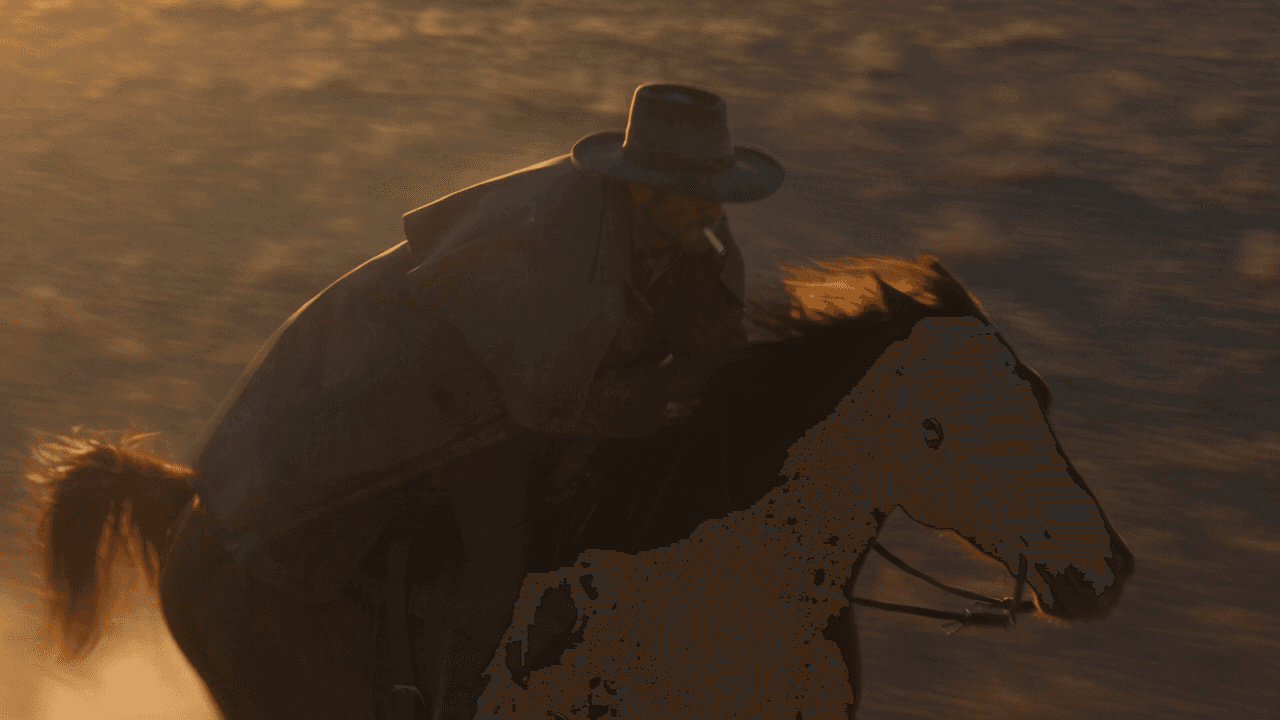
Create picture and sound together

Kling VIDEO 3.0 supports native dialogue, ambience and effects. Astorie exposes a Generate audio control for this model. Describe the sound beside the visible action and enable audio when the brief needs it. Listen to the exported clip before approving speech or synchronization.

Choose the frame and clip length

Compose a wide shot, a vertical moment or a square creative in the supported 16:9, 9:16 and 1:1 ratios. The current Astorie Generator offers 3, 5, 10 and 15 seconds. Choose the format before generating so the action has room to finish.

How to create with kling-3.0 on Astorie

Start creating with kling-3.0 in three simple steps.

  1. 1

    Choose the model and input

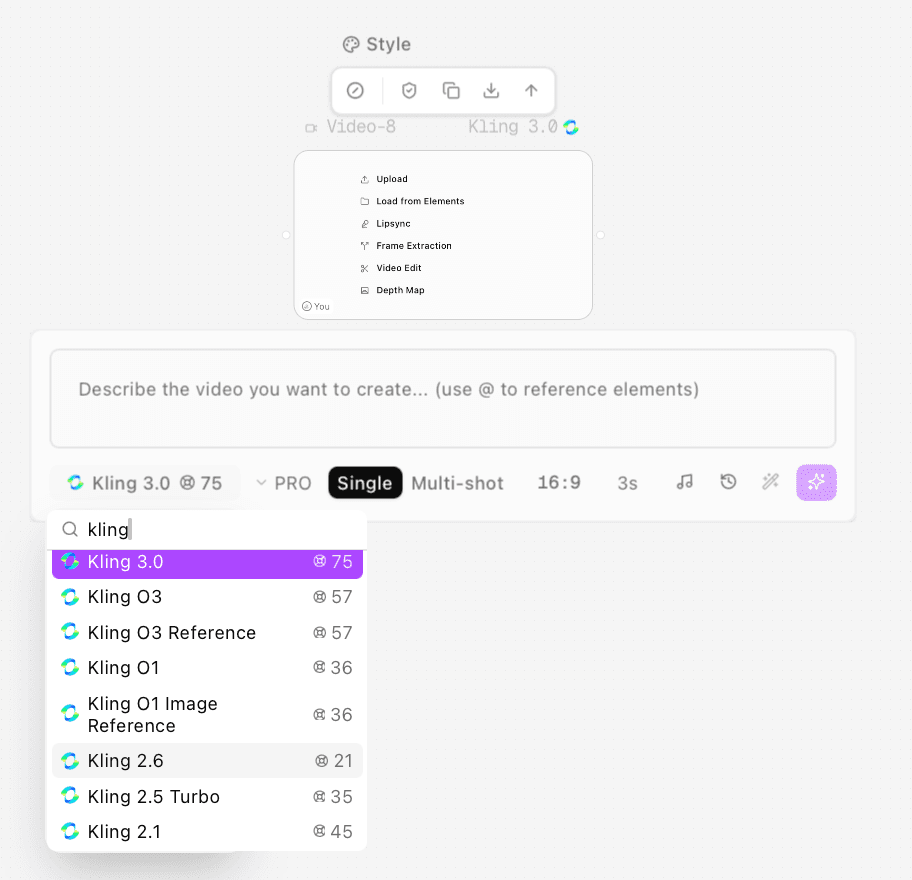
    Click Open in canvas to start a project, then select kling-3.0 in a video node. Use a text prompt, or supply the images required by your chosen input mode. Sign in if prompted.

    Kling 3.0 selected in the Astorie video model picker.
  2. 2

    Write the shot and set the output

    Write the shot in the video node or connect a text node. Describe the action, camera, lighting and ending, then choose the output settings available for the model. Enable audio when the brief needs it and review the displayed credit estimate.

    A connected English prompt and Kling 3.0 video generation settings in the Astorie canvas.
  3. 3

    Generate and review the take

    Generate from the video node, then play the complete result. Check the action, details and any sound before downloading the take or adding it to your edit.

    A completed Kling 3.0 video playing in the Astorie canvas.

From a story beat to a shot worth developing

Explore film blocking, product reveals and location atmosphere through short, focused video briefs.

Previsualize a decisive film beat

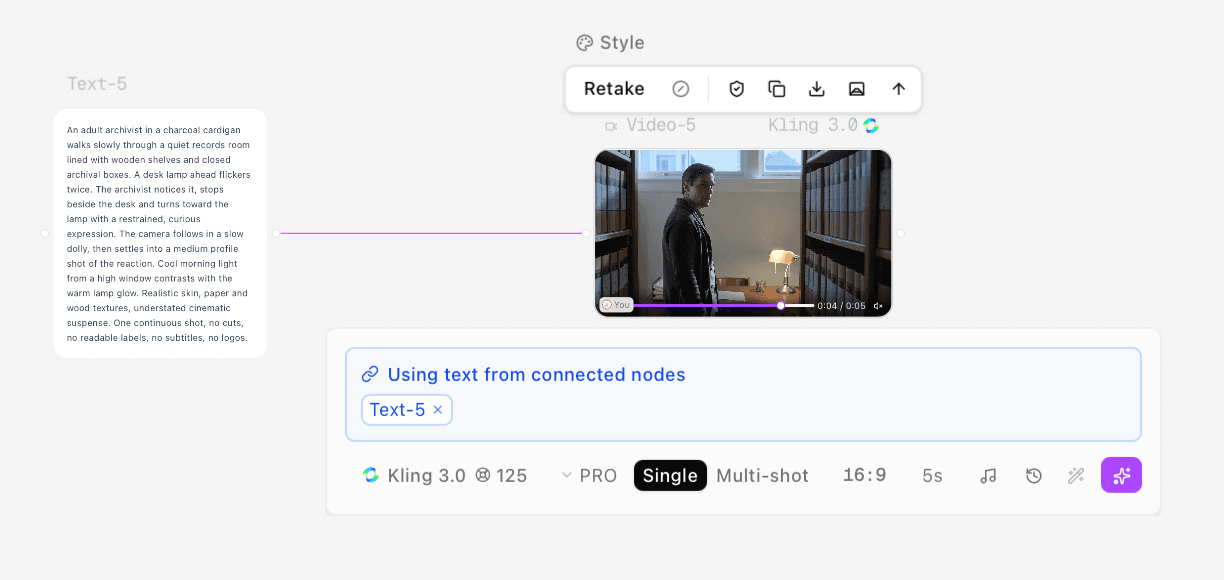
Explore how a scene changes when a character notices something and responds. Keep one location and one completed action in the take, then use the result to discuss staging and timing with the production team.

Prompt starter: An adult archivist crosses a quiet records room, notices a flickering desk lamp and stops beside it. A slow dolly follows the movement and settles on the reaction. Cool window light, warm lamp glow, one continuous take.

Plan a product reveal for an ad

Test the reveal, material highlights and closing composition of a fictional product. Give the shot a simple movement and a clear final hold for copy added in the edit. Check reflections and product geometry before approving a direction.

Prompt starter: A plain brushed-steel travel mug stands on dark stone. A narrow band of light travels across its surface while the camera makes a small arc, then holds a clean packshot. Controlled studio reflections, no lettering.

Build an atmospheric scene with sound

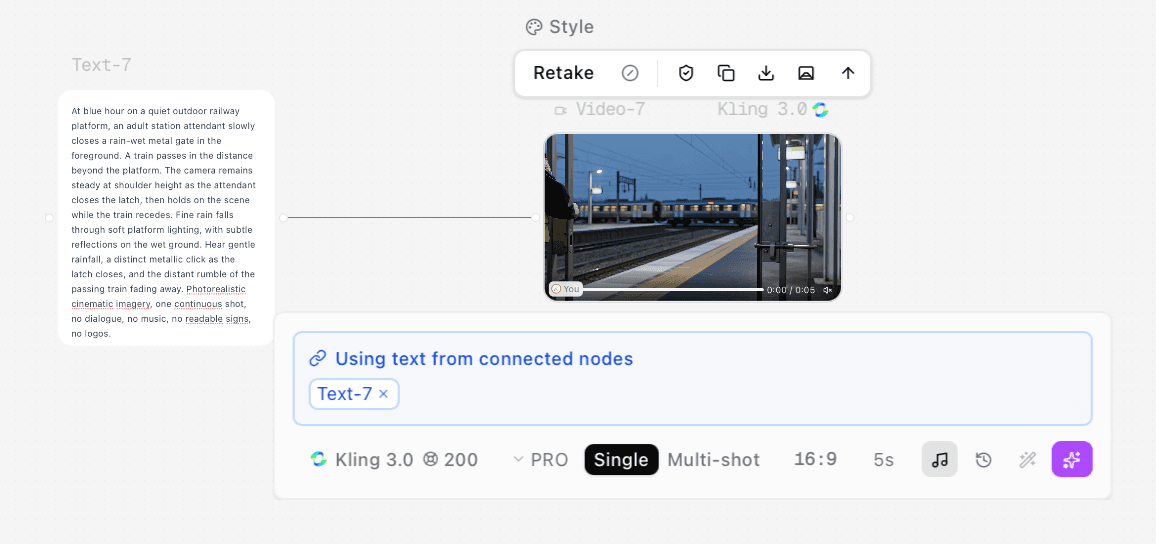
Sketch the mood of a location through a short visual action and a matching soundscape. Describe where the sound comes from and keep it tied to the scene. Use the clip as an atmosphere study, then review the export with headphones.

Prompt starter: At blue hour, a station attendant closes a rain-wet gate as a distant train passes beyond the platform. The camera holds at shoulder height. Light rain, a metal latch and the receding train, with no music or dialogue.

kling-3.0 inputs and output settings

Provider capabilities and the controls inspected in Astorie are listed separately.

Provider and versionKuaishou Kling VIDEO 3.0; this page covers the Astorie model ID kling-3.0.Source ↗ · 2026-11-08
Astorie input modesThe inspected video Generator offers Text to video, Image to video and First and last frame.Source ↗ · 2026-11-08
Aspect ratios16:9, 9:16 and 1:1 in the current Generator.Source ↗ · 2026-11-08
DurationThe provider documents 3–15 seconds; the inspected Astorie form offers 3, 5, 10 and 15 seconds.Source ↗ · 2026-11-08
Resolution and tierThe form lists 720p, 1080p and 4k resolution, plus Fast, Standard, Pro and 4k tiers. Inspect the selected combination and estimate before generating.Source ↗ · 2026-11-08
Native audioThe provider supports native audio, including speech in English, Chinese, Japanese, Korean and Spanish; Astorie exposes an audio on/off control.Source ↗ · 2026-11-08
Multi-Shot scopeThe provider documents automatic and custom Multi-Shot. These are not separate controls in the inspected public Generator; confirm the canvas mode before planning a multi-shot run.Source ↗ · 2026-11-08
Output reviewInspect the original file for pixel dimensions, duration, sound and visual continuity; a selected quality label alone does not verify the export.Source ↗ · 2026-11-08

Choose a starting point for the shot

Use text when the scene can be invented, or images when the opening and ending need visual anchors.

DimensionText-led creationImage-led creation
Starting materialSource ↗ · 2026-11-08A written brief; let the model invent the opening scene.An approved start image, or start and end images for the matching mode.
Direction to writeSource ↗ · 2026-11-08Define the subject, action, camera move and ending.Define what should move between the supplied visual anchors.
What to inspectSource ↗ · 2026-11-08Whether the imagined scene and action match the brief.Whether details drift from the reference and the ending is achieved.

Plan a useful take and the review it needs

Keep the creative brief focused on a clear production decision.

A useful starting point for

  • Short scene studies with a visible action and a deliberate camera move.
  • Product reveal concepts with room for a closing packshot.
  • Location mood studies with an intentional soundscape.

Plan additional work for

  • A complete film assembled, mixed and approved from a single generation.
  • Exact logos, packaging, typography or frame-perfect character identity.
  • Replicating a motion reference or editing an existing video without selecting a workflow that supports those inputs.

Simple, transparent pricing

Start creating with the most advanced AI models. No credit card required for the free plan.

Pro Trial3-day Pro

Try everything in Pro for 3 days

BILLED ONCE
$9today
then $49/mo · cancel anytime
1000 trial credits
  • Continues as Pro Monthly ($49/mo) after 3 days · cancel anytime
Core Features
  • All advanced AI models
  • Concurrent: up to 4 Videos, 8 Images, 3 Characters
  • Early access to new AI features
Standard
For professional use or small teams.
Billed yearly
$19$12per month
Limited offer · Save $7/mo (36% off)
then $16/mo from year 2
1,600 credits / month
Core Features
  • Limited-time offer: $144 first year, then $192/yr
  • All advanced AI models
  • Concurrent: up to 2 Videos, 2 Images, 2 Characters
Unlimited Access
  • Nano Banana
    7 days
  • Z-Image
    365 days
Most Popular
Pro
For large teams and advanced use.
Billed yearly
$49$29per month
Limited offer · Save $20/mo (40% off)
then $39/mo from year 2
4,800 credits / month
Core Features
  • Limited-time offer: $348 first year, then $468/yr
  • All advanced AI models
  • Concurrent: up to 4 Videos, 8 Images, 3 Characters
Unlimited Access
  • Nano Banana
    7 days
  • Nano Banana 2
    2K
    7 days
  • Nano Banana Pro
    2K
    7 days
  • Z-Image
    365 days
  • JimengSeedream 5 Lite
    3K
    365 days
  • JimengSeedream 4.5
    4K
    365 days
Best value
Ultimate
For power users and maximum access.
Billed yearly
$99$59per month
Limited offer · Save $40/mo (40% off)
then $79/mo from year 2
10,000 credits / month
Core Features
  • Limited-time offer: $708 first year, then $948/yr
  • All advanced AI models
  • Concurrent: up to 8 Videos, 8 Images, 6 Characters
  • 15% discount on extra credits
Unlimited Access
  • Nano Banana
    7 days
  • Nano Banana 2
    4K
    7 days
  • Nano Banana Pro
    4K
    7 days
  • Z-Image
    365 days
  • JimengSeedream 5 Lite
    3K
    365 days
  • JimengSeedream 4.5
    4K
    365 days
  • GPT-Image 1.5
    365 days
  • Flux.2 Pro
    365 days
  • Flux.2
    365 days

Questions before your first kling-3.0 shot

Inputs, sound, workflow and credit estimates.

What is kling-3.0?

It is the Astorie model ID for Kling VIDEO 3.0, a video model from Kuaishou. This page covers that specific model rather than the separate Kling O3 or Motion Control workflows.

Does this page generate or charge credits?

Generation happens in the canvas. Open in canvas creates a project and node using the selected configuration, including the prompt, supported references and settings. If you are signed out, sign in or register to continue with that configuration.

Can I start from an image?

Yes. Choose Image to video for a start image, or First and last frame for the corresponding pair of inputs. Use the upload controls shown by the selected mode.

Can it generate sound?

Yes. Enable Generate audio and describe the intended sound with the visible action. Check the actual export for intelligible speech, timing and unwanted sounds.

Does Astorie expose Multi-Shot here?

The inspected public Generator offers Text to video, Image to video and First and last frame. Kling’s provider guide documents Multi-Shot, but you should verify the current canvas controls before relying on it. A previous Astorie test rejected start and end images in Multi-shot mode.

How much does a run cost?

Use the estimate for the current settings and check the price shown in the canvas for your plan before generating. Duration, tier and audio settings can change the estimate; a previous job’s credit total is not a fixed price.

How should I use the prompt starters?

Adapt them to your subject and production goal, then set the technical parameters in the actual controls. They are creative directions, not reports of completed tests or guarantees of the resulting footage.

Give the next shot a clear action

Choose the input, describe the moment and take the configuration into the Astorie canvas.