

How to Create AI Lifestyle Product Photos
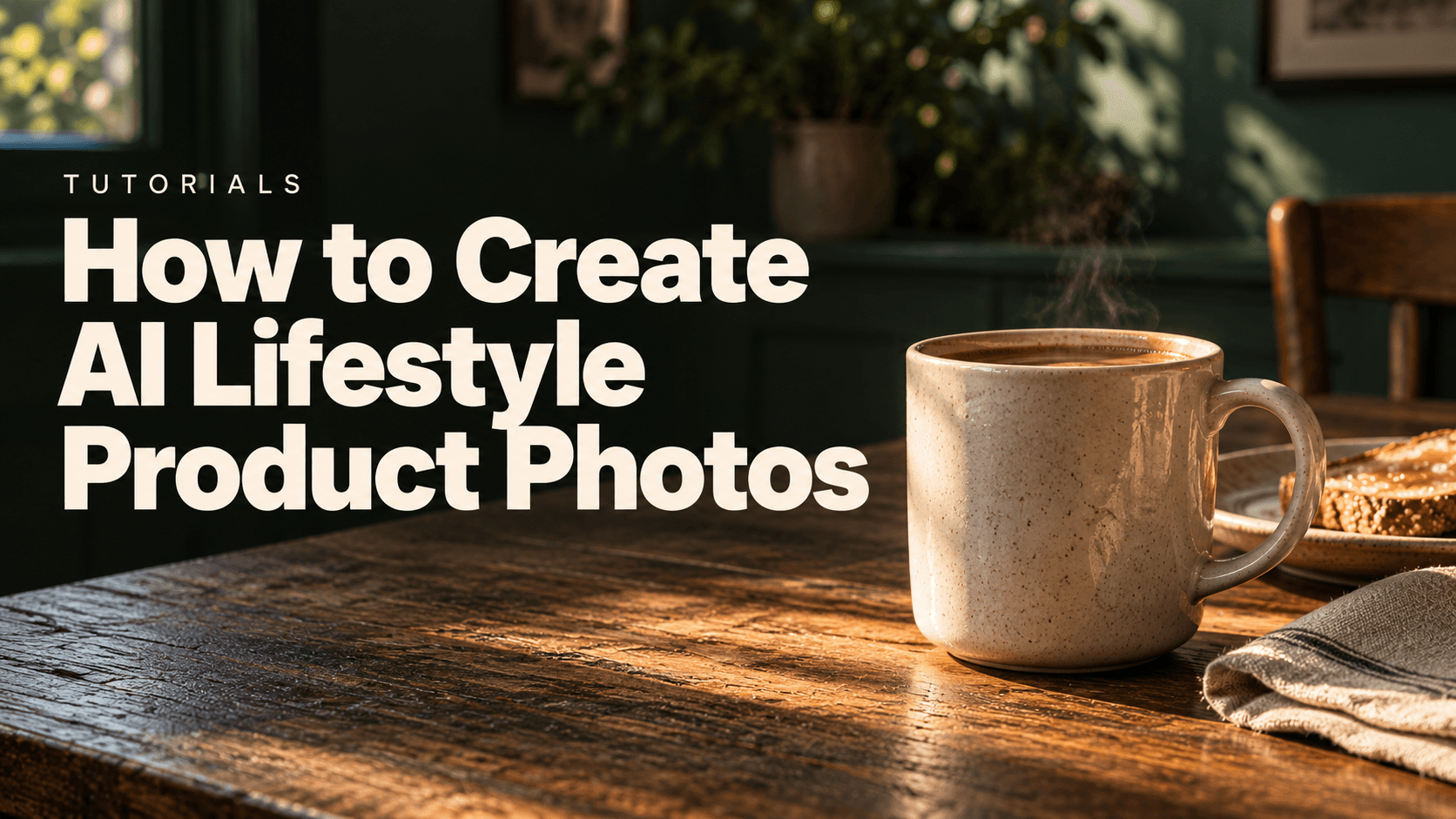
AI-generated editorial cover illustrating lifestyle product photography; the unbranded mug is conceptual.
Create AI lifestyle product photos by starting with an accurate product photograph, planning believable situations in which the product belongs, and generating each scene from the same reference. Check the product against that original before accepting a result, then export a coordinated set for the placements you actually need.
This guide uses Astorie as the working canvas. In the supplied October 26 test, Clara connected one blue mug reference to breakfast, office and reading-corner image nodes. The useful result was a set of distinct contexts with a recognizable product, alongside a clear reminder that a reference guides generation rather than guaranteeing exact preservation.
Plan AI lifestyle product photos around a customer activity
A useful lifestyle photograph answers where, when and how someone would use the product. Choose the activity before the scenery. A mug belongs beside a breakfast plate, at a working desk or on a reading table; changing only the position of the toast produces another breakfast composition, not another use case.
Begin with three scenes. Give each one a specific job, a plausible supporting surface and a small number of secondary objects. The product should remain easy to identify even when the image is reduced to a thumbnail.
Scene | Customer activity | Useful context | Acceptance check |
Breakfast | Starting the morning | Table, folded napkin, small plate | Mug is complete and visibly rests on the table |
Office | Taking a break while working | Notebook and laptop edge | Workspace is distinguishable from a dining table |
Reading corner | Relaxing beside a chair | Side table and closed book | Furniture establishes scale without hiding the handle |
Treat this as a scene plan, not a requirement to include every prop. A crowded photograph can make the product harder to understand. Choose surroundings that explain the activity without suggesting an accessory is part of the purchase.
Prepare a reference that can support the scene
Use your own product photograph or an image you have permission to use. Include the complete outline and any feature buyers rely on: a handle opening, a cap, a logo, a fastening or a distinctive surface. Avoid taking a small screenshot and expecting the model to recover text or construction details that are not visible.
Record what must remain fixed. For the supplied mug, that list includes the blue exterior, cream interior, handle on the right, tapered body and rings near the base. Keep a clean original alongside every candidate. A visually pleasing derivative should not quietly become the only reference for the rest of the set.
A source that is adequate for broad shape matching may still be too soft to verify embossed lettering. Use a sharper real photograph when a small marking matters to the sale.
Build the first scene step by step
1 Create a project and add the original image
Open Astorie and enter the canvas through Create now. Create a project for the product, import the reference as an image node and give it a meaningful name such as Mug Original. Keep this input node separate from the generated candidates. The canvas workflow is designed to keep inputs, generation steps and review together. [1]
2 Connect an image generation node
Add an image generation node and connect the original image to its reference input. Open the generation panel and check the thumbnail under Reference Images. A file placed nearby on the canvas is not enough; the thumbnail and connection identify the actual input.
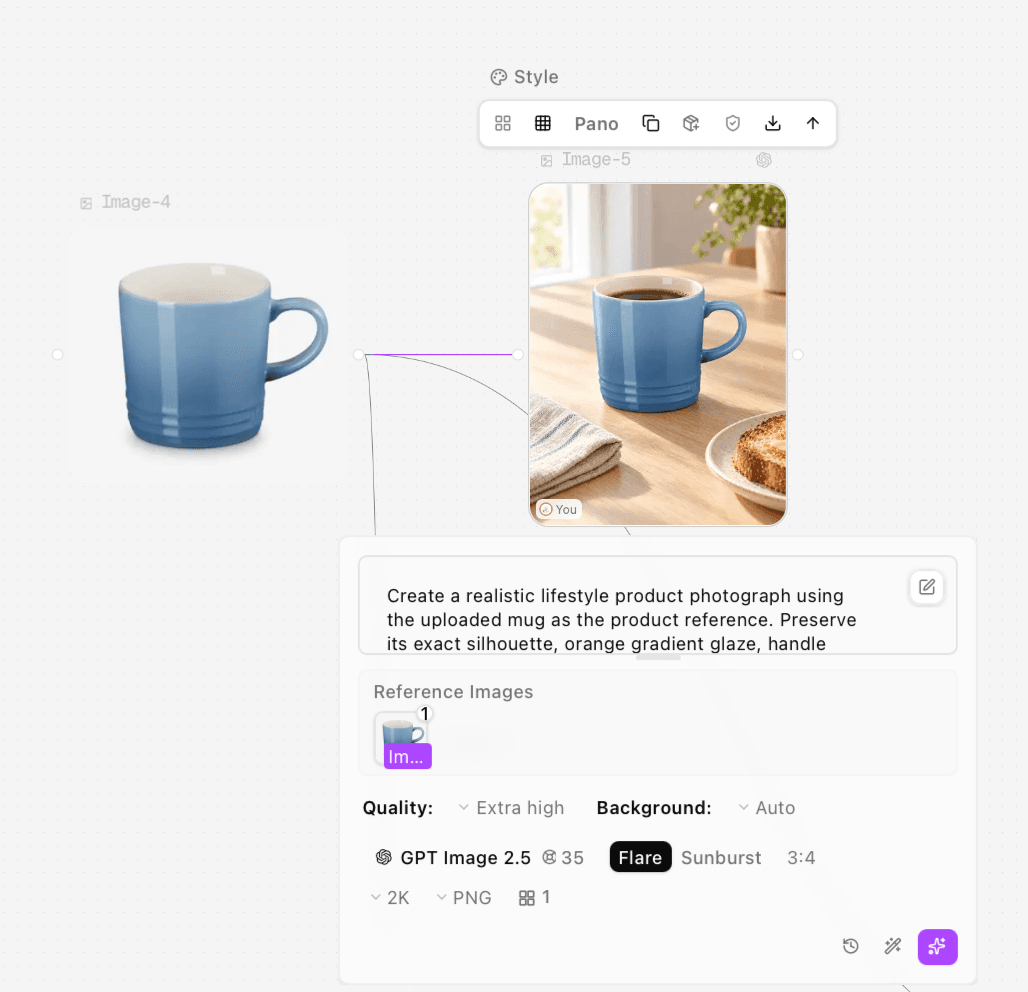
Figure 1. Original mug reference connected to the first breakfast generation. The visible prompt contains an orange-color instruction even though the reference is blue.
3 Choose the model and actual output settings
The retained test interface labels the model GPT Image 2.5 with Flare selected. Clara used Extra high quality, Auto background, a 3:4 aspect ratio, the 2K resolution option, PNG and one result per request. Check the available controls if you choose another model or account.
Choose the ratio for the intended placement before running the node. A vertical gallery tile can use 3:4, while a wide website section needs its own composition. The inspected mug exports are 1536 × 2048 pixels. Read the downloaded file properties rather than interpreting the 2K label as an exact width.
4 Describe the product constraints and one scene
Write the details that must stay fixed, then describe the setting, light direction and framing. Remove contradictions before generating. In this session, the initial visible instruction named an orange glaze while the reference was blue; a later screenshot names blue. That is a prompt-preparation issue worth catching even when a candidate happens to follow the reference color.
Untested example prompt to adapt to the actual product:
Create a realistic lifestyle photograph using the uploaded blue mug as the product reference. Preserve its silhouette, blue exterior, cream interior, handle shape and rings near the base. Keep the handle on the right. Place one complete mug on a pale oak breakfast table beside a folded linen napkin and a small plate of toast. Use soft morning window light from the left, natural perspective and a believable contact shadow. Keep the mug clearly visible. No extra mugs, people or added text.
5 Generate one candidate and inspect it
Use the purple generation control in the lower-right corner of the panel. Wait for the result and select the version you intend to review. Inspect the object at a large size before judging the atmosphere. Check handle attachment, rim thickness, body proportions and the contact with the table; then look at the rest of the scene.
Check the displayed credit quote before running, then consult the completed task or account usage record for the actual charge. Keep those two values separate when planning a batch.
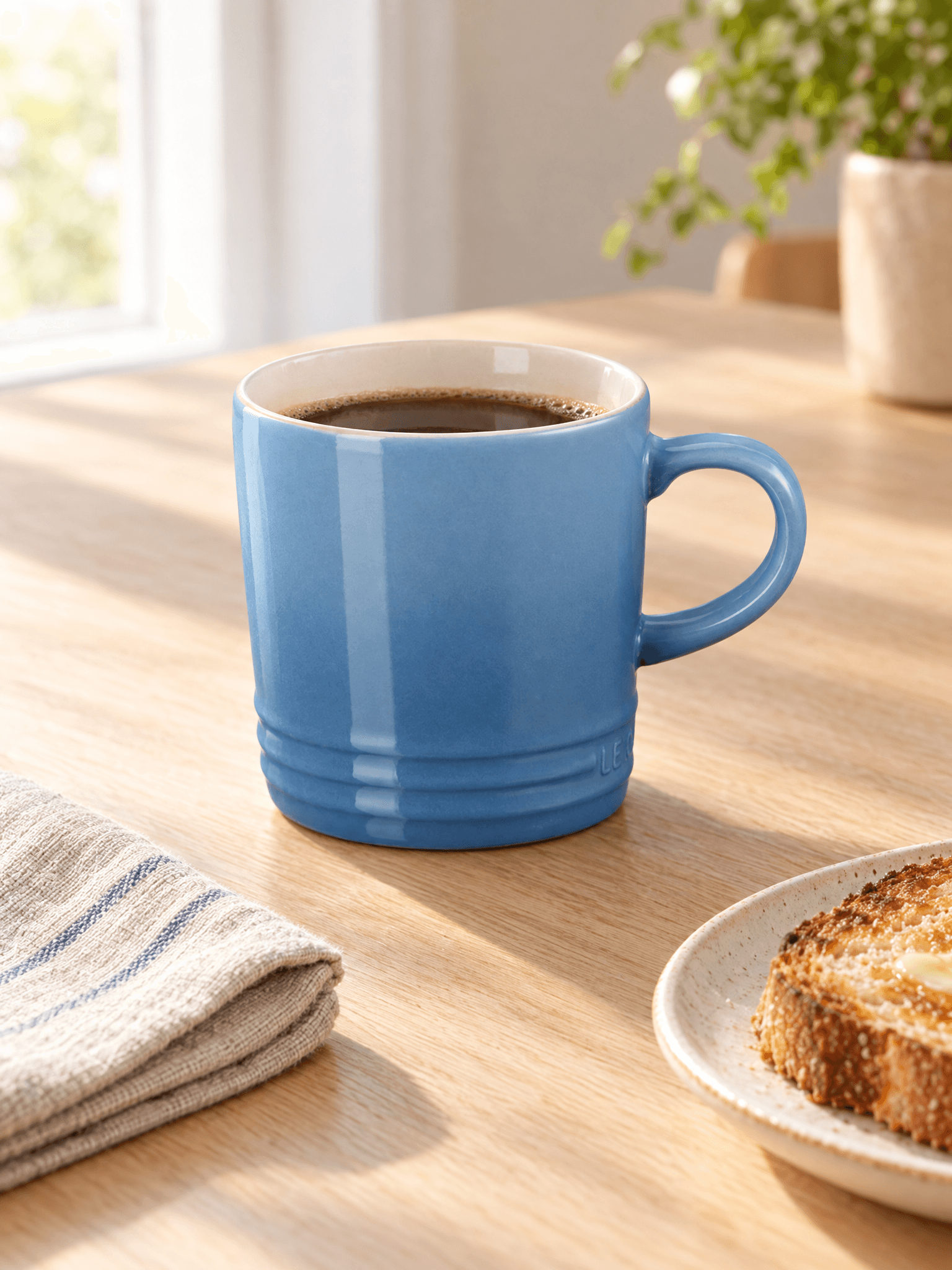
Figure 2. Breakfast candidate from the supplied test. The complete mug, napkin and toast make the use context clear.
Expand the same SKU into distinct scenes
Create a fresh branch from the original reference for each activity. Keep the model and ratio consistent while changing the surroundings. This makes it easier to spot product drift and avoids repeatedly inheriting alterations from a previous generation.
The second breakfast export rearranged the plate and napkin. It is useful as an alternative composition, but it does not fill the office slot in the scene plan. A separate office generation was therefore added, and a reading-corner scene completed the set.
For an office version, change the scene paragraph to a desk, closed notebook and laptop edge, explicitly excluding dining props. For a reading version, request a side table, chair and closed book. Recheck the whole prompt after editing so the old breakfast instructions have actually been removed.
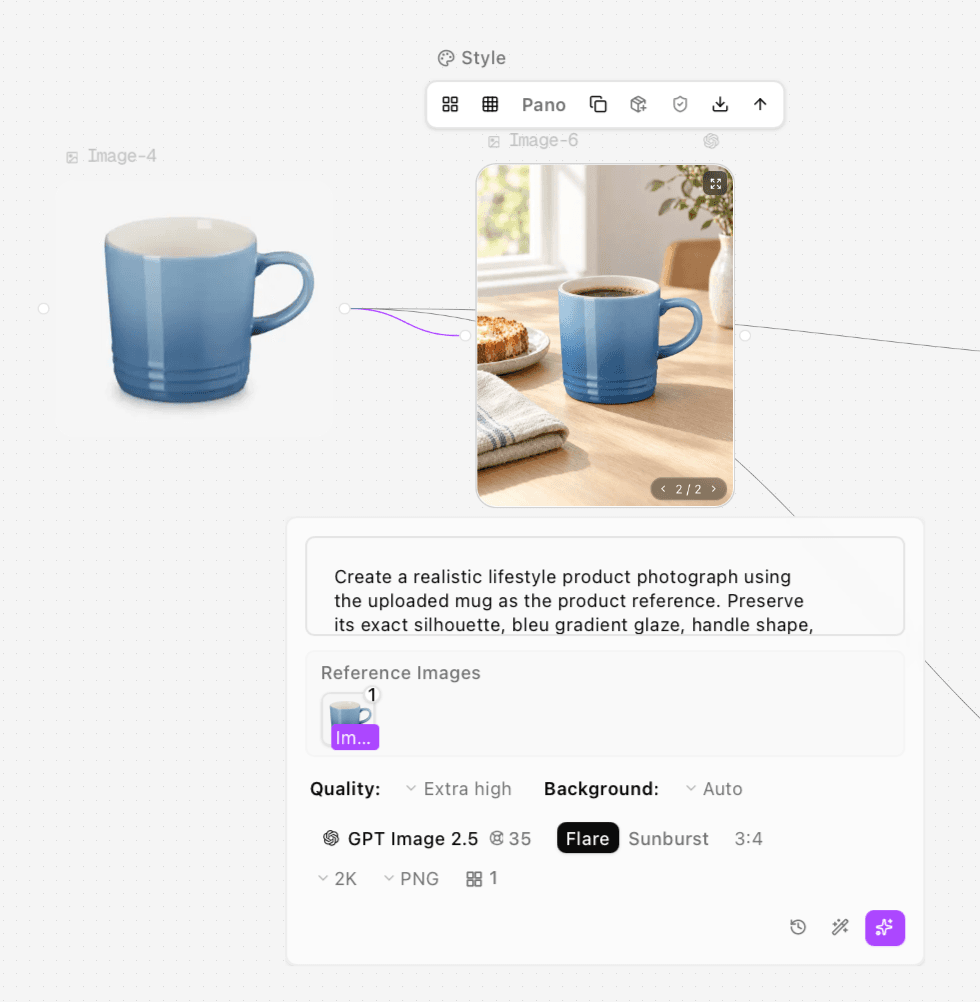
Figure 3. A later breakfast node shows the blue-color instruction and the selected version in the result tray.
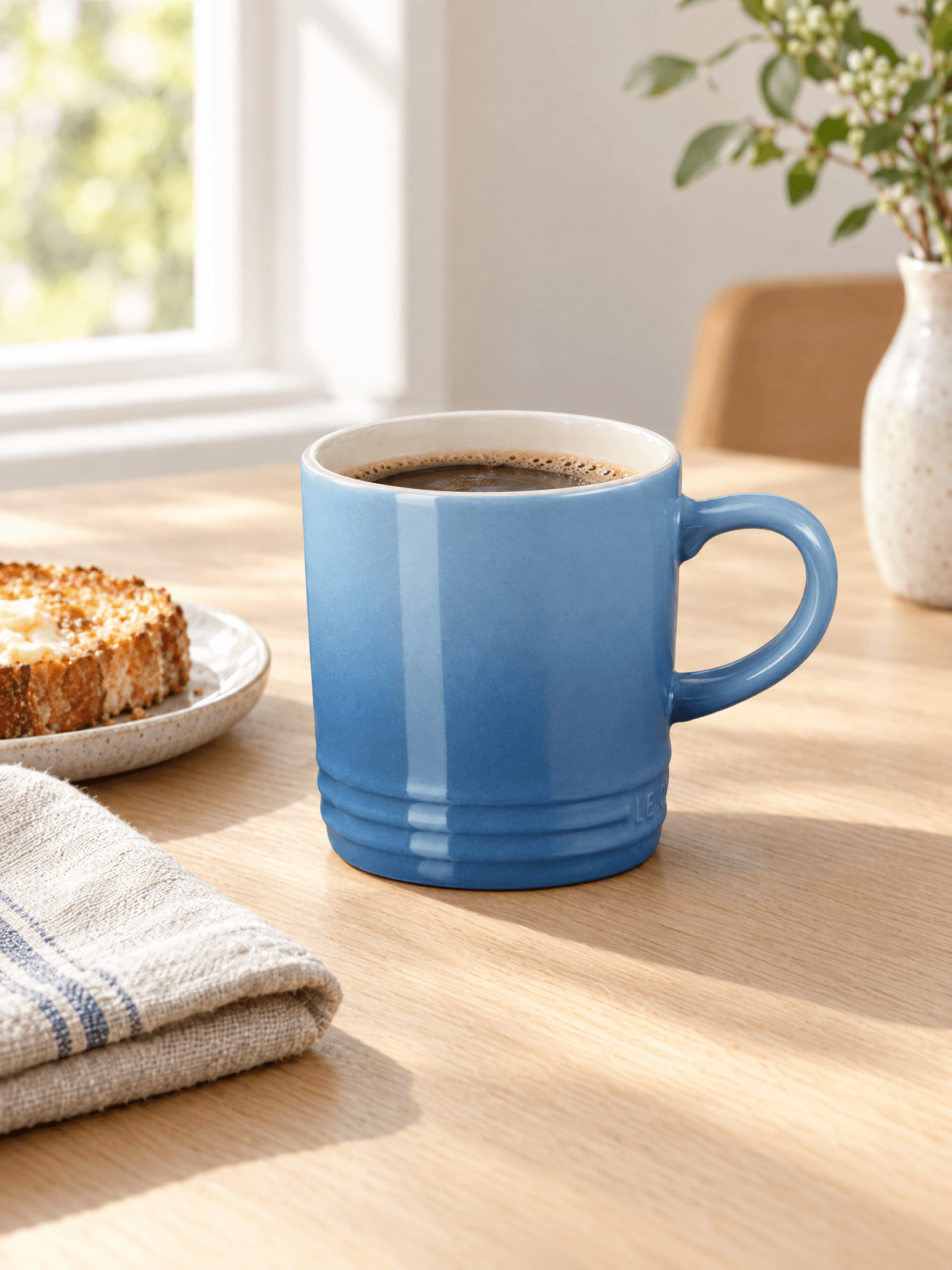
Figure 4. Alternative breakfast composition, retained as part of the actual test rather than counted as a new lifestyle setting.
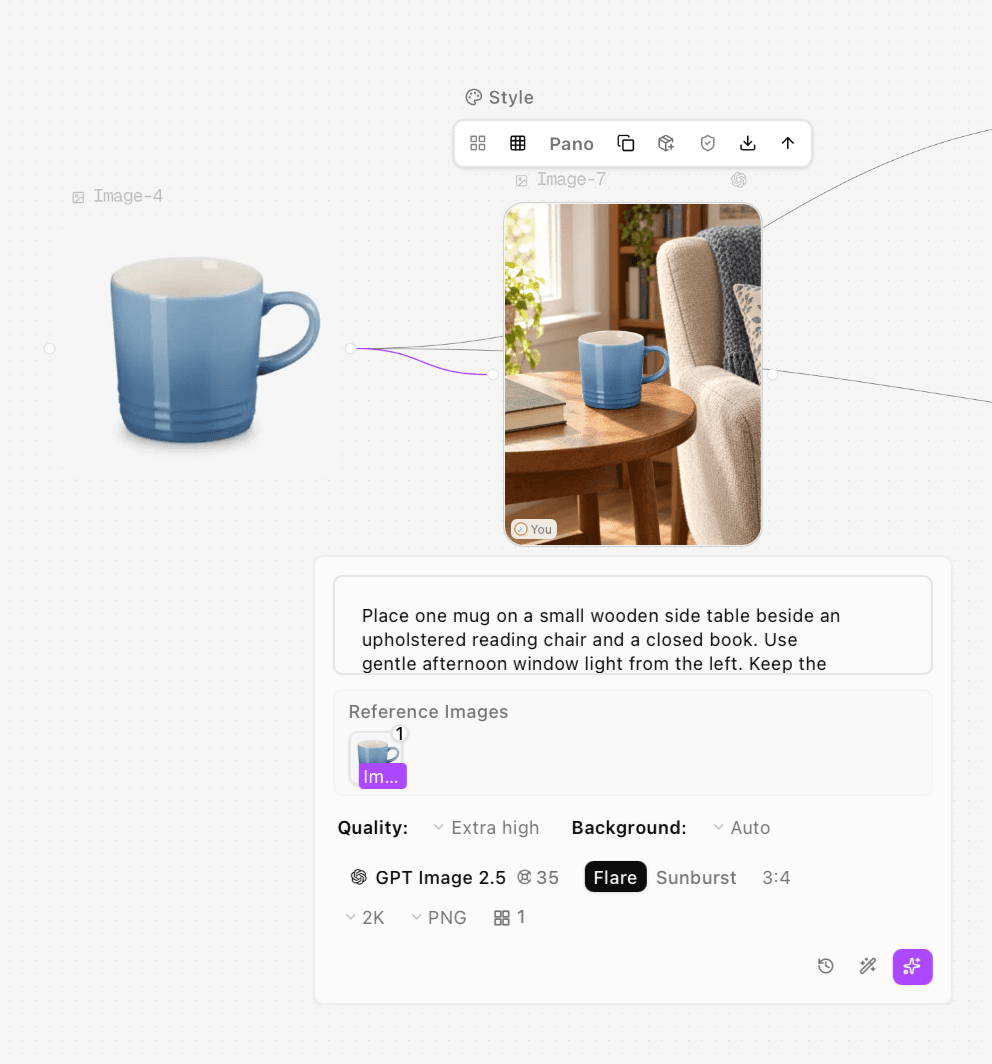
Figure 5. Reading-corner node connected to the original mug input.
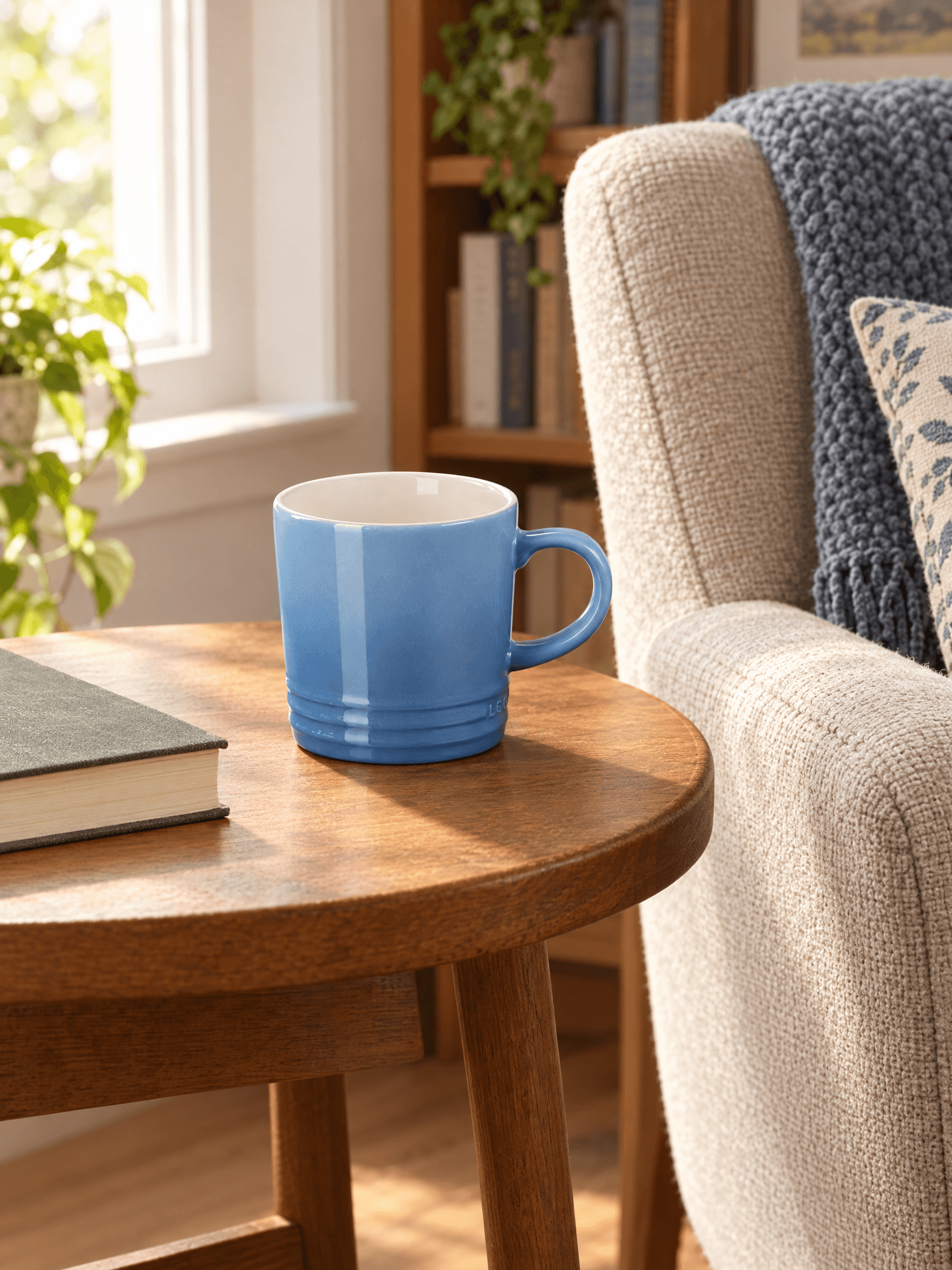
Figure 6. Reading-corner candidate with a complete mug, side table and closed book.
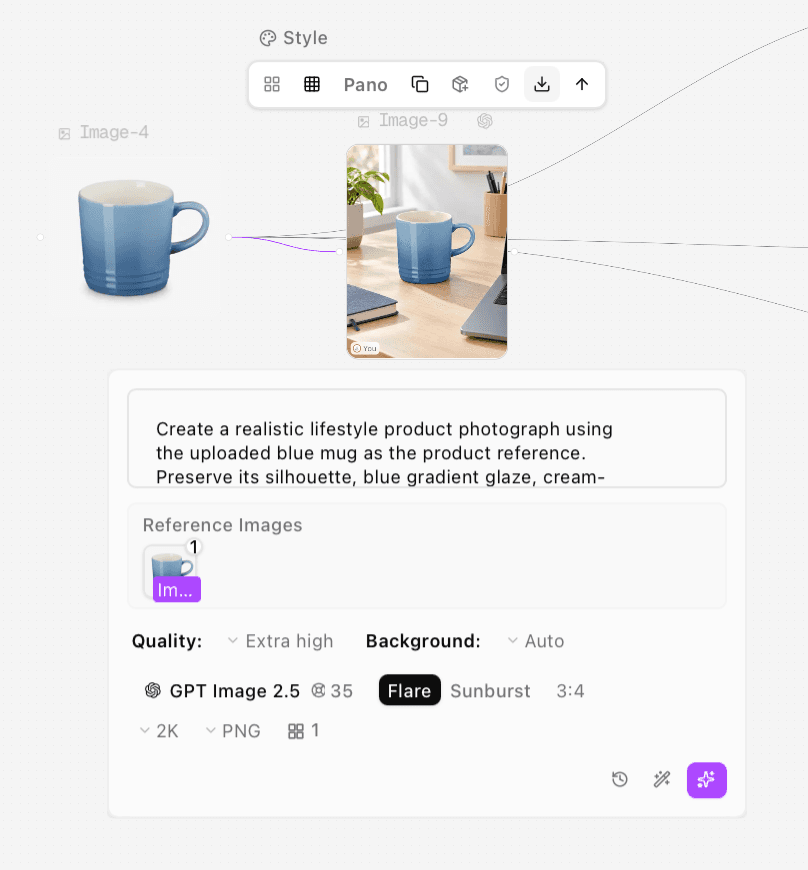
Figure 7. Office generation using the original blue mug reference and the same documented 3:4 settings.
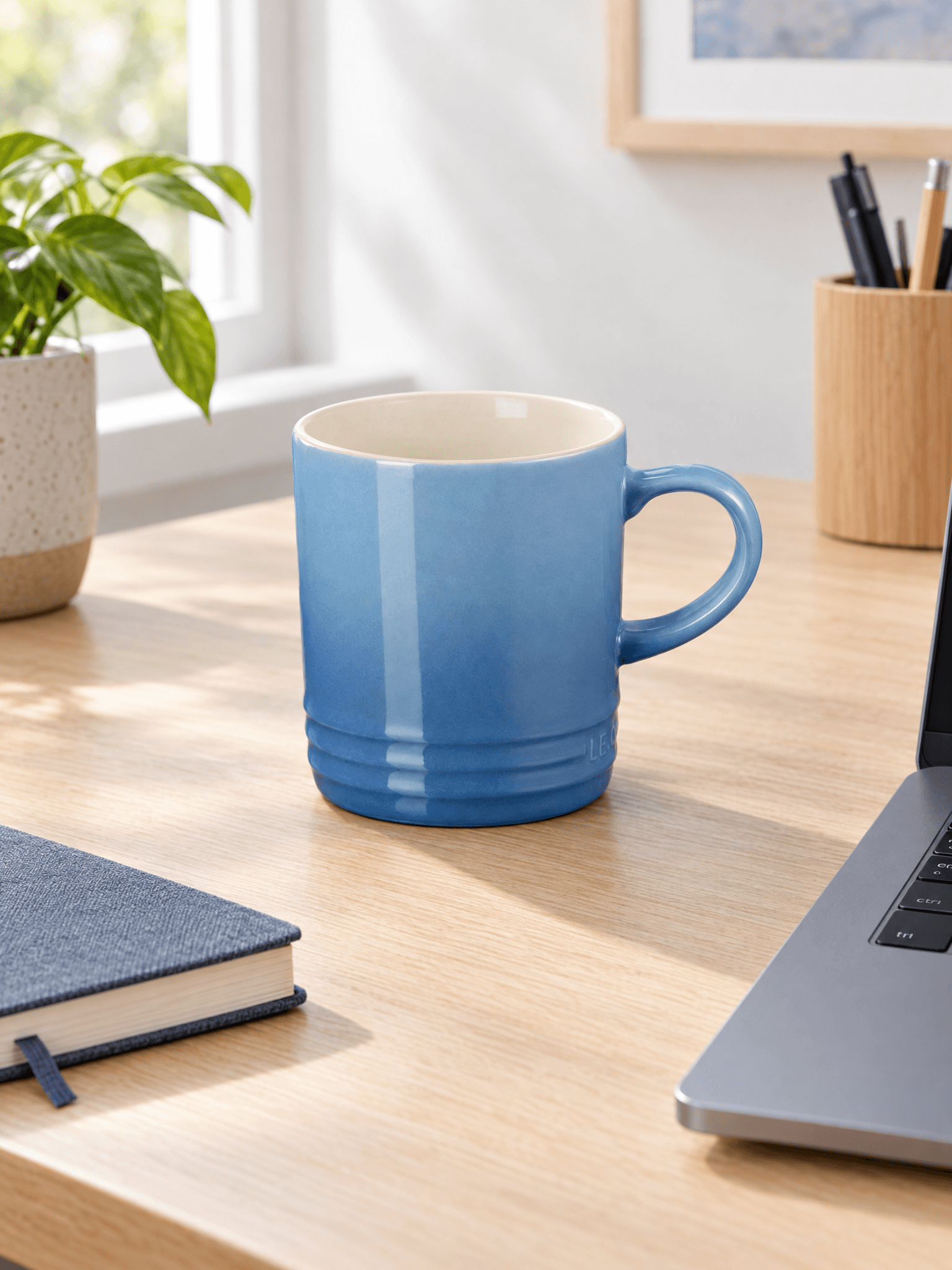
Figure 8. Office candidate, selected to give the set a third distinct use context.
Review the set for product identity and physical realism
Compare the candidates side by side with the original. Similar colors alone do not establish that a SKU has been preserved. Check the relationship between parts: handle to body, cap to neck, feet to floor or strap to bag. A plausible shadow cannot compensate for a changed product.
Use three decisions: accept for the intended placement, revise a specific issue, or return to the real photograph. If a label or texture is essential to the buying decision, preserve that region through a suitable masking or compositing workflow instead of asking a generative model to invent a sharper version. This fallback is a recommendation, not an additional workflow tested in this session.
In the mug set, the broad blue-and-cream appearance and recognizable base rings carried across the scenes. Small embossed lettering cannot be certified as identical from the supplied reference preview. No conversion, speed or reliability claim follows from these examples.
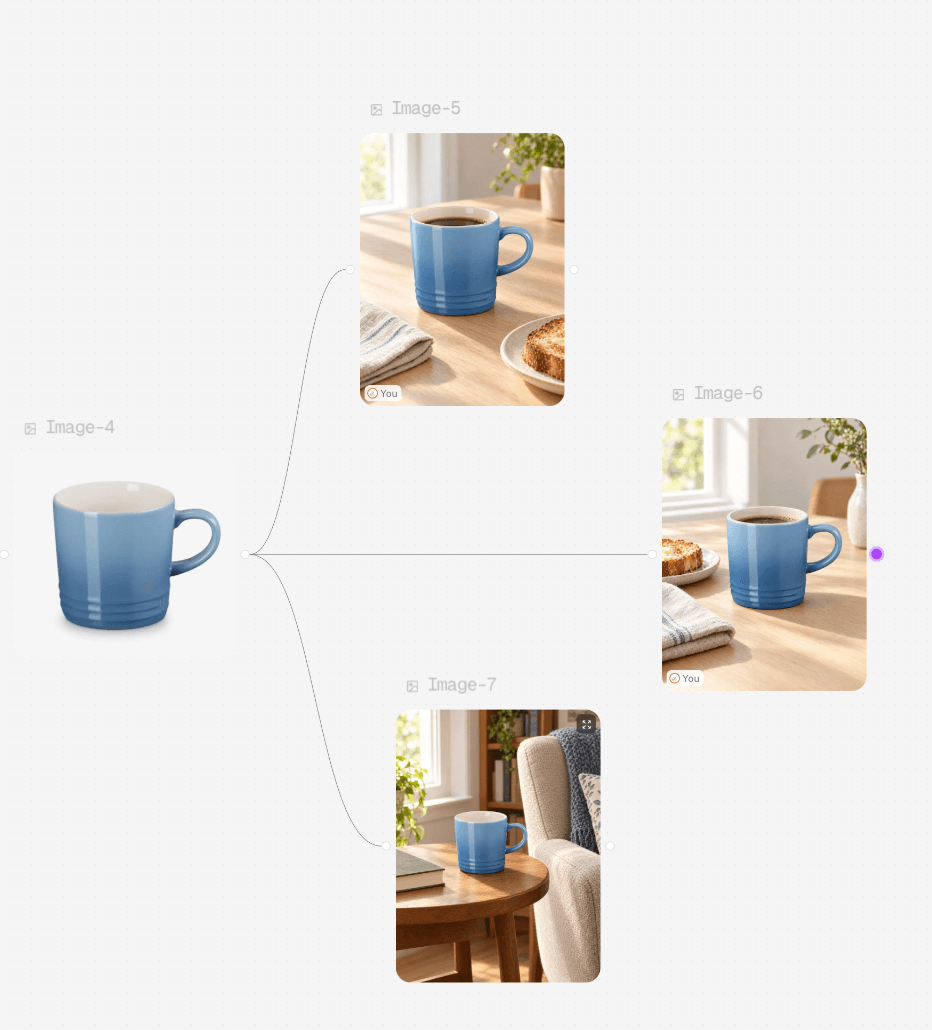
Figure 9. The earlier canvas overview shows separate branches from one input. It predates the office addition and includes two breakfast candidates.
Download and organize the approved photographs
Select the intended version, then use the download arrow in the image toolbar. Keep the original PNG and give it a filename that identifies the SKU, scene and version, such as blue-mug-office-v01.png. Open the downloaded file to confirm its dimensions and that no interface controls are included.
Store the product original, approved scene files and rejected candidates separately. Record the model label, settings, prompt and the issue that caused a rejection. For another channel, make a new crop or layout from an approved asset and check the product again; a ratio change should not accidentally cut away a handle or imply a different size.
For the broader image-generation process, see the Astorie guide to AI product photography. [2] If the next deliverable is a sales page, organize the assets by their page roles before producing more scenes.
Common problems and fixes
Problem | What to change | How to judge the next result |
Prompt names the wrong color | Correct the product description before changing the scene | Compare the exterior and interior with the original |
Several outputs repeat one setting | Replace the activity and contextual objects | Each image should communicate a different use case |
Product floats or tilts implausibly | Name the supporting surface and contact point | Base and shadow should agree with the surface |
Logo or construction changes | Return to the photograph or preserve the product through compositing | Verify the actual feature rather than visual similarity |
New ratio cuts off the product | Recompose for the destination | Keep every purchase-relevant part inside the frame |
FAQS
Can one reference create several lifestyle scenes
Yes, a reference-guided workflow can develop several scene candidates from one photograph, as the mug branches demonstrate. The image must contain enough information to check the product, and every candidate still needs review.
Does a reference guarantee the same SKU
No. Shape, text, texture and proportions can change. Define the fixed details, compare with the original and use a preservation method when exact product pixels matter.
Which aspect ratio should I use
Choose the ratio for the actual page or channel. This test used 3:4 throughout. That is a documented choice for these vertical examples, not a universal requirement for lifestyle photography.
Should I add people or hands
Add them when interaction is necessary to explain the product. Start with a clear use case and inspect contact, scale and any claimed function. The supplied mug examples did not test human interaction.
What makes the set ready to use
Each selected image should serve a different activity, preserve the product details relevant to a purchase and fit its destination. Keep the set small until those checks pass.
Ready to try it on the canvas?
Open Astorie and fan your prompt across every frontier model in one workflow.