

How to Create AI Product Hero Images
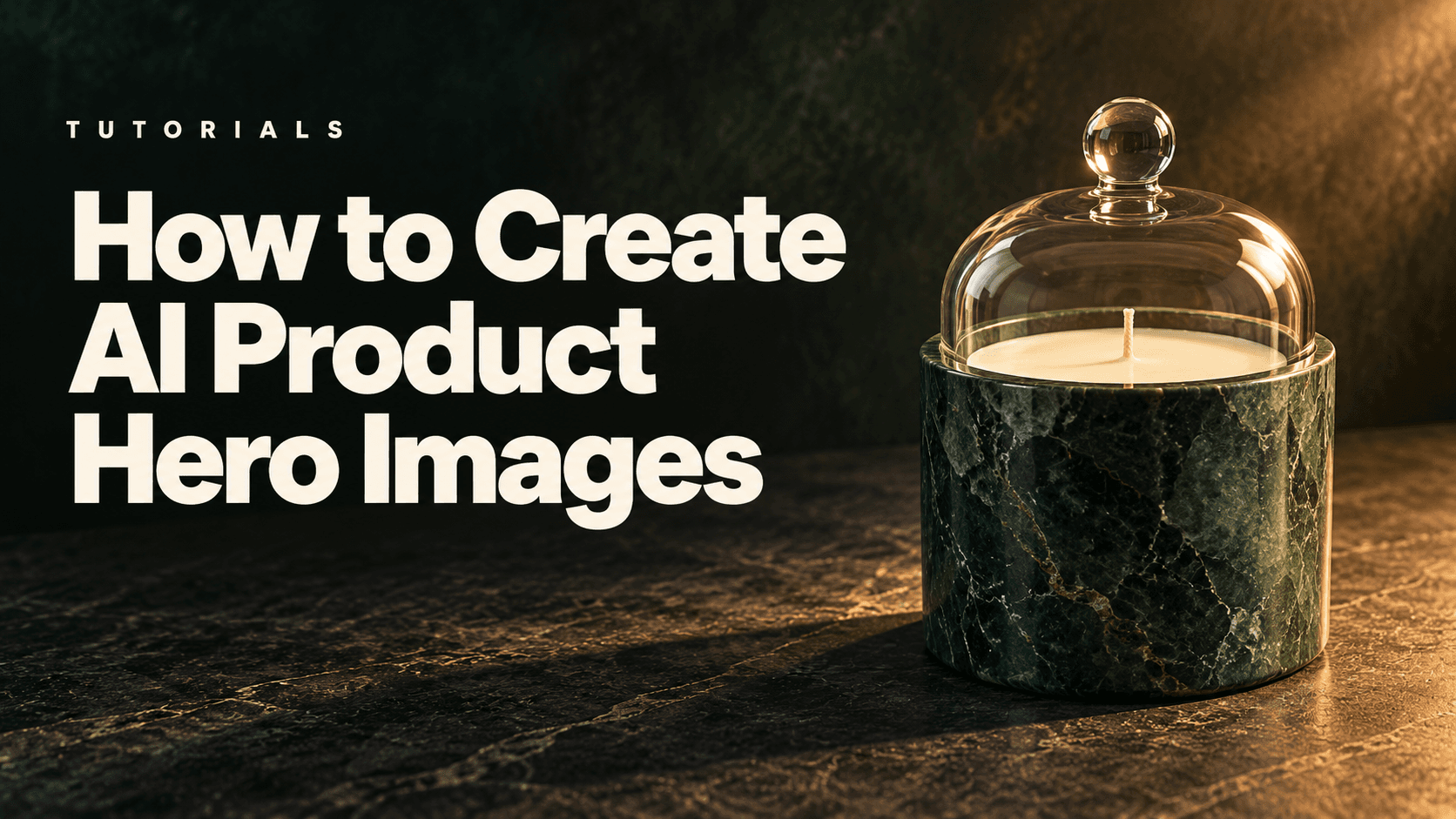
AI-generated editorial cover illustrating product-hero lighting and composition; it is separate from the tested website-image candidates.
Create AI product hero images by defining the website layout first, placing an accurate product reference inside that composition and directing the lighting around it. Generate desktop and mobile candidates for their actual placements, then check the product, text space and responsive crop before publishing.
This guide uses Astorie as the image workspace. Clara's October 26 case used a green candle vessel with a clear glass cloche to produce a portrait candidate, a wide soft-light composition and a harder-light alternative. The examples show how framing and shadows affect a first-screen visual, while keeping product accuracy as a separate acceptance check.
Design AI product hero images for the first screen
A website hero has to work with a headline, supporting copy and a call-to-action. Decide where those elements will appear before describing the scene. A centered catalog photograph can be accurate yet leave no useful space for the page's message.
Write a short layout brief: destination, desktop and mobile container shapes, product position, copy position, background contrast and parts that cannot be cropped. Use the actual template as the starting point. A 16:9 desktop canvas is a practical candidate for some placements, not a universal website requirement.
Placement | Composition to plan | What to check |
Wide desktop hero | Product to one side, copy area beside it | Headline and button remain clear without covering the item |
Portrait mobile hero | Product and copy arranged vertically | Complete silhouette survives the actual mobile crop |
Lighting alternative | Similar layout with a different light brief | Shadow and reflections support the product without obscuring detail |
Keep the headline and button as live website elements where the template allows. A generated image containing its own button cannot provide the responsive behavior of a real link. The article cover is a separate editorial asset and is not the website hero being tested here.
Prepare the reference and identify fragile details
Use an authorized photograph with the whole product visible. Remove webpage controls from the working reference where possible, while retaining an untouched original for comparison. Do not let a carousel arrow become part of the product description.
For the supplied candle, the key features are the green vessel, black ornamental label, clear dome, round glass knob and gold medallion. The reference is useful for shape and appearance, but a transparent material can be reinterpreted as the background changes. Check the glass edge, fit, reflections, label and stone texture separately.
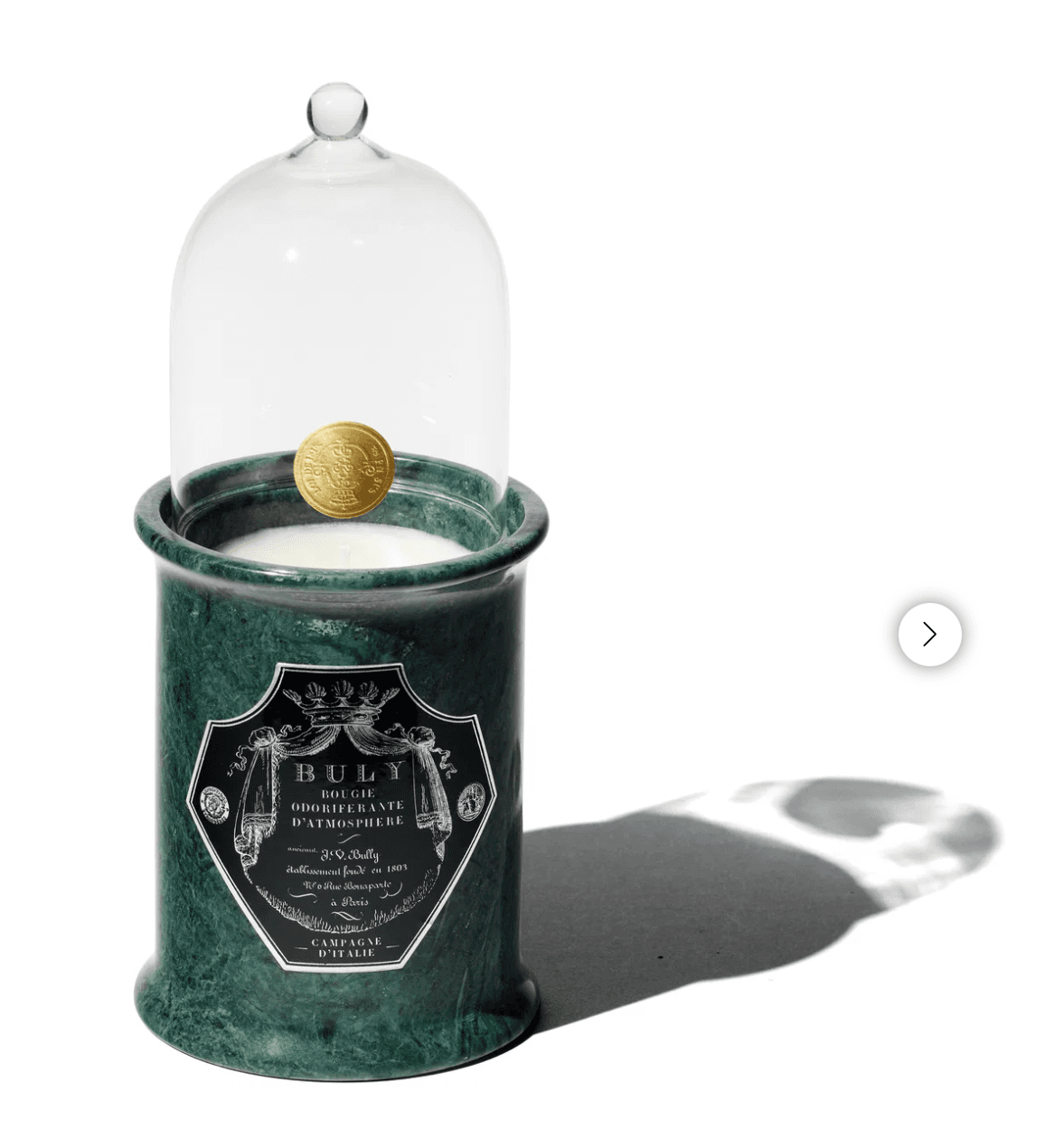
Figure 1. Supplied candle reference screenshot. The visible carousel arrow is webpage navigation, not a feature of the product.
Choose what is flexible: background, tabletop, light direction and room atmosphere. Treat product construction, branding and sale configuration as fixed. Naming those constraints helps define the request, but it does not guarantee unchanged product pixels.
Generate the first hero composition step by step
1 Create the project and connect the product
Open Astorie, create a canvas project and import the reference as its own image node. Add an image generation node, connect the reference input and verify the thumbnail under Reference Images. Keep the original alongside the outputs for review. This connected-input approach matches Astorie's documented canvas workflow. [1]
2 Set the model and the destination ratio
The retained interface labels the model GPT Image 2.5, with Flare selected. The documented runs use Extra high quality, Auto background, the 2K resolution option, PNG and one result per request. Select the ratio in the settings panel; the word “wide” in a prompt does not replace that control.
The first run was 3:4 and exported at 1536 × 2048. It is retained as a portrait candidate. The desktop run used 16:9 and exported at 2048 × 1152. Always check the downloaded dimensions rather than assuming the requested layout was selected correctly.
3 Describe the composition and soft light
Give the image a clear division of jobs without asking for a hard visual split. The product should sit in a coherent space while a quieter region leaves room for copy. Untested example prompt to adapt:
Create a website hero photograph using the uploaded candle as the product reference. Preserve the green vessel, proportions, black label, clear glass dome, round knob and gold medallion. Place the complete product in the right third on a warm ivory surface. Leave the left 45 percent uncluttered for website copy. Use soft directional light from the upper left and a believable contact shadow. Keep the glass edges visible and the label readable. No added text, extra products, flames, smoke or webpage navigation icons.
4 Run and inspect the selected image
Use the purple generation control and wait for the output. Select the intended version before inspecting or downloading it. Look at the complete product first, then the area where the headline will sit. Glass should remain transparent, edges should be continuous and highlights should not wipe out important text or boundaries.
Review the displayed credit quote before running. When budgeting production, record the actual charge from a completed task or usage record separately from that quote.
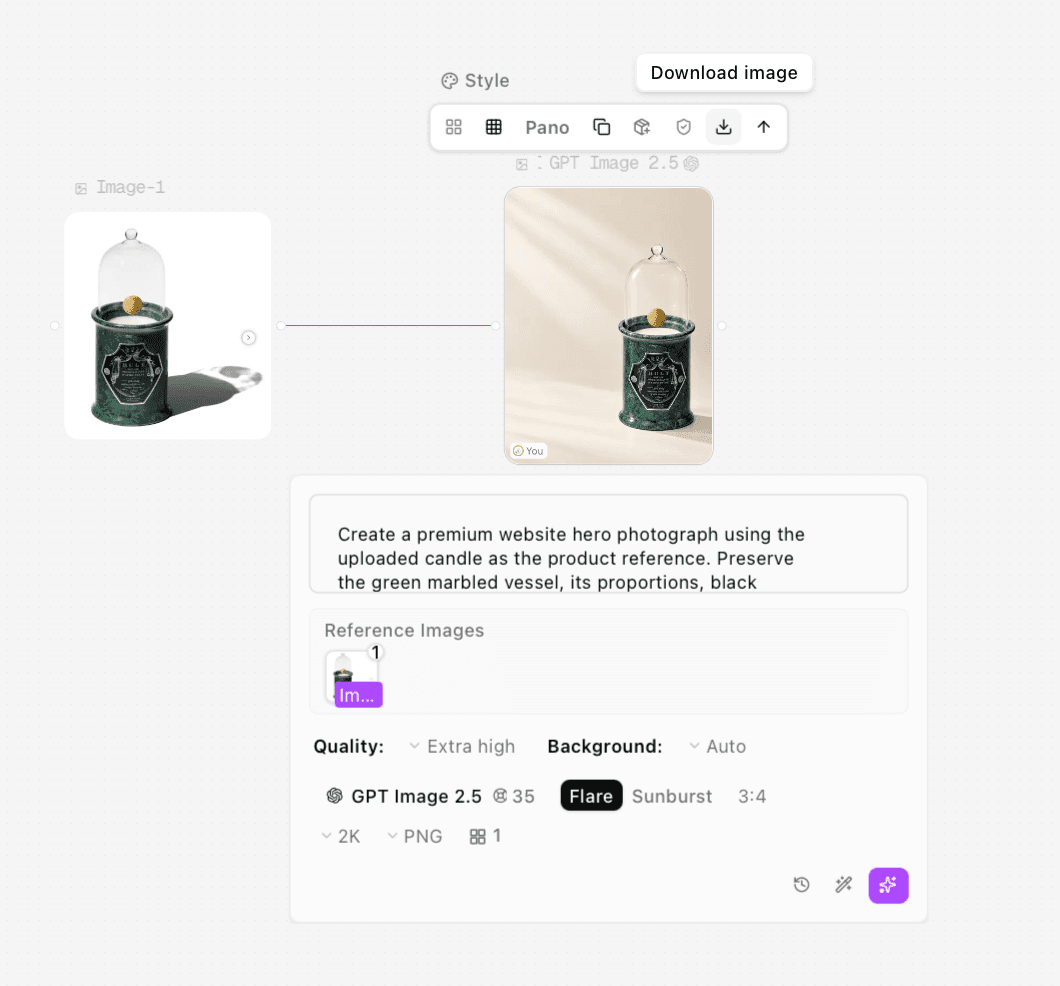
Figure 2. The first composition was actually generated at 3:4, despite the planned desktop brief.
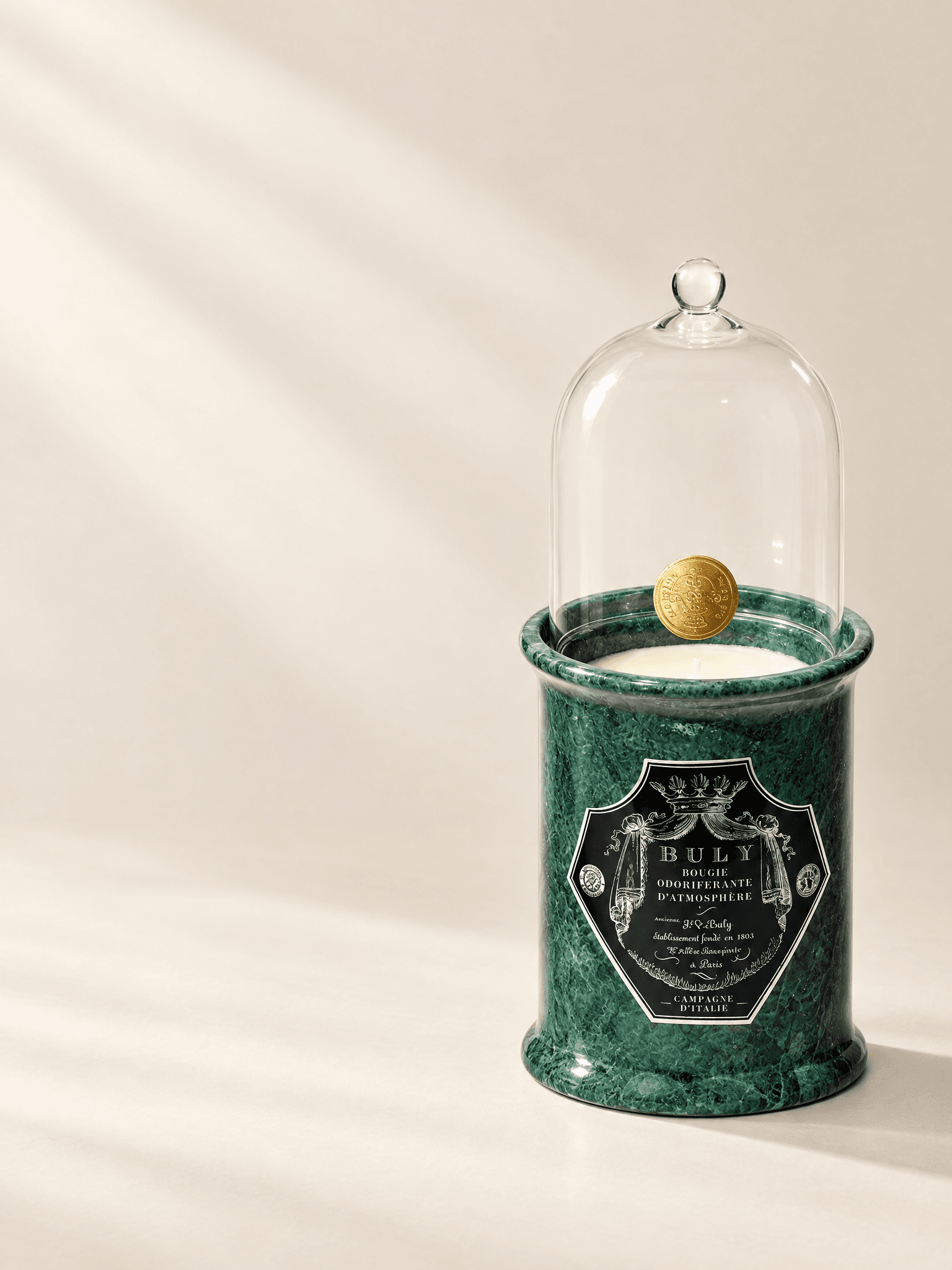
Figure 3. Portrait candidate retained for a vertical placement. It has not been verified inside a mobile website template.
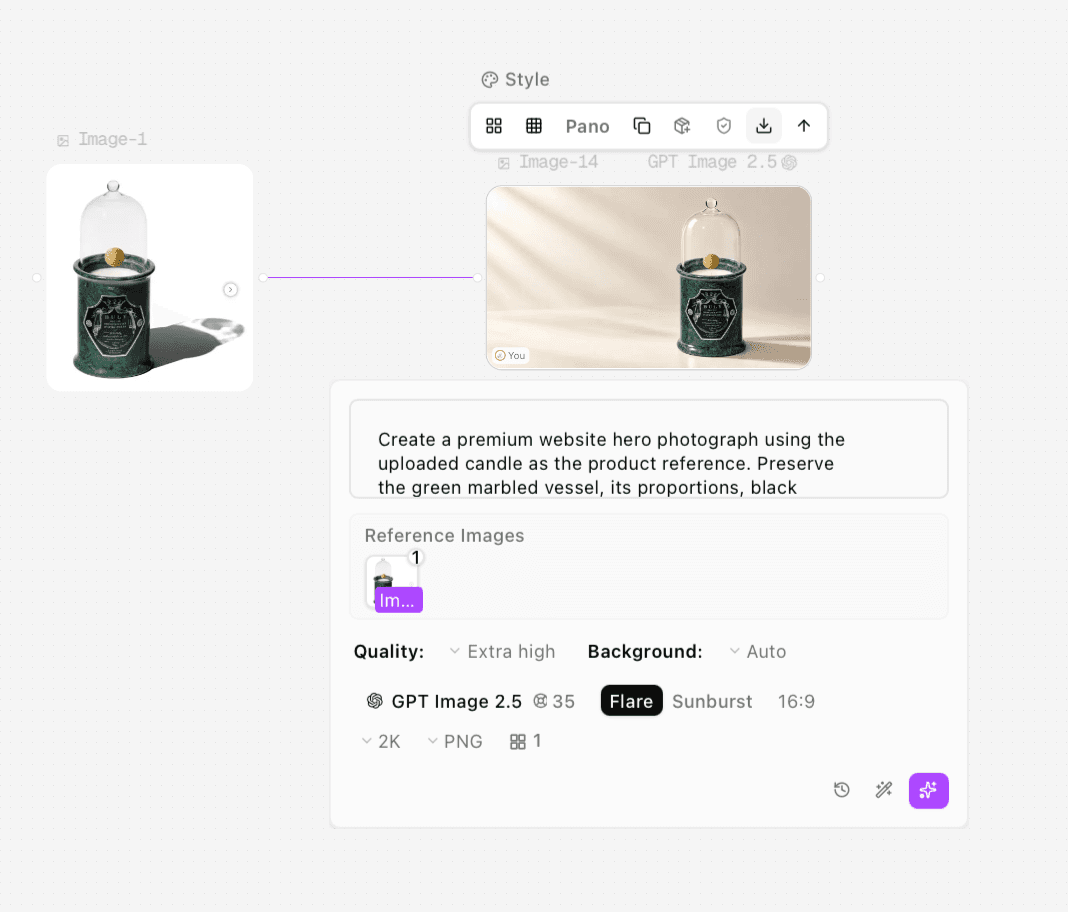
Figure 4. The later desktop run explicitly uses 16:9 in the settings panel.
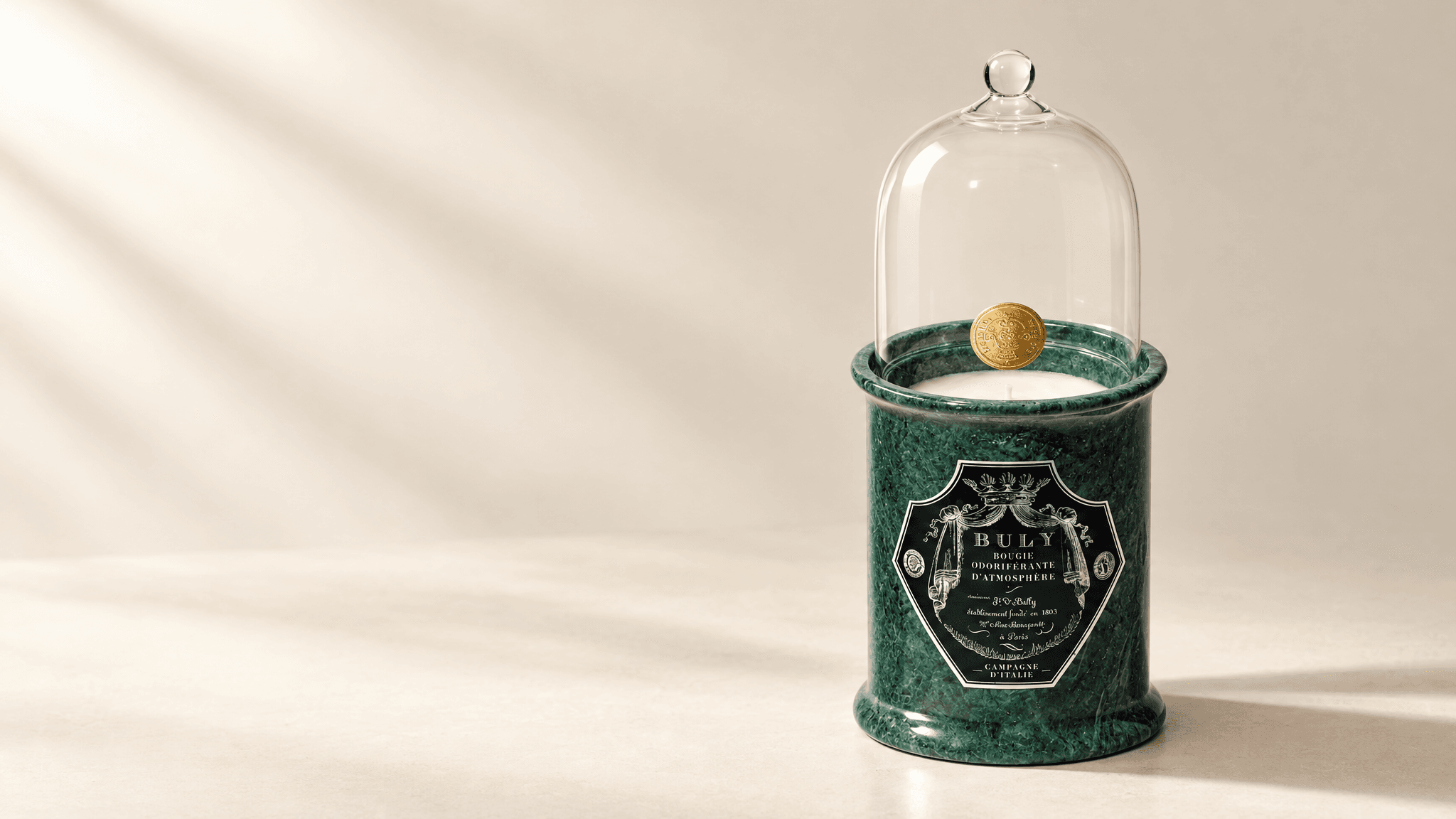
Figure 5. Wide soft-light candidate with the complete product on the right and an open copy area on the left.
Develop lighting alternatives without overstating the comparison
Soft light creates a broad transition between bright and shaded areas. A smaller directional source creates a more defined cast shadow and can make the product feel more graphic. Choose the effect that keeps the material understandable and leaves a usable copy area, rather than treating stronger contrast as automatically better.
For an edit intended to hold composition, use the approved hero image as the actual input and explicitly keep the camera, product position and scale. Check the reference thumbnail before running. An untested example instruction is: “Change the lighting to one small source from the upper left; preserve the layout and product, and keep the label readable.” Check the result after generation.
In this session, the harder-light run was connected to the original product node, not to the approved soft-light landscape. Its shadow is more defined, but the product also moved within the frame. These are two lighting-and-layout alternatives, not a controlled edit that changed light alone.
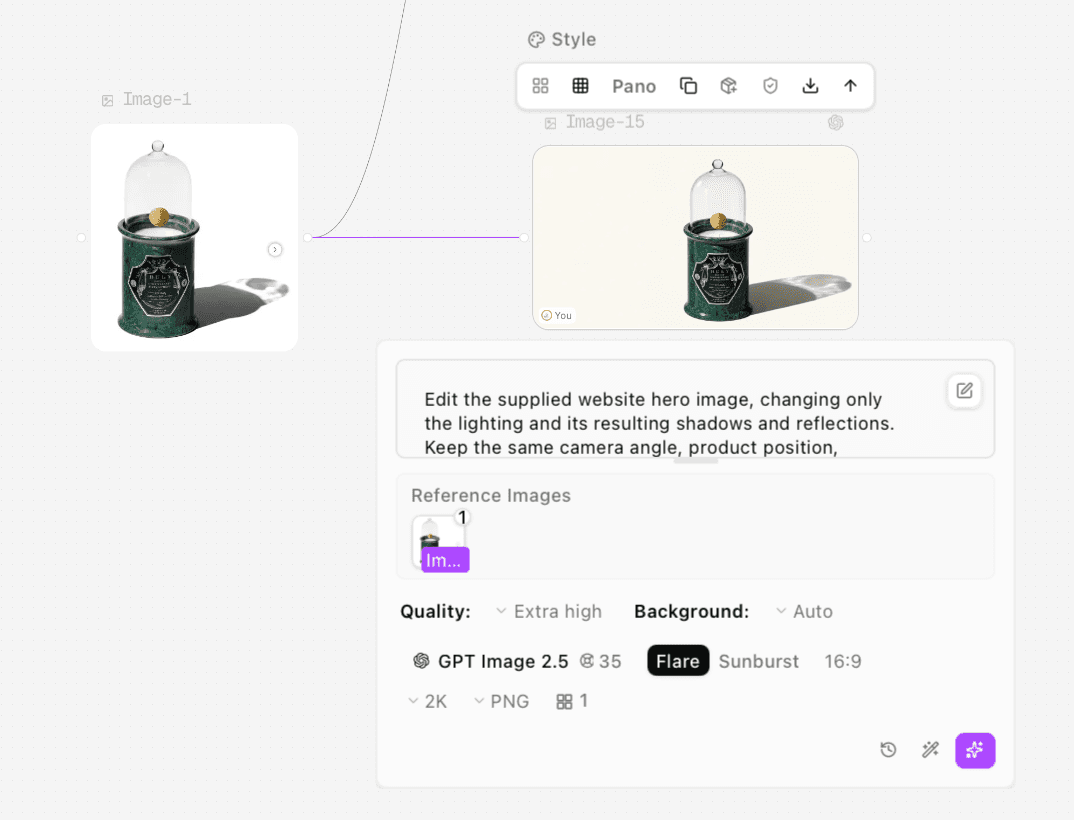
Figure 6. Harder-light request connected to the original candle reference. This input connection prevents a claim that the soft-light layout was locked.
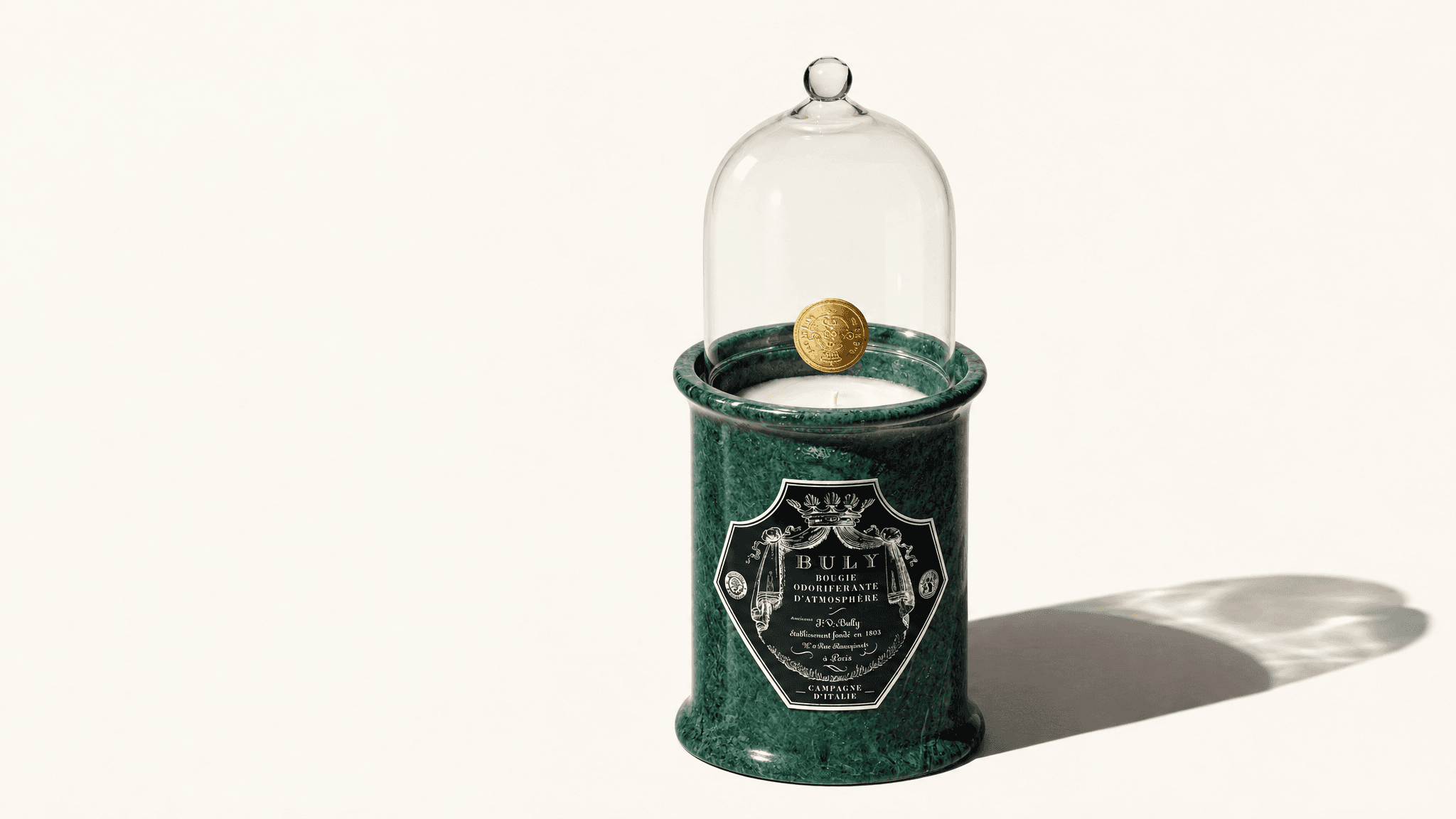
Figure 7. Harder-light alternative with a clearer rightward shadow and a changed product position.
Review the whole object again after changing light. In the supplied files, the major product features remain recognizable, but vessel texture and fine label details have been regenerated. Use the photograph or a preservation workflow when those details must remain exact. The examples do not establish an on-brand color match or pixel-level fidelity.
Prepare the mobile composition and text area
Do not assume a desktop image can be center-cropped into a mobile hero. Inspect the actual container shape and the order of headline, image and button. A portrait candidate can place the product below the copy, while another template may keep the text in a separate block.
The supplied 3:4 file is a useful candidate for that review, not proof of a tested responsive implementation. Place the candidate in the page preview and check the dome, knob and base at every relevant crop. Adjust the layout or create another composition if an important part disappears.
On Shopify themes that support focal points, the image's focus can be set in the editor to help control cropping. Theme support and the section's behavior still matter. Shopify's documentation describes choosing an image, setting its focal point and saving it; the exact display depends on the theme. [2]
For this light ivory scene, start by previewing dark website text. If the background is busy behind the words, adjust the image or its placement rather than placing the headline over the product. Test the actual headline length and button, not a short placeholder that hides a layout problem.
Export and validate the website asset
Choose the approved version and use the download arrow in the image toolbar. Keep the master PNG and inspect its pixel dimensions. Save desktop and portrait files with clear placement names so a vertical version does not accidentally replace the desktop file.
Add the image to the intended website section, keep the copy editable and preview desktop and mobile layouts. For Shopify, the documented route is the theme editor, the relevant section or block, then its image selector. [2] No theme upload, responsive browser test or performance measurement was performed in the supplied image session.
Check image clarity at the actual display size and inspect the page's loading experience before publishing. Export a web delivery version appropriate to the placement while keeping the master. An unnecessarily large file is not evidence of a sharper product, and upscaling does not restore detail absent from the source.
Common problems and fixes
Problem | Response | Check the result |
Desktop brief produces a portrait image | Select the ratio in the node settings | Confirm both the panel and downloaded pixel dimensions |
Headline overlaps the product | Reposition the product or change the text layout | Use the real headline and button in the page preview |
Lighting edit also moves the object | Check which image is actually connected | Compare camera, position and scale before calling it light-only |
Glass edges disappear | Adjust contrast and reflection direction | Dome outline and rim remain clear without looking opaque |
Texture or label changes | Return to a sharp real reference or preserve the photographed object | Verify purchase-relevant details against the original |
Mobile crop removes the top or base | Use a different crop or portrait composition | Complete product survives the actual section's crop |
FAQS
How is a product hero different from a catalog photo
A hero must accommodate the page's message and action as well as show the product. A catalog image usually prioritizes identification within a gallery or product card. Their compositions can serve different jobs.
Is 16 to 9 required for every website hero
No. It was the desktop working ratio in this case. Choose dimensions and composition from the actual page section and its behavior on smaller screens.
Should the headline be generated inside the picture
Keep website copy and buttons editable in the page where possible. This makes it easier to adapt the text and layout across devices. A separate article cover with a title is a different asset.
How do I change lighting without changing the layout
Use the approved composition as the connected editing input, ask to preserve its camera angle, product position and scale, and change one lighting property. Compare the result with that input before accepting it; the request alone does not guarantee a fixed layout.
Is the portrait image ready for mobile publishing
It is a candidate. Final approval requires checking the actual text, crop and product visibility inside the intended mobile layout.
Ready to try it on the canvas?
Open Astorie and fan your prompt across every frontier model in one workflow.