

How to Create Shopify Product Photos With AI
AI-generated editorial cover illustrating a product-gallery workflow; the unbranded bag is conceptual.
Create Shopify product photos with AI by planning a consistent gallery, using an accurate reference for each SKU and assigning every image a clear role on the product page. Generate the presentation you need, check the item against real photographs, then upload, order and preview the approved assets in your theme.
This guide uses Astorie for reference-based generation and Shopify's documented workflow for publishing. Clara's October 26 test used a black floral crescent bag to prepare a studio candidate and two lifestyle attempts. The case shows why a coordinated gallery needs both a visual style and a product-accuracy check; a consistent background alone is not enough.
Plan Shopify product photos with AI around page modules
Start with the information a shopper needs. The gallery introduces the item, while detail and lifestyle images answer more specific questions. A separate image-with-text section or banner is another destination, not an automatic extension of the product gallery.
Page location | Image job | Source and review requirement |
Featured product image | Identify the product clearly | Accurate complete view, usable at collection-card size |
Gallery alternatives | Show useful views | Real reference for each visible construction detail |
Detail module | Explain a zip, seam, surface or fastening | Sharp real close-up or a faithful crop |
Lifestyle module | Establish a relevant setting | Product reference plus physically believable placement |
Dimensions or contents module | Explain size or what is supplied | Verified measurements and actual sale configuration |
Make the list before generating. If you need another view of a clasp, a new living-room background does not fill that gap. Photograph the clasp. If you need a scene that establishes use, a styled contextual candidate can be useful after checking the product.
Set one visual standard for the gallery
Choose a base ratio, background family, exposure and product scale. Leave enough margin for straps, handles and projections. Use the same product alignment for similar catalog tiles, but allow a detail crop to do its own job.
Shopify recommends a consistent aspect ratio for featured product images shown side by side. Its documentation describes 2048 × 2048 pixels as a useful square product-image size, with product and collection images supported up to 5000 × 5000 pixels or 25 megapixels and files smaller than 20 MB. [1] These limits are not a reason to enlarge a poor source or a requirement to make every module square.
The bag test used 1:1 throughout, and all three supplied generated exports are 2048 × 2048. A simple working specification is therefore a square gallery, soft neutral backgrounds and enough space to show the complete product. Check your theme before assigning different ratios to separate editorial modules.
Prepare the correct SKU and genuine details
Use your own photographs or assets you have permission to use. Keep the exact color, pattern and variant together. The actual reference in this session is a black bag with a dark floral pattern and a branded adjustable strap; it should not be described as the plain-black variant originally considered during planning.
Retain a complete front view and clear real photographs of the zipper, attachments and interior if those features matter to shoppers. Do not recolor a generated bag and treat it as proof of a different material or colorway. Photograph and verify each sale variant separately.
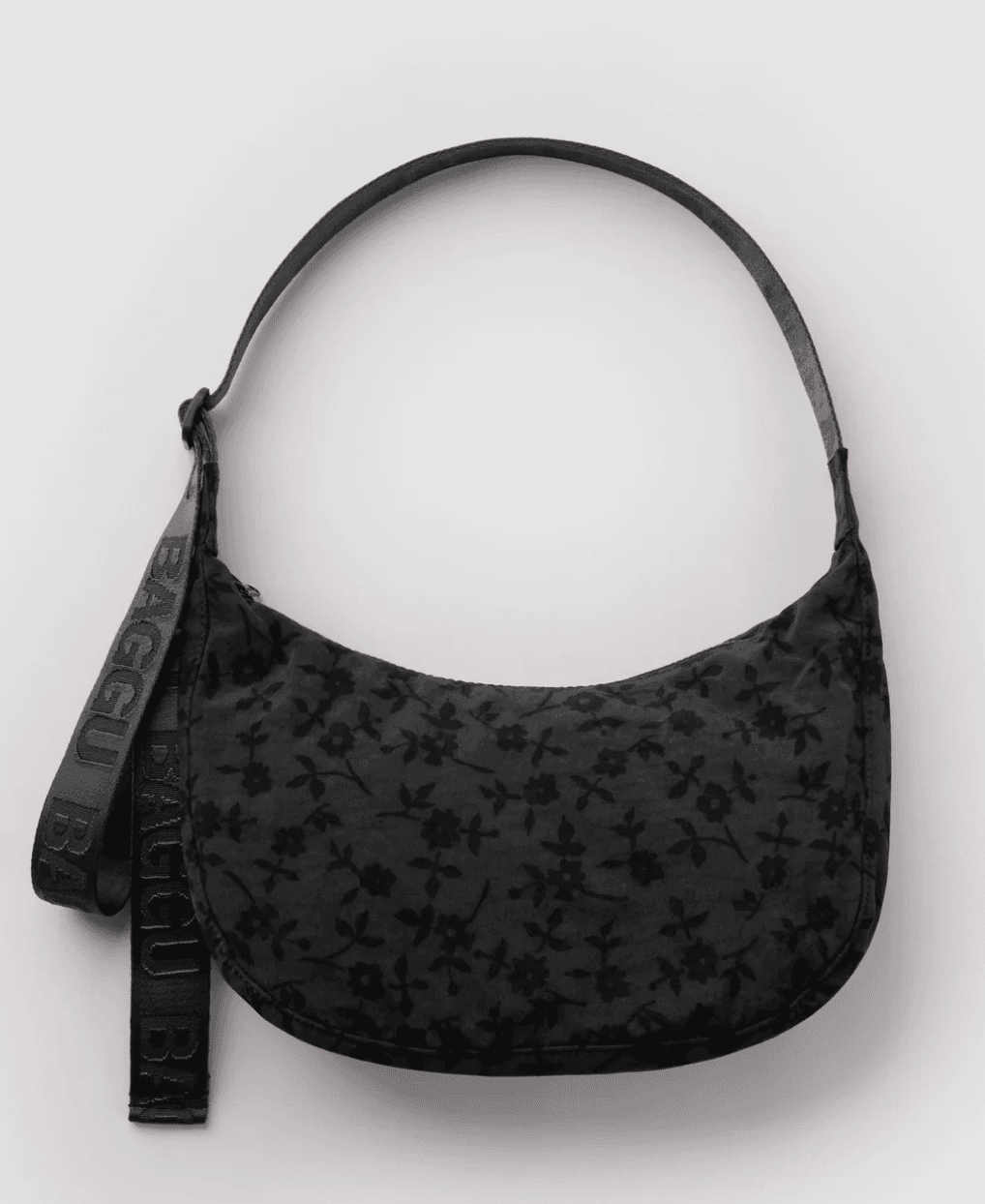
Figure 1. Supplied black floral bag reference. The source file is 1018 × 1244 pixels and shows the product laid out against a light surface.
For this bag, the review list includes the curved body, floral motif, zipper line, side seams, strap attachment points, adjustment hardware and lettering. A material close-up should come from the real source or a new photograph; making a generated pattern sharper does not establish that it is the original pattern.
Create the gallery first image step by step
1 Import and connect the reference
Open Astorie, create a canvas project and import the product photograph as a separate image node. Name it Bag Original. Add an image generation node, connect the source and check its thumbnail under Reference Images before proceeding.
2 Choose a model and a repeatable working format
In the retained interface, Clara selected GPT Image 2.5, Flare, Extra high quality, Auto background, 1:1, the 2K option, PNG and one result per request. Keep those settings visible in the test record. They describe this run rather than all models or accounts.
3 Request a clear complete product view
Ask for the intended background and lighting while naming the fixed details. Make the entire bag and strap fit within the frame. Untested example prompt to adapt:
Create a clean ecommerce gallery photograph using the uploaded black floral crescent bag as the product reference. Preserve its silhouette, floral fabric pattern, zipper, seams, adjustable branded strap and hardware. Show one complete bag against a warm light-grey studio background with soft diffused lighting and a subtle contact shadow. Keep the entire bag and strap inside the frame. Do not add pockets, accessories, extra bags or text overlays. Do not redesign the product.
4 Generate and inspect the selected version
Use the purple generation control, wait for the output and choose the version to inspect. Check the product at a large scale, then reduce it to a thumbnail. The first check is for product accuracy; the second is for gallery usability.
The studio output is framed clearly on a neutral background, but the motif needs comparison with the reference before approval. Keep the real photograph as the factual anchor. Check the displayed quote before starting and verify the actual charge separately in the task or usage record.
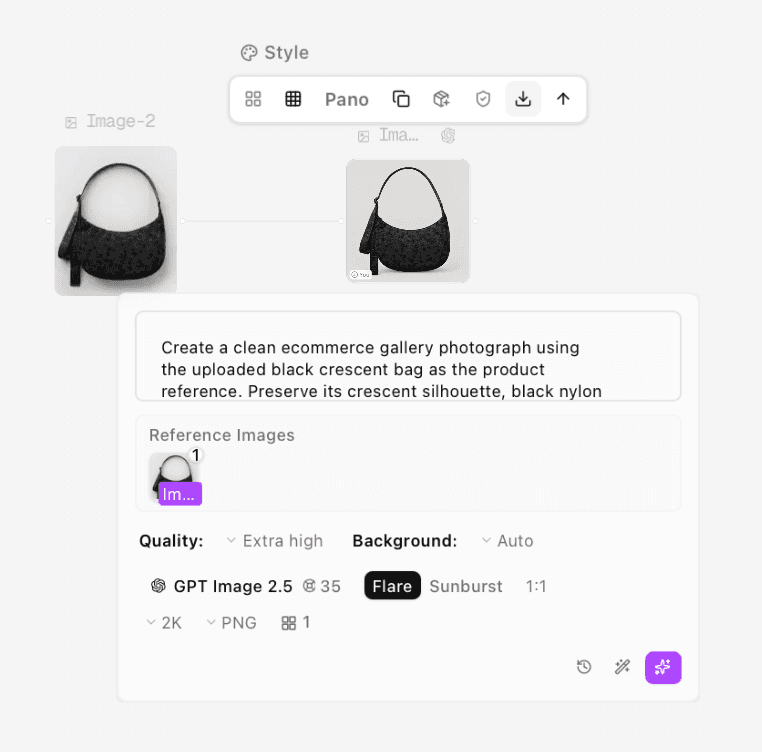
Figure 2. Studio-generation reference connection and 1:1 settings. The prompt panel shows only part of the input.
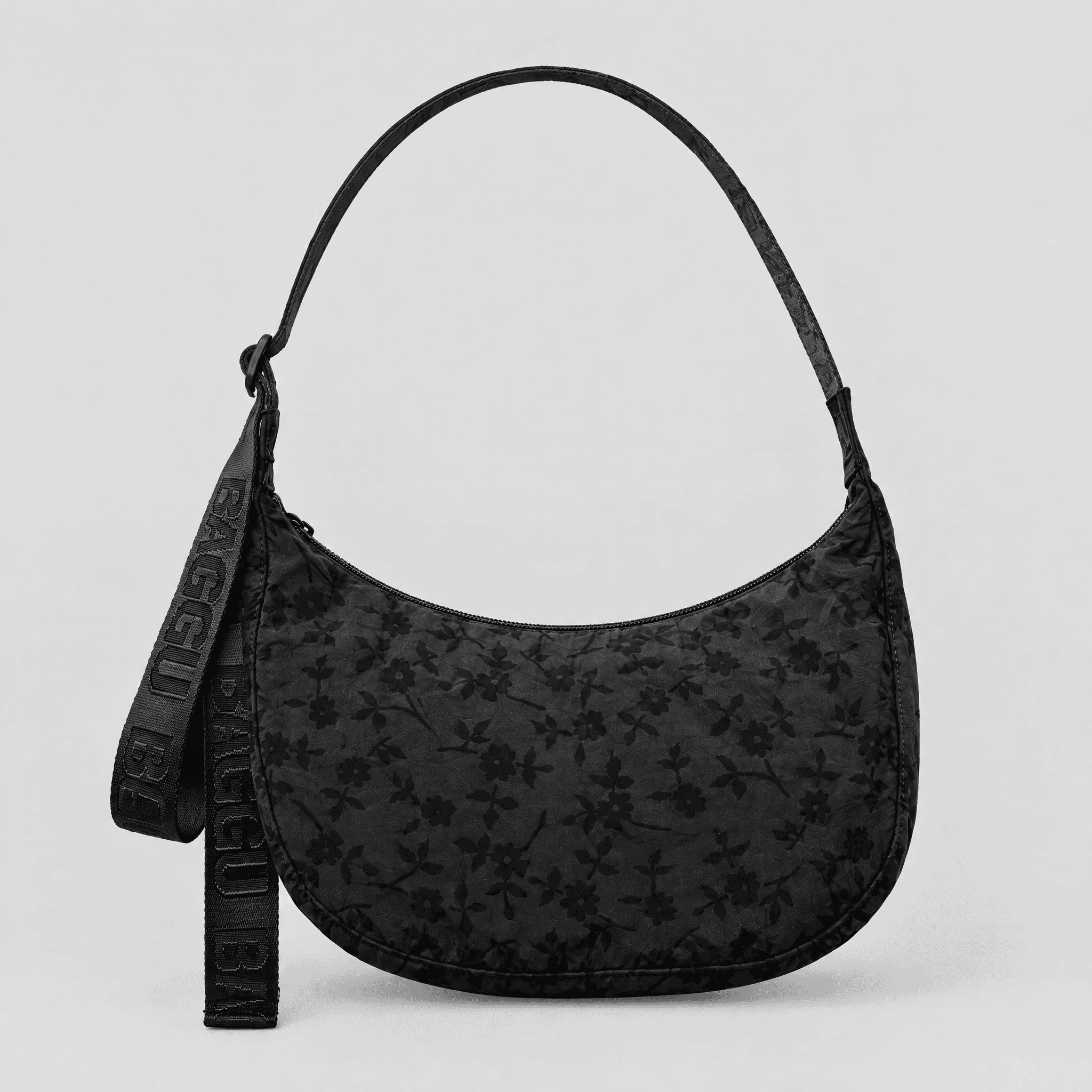
Figure 3. Studio gallery candidate. Complete framing and a neutral background are useful, but they do not establish exact fabric-pattern preservation.
Add a lifestyle module and check physical support
Branch from the original bag reference and give the next image a different page role. A bench or entryway can establish context without introducing a model or changing the product angle. Name where the bag and the strap rest, as well as the light direction.
In the first lifestyle attempt, the bag stood on a bench while the upper strap retained an arch above the backrest. The support was not clear. A revised prompt asked the strap to lie on the seat. The rerun placed a length of strap on the bench but also kept the upper arch; it did not fully implement the requested arrangement.
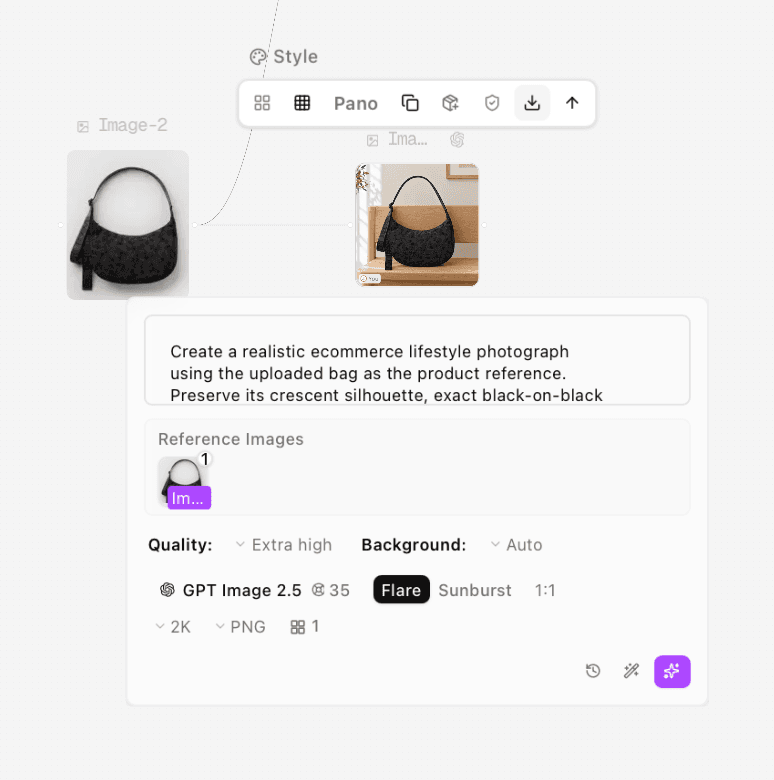
Figure 4. First bench-scene generation, connected to the original bag reference.
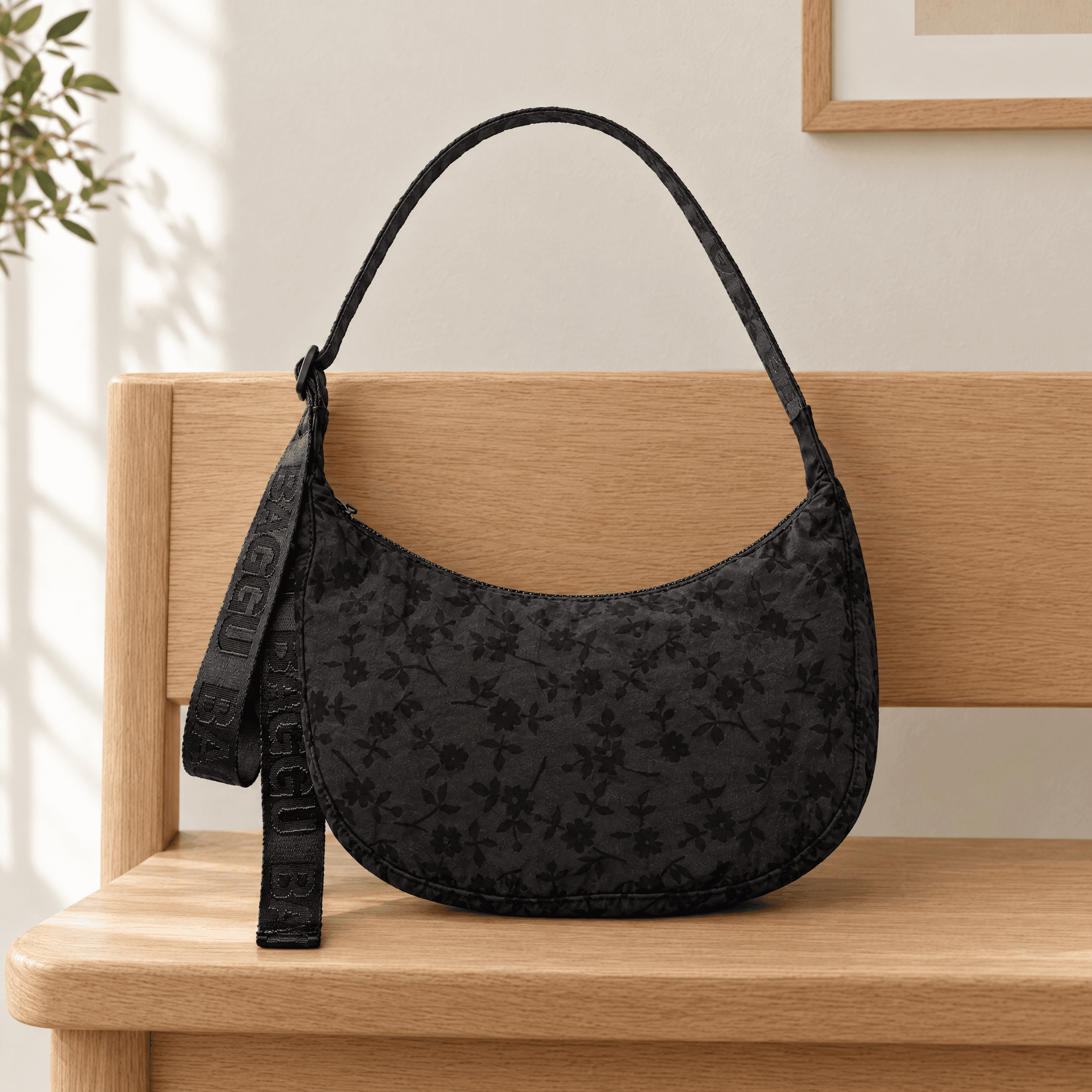
Figure 5. First lifestyle attempt. The upper strap forms an arch without an evident support point.
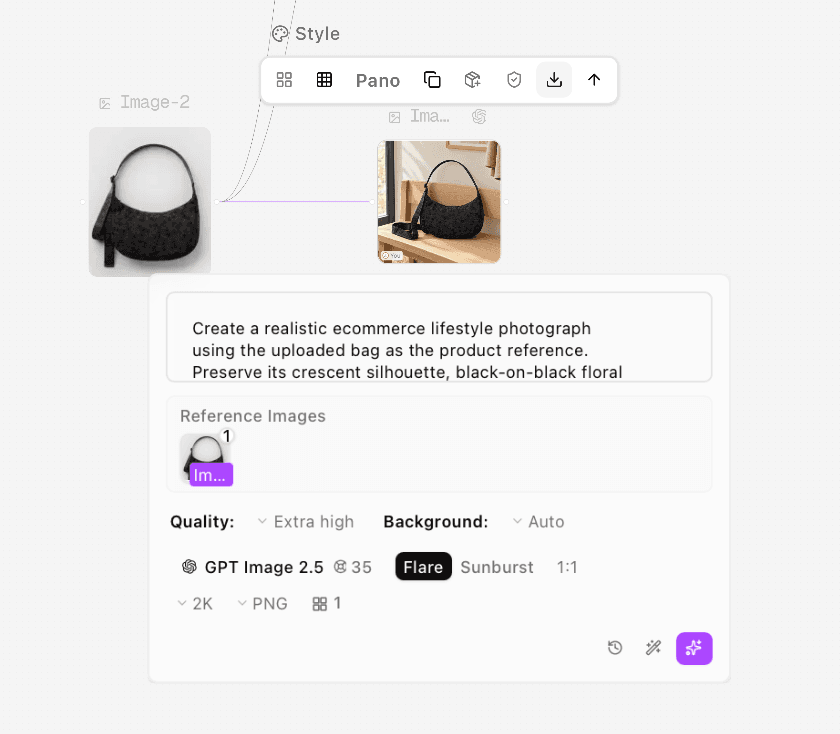
Figure 6. Documented rerun after requesting a strap supported by the bench seat.
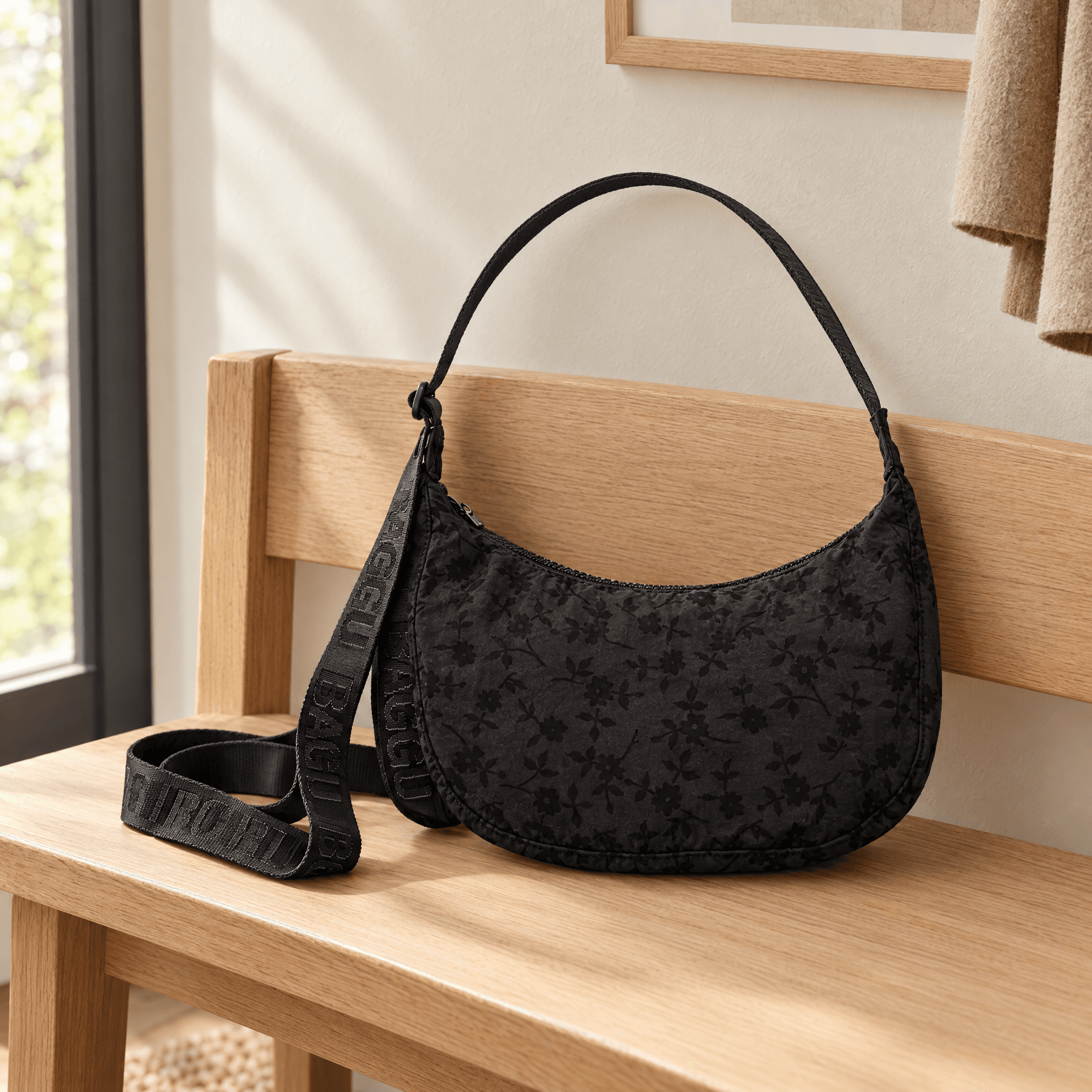
Figure 7. Revised candidate. Some strap rests on the seat, but the upper arch remains, so the support problem is not recorded as solved.
Keep an unresolved candidate out of the approved gallery. A suitable next production route is to photograph the bag in a stable pose or preserve the product through compositing onto a background. If another generative attempt is worthwhile, a top-down scene with the whole bag and strap lying on a surface removes the need for an upright arch. Neither fallback was tested here.
This is also why matching colors across images is not the whole job. A gallery can share a warm palette while misrepresenting a product's pattern or construction. Approval needs both checks.
Prepare detail assets and variant organization
Use genuine close-ups for a zipper, attachment or material claim. Crop a sufficiently sharp source without inventing new stitching or print. If the source cannot show the feature clearly, take another photograph. Keep dimension labels and factual callouts tied to verified measurements.
Organize filenames around the product and role, for example floral-bag-featured-v01.png, floral-bag-zip-detail-v01.png and floral-bag-entryway-candidate-v02.png. The candidate label keeps an unresolved output from being mistaken for a published asset. Store variant-specific files together so a customer selecting another color does not see an unrelated material or pattern.
Upload the approved images and build the page
Download each selected version from Astorie using the image-toolbar download arrow. Inspect the saved files, confirm dimensions and keep the master PNGs. The publishing steps below follow Shopify's documentation; the accompanying image test covers generation and export.
In Shopify admin, open Products, select the relevant product and use its Media section to upload the approved files. Drag the intended featured image into the first position. Shopify identifies the first media item as the main item and uses it in other storefront contexts, including collection pages. [2]
Add a brief descriptive alt text to each image. Open the media item, choose Add alt text, enter the description and save. Shopify recommends concise descriptions of about 125 characters or less. [3] For a verified real product image, a useful description is “Black floral crescent bag with an adjustable shoulder strap.” Do not add a claim such as waterproof unless it is independently established.
For an image-with-text module or banner, open the relevant template in the theme editor, select the section or block and assign its image. Check the desktop and mobile layouts separately. Merely adding an image to product media does not specify which file a separate theme section should display. [5]
Use Shopify's media editor to crop where appropriate. Keep the aspect ratio locked when resizing to avoid distorting the bag. [4] Preview the collection card as well as the product page, because a useful large photograph can lose its strap or edges in a smaller crop. For the underlying reference-based workflow, see Astorie's guide to AI product photography. [6]
Common problems and fixes
Problem | Response | Check before publishing |
Gallery tiles jump between shapes | Standardize the ratio for that image type | Similar tiles have consistent dimensions in the theme |
Fabric pattern or lettering drifts | Use the real product photograph for those details | Compare motif placement and markings with the source |
Strap appears unsupported | Use a supported pose, photograph or composite | Strap geometry and contact points make physical sense |
Another variant appears in the gallery | Reassign the correct variant-specific assets | Selected color and material agree with the image |
Product media does not appear in an editorial module | Assign the image in the relevant theme section | Correct file appears in desktop and mobile previews |
FAQS
Do Shopify product photos need a white background
Choose a background that makes the product clear and suits the store. A neutral consistent gallery is a useful starting point; a marketplace main-image rule should not be assumed to govern every Shopify module.
Should every image have the same ratio
Use one ratio for comparable gallery or collection images. A separate banner or editorial module may need another ratio, which should be checked in the theme where it will appear.
Can AI generate detail shots
It can produce detail-looking imagery, but a sale-critical zipper, stitch or pattern should be supported by a real close-up. Generation can introduce convincing features that were not in the item.
How do I decide which AI images to publish
Approve the product details and the page role separately. Reject a candidate that changes the motif or creates an unsupported strap, even if its lighting matches the rest of the gallery. Preview the approved file in the actual theme before publishing.
What should I do before expanding to more SKUs
Approve one product's visual standard and accuracy checks first. Then reuse the page-role plan with the correct references for each SKU and variant, rather than reusing another product's generated appearance.
Ready to try it on the canvas?
Open Astorie and fan your prompt across every frontier model in one workflow.