

Product Photo to Video With AI
A product photo to video workflow starts with an approved still, connects it to a video generator and adds a short motion brief. In Astorie, attach the still to a Video node, select the recorded Seedance 2.5 route and choose a matching ratio. Generate a short draft, inspect the product throughout the clip, then download and review the actual file before publishing.
The simplest starting shot keeps the product stationary and moves the camera slightly. This guide follows two supplied five-second bottle clips: one requested a slow push-in and the other a small lateral move. Both began with the same café still, so the useful question is how each requested motion affected that scene.
Product photo to video begins with an approved still
Approve the image before asking for motion. Check the packaging, silhouette, reflections, liquid appearance and available crop. A video model can carry an existing label error into many frames; movement is not a packaging repair step.
The supplied source photograph established a real La Mortuacienne bottle. An image generation step then placed it in a café, producing Image-6. That portrait still became the input for both video branches. The provenance matters: these are videos made from a generated product scene anchored by a real reference, not recordings of the physical bottle.
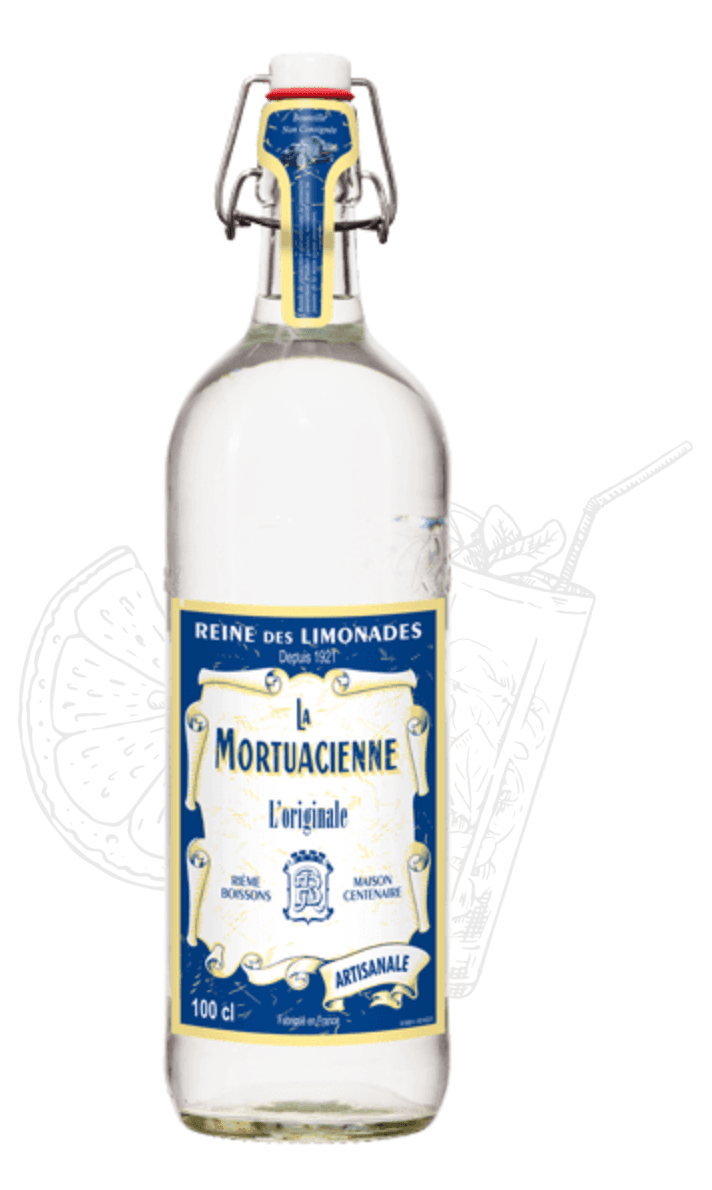
Figure 1. Original product reference used upstream of the video input.
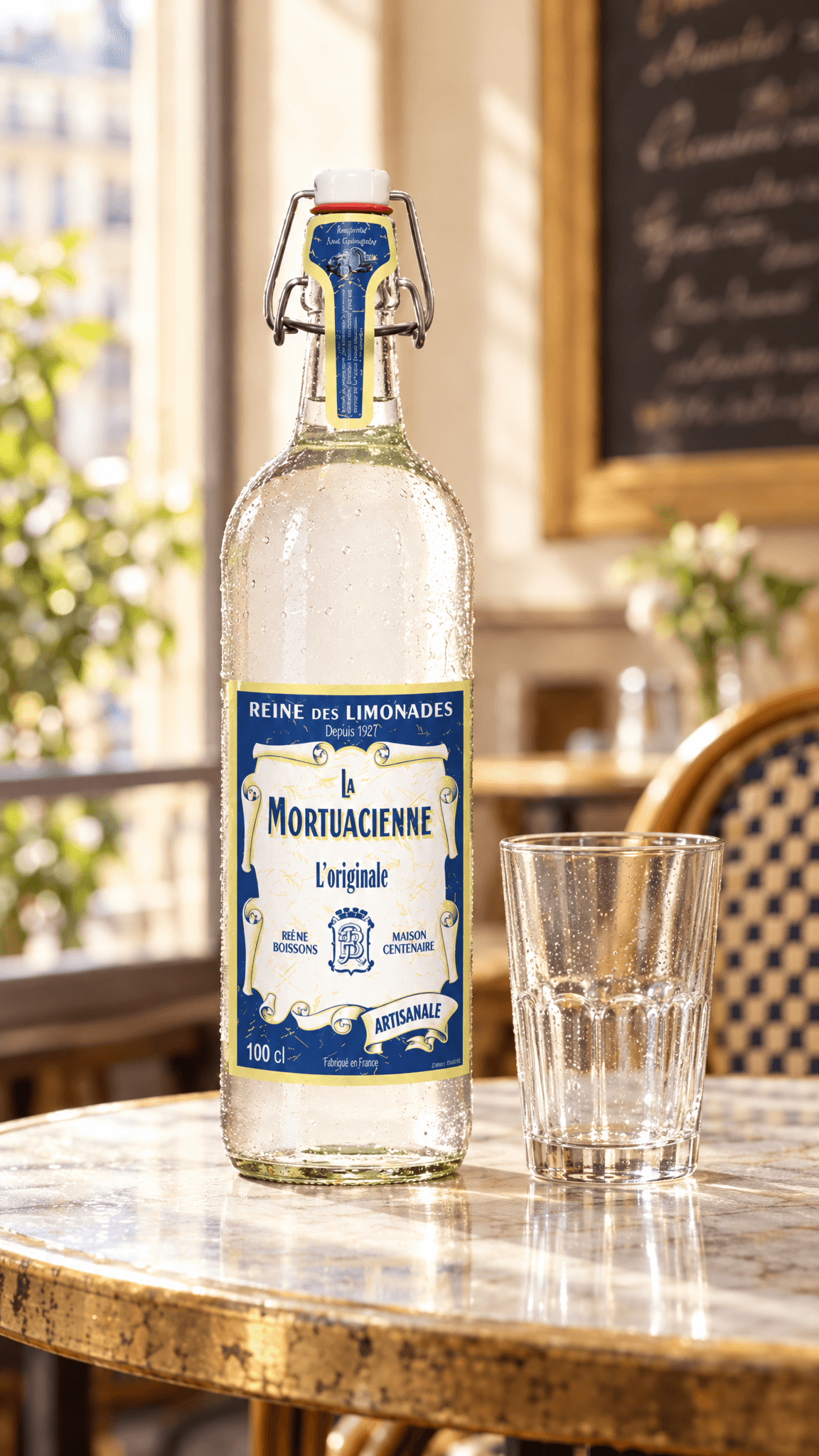
Figure 2. Image-6 was the actual shared still for both video branches.
Use an input that leaves room for the intended move. A tight frame may lose the cap or base during a push-in. A side move may reveal edges that are poorly established. Begin with small motion when the source offers only one product angle.
Connect the still to a video node
Open an Astorie project, import the approved image and create a Video node. Drag the image’s output connection to the video input, then check that the image appears in the Reference Image area. Astorie’s canvas and video documentation describe node connections and image-led generation. [1][2]
In the supplied tests, Image-6 feeds two separate video nodes. This keeps the input unchanged while allowing a different motion brief in each branch. Name or record the branches by their requested motion so the prompt and exported file do not become confused.
Select Seedance 2.5 and verify the mode shown in your interface. The supplied panels show Omni and Draft. Their reference area displays one attached image. The prompt describes it as the opening frame; the screenshot does not show a separately configured hard first-frame or last-frame control.
Setting | Push-in branch | Lateral branch |
Input | Image-6 | Image-6 |
Route and mode | Seedance 2.5, Omni, Draft | Seedance 2.5, Omni, Draft |
Ratio | 9:16 | 9:16 |
Selected duration | 5 seconds | 5 seconds |
Preview tier | 480p | 480p |
Downloaded video | 480 × 854 pixels, 24 fps | 480 × 854 pixels, 24 fps |
The downloaded containers are approximately five seconds long. The panels display 70 beside a credit icon and offer a separate Render 1080p action labeled 380 credits. Neither display is an account receipt, and the supplied files remain 480p drafts. No 1080p render was verified.
Ask for one camera move at a time
A useful motion prompt describes what moves and what stays fixed. For this example, the bottle, empty glass and liquid level should stay unchanged while the camera supplies the movement.
The visible push-in prompt starts: “Use the supplied image as the first frame. Create one continuous product shot with a very slow, subtle camera push-in.” The lateral screenshot instead requests a “very small, slow lateral camera move to the right.” These are verified excerpts; the full entered prompts are not visible in the captures.
For a new test, use a compact template such as the following. It is a suggested input, not a complete transcript of either recorded run:
Use the attached image as the opening composition. Create one continuous shot with a very slow, small camera push-in.
Keep the product and drinking glass stationary. Preserve the bottle silhouette, closed cap, label artwork, liquid level and glass shape. Keep the full bottle in frame.
Keep the lighting steady. No product rotation, pouring, opening, hands, cuts or added text.
For a lateral variation, replace the push-in sentence with a small sideways move and keep the rest of the brief stable. Avoid adding a pour, hand interaction and product spin to the same first test. Each extra event gives you another source of ambiguity when the result changes.
Review what the two supplied clips actually show
The push-in clip makes the bottle gradually larger and gives the shot a clearer sense of approach. The lateral clip is more restrained, with smaller changes in subject position and background arrangement. Both keep the cap and base visible in the sampled frames.
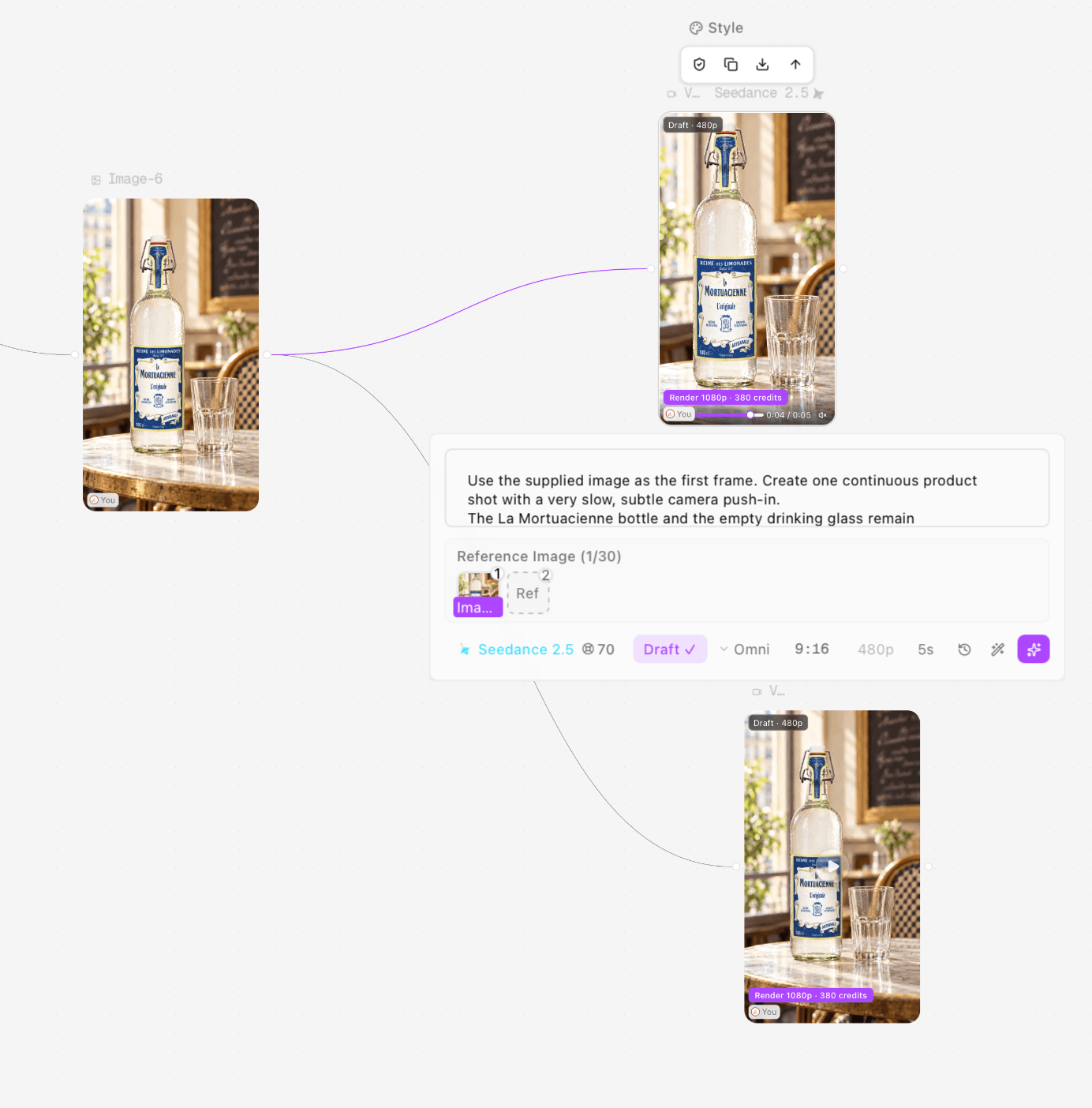
Figure 3. Actual push-in branch with Image-6, motion-prompt opening and Draft settings visible.
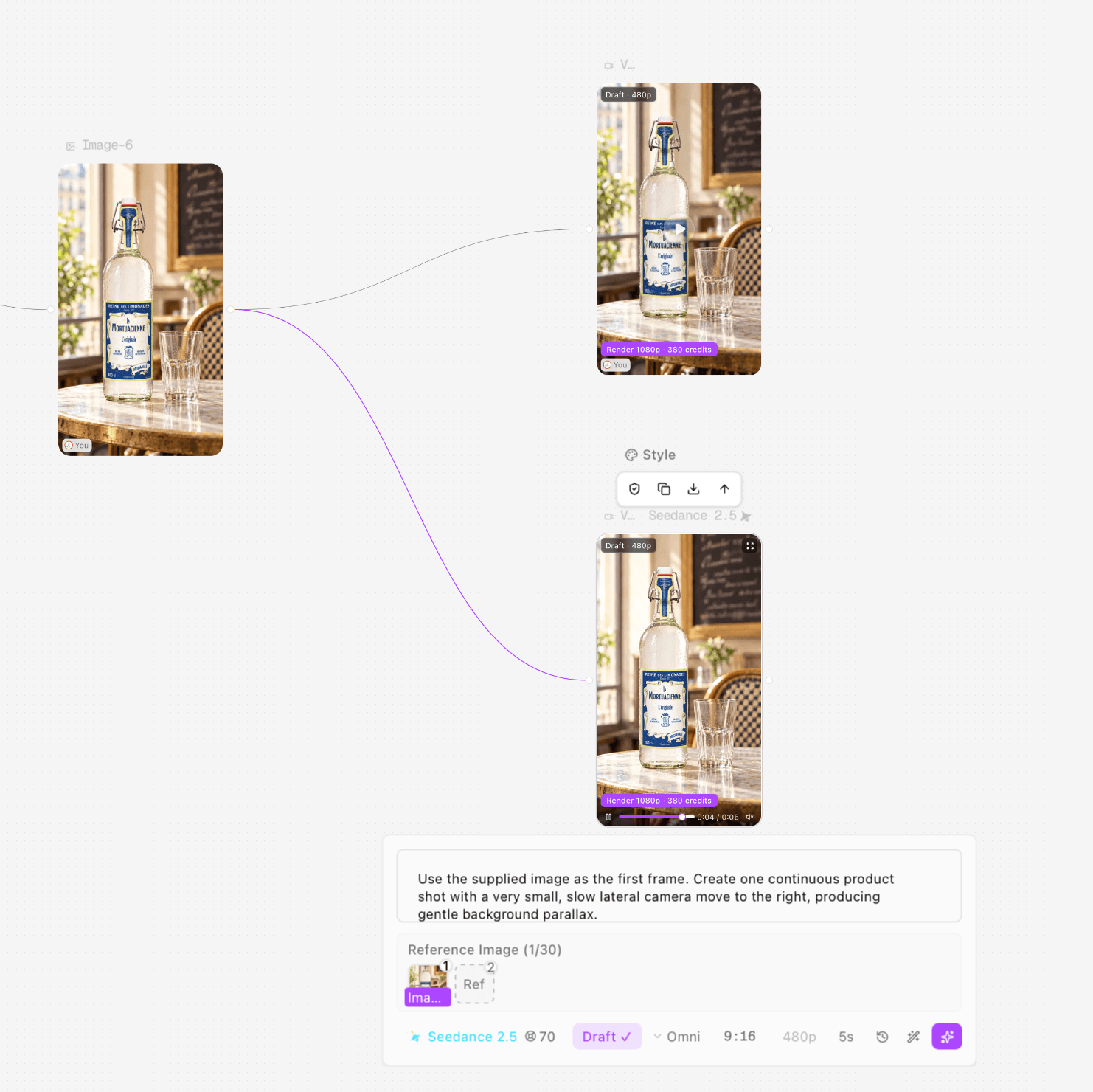
Figure 4. Actual lateral branch using the same input and recorded output tier.
Review of the start, end and sampled intermediate frames did not reveal a large bottle collapse or a detached stopper. The small label text cannot be certified from these low-resolution drafts. Image-6 also contained packaging changes before animation, so the videos cannot demonstrate exact preservation of the original retail label.
This is a comparison of two supplied shots, not a benchmark of Seedance’s general reliability. The input and visible settings match, but no fixed seed, complete run history or repeated-condition series was recorded. Choose between these outputs for the intended placement rather than declaring one prompt universally superior.
Check the whole clip before increasing resolution
Scrub from the first frame to the last. Do not judge a product video only from its thumbnail or a polished middle frame. Inspect the moments when edges overlap, reflections change or the camera reaches its closest point.
Check | What a usable draft should show |
Product outline | No sudden swelling, narrowing or disappearing components |
Packaging | Stable placement and legible wording where the resolution permits assessment |
Props | Glass shape and position remain physically plausible |
Motion | The requested camera move occurs without an unintended product spin |
Crop | Required product parts stay visible throughout |
Continuity | No unexplained cut, object duplication or background jump |
If the draft fails, simplify the motion before requesting a higher-resolution version. More pixels do not by themselves establish correct geometry. If it passes, use the available render route for the intended delivery tier and inspect that newly rendered file again. This tutorial does not claim that a higher-resolution version will be identical to the draft.
Download and finish the deliverable
When the job completes, open the result, use the video node’s download control and save the original MP4. Check the file’s actual dimensions, duration and frame rate. The supplied downloads, rather than the Render 1080p button, establish the output specifications in this guide. [2]
Listen to the downloaded file before publication, even when the intended shot is visually simple. An audio stream, a muted preview and an absence of speech are different observations. Audio quality was not evaluated in this case, so no sound-performance conclusion is made.
If you need titles, music, captions or several clips in sequence, assemble them in your editing workflow after the individual shots pass review. Astorie is the canvas used here to organize references and generation branches. This test does not establish a complete edited advertisement or an external editor export.
For the general platform route, see Astorie image to video. For a physical action rather than camera movement, the task changes to a product demonstration: use a brief with a verified mechanism and a visible endpoint. An unboxing adds another concern, because the package’s closed and open states must both be established.
Troubleshoot common failures
If the product rotates unexpectedly, state that it is stationary and request only a small camera translation. If the label drifts, reduce the move and check whether the input label was already wrong. If the cap leaves the frame, revise the composition or use a smaller push-in. These are recommended fixes; they were not additional reruns of the two bottle clips.
If generation fails before a result appears, check the image connection, file loading and selected mode. Record the task state before retrying. If the preview succeeds but the downloaded file differs, judge and archive the downloaded result rather than assuming the preview represents the final file.
FAQS
Can one product photo be enough
It can be enough for a restrained camera-move test such as this one. A new angle, opening action or unseen feature needs additional references when product accuracy matters.
Should I choose portrait or landscape
Choose the placement first and prepare the still accordingly. Both recorded bottle clips are portrait because their input and selected ratio are 9:16.
Does this create a product demo
It creates a moving product shot. A demo also needs to show a real use or mechanism. Camera motion alone does not establish that a product function works.
Can I publish the draft immediately
Review the actual file against your delivery and product requirements first. These drafts demonstrate the workflow, but their label detail and resolution still require a publication decision.
Ready to try it on the canvas?
Open Astorie and fan your prompt across every frontier model in one workflow.