ByteDance Seed · Video generation

Seedance 2.0

Direct a short scene from text or an opening image. Use Seedance 2.0 on Astorie to explore subject movement, camera timing and the sound of a moment, then take the configuration into the canvas to generate and review your video.

  • Text and image inputs
  • Native audio-video generation
  • 4–15 second clips

Key features of Seedance 2.0

Create short videos from text or images with directed motion, native sound and a format chosen for the shot.

Direct the action and camera together

Describe what the subject does, how the camera moves and where the shot ends. Start from text when the scene can be invented, or use Image to video when you have an opening image to animate. Keep the brief focused on a few readable beats.
Create picture and sound in one brief

Seedance 2.0 generates audio alongside video. Describe a sound where it happens: a latch clicks, fabric rustles or a voice answers. Give each cue space in the action, then check the exported clip for timing, intelligibility and unwanted sound.

Choose the frame and pace before generating

Set an aspect ratio and a duration from 4 to 15 seconds for the intended shot. The current Astorie form offers Fast and Standard tiers. Compose for the selected frame and let the action finish inside the chosen length; changing format calls for a new composition.

How to create with Seedance 2.0 on Astorie

Build your first Seedance 2.0 shot in three simple steps.

  1. 1

    Choose Seedance 2.0 and your input

    Configure the video here and click Open in canvas to create a project with the same settings. Sign in if prompted. In the canvas video node, check Seedance 2.0 and use a written prompt or connect the image required for Image to video.

    The English Astorie canvas with Seedance 2.0 selected in a video node, a connected text prompt and output controls.
  2. 2

    Write the action and set the output

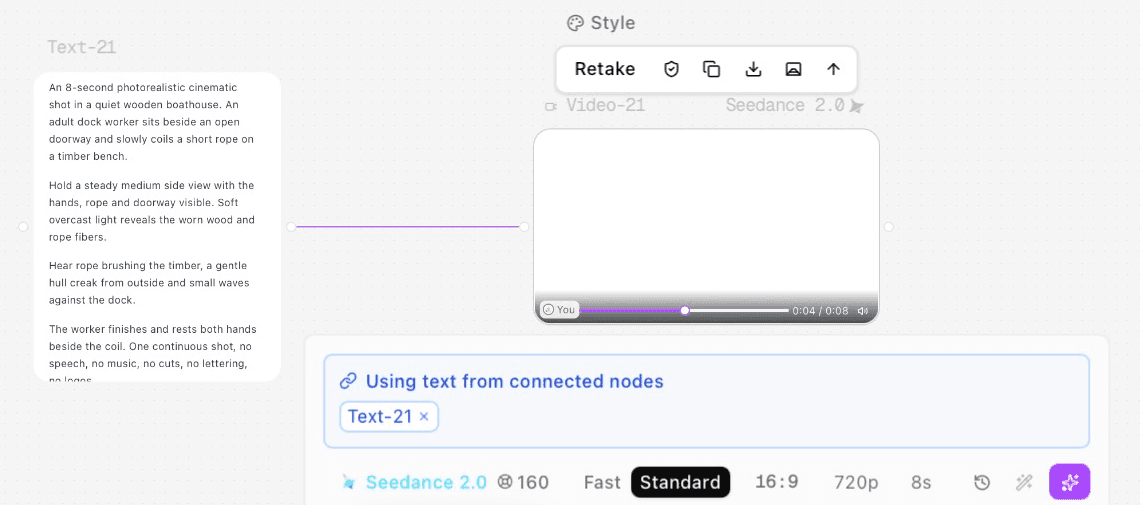
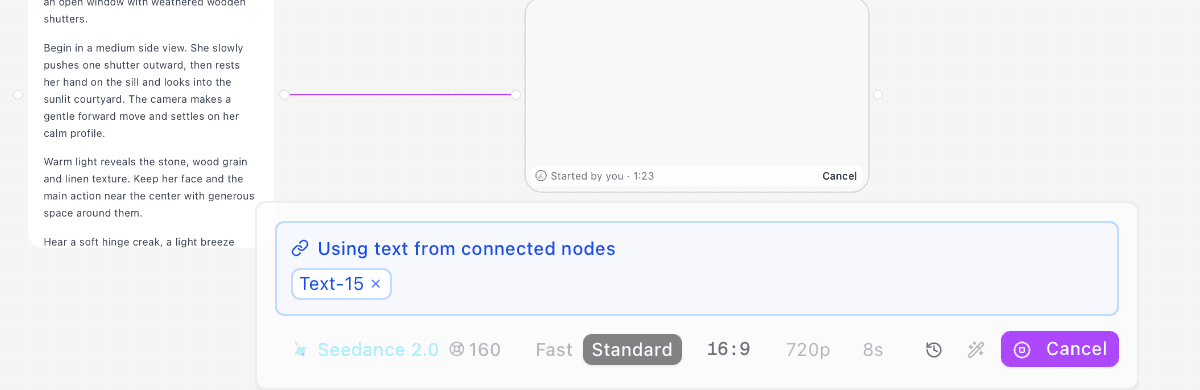
    Describe the opening, one visible action, a camera move and an ending. Add sound cues where they belong. Choose the supported ratio, duration, resolution and quality tier, then review the credit estimate before generating. The example shows a connected prompt and selected settings during generation.

    A connected English prompt and Seedance 2.0 generation controls showing Standard, 16:9, 720p and 8 seconds during a run.
  3. 3

    Generate and review the completed take

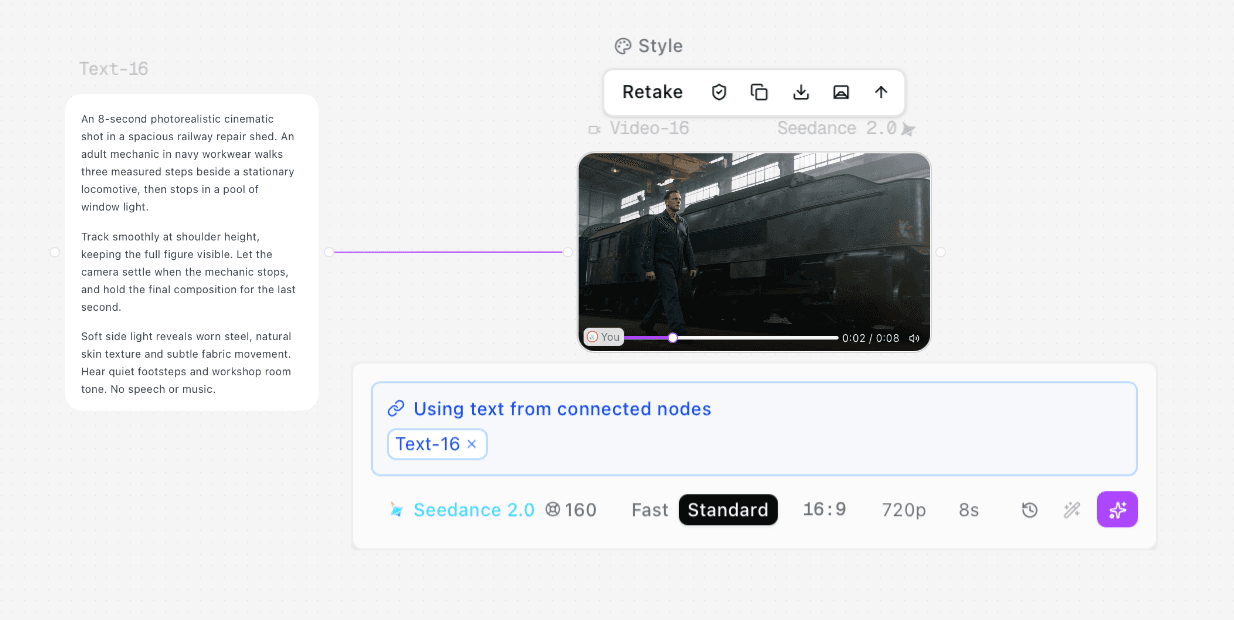
    Generate from the video node, then play the completed clip with sound. Check movement, image details, timing and any speech before downloading the take or adding it to your edit.

    A completed Seedance 2.0 railway-shed video playing in the English Astorie canvas, connected to its prompt.

Find the movement that makes the moment work

Explore an entrance, a product lighting cue and a place defined by sound before planning the next production step.

Block an entrance and a reaction

Explore the timing of a character arriving, noticing something and stopping. Use one location and a camera path that reveals the change. The clip can help a production team discuss staging before committing to a shot list.

Prompt starter: An adult caretaker enters an empty indoor swimming pool, notices sunlight moving across the tiled wall and stops beside the water. Follow at a measured pace, then settle on the reaction. Quiet footsteps and room ambience, one continuous shot.

Explore the light around a product

Test how a simple product reads as light and camera position change. Keep the object still, make one controlled move and finish with room for copy added during editing. Inspect geometry and reflections before developing the concept into an ad.

Prompt starter: A plain amber glass carafe stands on pale limestone. Soft window light moves across the glass as the camera makes a small arc, then holds a clean product composition. Restrained studio styling, no lettering or logos.

Sketch a location through its sounds

Build a short atmosphere study around one action and its audible surroundings. Tie each cue to a visible event or an off-screen source, then review the sound with the picture. Use the result to discuss location mood and pacing.

Prompt starter: In a quiet wooden boathouse, an adult dock worker coils a short rope beside an open doorway. Hold a steady medium shot. Hear rope against timber, a gentle hull creak and small waves outside. Soft overcast light, no speech or music.

Seedance 2.0 inputs and output settings

Choose the base model for text or image input. Check the current Astorie controls for the format and length your shot needs.

Provider and versionByteDance Seed · Seedance 2.0. This page uses the Astorie model ID seedance-2.Source ↗ · 2026-11-10
Astorie input modesText to video and Image to video. Seedance 2.0 Omni is a separate model with a Reference to video task.Source ↗ · 2026-11-10
Clip lengthThe current form offers whole-second durations from 4 to 15 seconds. ByteDance documents output up to 15 seconds for version 2.0.Source ↗ · 2026-11-10
Frame shapes21:9, 16:9, 4:3, 1:1, 3:4, 9:16 and Auto appear in the current Astorie form. Choose a defined ratio when the placement requires exact framing.Source ↗ · 2026-11-10
Resolution and qualityAstorie lists 480p, 720p, 1080p and 4k, with Fast and Standard tiers. Choose a supported combination and check the canvas estimate before generating.Source ↗ · 2026-11-10
Audio and referencesThe model supports joint audio-video generation. The base-model form has no separate audio switch or video/audio reference task. Describe sound in the brief and inspect the export.Source ↗ · 2026-11-10

Choose the starting material for your shot

Use a written brief to invent the scene, or animate an opening image when its composition matters.

DimensionText to videoImage to video
Starting materialSource ↗ · 2026-11-10A written brief; the model invents the opening scene.An opening image that establishes the subject and composition.
Direction to writeSource ↗ · 2026-11-10Describe the subject, opening, visible action, camera path and ending.Describe the movement that should develop from the supplied image.
What to inspectSource ↗ · 2026-11-10Check whether the imagined staging and timing serve the scene.Compare details with the opening image and check for visual drift.

Plan a useful shot and the finishing work around it

Keep each generation focused on one production question, then review the details your final edit depends on.

A useful starting point for

  • Short blocking studies with one clear action, a motivated camera move and a readable ending.
  • Product lighting concepts and atmosphere studies that need motion to communicate the idea.
  • Animating an opening composition while testing how a subject and its environment could move.

Plan additional work for

  • Exact packaging, readable logos, typography and details that must match approved artwork.
  • Final dialogue, hand-object contact, physical interactions and continuity that need frame-by-frame review.
  • Editing or extending an existing video, or combining motion and audio references, without a separately verified workflow that accepts those inputs.

Simple, transparent pricing

最先端のAIモデルで創作を始めましょう。Freeプランはクレジットカード不要です。

Pro トライアル3日間 Pro

3日間、Pro のすべてを体験

1回のみのお支払い
$9本日
その後 $49/月 · いつでも解約可
トライアル 1000 クレジット
  • 3日後に Pro 月額プラン($49/月)へ自動移行します。いつでも解約できます
主な機能
  • すべての高度なAIモデル
  • 同時生成:動画4本、画像8枚、キャラクター3体まで
  • 新しいAI機能への早期アクセス
Standard
プロの用途や小規模チーム向け。
年払い
$19$12/ 月
期間限定 · $7/月お得(36%オフ)
2年目以降は $16/月
毎月1,600クレジット
主な機能
  • 期間限定オファー:初年度 $144、以降 $192/年
  • すべての高度なAIモデル
  • 同時生成:動画2本、画像2枚、キャラクター2体まで
無制限利用
  • Nano Banana
    7日間
  • Z-Image
    365日間
一番人気
Pro
大規模チームや高度な用途向け。
年払い
$49$29/ 月
期間限定 · $20/月お得(40%オフ)
2年目以降は $39/月
毎月4,800クレジット
主な機能
  • 期間限定オファー:初年度 $348、以降 $468/年
  • すべての高度なAIモデル
  • 同時生成:動画4本、画像8枚、キャラクター3体まで
無制限利用
  • Nano Banana
    7日間
  • Nano Banana 2
    2K
    7日間
  • Nano Banana Pro
    2K
    7日間
  • Z-Image
    365日間
  • JimengSeedream 5 Lite
    3K
    365日間
  • JimengSeedream 4.5
    4K
    365日間
最もお得
Ultimate
パワーユーザーや最大限のアクセス向け。
年払い
$99$59/ 月
期間限定 · $40/月お得(40%オフ)
2年目以降は $79/月
毎月10,000クレジット
主な機能
  • 期間限定オファー:初年度 $708、以降 $948/年
  • すべての高度なAIモデル
  • 同時生成:動画8本、画像8枚、キャラクター6体まで
  • 追加クレジット15%オフ
無制限利用
  • Nano Banana
    7日間
  • Nano Banana 2
    4K
    7日間
  • Nano Banana Pro
    4K
    7日間
  • Z-Image
    365日間
  • JimengSeedream 5 Lite
    3K
    365日間
  • JimengSeedream 4.5
    4K
    365日間
  • GPT-Image 1.5
    365日間
  • Flux.2 Pro
    365日間
  • Flux.2
    365日間

Questions before your first Seedance 2.0 shot

Inputs, variants, sound and the path from configuration to a completed clip.

What is Seedance 2.0?

Seedance 2.0 is a ByteDance Seed video generation model with joint audio-video generation. On Astorie, the base model covered here offers Text to video and Image to video. Choose the exact variant before preparing references.

What is the difference between Seedance 2.0 and Omni?

They are separate choices in the Astorie model picker. The base Seedance 2.0 form offers text and image input; Seedance 2.0 Omni also lists Reference to video. Do not assume that every reference or editing feature described for the model family is available in the base workflow.

Does this page generate or charge credits?

Generation and credit use happen in the canvas. Open in canvas creates a project and a video node using the configuration you prepared here, including supported inputs and settings. If you are signed out, sign in first; the configuration is preserved.

How long can a Seedance 2.0 clip be?

The current Astorie form offers 4 to 15 seconds in one-second increments. Plan the action and final hold within that length. The 30-second output described for Seedance 2.5 does not apply to this 2.0 model.

Can I direct sound and dialogue?

Yes. Write sound cues or a short spoken line beside the action in your brief. The base-model form has no separate audio on/off switch. Listen to the completed export and check speech, timing and unwanted sounds before approving it.

Can I edit or extend an existing video with this model?

The base form does not expose those tasks. ByteDance documents editing and extension for the broader Seedance 2.0 model, but you need an Astorie workflow that accepts the required input before planning that operation.

How much does a run cost on Astorie?

Check the estimate for your chosen settings and the price shown in the canvas for your plan. Duration, resolution, tier and input mode can affect the estimate. Opening a configured canvas is separate from running the generation.

How should I use the prompt starters?

Treat them as directions to adapt. Set the format and duration first, keep a manageable number of actions and add your own subject or opening image. The starters are new briefs, rather than records of how the page examples were generated.

Give your next scene a clear action

Choose the input, set the pace and describe the moment. Take the configuration into the Astorie canvas when you are ready to generate.