Google DeepMind · Video generation

Veo 3.1

Turn a short scene brief into video with native sound. Use Veo 3.1 on Astorie to develop a cinematic moment, explore dialogue or bring a visual starting point into motion, then review the take in your canvas.

  • Text and image inputs
  • Native audio
  • Reference-guided video

Key features of Veo 3.1

Create cinematic motion from text, generate native sound and explore light across detailed materials.

Direct a cinematic shot

Describe the subject, action, lighting and camera movement in one brief. Veo 3.1 generates a moving scene from text, making it useful for exploring staging and shot rhythm before a shoot. Keep the action focused and inspect the result for physical and visual continuity.

Generate picture and sound together

Veo 3.1 can generate dialogue, ambience and sound effects with the video. Place sound directions beside the action they accompany, from a brief spoken line to a tool touching a surface. Review the complete take for wording, pronunciation and synchronization.

Explore light and material in motion

Describe how light moves across a surface and how the material should respond. Veo 3.1 can render cinematic scenes with detailed textures, making it a starting point for glass reflections, metal highlights or fabric studies. Keep the setup simple, then inspect reflections, edges and surface detail throughout the take.

How to create with Veo 3.1 on Astorie

Bring your first Veo 3.1 shot to life in three steps.

  1. 1

    Choose Veo 3.1 in the canvas

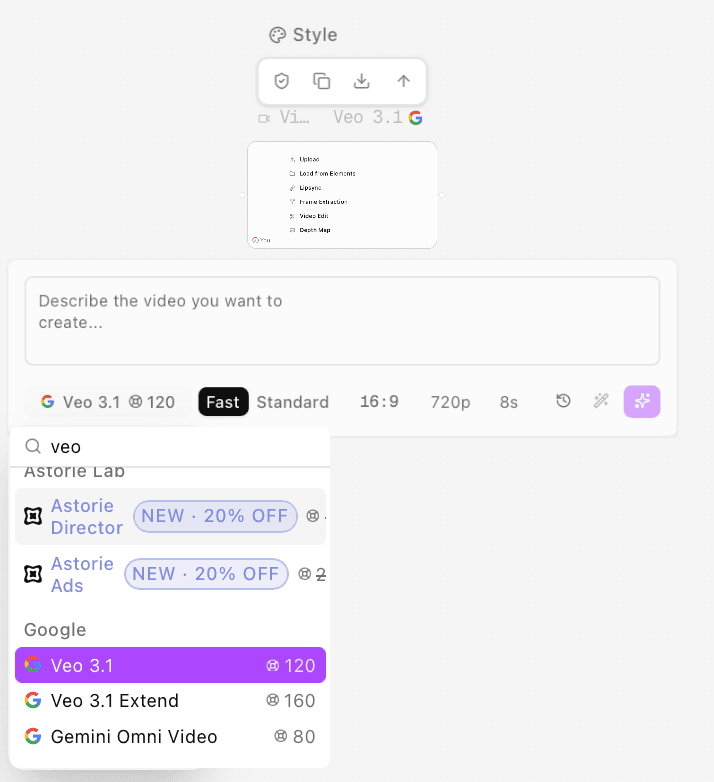
    Use Open in canvas to open a project, then select Veo 3.1 in a video node. The model picker also lists Veo 3.1 Extend separately, so check the selected name before continuing.

    The English Astorie model picker with Veo 3.1 selected for a video node.
  2. 2

    Connect your prompt and generate

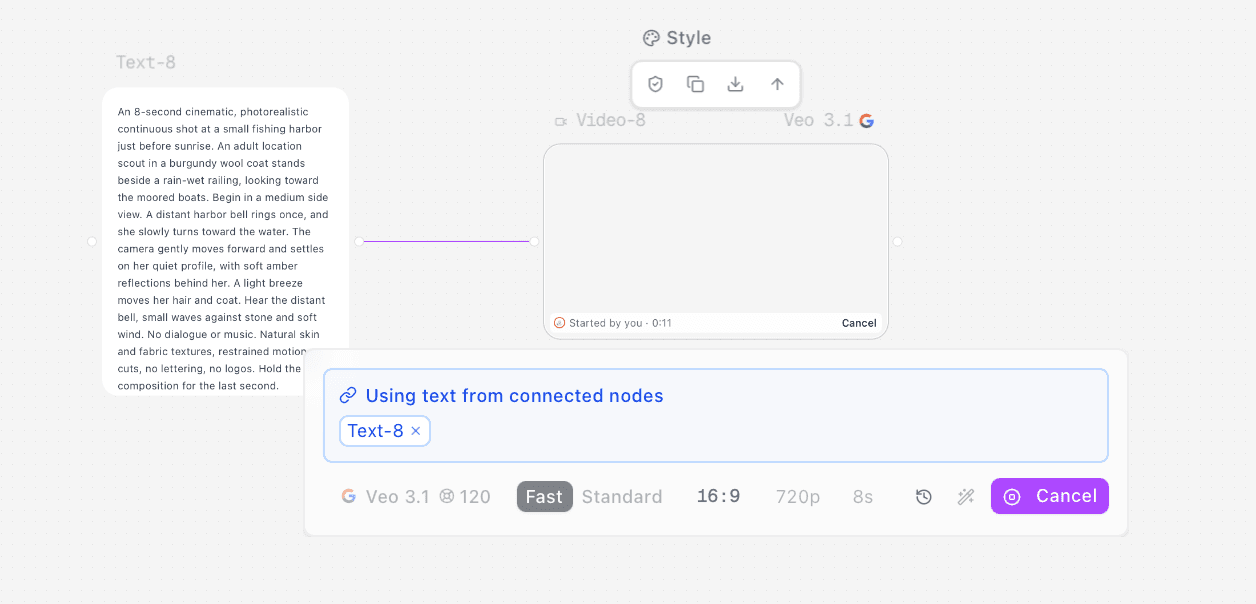
    Connect a text node describing the subject, action, camera and sound to the video node. Check the quality mode, aspect ratio, resolution, duration and credit estimate before starting generation. The video node shows the run in progress.

    An Astorie text node connected to a Veo 3.1 video node while generation runs, with Fast, 16:9, 720p and 8s visible.
  3. 3

    Review and keep the take

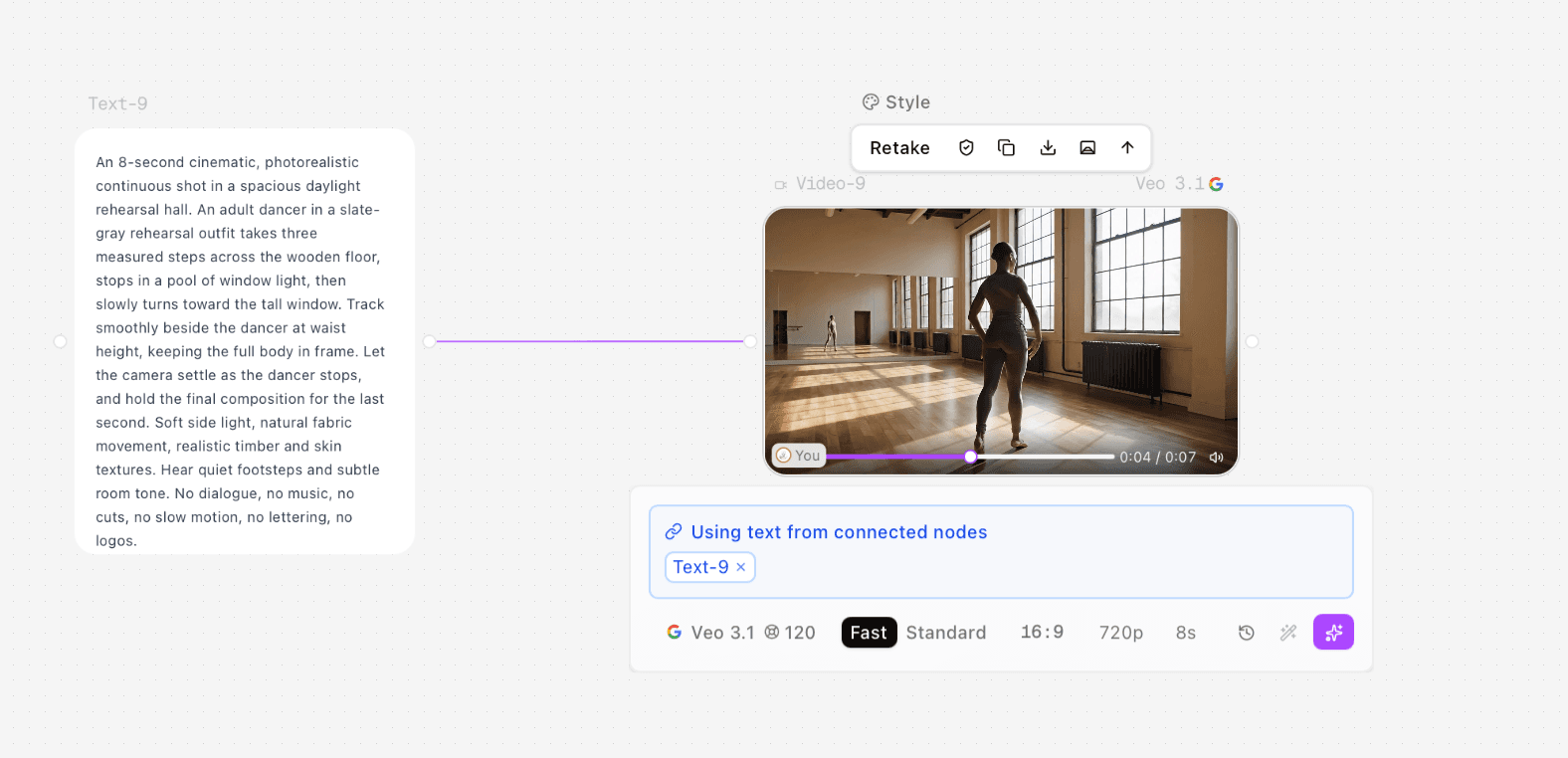
    Play the completed result in the canvas. Review movement, details, dialogue and ambience, then revise the prompt for another take or download the result you want to keep.

    A completed dancer video in an Astorie Veo 3.1 node, connected to its text prompt.

Give a scene its voice, texture and atmosphere

Develop dialogue beats, tactile craft films and location studies with picture and sound planned together.

Rehearse a line before the shoot

Explore a short performance built around a pause, a glance and one spoken line. Keep the speaker visible and the staging simple so the take helps the team discuss delivery and timing. Confirm the words and lip movement before choosing a direction.

Prompt starter: In a quiet repair shop, an adult technician hears a radio crackle, looks up and says, 'There you are.' Hold a medium close-up through the pause and the line; soft room tone, no music.

Explore a craft film through material sounds

Develop a close view of a maker at work, with a single tool action and a distinct sound. Use the clip to explore tactile details and the balance between the action and the surrounding room tone. Inspect contact points and tool geometry before editing.

Prompt starter: A bookbinder presses a linen cover flat with a bone folder, then lifts the tool away. Close side view, warm daylight, a soft scrape against cloth and quiet workshop ambience.

Sketch a location through movement and ambience

Build a short establishing shot around a place changing over a few seconds: a curtain lifting, leaves moving or light crossing a wall. Combine a restrained camera move with location sound to test the atmosphere of a sequence.

Prompt starter: Morning wind lifts a sheer curtain in an empty seaside room as the camera slowly approaches an open window. Pale light, distant waves and the gentle rustle of fabric.

Veo 3.1 inputs and output settings

Google's model capabilities and the controls available in Astorie are listed separately.

Provider and versionGoogle DeepMind Veo 3.1; Astorie model ID google-veo3.1. This page covers the base model.Source ↗ · 2026-11-09
Astorie input modesText to video, Image to video and Reference to video are available in the Veo 3.1 model picker.Source ↗ · 2026-11-09
Native audioGoogle documents native dialogue, ambience and synchronized sound effects. Review the generated audio before use.Source ↗ · 2026-11-09
Google output specificationsGoogle documents 4, 6 or 8 seconds, 16:9 or 9:16, 720p, 1080p or 4K, and 24 fps. Reference-image generation uses 8 seconds; availability varies by variant and mode.Source ↗ · 2026-11-09
Astorie output configurationThe page Generator uses the model defaults. Check the output and audio settings offered by your selected canvas mode, and review the estimate before generating.Source ↗ · 2026-11-09
Video continuationAstorie lists google-veo3.1-extend-video separately from the base google-veo3.1 model. Use the matching video-input workflow for extension.Source ↗ · 2026-11-09

Choose how the scene begins

Start with text for an invented scene or use images to give the shot a visual anchor.

DimensionText-led sceneImage-guided scene
Starting materialSource ↗ · 2026-11-09A written scene brief; let Veo invent the setting and subject.A starting image in Image to video, or reference material in Reference to video.
Direction to writeSource ↗ · 2026-11-09Describe the subject, action, camera and sound together.Explain what the image should guide and what should move; add the sound you want.
Review focusSource ↗ · 2026-11-09Check that the staging, timing and sound match your brief.Check reference details, edge stability and motion as well as the sound.

Match Veo 3.1 to the shot

Plan a focused take with enough time to review its movement, details and sound.

A useful starting point for

  • Short dialogue scenes where performance, pauses and native sound matter.
  • Craft and material studies built around one readable action.
  • Image-guided shots that need a visual starting point for movement.

Plan additional work for

  • Exact logos, small lettering or unchanged product geometry throughout every frame.
  • A finished long-form film, final dialogue mix or guaranteed lip synchronization from one generation.
  • Video extension through this base model: Astorie lists Veo 3.1 Extend as a separate model.

Simple, transparent pricing

最先端のAIモデルで創作を始めましょう。Freeプランはクレジットカード不要です。

Pro トライアル3日間 Pro

3日間、Pro のすべてを体験

1回のみのお支払い
$9本日
その後 $49/月 · いつでも解約可
トライアル 1000 クレジット
  • 3日後に Pro 月額プラン($49/月)へ自動移行します。いつでも解約できます
主な機能
  • すべての高度なAIモデル
  • 同時生成:動画4本、画像8枚、キャラクター3体まで
  • 新しいAI機能への早期アクセス
Standard
プロの用途や小規模チーム向け。
年払い
$19$12/ 月
期間限定 · $7/月お得(36%オフ)
2年目以降は $16/月
毎月1,600クレジット
主な機能
  • 期間限定オファー:初年度 $144、以降 $192/年
  • すべての高度なAIモデル
  • 同時生成:動画2本、画像2枚、キャラクター2体まで
無制限利用
  • Nano Banana
    7日間
  • Z-Image
    365日間
一番人気
Pro
大規模チームや高度な用途向け。
年払い
$49$29/ 月
期間限定 · $20/月お得(40%オフ)
2年目以降は $39/月
毎月4,800クレジット
主な機能
  • 期間限定オファー:初年度 $348、以降 $468/年
  • すべての高度なAIモデル
  • 同時生成:動画4本、画像8枚、キャラクター3体まで
無制限利用
  • Nano Banana
    7日間
  • Nano Banana 2
    2K
    7日間
  • Nano Banana Pro
    2K
    7日間
  • Z-Image
    365日間
  • JimengSeedream 5 Lite
    3K
    365日間
  • JimengSeedream 4.5
    4K
    365日間
最もお得
Ultimate
パワーユーザーや最大限のアクセス向け。
年払い
$99$59/ 月
期間限定 · $40/月お得(40%オフ)
2年目以降は $79/月
毎月10,000クレジット
主な機能
  • 期間限定オファー:初年度 $708、以降 $948/年
  • すべての高度なAIモデル
  • 同時生成:動画8本、画像8枚、キャラクター6体まで
  • 追加クレジット15%オフ
無制限利用
  • Nano Banana
    7日間
  • Nano Banana 2
    4K
    7日間
  • Nano Banana Pro
    4K
    7日間
  • Z-Image
    365日間
  • JimengSeedream 5 Lite
    3K
    365日間
  • JimengSeedream 4.5
    4K
    365日間
  • GPT-Image 1.5
    365日間
  • Flux.2 Pro
    365日間
  • Flux.2
    365日間

Veo 3.1 questions

Inputs, sound and the path from configuration to a generated take.

What is Veo 3.1?

Veo 3.1 is a Google DeepMind video generation model with native audio. On Astorie, select Veo 3.1 to create a scene from a text brief or use the image inputs supported by the chosen mode.

Does this page generate a video or charge credits?

No. Open in canvas creates a project with the selected configuration; generation and credit use happen in the canvas. If you are signed out, sign in or register to continue with the configuration.

Can Veo 3.1 generate dialogue and sound effects?

Yes. The model supports native dialogue, ambience and sound effects. Describe the sound explicitly and check the available audio settings in the canvas. Listen to the exported take before approving the words or timing.

Can I start with an image or reference?

Yes. Astorie lists Image to video and Reference to video for Veo 3.1. Choose the matching mode and supply its required input. Reference guidance does not guarantee that faces, logos or fine details remain unchanged.

Does this model extend an existing video?

Astorie lists Veo 3.1 Extend as a separate model. This page's default is the base Veo 3.1 model, google-veo3.1. Select a workflow that accepts an existing video when continuation is the task.

How much does a Veo 3.1 run cost?

Check the estimate for your configuration and the price shown in the canvas before you generate. An estimate is not a record of credits charged; current plans are shown in the plans section.

How should I use the prompt starters?

Treat them as starting directions to adapt to your scene. Keep one clear action, describe the camera and sound, and check that the brief fits the selected duration. They are creative suggestions rather than generation logs for the adjacent examples.

Hear the scene as you develop it

Choose Veo 3.1, describe the action and sound, then take your configuration into the Astorie canvas.