

Start with words or a still image
Describe a scene from scratch, or use a starting image to establish its visual composition. For image input, focus the prompt on the action and camera movement that should follow the first frame.
Vidu · Video generation
Create short videos from text or a still image with Vidu Q3 on Astorie. Explore camera movement, environmental sound and a brief performance, with Pro and Turbo options for each take.
Generate motion from text or an image, add synchronized audio, and choose the format and tier for each clip.
Describe a scene from scratch, or use a starting image to establish its visual composition. For image input, focus the prompt on the action and camera movement that should follow the first frame.
Turn on Generate Audio to request dialogue, ambience or sound effects with the video. Describe what should be heard and when it happens, then review the delivered track alongside the picture.
Select Pro or Turbo, an available resolution and one of five aspect ratios. Set a clip length that gives the action room to unfold, and compose for the intended frame before generating.
Take a scene from idea to review in three steps on Astorie.
Click Open in canvas in the generator; sign in if asked. In your video node, select Vidu Q3 and choose the aspect ratio. Begin with text or connect a starting image.
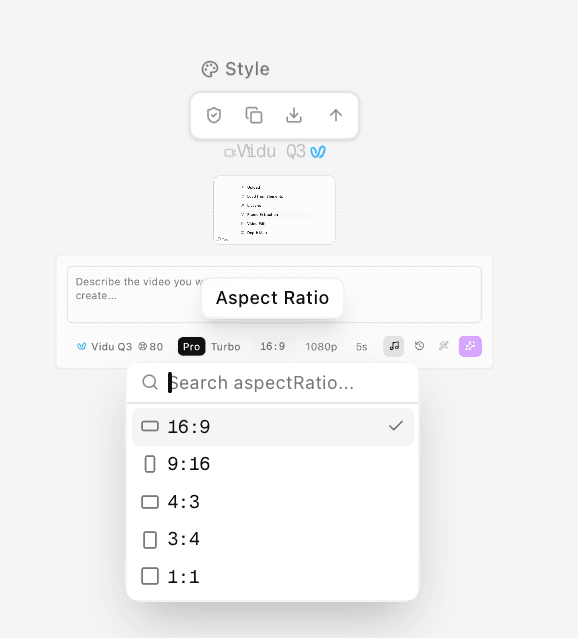
Describe one clear action and a camera move. Set Pro or Turbo, resolution, aspect ratio, duration and Generate Audio. With image input, focus on the motion after the starting frame.
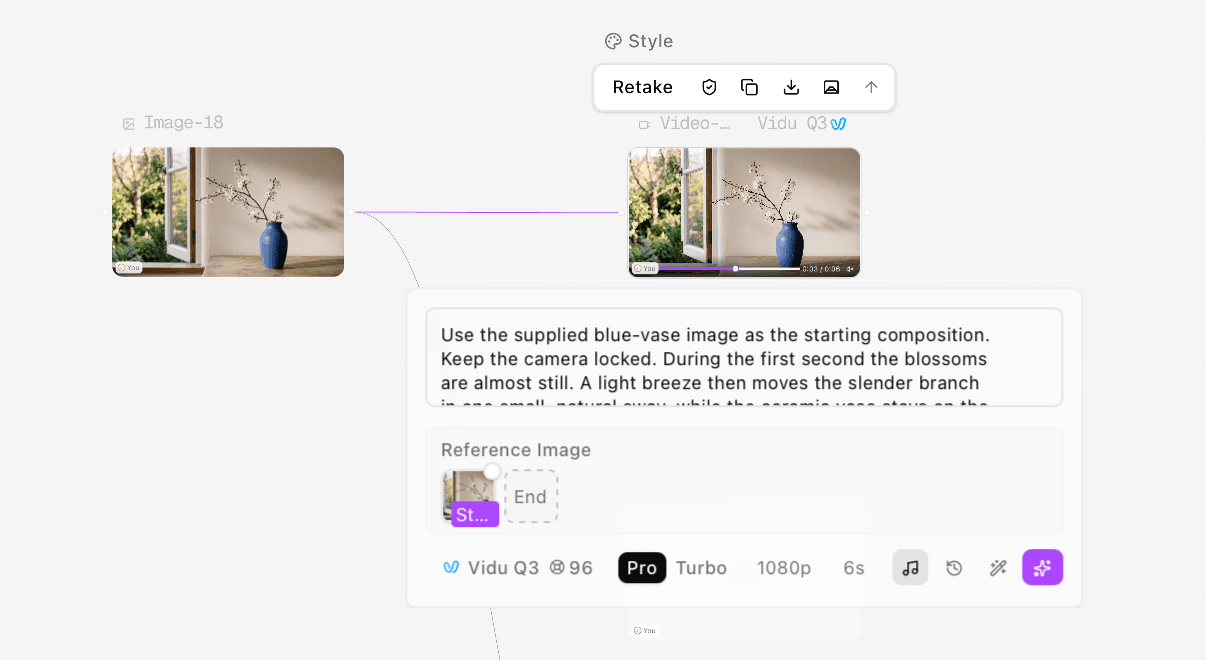
Click Generate in the canvas; generation uses credits there. Play the result and check the action, framing and any speech or sound before using it in an edit. Revise the prompt for another take.
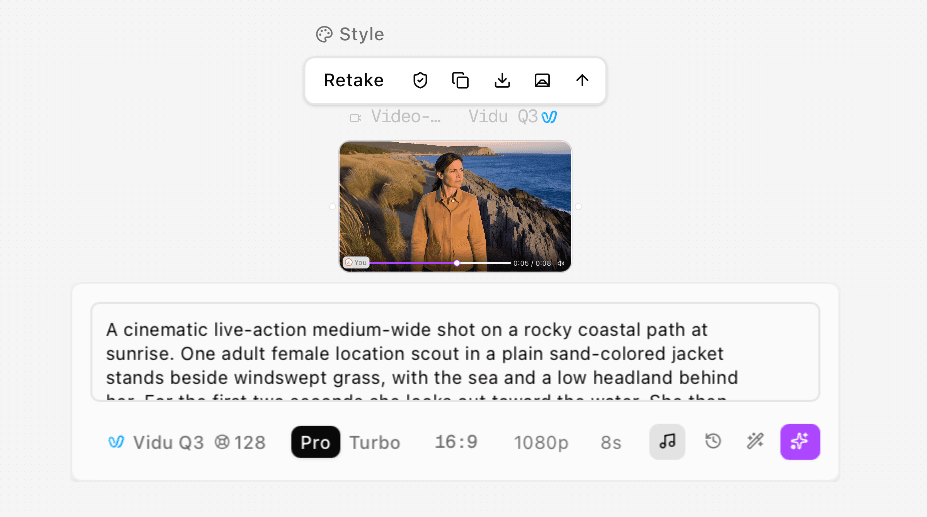
Explore a location opener, add motion to a product still, or test a brief line of dialogue before building an edit.
Use text to establish a place with one camera direction and a readable action. Add a simple environmental sound cue to explore the mood and timing of an opening shot.
Start with a product photograph or image you can use. Describe a small camera move to explore its shape, material and lighting, then inspect edges, proportions and any branding in the result.
Give one on-screen adult performer a short line, with a pause before and after. Review the wording, lip movement and expression before deciding whether the take works in a scene.
Use the settings available in the Astorie panel for this model entry.
| Astorie model entry | vidu-q3, shown as Vidu Q3 in the model picker.Source ↗ · 2026-11-22 |
|---|---|
| Inputs on Astorie | Text to video and a starting image for image to video.Source ↗ · 2026-11-22 |
| Quality tiers | Pro and Turbo. Compare the current estimate and your result when choosing a tier.Source ↗ · 2026-11-22 |
| Resolution options | 540p, 720p and 1080p in the current canvas panel.Source ↗ · 2026-11-22 |
| Aspect ratios | 16:9, 9:16, 4:3, 3:4 and 1:1.Source ↗ · 2026-11-22 |
| Duration | The current Astorie menu offers 1–16 seconds. Choose a duration that suits the action.Source ↗ · 2026-11-22 |
| Audio | Generate Audio can be switched on or off. With it on, describe the speech, ambience or effects you want.Source ↗ · 2026-11-22 |
| Version scope | This page covers vidu-q3. Other Vidu family entries have their own reference inputs and task controls.Source ↗ · 2026-11-22 |
Start with the material that gives you the clearest way to describe the shot.
| Dimension | Text to video | Image to video |
|---|---|---|
| What you supplySource ↗ · 2026-11-22 | A written description of the scene, action, camera and sound. | One starting image plus a description of what happens next. |
| A useful starting taskSource ↗ · 2026-11-22 | Explore a location or performance before choosing a first-frame image. | Explore motion around a product still or an existing composition. |
| Prompt emphasisSource ↗ · 2026-11-22 | Establish the subject, setting and light, then define a small sequence of action. | Prioritize movement and camera direction instead of redescribing every visible detail. |
| Review before editingSource ↗ · 2026-11-22 | Check whether the generated scene communicates the intended idea. | Check whether details and spatial relationships remain usable as the image moves. |
Use each generation as a take to assess before it enters a larger edit.
最先端のAIモデルで創作を始めましょう。Freeプランはクレジットカード不要です。
3日間、Pro のすべてを体験
Compare another model’s available inputs, audio options and controls for the next take.
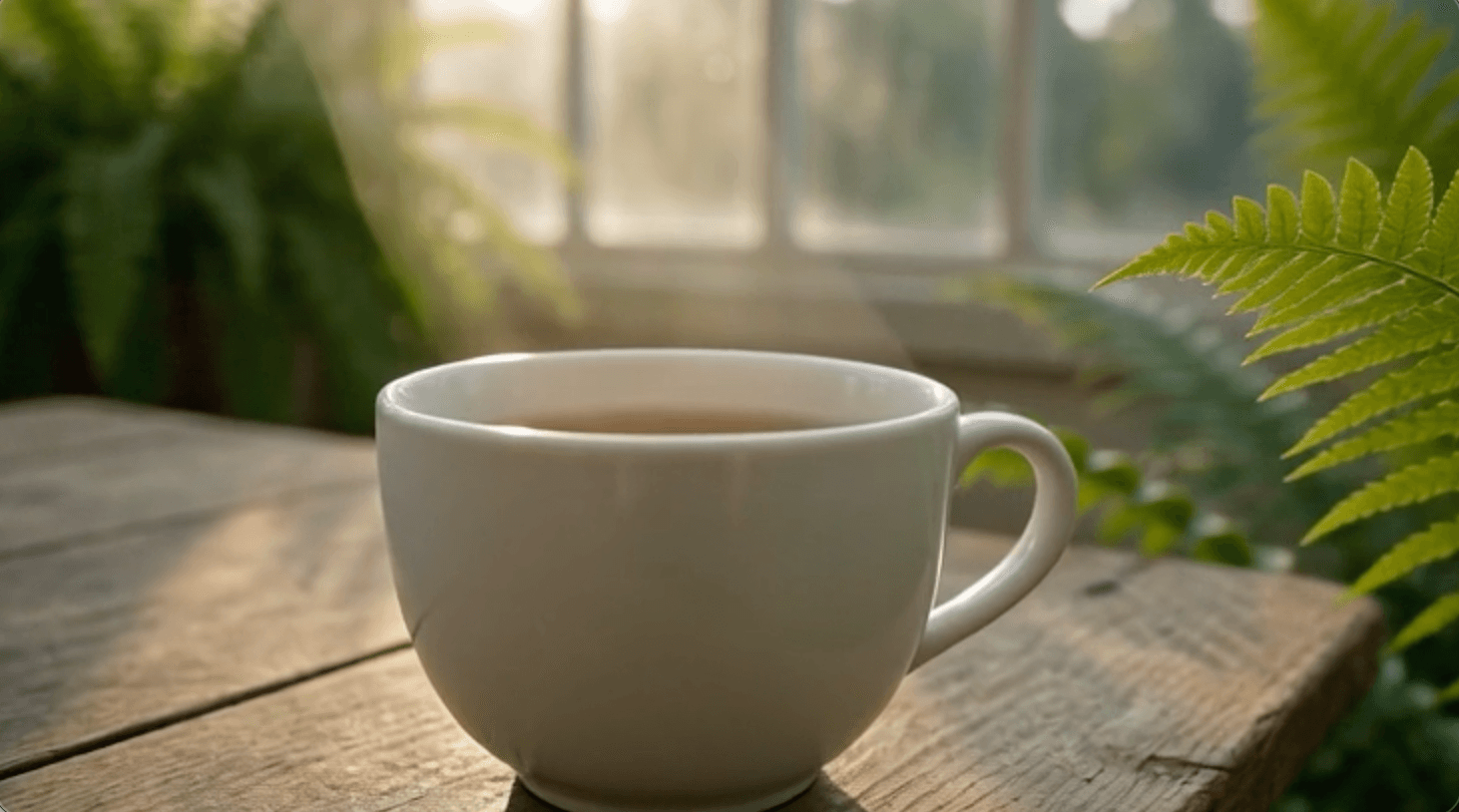
Turn a written scene or a still image into a short moving shot with xAI’s video model. Explore an action, a camera move or an atmosphere on the Astorie canvas.
Explore model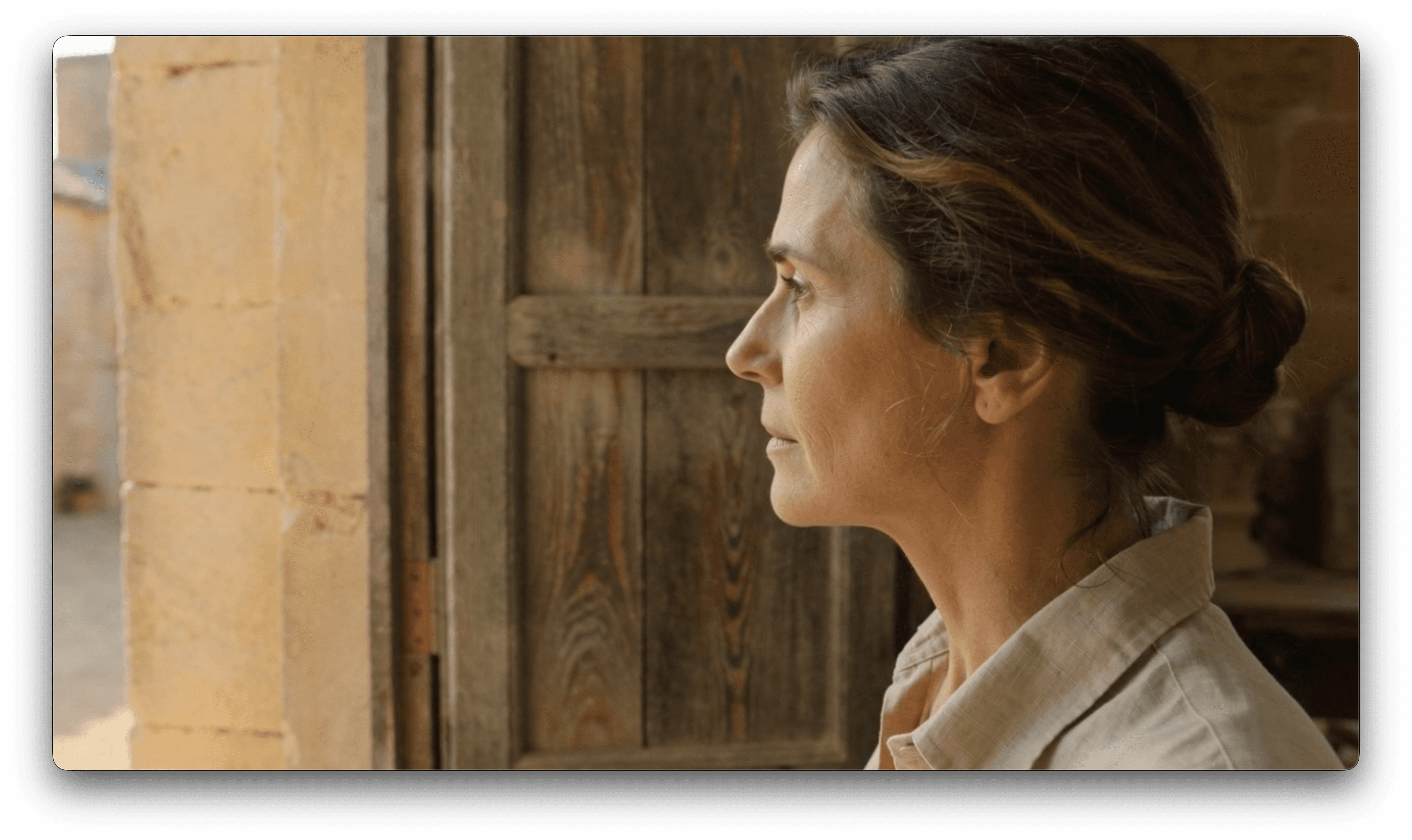
Direct a short scene from text or an opening image. Use Seedance 2.0 on Astorie to explore subject movement, camera timing and the sound of a moment, then take the configuration into the canvas to generate and review your video.
Explore model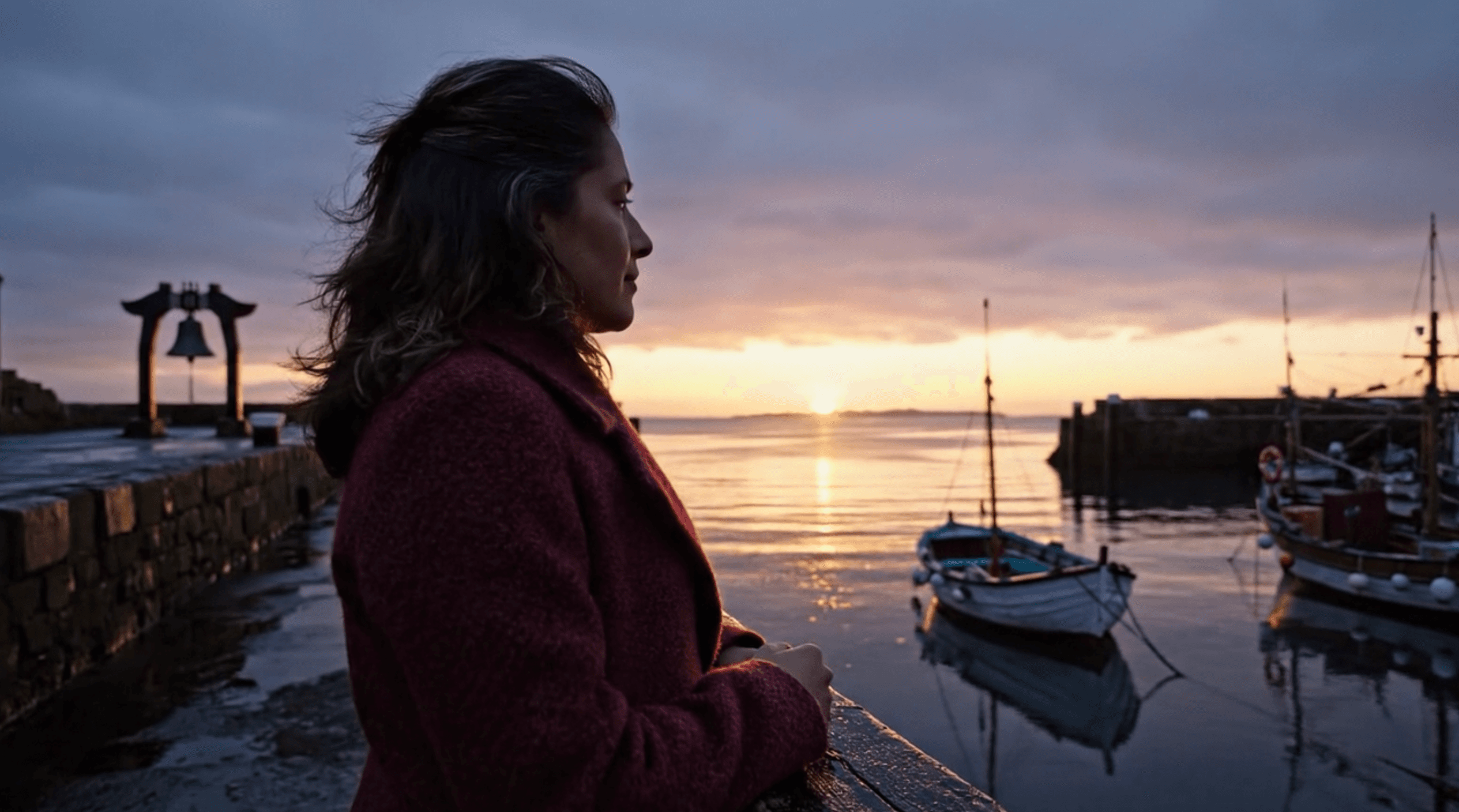
Turn a short scene brief into video with native sound. Use Veo 3.1 on Astorie to develop a cinematic moment, explore dialogue or bring a visual starting point into motion, then review the take in your canvas.
Explore modelLearn how to turn a still into motion and assemble generated takes into a short film.

To animate an image with AI, upload a photo or illustration, connect it to an image-to-video model, describe the motion you want, and generate a short clip. In Astorie, the source image, prompt, settings, and result stay on one canvas, so you can compare model runs without rebuilding the setup.
Read guide
To create an AI short film, write a compact script, convert it into a storyboard and shot list, lock the character and visual rules, generate each scene, add sound, then edit and export the approved shots as one film.
Read guideIt is the Vidu Q3 video model entry on Astorie. It supports text and image input, Pro and Turbo options, and a Generate Audio switch.
Yes. Use a starting image for image to video and describe the action or camera move that should follow it. Review changes to details and composition in the result.
Yes. Turn on Generate Audio and describe the speech, ambience or effects you want. Keep dialogue brief and review wording, lip movement and timing in the delivered clip.
The current duration menu offers 1–16 seconds. Choose a length that gives one focused action enough time, rather than assuming a longer clip will sustain a complex sequence.
Choose the tier in the canvas and check the current estimate before generating. Compare takes for your specific shot; the two options are not a guarantee of a particular result or turnaround time.
No. It creates a canvas project and a node with your selected configuration. Generation and credit use happen when you generate in the canvas. If you are signed out, sign in first; the configuration is retained.
Check the estimate for your selected tier, duration, resolution and audio settings. The canvas shows the price for your plan before generation; a default estimate is not a fixed fee for every clip.
Set up vidu-q3 in the generator, then continue with your model, prompt and settings on the Astorie canvas.