


Text Node
The Text node is the starting point of Astorie workflows, used to write prompts or text content that provides instructions for AI generation.
Basic Usage
1. Creating a Node
Double-click on an empty area of the canvas and select Create Text.
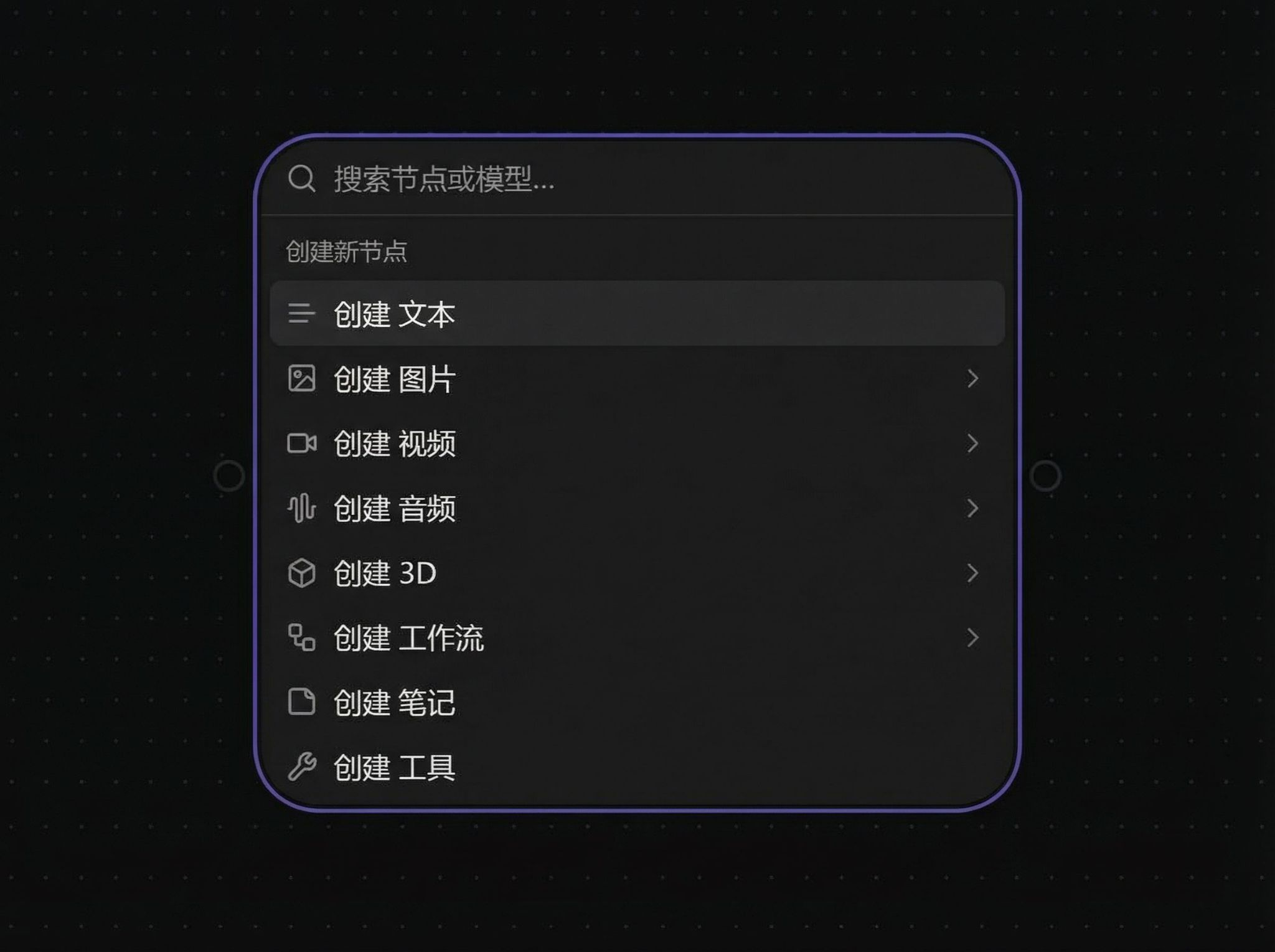
After clicking, a text dialog will appear:
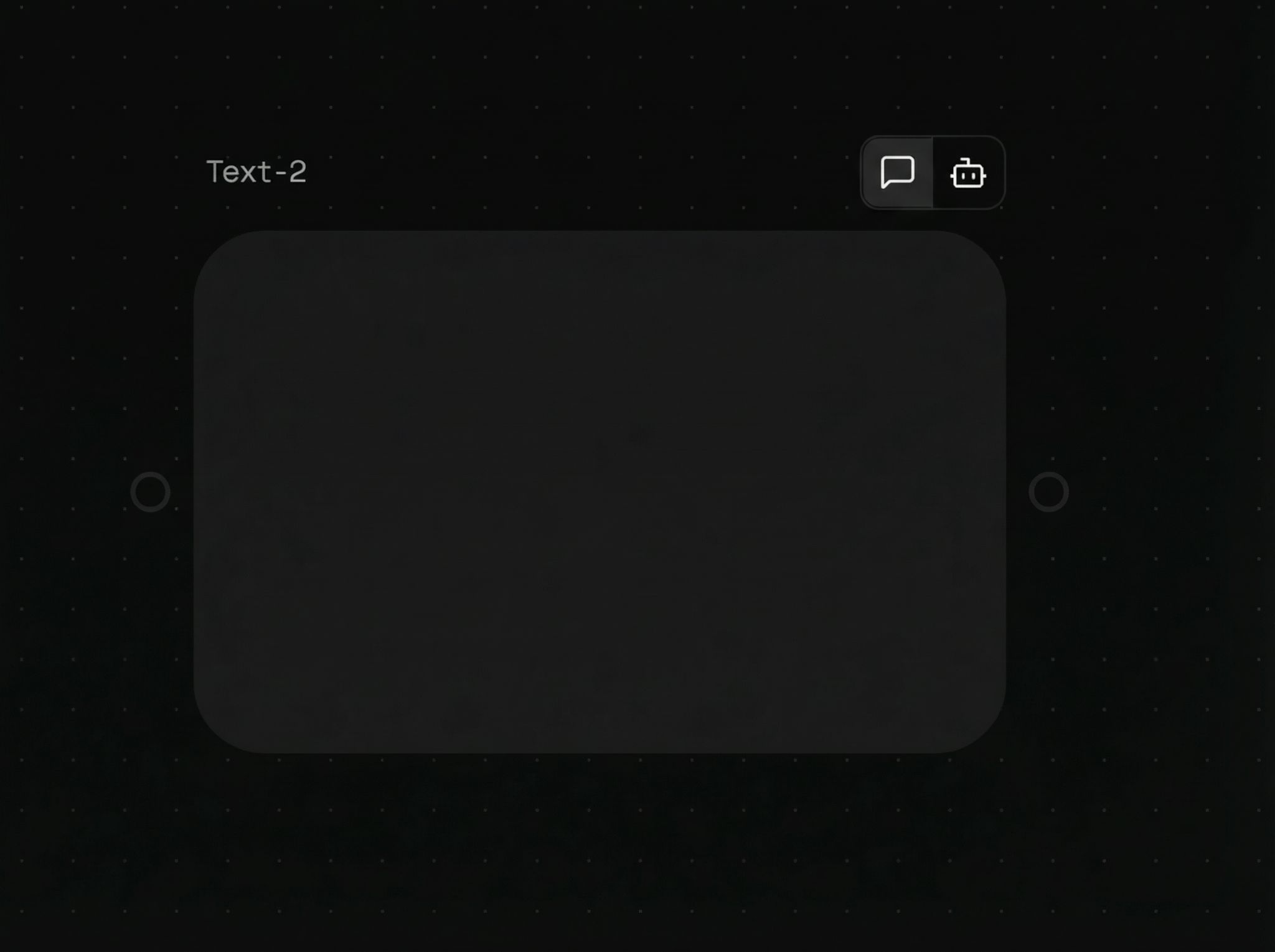
2. Node Functions
Text Mode
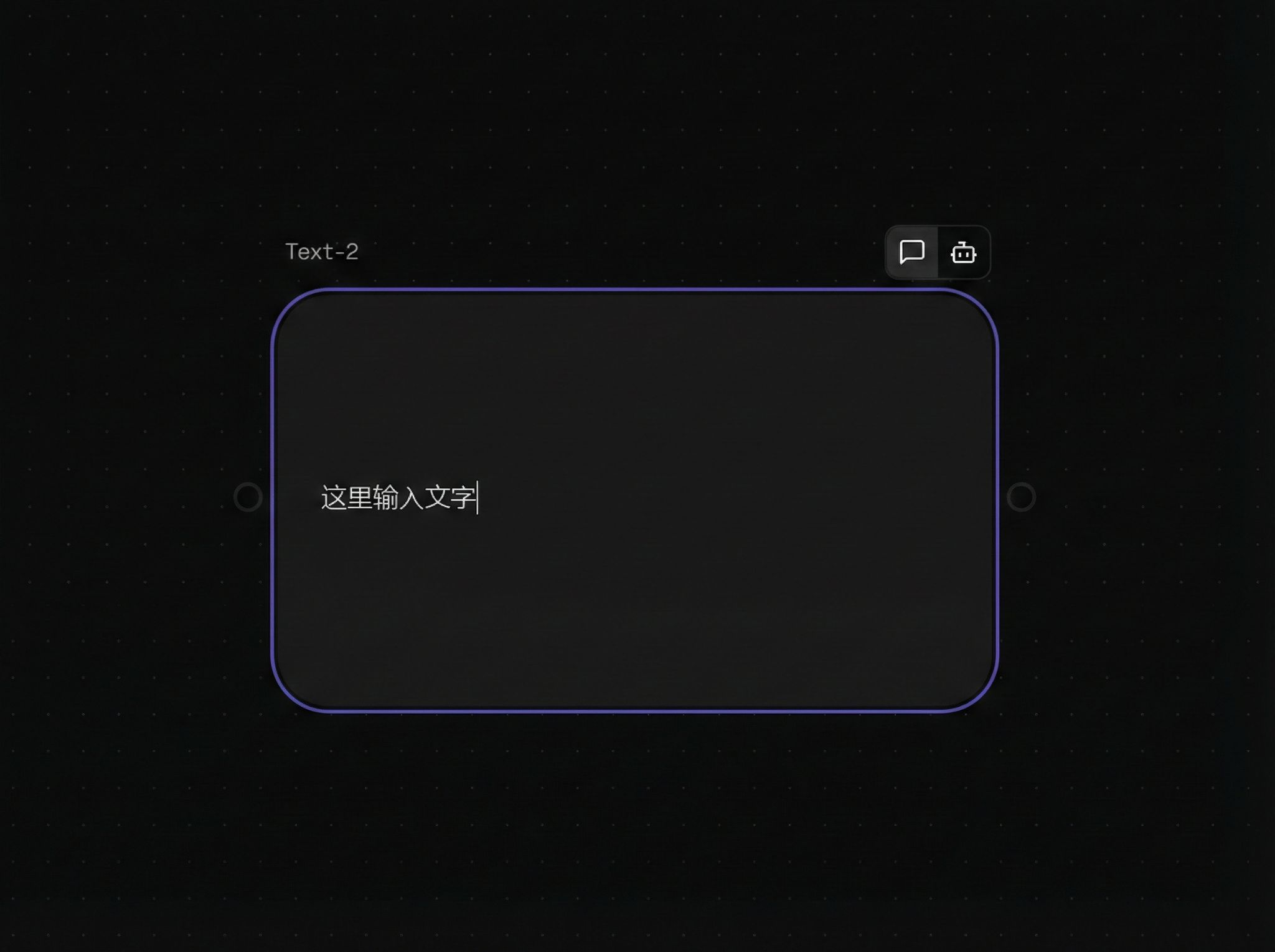
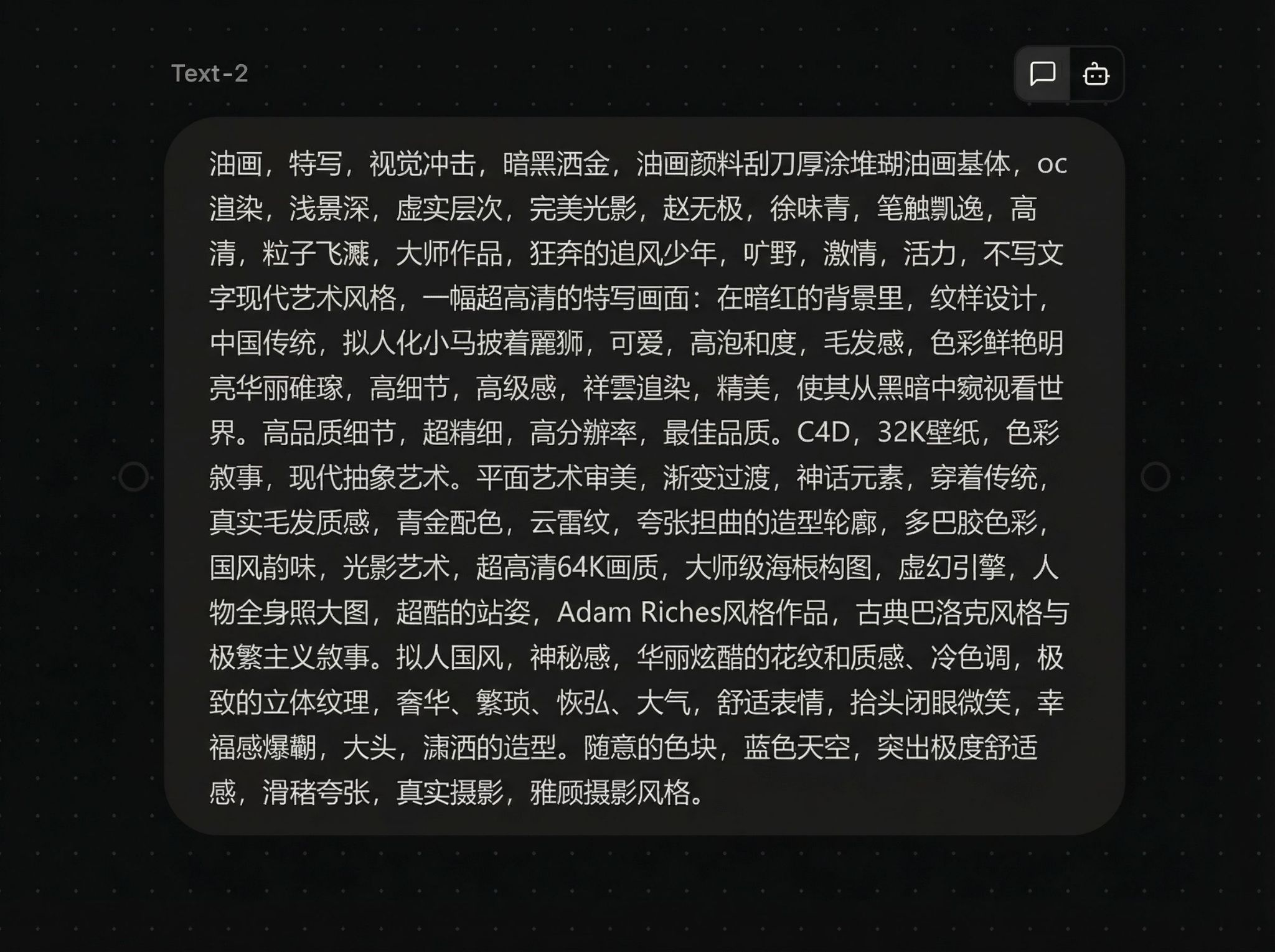
Double-click the text box to enter prompts or descriptions:
Supports copy/paste:
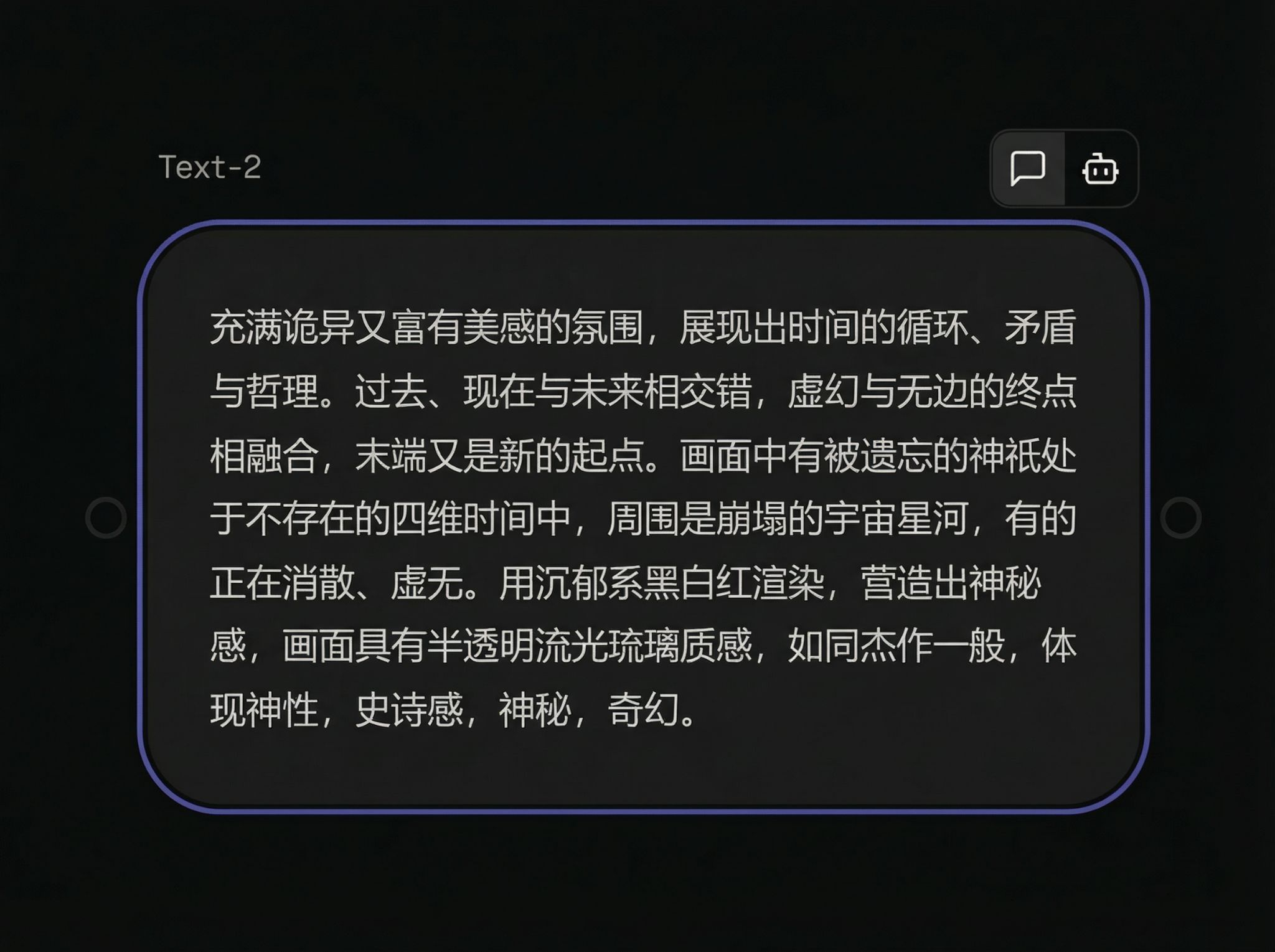
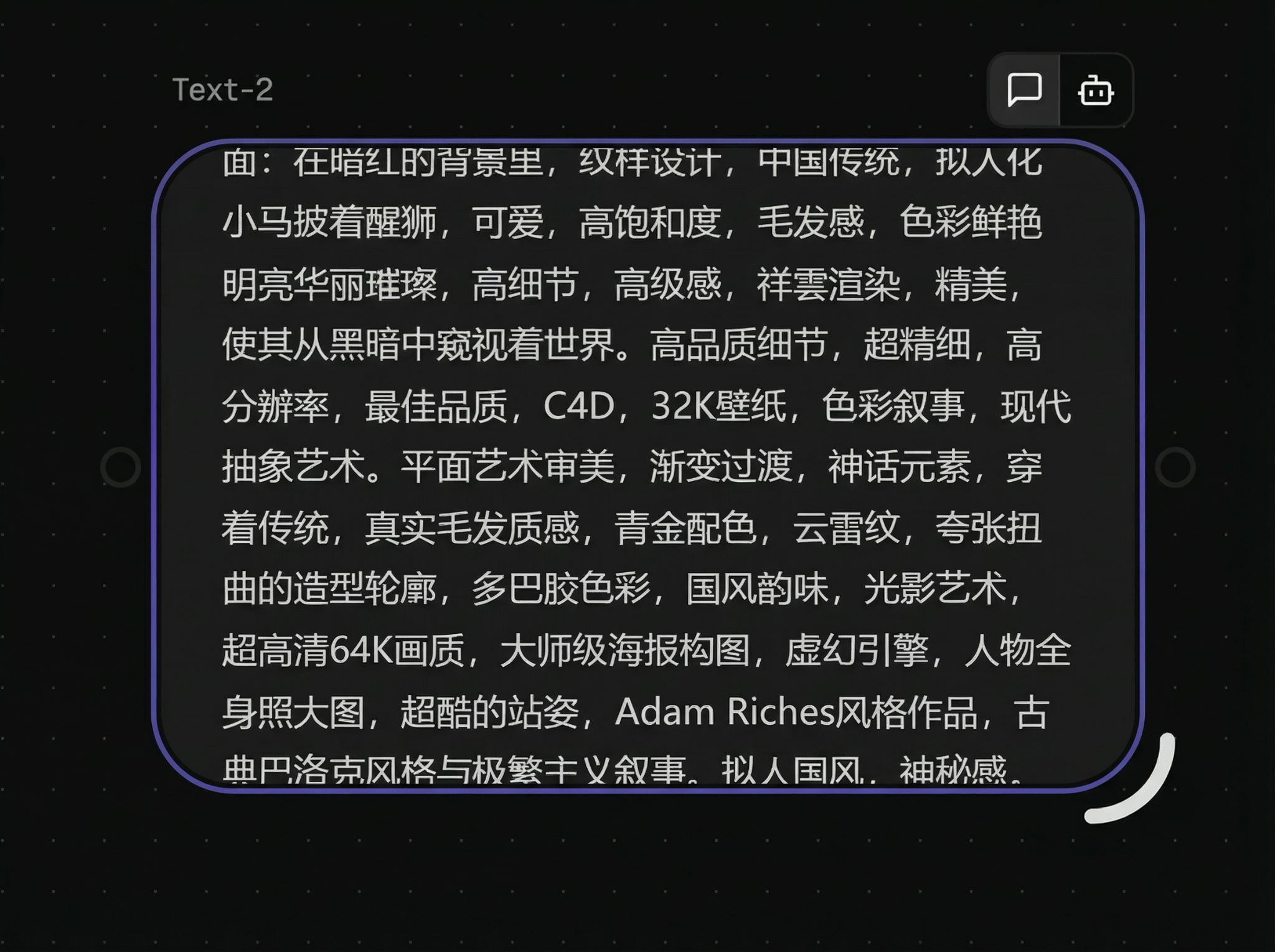
When the prompt is too long, drag the bottom-right corner of the text box to resize:
Smart Mode
Click the button in the top-right corner of the text box to switch to Smart Mode:
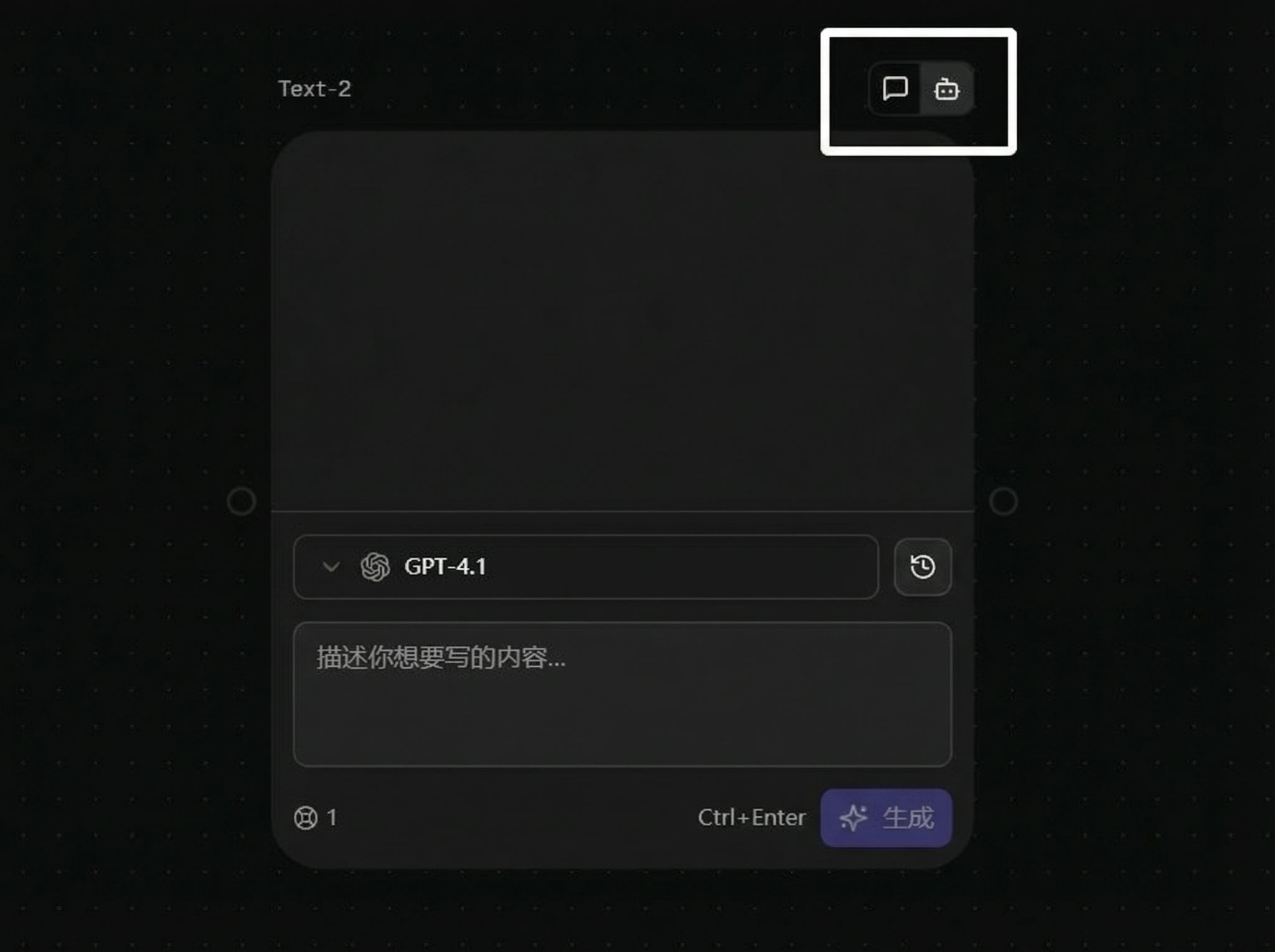
Smart mode allows you to select different models:
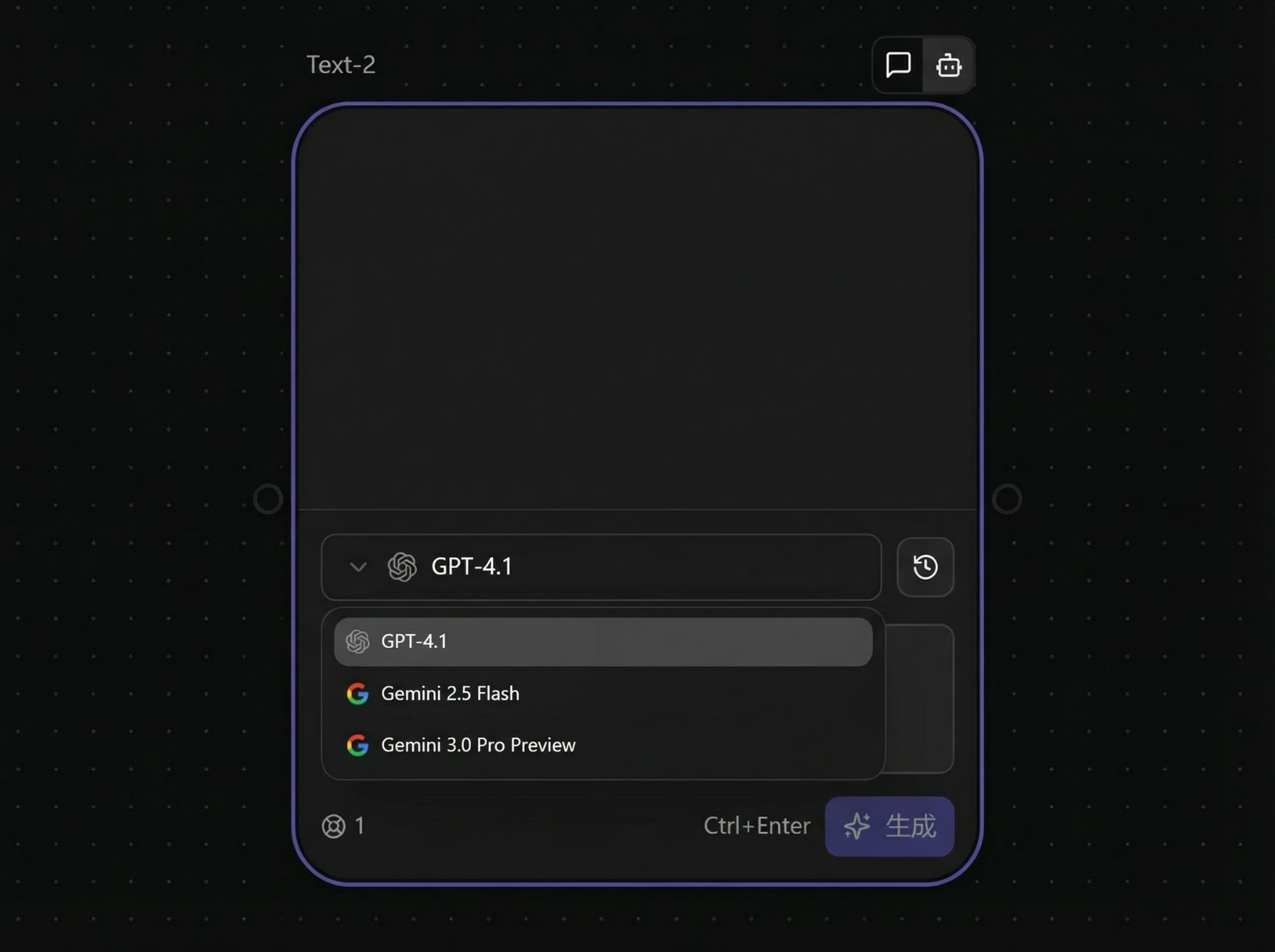
After selecting a model, you can start a conversation:
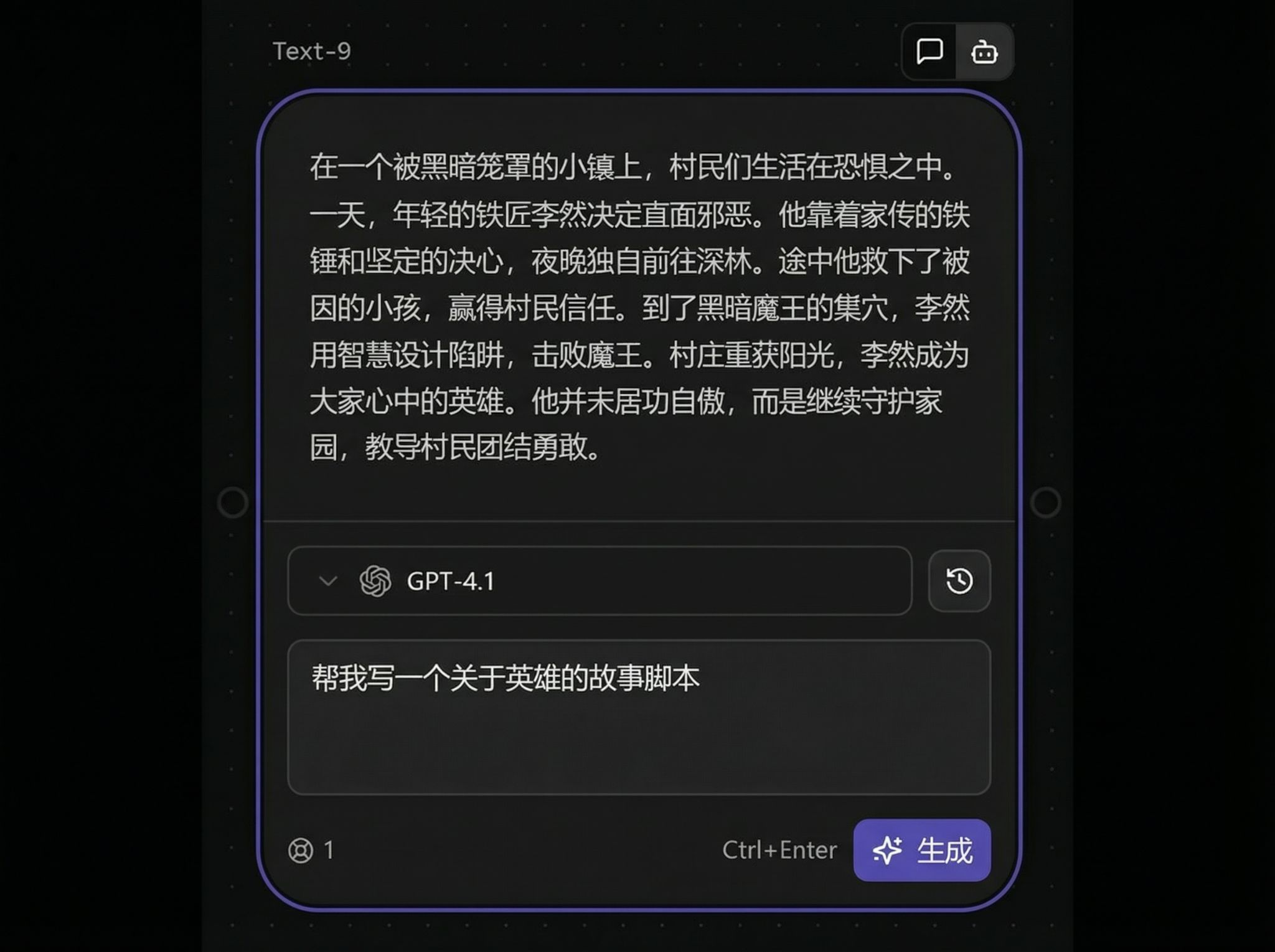
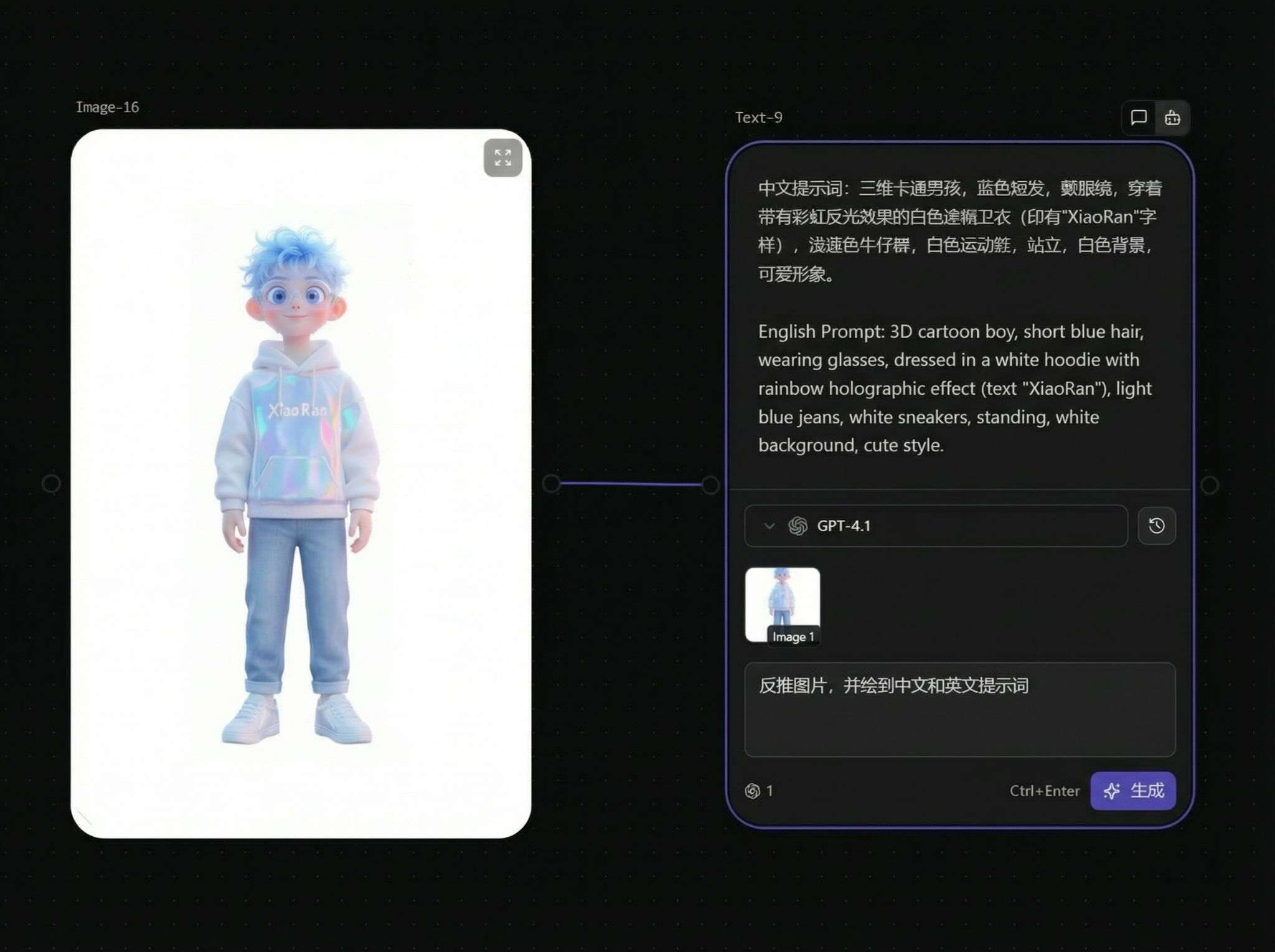
Image Reverse Prompt Feature
In smart mode, you can connect images and reverse-engineer prompts:
@Mention References
Text nodes support @mention functionality, allowing you to reference titles of other image nodes on the canvas in your prompt.
🎯 Important Limitation: @mention functionality is only available in some models (subject to actual support).
Usage
- Connect an Image node to the target Image node (as a reference)
- Set a meaningful title for the reference Image node (e.g., "Character Front View")
- In the Text node, type
@and select the node title you want to reference
Editor Features
Text nodes use a rich text editor that supports common formatting:
Basic Formatting
| Shortcut | Function |
|---|---|
Cmd/Ctrl + B | Bold |
Cmd/Ctrl + I | Italic |
Cmd/Ctrl + U | Underline |
Cmd/Ctrl + Shift + X | Strikethrough |
Lists
| Shortcut | Function |
|---|---|
Cmd/Ctrl + Shift + 7 | Ordered list |
Cmd/Ctrl + Shift + 8 | Unordered list |
AI Assistant Mode
AI assistant mode is used to optimize prompts or expand descriptions:
- Enter smart mode
- Select a model
- Input your draft prompt
- Click optimize or expand
Prompt Tips
- Clearly define subject, scene, lighting, and style
- When camera language is needed, add "lens/movement/composition" descriptions
- Break complex tasks into multiple short sentences for clarity
- When uncertain about style, start with 2-3 keywords to test quickly