


Tool Node
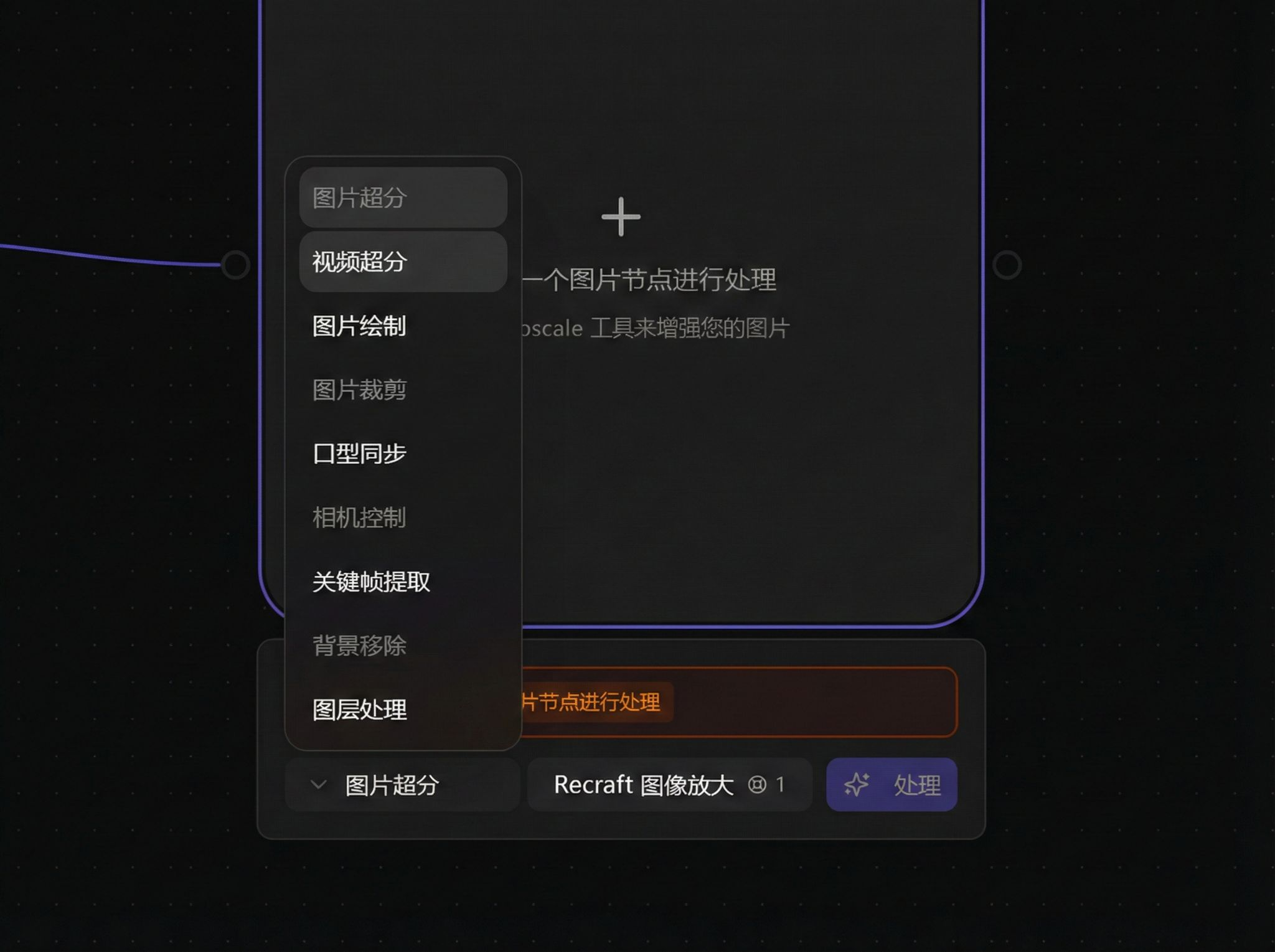
Tool nodes provide image/video processing utilities for upscaling, restoration, drawing, cropping, and effects creation.
Tool Types
| Type | Description |
|---|---|
| Image Upscale | Upscale image resolution with HD enhancement and restoration |
| Video Upscale | Upscale video resolution with HD enhancement and restoration |
| Video Editing | Trim connected videos by duration or end time |
| Image Drawing | Draw content on images and masks |
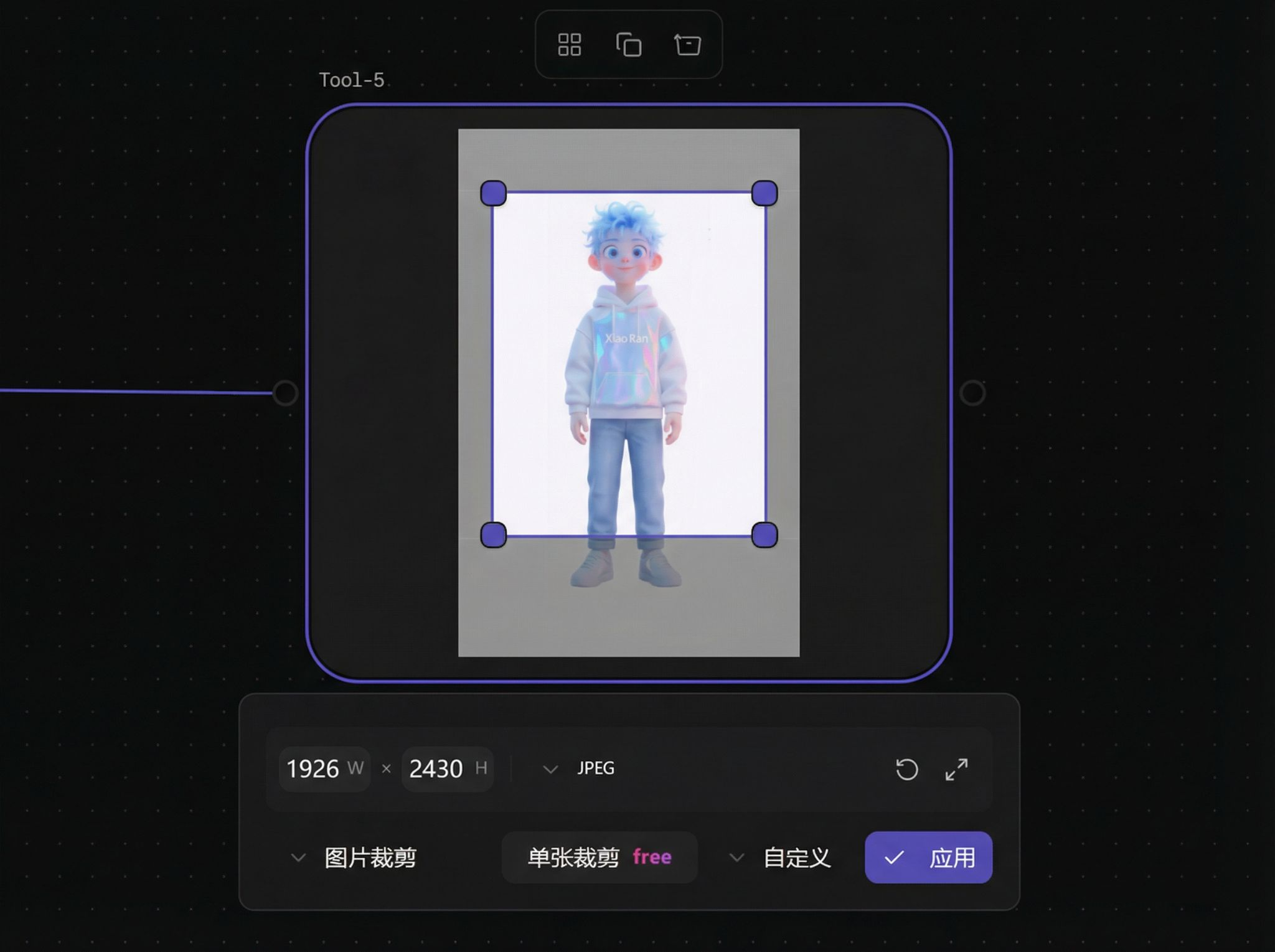
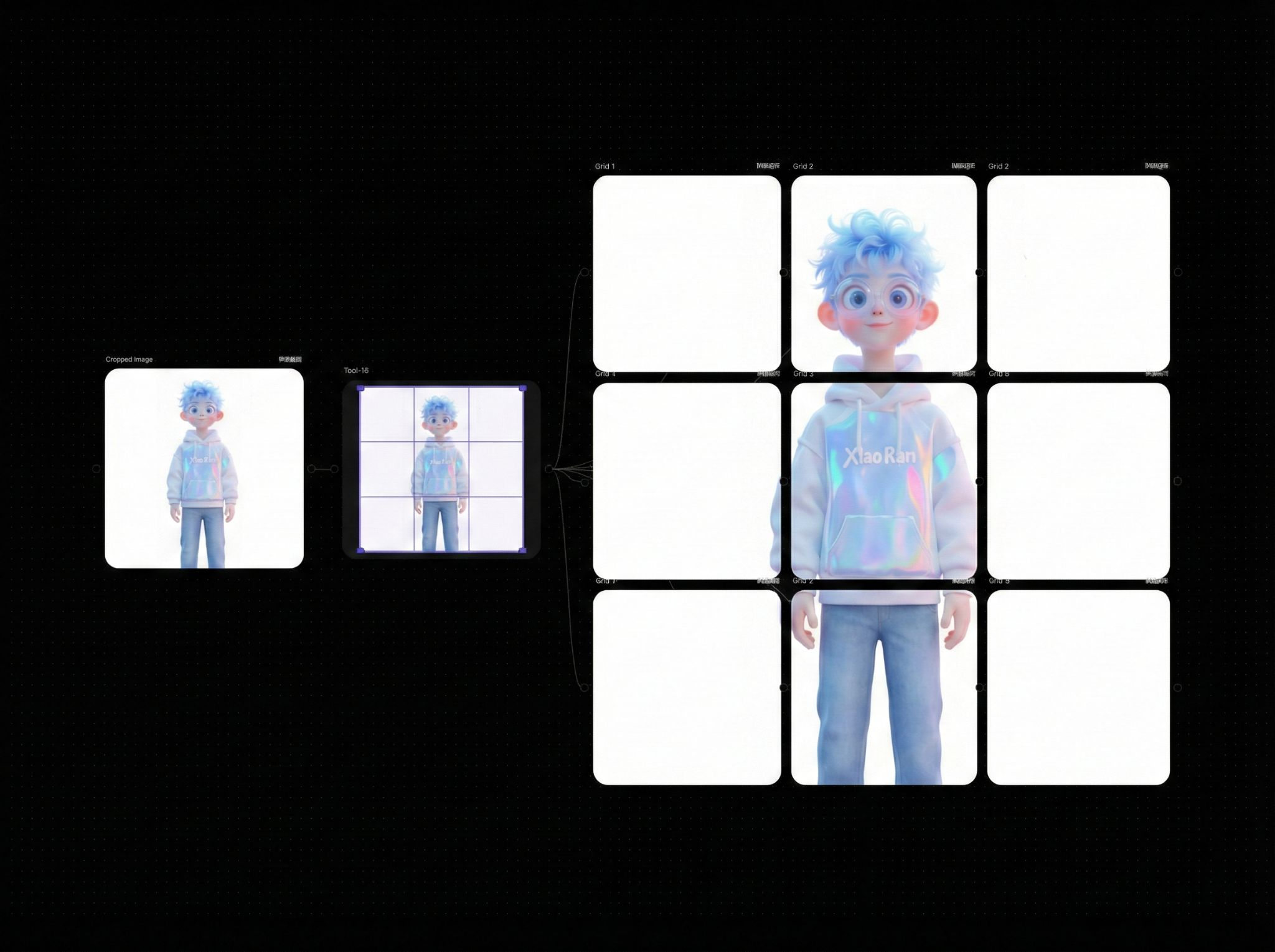
| Image Crop | Arbitrary size cropping or grid cropping |
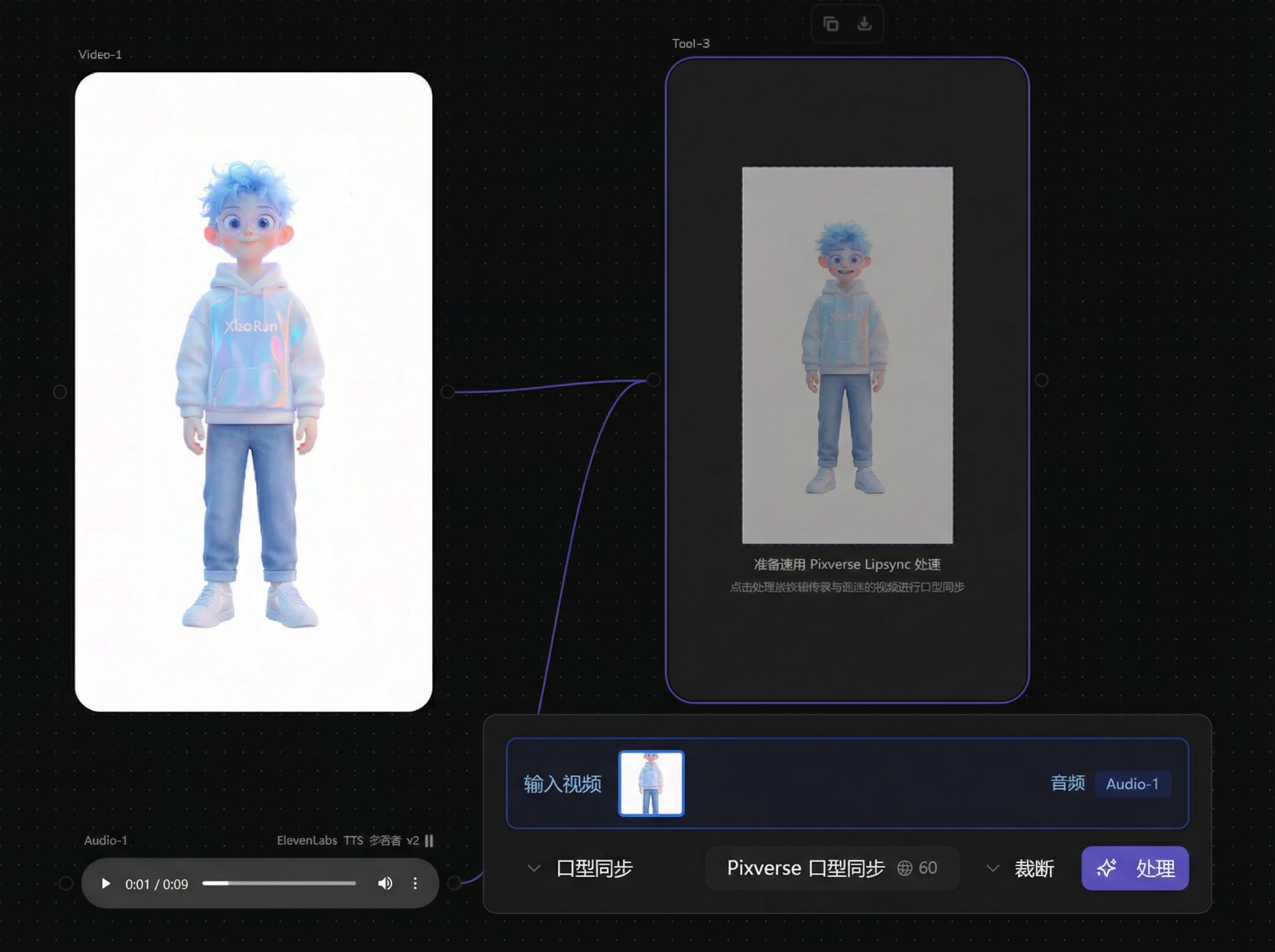
| Lip-sync | Synchronize video character lip movements with audio |
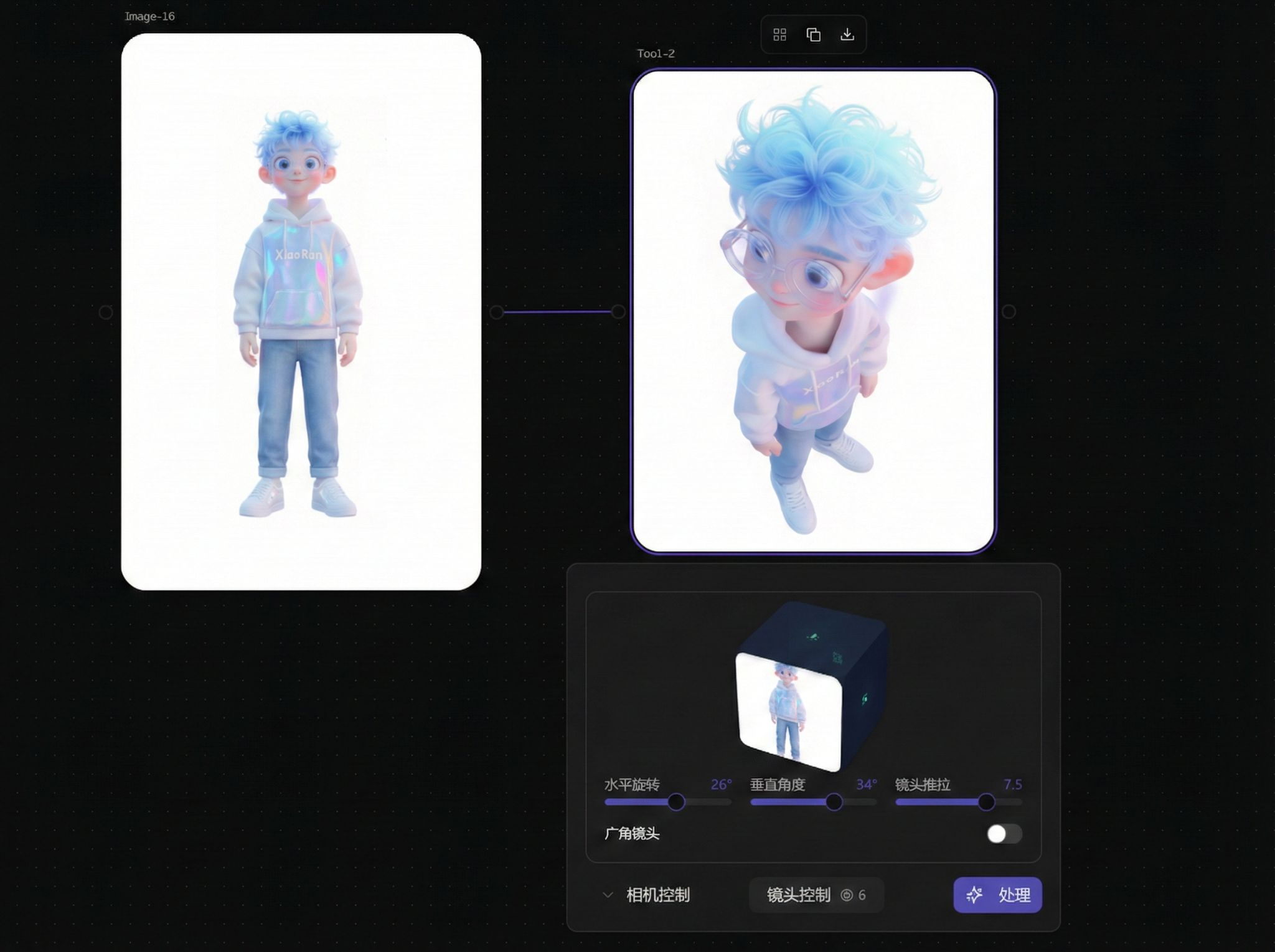
| Camera Control | Adjust image camera angle and perspective |
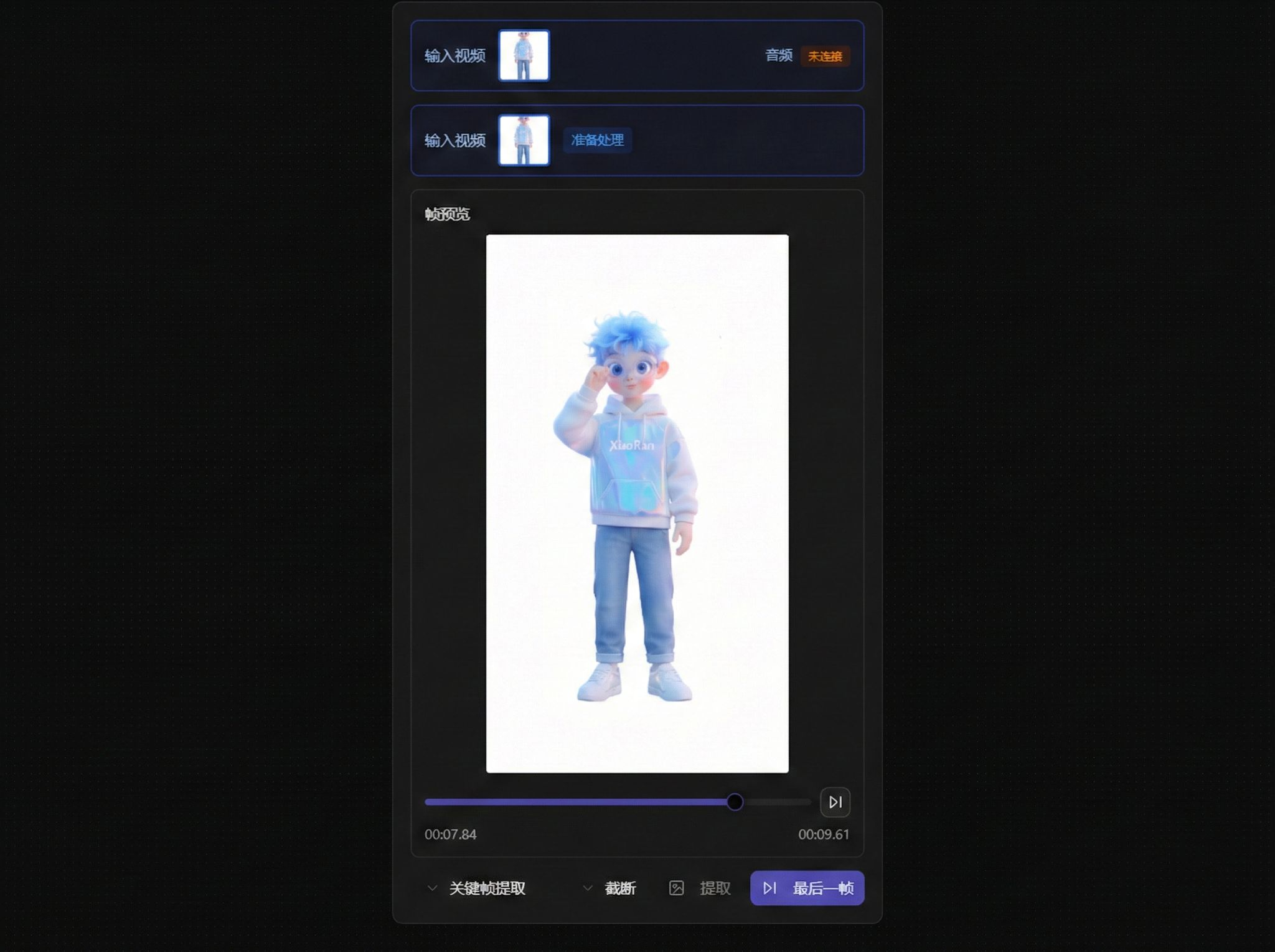
| Keyframe Extraction | Extract any frame from video |
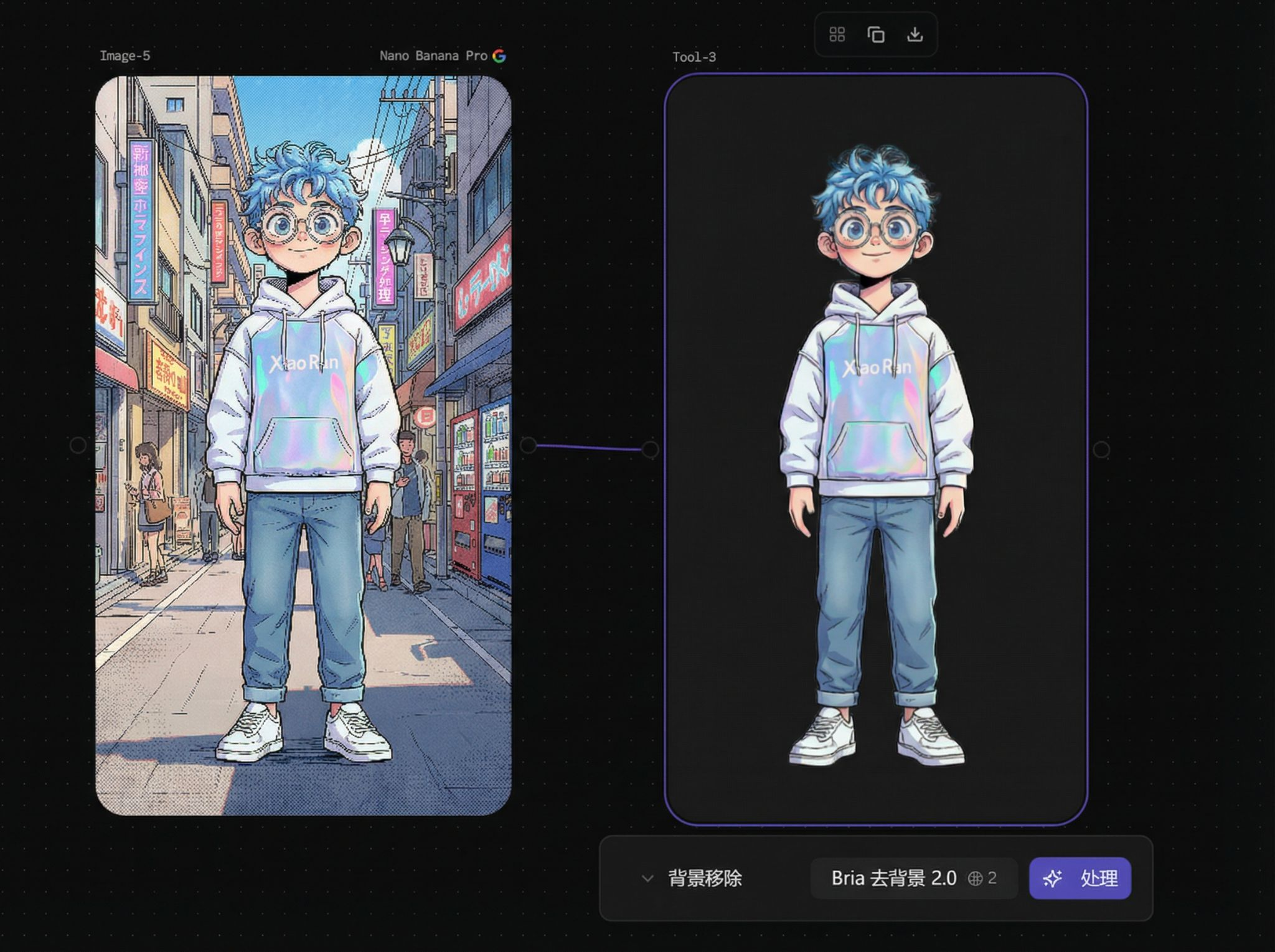
| Background Removal | One-click cutout to transparent PNG |
| Layer Processing | Multi-image layering or compositing |
Basic Usage
Tool nodes are in the bottom toolbar (Tool bar):
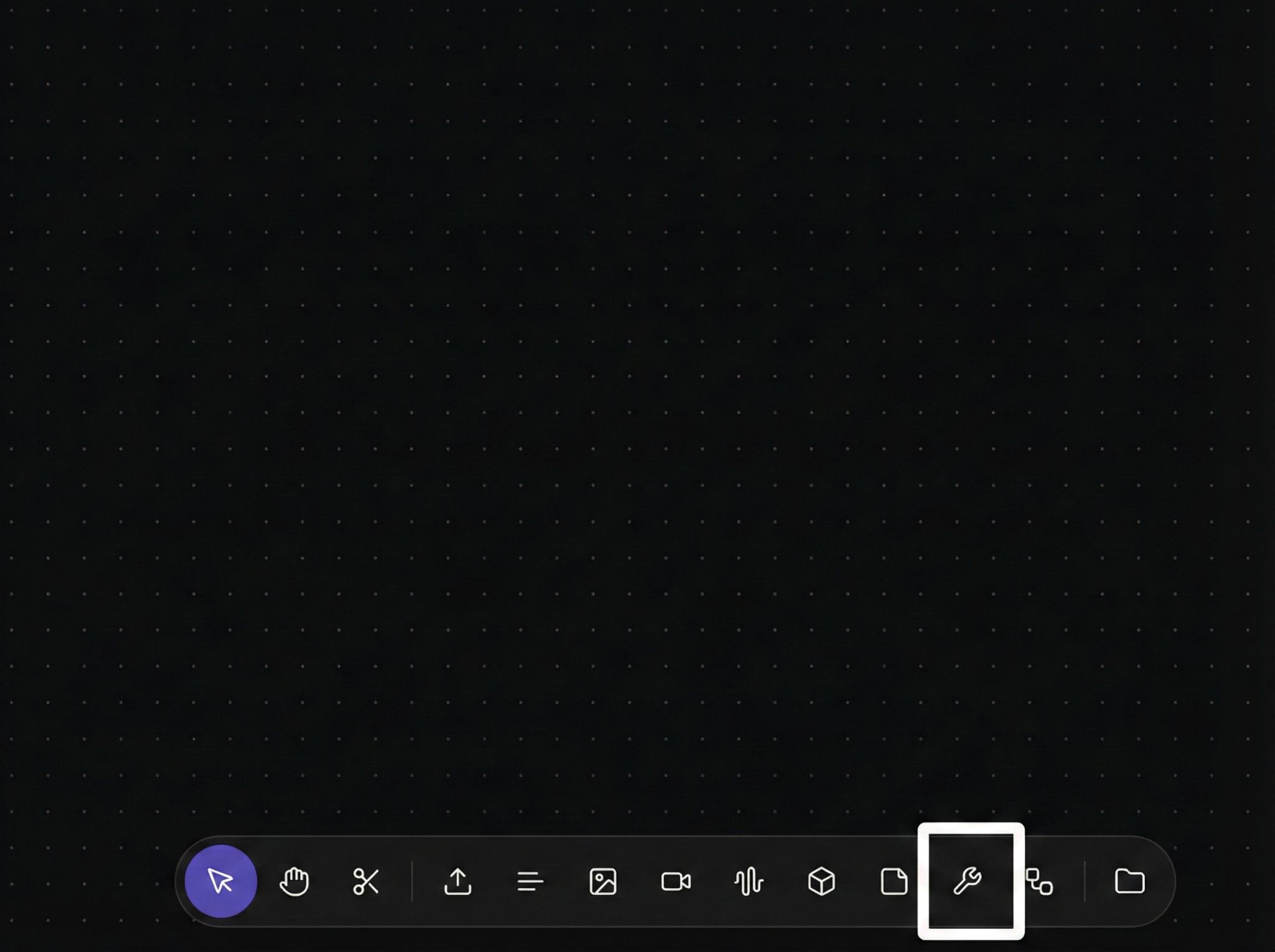
Drag to canvas, select corresponding tool, and connect upstream input.
Image Upscale
Recraft Image Upscale
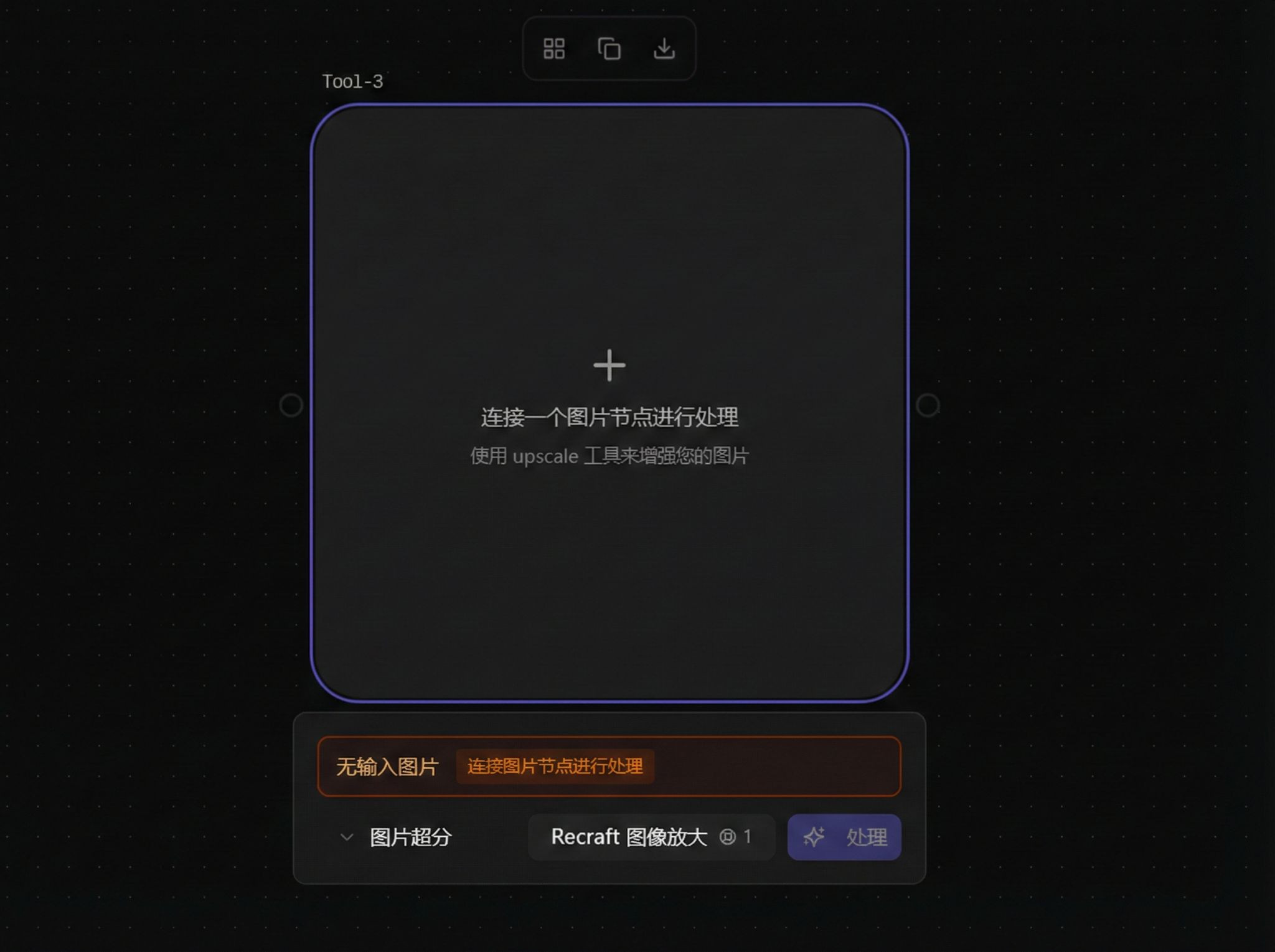
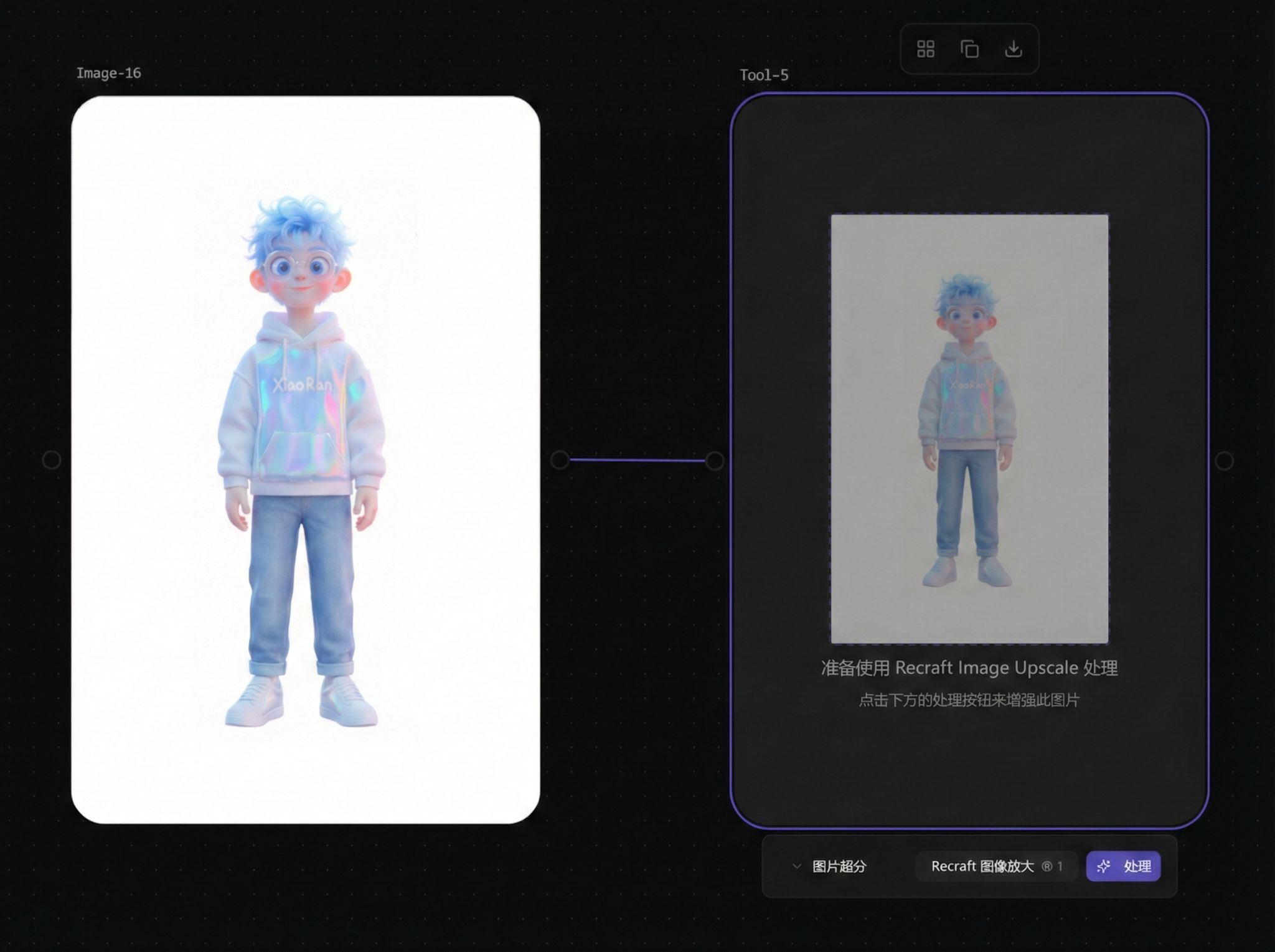
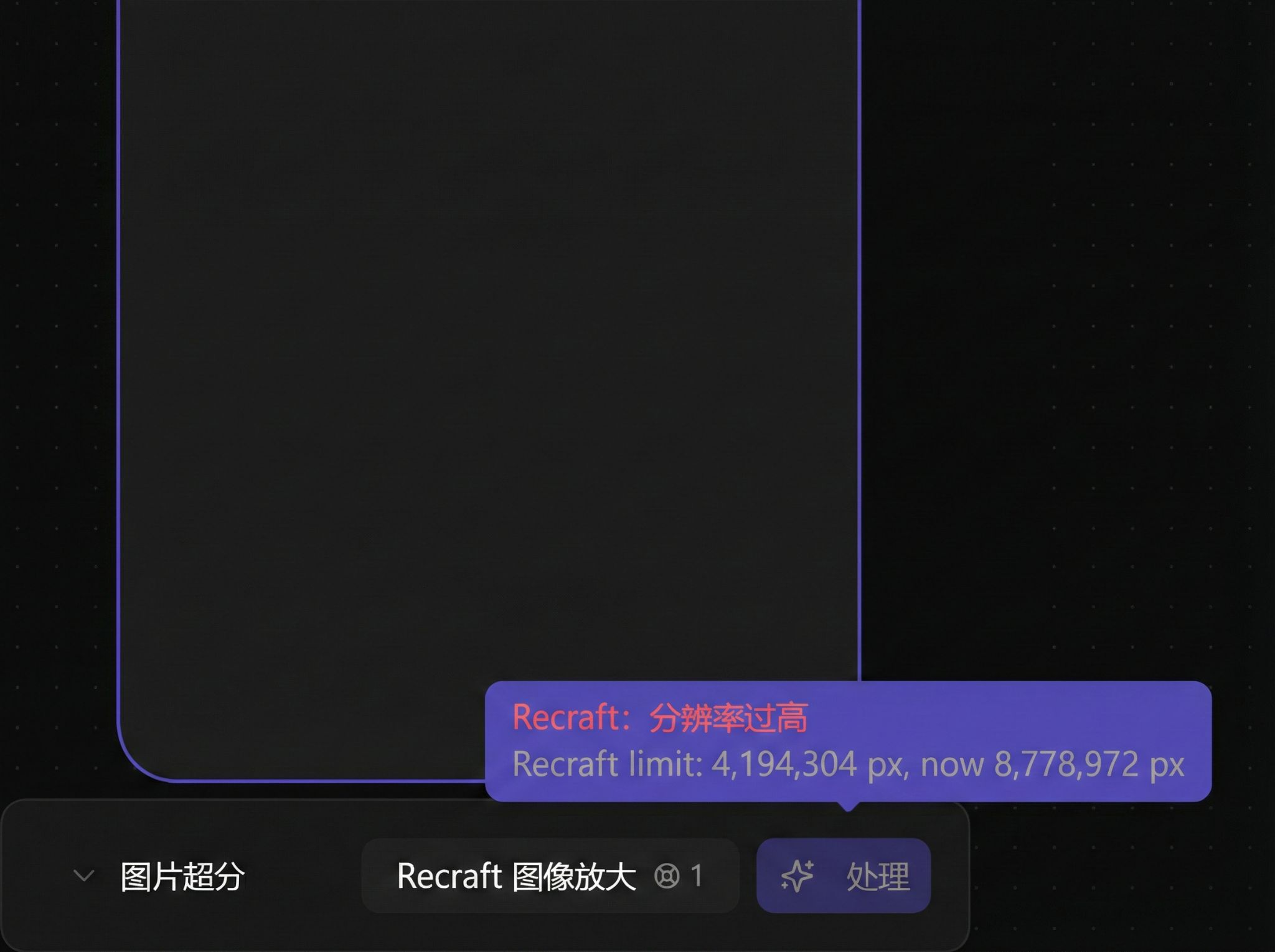
Original images with too high resolution may not work with Recraft:
Topaz Image Upscale
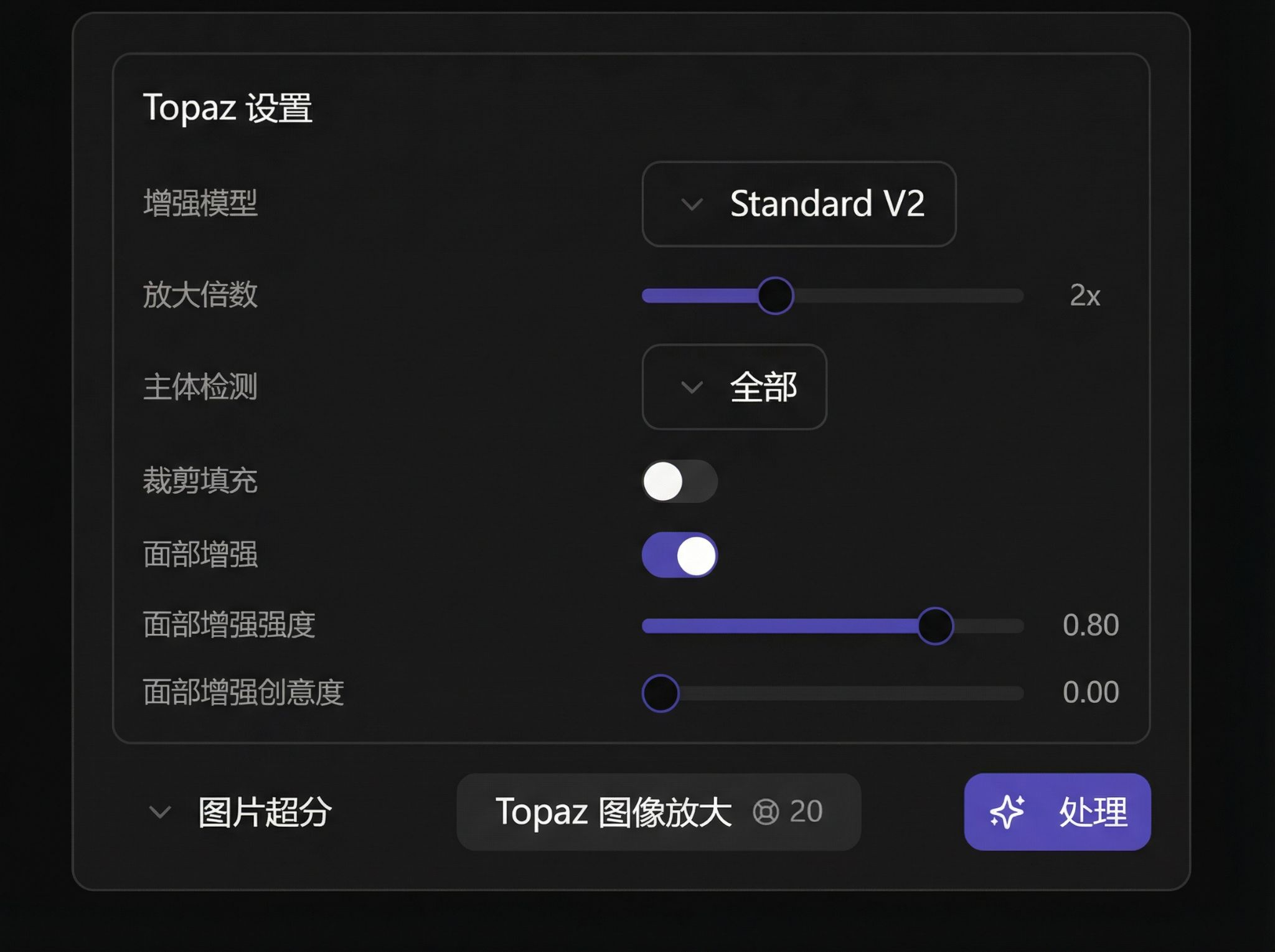
After selecting Topaz mode, can upscale high-resolution images:
Video Upscale
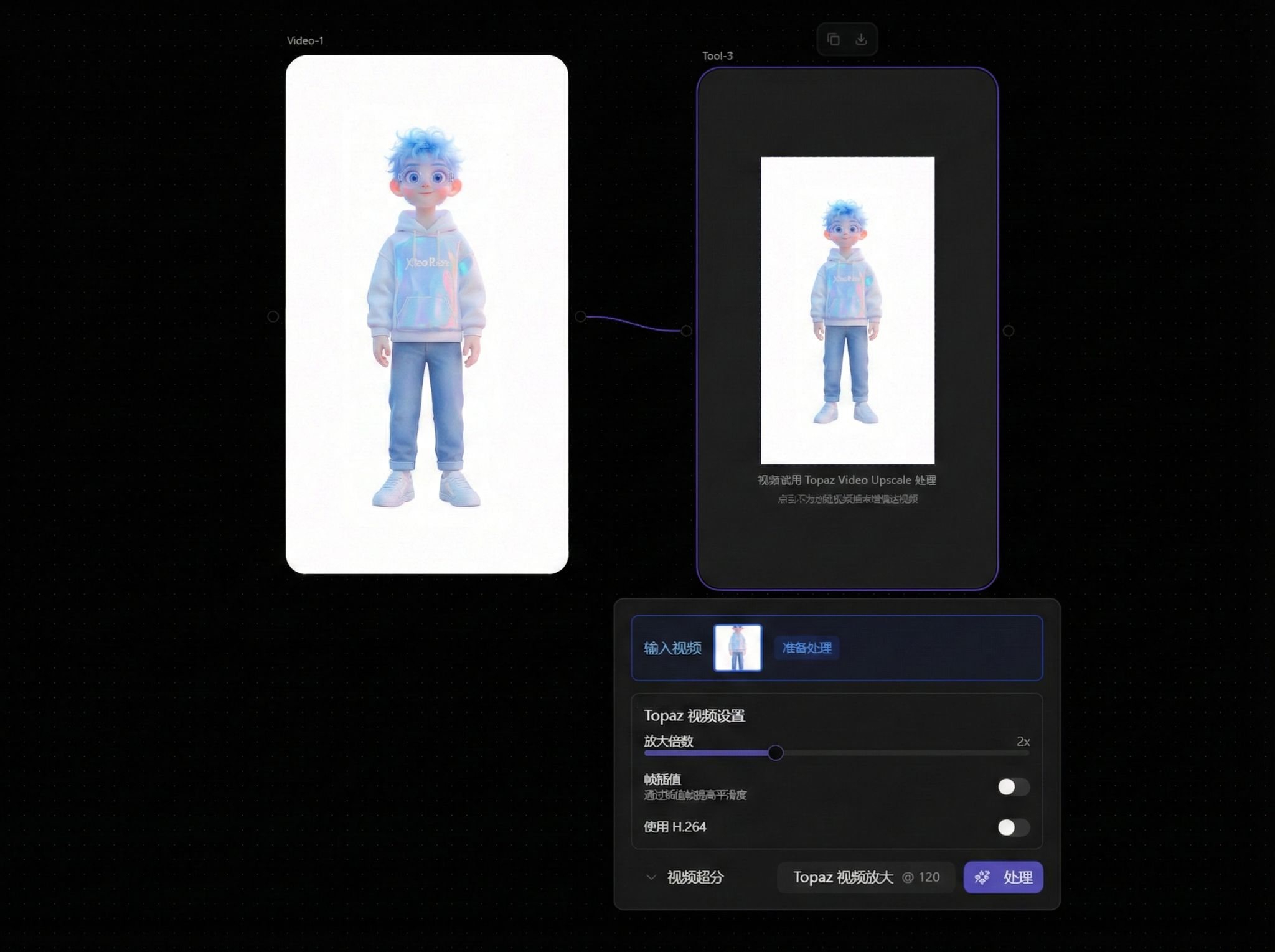
Topaz Video Upscale
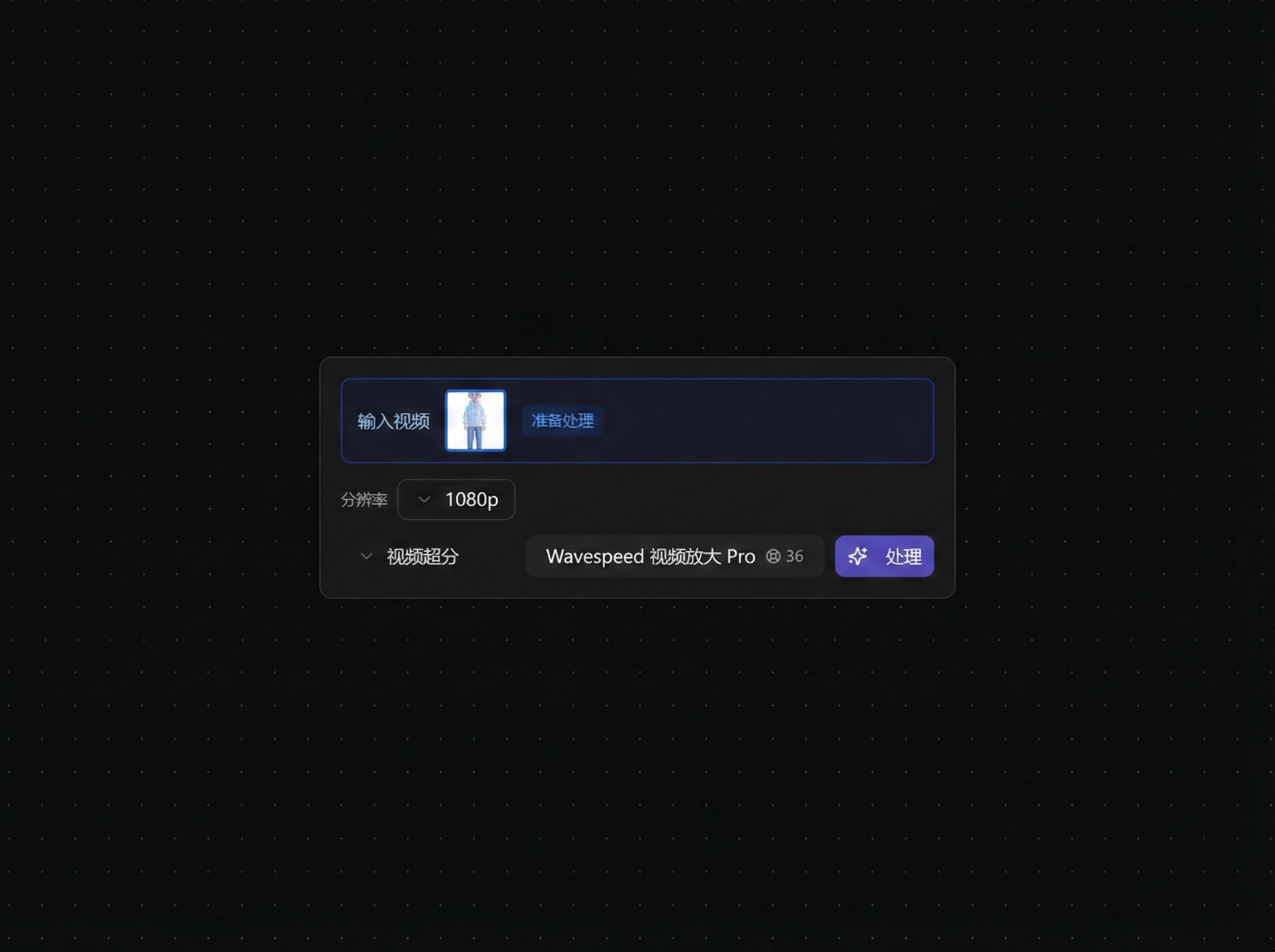
Wavespeed Video Upscale Pro
Video Editing
Trim Video
Connect a video node, set Start Time, then choose whether to trim by Duration or End Time.
The tool keeps the output as a video node-compatible result, so you can chain:
Video -> Tool(Trim Video) -> Tool(Video Upscale / Lipsync)
Image Drawing
Enter drawing interface:

Brush tool:
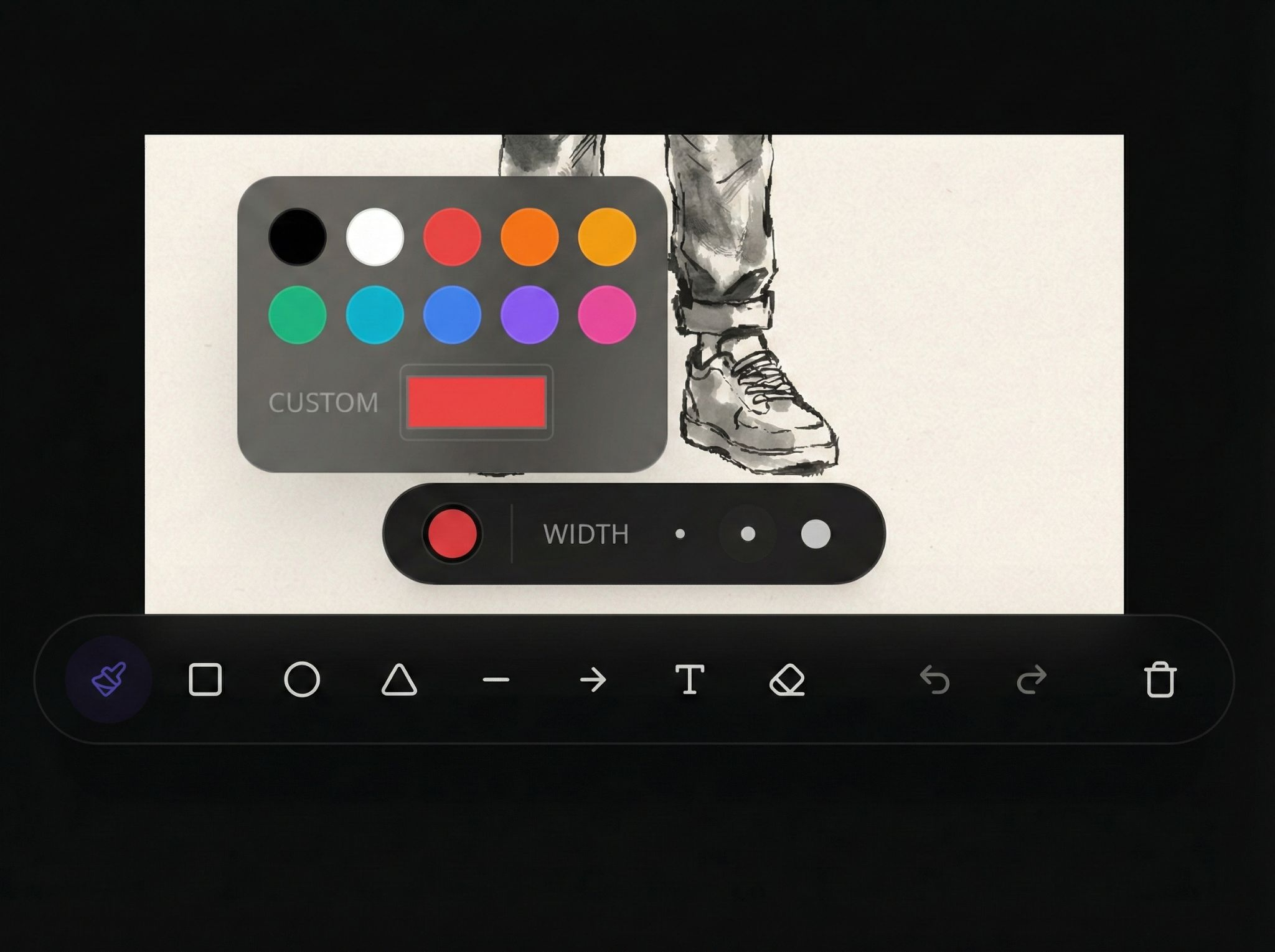
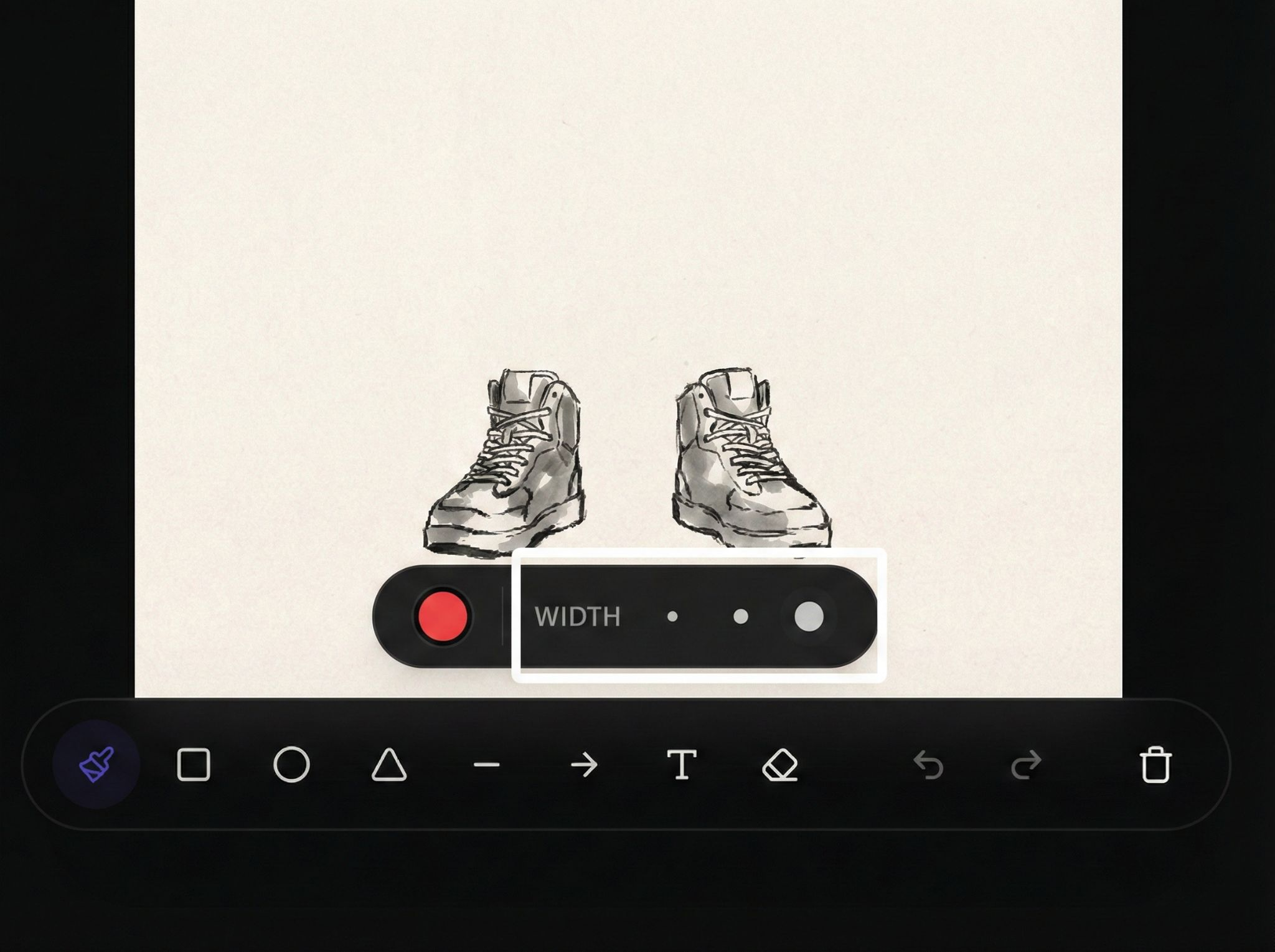
Adjust brush size:
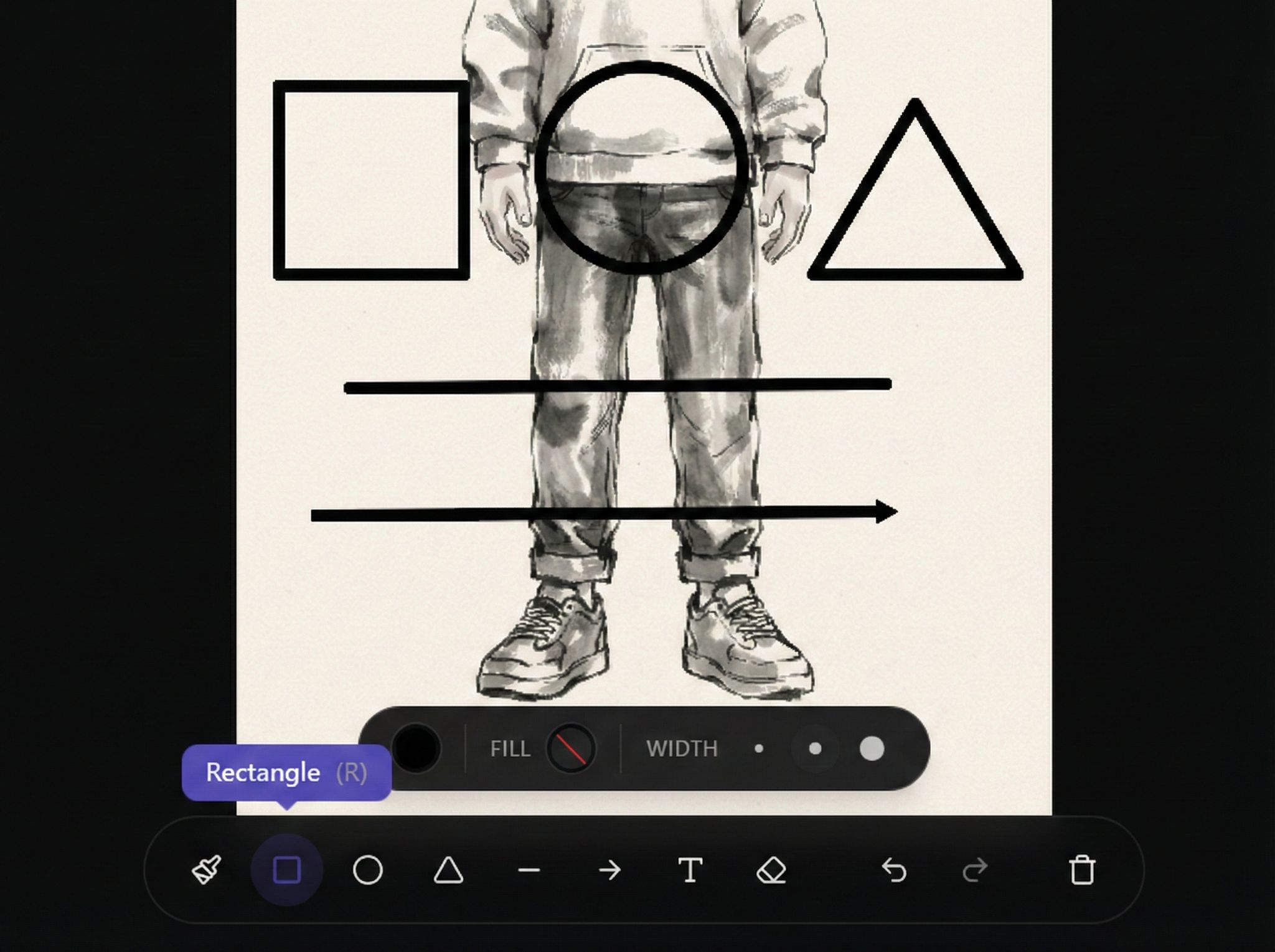
Vector tool:
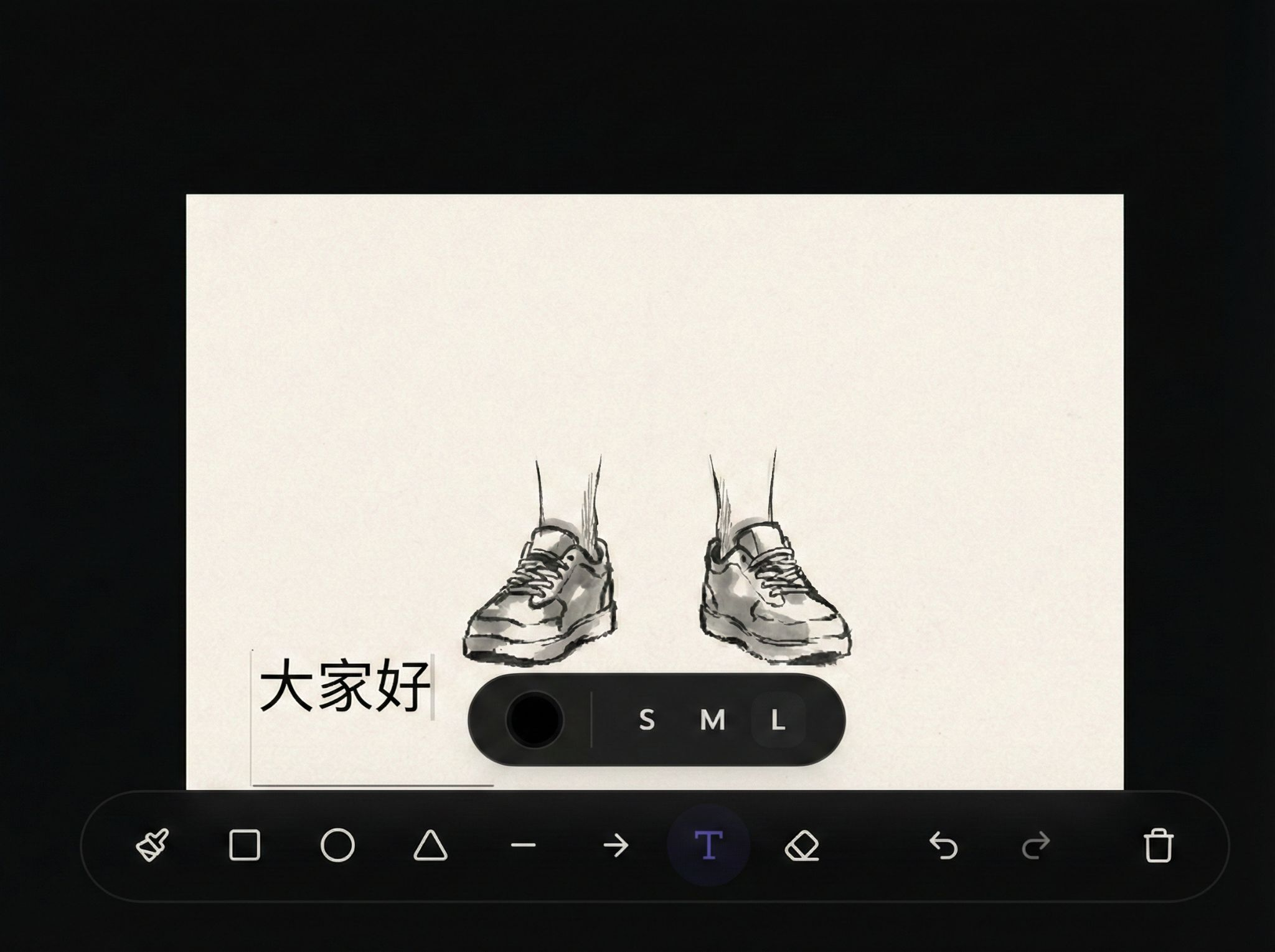
Text tool:
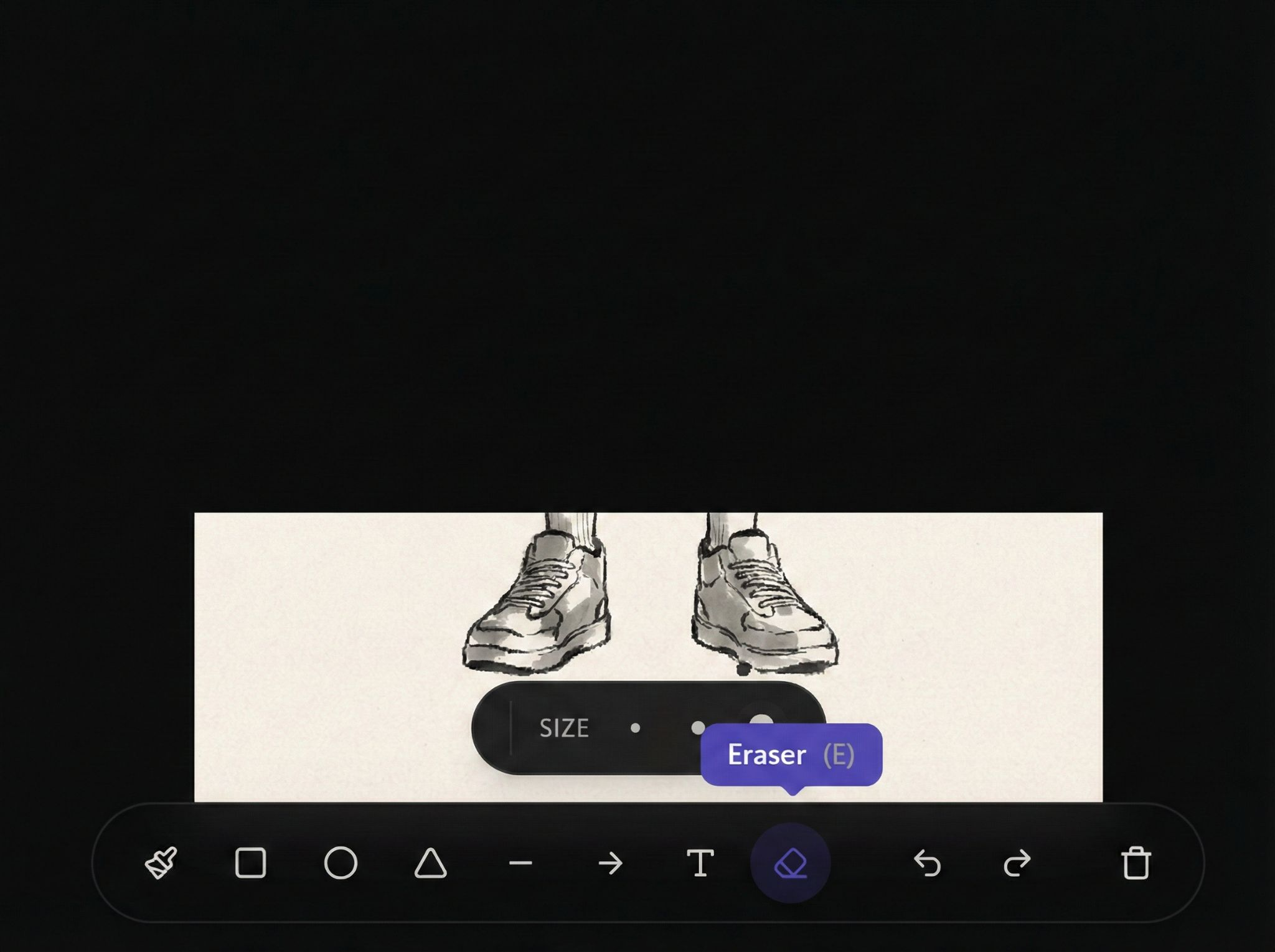
Eraser:
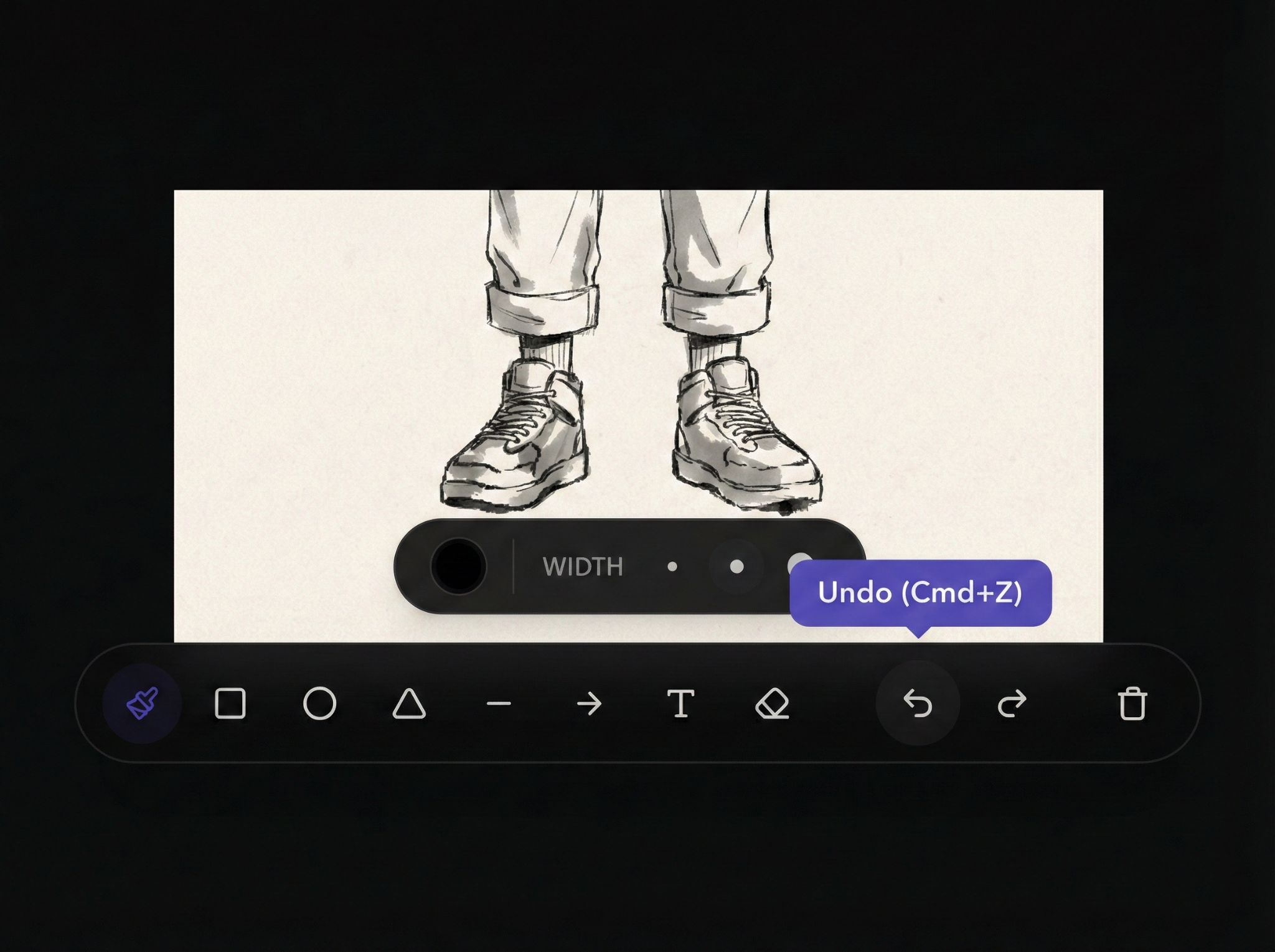
Undo / Redo:
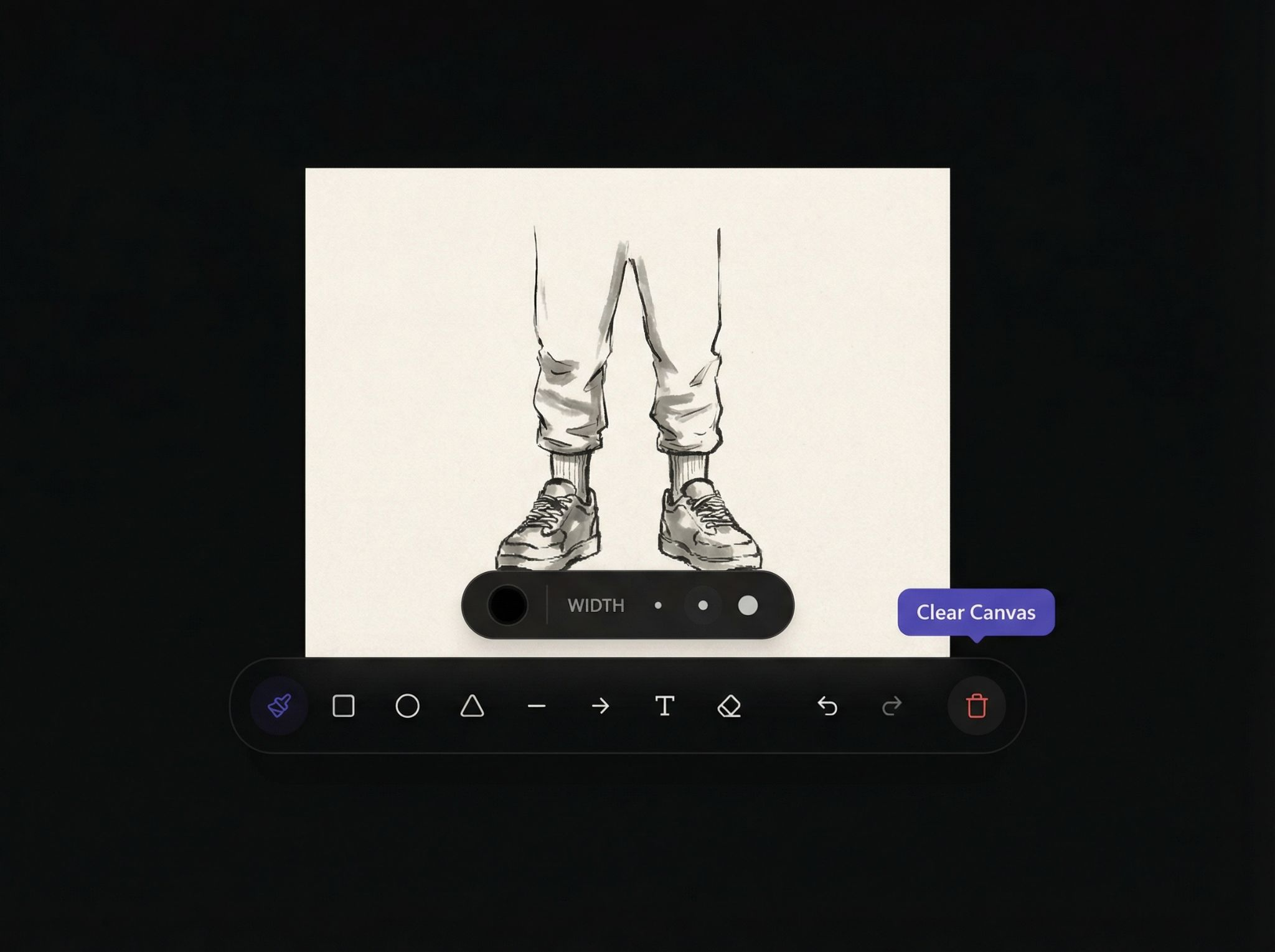
Clear canvas:
Example: Local modification then regenerate:
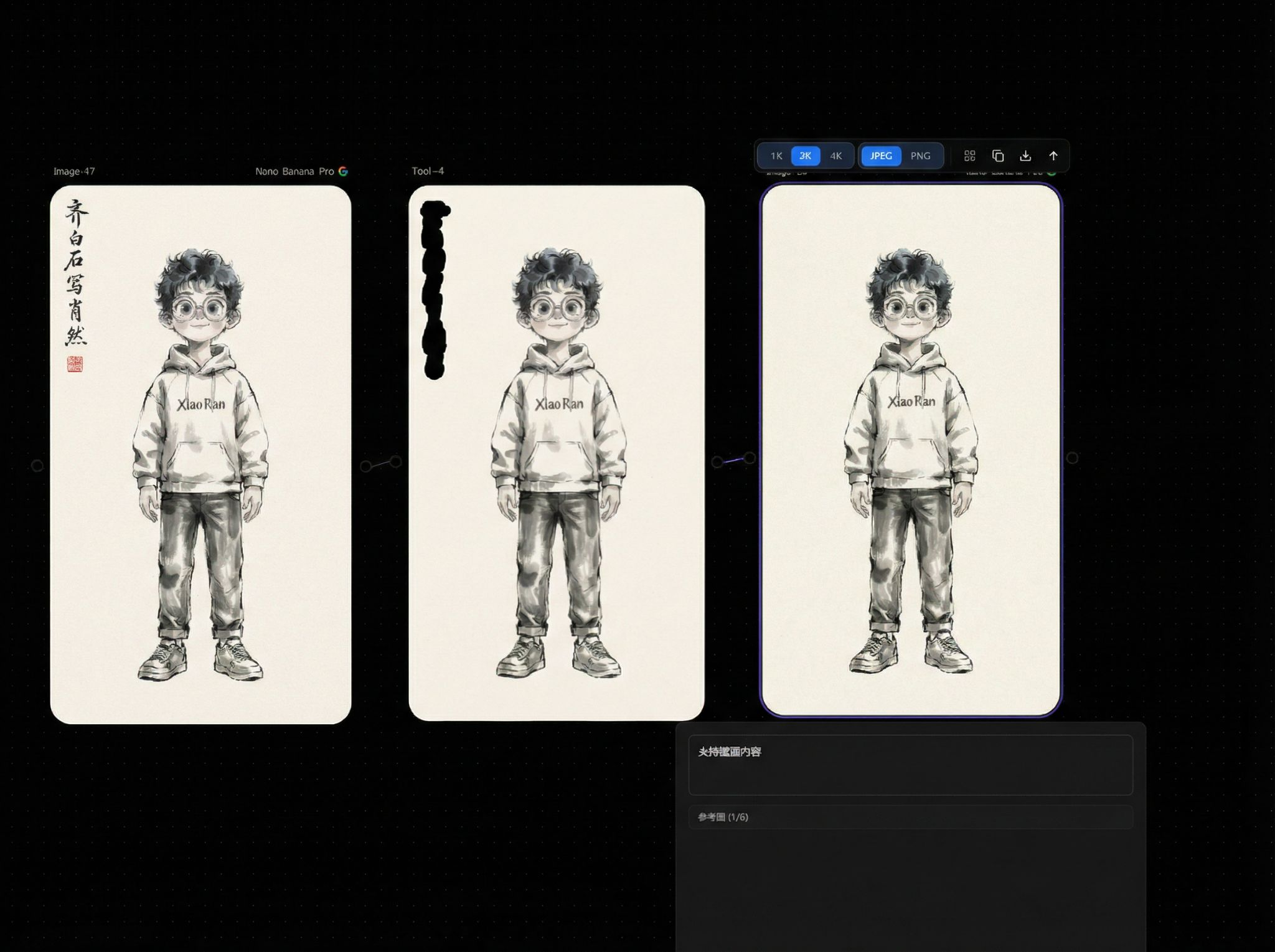
Mask Editor
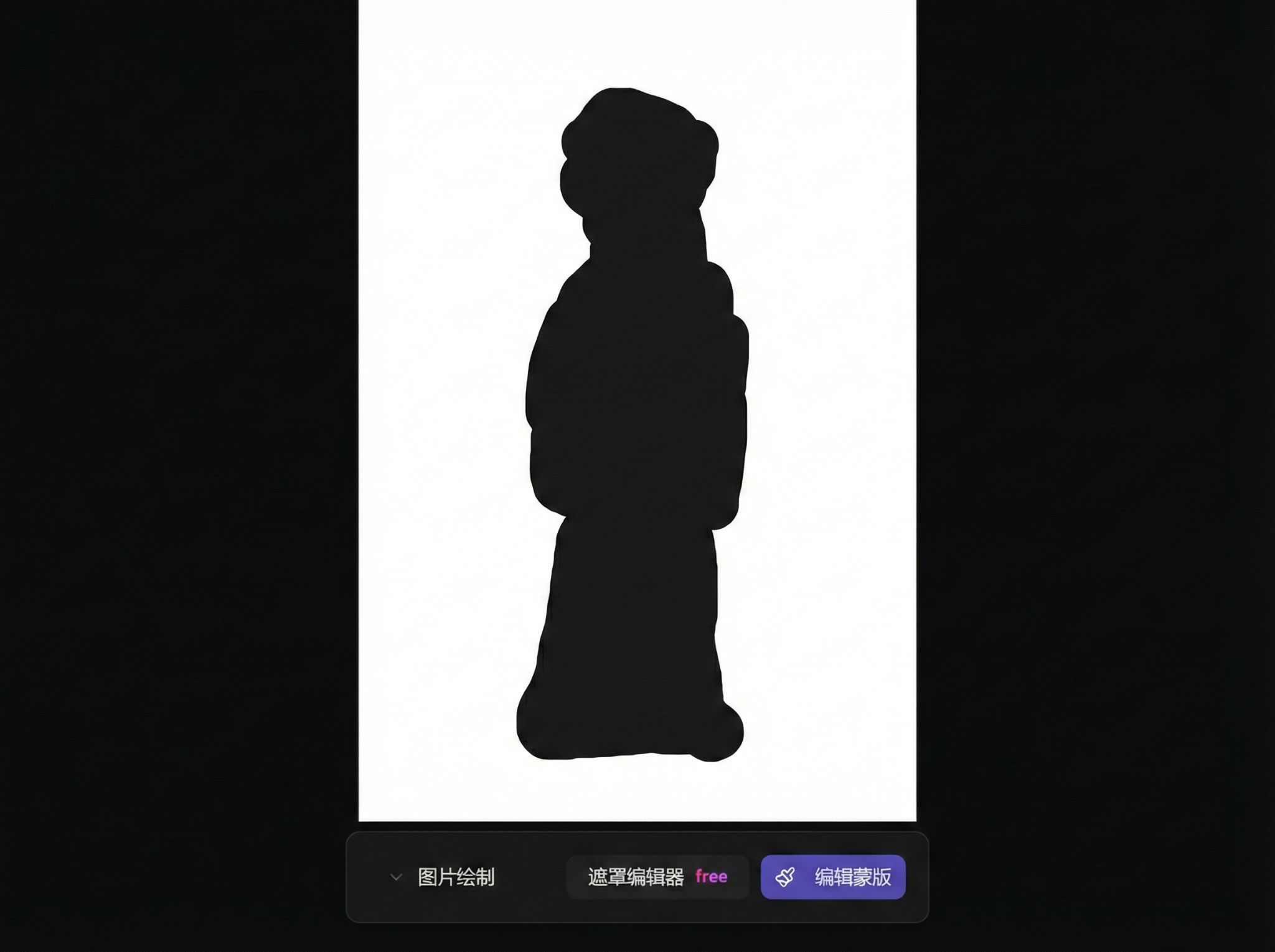
Image Crop
Single crop:
Grid crop:
Lip-sync
Requires uploading both video and audio:
Camera Control
Adjust perspective through parameters:
Keyframe Extraction
Background Removal
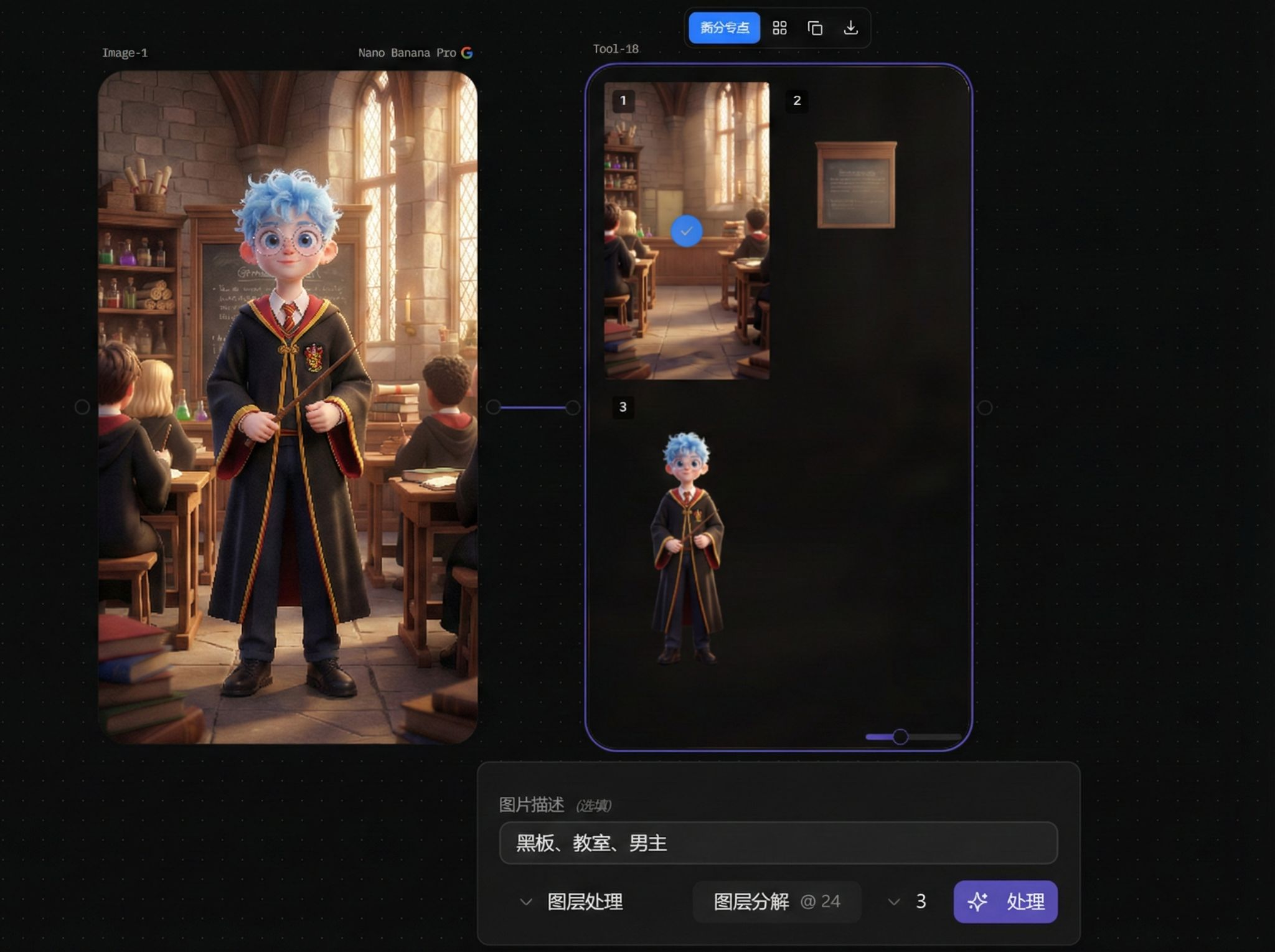
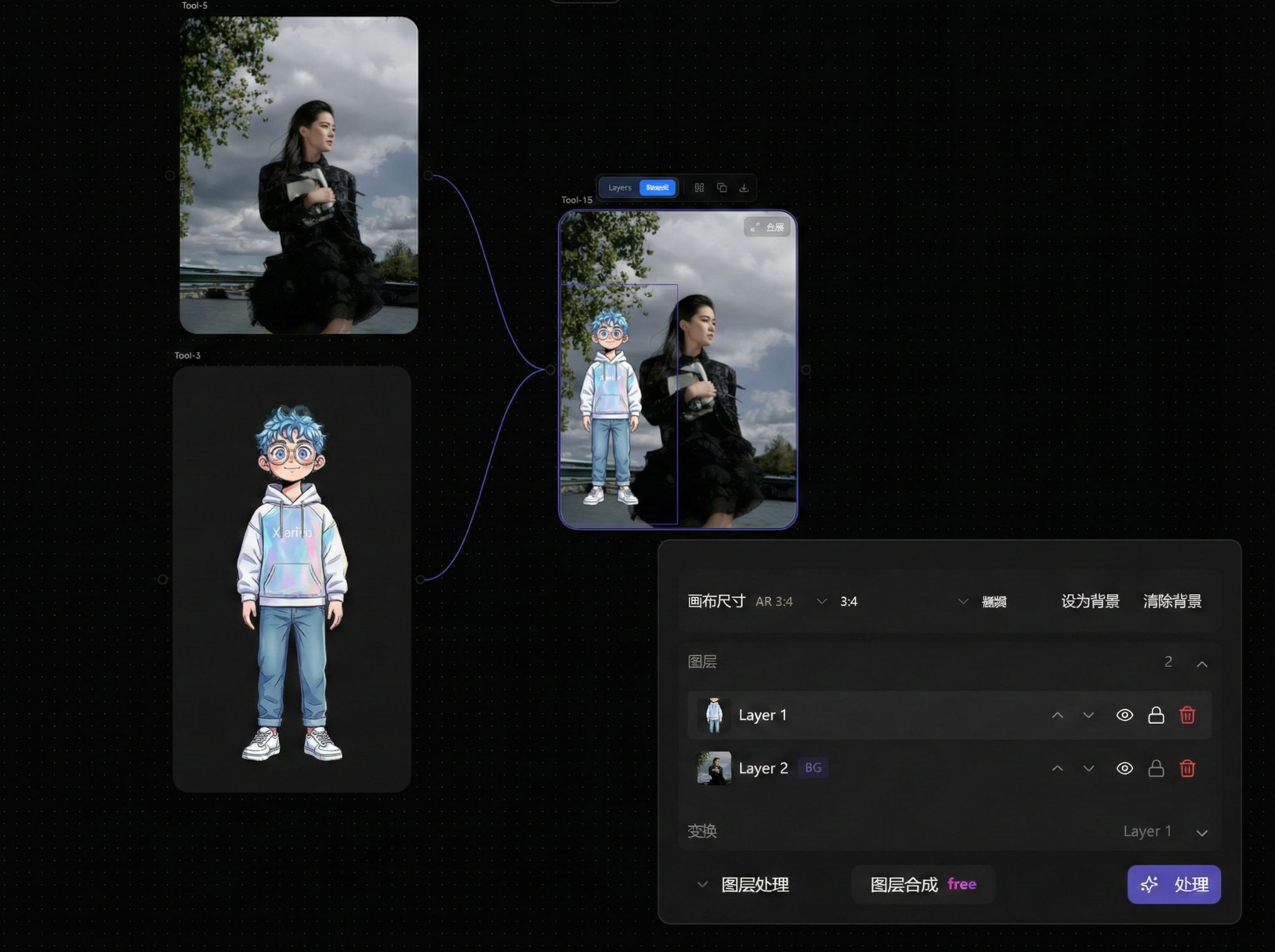
Layer Processing
Layer decomposition:
Layer composition:
Parameters
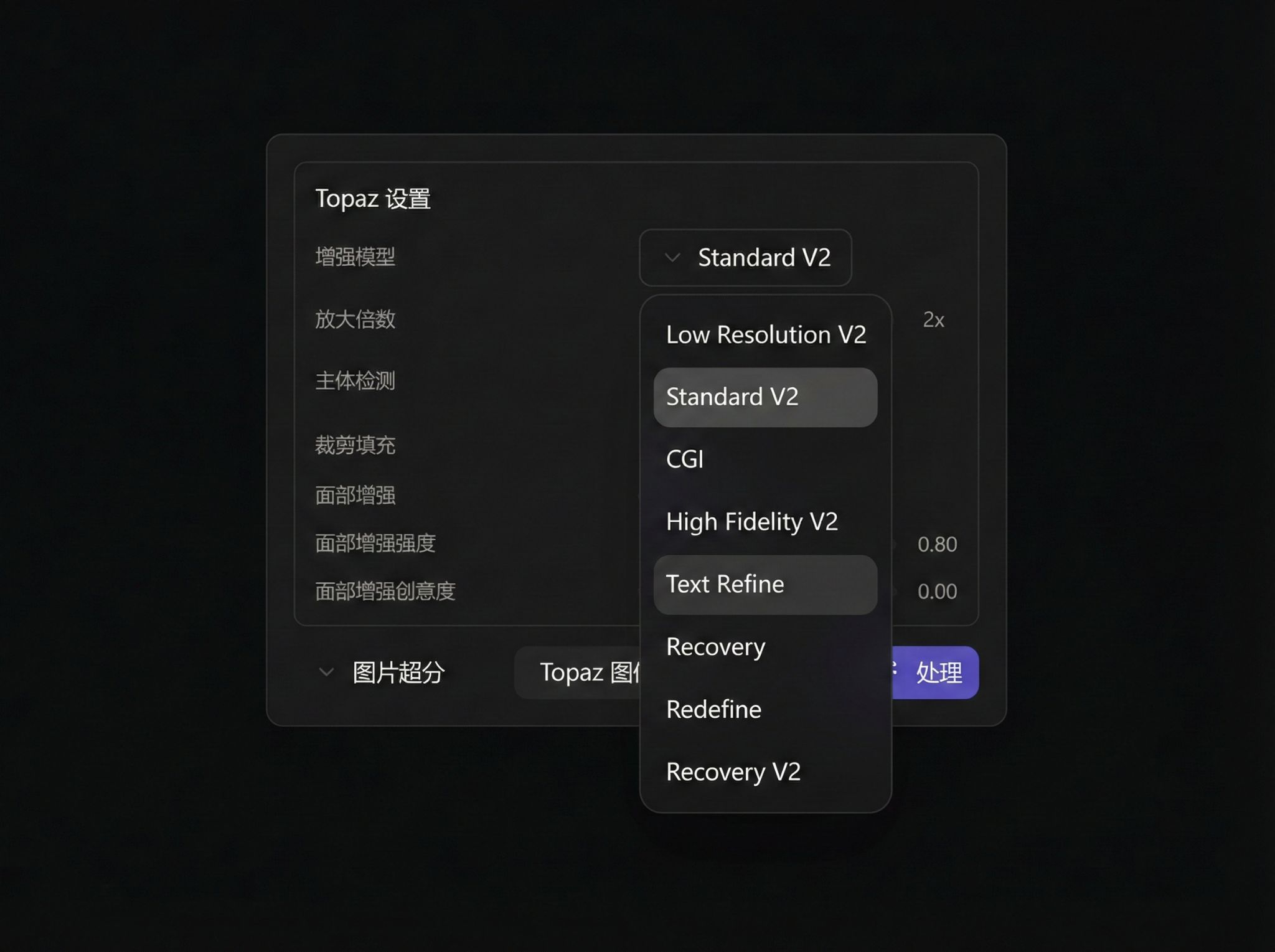
Topaz Image Upscale
- Enhancement Model: Multiple styles available
- Upscale Factor: 1~4x
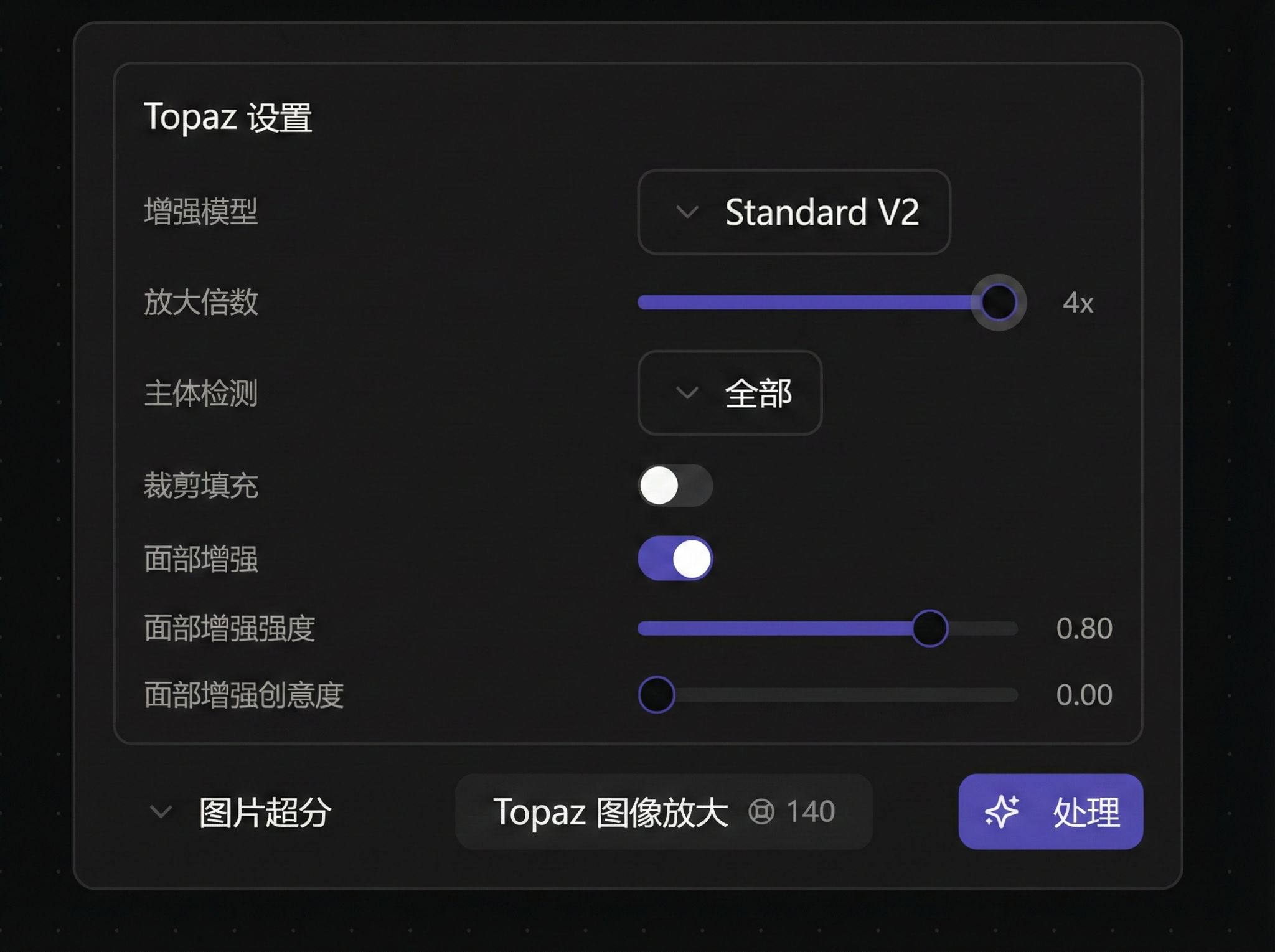
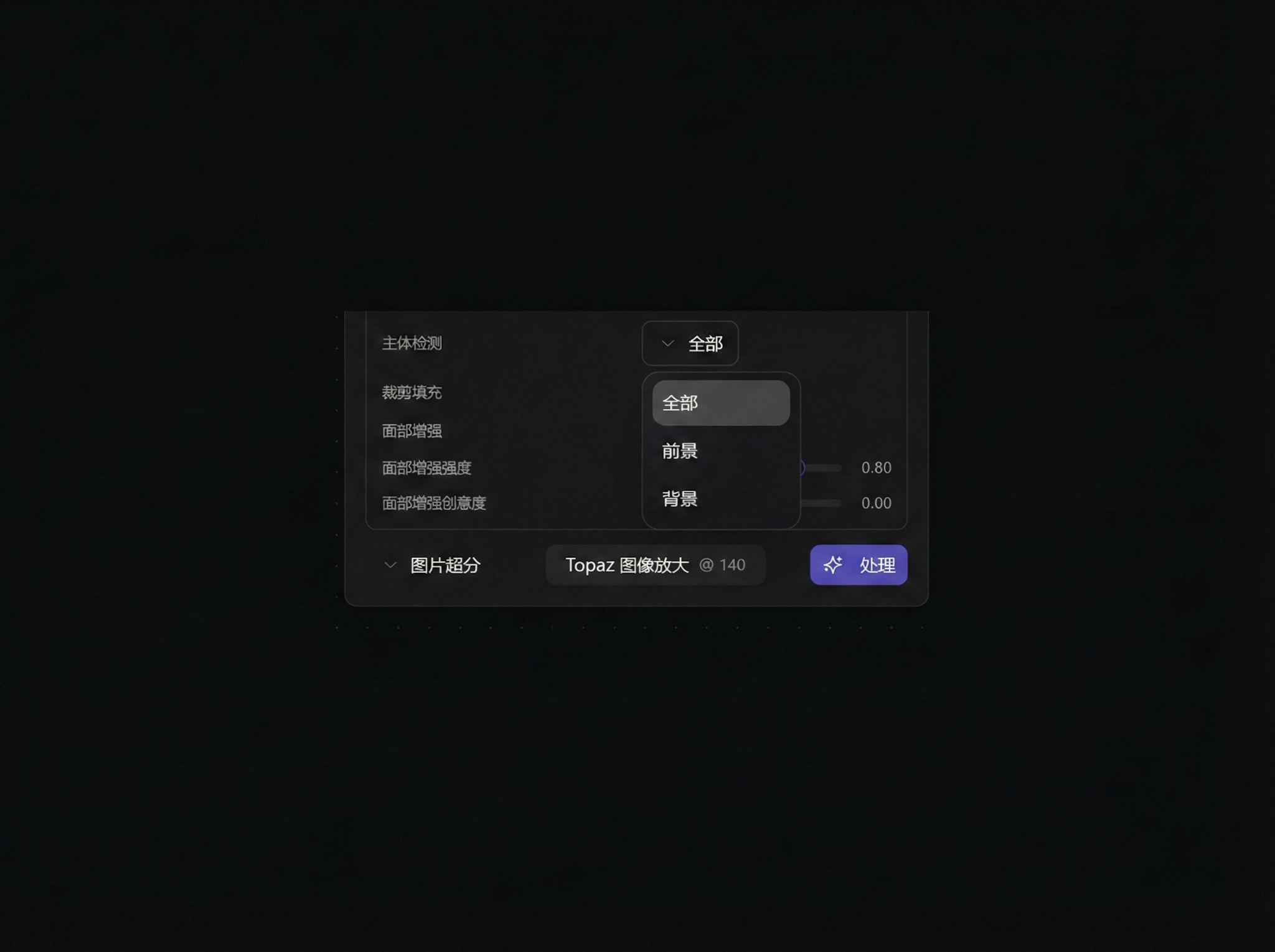
- Subject Detection: All / Foreground / Background
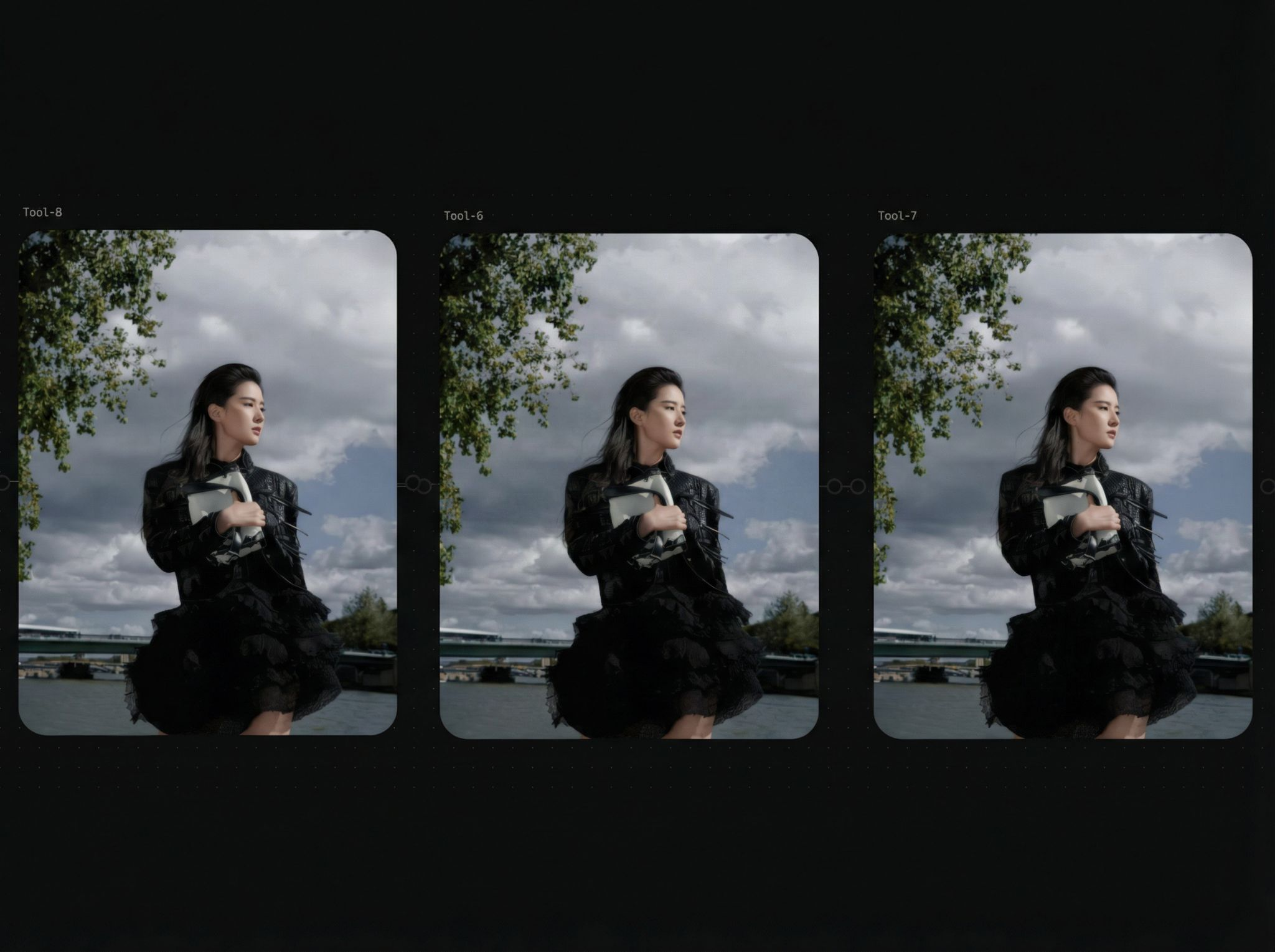
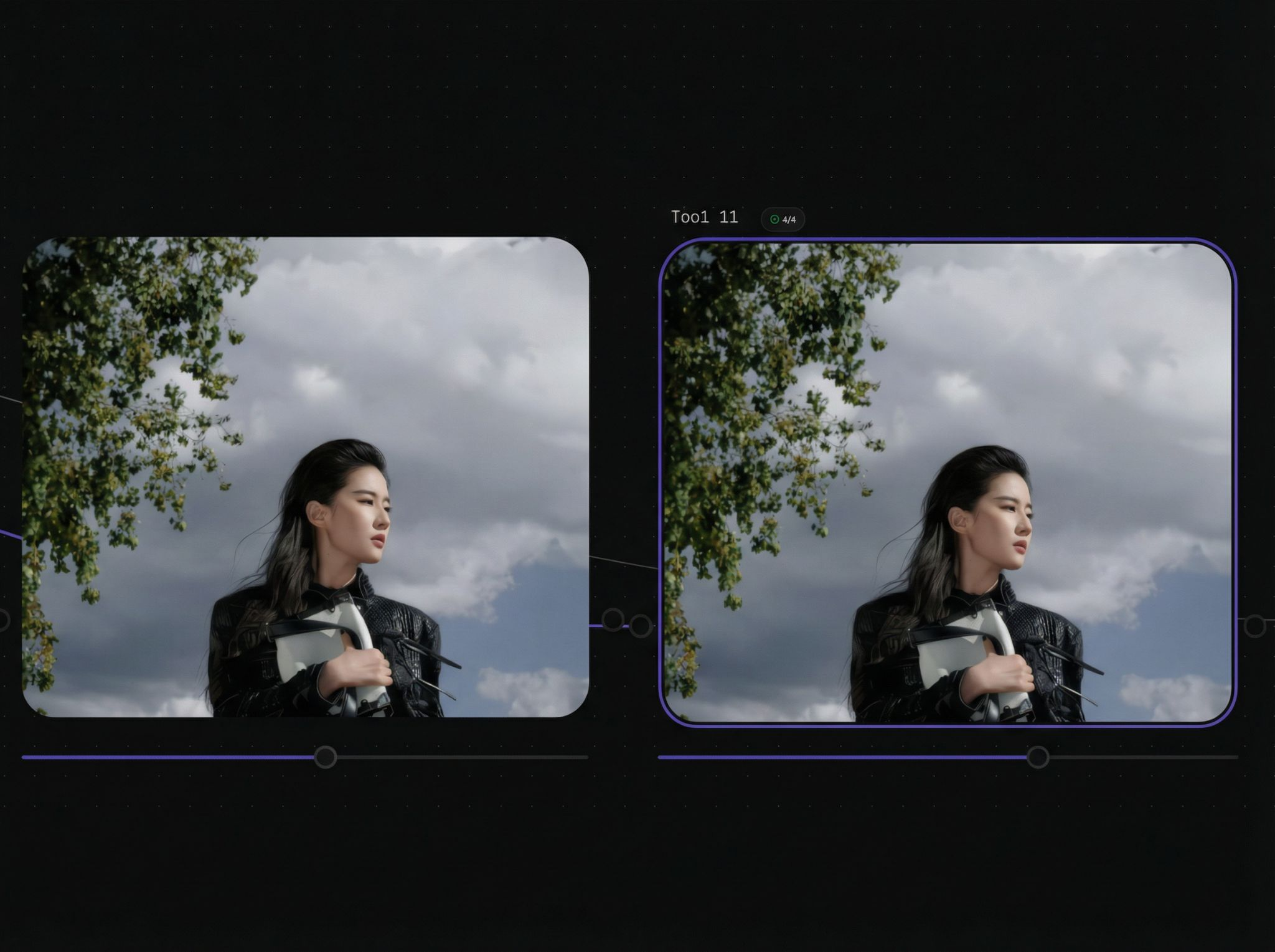
- Comparison Example
- Face Enhancement
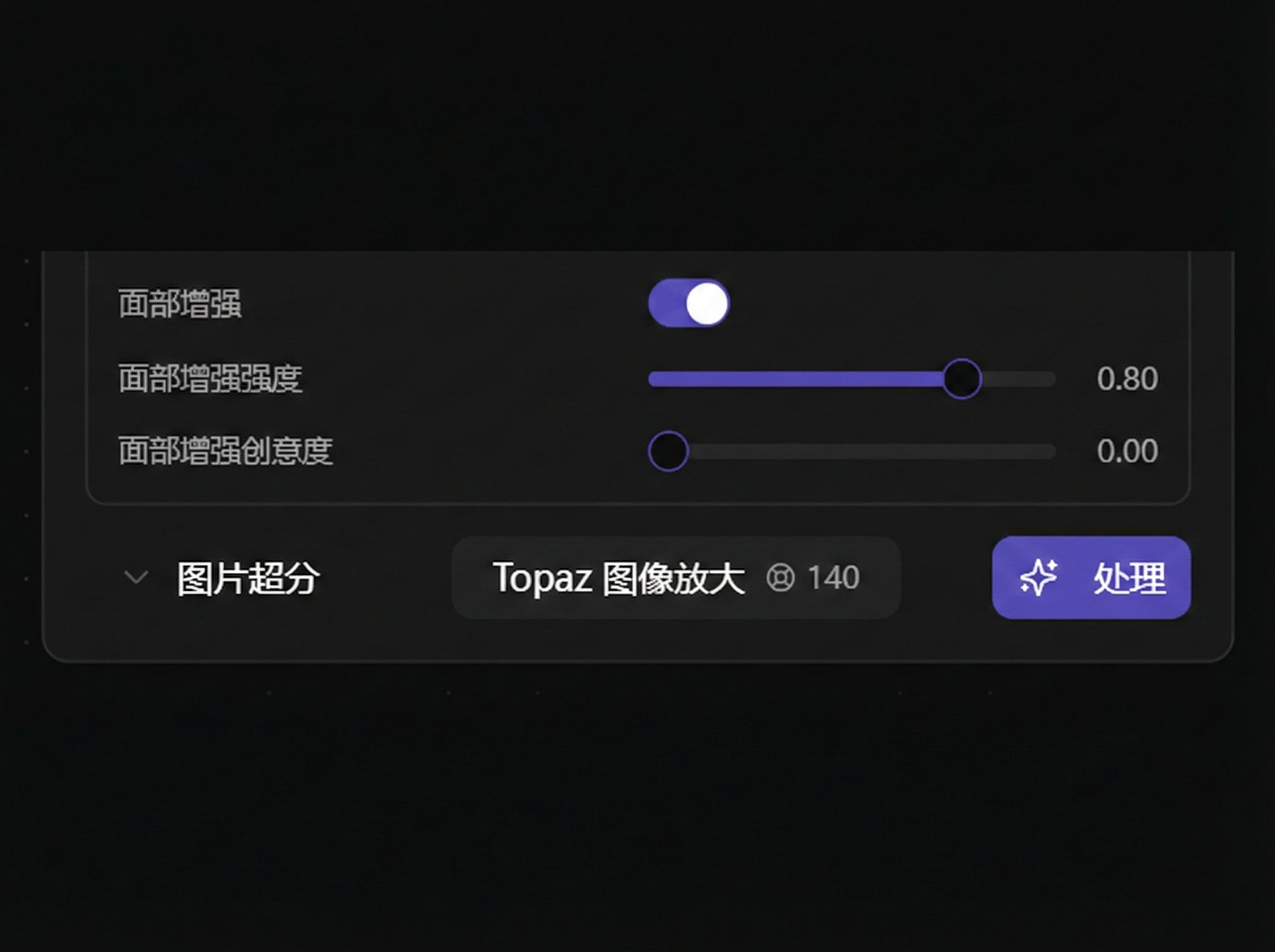
- Face Enhancement Strength
Video Upscale
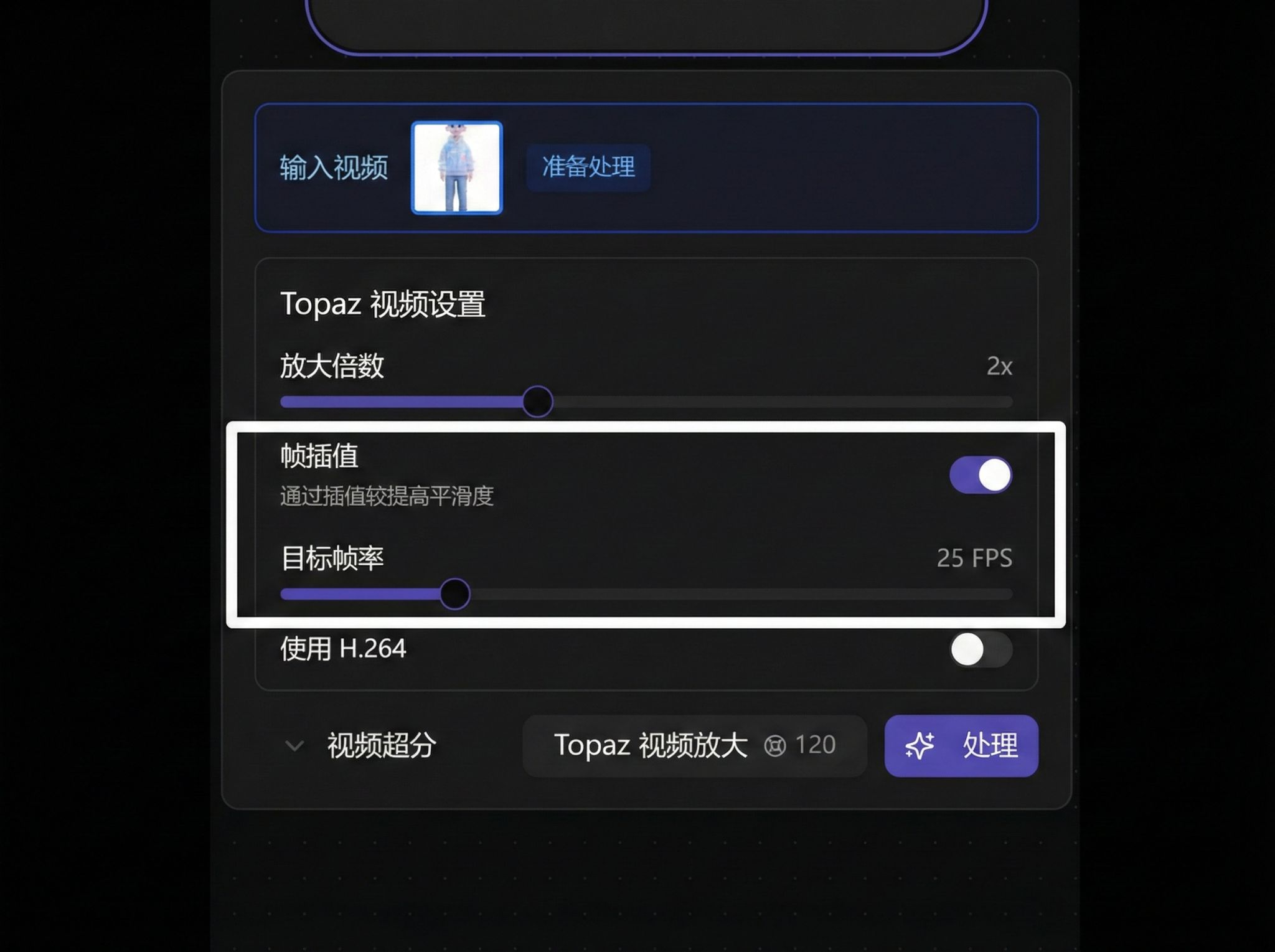
- Frame Interpolation: Up to 60fps
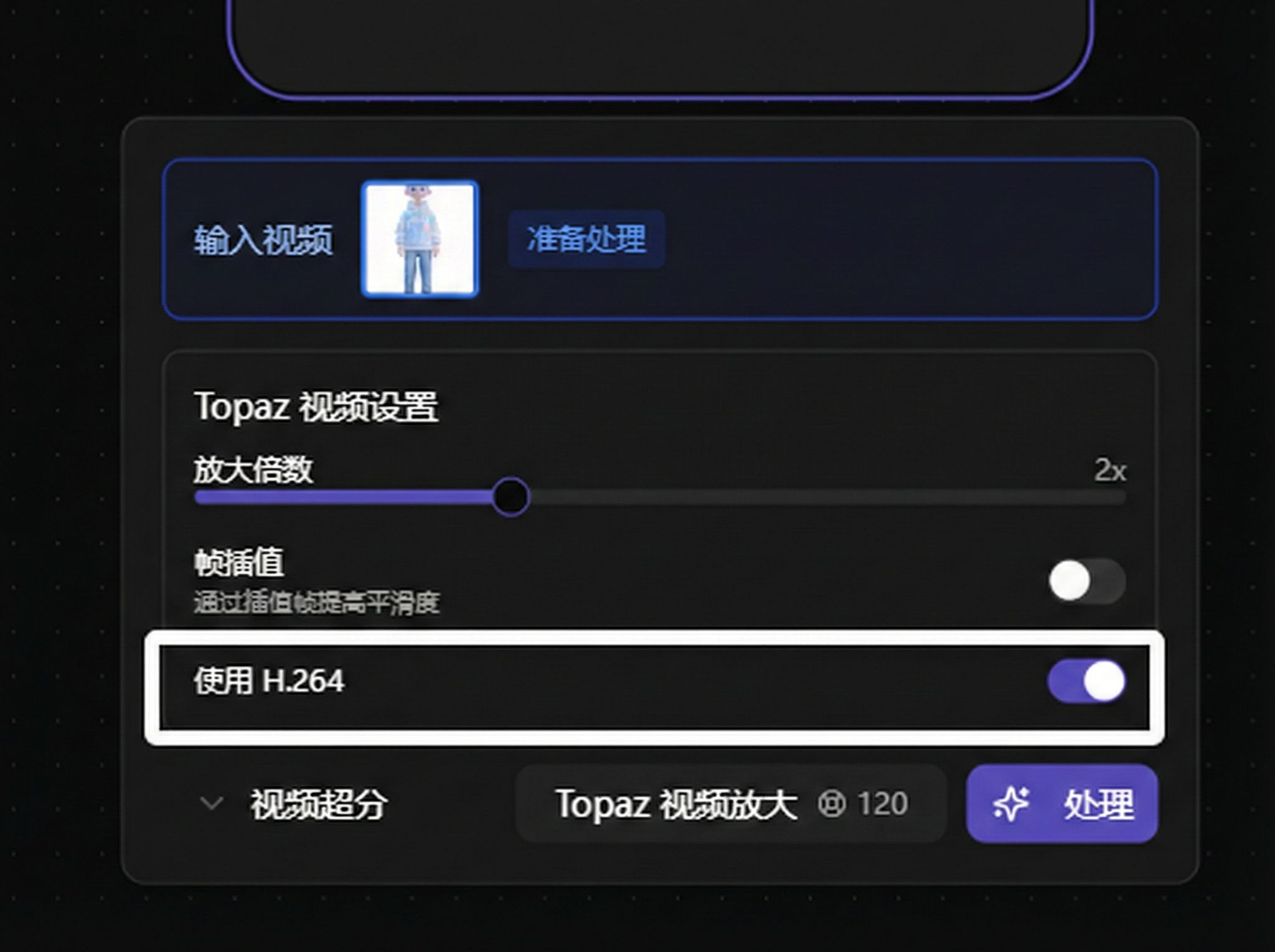
- Use H.264
Chain Processing
Tool nodes support chain processing (Tool → Tool):
Image → Tool(upscale) → Tool(background removal) → Tool(restoration)
Common Usage Tips
- Upscale first then restore for clearer details
- Multiple drawing/mask sessions can be processed step by step to avoid excessive one-time modifications
- For video upscale, recommend confirming target resolution first to avoid repeated processing
- Layer processing suitable for multi-image composition and character separation scenarios